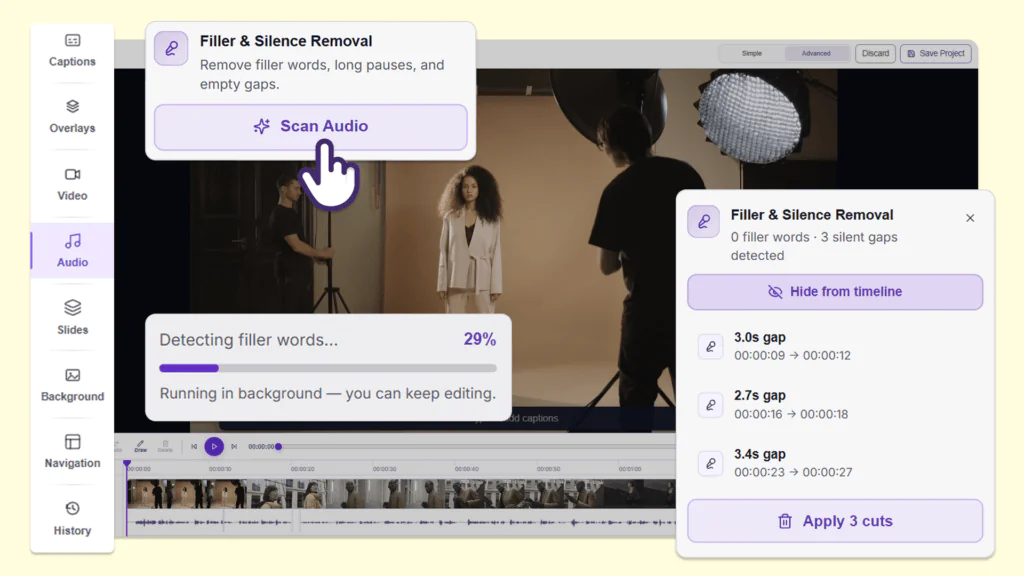
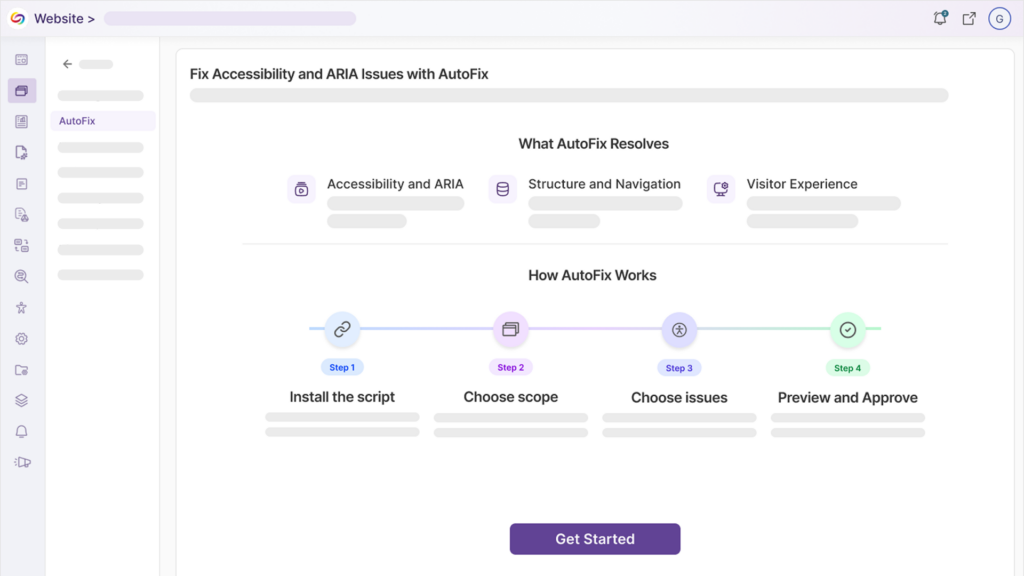
Over the next few weeks, the YuJa Lumina Video Platform will be adding features such as direct caption editing in the Video Player, a redesigned integrations menu, the ability to toggle auto-scrolling when editing EAD, and additional enhancements to the Video Player that improve user workflows for faculty and students alike.
-
Effortlessly Edit Captions Directly from the Video Player Sidebar
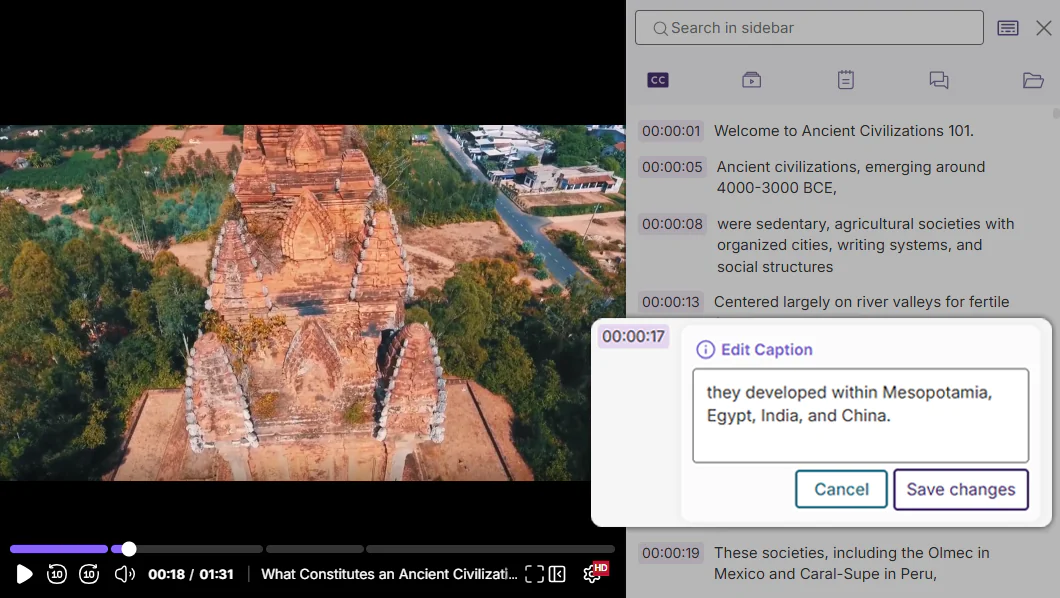
Content creators will now be able to edit captions directly from the Video Player sidebar, enhancing the caption-editing workflow and providing more options for how they edit their captions. This optimized workflow removes the need to open the Lumina Video Editor, while still allowing captions to be edited inline.
-
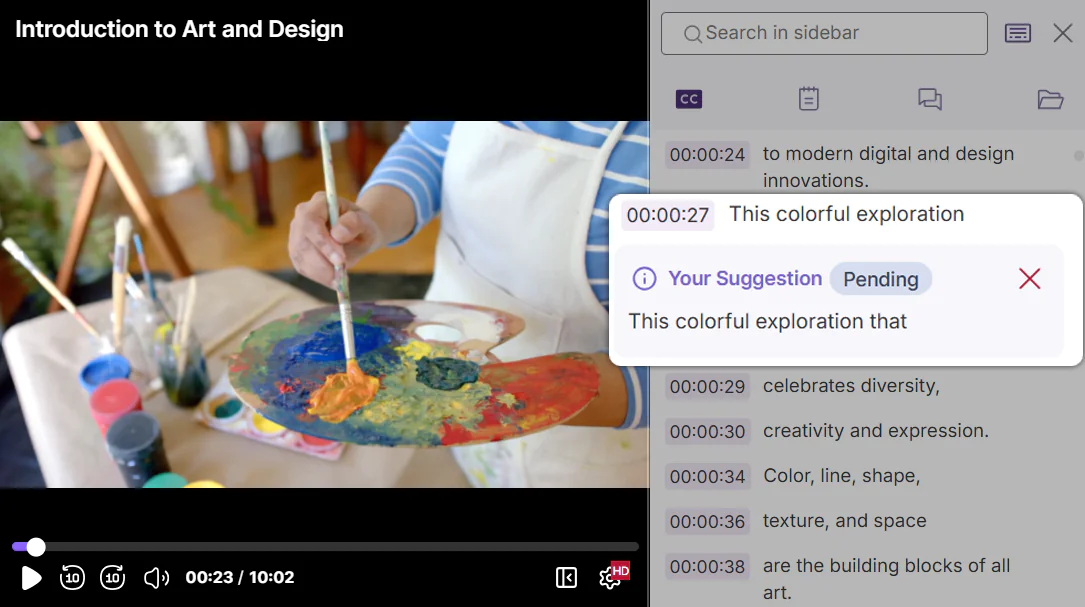
Viewers Can Now Propose Corrections for Captions
While watching videos, viewers can now use the Video Player sidebar to suggest clarifying corrections for captions. By using the Suggest Correction feature, a viewer can propose a fix for typos or timing errors in closed captions, which will then be relayed to the video owner to review and accept, allowing the wider community of viewers to help institutions ensure their content is high quality and error-free.
-
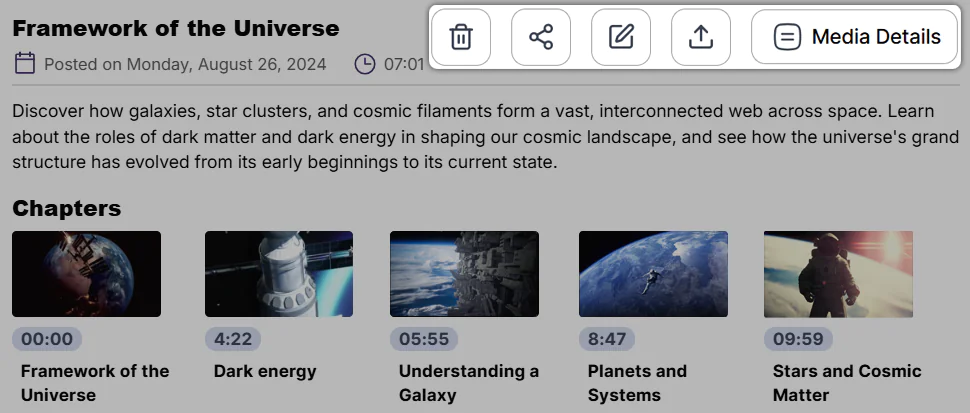
Delete, Share, Edit, and Publish Directly From the Video Player Page
The Video Player’s description box has been updated with new buttons that allow users to move content to the recycling bin, share resources, publish videos to channels, launch the video editor, and view media details, all from directly within the page. By providing users with a shortcut to these functions, the need to navigate multiple pages to perform key actions has been reduced, introducing a more seamless workflow that enables quicker video management.
-
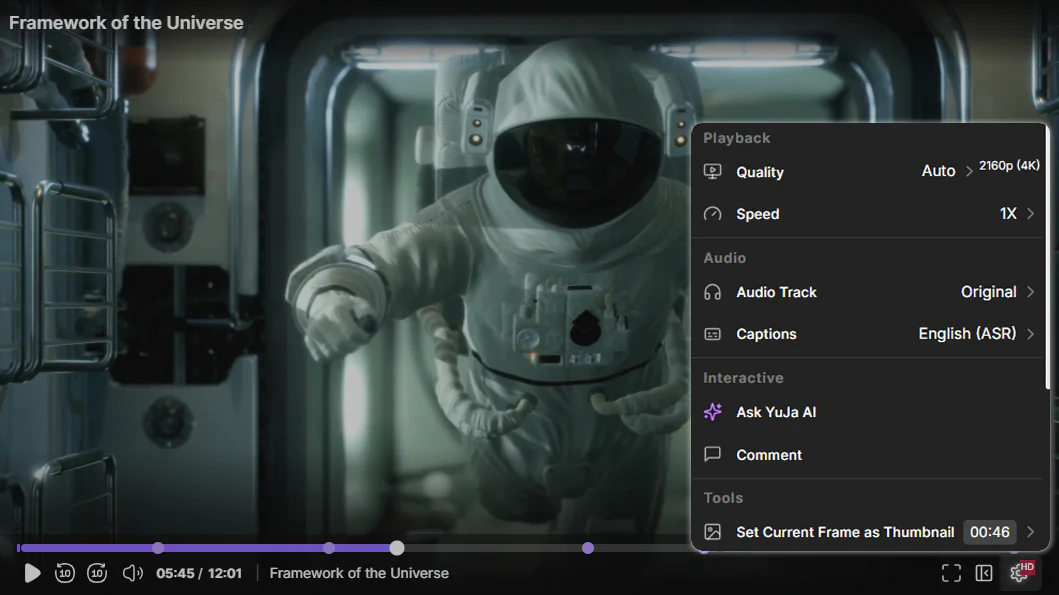
Redesigned Video Settings Menu for Faster Playback Customization
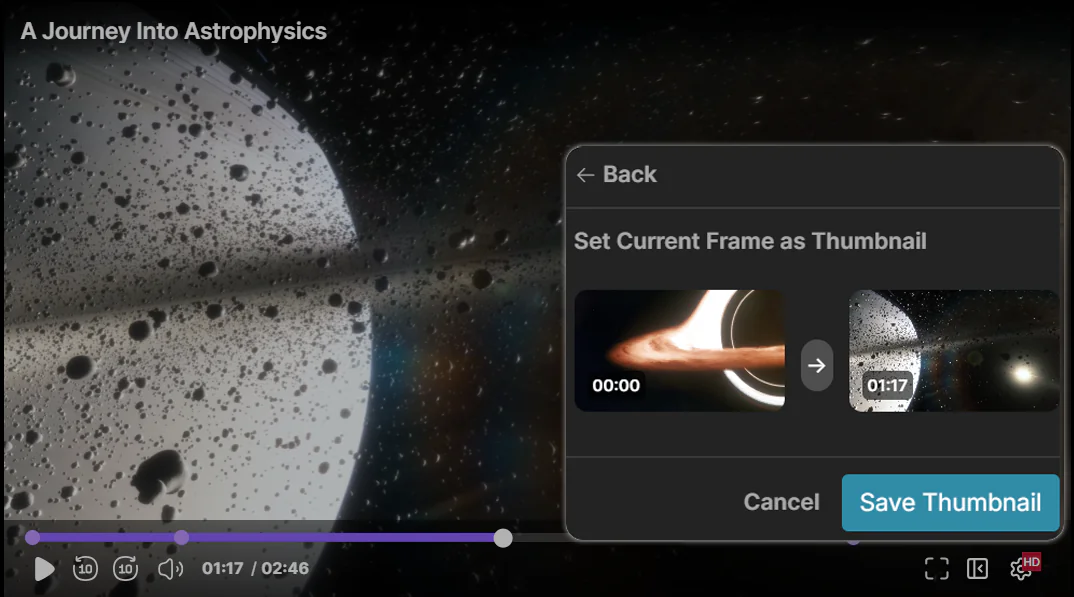
The Video Player’s Settings menu has been refreshed with a sleeker and more organized array of functions. In the new Settings menu, users will find menu items sorted into logical sections for easier navigation, relocated functions like Show Transcript, and new functions such as the Set Current Frame as Thumbnail tool. Users will be able to configure video settings to customize their playback experience more quickly than ever.
-
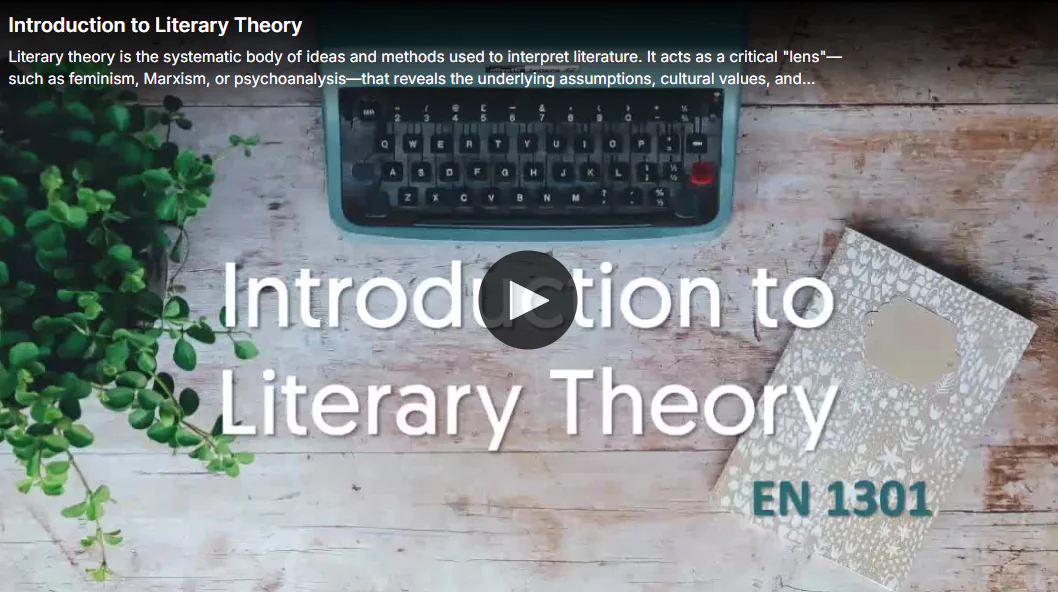
Provide Viewers with Key Information Before They Press Play
Viewers will now be able to view key media information, such as titles and descriptions, directly atop the Video Player before they hit play. Providing viewers with key contextual information before they begin a video helps transform playback into a more meaningful learning experience as it helps establish relevance and aids comprehension. Additionally, when viewers hover over the Video Player during playback, the video title now also appears to create a consistent viewing experience.
-
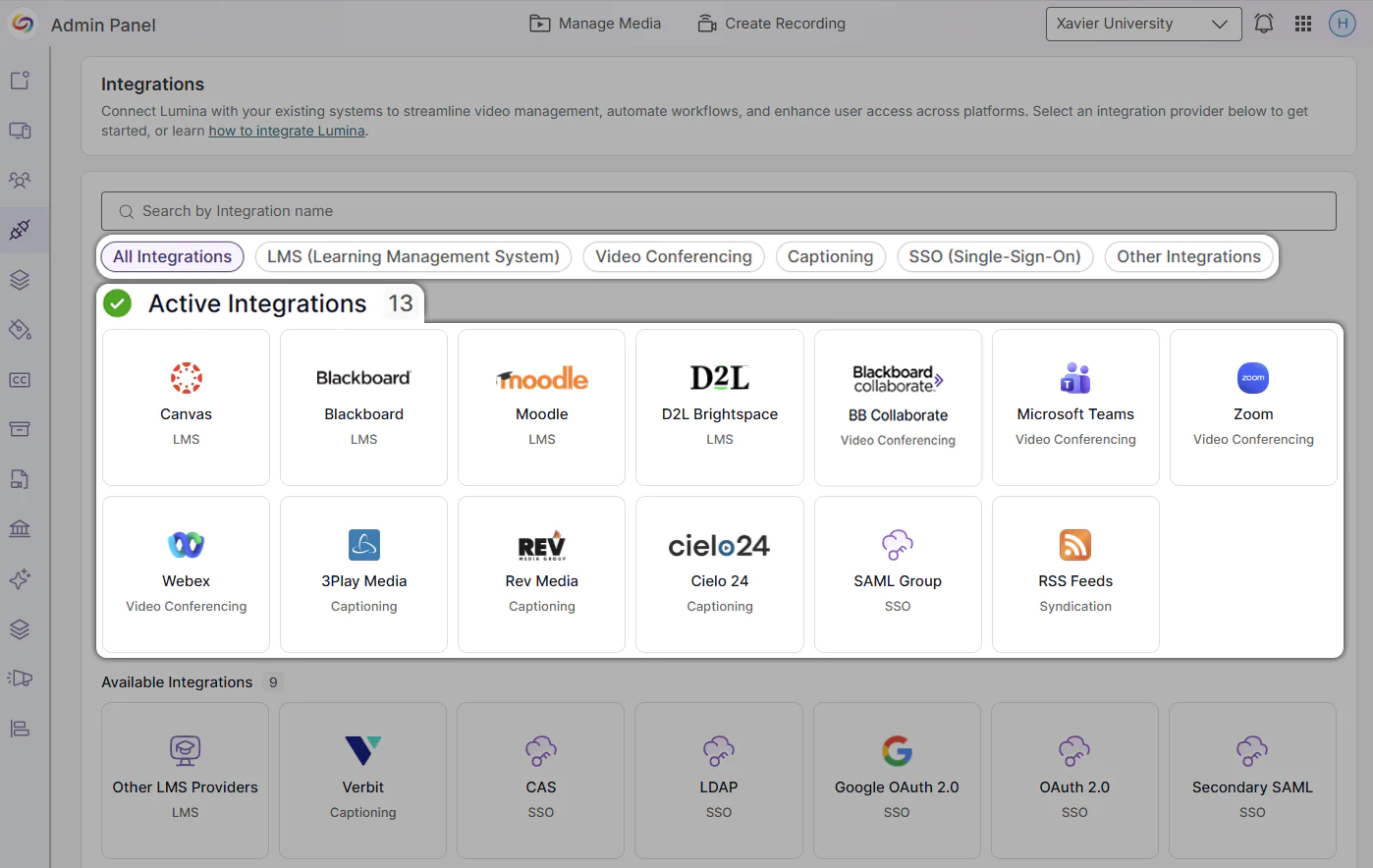
Streamlined Integration Management with the Redesigned Integrations Page
The Admin Panel’s Integrations page has been updated with a more intuitive layout that simplifies the user flow. When opening the Integrations page, admins will now see all their active integrations first, making it easier to get to the integrations that matter most. Admins will also be able to filter integrations by LMS, Video Conferencing, Captioning, SSO, and Other Integrations, reducing the need to sort and scroll through information.
-
Set a New Video Thumbnail Directly from the Video Player
Content creators can now scrub through videos in the Video Player and set their current video frame as the video thumbnail by using the Set Current Frame as Thumbnail tool in the settings panel. By offering multiple workflows for setting thumbnails, content creators have more flexibility in how and when they select their videos’ thumbnails, creating a more seamless video management experience.
-
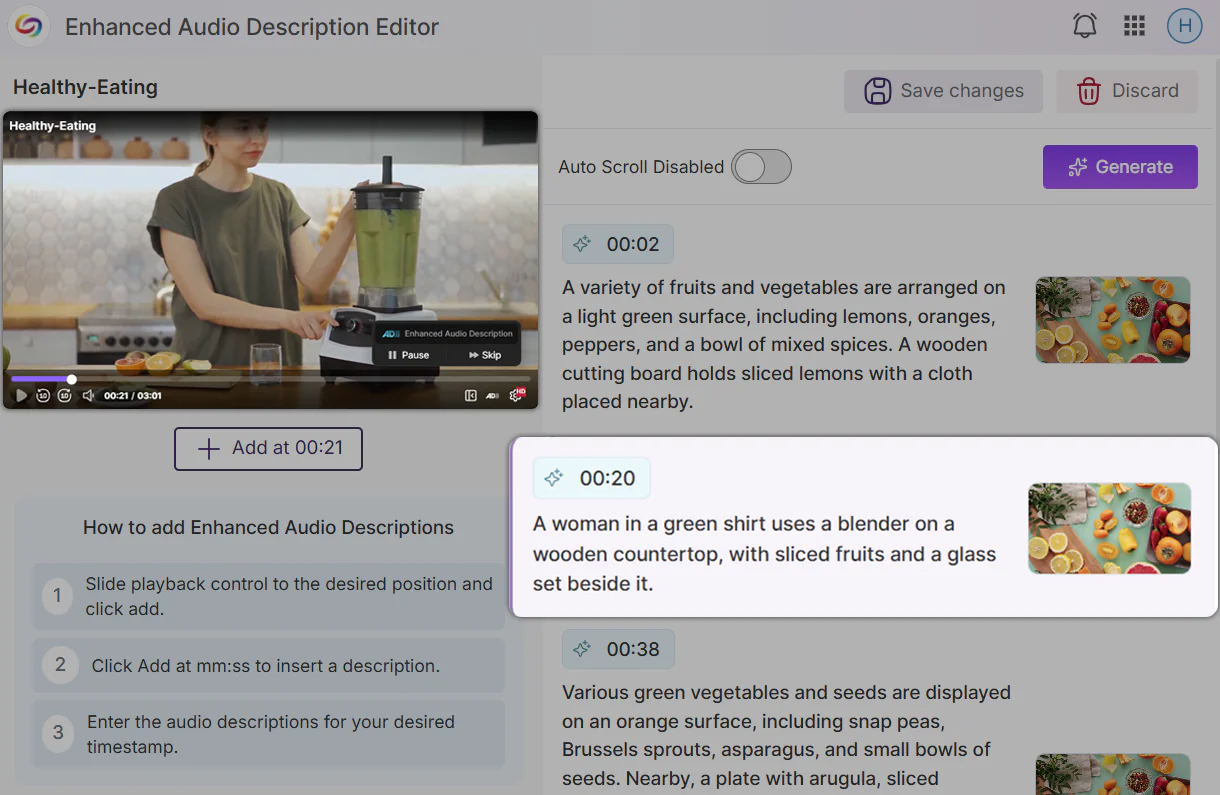
Toggle Auto-Scrolling When Playing Videos in the Enhanced Audio Description Editor for a Synchronized Experience
Users will now be able to toggle auto-scrolling when playing videos in the Enhanced Audio Description Editor. For a synchronized experience while editing, users can enable auto-scrolling to ensure that the timeline editor for the enhanced audio description moves in time with the video.
-
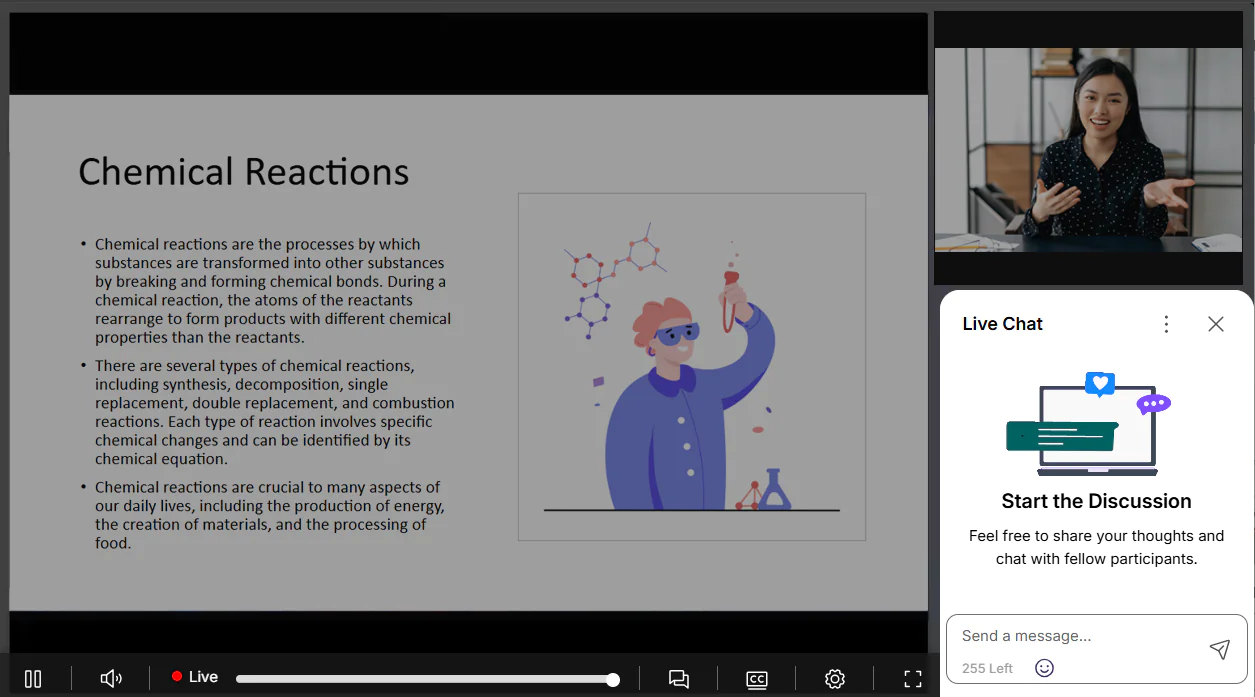
Making the Synchronized Multi-Stream Livestream Playback Experience More Seamless
The Synchronized Multi-Stream Livestream Playback beta feature will introduce new improvements to create a more seamless experience when switching view modes. When switching between view modes, the previous video layout will continue playing in the background while the new layout loads, to ensure that viewers don’t miss moments of their livestream. The live chat window has also been relocated when viewing a livestream in gallery mode to optimize the visual layout of multiple video streams.
-
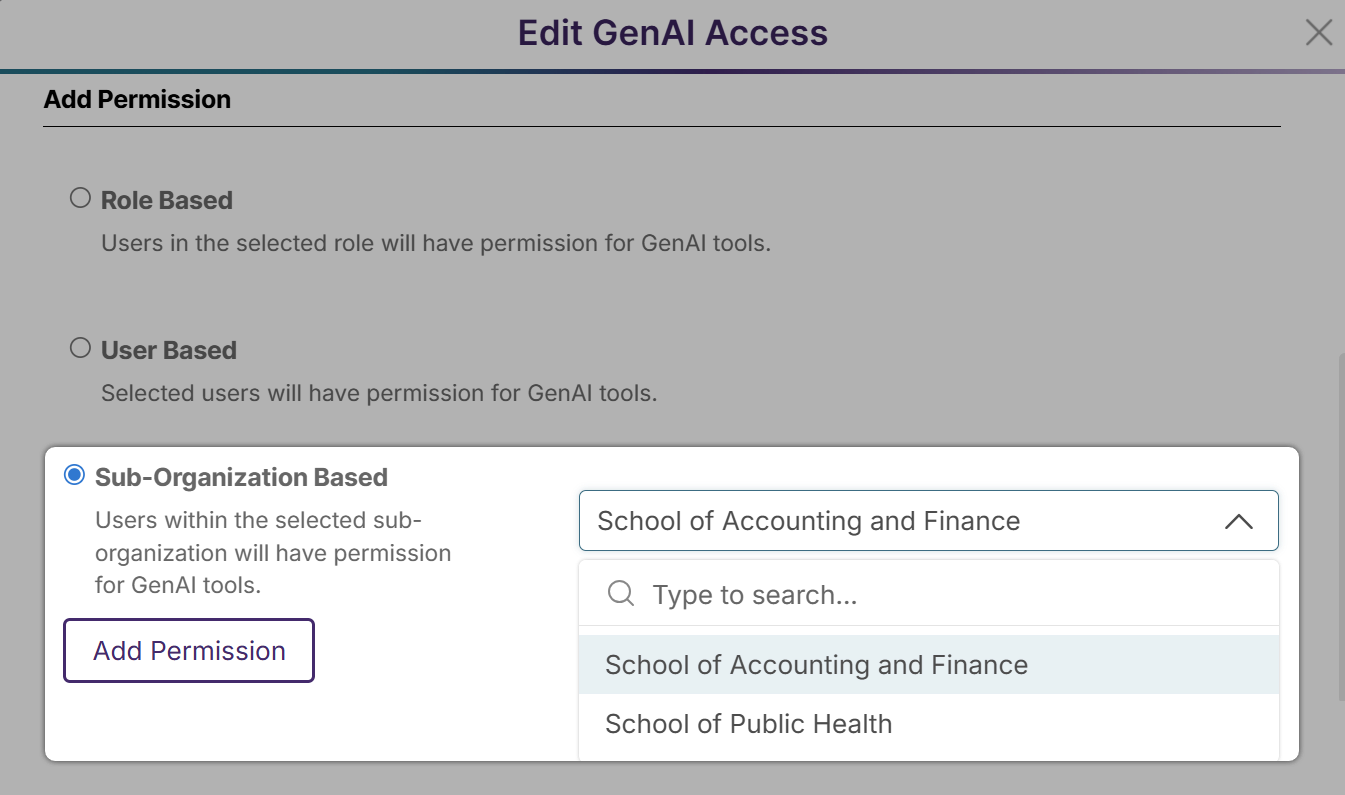
Manage GenAI PowerPack Usage on a Sub-Organization Level
Institutions can now enable GenAI PowerPack access on a Sub-Organization level. With this new permission scope, institutions will have more flexibility in how they grant access to GenAI tools across roles, users, and sub-organizations.