Product Updates

Get the latest platform updates, features, and announcements—all in one place.

Help Shape What's Next

Join discussions, request features, and vote on ideas.

Join Community

Built With Passion

Learn about the people behind YuJa.

About Us

Trial Program

We offer an opportunity to try our products.

Request a Demo
  • June 23, 2023

    YuJa Engage Student Response System Update – “Melbourne” Released to US, CAN, AUS, and EU Zones

    We have successfully pushed an update to all YuJa Engage Student Response System instances residing in the United States, Canada, Australia, and the European Union. This release provides our users with Fill in the Blank questions for Surveys, access to review surveys from the Gradebook, support for stand-alone login credentials for Engage, Single Sign-On support for the instructor mobile app, the option to show correct answers during a Poll, a customizable countdown timer, manual grading for Short Answers, the ability to export the Gradebook as a CSV file for Moodle, customized branding for the login selection, and custom duration for toast messages.
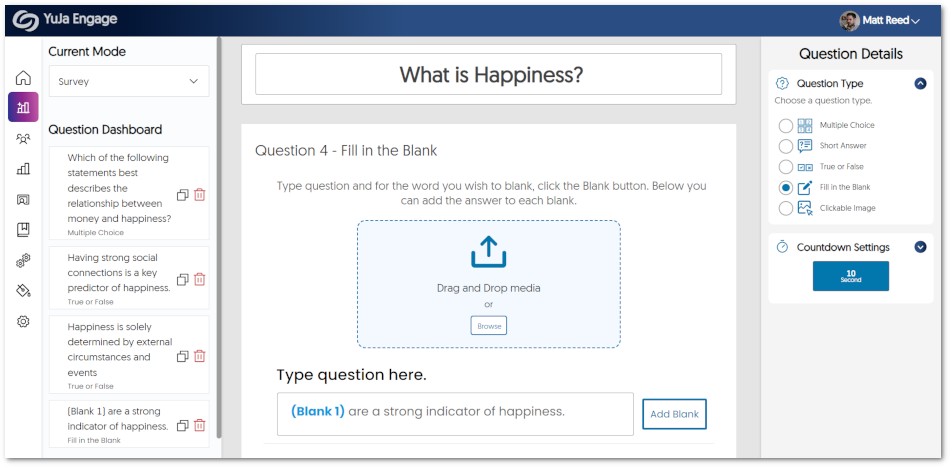
    1. Fill in the Blank Question Types Are Now Supported for Surveys Similar to how Polls support Fill in the Blank questions, we have implemented the same functionality to our non-graded Surveys. Creators will be able to input questions with blanks for participants to fill in. Engage fill in the blank survey.
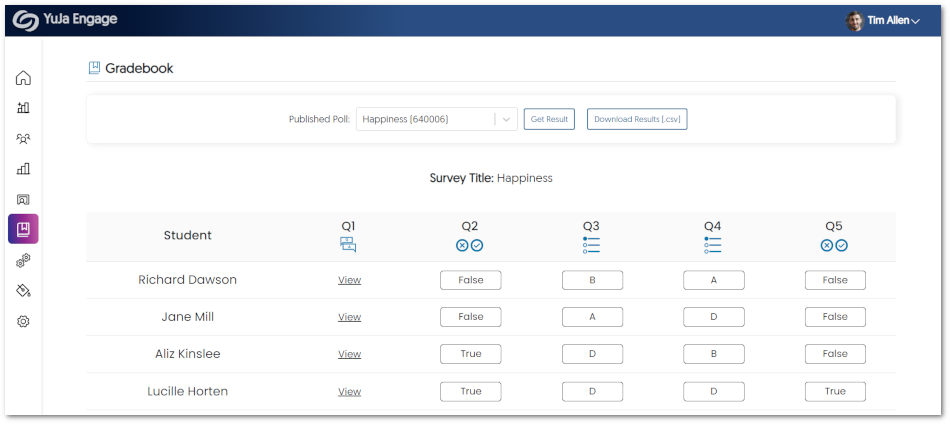
    2. Surveys Now Supported in the Engage Gradebook Previously, Survey results were exclusively accessible within the Polls tab for review. We have now enhanced this process to enable Surveys to be seamlessly integrated with the gradebook. This allows Creators to effortlessly evaluate Surveys and review individual responses from Poll Participants. Survey shown within the Engage Gradebook.
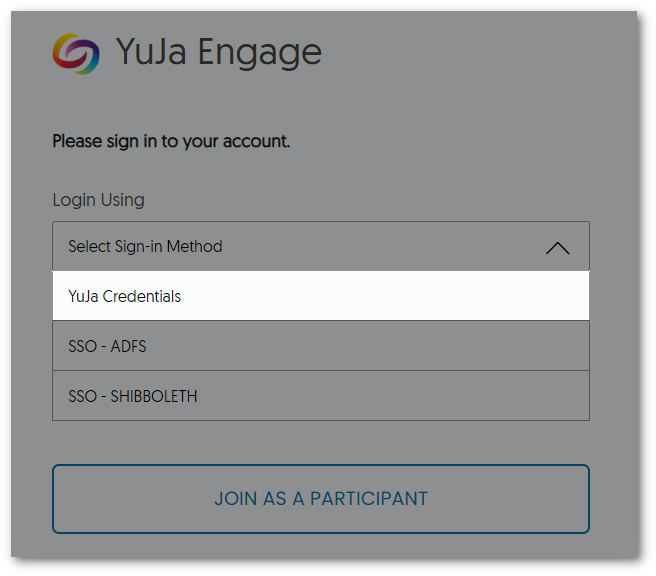
    3. Stand-Alone Login Credentials for YuJa Engage Acknowledging the requirement of certain users to access YuJa Engage without relying on their Learning Management System or Single Sign-On credentials, we have introduced dedicated login credentials. When registering for YuJa Engage, users will receive a unique username and a secure link via their registered email to create a password. From there, users can effortlessly log in using their newly created credentials. Login Window for YuJa Engage.
    4. Instructor SSO Login for the Mobile App Similar to our student Single Sign-On (SSO) for the mobile app, we are introducing the option for instructors to conveniently access their accounts by utilizing their SSO credentials. This will offer a seamless and streamlined login process while protecting the user’s data and upholding authentication protocols. Instructor SSO Login
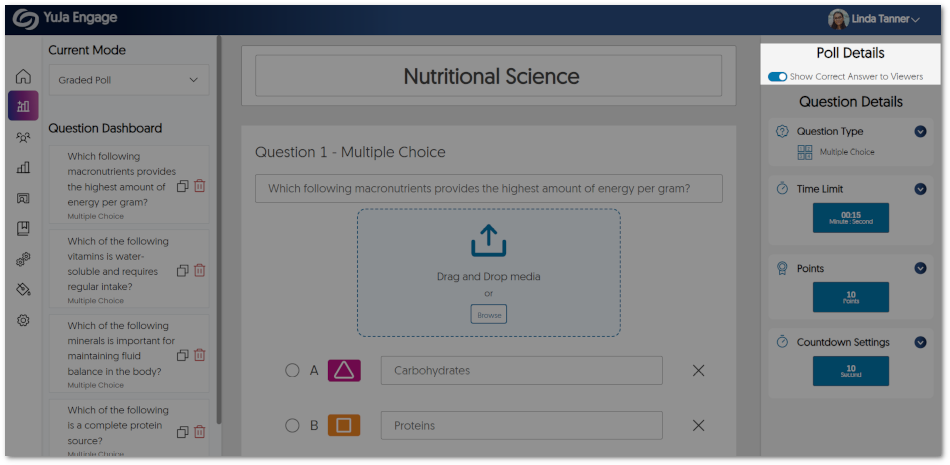
    5. Option to Show Poll-Takers the Correct Answers As part of the Poll creation process, Creators now have the option to choose whether they wish to reveal correct answers to Poll Participants when questions are shared individually. By enabling this feature, participants will have the opportunity to view the correct responses on the Class Results page after each attempt at a question, eliminating the need to wait for the Poll to end. Show correct answer setting for a Poll.
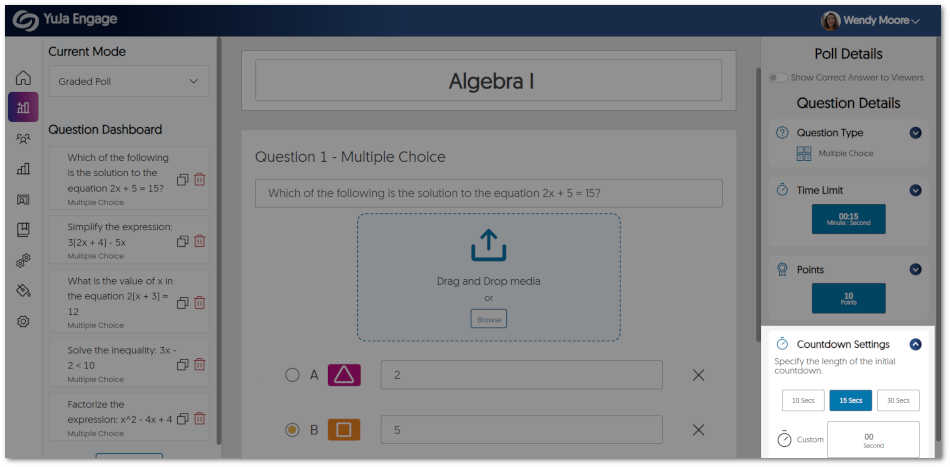
    6. Customize the Countdown Timer We now offer Poll Creators the capability to tailor the initial countdown timer. Choose from a range of predefined durations or create a personalized timer that will be displayed before the start of a poll. Countdown Setting for a Poll.
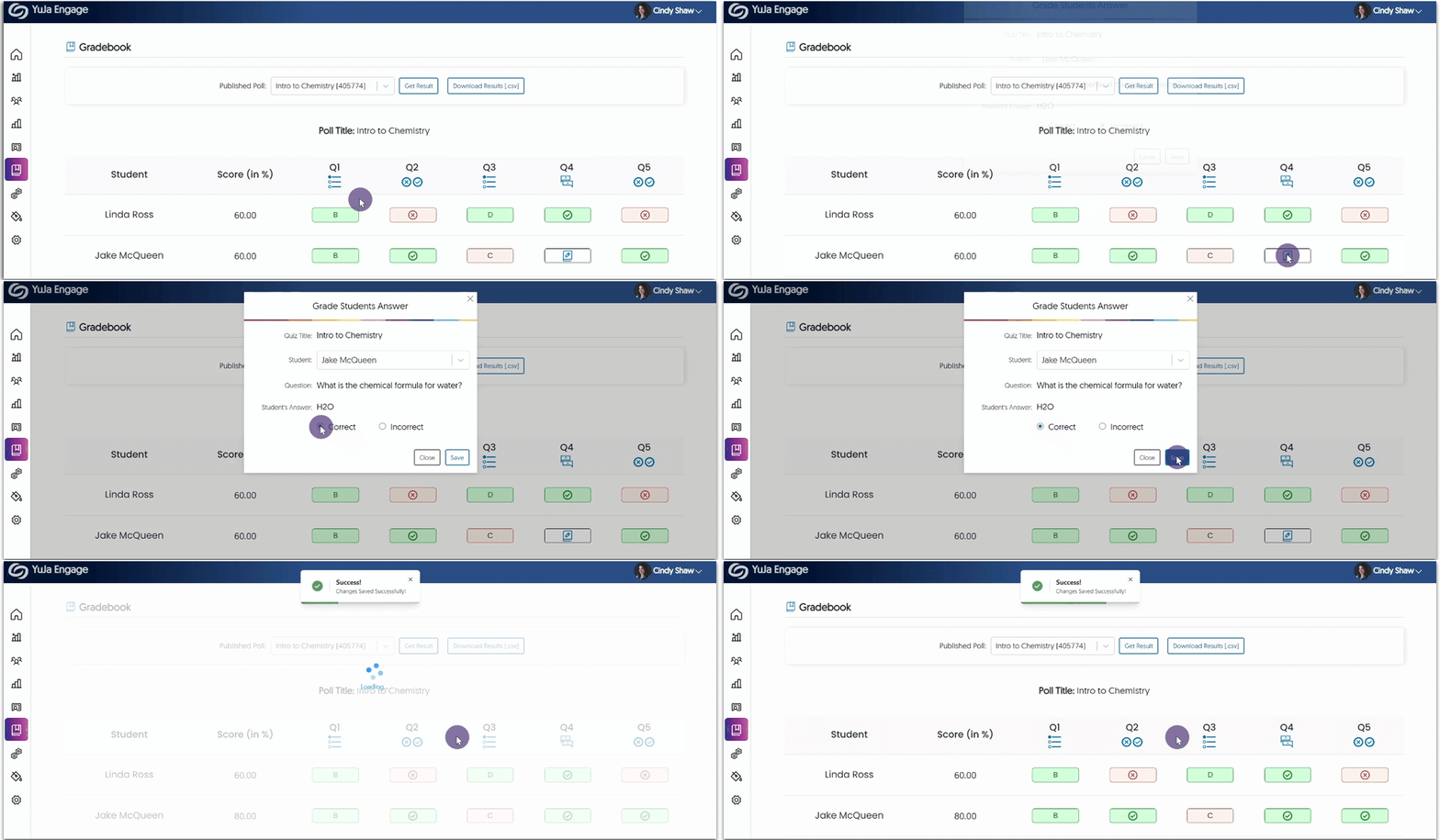
    7. Manual Grading for Short Answer Questions To ensure accurate grading of Polls, Poll Creators must now grade short answer questions before results are synced to the gradebook.
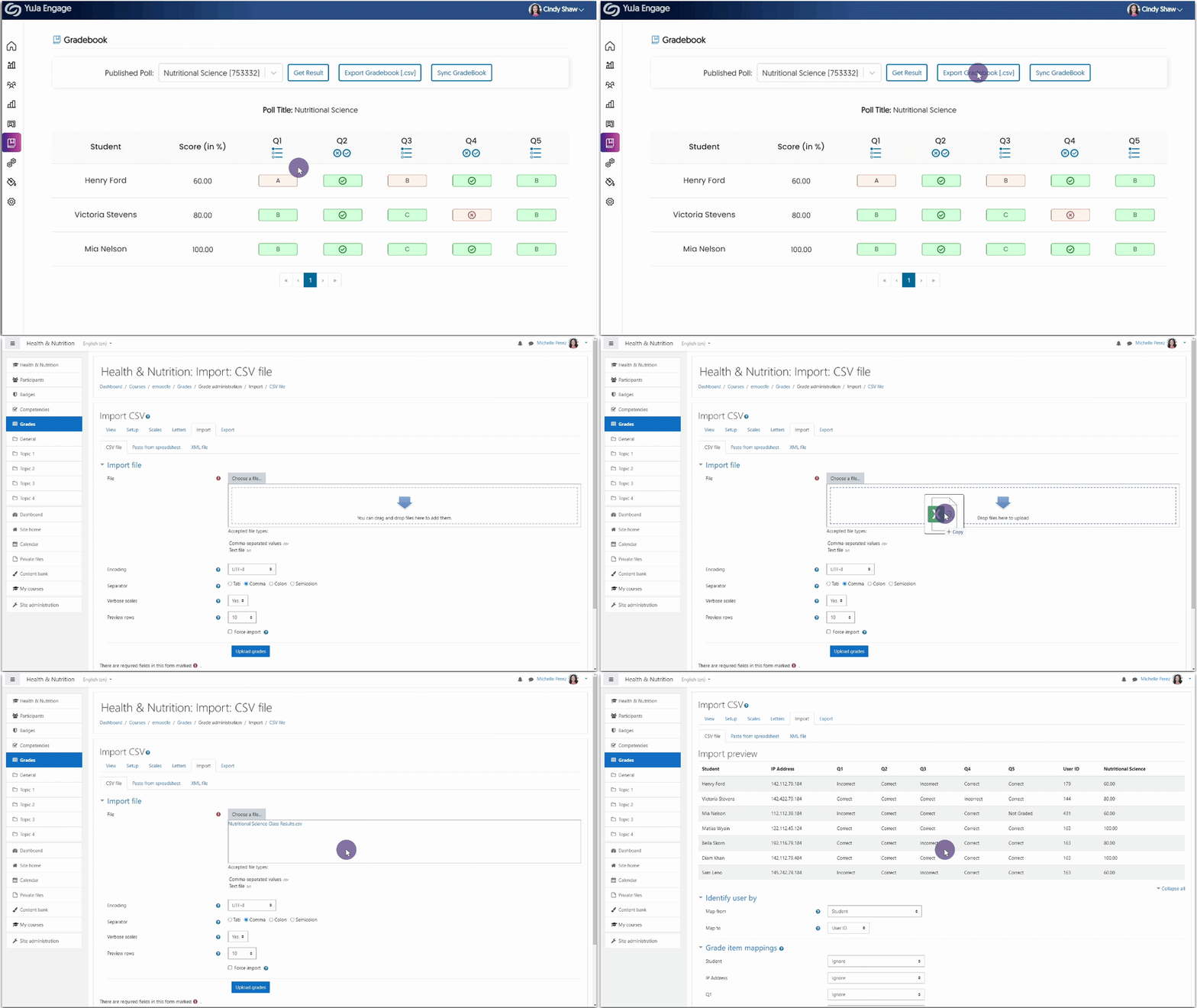
    8. Export, Edit, and Import Grades to the Moodle Gradebook In specific instances, Creators may find it beneficial to have digital copies of Poll results for the purpose of editing and uploading revised grades to their Moodle Gradebook. To accommodate such use cases, we have introduced the ability to export the results of a Poll as a CSV file. This enables Creators to conveniently edit the CSV file and seamlessly upload it to the Moodle Gradebook. For detailed instructions on how to use this feature, please visit our guide on Importing YuJa Engage Poll Results to the Moodle Gradebook.
    9. Customize Branding for Login Selection IT Managers can now name their login methods and select a default login to be displayed. Additionally, if IT Managers prefer, they can disable signing in through YuJa Login credentials. This will provide security measures to ensure access is only granted through the Single Sign-On integration. Custom Login Settings featured in Platform Settings.
    10. Customize the Duration of our Redesigned Toast Messages Toast messages play a vital role in helping deliver simple feedback to users as they navigate through the YuJa Engage platform. To enhance their visibility, we have not only redesigned the appearance of toast messages but also introduced the option for users to customize the duration of their display. Users can now easily adjust the Toast Message Settings to either 5 or 10 seconds, or select to manually dismiss toast messages according to their personal preference and comfort. New toast message UI.
  • June 15, 2023

    YuJa Panorama Digital Accessibility Platform – “Mount Haltia” Version Released to US, CAN, and EU Zones

    We have successfully pushed an update to all YuJa Panorama Digital Accessibility Platform instances residing in the United States, Canada, and the European Union. This release provides our users with video tutorials for all “How-to-Fix” guides, Custom LTI Role Mapping, expanded support for D2L Brightspace, enhanced scanning for Powerpoint presentations, Accessibility Reports regeneration for HTML content, Shared files no longer include Accessibility Reports, and enhanced security for the panorama LTI app.
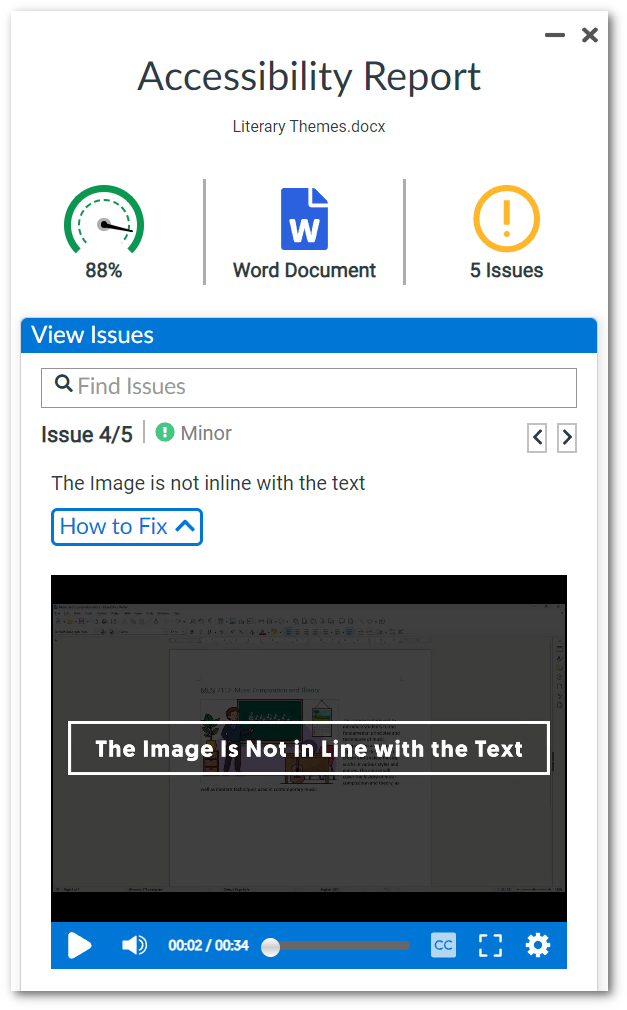
    1. Every “How to Fix” Guide Now Includes a Video Tutorials We have enhanced the Panorama “How-to-Fix” guides by introducing short video tutorials for every accessibility concern. Embedded directly within the Accessibility Report, these videos aim to assist users in creating accessible documents. Video for How-to-Fix guide.
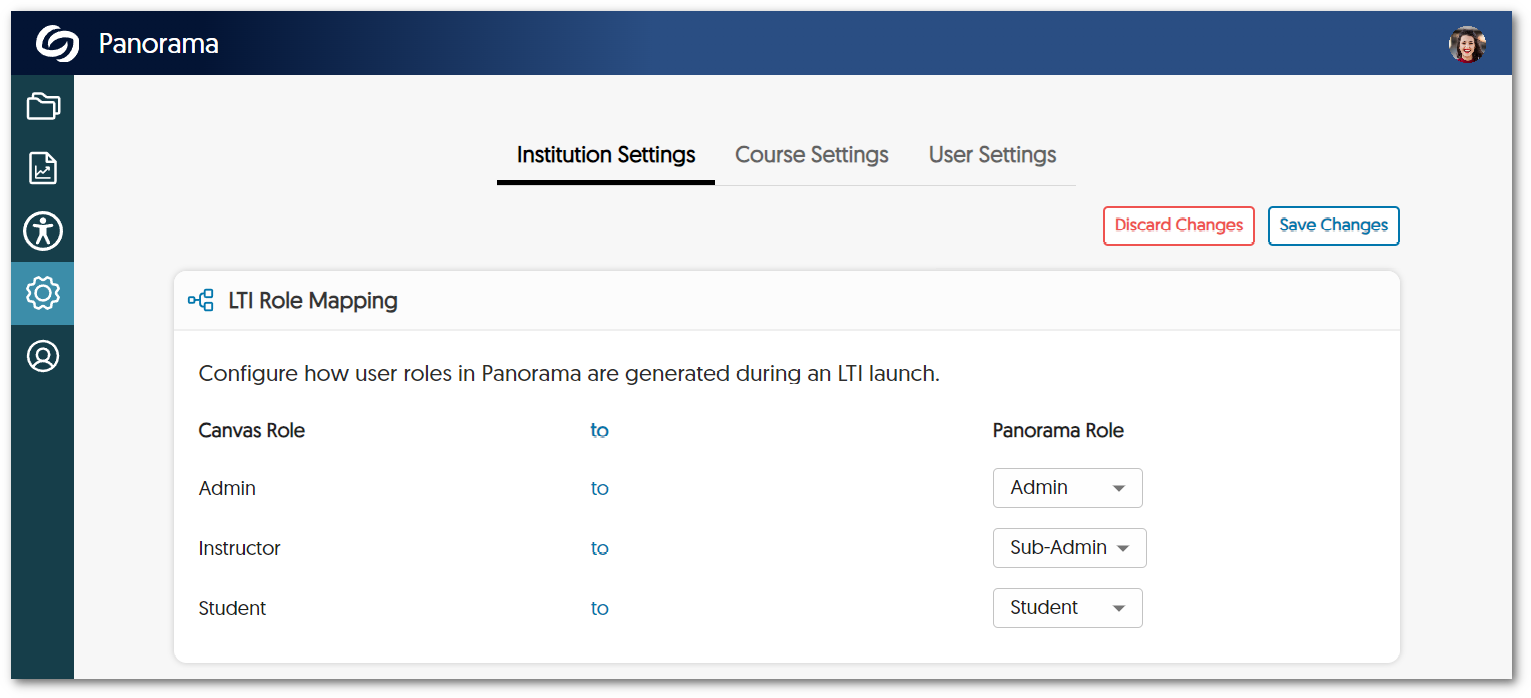
    2. Custom LTI Role Mapping Administrators now have the option to configure how users are signed into the Panorama LTI app upon launch. By configuring their LTI role mapping, LMS-specific roles can be adjusted to match the institution’s needs for their Panorama role structure. LTI Role Mapping Panel
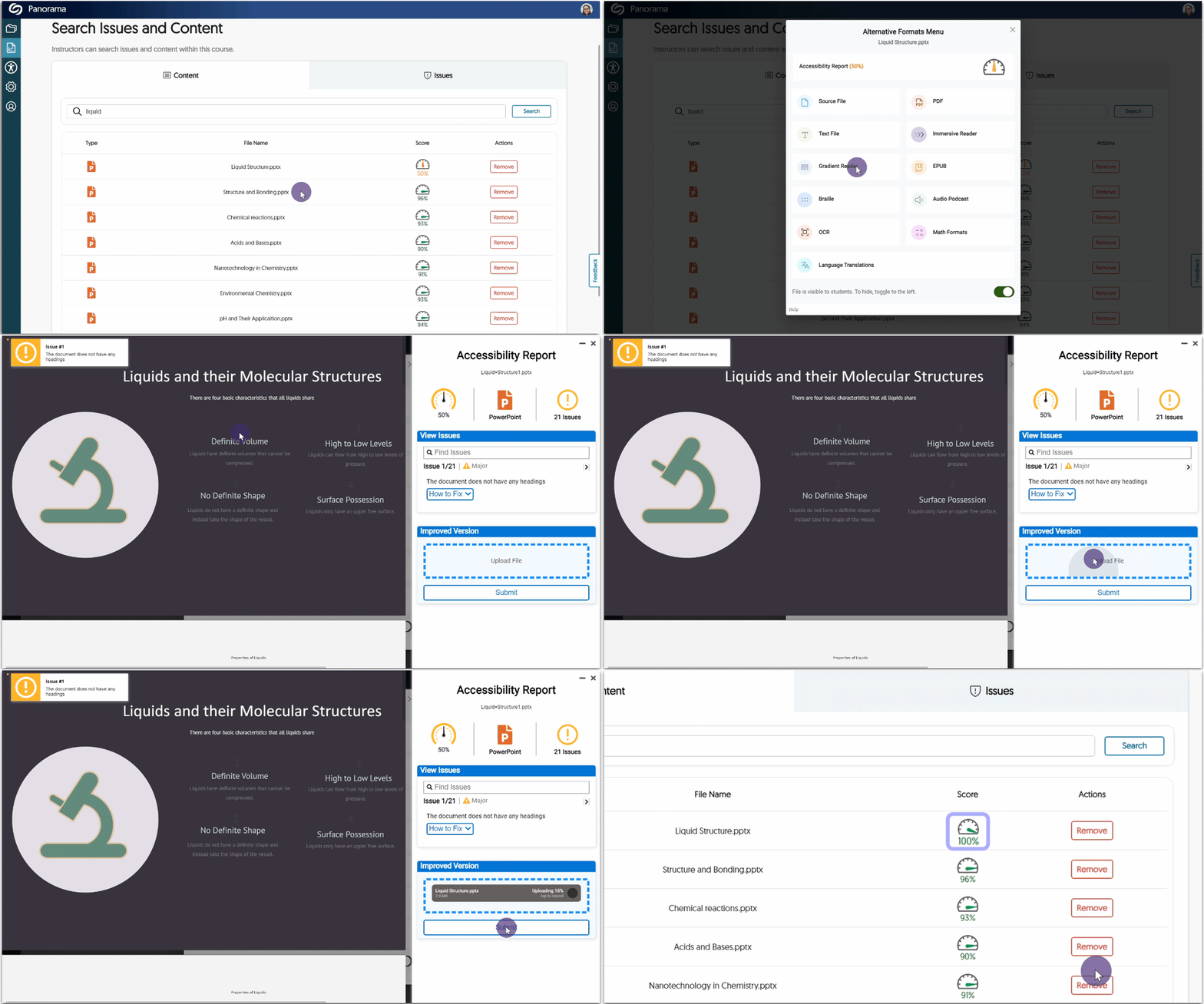
    3. Real-Time Updates for Accessibility Scores in Course Reports We have implemented an auto-update feature for the Accessibility Scores of documents within Course Reports. Now, whenever a file is updated, the Accessibility Score will be updated immediately, enabling users to receive instant insights into the accessibility status of their documents. Real-time update for Accessibility Scores in Course Reports.
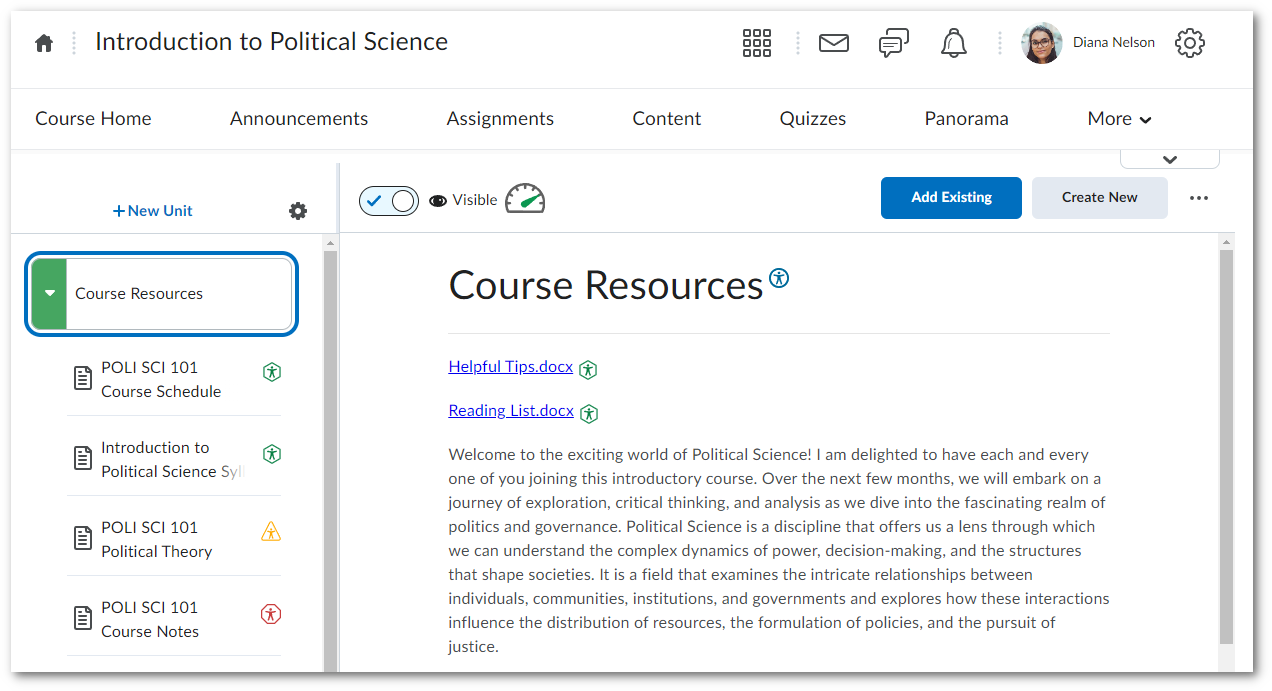
    4. Expanded Support to Identify Files and Content Areas within D2L Brightspace As part of our ongoing commitment to enhancing the accessibility of D2L Brightspace, Panorama has been updated to detect files in additional areas. Specifically, Panorama will now detect files inside HTML areas in Lessons View, ensuring comprehensive accessibility coverage across the platform. D2L Lessons View.
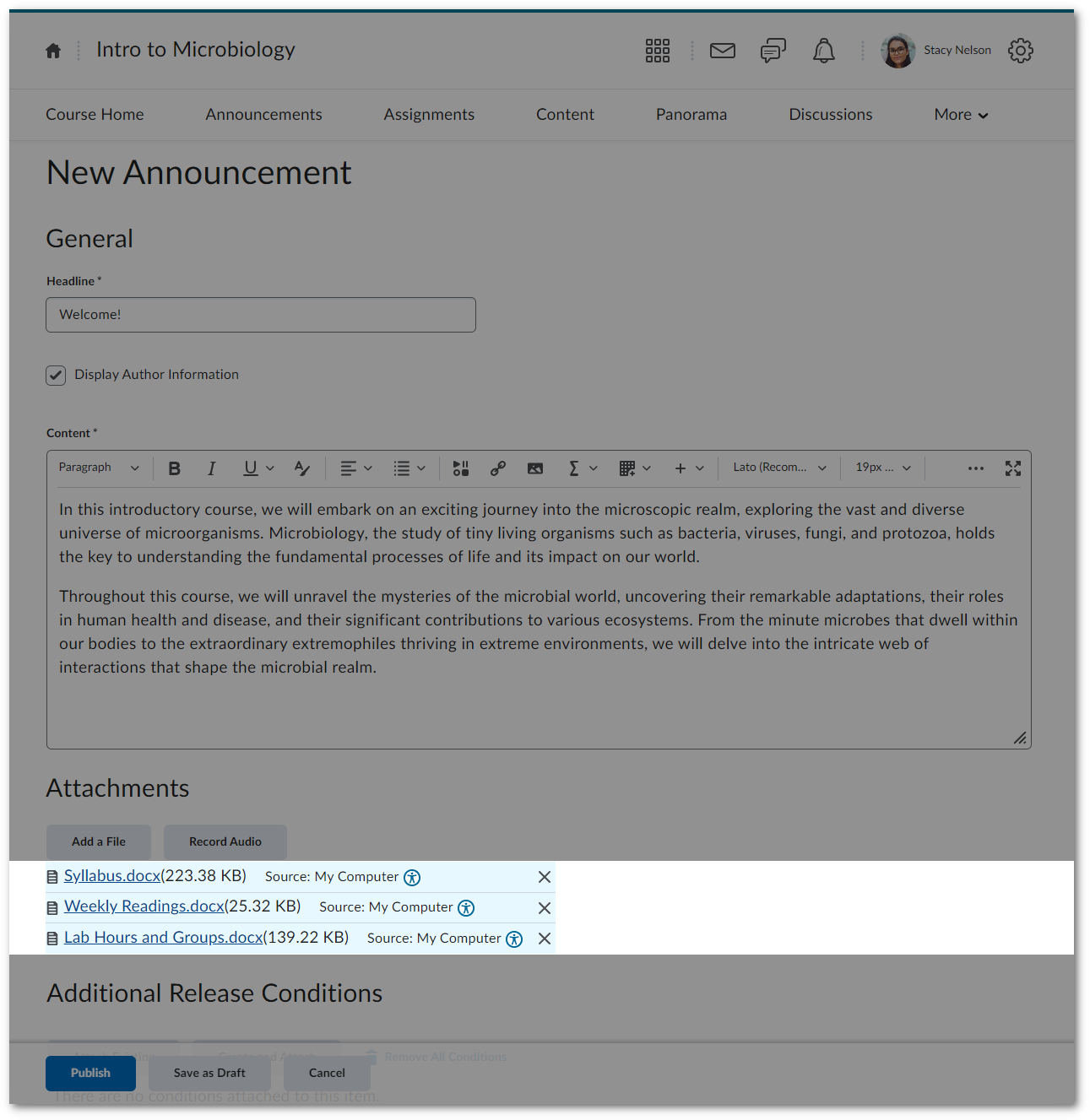
    5. Automatic File Scans During the Creation of HTML-Based Pages in D2L Brightspace To streamline the accessibility workflow on D2L Brightspace, Panorama now incorporates real-time scanning for files added to HTML pages being created. This ensures that when files are added to a page, Panorama will automatically perform a scan before the page is saved, providing immediate accessibility analysis. Documents are attached to a D2L Brightspace announcement that is being created.
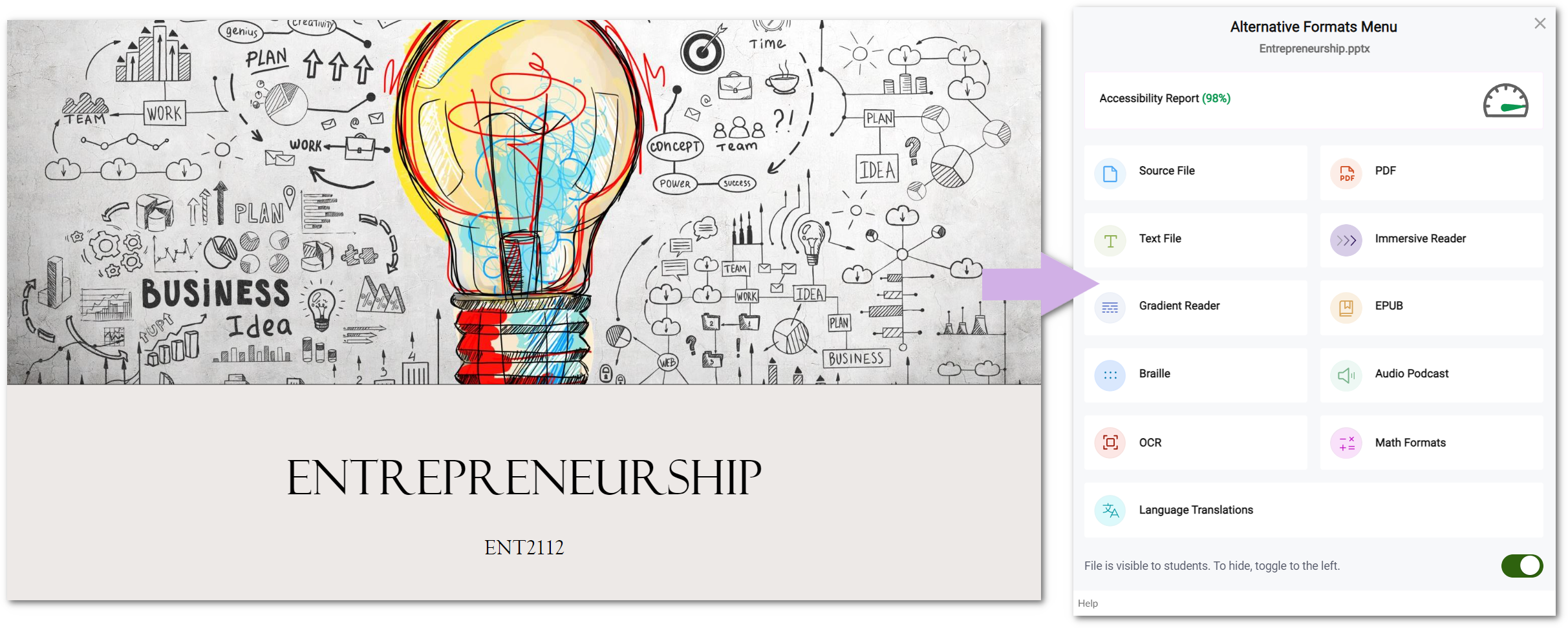
    6. Enhanced PowerPoint Scanning for Generating Alternative Formats We have expanded Panorama’s scanning capabilities to include improved recognition and detection of various background colors and images in PowerPoint presentations. This ensures Panorama can recognize any PowerPoint and generate its Alternative Formats in a timely manner. Alternative Formats Menu for a PowerPoint presentation.
    7. Editing an HTML Page Will Regenerate its Accessibility Report To provide the most accurate reports for HTML pages, we have implemented an automatic process that regenerates the Accessibility Report whenever an HTML page is edited. This real-time regeneration guarantees that the report always reflects the most up-to-date information, allowing for improved accuracy and timely identification of accessibility issues.
    8. Improved Panorama’s Compliance with JAWS We have aligned Panorama more closely with JAWS, one of the most widely used screen reader software. We have extended keyboard navigation to additional areas like the My Content page and ensured consistent labeling of elements. Jaws Logo
    9. Shared Files No Longer Include Their Accessibility Report  When sharing files from your personal repository, My Content, the associated Accessibility Report will no longer be shared. This allows you to have exclusive access to accessibility improvements, relieving the intended recipients from the need to interpret the report.
  • June 14, 2023

    YuJa Verity Test Proctoring Platform – “Lazurite” Version Released to US, CAN, AUS, and EU Zones

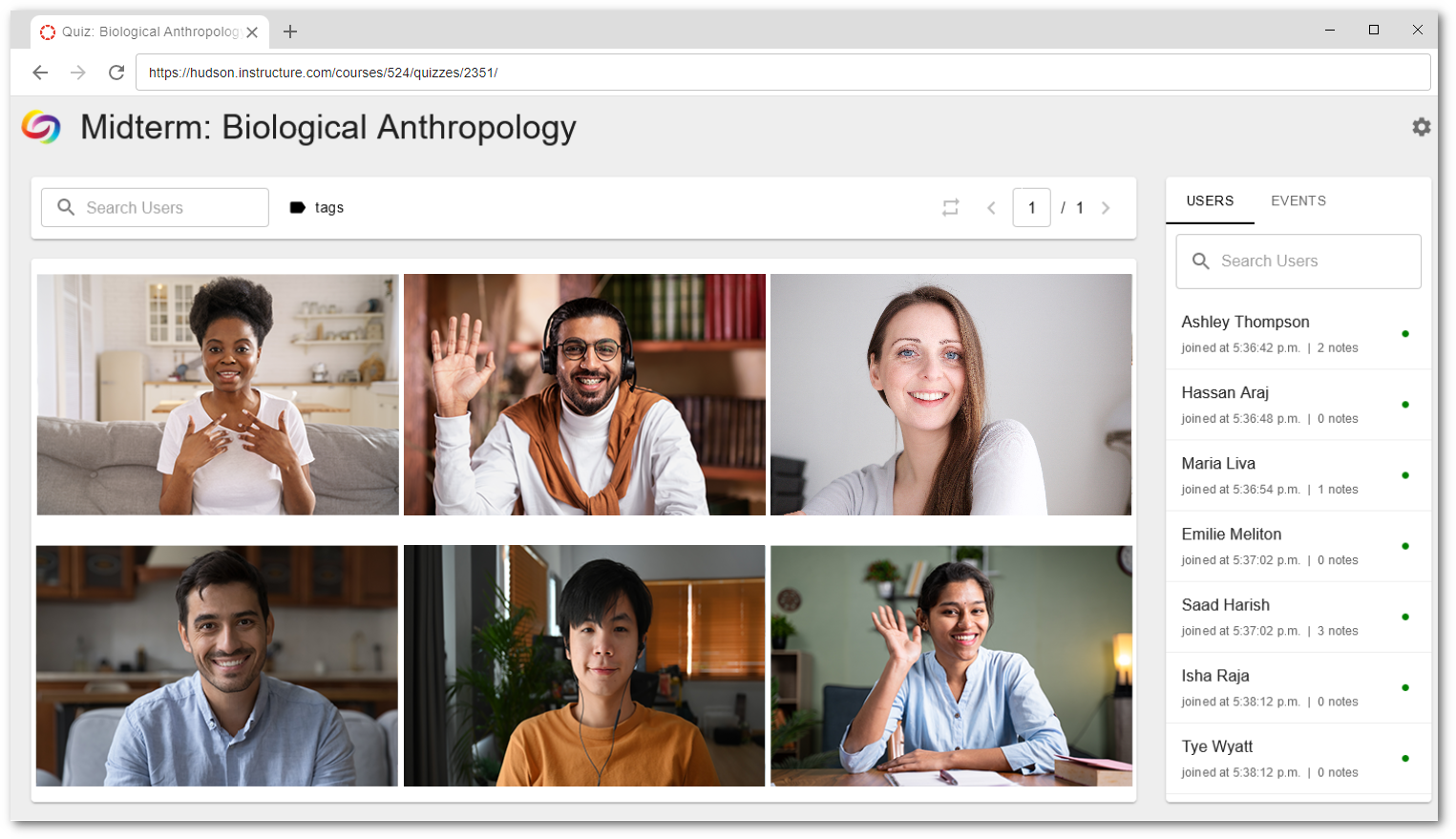
    We have successfully pushed an update to all instances residing in the United States, Canada, Australia, and the European Union. This update includes custom video tutorials for first-time users of Verity, the ability to monitor third-party assessments, Verity Live proctoring support, an integrated updated checker for the Verity Lockdown App, and a countdown timer for live assessment in the Verity Lockdown App.  
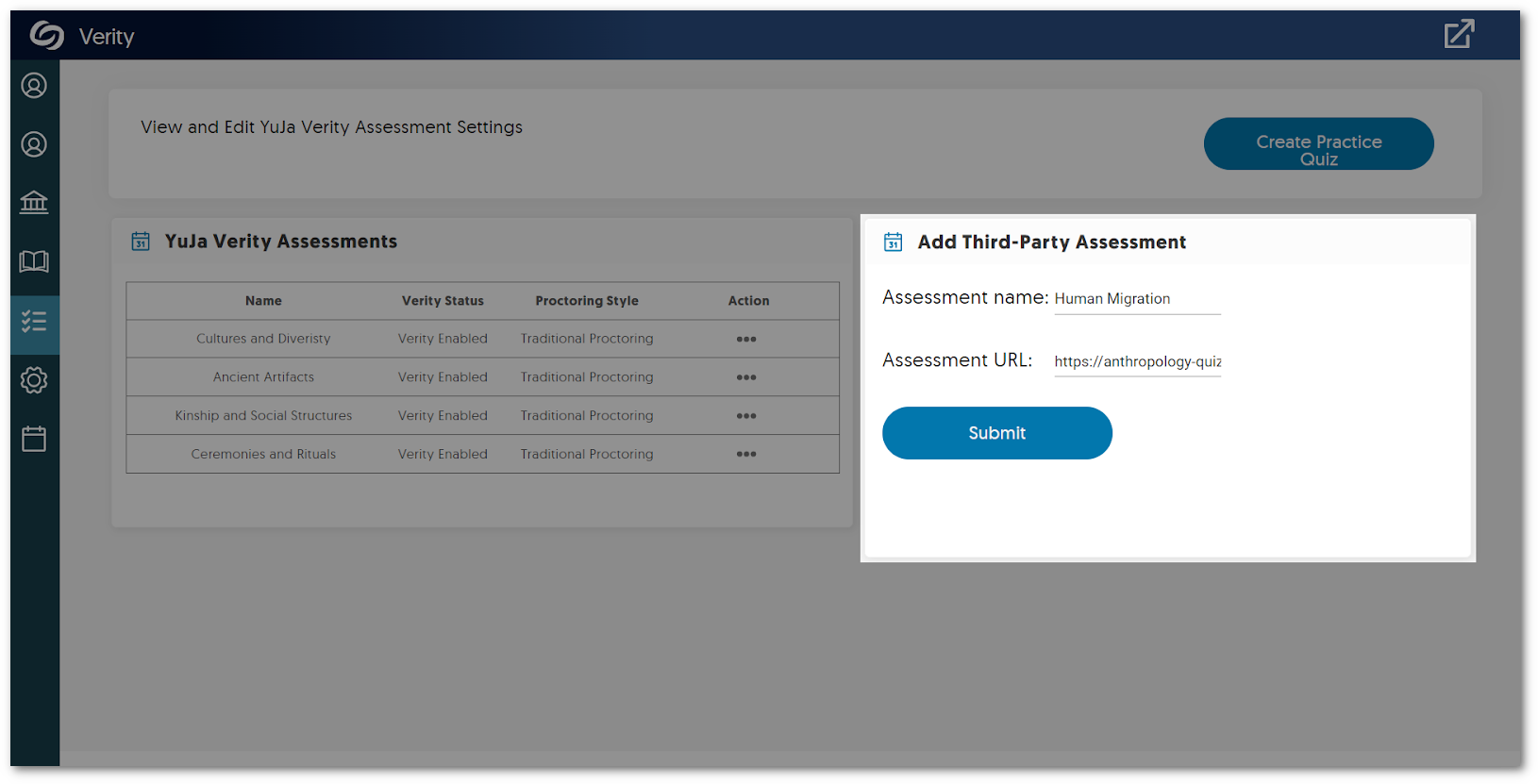
    1. Improved Proctoring Workflow of Third-Party Tools Across all LMSs  Previously, we presented Canvas users with the option to monitor third-party assessments using Verity. To improve the process, we now offer an integrated system within the Verity LTI app, which allows users to seamlessly add assessments and apply proctor settings to ensure a secure environment. This approach enables all Learning Management Systems supported by Verity to benefit from its comprehensive monitoring capabilities during students’ assessments for virtually any third-party tool. To learn how to use this feature, please visit our guide on Creating a Proctored Third-Party Assessment with YuJa Verity. The Verity Assessment tab featuring the option to add a third-party tool.
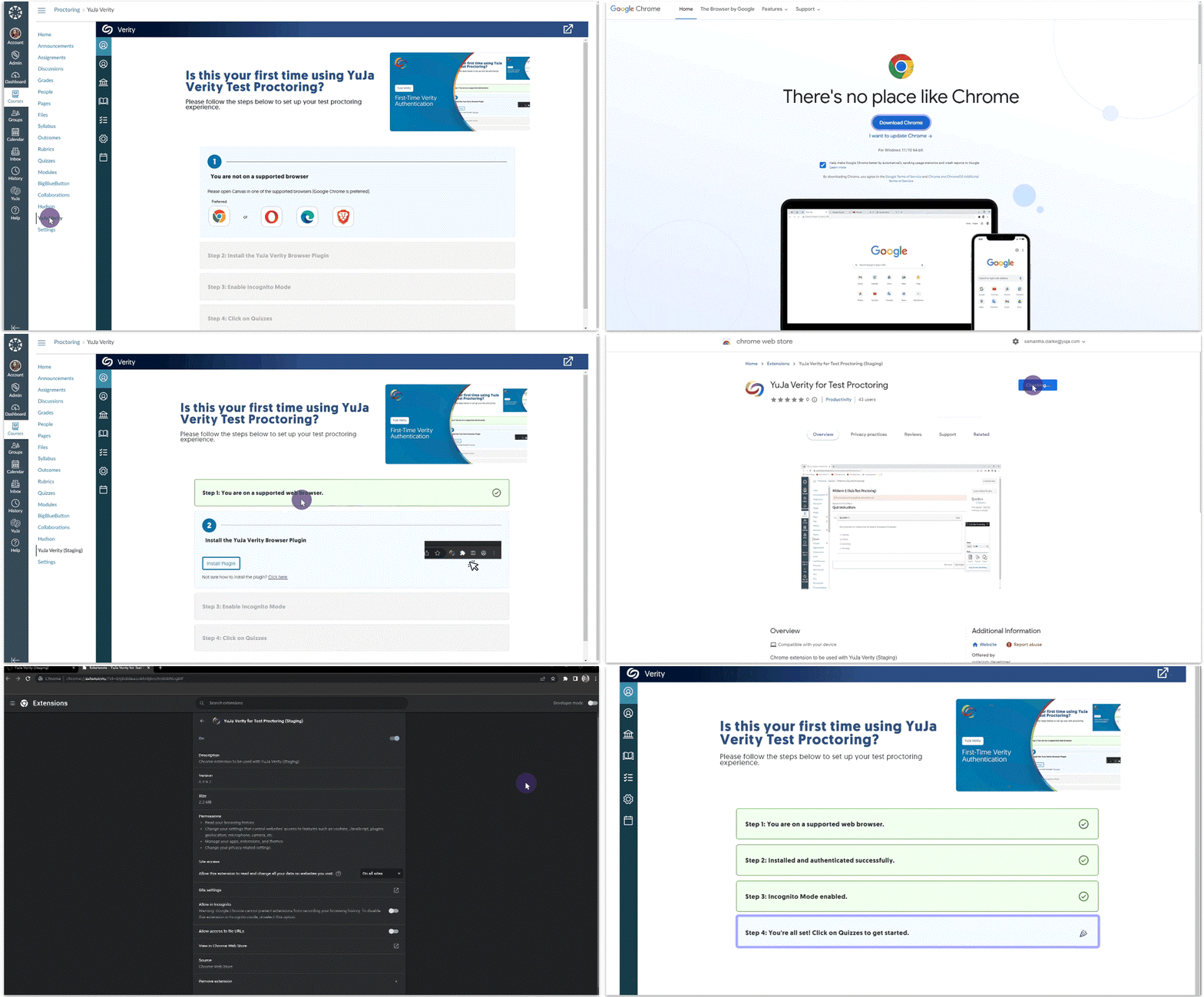
    2. New LMS-Specific “First Time User” Video Tutorials for Students Starting a Verity proctored assessment is easier than ever with our new LMS-specific video tutorials integrated right into the LMS. These videos have been specifically designed to assist first-time students in effortlessly navigating the Verity authentication process. With our user-friendly interface and step-by-step guidance, students can now start their assessments with ease. With these steps in place, we’re committed to guiding students through their proctored experience, ensuring assessments are started in a timely manner.
      Verity Authentication steps.
    3. Enable the Verity Lockdown App for Live Proctoring Sessions In continuing to provide the most secure environment for proctors and students, our new Verity Lockdown App works seamlessly with Verity Live proctoring. By offering strict video-recording measures through the Verity Lockdown App, proctors can be assured students are unable to end their recordings during their assessment. Live Proctoring in the Verity Lockdown App.
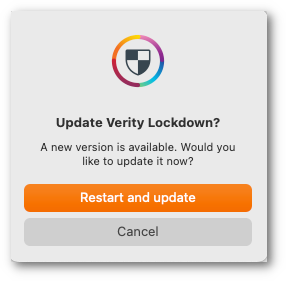
    4. Integrated Update Checker for the Verity Lockdown App To provide the most up-to-date version of the Verity Lockdown App, we now automatically check to ensure that the latest release is installed. If the application is outdated, an automated message will present users with the option to update the Verity Lockdown App. Apple update Checker for the Verity Lockdown App.
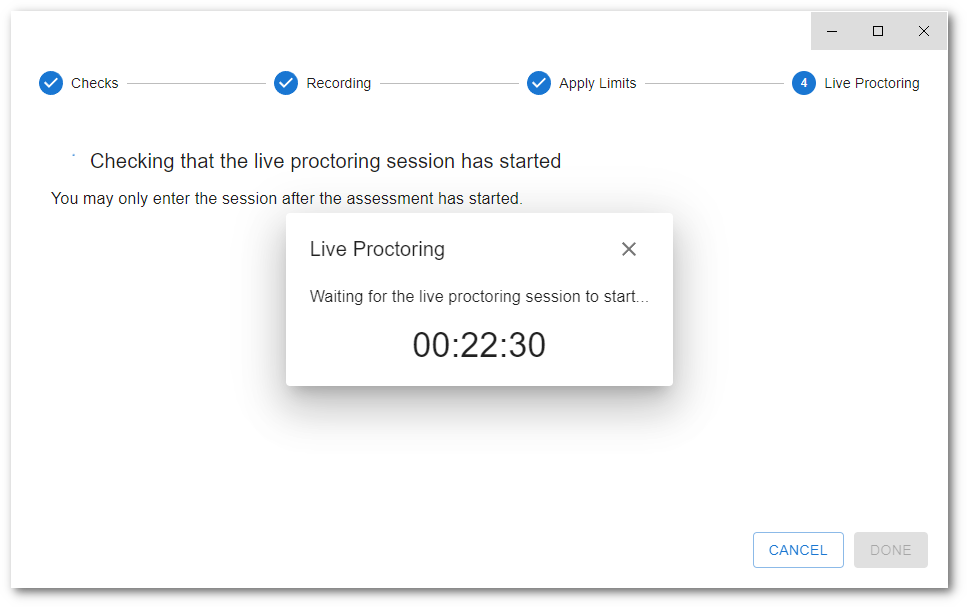
    5. New Countdown Timer for Live Assessments in the Verity Lockdown App To enhance the live assessment experience in the Verity Lockdown App, students will be presented with a countdown timer when entering their assessments early. This feature ensures that students have clear and accurate information about the exact start time of their assessments. Countdown timer for Verity live proctoring.
  • June 13, 2023

    Software Capture for Apple – Update v7.2.0 Released to US, CAN, AU, and EU Zones

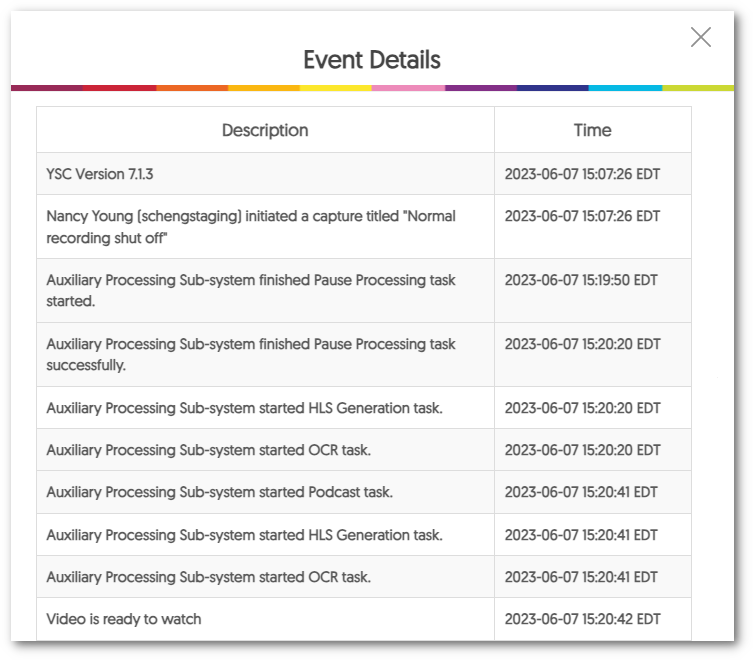
    We have successfully pushed an update for Software Capture for Apple to all instances residing in the US, Canada, Australia, and the European Union. This update provides our users with the option to perform software updates, select multiple locations to publish recordings, publish recordings into their Internal Library, create shared profiles, view new version updates for the Software Capture application, set storage capacity thresholds for recordings, and in-depth audit tracking for recordings. 
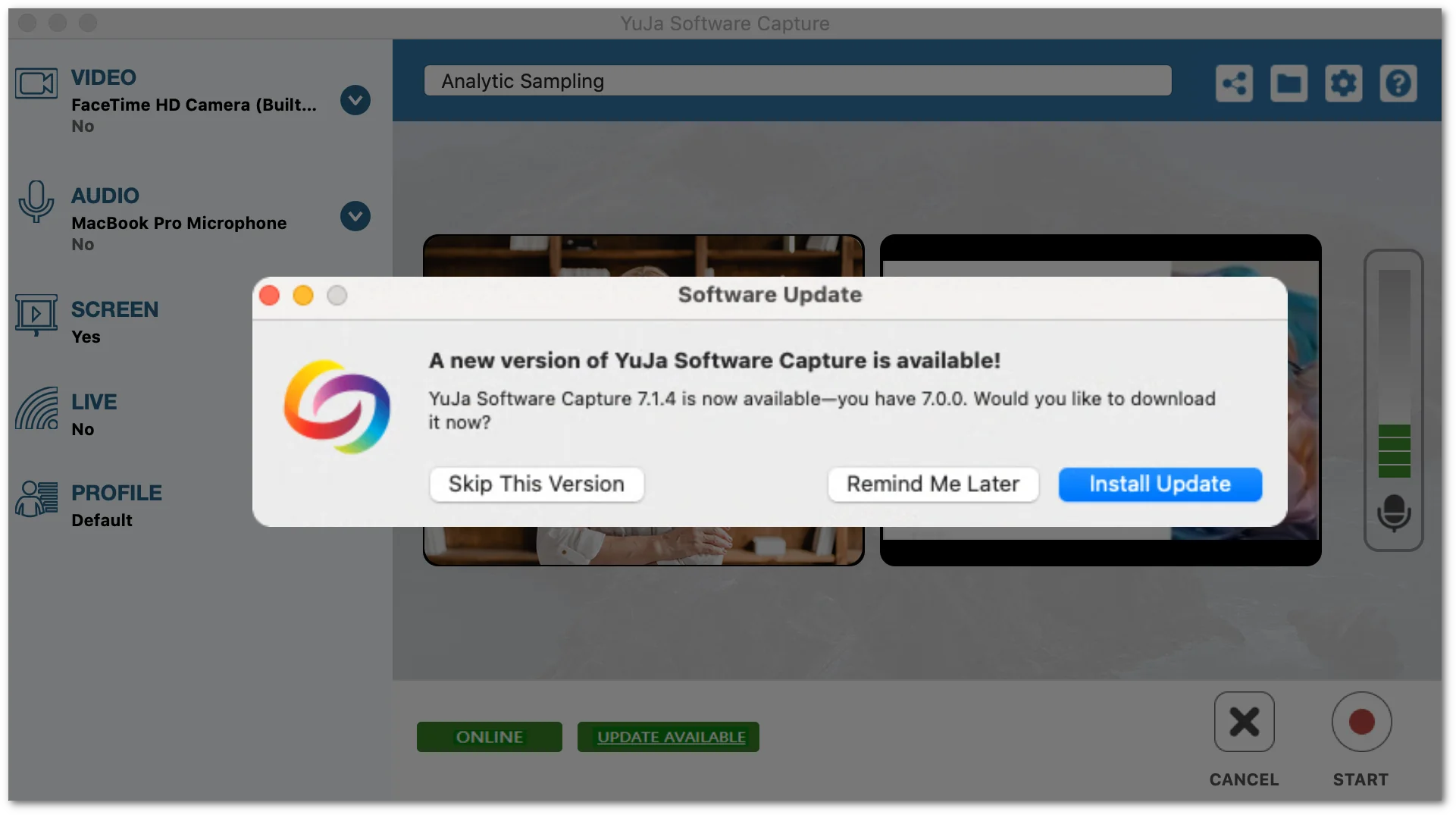
    1. Integrated “New Version” Notification with Integrated Software Update Capability To provide users with a streamlined workflow for obtaining the most up-to-date version of the Software Capture application, we have implemented a built-in update tool that mirrors the capability already available with the PC version. The update tool will allow Content Creators to receive notifications of a new version and download the latest version of the Software Capture application directly from the main window. Simply select the “Update Available” button to download the latest version.
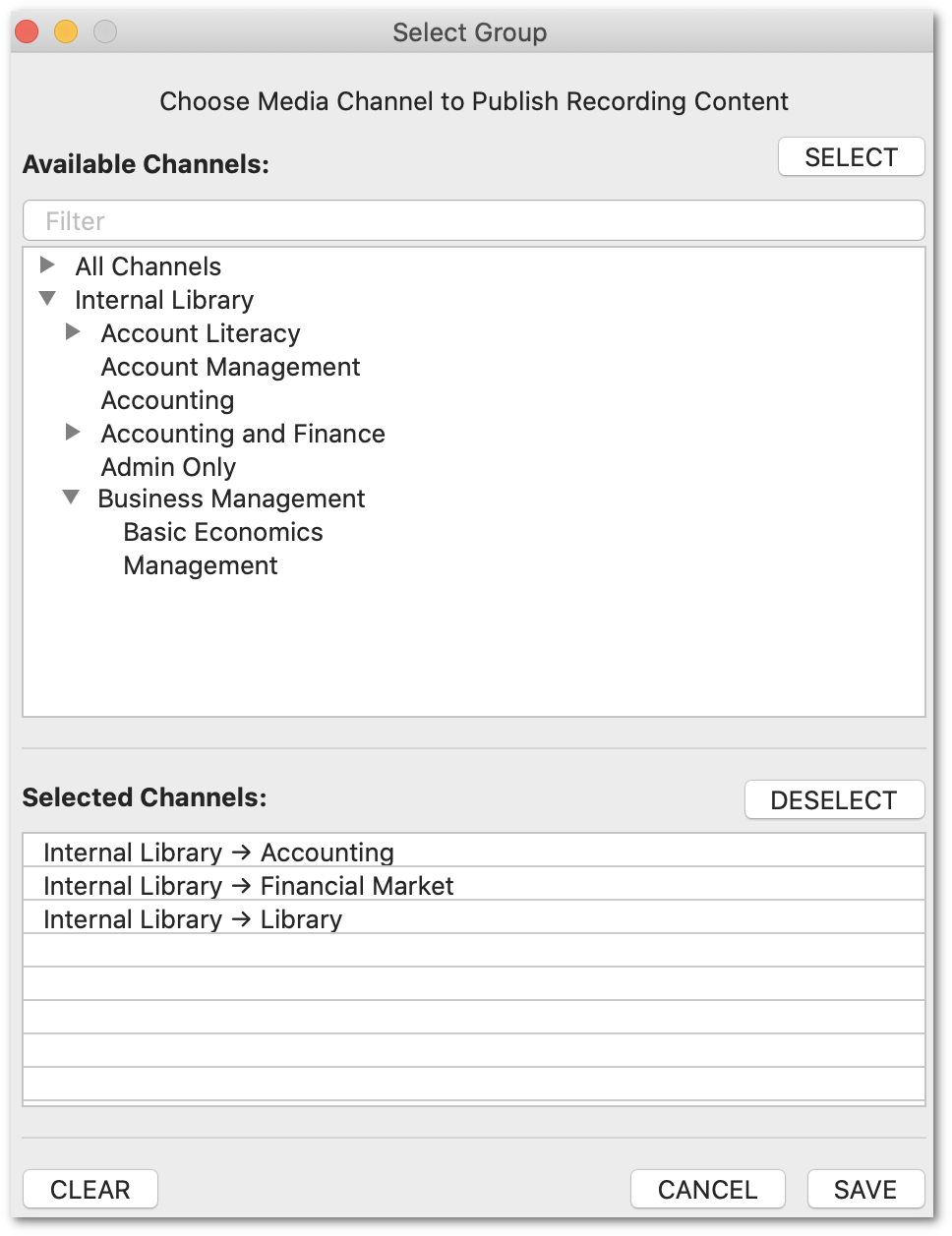
    2. Publish Recordings into Multiple Channels Mirroring our Software Capture for PC application, Content Creators may now publish recordings to multiple channels simultaneously by taking advantage of our tree-structured layout. Use the search filter feature to easily navigate an organized list of channels and subchannels in alphabetical order. Once all desired locations have been added to the publication list, simply begin recording.
    3. Publish Recordings to the Internal Library / CampusTube With the introduction of publishing Software Capture recordings to the Internal Library, we have now deployed full publishing capabilities within the Video Platform. Content Creators can effortlessly add their desired locations to the list of selected channels, facilitating instant uploads of their recordings.
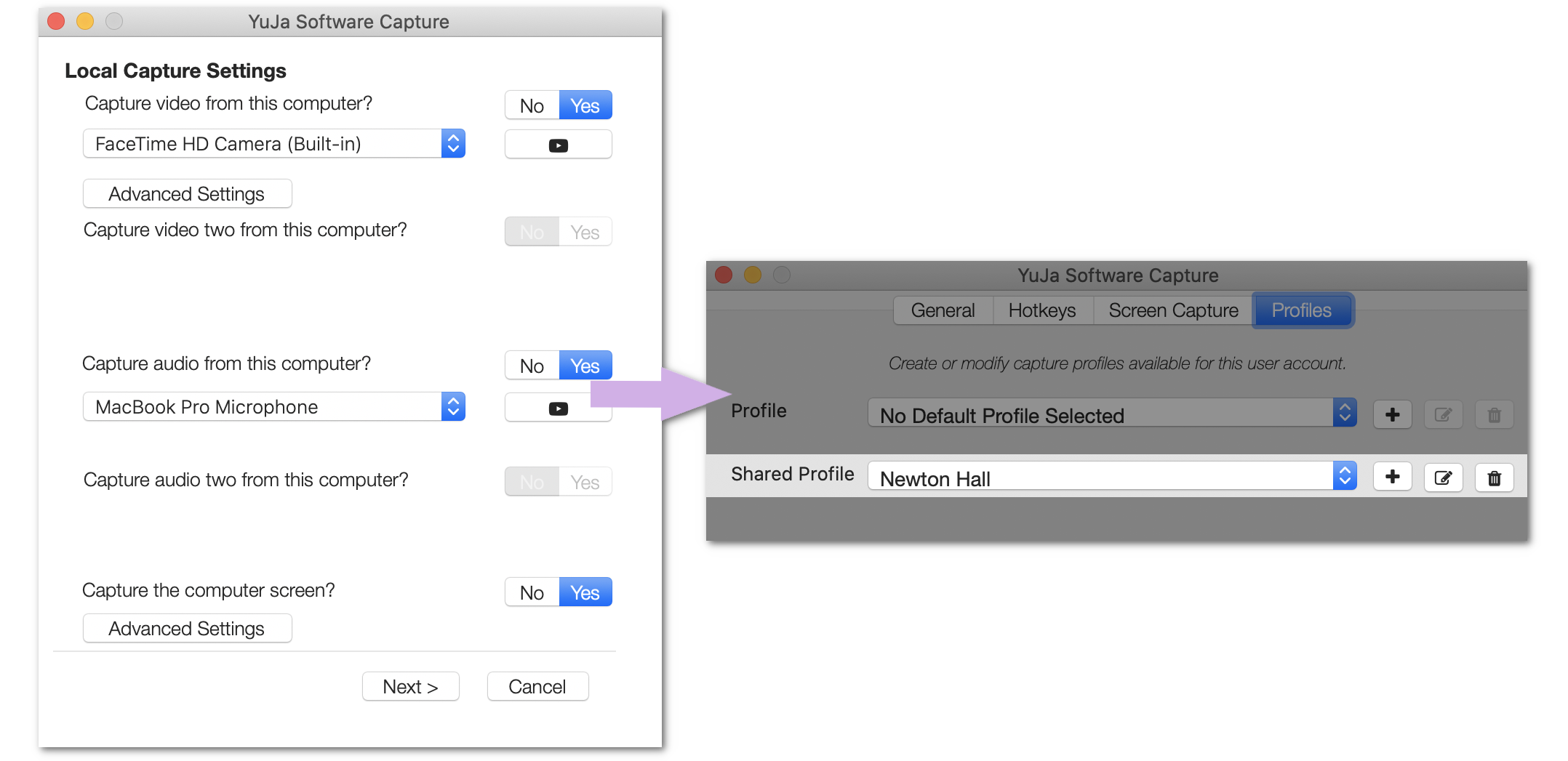
    4. Create Profiles to Share with Internal Users Content Creators that require profiles to be set across multiple devices can now conveniently create Shared Profiles. These profiles can be accessed across their institution, allowing their preferred settings to be applied immediately for automated or manual recordings. To learn how to create a Default Shared Profile, please visit our guide on Creating Profiles in the Software Capture for Apple application.
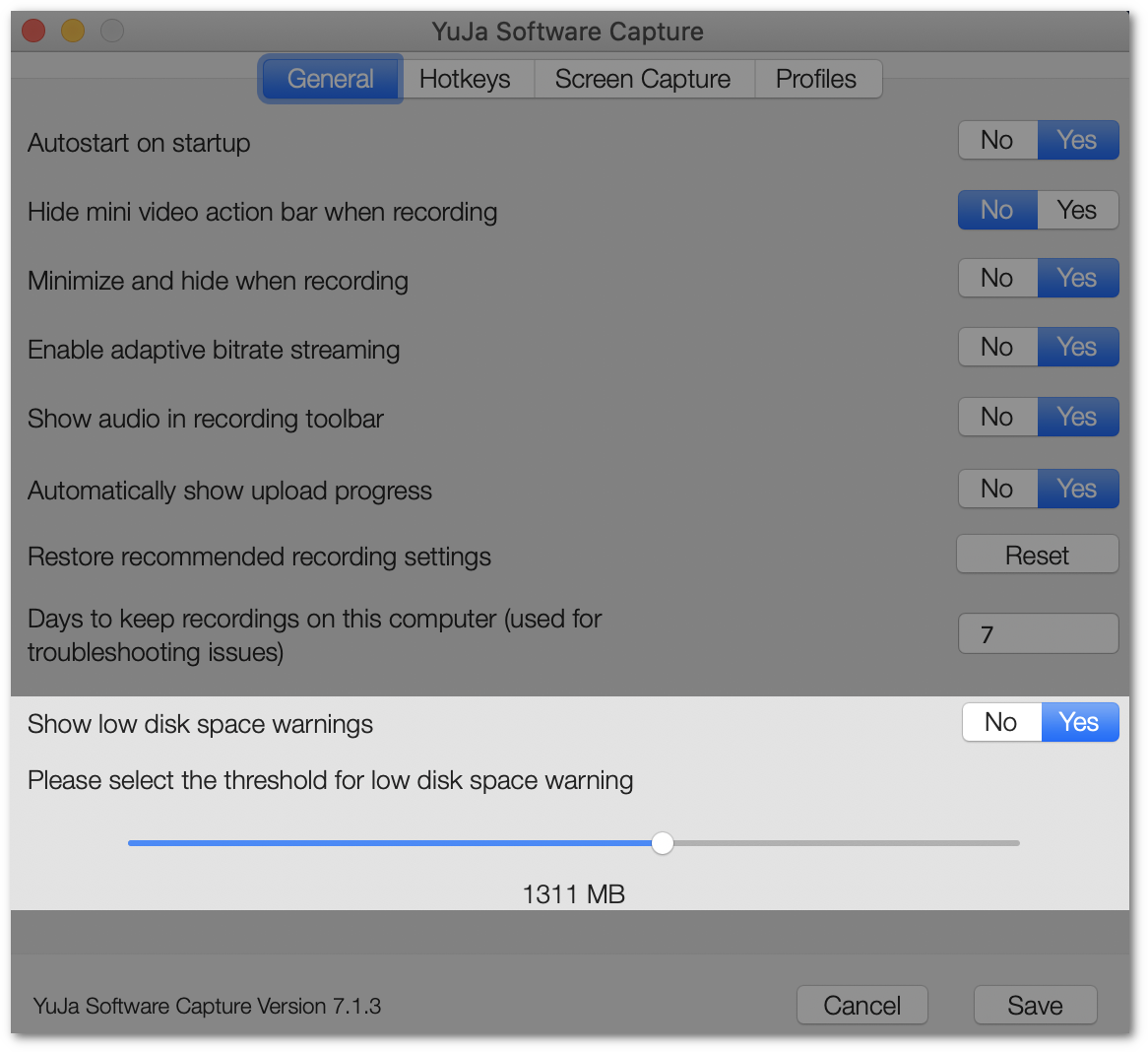
    5. Customizable Low-Disk Space Warning To ensure that Content Creators have the appropriate disk space required for recordings, we have implemented a monitoring system that tracks the storage capacity of their device. The monitoring system can be customized by selecting the threshold of when Content Creators would like to be notified for insufficient disk space.
    6. In-Depth Audit Tracking for Recording Events The new version of Software Capture for Apple provides audit logging of actions when using the application. This will make it possible to review and trace over 100 individual recording events and actions such as user login, dynamic source switching, profile selection, and much more. From a practical standpoint, the inclusion of these logs provides administrators support in identifying potential challenges encountered during recordings. By using this resource, we hope to help administrators troubleshoot recordings in a timely manner.
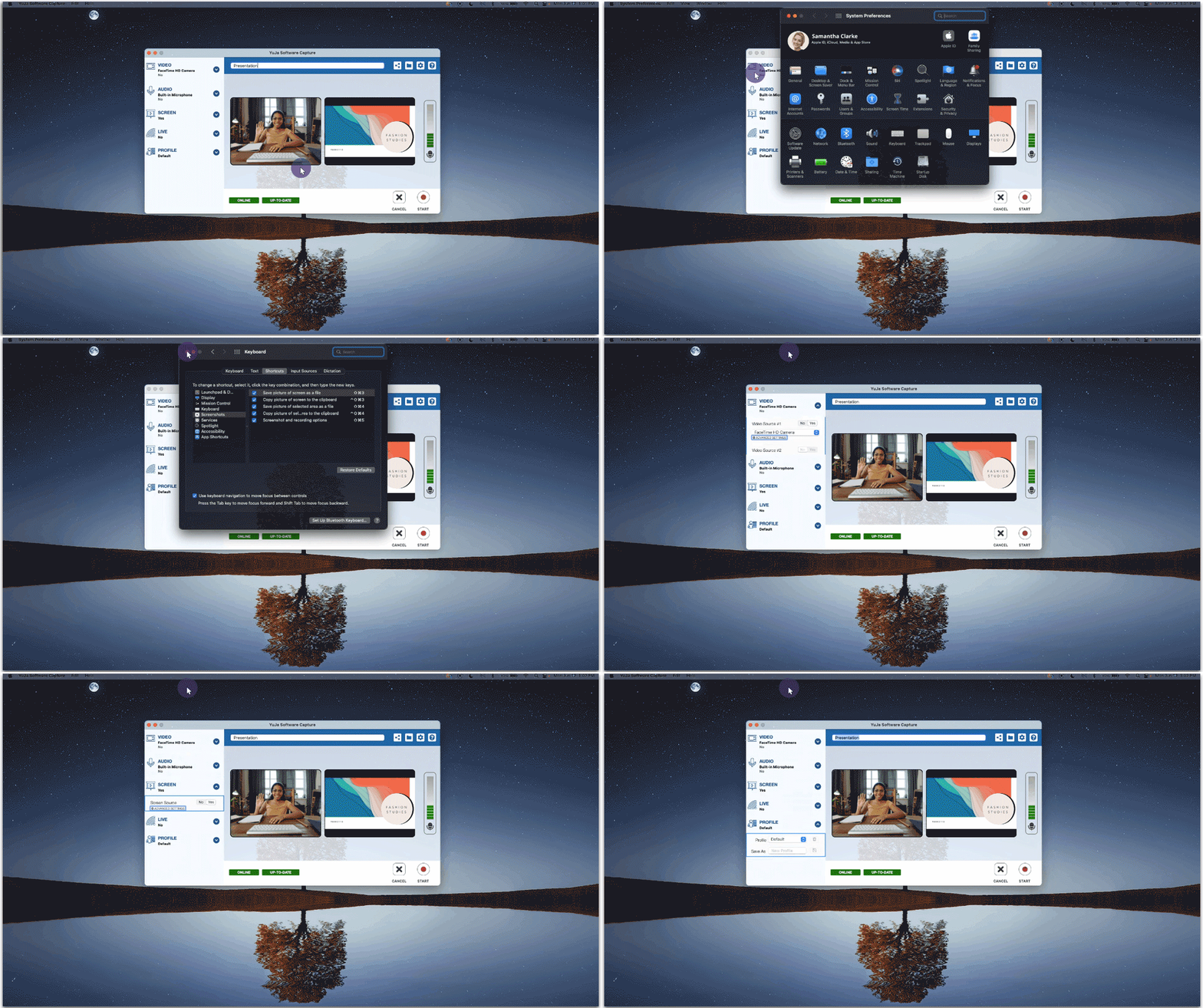
    7. Accessible Keyboard Navigation The Software Capture application is committed to ensuring accessibility for all Content Creators. To facilitate a more inclusive user experience, Content Creators now have the ability to utilize the Tab and Spacebar keys for navigating and selecting menu items, system settings, and recording options. By incorporating these keyboard functionalities, we strive to provide a seamless and intuitive experience, enabling Content Creators of all levels to navigate and utilize the application’s features effortlessly. Software Capture tab navigation.
  • June 5, 2023

    YuJa Panorama Digital Accessibility Platform – “Huron Peak” Version Released to US, CAN, and EU Zones

    We have successfully pushed an update to all YuJa Panorama Digital Accessibility Platform instances residing in the United States, Canada, and the European Union. This release provides our users with several updates. Highlights include: UI enhancements to the Alternative Formats menu, options to customize How-to-Fix guides, new Course Analytics for Institution Reports, expanded support for the WYSIWYG editor inside D2L Brightspace, Accessibility Reports for content created with TinyMCE 6.0, expanded support for Panorama in Blackboard Ultra, new Panorama rest APIs to retrieve reports, and the option to set a data retention policy. 
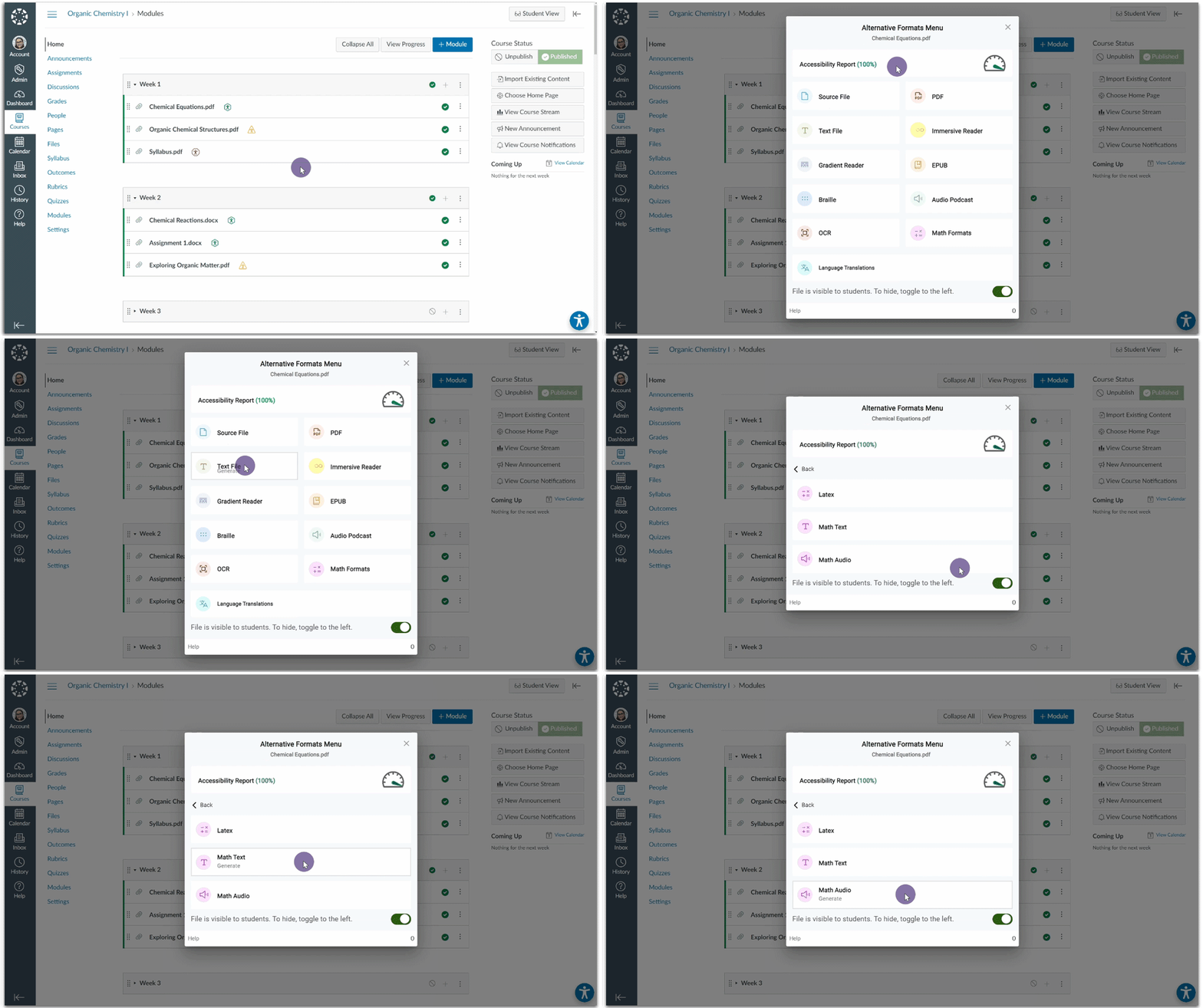
    1. Refreshed Alternative Formats Menu Interface We have updated the Alternative Formats Menu with a refreshed and modernized UI that showcases all available alternative formats while minimizing the steps required to view a preferred format. In future releases, we aim to provide custom branding through icon colors and font adjustments to meet the branding needs of institutions. New Alternative Formats menu.
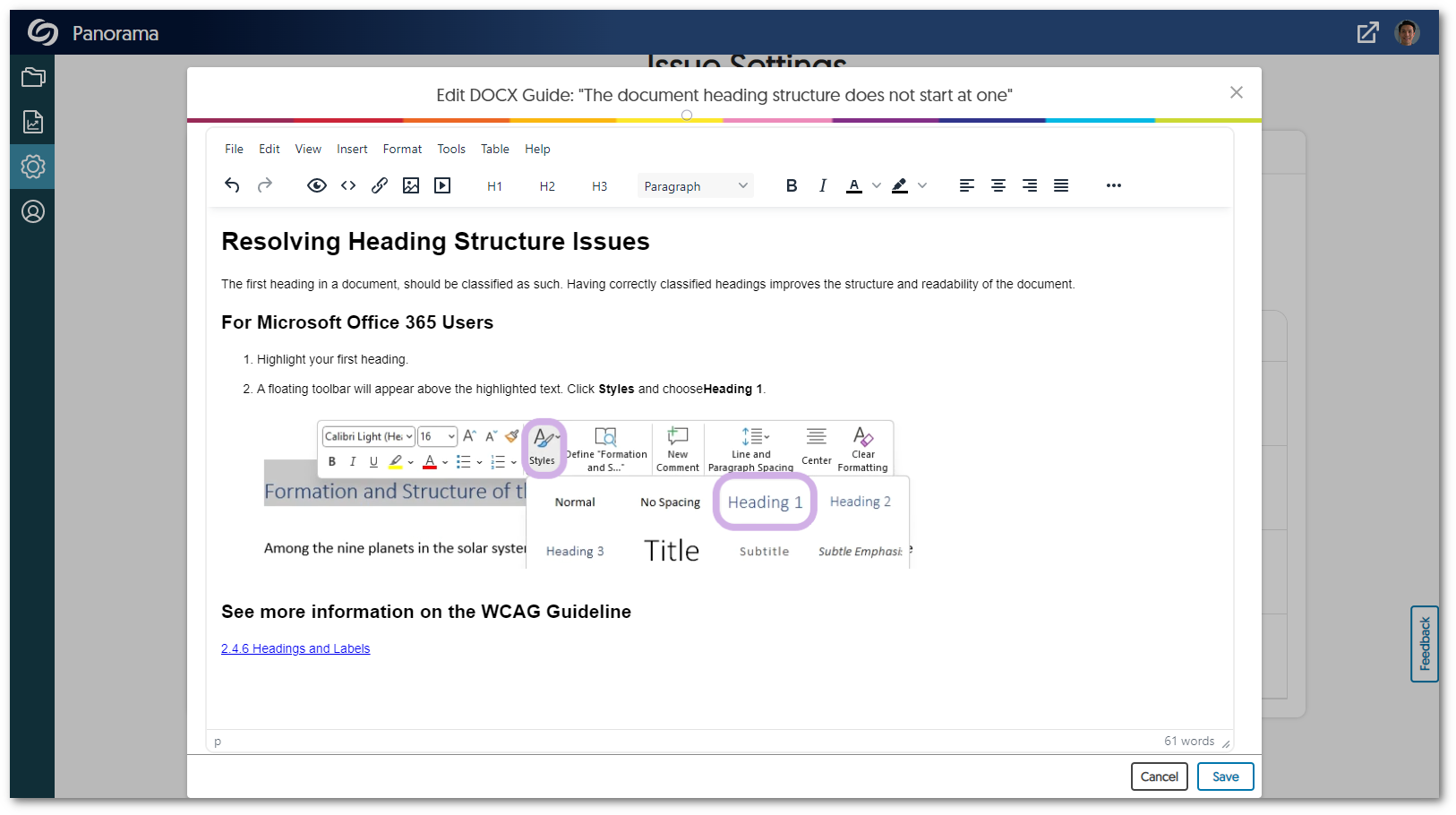
    2. Editable “How-to-Fix” Guides to Meet the Unique Needs of Institutions Administrators can edit the “How-to-Fix” guides using an integrated WYSIWYG editing interface to meet the exact needs and protocols of their institutions. Add new text, images, and links, and adjust formatting for guides. To provide guidelines on accessible content, each issue will now be accompanied by a link to its relevant Web Content Accessibility Guidelines to provide more information when editing the “How-to-Fix” guides. Editing a How-to-Fix guide.
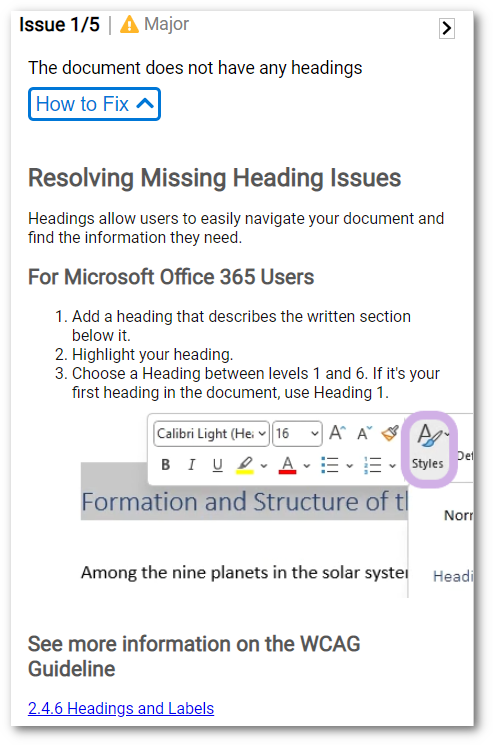
    3. Upgraded Text and Images within Each “How-to-Fix” Guide We have upgraded the Panorama “How-to-Fix” guides by improving all texts and images to provide more easy-to-follow instructions for improving the accessibility of content. In a near-term release, we will focus on bringing short video tutorials for each issue to help users create accessible content for their documents. How-to-Fix guide for Panorama.
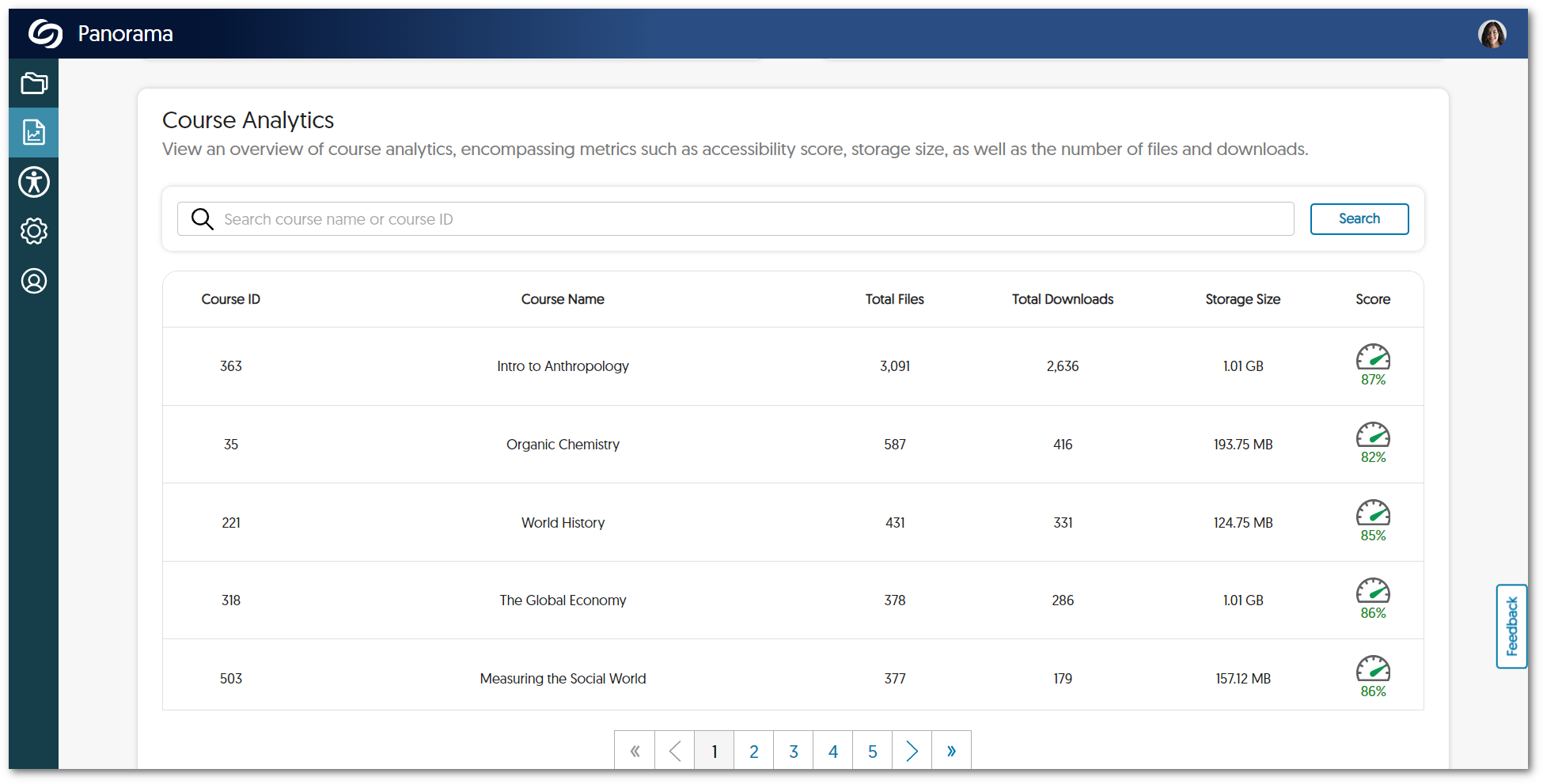
    4. Institution Report Offers Viewing for Key Course Metrics The Institution Report provides a greater depth of analysis for admins looking to quickly gain more information about courses in their institution. Administrators now have access to key metrics, such as accessibility scores, storage sizes, and the number of files and downloads for all courses. If more detailed reports for courses are required, administrators can select any course to view its corresponding Course Report. Course Analytics in the Institution Report.
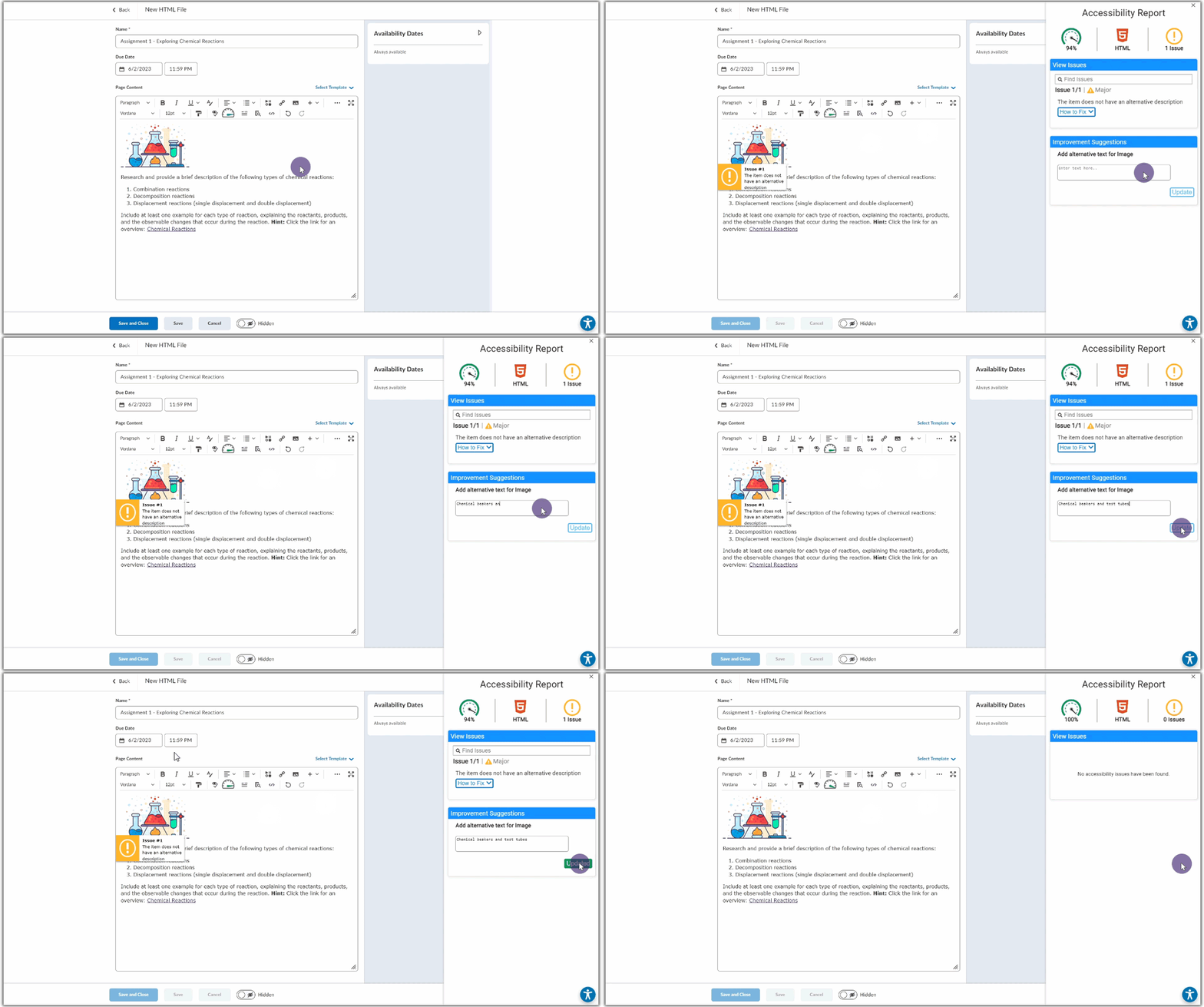
    5. Expanded Support for WYSIWYG Editor Inside D2L Brightspace Lessons View As part of our ongoing efforts to increase accessibility in all areas of D2L Brightspace, we now support real-time accessibility checks with our WYSIWYG editor in the new Lessons View. By offering real-time analysis and actionable suggestions, Content Creators can create accessible content within their D2L Brightspace environment. Our checks are essential in ensuring content is accurate and in compliance with Web Content Accessibility Guidelines (WCAG). Accessibility Report for D2L Lessons View.
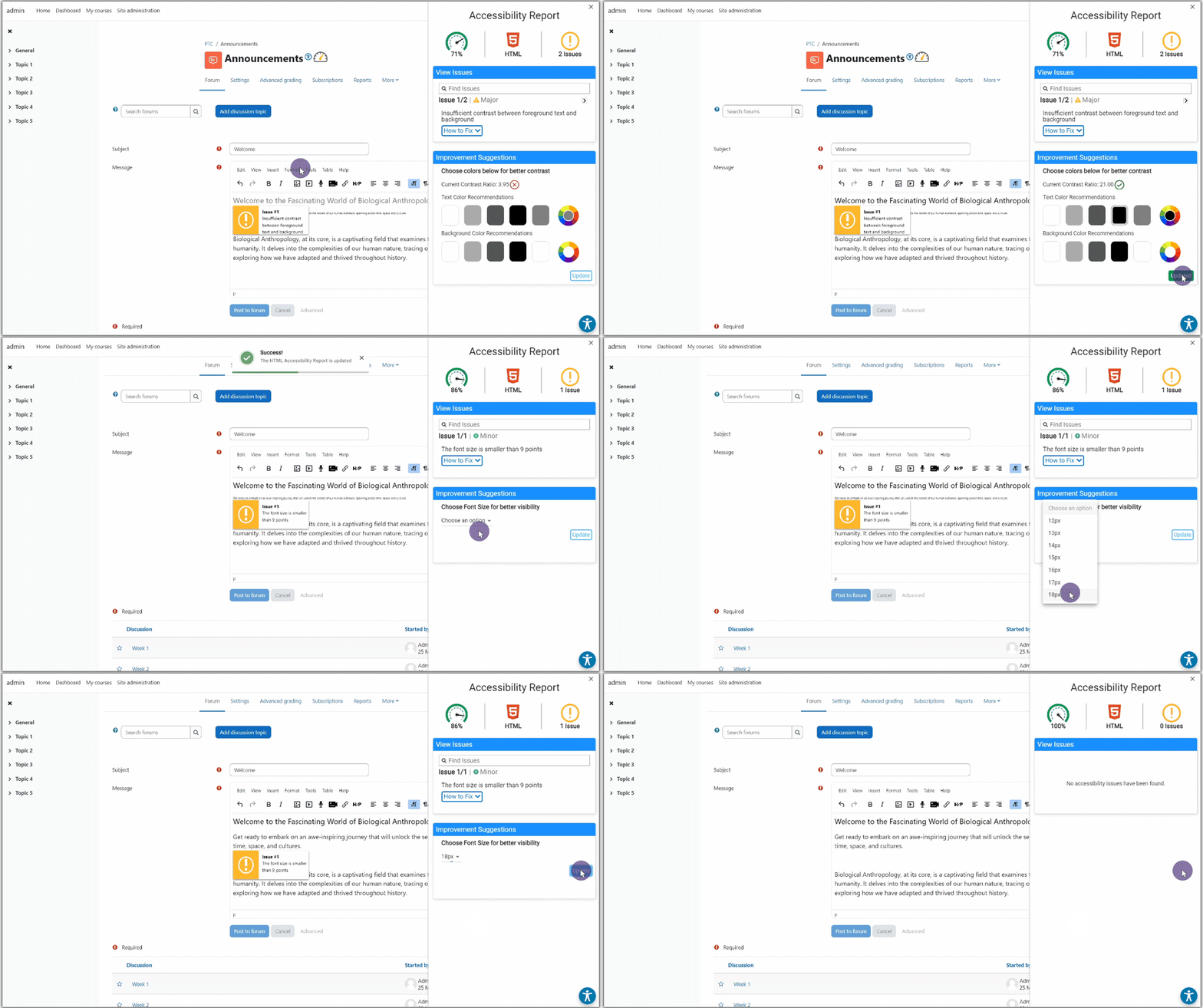
    6. Accessibility Score Support for TinyMCE 6.0 in Moodle 4.1 With the recent TinyMCE 6.0 release available to all Moodle 4.1 users, Panorama can now assess the accessibility of content created using the TinyMCE 6.0 editor. This enables Panorama to accurately evaluate the accessibility of content created using TinyMCE 6.0 and provide users with accessibility scores. Accessibility Report being viewed when using Tiny MCE 6.0.
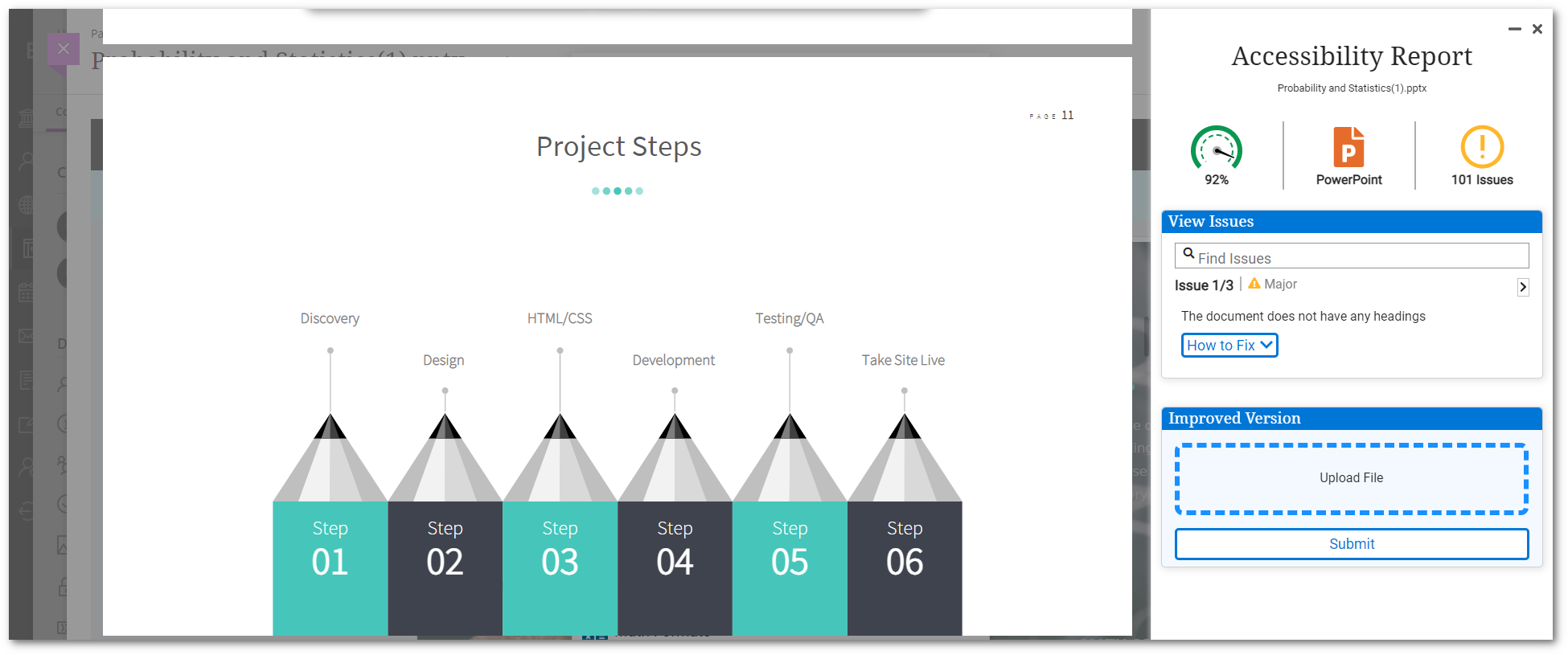
    7. Expanded Support for Panorama in Blackboard Ultra To increase accessibility scans for our Blackboard Ultra users, during course scans, files are now identified in the Content and Assignment sections of Blackboard. In addition, if HTML reporting is enabled, files from the Discussion section and Assessment region will also be included in the reports. With these enhancements, administrators and instructors will benefit from increased accuracy in accessibility scores for both institution and course-level reporting. Accessibility Report for a PowerPoint in Blackboard Ultra.
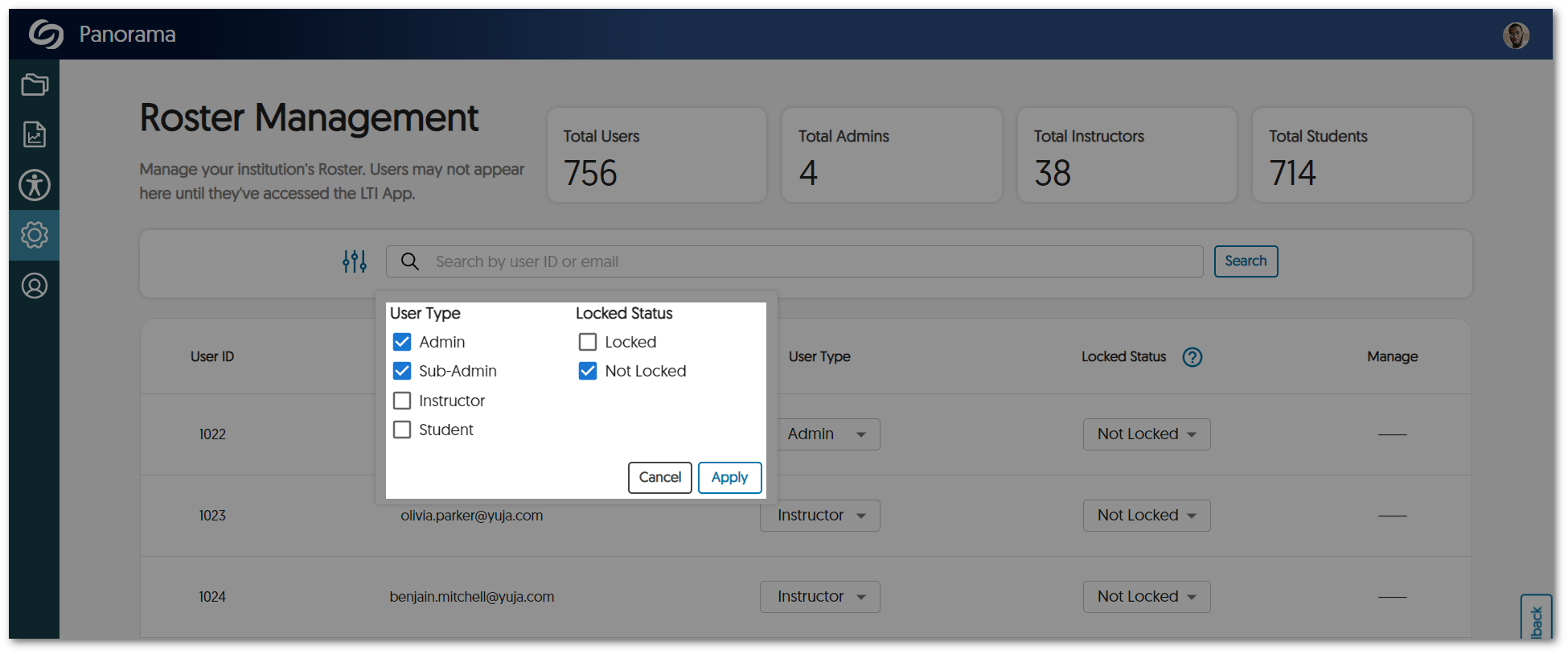
    8. Apply Multiple Filters to the Roster Management To enhance the Roster Management experience, administrators can now apply multiple filters that provide greater precision when viewing the roster. Panorama Roster filter.
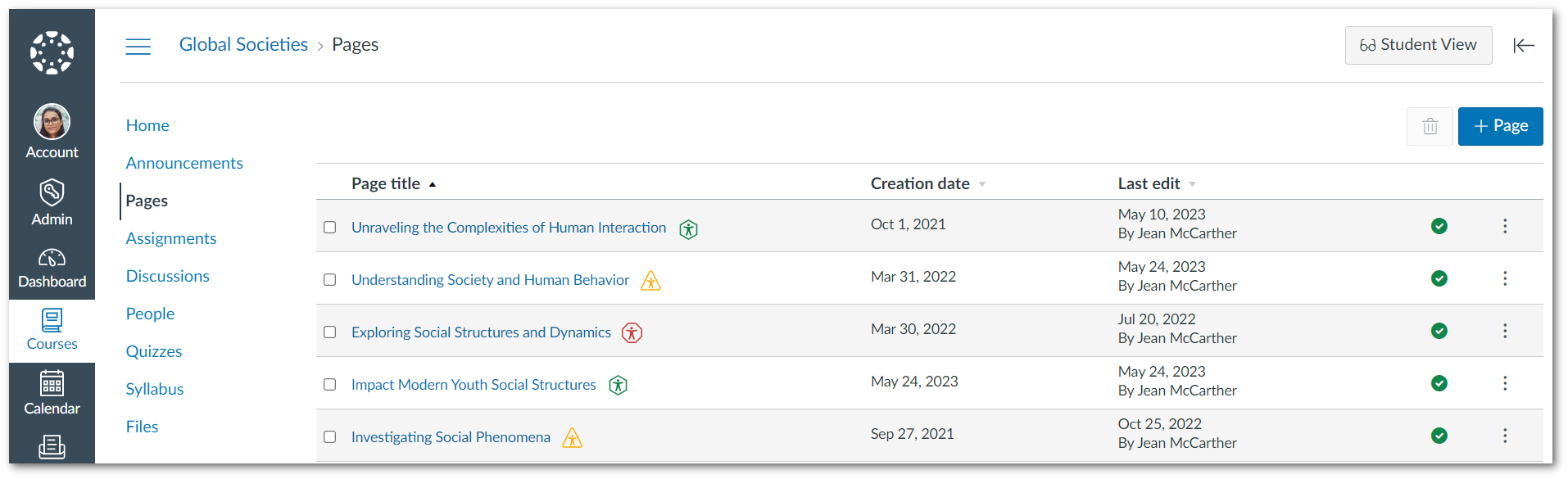
    9. Accessibility Scores for HTML-Based Pages in List View Previously, instructors would have to click on each HTML-based page to review its accessibility score. We have now refined how instructors view accessibility scores by providing accessibility icons in sections where HTML pages are listed. List view of HTML-based content pages showcasing Accessibility Icons next to each page.
    10. Enhanced Panorama’s Screen Reader Compliance In line with our dedication to fostering inclusivity and accessibility, we have significantly improved Panorama’s screen reader compliance. Screen readers can now efficiently and more accurately interpret content found within Panorama, such as the LTI App, Website Accessibility, LMS Visualizer, and more.
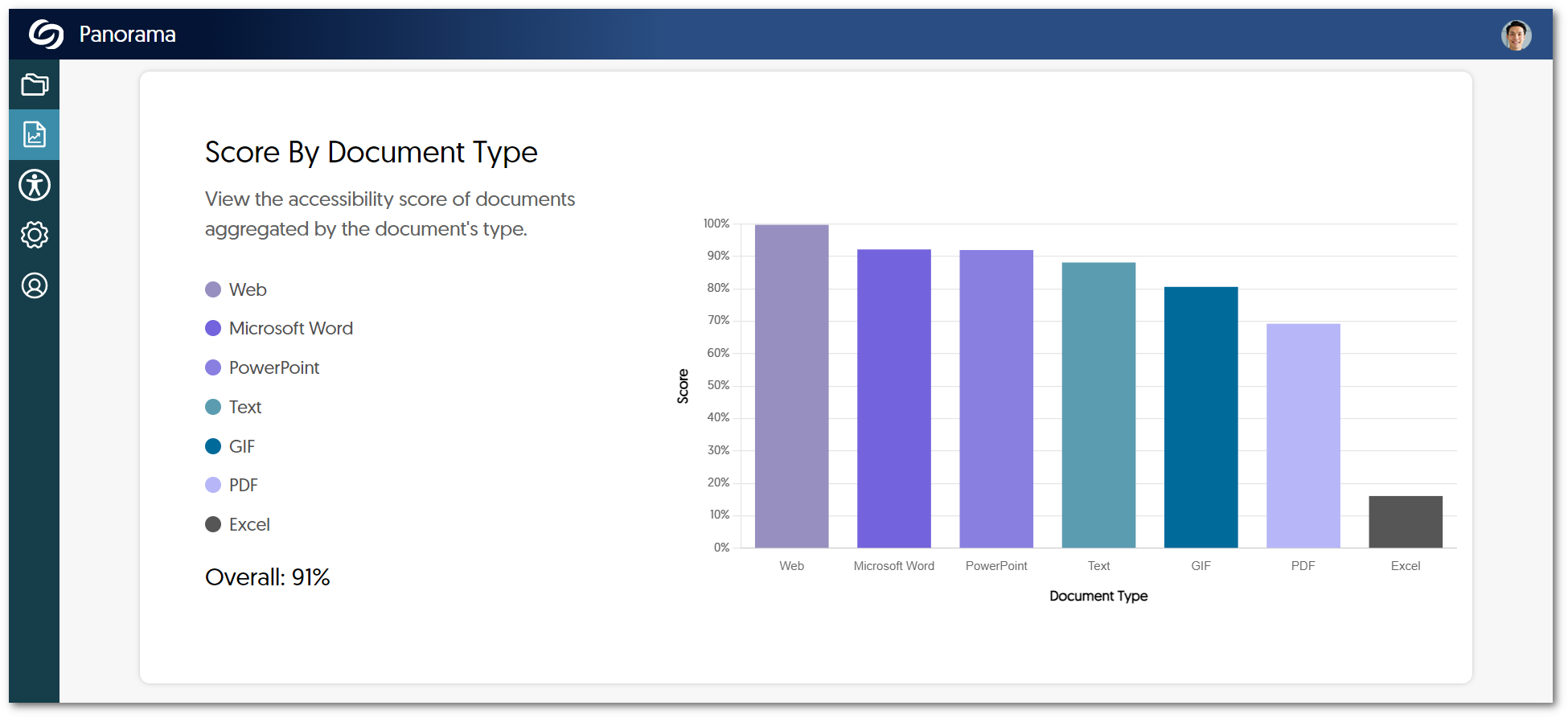
    11. Course Reports Provide Average Accessibility Scores of Documents Institution and Course Reports now provide a graph showcasing the average accessibility score for each file type. Course Report graph for each document type and it's average accessibility score.
    12. Panorama REST API to Retrieve Reports We have added support for third-party API integration to allow administrators and instructors to access information regarding document accessibility issues and institution and course-level reporting. To learn how to use our APIs, please visit our Panorama API guide.
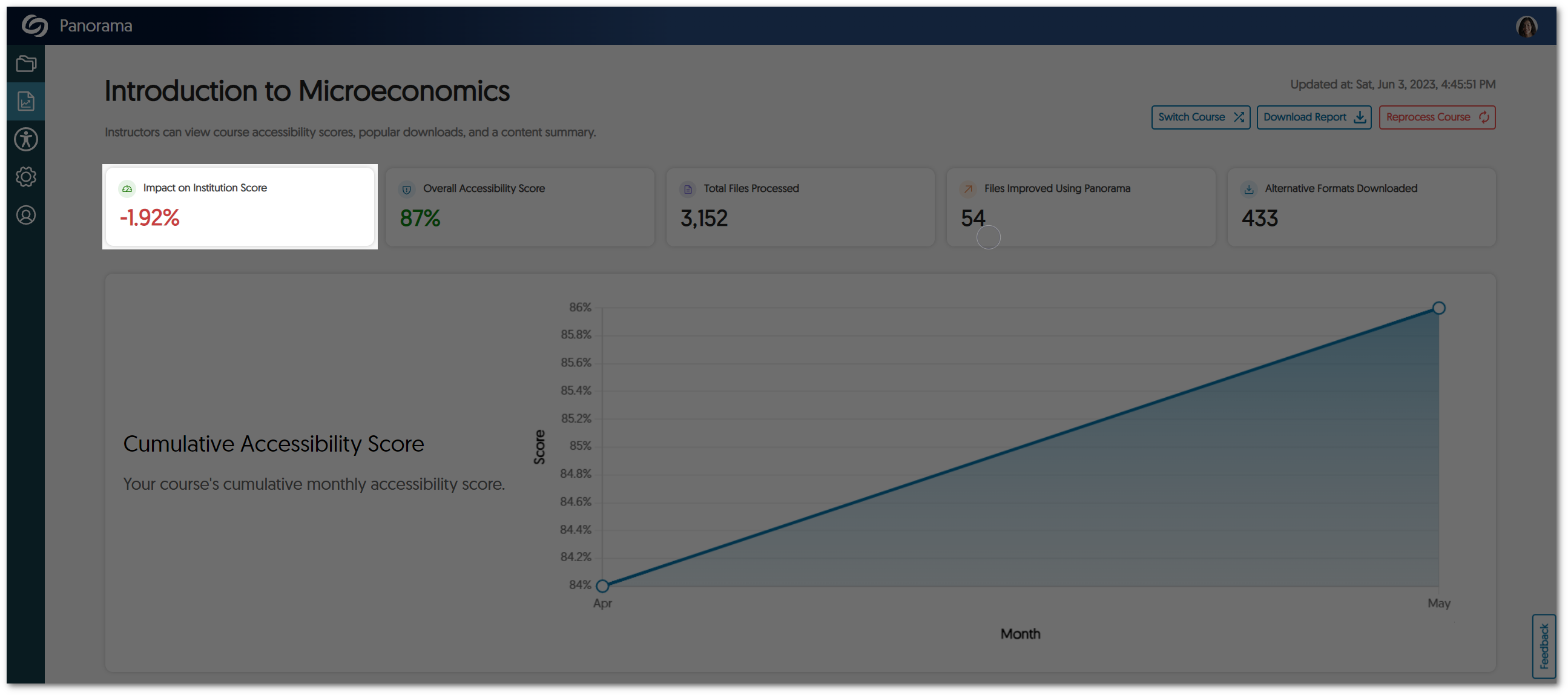
    13. View Accessibility Impact Scores Administrators can view impact scores for each course to see how they affect the overall institution score. This feature will allow administrators to focus on the least accessible courses and view changes to the impact score as users adjust courses. Impact Score for a course.
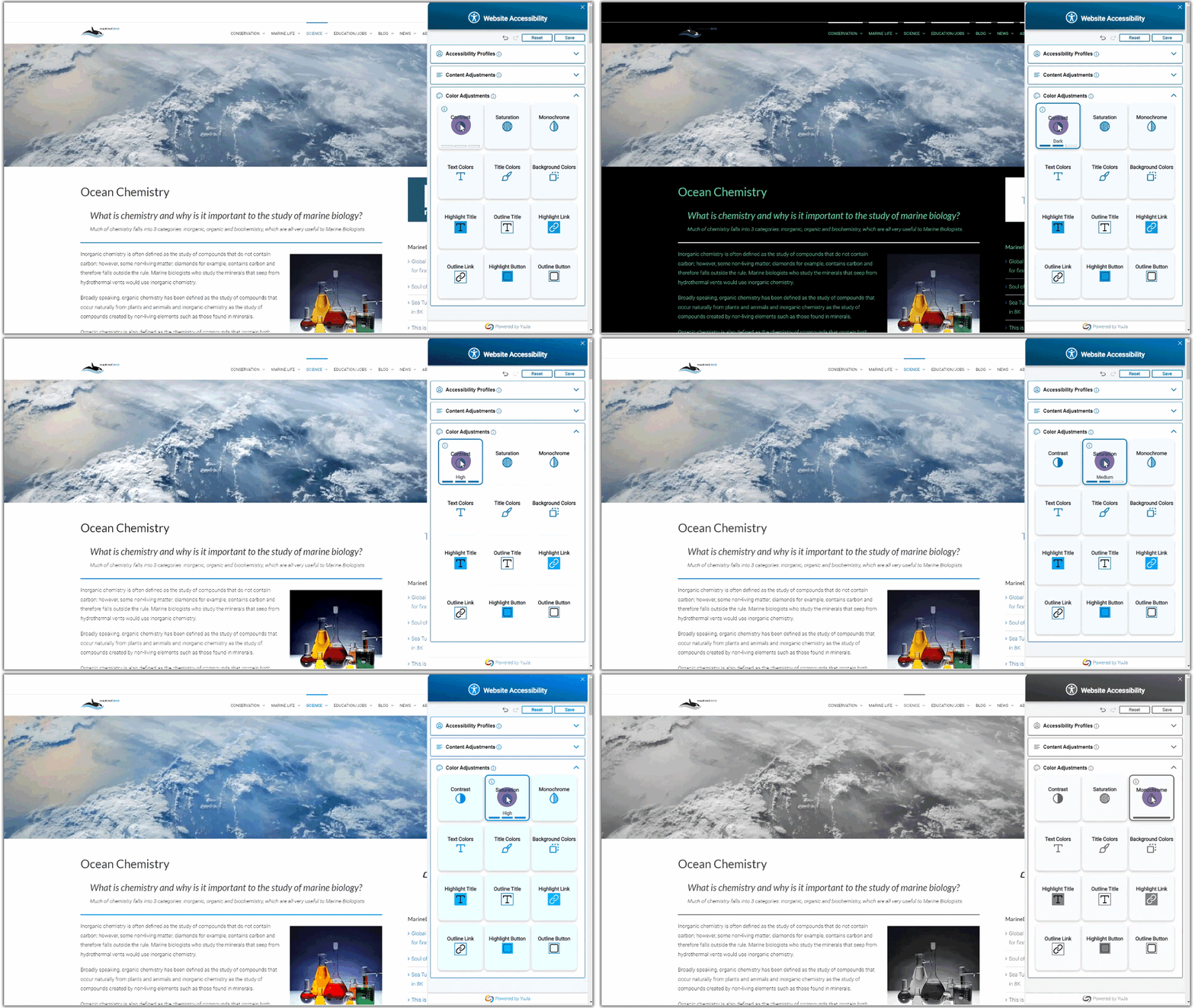
    14. Improved Color Adjustments for Website Accessibility Previously, adjusting the Contrast, Saturation, and Monochrome settings for Website Accessibility would, in certain circumstances, change the formatting of pages. We have updated these settings to ensure the original formatting of pages is kept intact. Website Accessibility featuring the contrast, saturation, and monochrome settings.
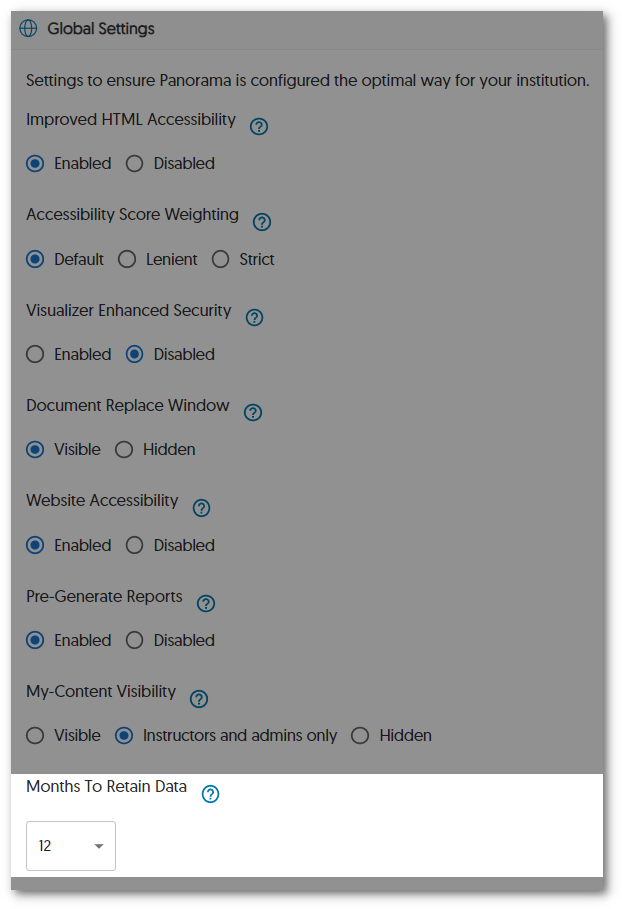
    15. Administrators Can Now Create Data Retention Policy Administrators can set Panorama to remove all data after a specified number of months automatically. This feature gives administrators and instructors a clean slate when using Panorama between semesters or school years. Setting for Data retention policy.
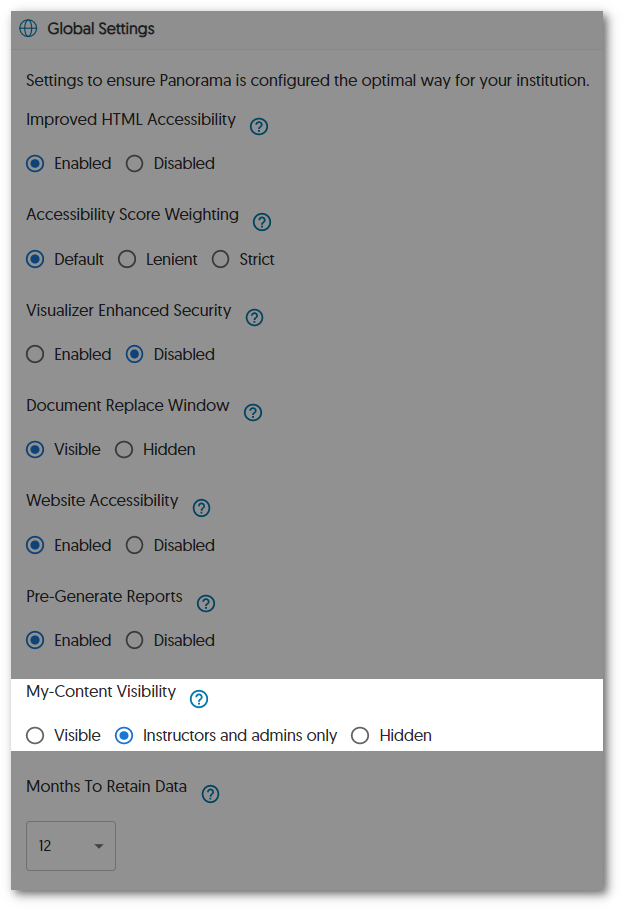
    16. Adjust the Visibility of My Content Administrators can adjust the visibility of My Content, the personal repository for users, to be visible to all, available to instructors and administrators, or completely hidden from view. Setting to set My Content visibility.

Join the 1,000+ Organizations Deploying High-Impact Solutions

A collection of logos representing various organizations and institutions that use YuJa’s platform.