Product Updates

Get the latest platform updates, features, and announcements—all in one place.

Help Shape What's Next

Join discussions, request features, and vote on ideas.

Join Community

Built With Passion

Learn about the people behind YuJa.

About Us

Trial Program

We offer an opportunity to try our products.

Request a Demo
  • August 2, 2024

    YuJa Panorama Digital Accessibility Platform Update – August 2024

    We have successfully pushed an update to all YuJa Panorama Digital Accessibility Platform instances residing in the US, Canada, Australia, Singapore, the Middle East, and the European Union.
      This update includes web and HTML view for WYSIWYG content, preview adjustments for color contrast issues, disable scans for unpublished content in Canvas,  a new accessibility check for outdated file formats, customized branding for the Panorama LTI navbar, support for detecting accessibility issues in the WYSIWYG editor for Canvas Quizzes,  support for Moodle page descriptions, a manual override for the reading order check, improved processing speeds when generating reports, and more.
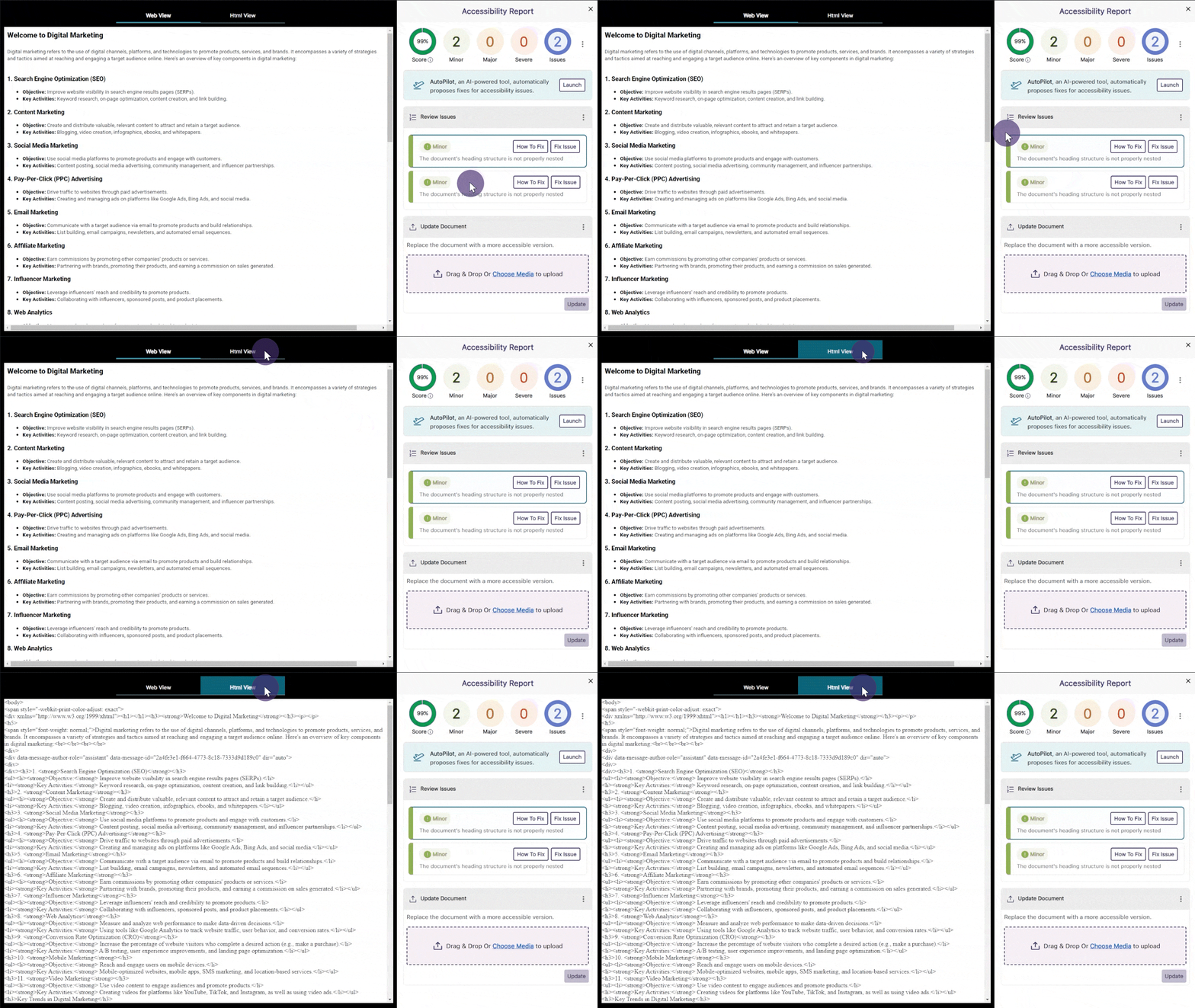
    1. Accessibility Reports Offer Web and HTML View for WYSIWYG Content Content creators can review their WYSIWYG Accessibility Reports in a visual web format or HTML text. The web format lets creators see their content exactly as it appears to others, while the HTML view provides insight into the page’s structure to review issues. The Accessibility Report shows the HTML and Web view for a page.
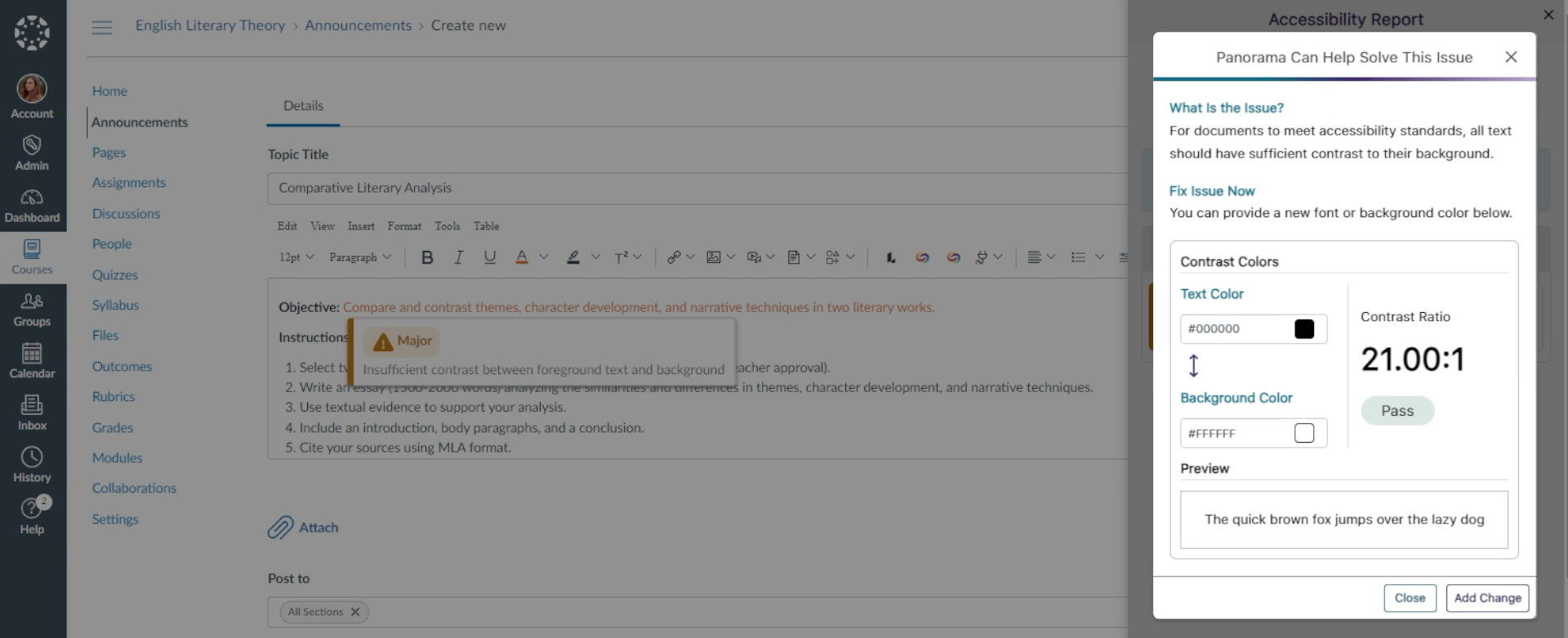
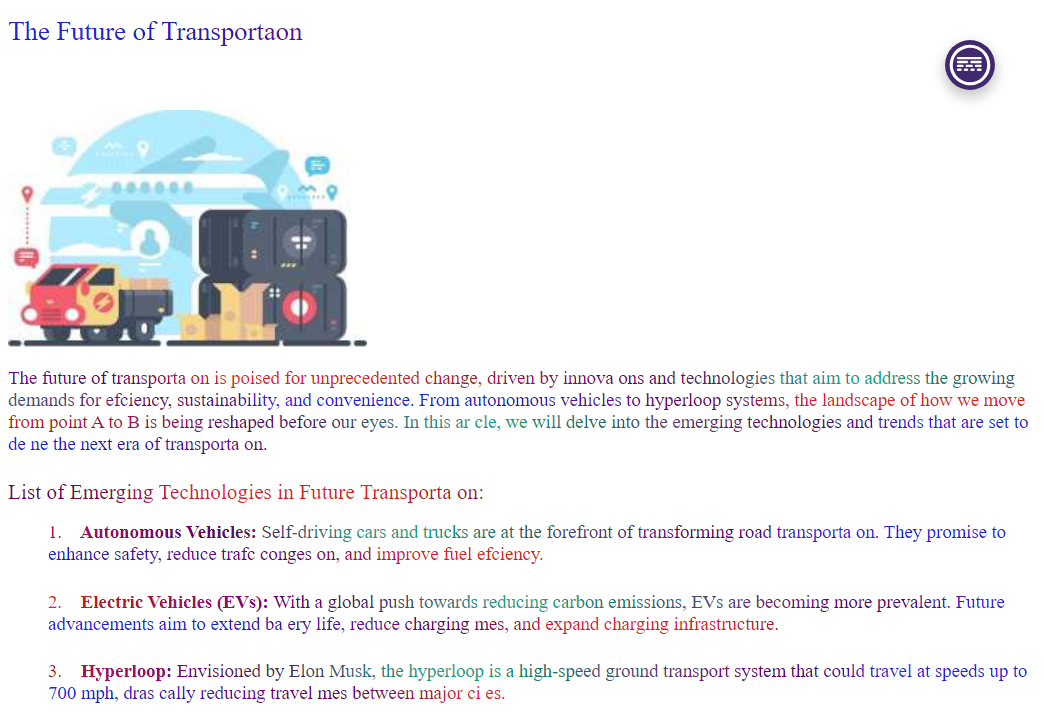
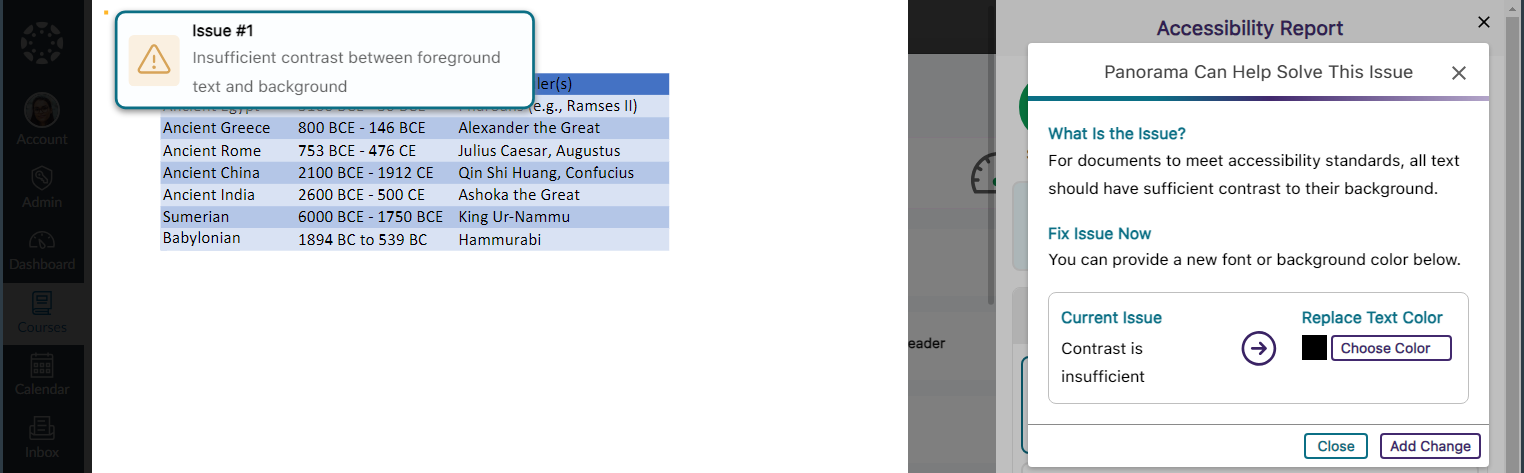
    2. Preview Adjustments When Resolving Color Contrast Issues When addressing insufficient contrast between text and background colors, Panorama provides a preview and calculates the contrast ratio to ensure your newly selected colors meet accessibility standards. A color contrast issues is shown with a preview of the new changes that will be applied.

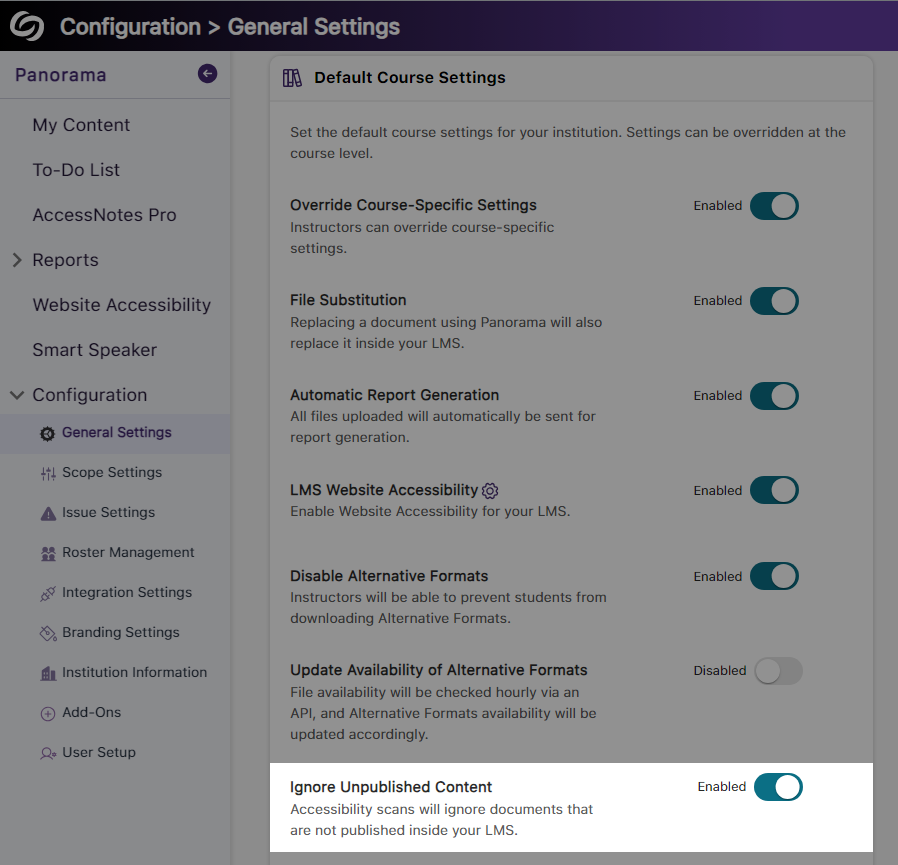
    3. Disable Accessibility Scans for Unpublished Content in Canvas Canvas admins and instructors can disable accessibility scans for unpublished documents and pages, ensuring that course and institution accessibility scores reflect only what is available to view. The setting to ignore unpublished content.
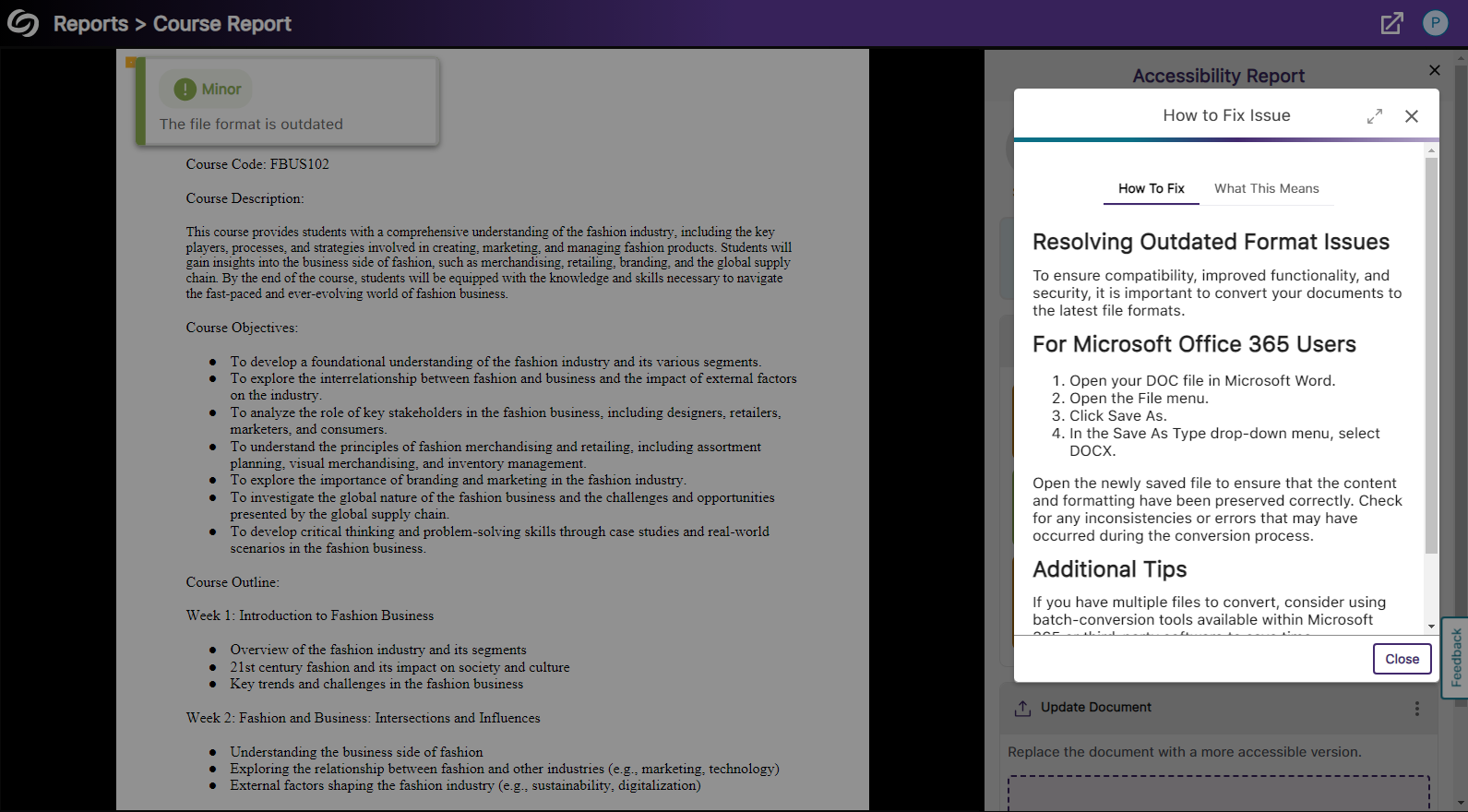
    4. New Accessibility Check for Outdated File Formats The Accessibility Report will verify that DOCX, PPTX, and XLSX documents are updated to the latest file versions and provide steps for updating them if needed. The outdated file format issue is shown with steps on how to resolve it.
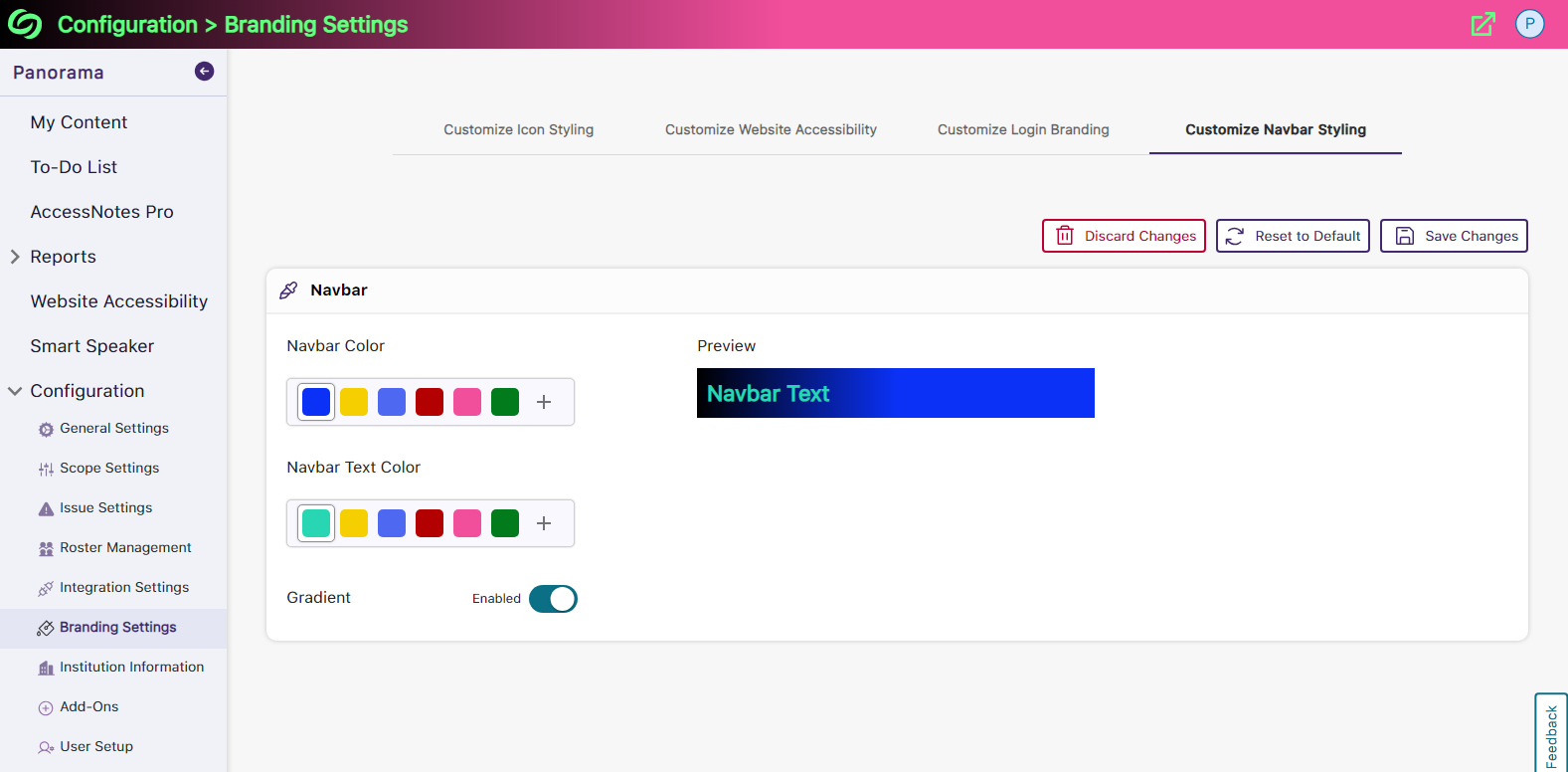
    5. Customize the Branding of the Panorama LTI Navbar The background and text color of the Panorama LTI navbar can be customized to match your institution’s branding. Navbar branding settings showing option to adjust background and text colors.
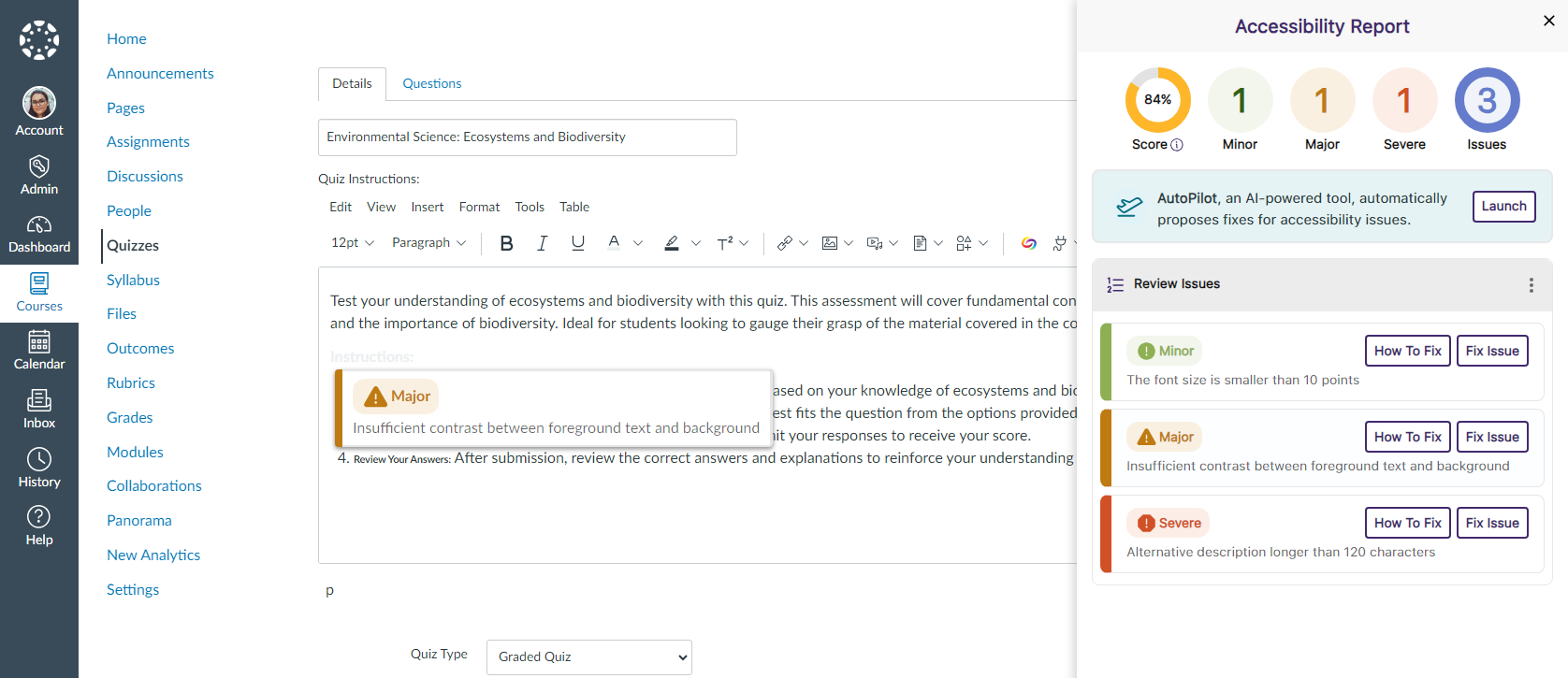
    6. Expanded Support for the WYSIWYG Editor Inside Canvas Quizzes As part of our ongoing efforts to increase accessibility in all areas of Canvas, we now support real-time accessibility checks within the WYSIWYG editor for Quizzes. The Accessibility Report is shown in Canvas Quizzes.
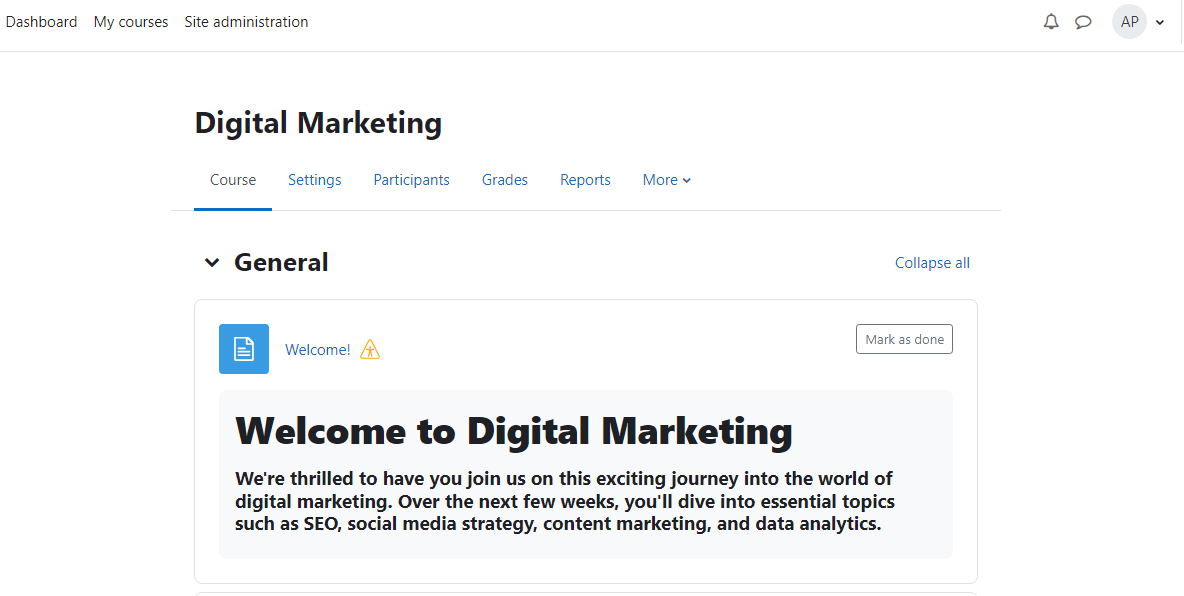
    7. Moodle Page Descriptions Will Be Scanned to Detect Accessibility Issues We have expanded Panorama’s capabilities to include an Accessibility Report for descriptions created on Moodle Pages. The Panorama Accessibility icon is shown for Moodle.
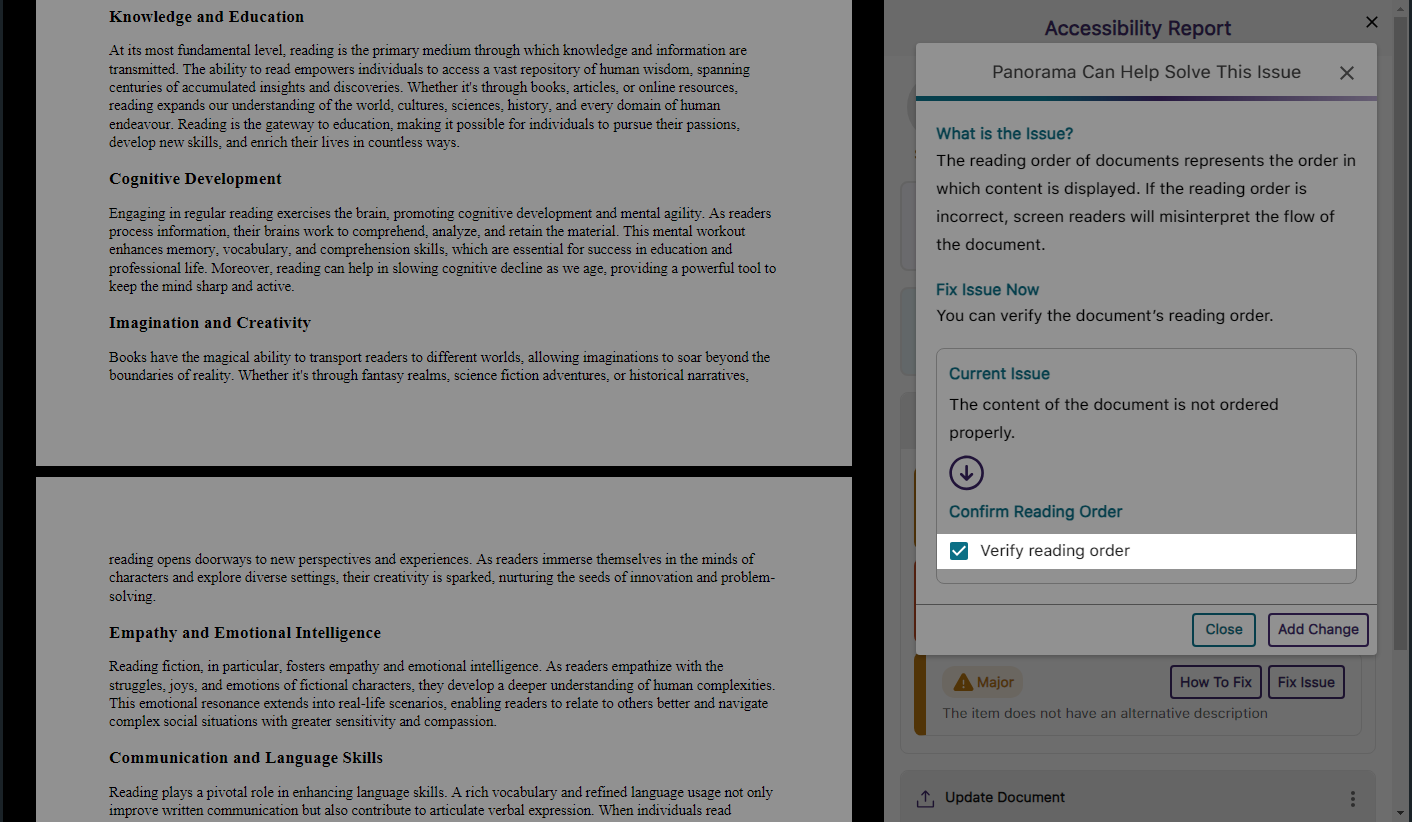
    8. Manually Verify the Reading Order of Documents In cases where Panorama identifies the reading order as an issue, content creators may prefer to retain their original order. To accommodate this, we’ve introduced a “Verify reading order” checkbox, which will prevent Panorama from flagging the reading order issue upon rescanning the document. The reading order checkbox is shown in the Accessibility Report.
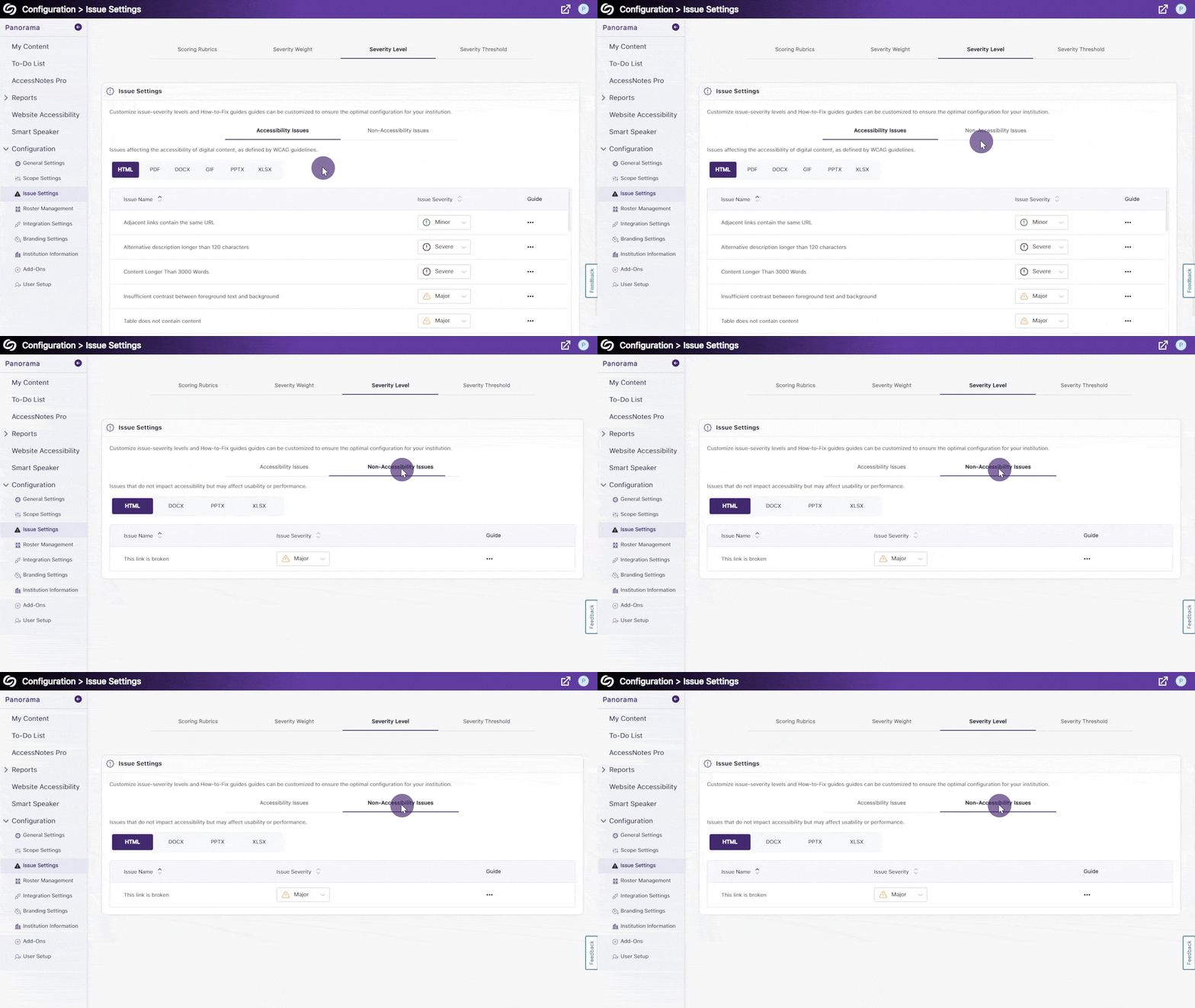
    9. View an Organized List of Accessibility Issues and Non-Accessibility Issues With Panorama’s vast range of checks, it’s important for content creators to recognize that some issues detected by Panorama may not directly impact a document’s accessibility but could affect its usability, such as a document containing broken links. To help distinguish between these issues, the Issue settings now include two separate tabs: Accessibility Issues and Non-Accessibility Issues. Accessibility issues and non-accessibility issues are shown.
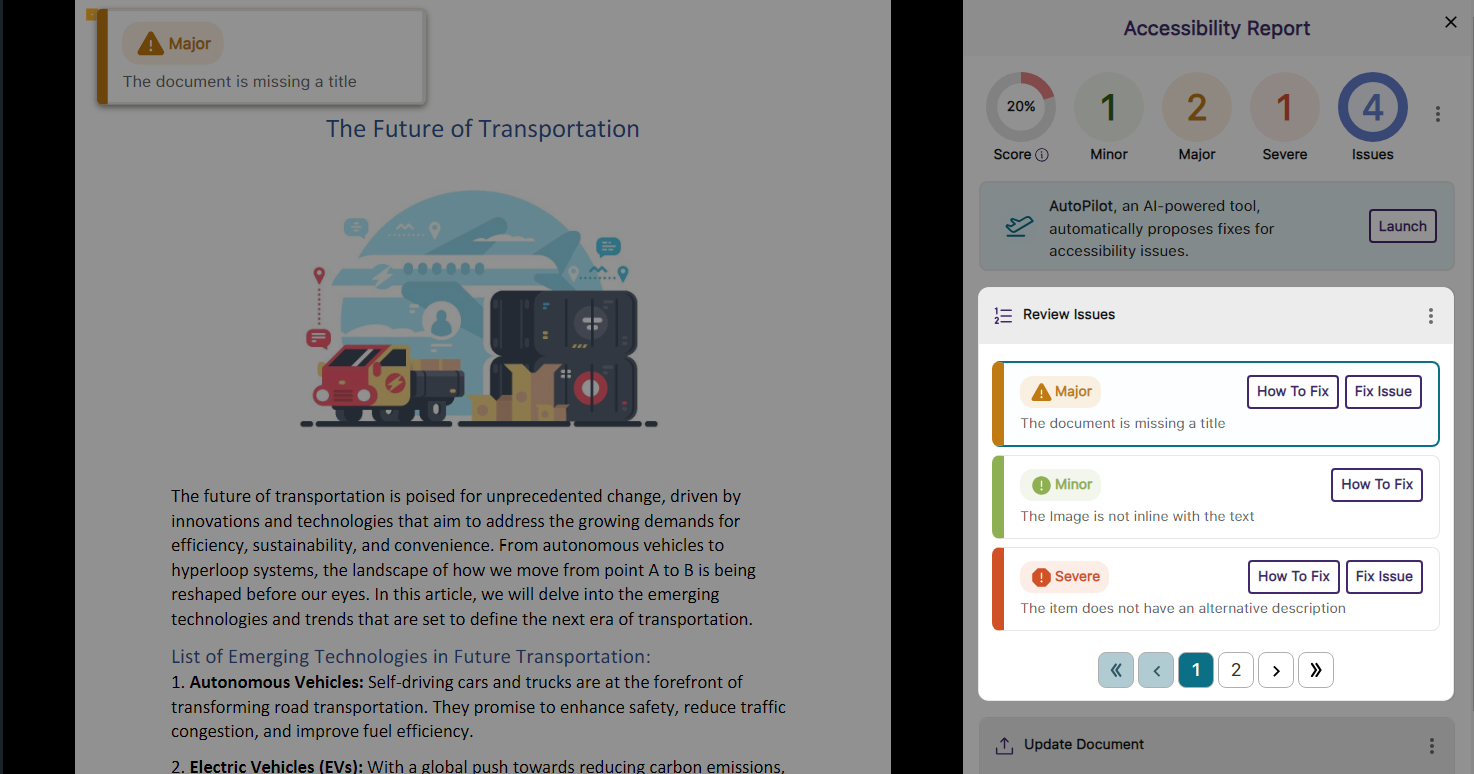
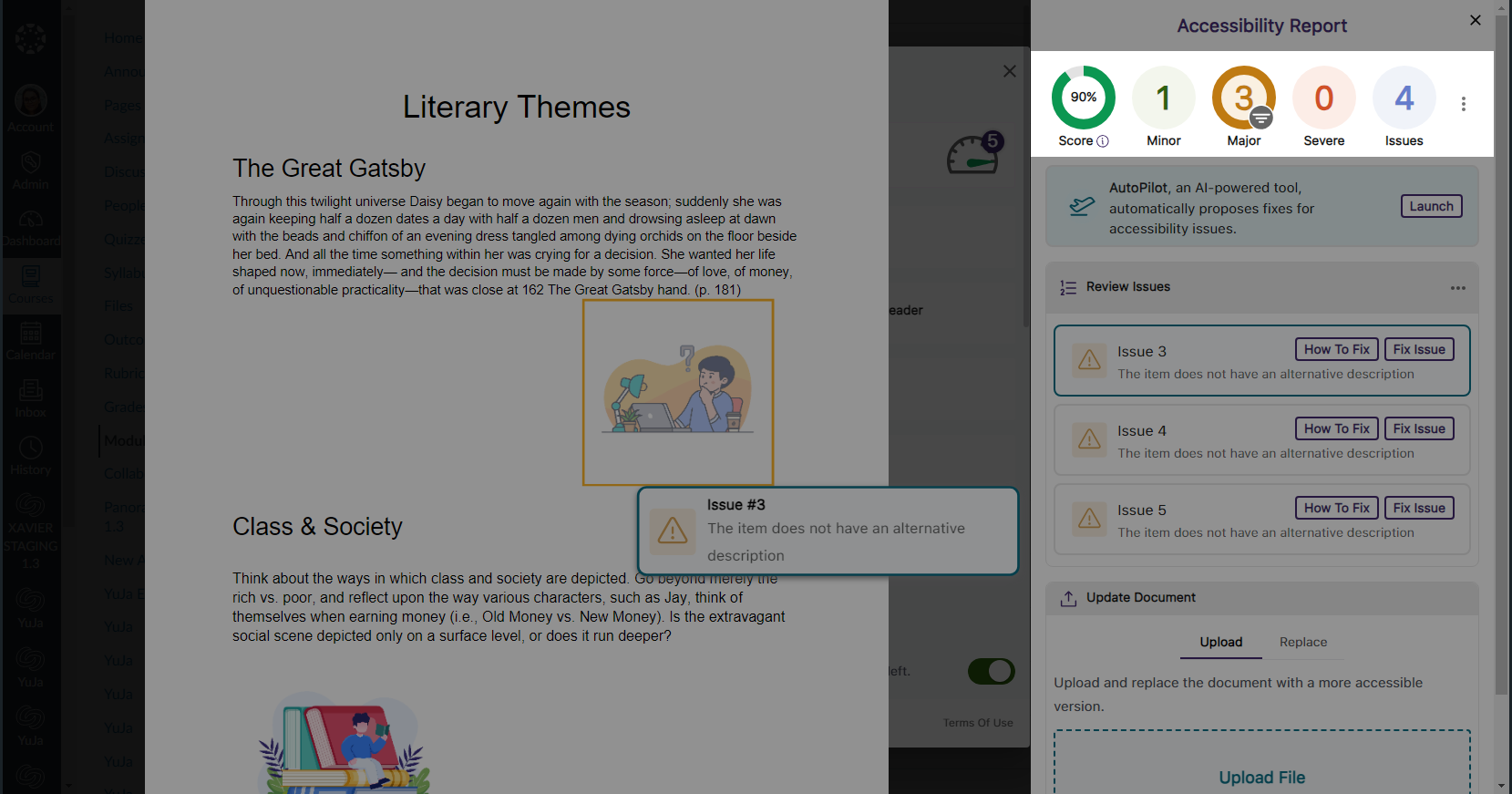
    10. Improved Iconography and UI When Reviewing Issues in the Accessibility Report We’ve enhanced the iconography and user interface of the Review Issues panel in the Accessibility Report to more clearly indicate the severity levels of the issues being reviewed. New Issue iconography shown in the Accessibility Report.
    11. Improved Processing Speeds for Requested Reports We’ve optimized our processing times to ensure downloadable reports are received more quickly.
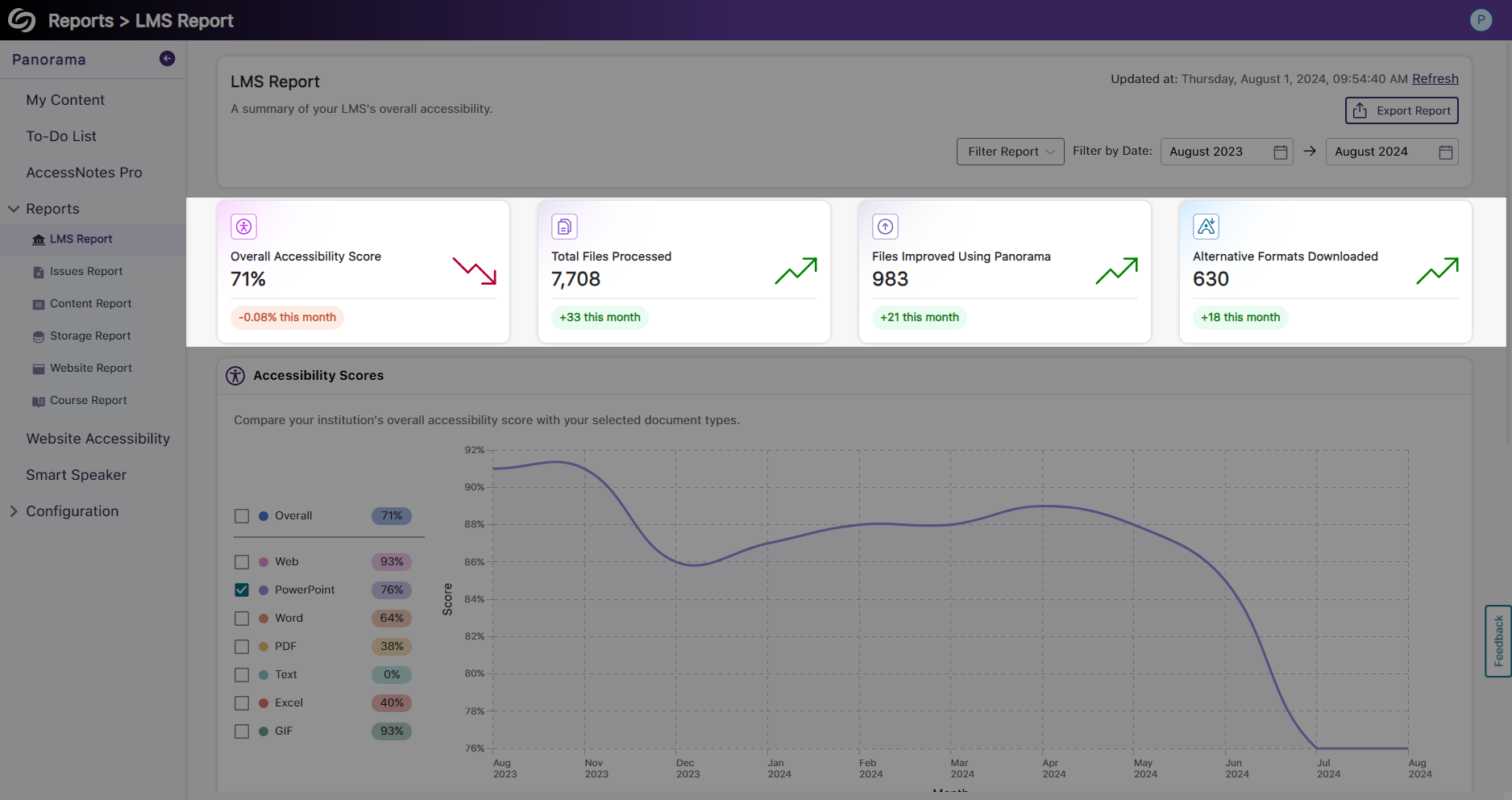
    12. View Live Data on the Current Month’s Accessibility Trends The highlight cards in each Panorama report provide a quick snapshot of the current month’s trends, allowing you to easily compare the accessibility performance of various areas. Highlight cards in the LMS report showing the current month's trends.
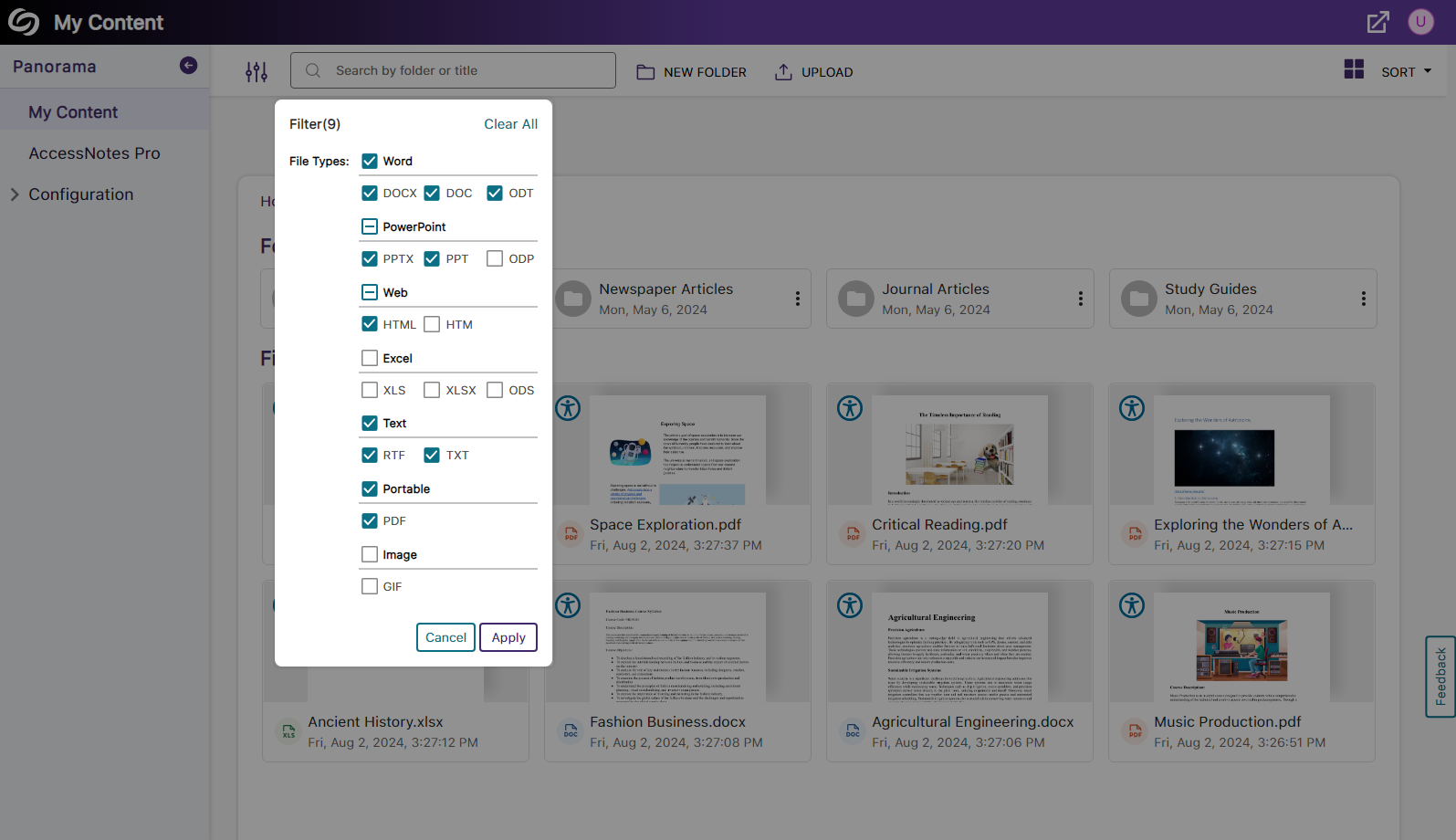
    13. In-Depth Filtering for Search Results in My Content The My Content section in Panorama now features in-depth filtering options to search results based on specified files. The My Content page shows a list of filters by file type.
    14. RESTful APIs Can Filter Accessibility Scores When using Panorama’s APIs to retrieve data, users can now retrieve accessibility scores based on sub-accounts, courses, and terms.
  • June 21, 2024

    YuJa Panorama Digital Accessibility Platform Update – June 2024

    We have successfully pushed an update to all YuJa Panorama Digital Accessibility Platform instances residing in the US, Canada, Australia, Singapore, the Middle East, and the European Union. This update includes scoring rubrics to define how accessibility scores are calculated, a new audio player for Alternative Formats, use Panorama with Power BI, redesigned reports across the platform, semantically structured audio formats and Gradient Reader, publish OCR Reconstructed HTML content into Canvas as a page, customize the highlight color of issues, elements within documents will be highlighted when using PDF Remediation Engine Max, and more.
     
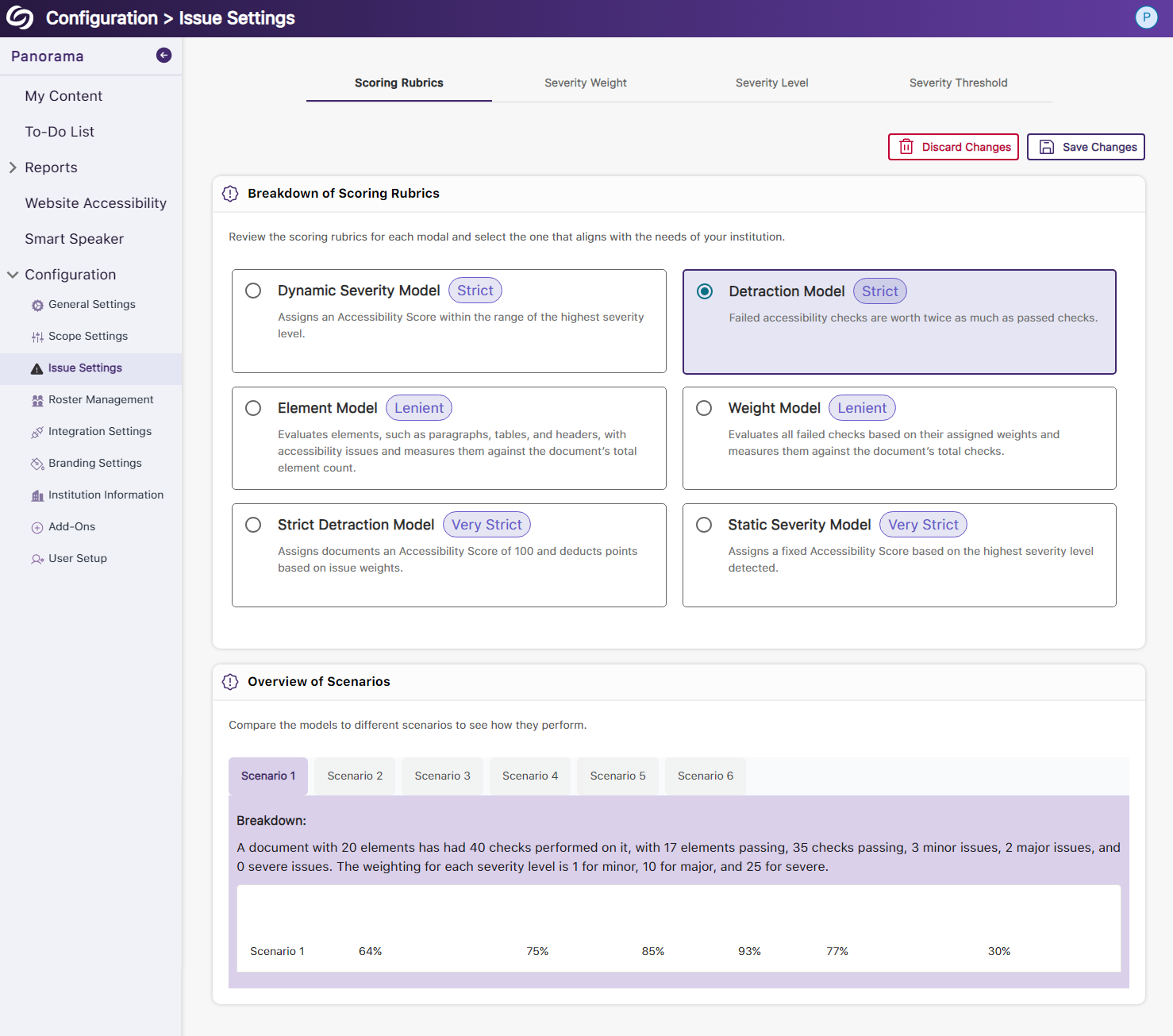
    1. New Scoring Rubric to Define How an Institution’s Accessibility Scores Are Calculated Considering an institution’s unique accessibility requirements, they now have the option to choose from various scoring rubrics that will be applied across their Panorama instance. These scoring rubrics will determine the accessibility scores of documents based on a strict set of criteria. To know how each rubric aligns with the types of documents an institution might have, administrators can review different scenarios to determine which rubric best suits them. Panorama's Scoring Rubric page showing various rubric modals and detailed scenarios.
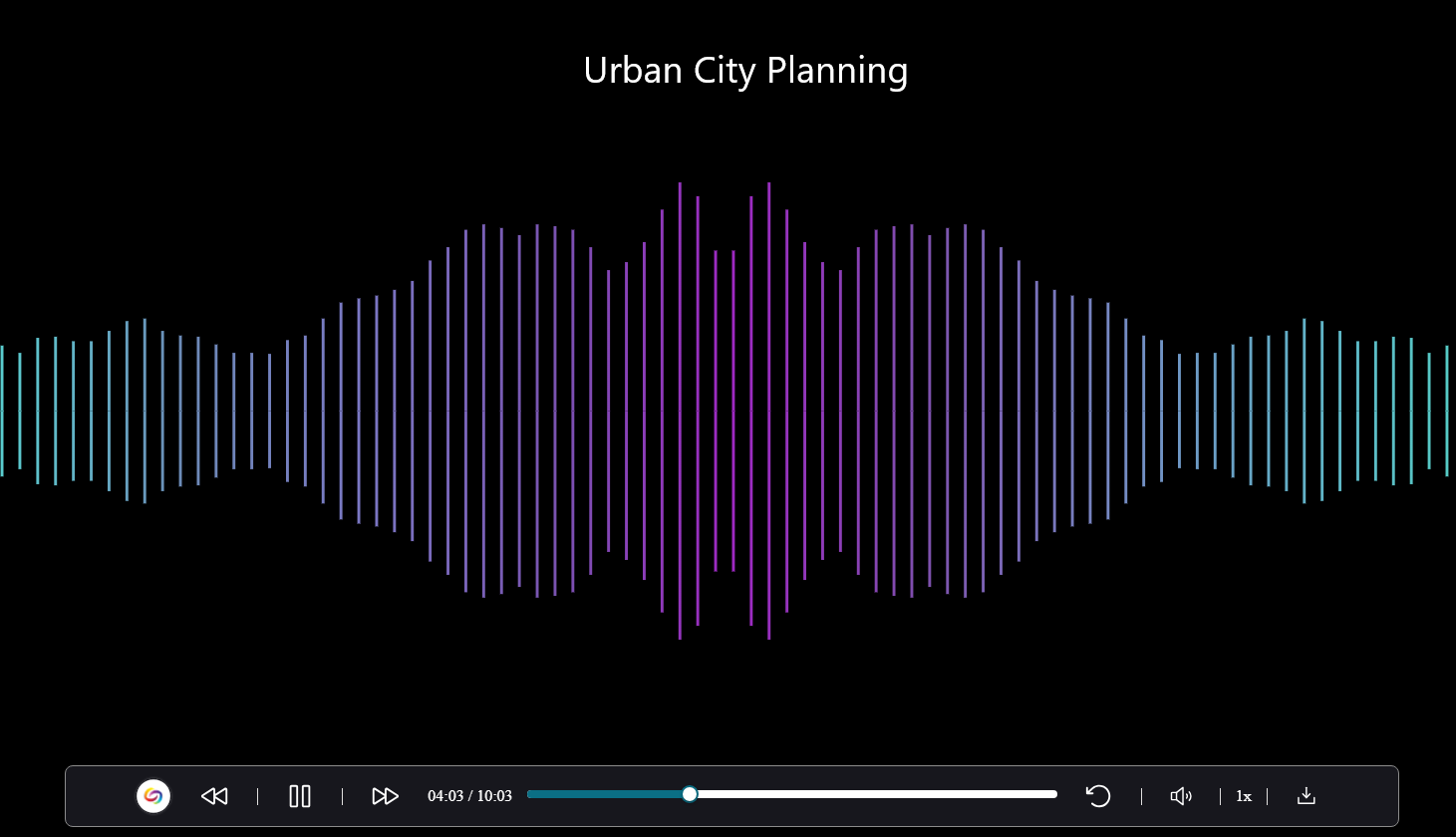
    2. New Audio-Player for Audio Podcasts and OCR Audio with Visual Waveform and Playback Speed Controls Our recent UI update incorporates a waveform to help visualize playback for audio-based Alternative Formats, including Audio Podcast and OCR Audio. Additionally, we provided speed controls, allowing listeners to customize the audio playback speed according to their preferences. A waveform is shown as a visual representation of the audio.
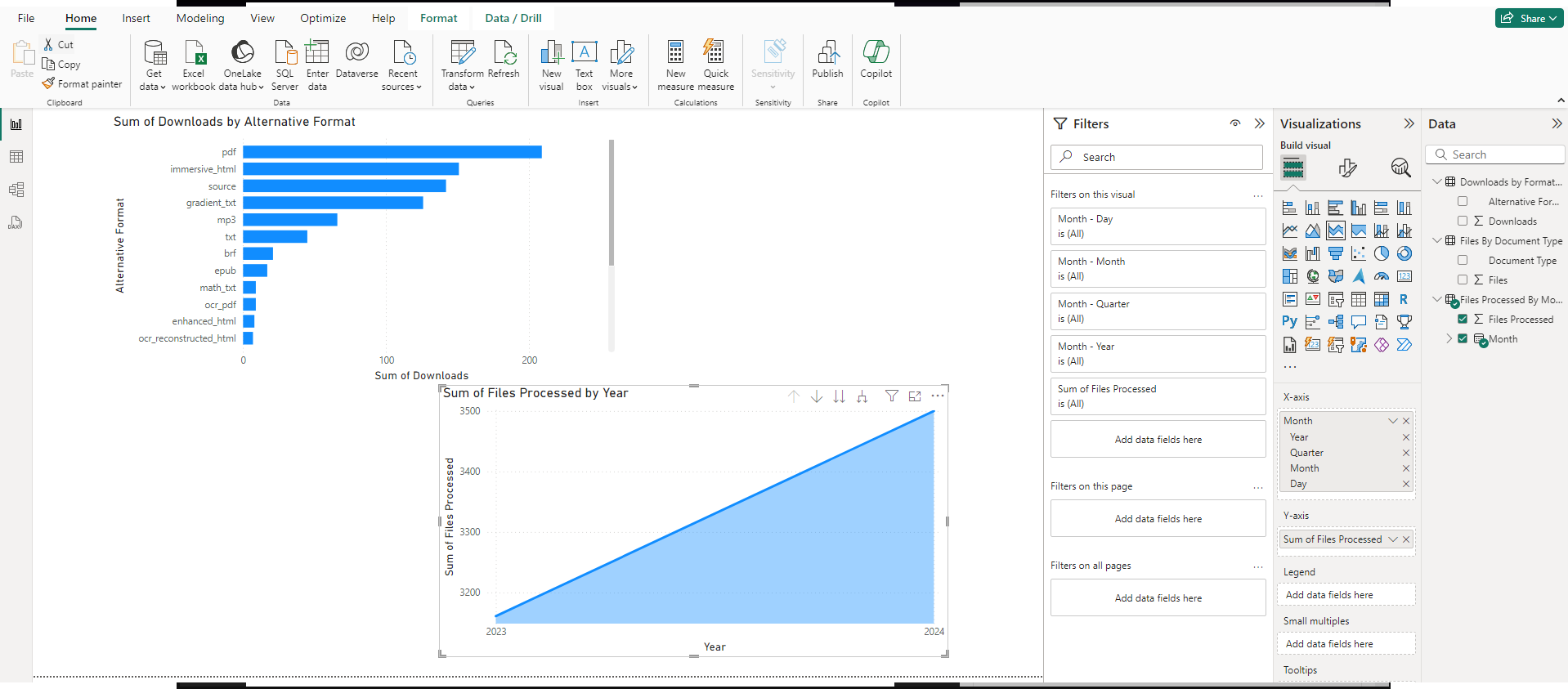
    3. Use Panorama With Power BI to Create Visual Analytics Users can download Panorama reports and upload them into Power BI to create visual analytics with their data. Learn more. A bar and a line graph are shown representing Panorama's data in Power BI.
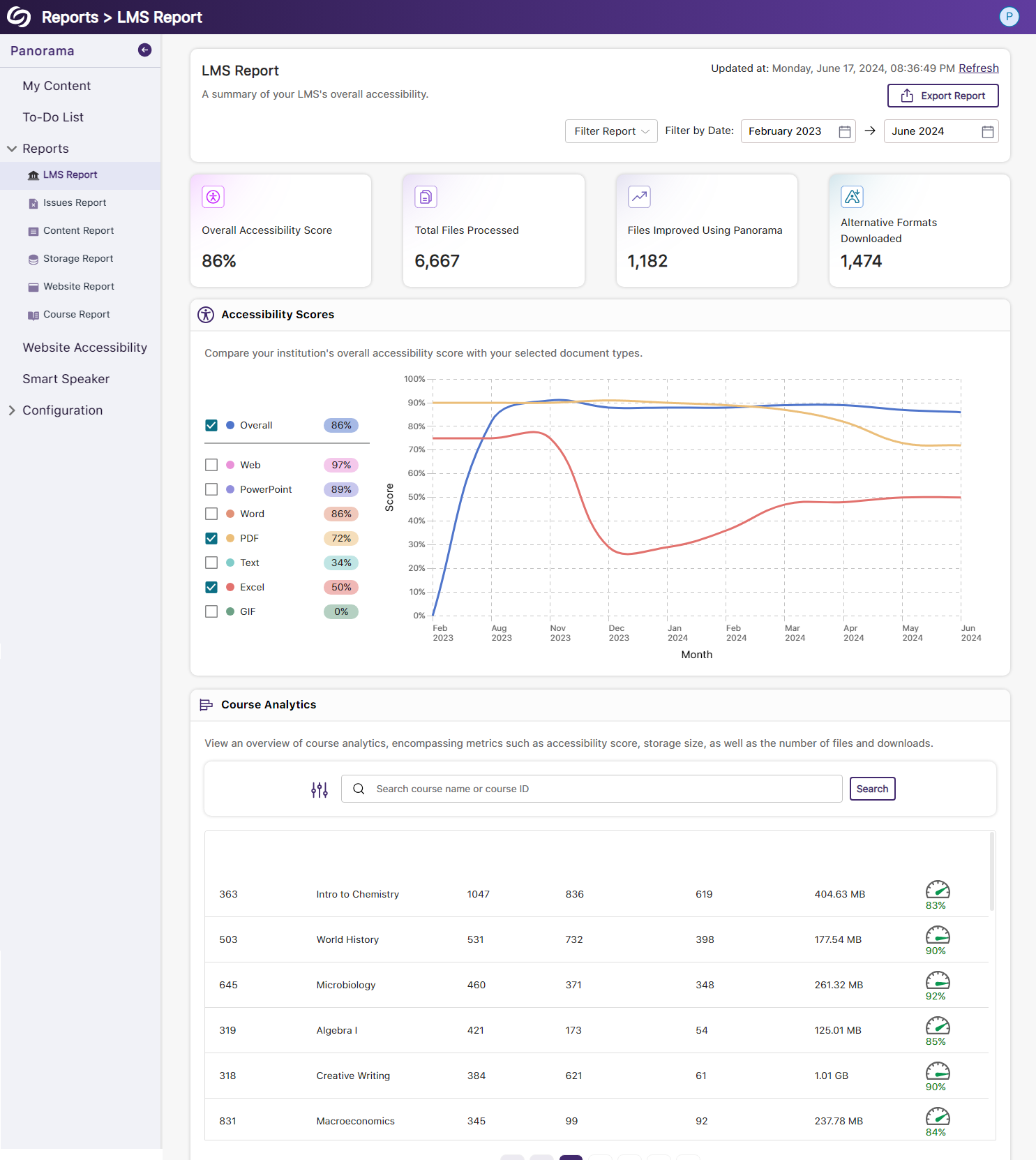
    4. New Redesign of the LMS Report – Compare the Accessibility Scores of Each Document Type We’ve redesigned the LMS Report and provided a new graph consolidating the previous Cumulative Accessibility Score and Score by Document Type charts. The new graph offers a comparative analysis of the institution’s overall accessibility with various document types, such as HTML content, PDFs, and DOCX files. The LMS report showing it's new graph.
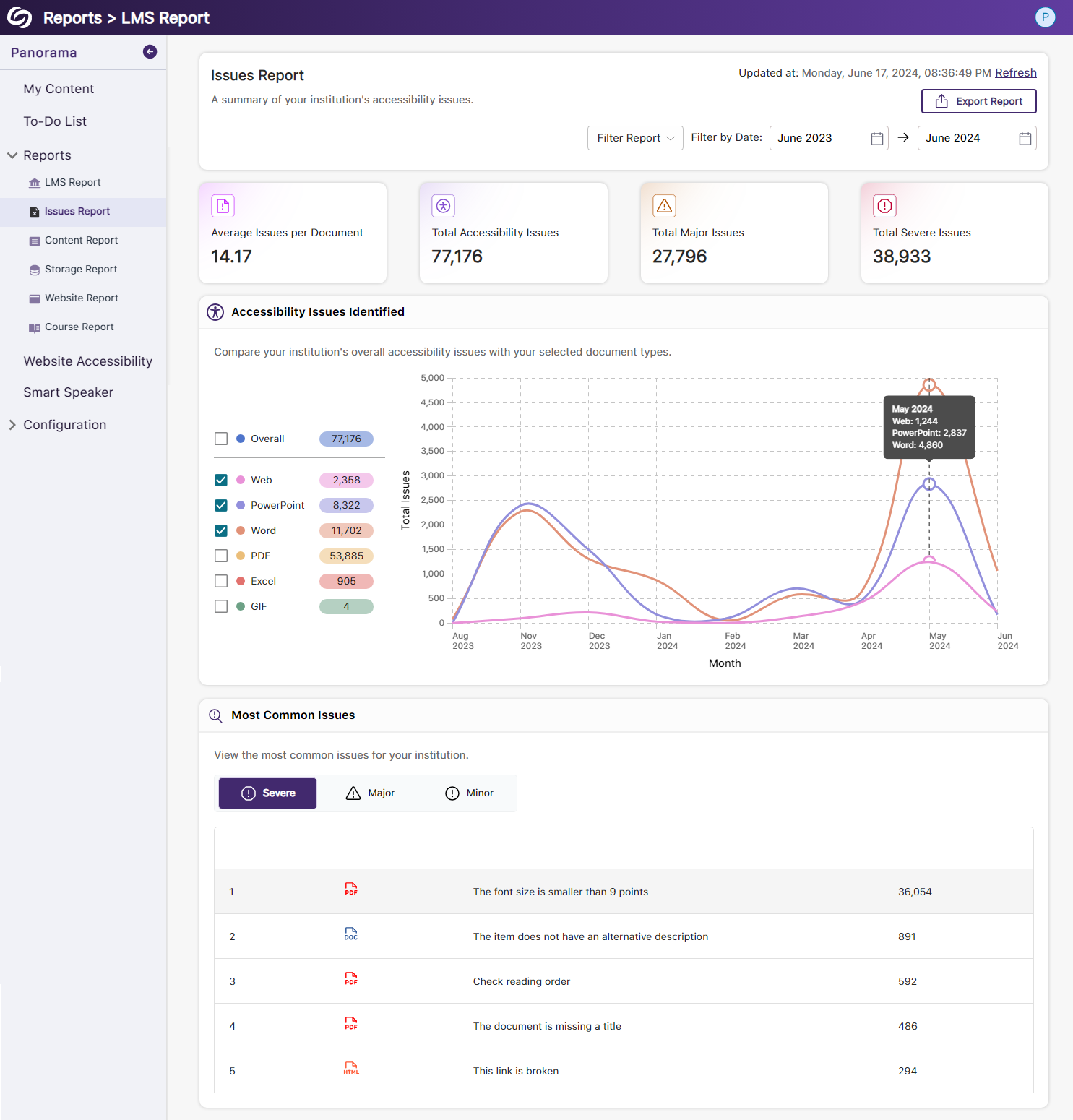
    5. New Redesign of the Issues Report – Compare the Number of Issues for Each Document Type We’ve redesigned the Issues Report and provided a new graph that allows administrators to compare their institution’s overall accessibility issues with selected document types to view which files contain the most issues. We’ve also updated the view for the Most Common Issues into a tabular structure for improved responsiveness with various screen sizes. The new redesign of the Issues Report.
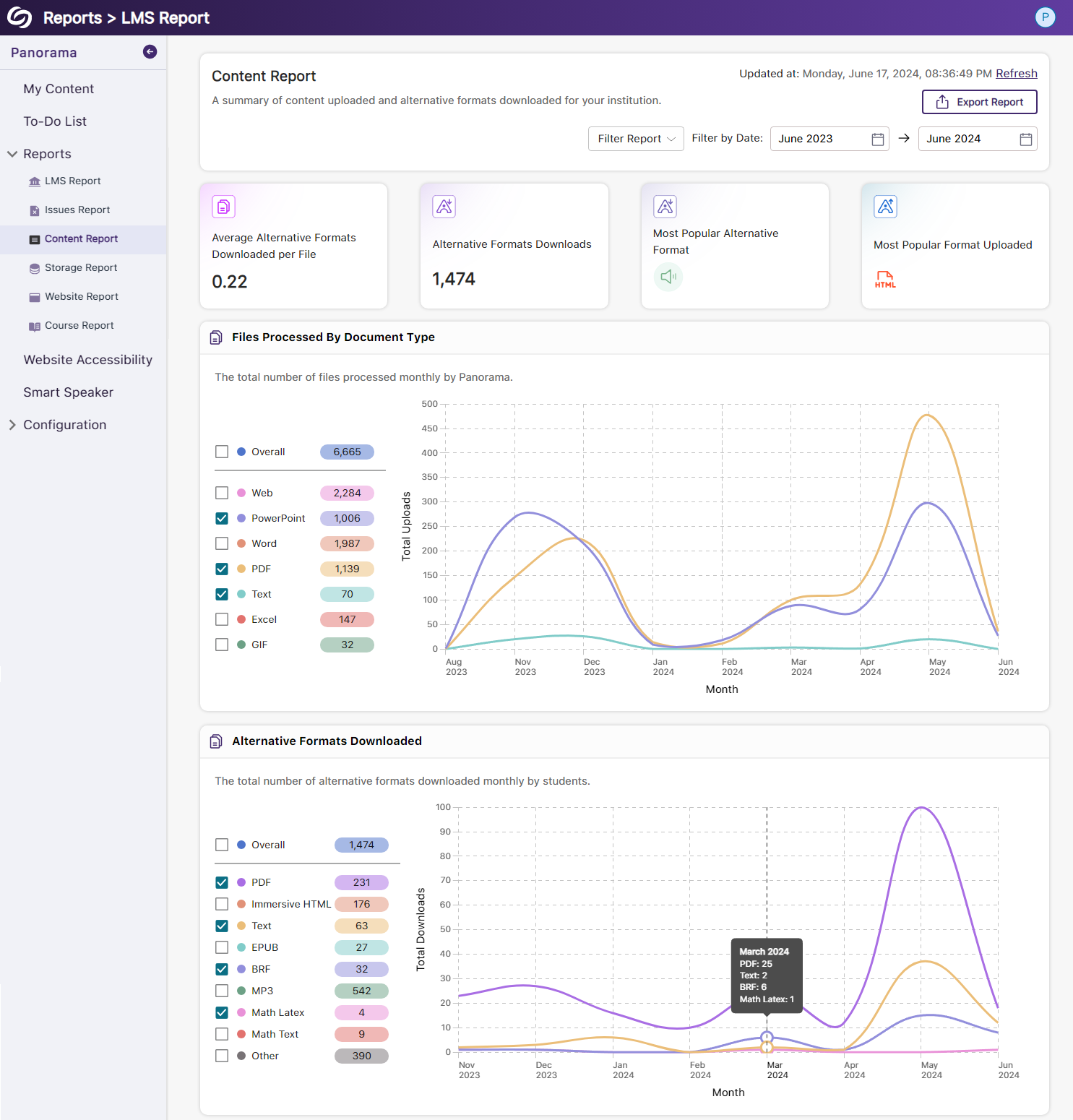
    6. New Redesign of the Content Report – Simplified Viewing of Data for Documents Processed and Alternative Formats Downloaded Previously, administrators would have to look at two charts to compare and analyze the files processed by Panorama and those processed by document type. We’ve consolidated both charts into a simple-to-view line graph showing the total files processed and files processed by each document type. Similarly, this feature extends to the Alternative Formats’ charts within the Content Report, showing the total number of Alternative Formats downloaded and a breakdown of each format downloaded. The content report shows two new UIs for its graphs.
    7. New Semantic Structure to Preserve the HTML Elements in the Gradient Reader Users viewing content within the Gradient Reader can choose to generate a Semantically Structured Gradient Reader, which will analyze the HTML content within the document to produce an accurate representation of the file. The OCR Gradient Reader is shown.
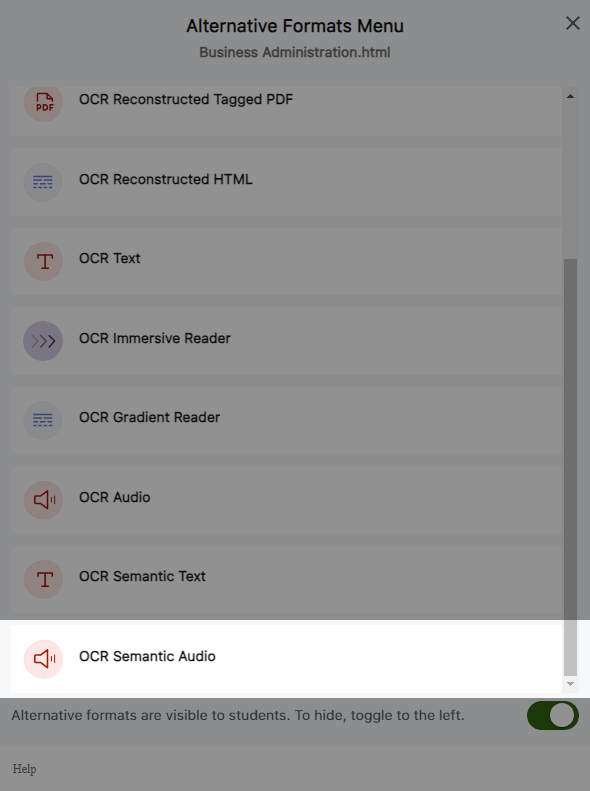
    8. New Semantic Structure to Preserve the HTML Elements in an Audio Format Users will be able to perceive the semantic structure of audio content, allowing them to hear details like rows, columns, and bullet points, providing an auditory representation of the visual format. OCR Semantic Audio format.
    9. Ability to Fix HTML Accessibility Issues Within the Issues and Content Table The Issues and Content table in the Course Report will allow users to fix accessibility concerns for content created with WYSIWYG editors in their LMS. Fix issue option shown for an HTML document.
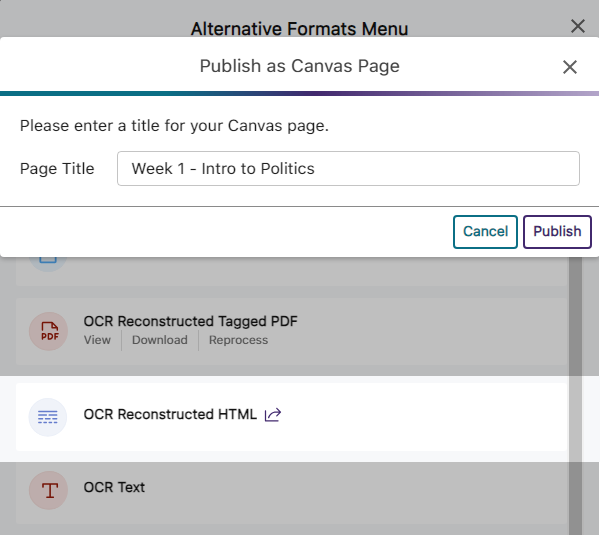
    10. Publish OCR Reconstructed HTML Content as Canvas Pages The OCR Reconstructed HTML format can be generated for content and uploaded to Canvas as a page. The option to publish a content into a Canvas page.
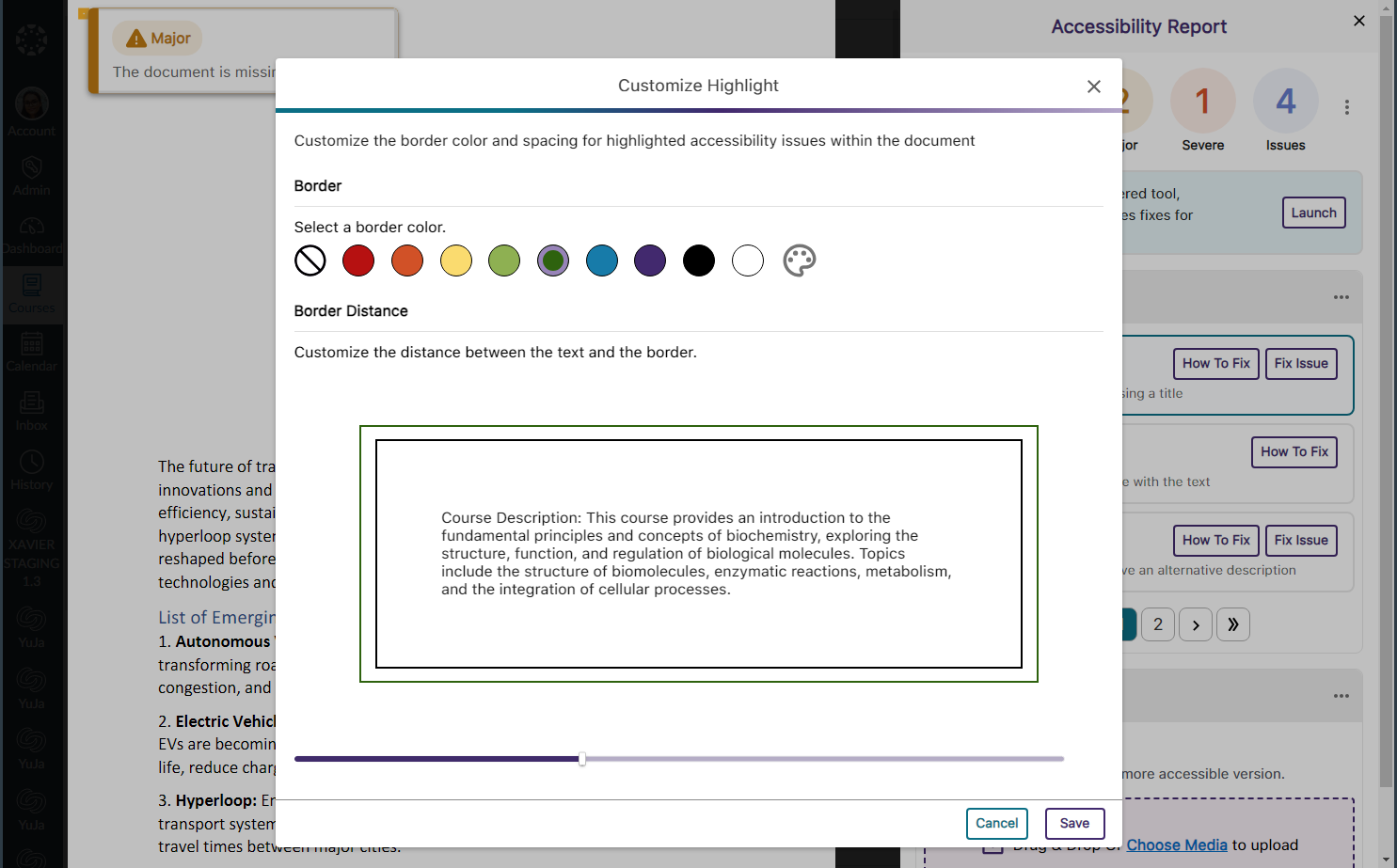
    11. Customize the Highlight Color of Issues Within Documents To ensure that highlighted issues remain visible on various background colors, users can customize the highlight color and adjust the spacing between the highlighted border and the text. The option to customize the highlight color of issues.
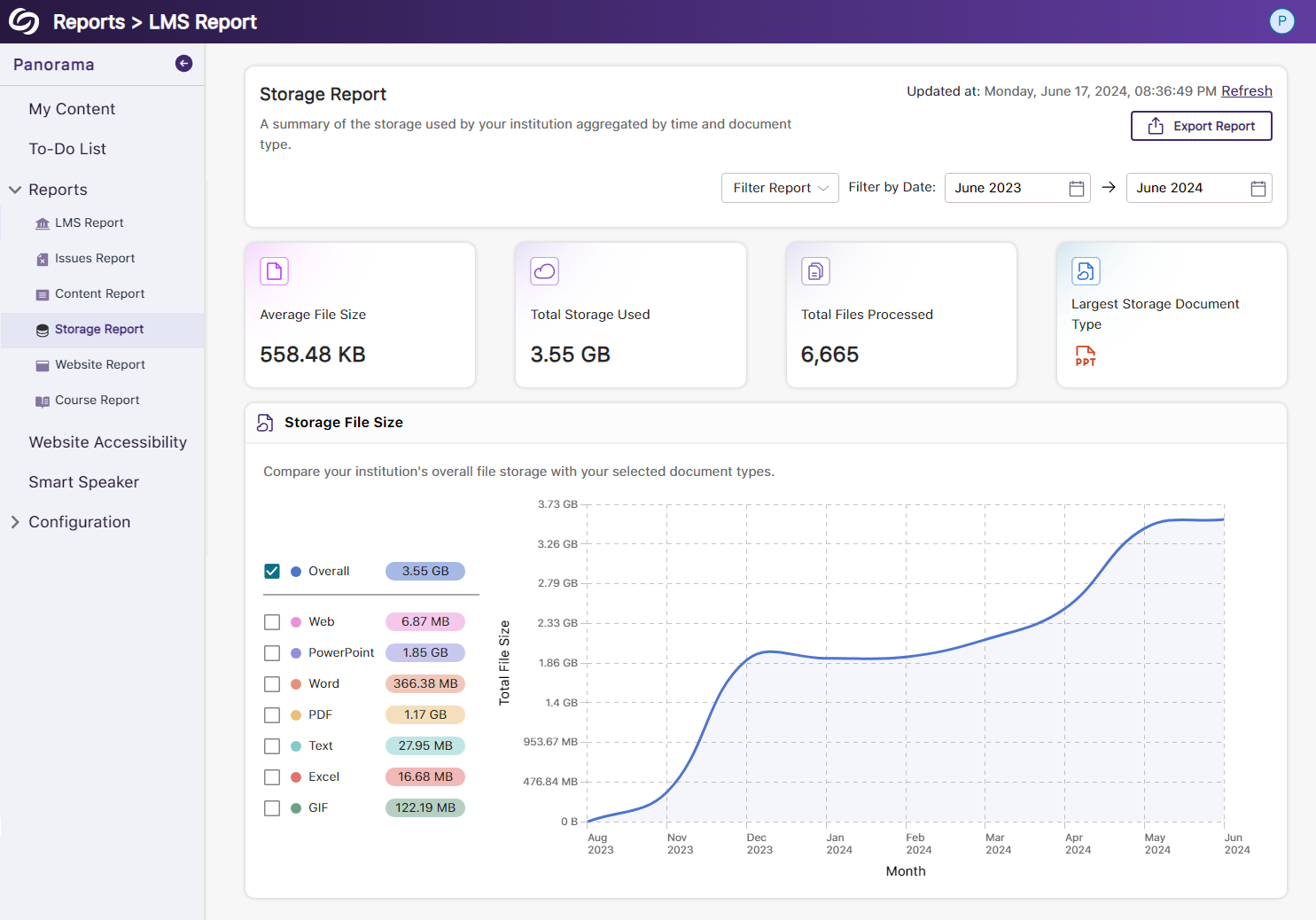
    12. New Redesign of the Storage Report – Compare the Total Storage Accumulated for Each Document Type We’ve redesigned the Storage Report to allow administrators to compare their institution’s overall file storage with different document types within a single graph. The storage report showing the new graph.
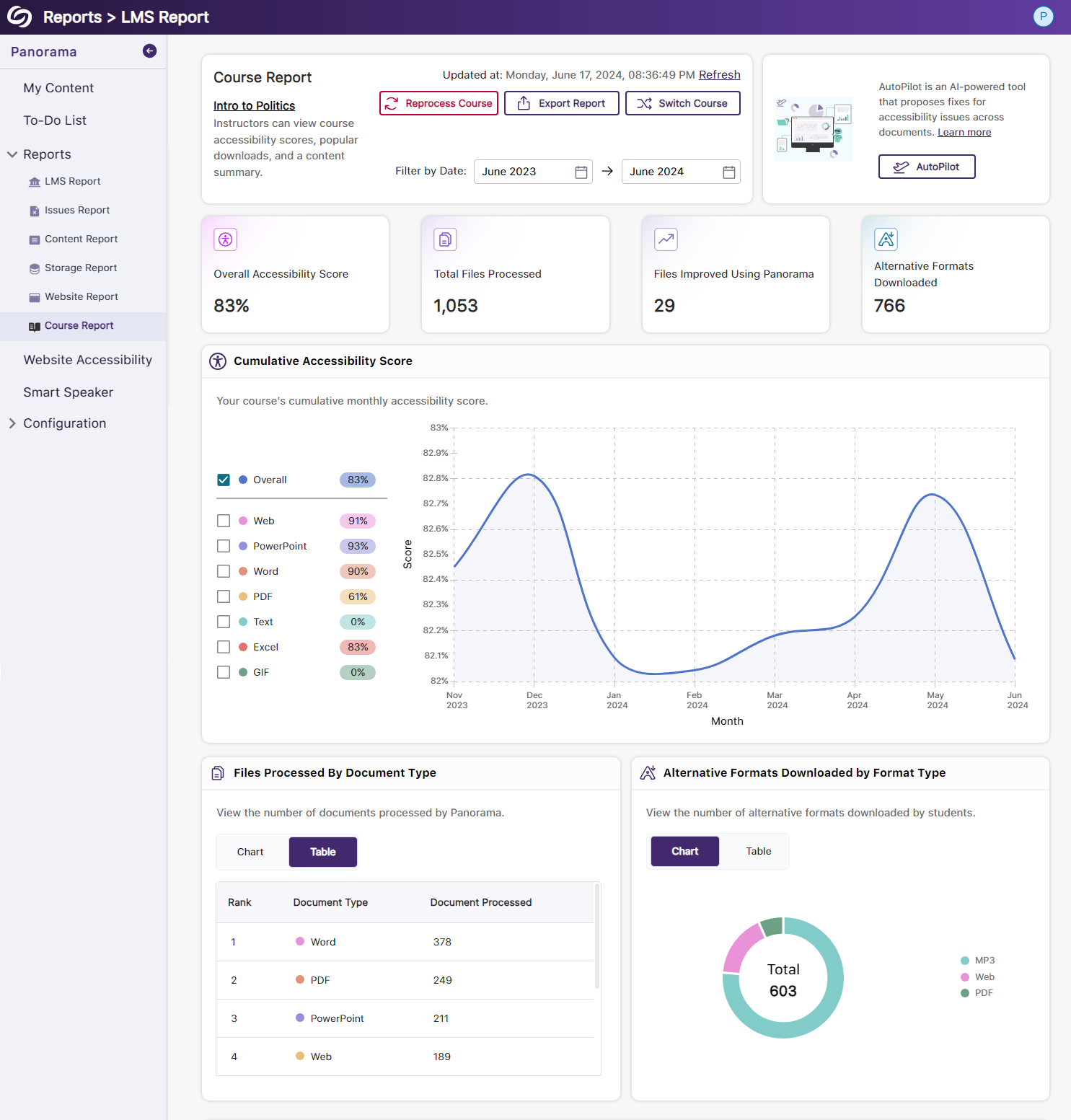
    13. New Redesign of the Course Report – Compare the Overall Accessibility Score with Each Document Type We’ve enhanced the Course Report graph, enabling users to assess a course’s overall accessibility score and compare it with the accessibility scores of individual document types within the course. Users can also, based on preference, choose between a chart or table view for the files processed and Alternative Formats downloaded within the course. The course report showing the new UI graph.
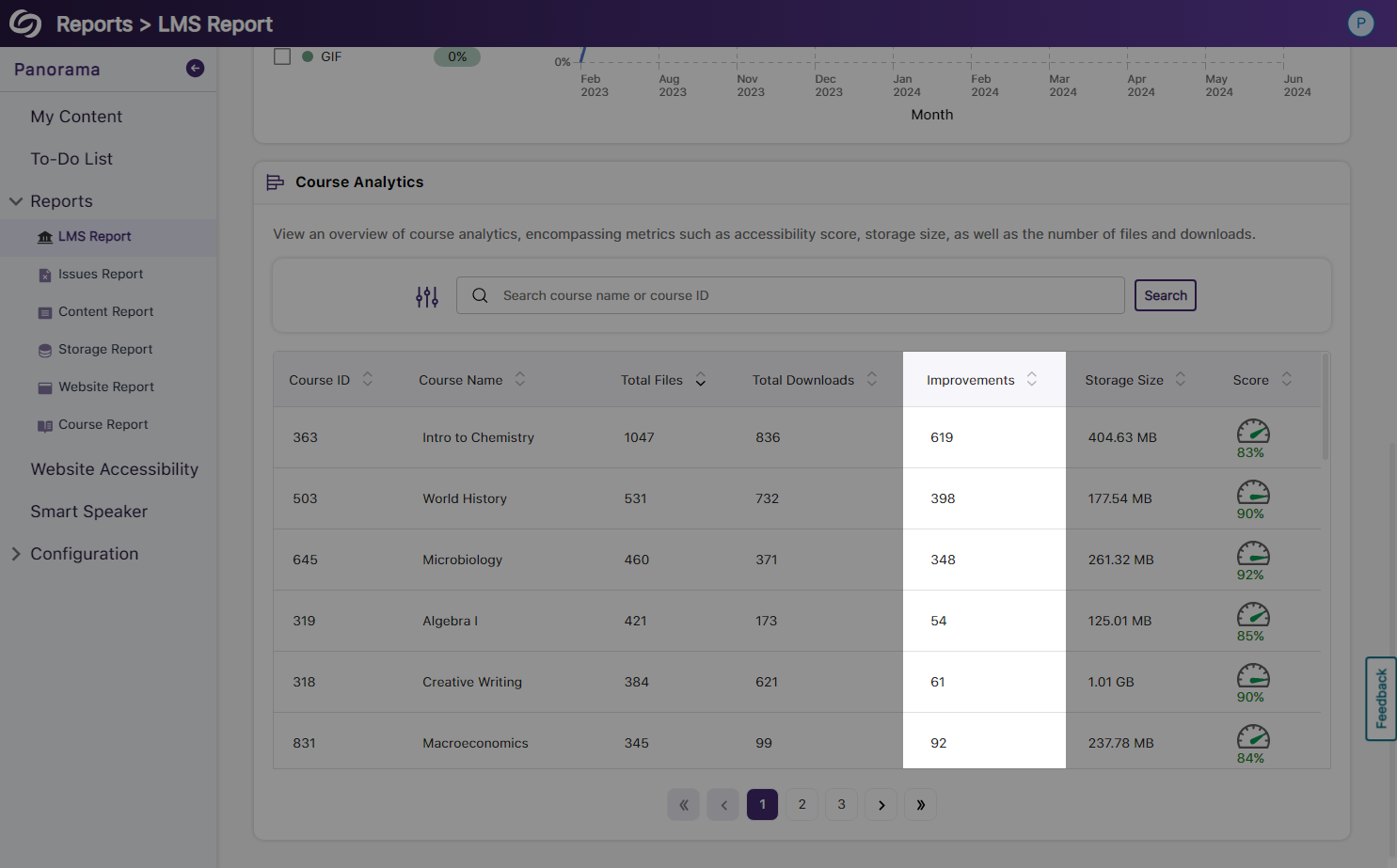
    14. View the Total Number of Improved Documents Within Each Course Administrators can access the Course Analytics in their LMS Report to view the total number of documents improved in each course. The course Analytics table shows improvements made in each course.
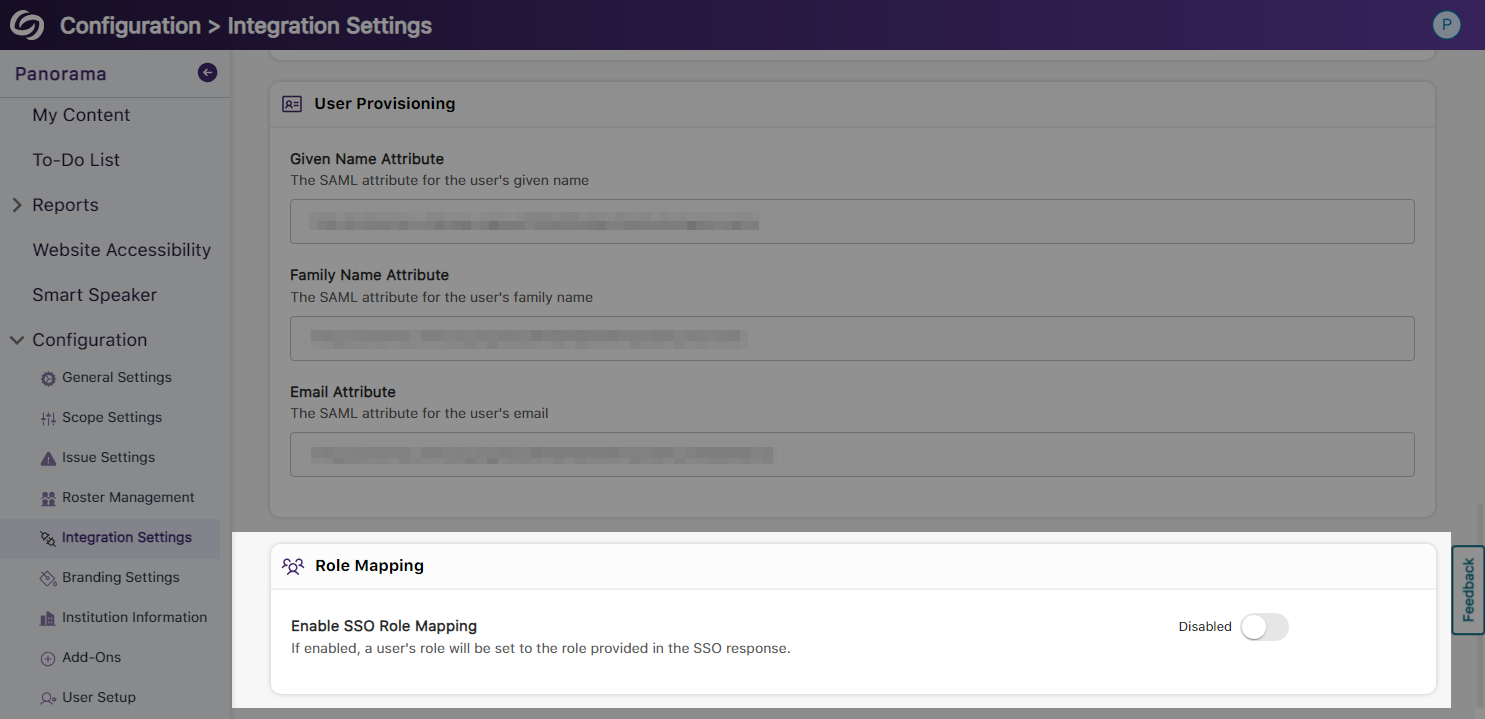
    15. Option to Ignore SSO Role Mapping in Favor of LMS Mapping Recognizing that most institutions favor mapping roles based on their LMS, administrators can choose to disable SSO role mapping. This ensures that user mappings are only determined by their LMS roles. The option to disable SSO role mapping.
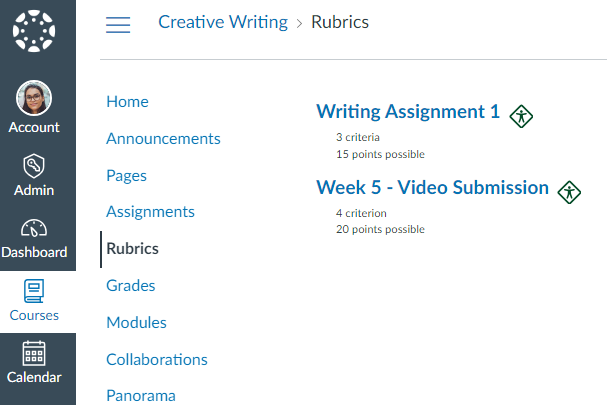
    16. Panorama Support for Canvas Rubrics We’ve expanded Panorama’s support within Canvas to provide Accessibility Reports for rubrics. The canvas rubric's page shows the panorama accessibility icons.
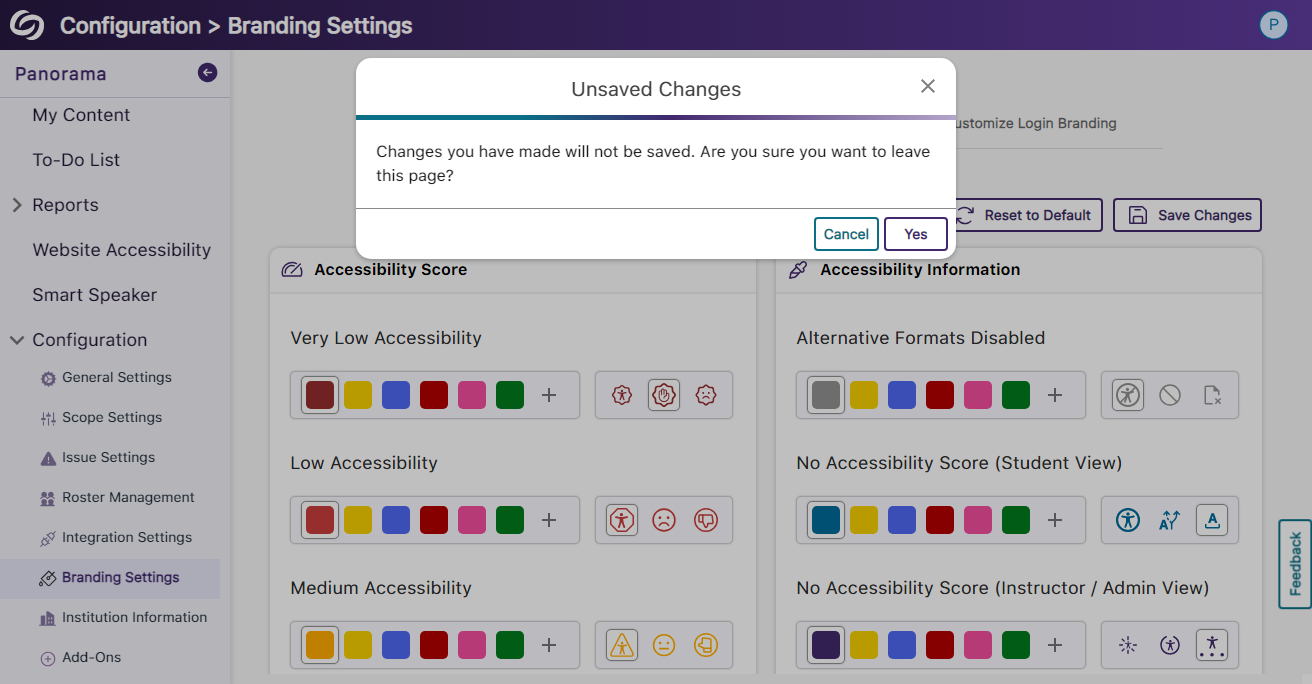
    17. Users Will Be Notified of Unsaved Panorama Settings When users navigate away from unsaved changes within the Panorama LTI app, they will receive a notification informing them that their changes have not been saved. A pop-up modal warning users of unsaved changes.
  • May 10, 2024

    YuJa Panorama Digital Accessibility Platform Update – May 2024

    We have successfully pushed an update to all YuJa Panorama Digital Accessibility Platform instances residing in the US, Canada, Australia, Singapore, the Middle East, and the European Union. This update includes new remediation capabilities for 12+ issues, including remediating Excel issues, the option to set a minimum font size threshold, view a summary of accessibility issues, view a breakdown of how accessibility scores are calculated, copy course settings, custom role mapping for Blackboard and Moodle, export reports for offline viewing, and dozens of UI improvements across the platform, and more.
     
    1. New Inline WCAG 2.2-Aligned Remediation Engine for Excel Issues Complementing our Remediation Engine for inline accessibility issue resolution of Microsoft Word documents, PowerPoints, HTML, and PDFs, we’ve now extended these capabilities to Excel documents inside Accessibility Reports to resolve issues such as:
      • Missing alt text
      • Font color issues
      • Non-descriptive hyperlink text
      Font color issue being remediated in the Accessibility Report.
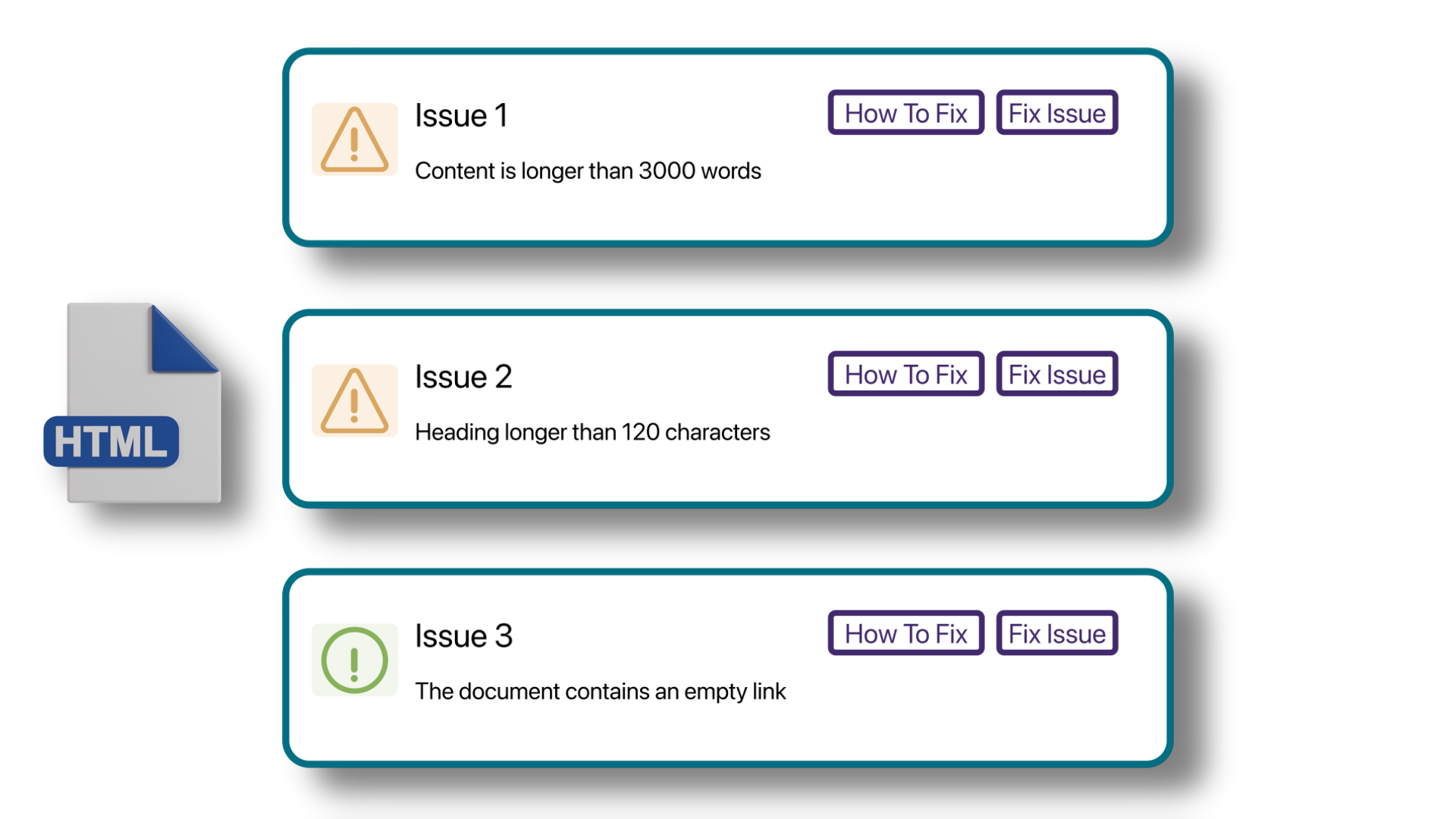
    2. Accessibility Report Can Identify More WCAG 2.2-Aligned Accessibility Issues for HTML Content We have updated Panorama’s Accessibility Report to detect even more accessibility issues for HTML content:
      • Headings containing more than 120 character
      • Content is longer than 3000 words
      • Links are empty HTML issues are shwon.
    3. New Accessibility Checks for Panorama’s Remediation Engine We’ve enhanced the Remediation Engine’s capabilities to resolve accessibility issues in real-time by identifying more accessibility issues across various formats.
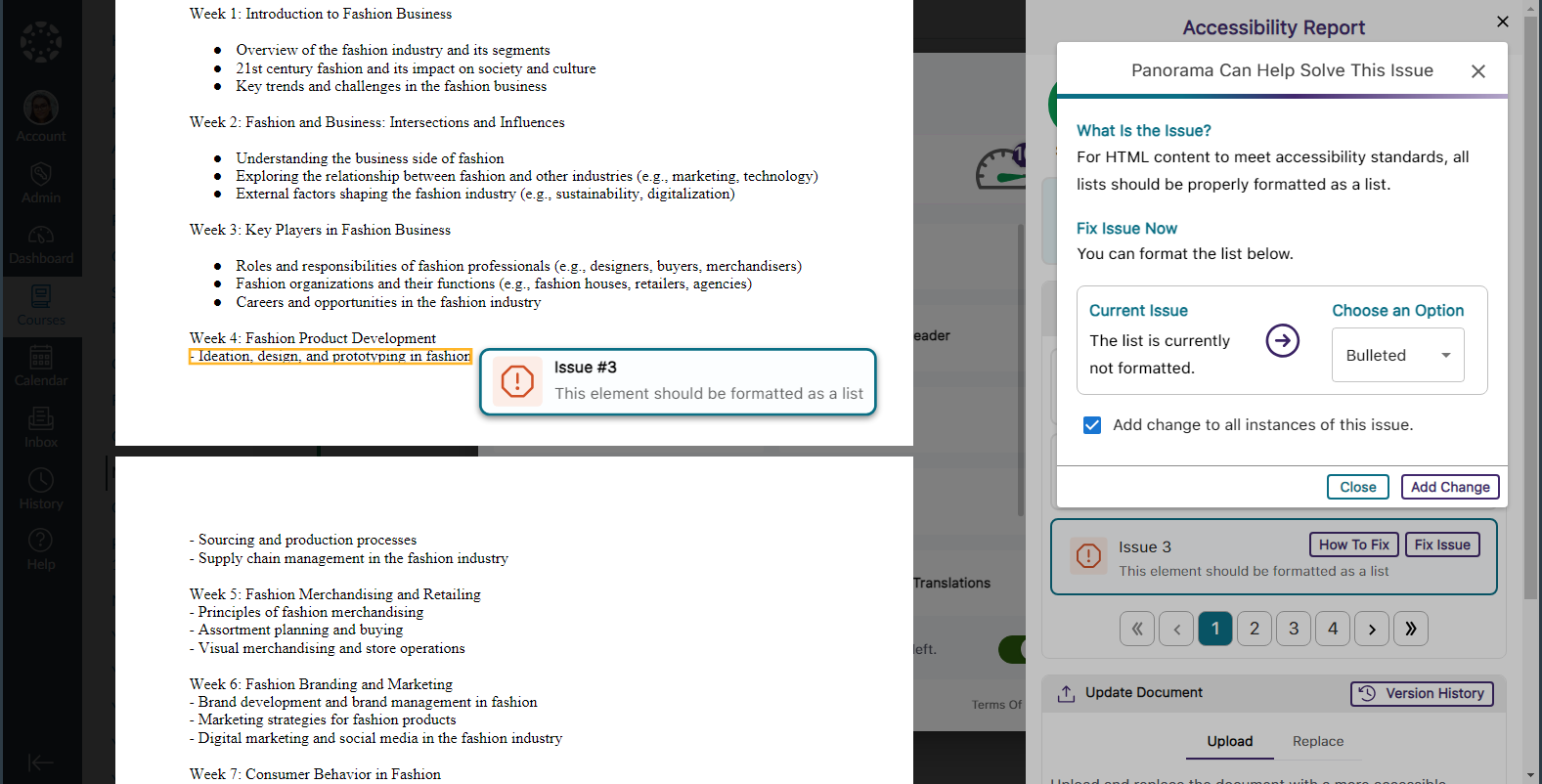
      • Unformatted Lists: DOCX and HTML
      • Text should not be justified: DOCX
      • Invalid language: DOCX and PPTX
      • Missing language: DOCX
      • Missing table header: DOCX and HTML
      • Heading structure does not start at 1: DOCX
      • Table header is longer than 120 characters: HTML
      • Missing table scope: HTML
      • Target size is too small: HTML
      • Adjacent hyperlinks: HTML
      • Missing title: PPTX and XLSX
      • Low contrast: XLSX
      • Font size is too small: XLSX
      • Missing alt text: XLSX
      • Missing text in cell A: XLSX
      • Non-descriptive hyperlink text: XLSX
      Resolving an issue for unformatted list within the Accessibility Report.
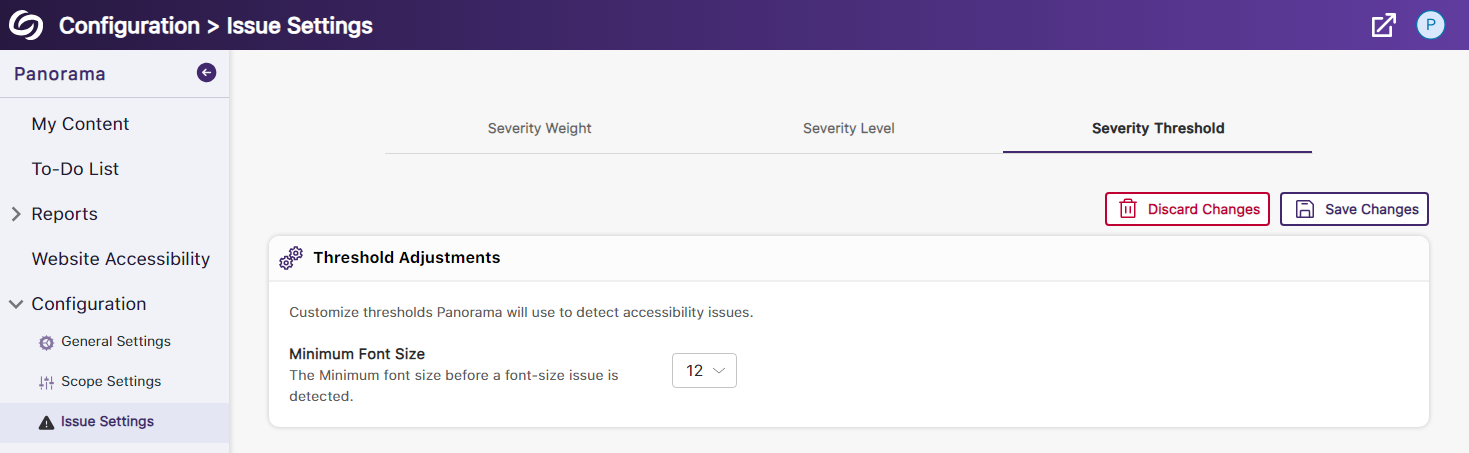
    4. Set a Minimum Threshold for Font Size Issues Panorama administrators can adjust the minimum threshold required for Panorama to detect font size issues, allowing them to set accessibility standards that align with their institution. Setting to adjust font size threshold.
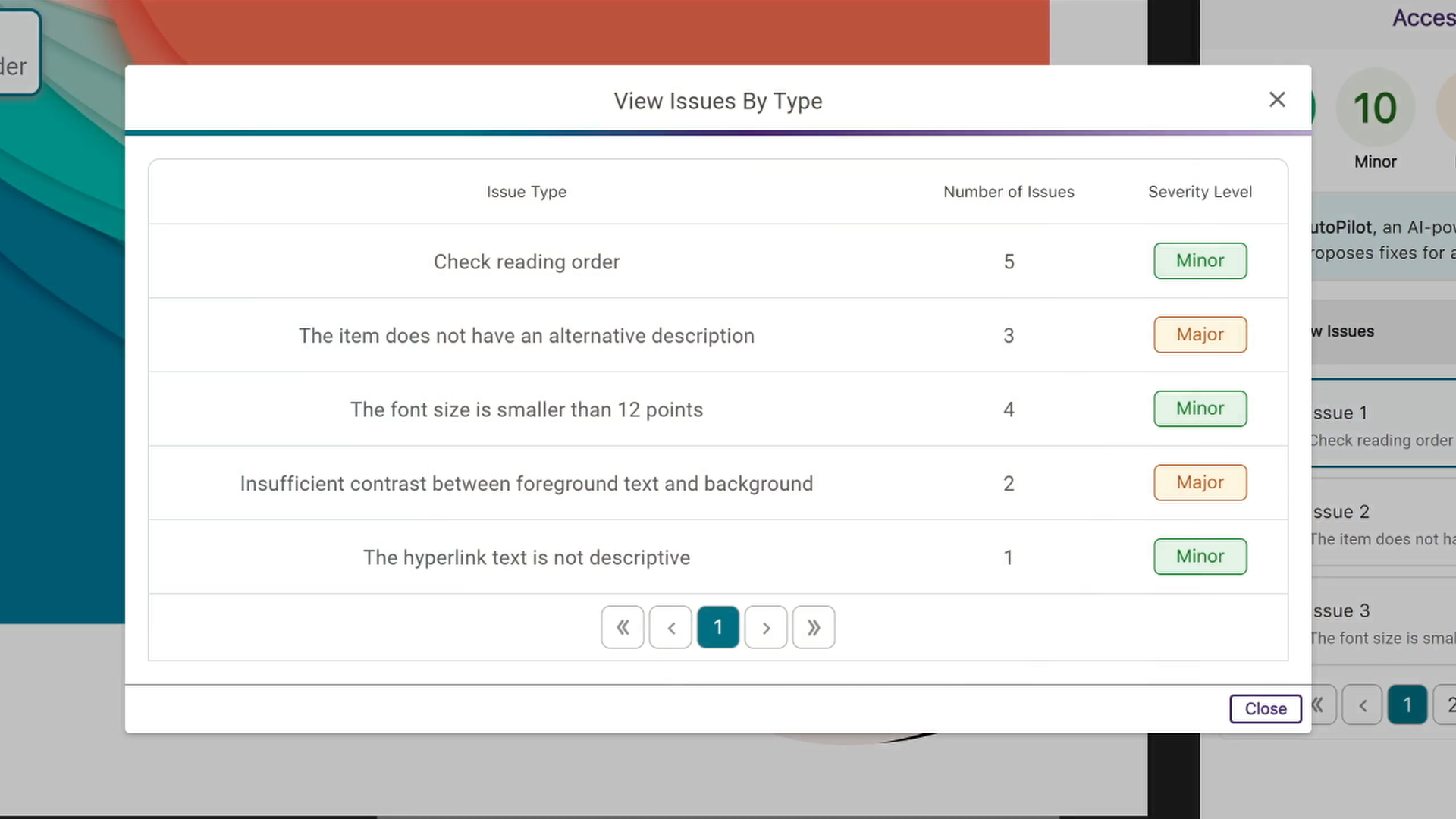
    5. View a Summary of Issues Within a Document Administrators and instructors now have the option to conveniently access a single modal, where they can view all issues organized by the number of times they occur. A modal showing issues by type,
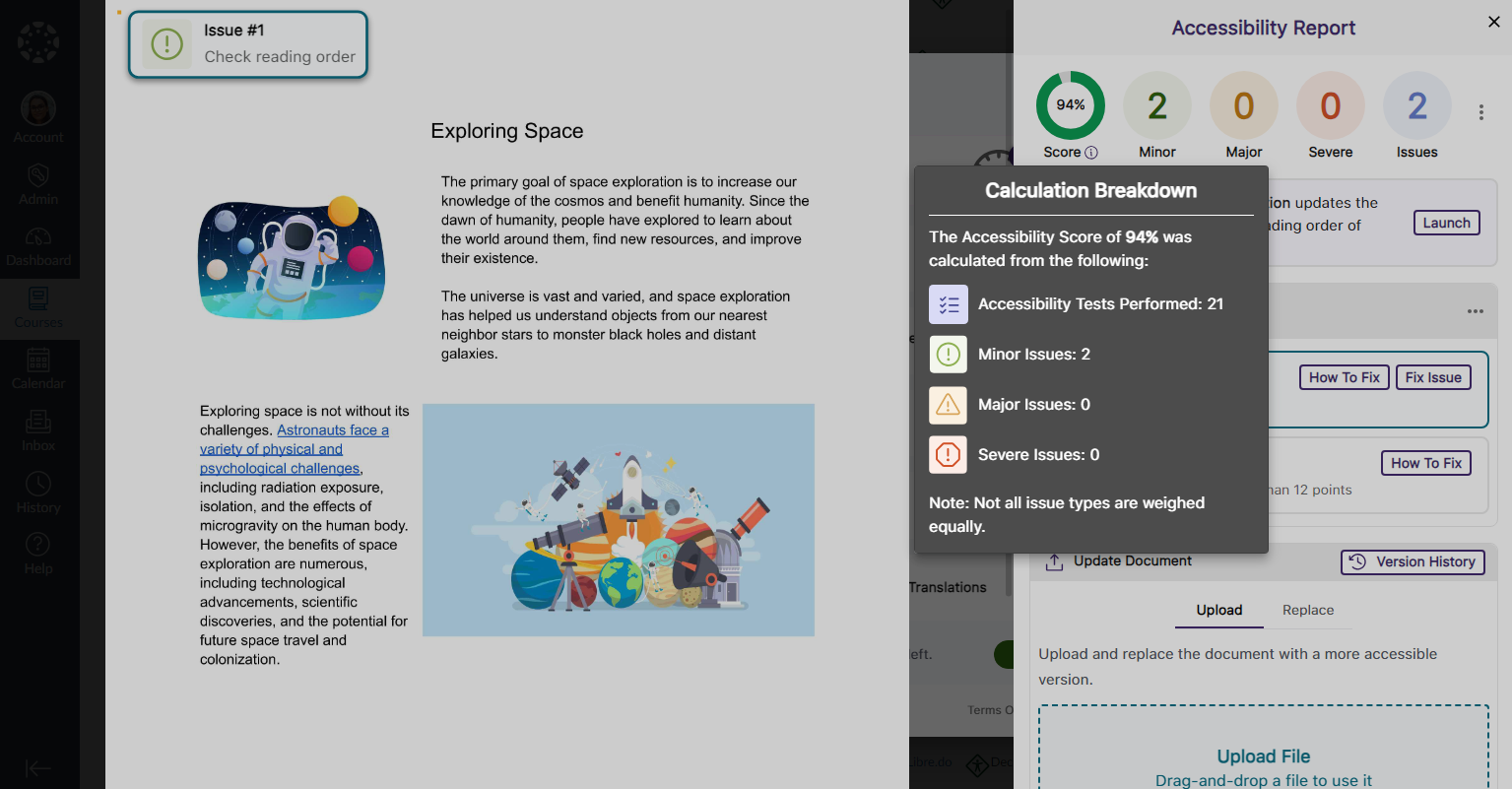
    6. View How Accessibility Scores Are Calculated Administrators and instructors can access a breakdown of their accessibility scores by hovering over the info icon. This breakdown includes details on how the score was calculated based on the number of tests performed and the issues identified at each level. A breakdown of the accessibility score is shown in the Accessibility Report.
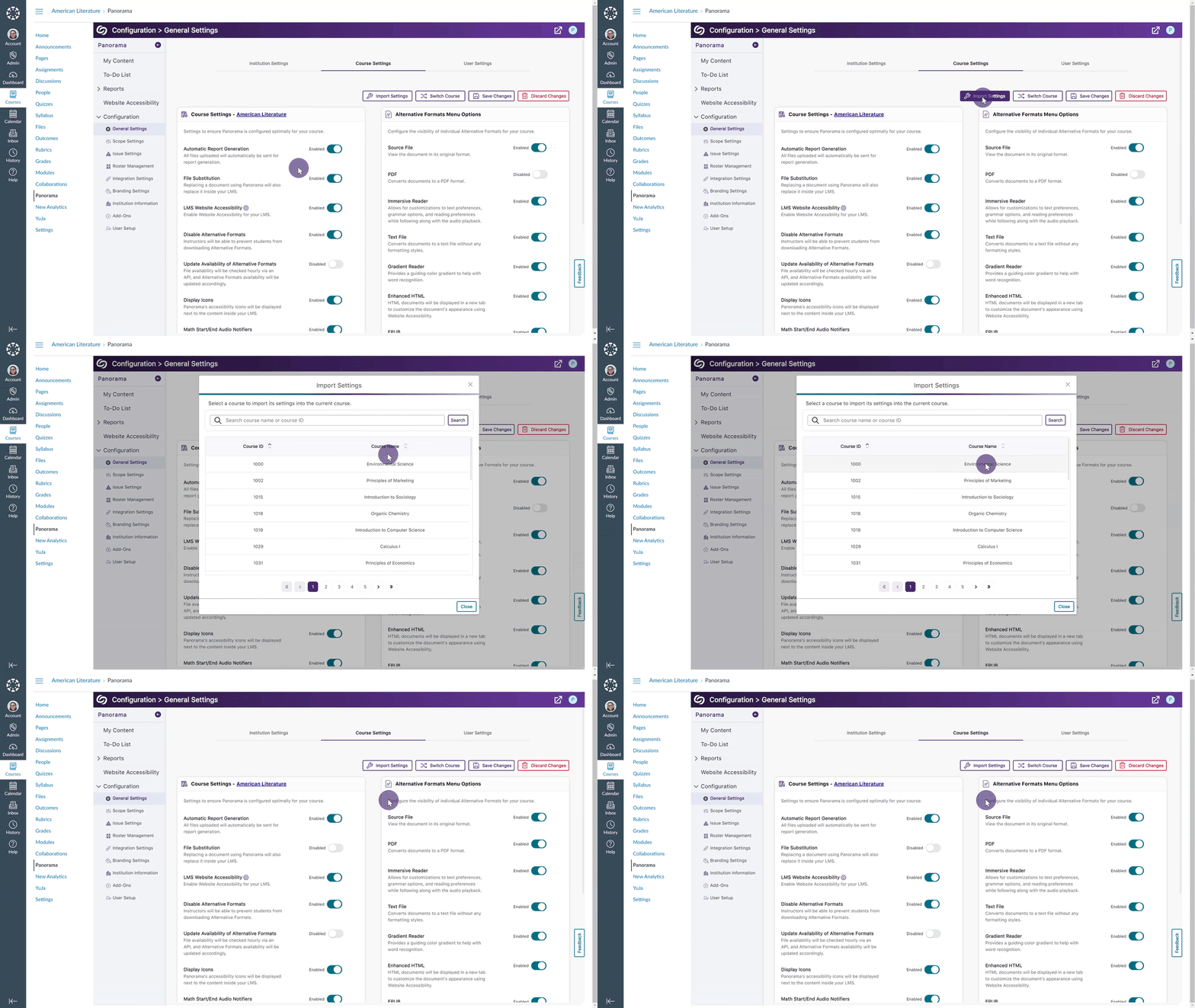
    7. Copy Course Settings from One Course to Another Instead of changing course settings individually, instructors and administrators can easily copy settings from a single course and apply them to any available course. Settings from one course are copied to another.
    8. Map Custom Blackboard and Moodle Roles to Panorama Blackboard and Moodle administrators can map their custom LMS roles to existing roles on Panorama. Blackboard and Moodle logos.
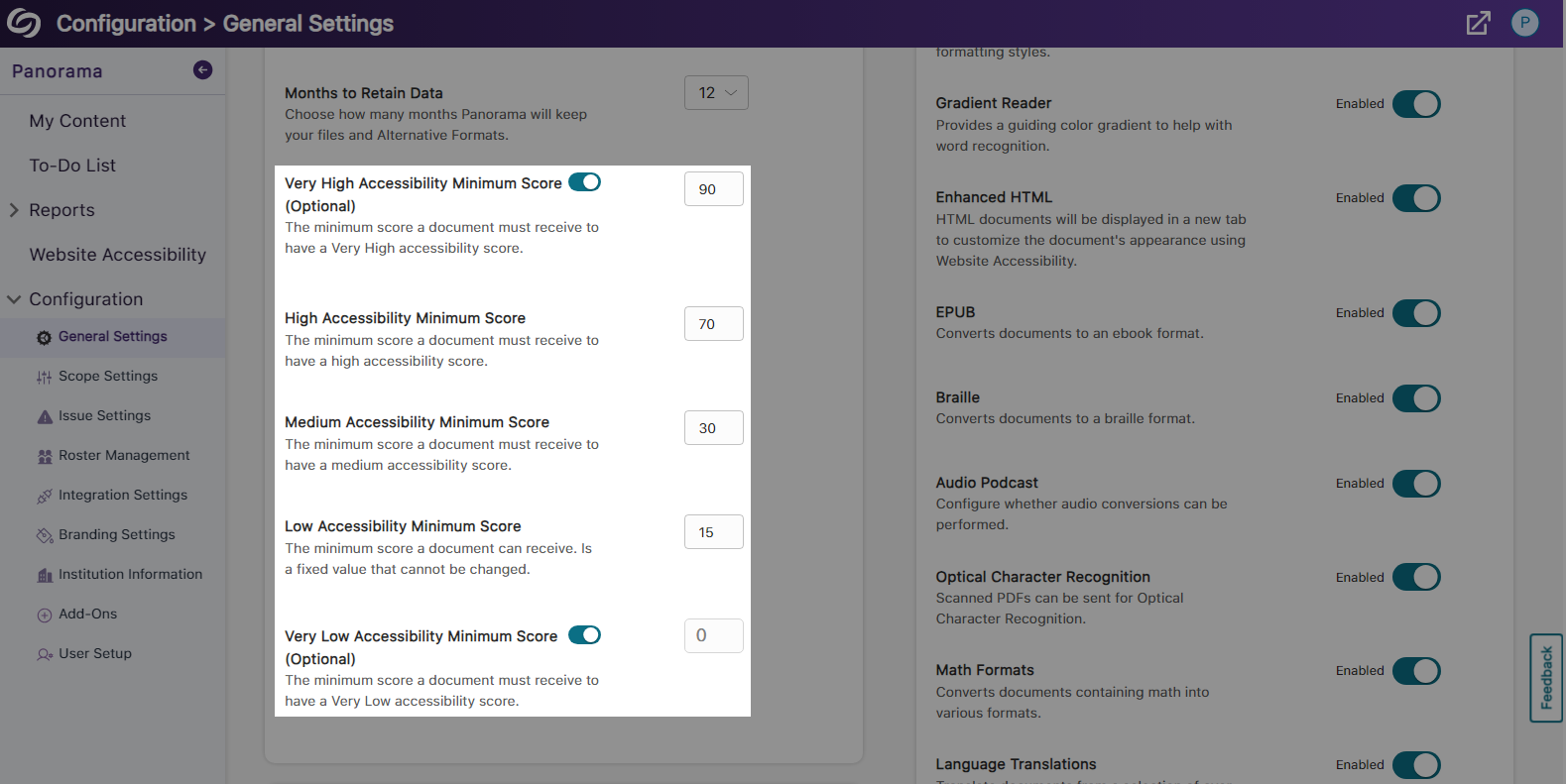
    9. Greater Customization for the Threshold of Accessibility Scores Previously, we introduced options to customize how Panorama defines High, Medium, and Low Accessibility Scores. In this release, we’re adding additional options to define Very High Accessibility Scores and Very Low Accessibility Scores for documents and HTML content. Very high and very low accessibility thresholds are shown.
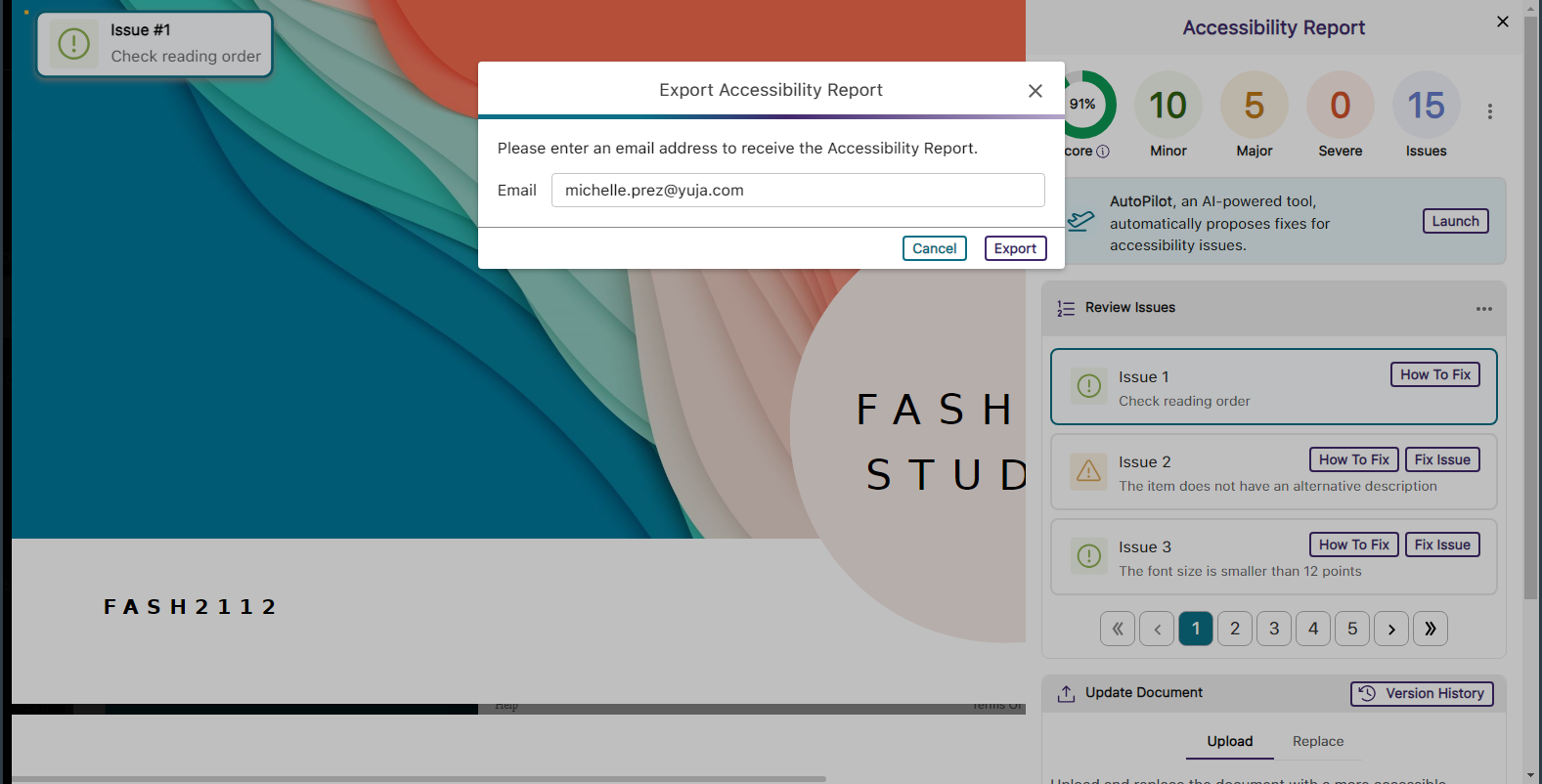
    10. Export the Accessibility Report for Offline Viewing Accessibility reports can be exported, allowing administrators and instructors to address issues offline within their original documents. A modal showing the option to send the report to an email.
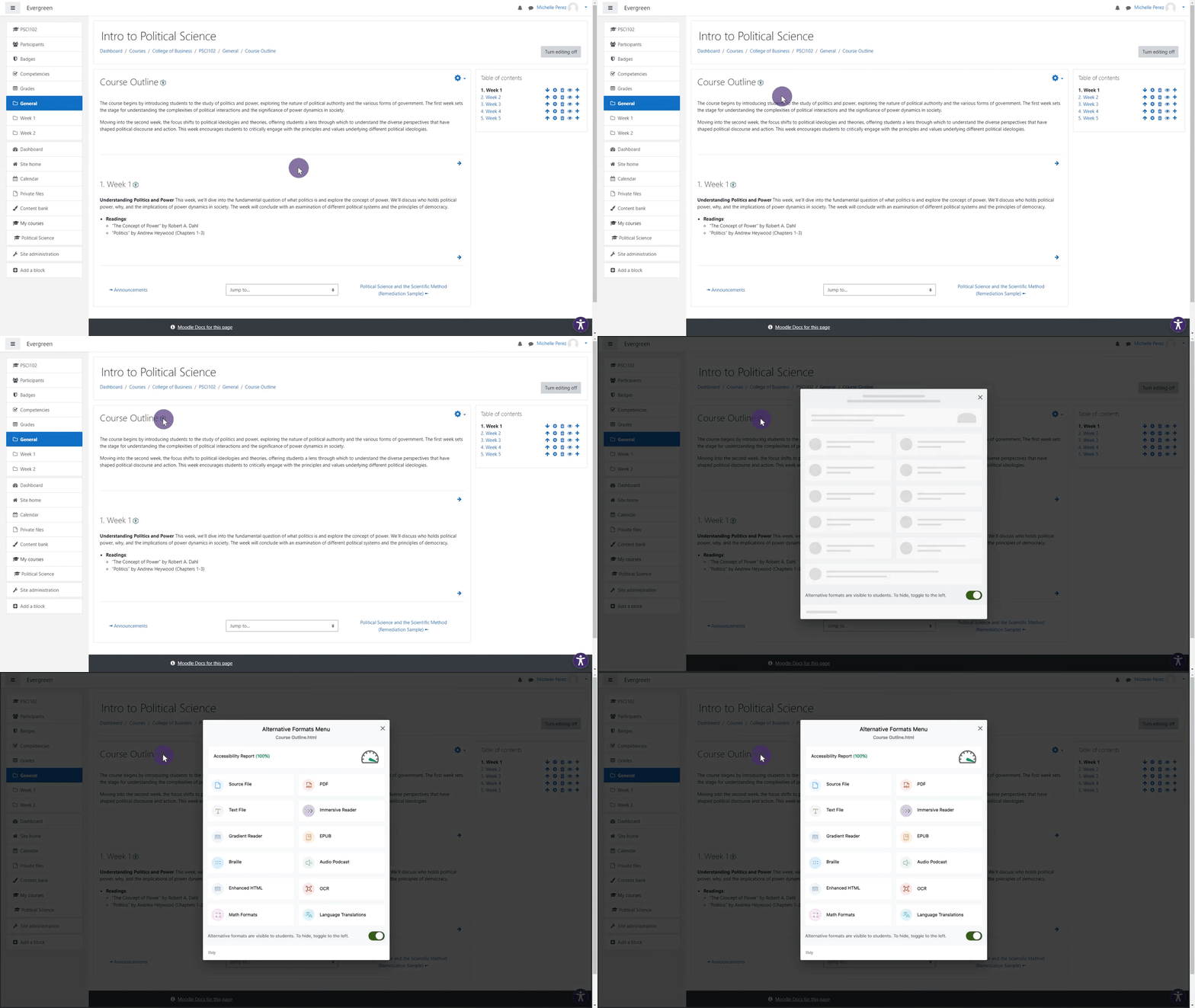
    11. Support for Moodle Books In continuing to integrate Panorama into new areas of Moodle, we now generate Alternative Formats for Moodle Books. Alternative formats for Moodle books.
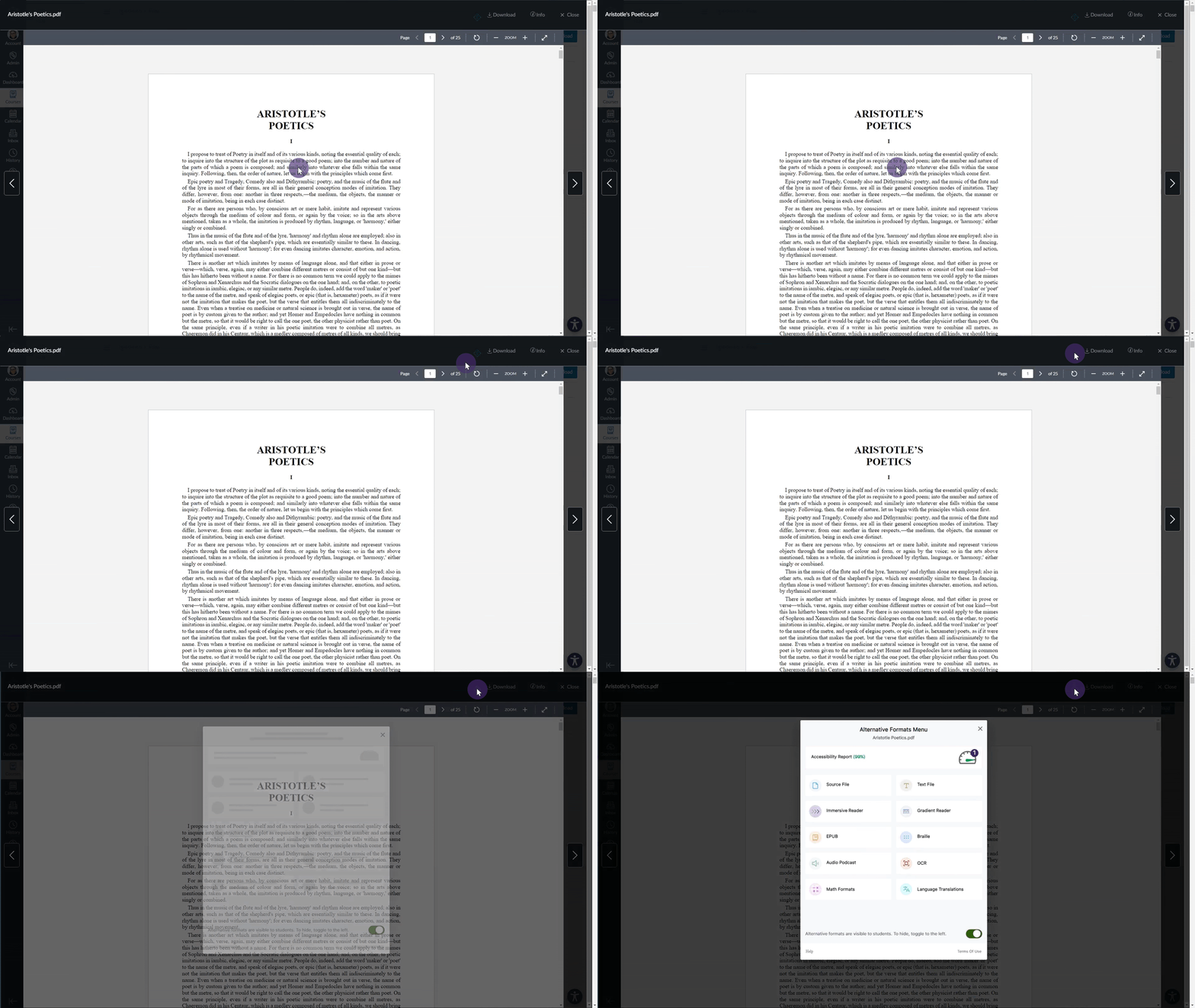
    12. Panorama Supports Previewing Documents in Canvas We’ve expanded support in new areas of Canvas by providing access to Alternative Formats and viewing the Accessibility Report when previewing documents. Alternative formats are shown when previewing a document in Canvas.
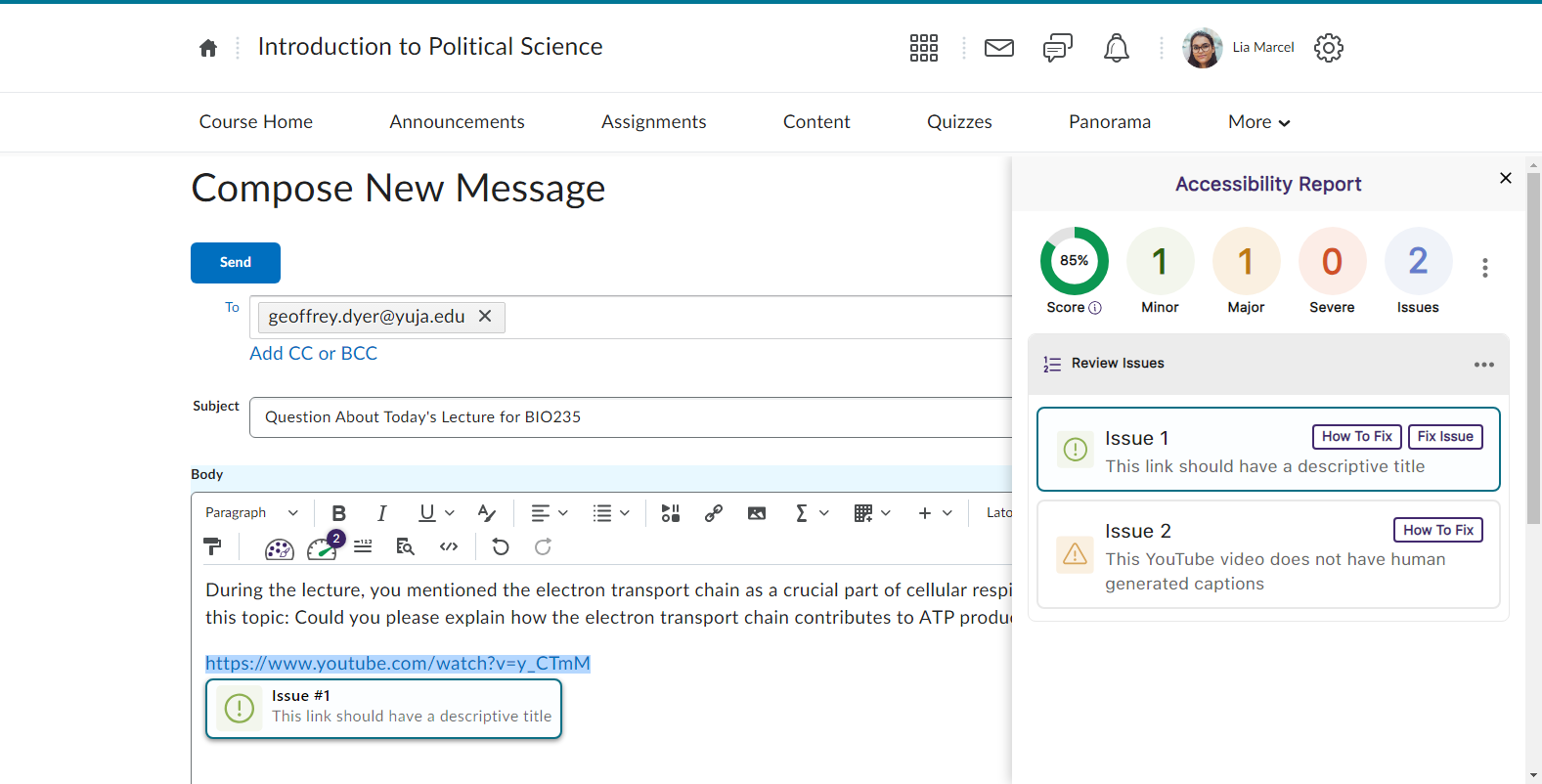
    13. Accessibility Report for D2L Brightspace Messages We’ve added the Panorama Accessibility Report to D2L Brightspace messages to ensure all outgoing content is accessible. The Accessibility Report is shown for D2L Messages.
    14. Filter Accessibility Report Results Using the Issue Icons In addition to our existing feature for filtering issues, administrators and instructors can now filter issues by simply clicking on the issue icons. Panorama's Issue icons inside the Accessibility Report are shown.
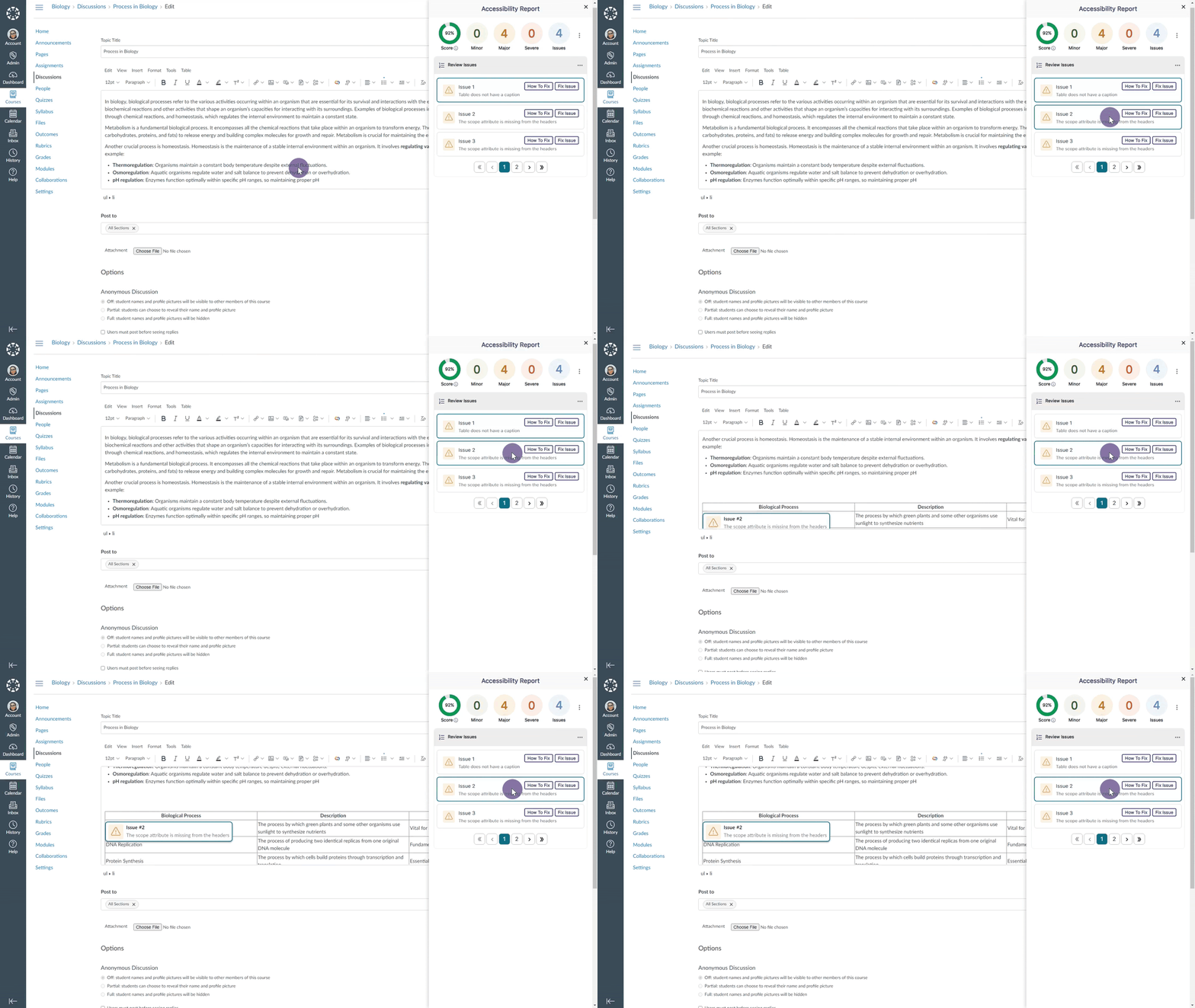
    15. The Accessibility Report Will Navigate to a Selected Issue in the WYSIWYG Editor Selecting a specific issue within the Accessibility Report will automatically navigate to the issue inside the WYSIWYG editor. The accessibility report scrolls through issues for content in a WYSIWYG editor.
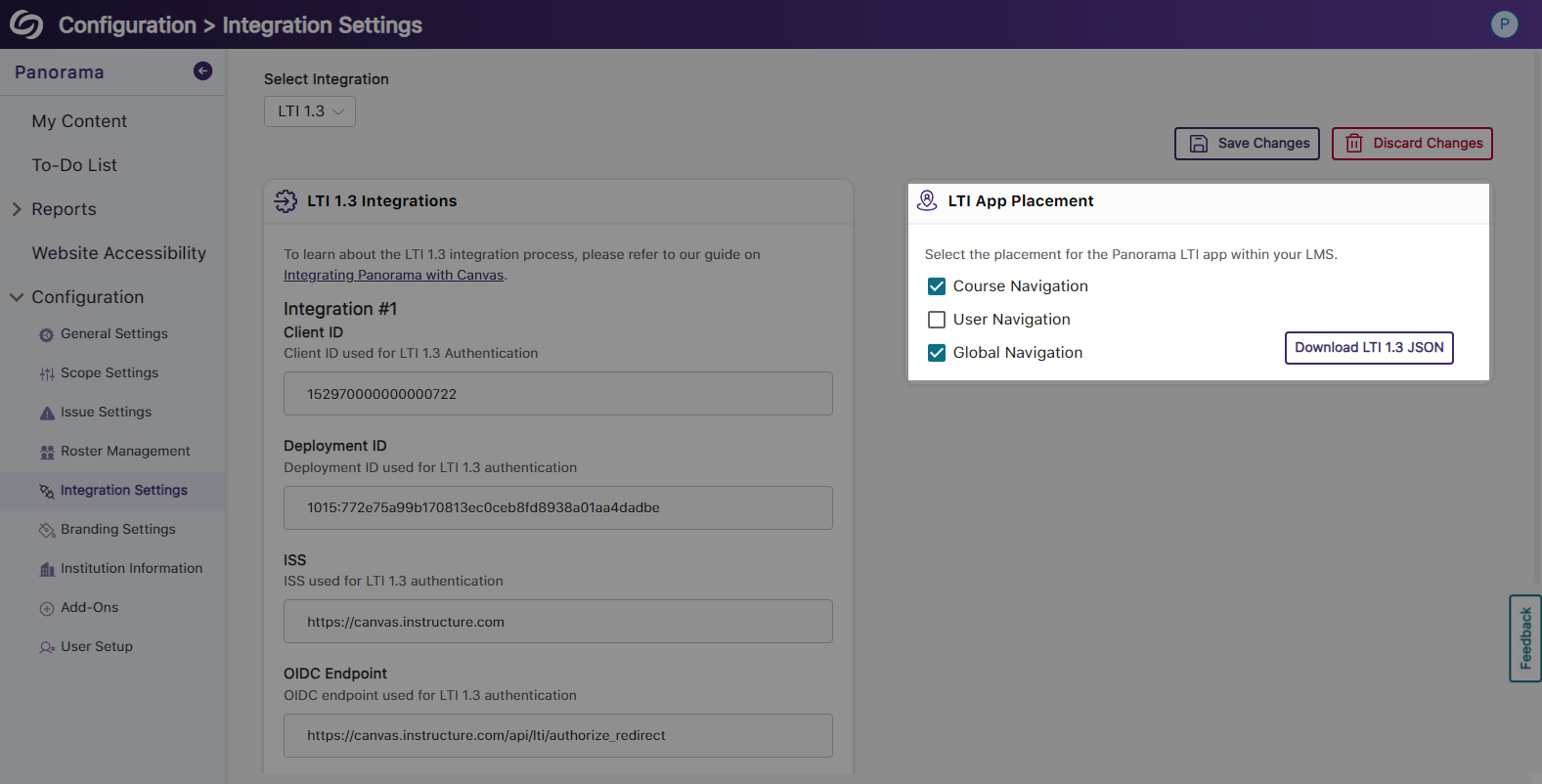
    16. Select the LMS Placement for the Panorama LTI 1.3 LInk Administrators integrating Panorama into their Learning Management System through LTI 1.3 can choose where the Panorama LTI link appears: at the course level, for individual users, or at the global level. LTI placement settings in Panorama's integration page.
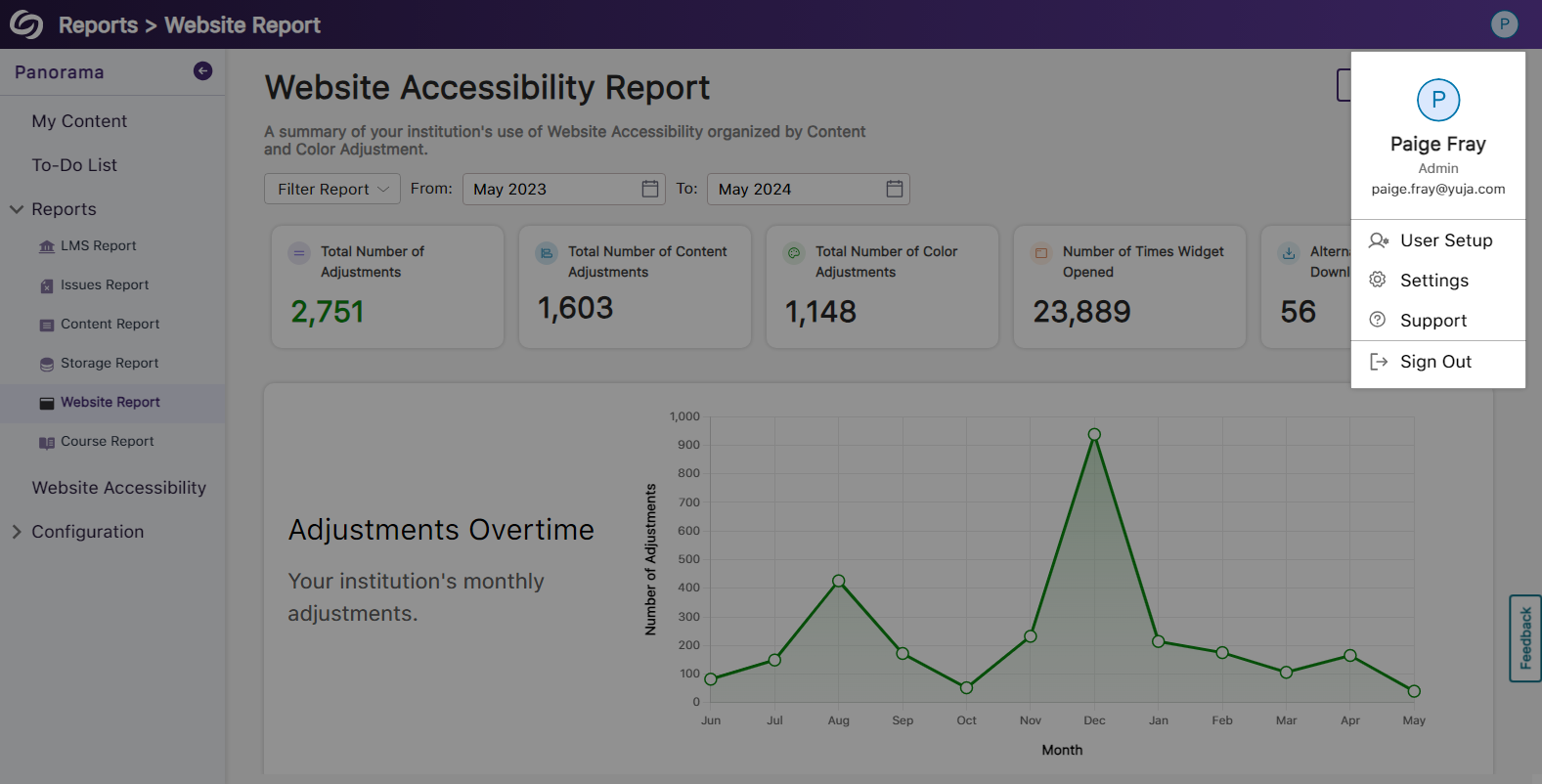
    17. View Your Account Information on the Panorama Platform Panorama now offers the option to view your account information from within the platform and options to quickly access settings. Account information is shown when the profile icon is selected.
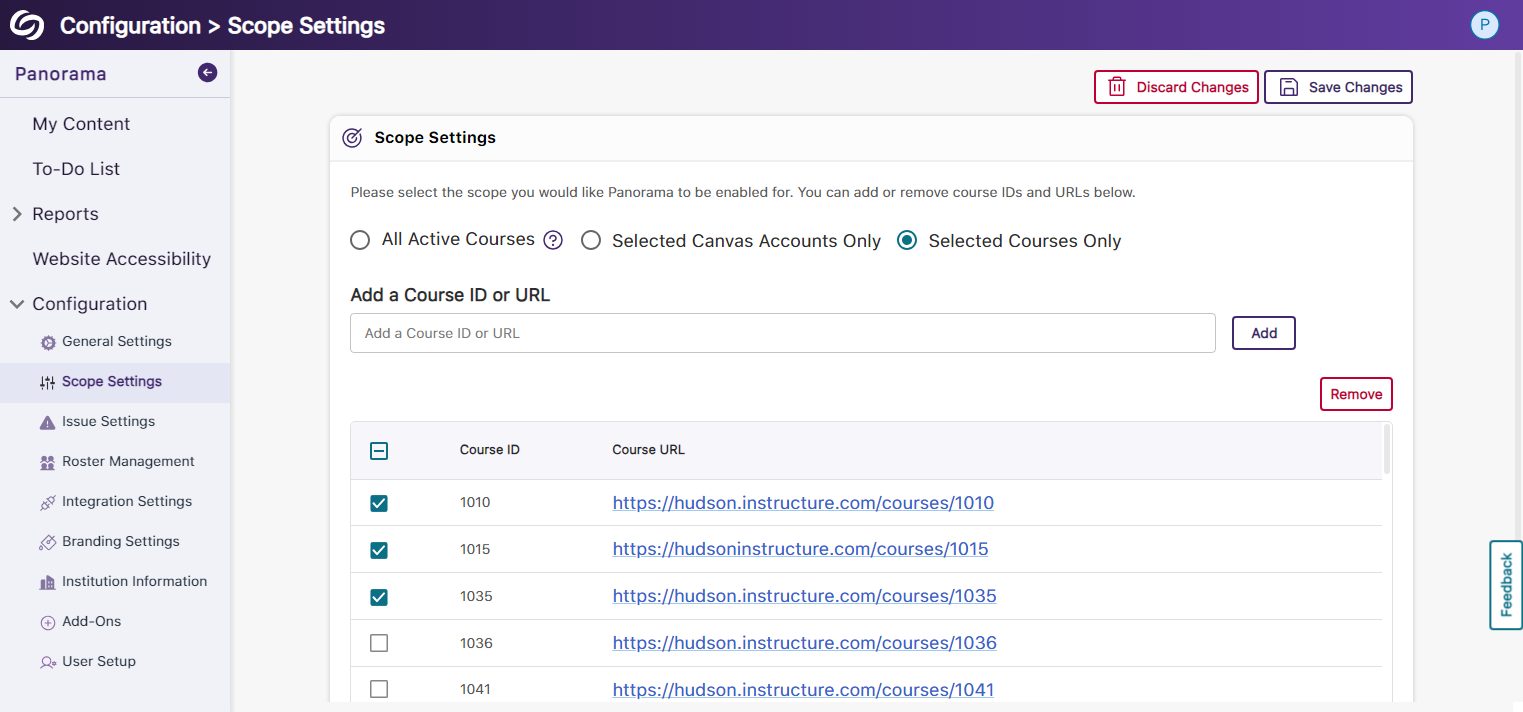
    18. Enhanced Table View of Available Courses in Scope Settings The Scope Settings UI table has been updated to allow administrators to easily select which courses Panorama should be enabled in. Panorama's scope settings
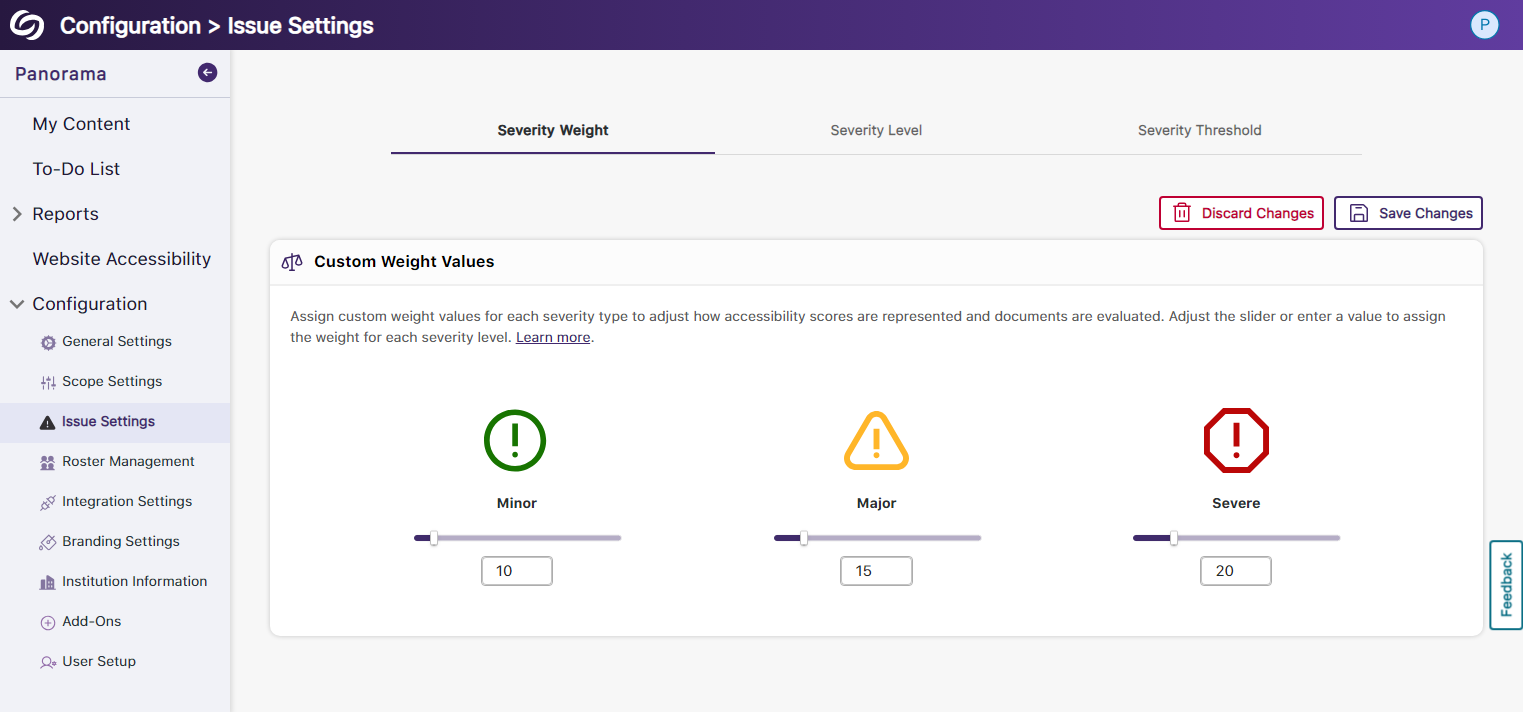
    19. New Tabular View for Issue Settings Issue settings have been organized into a tabular structure, allowing administrators to access their desired settings quickly. Panorama's issue settings.
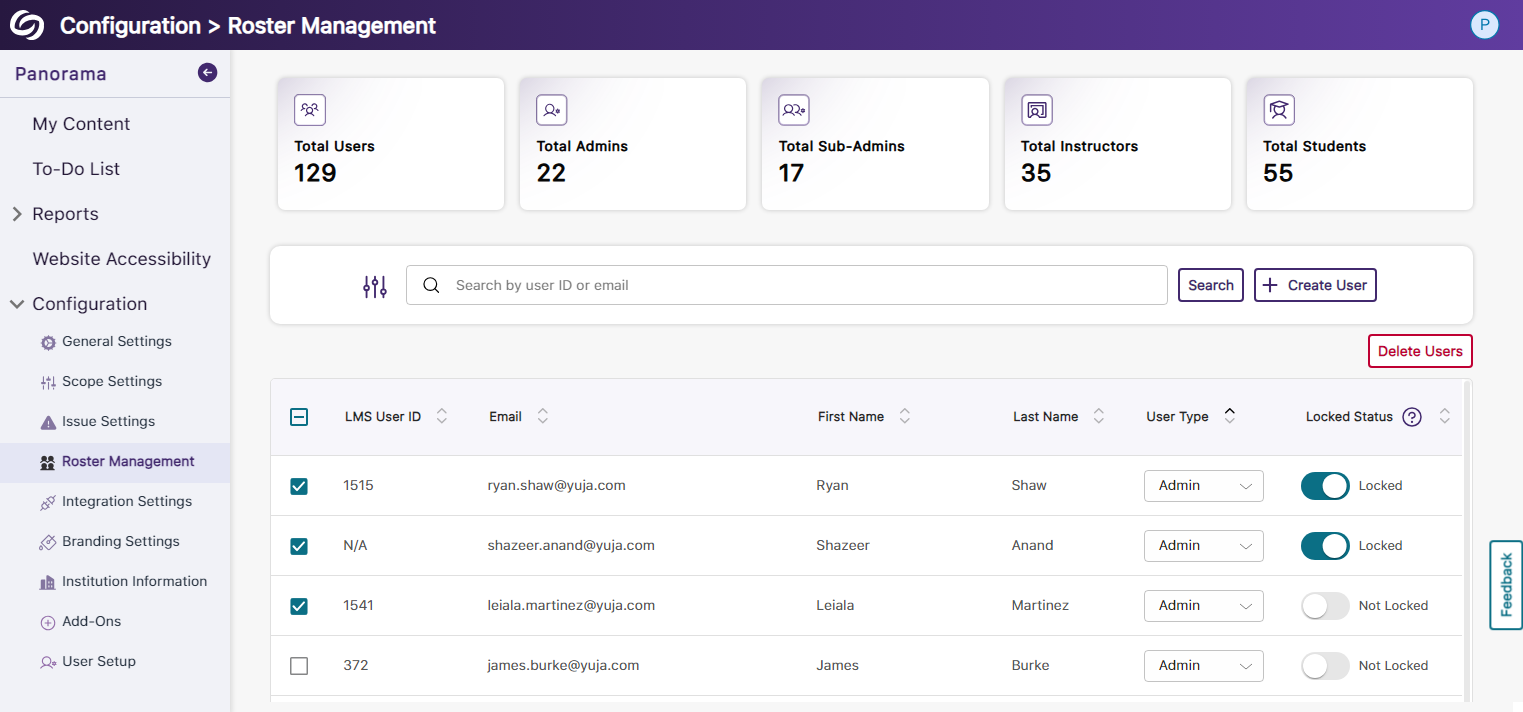
    20. Enhanced UI and User Selection for Roster Management We’ve updated the UI for Roster Management and provided the option to select multiple users for deletion instead of removing them one at a time. Panorama Roster Management page.
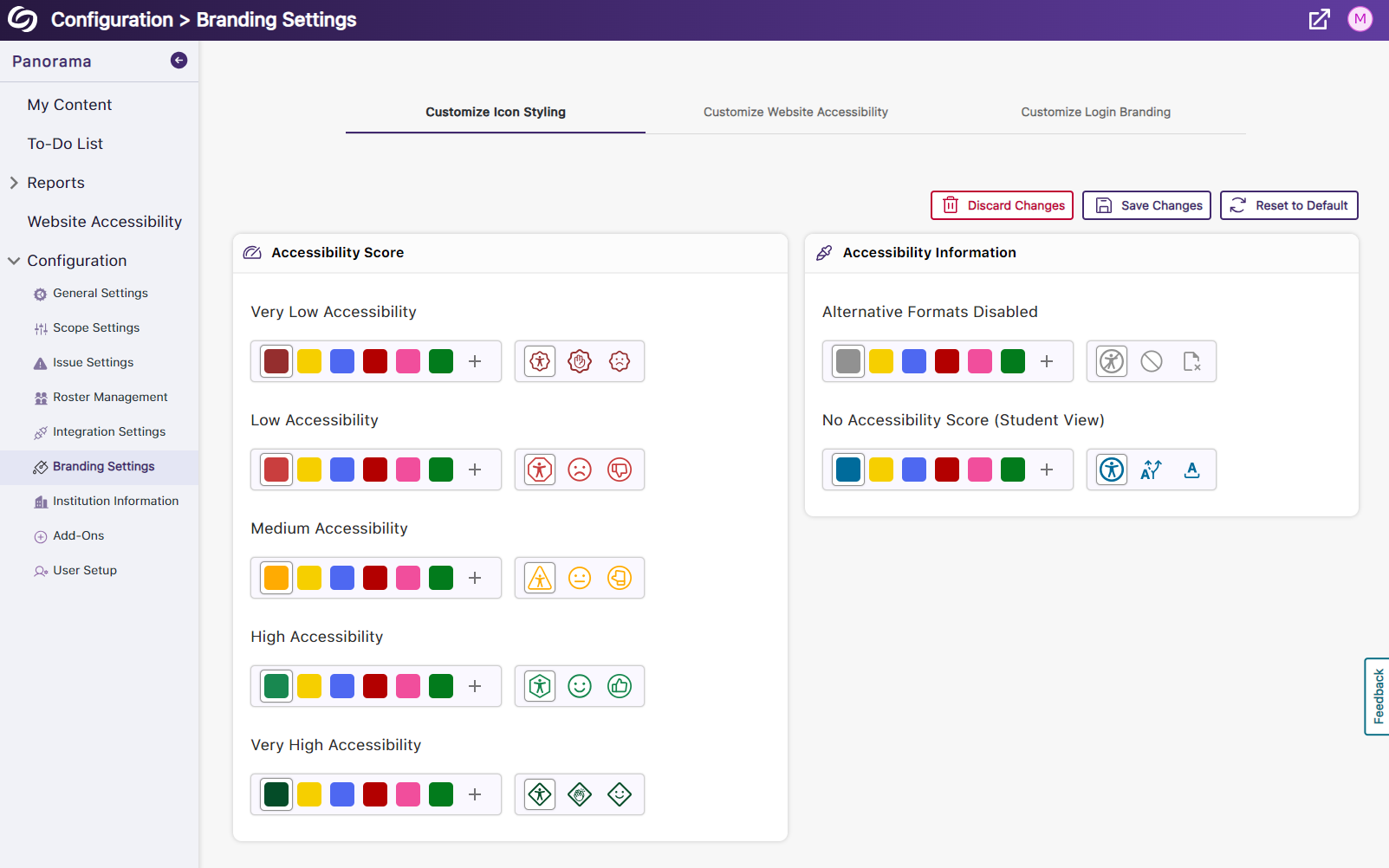
    21. Reorganized Branding Settings and Enhanced Iconography We’ve reorganized the Branding Settings in Panorama, introducing dedicated tabs for styling features. Additionally, we’ve given the iconography a modern look to enhance the experience when choosing your preferred styling. Panorama's branding settings page.
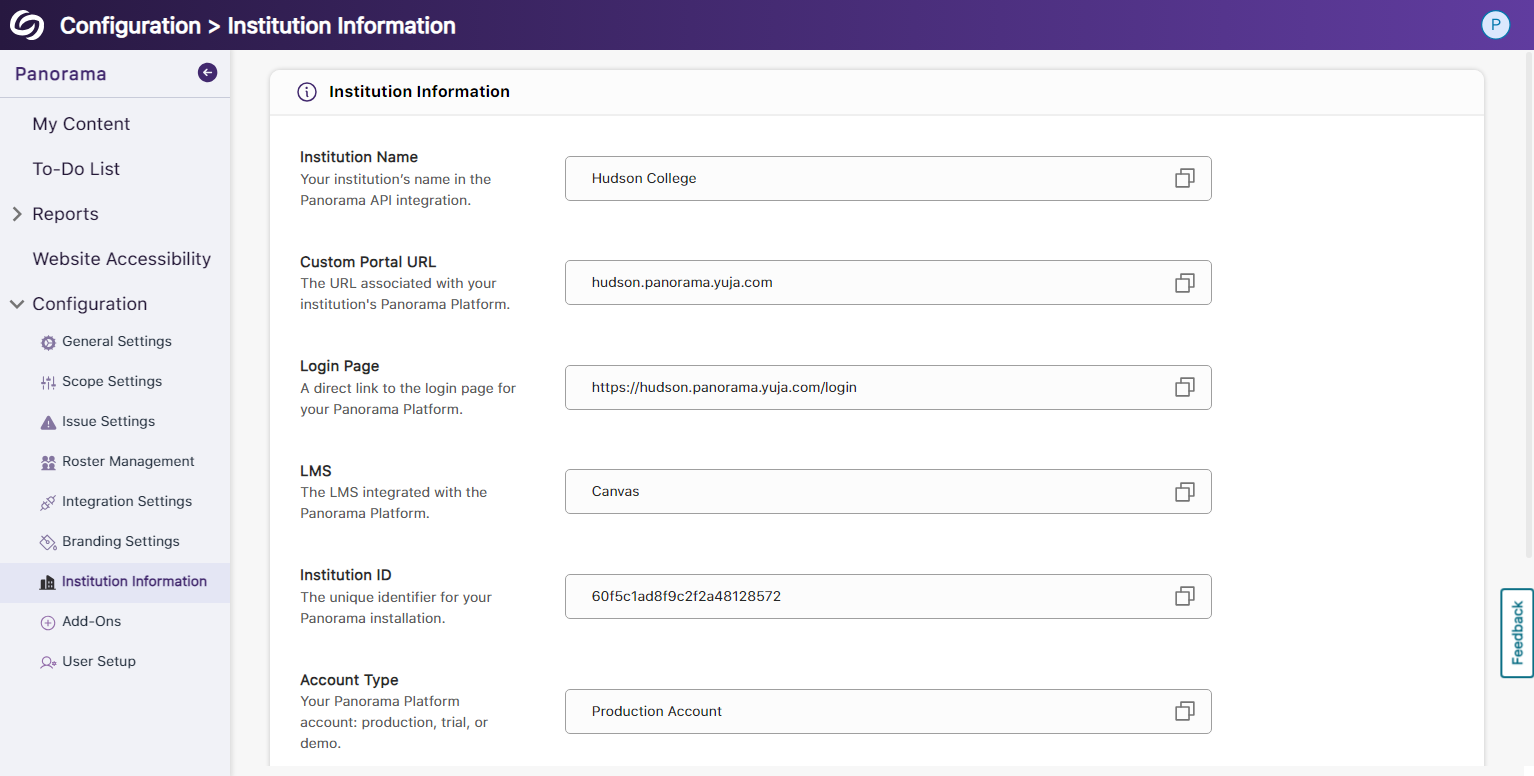
    22. More Descriptive Text for Institution Information We have updated the Institution Information text to allow administrators to easily understand the details related to their institution and how Panorama uses the information. Panorama's Institution information page.
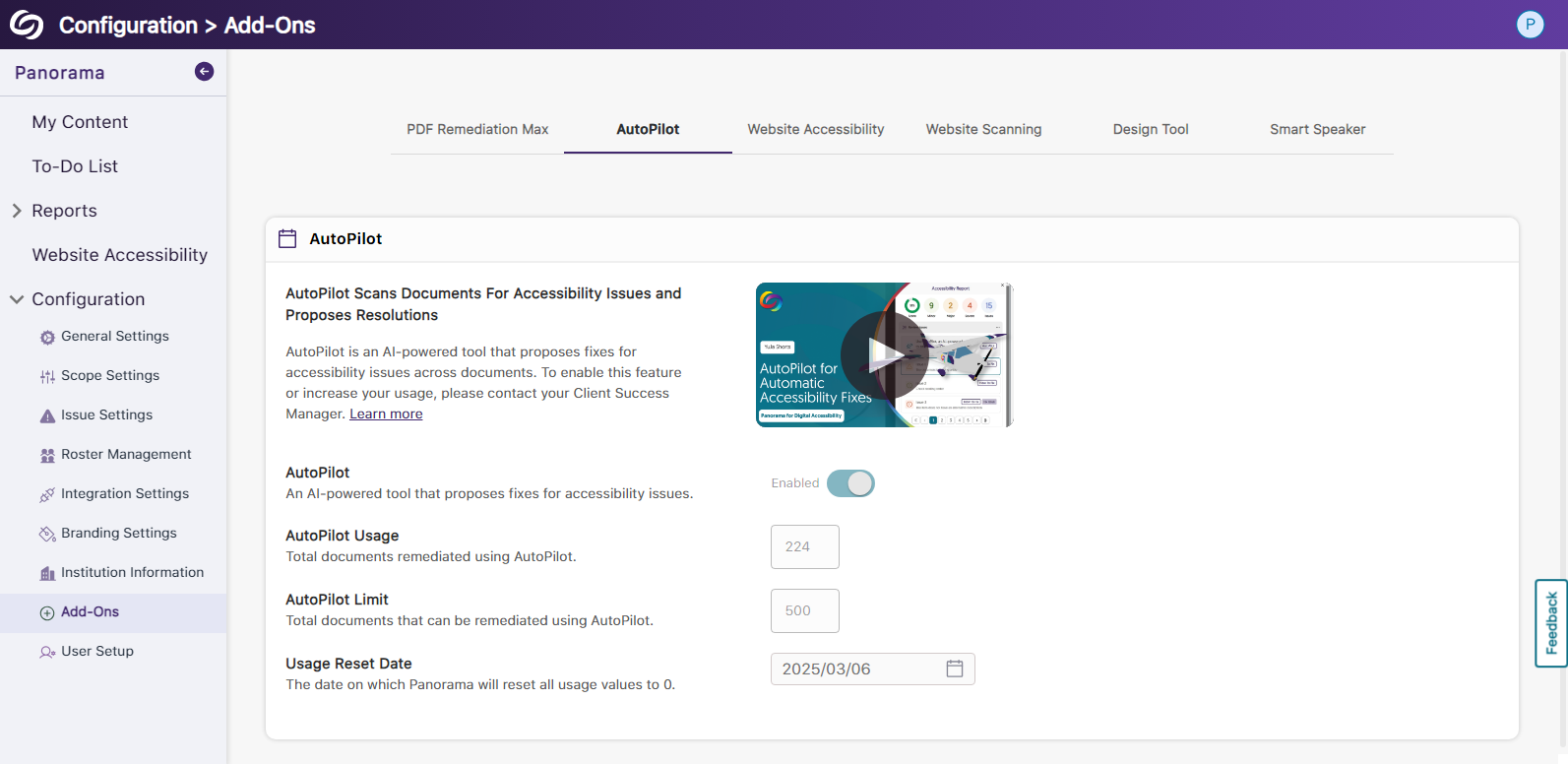
    23. New Organized UI to Manage Panorama Add-Ons All Panorama add-ons have been organized into tabs to access settings specific to each add-on. Additionally, we’ve created informative videos explaining the features of select add-ons. Panorama Add-ons page.
    24. New Font Styling Across Panorama We have updated the font family Panorama utilizes to San Francisco Pro.
  • March 27, 2024

    YuJa Panorama Digital Accessibility Platform Update – “Omu Peak”

    We have successfully pushed an update to all YuJa Panorama Digital Accessibility Platform instances residing in the United States, Canada, European Union, and Australia. This release provides our users with updates to the gradient reader, detection for broken links in HTML content, the option to apply filters in Course Scans, enhanced institution scans for D2L Brightspace, view issues opened in the Course Report, a more streamlined integration process, and new voice settings and real-time text highlights for our Smart Speaker add-on.
     
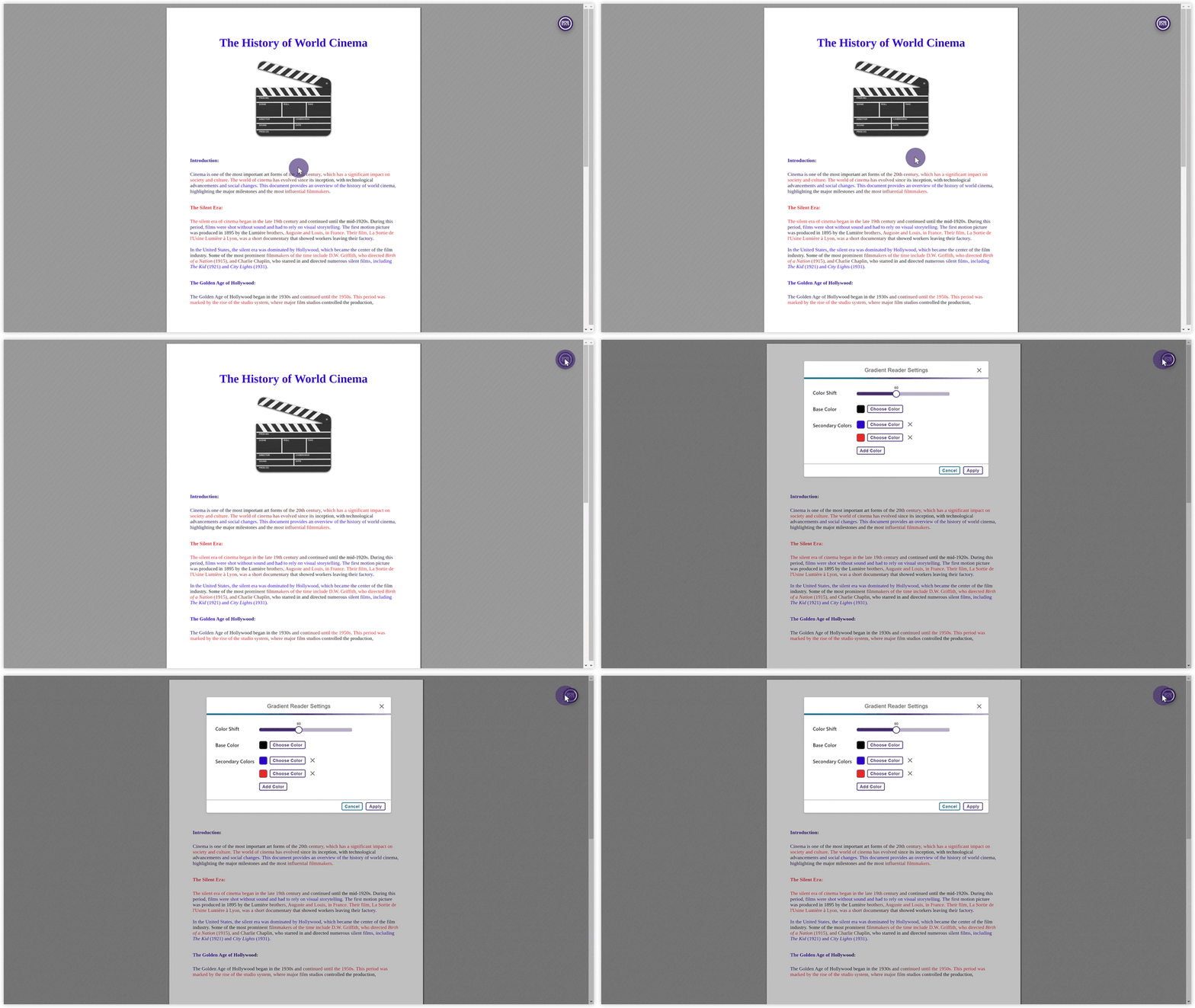
    1. New Gradient Reader Settings for Color Adjustments and Transitions The Gradient Reader now offers custom color options for applying gradients to documents, which allows users to specify the frequency of color transitions for a personalized guided reading experience. New gradient reader settings are shown.
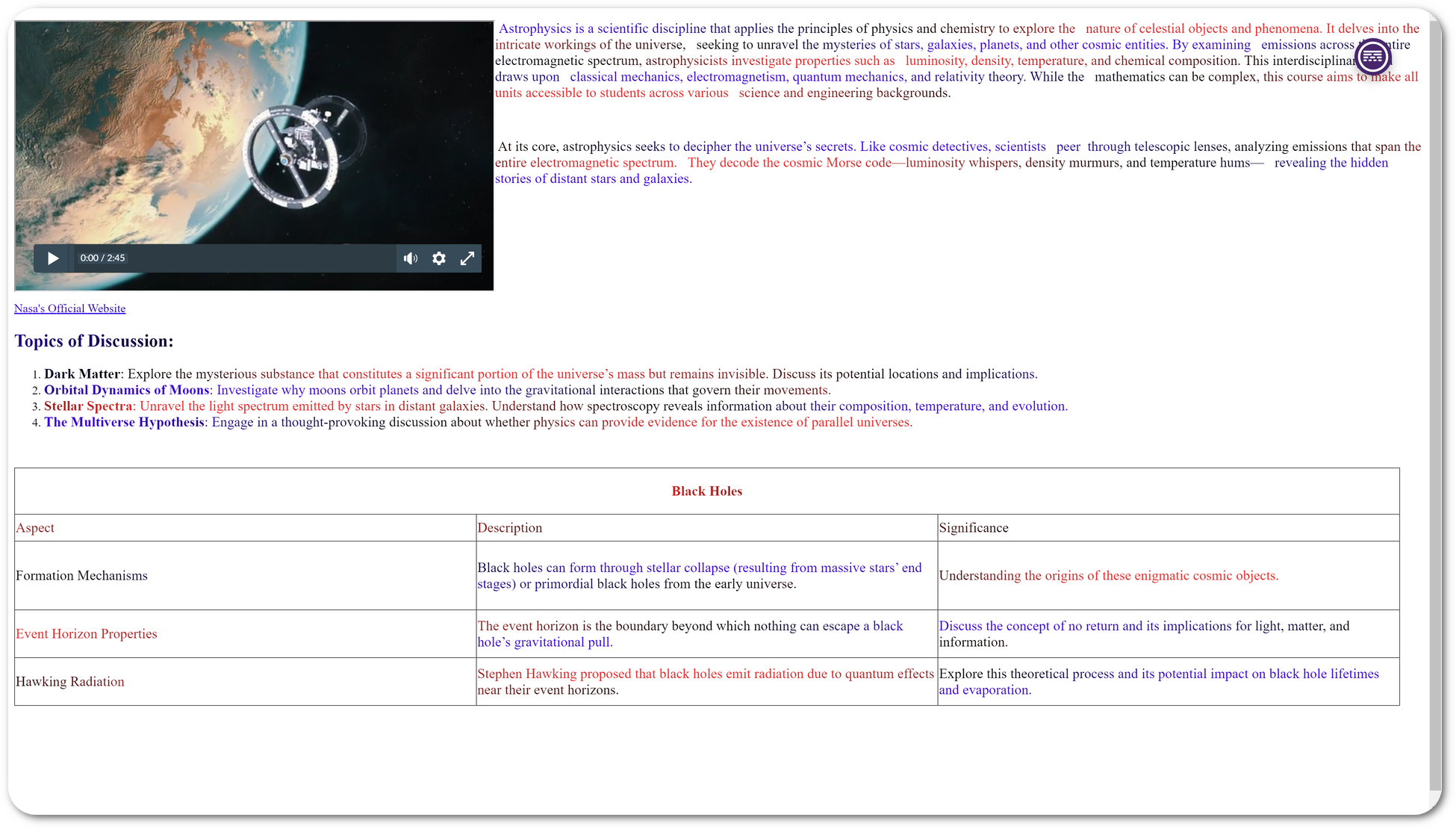
    2. The Gradient Reader Preserves Structural Formatting of Documents To enhance visual recognition of content, the Gradient Reader will maintain the original document’s structure, ensuring that inline videos, lists, tables, and spacing remain consistent. A video, list, and a table is shown in the gradient reader.
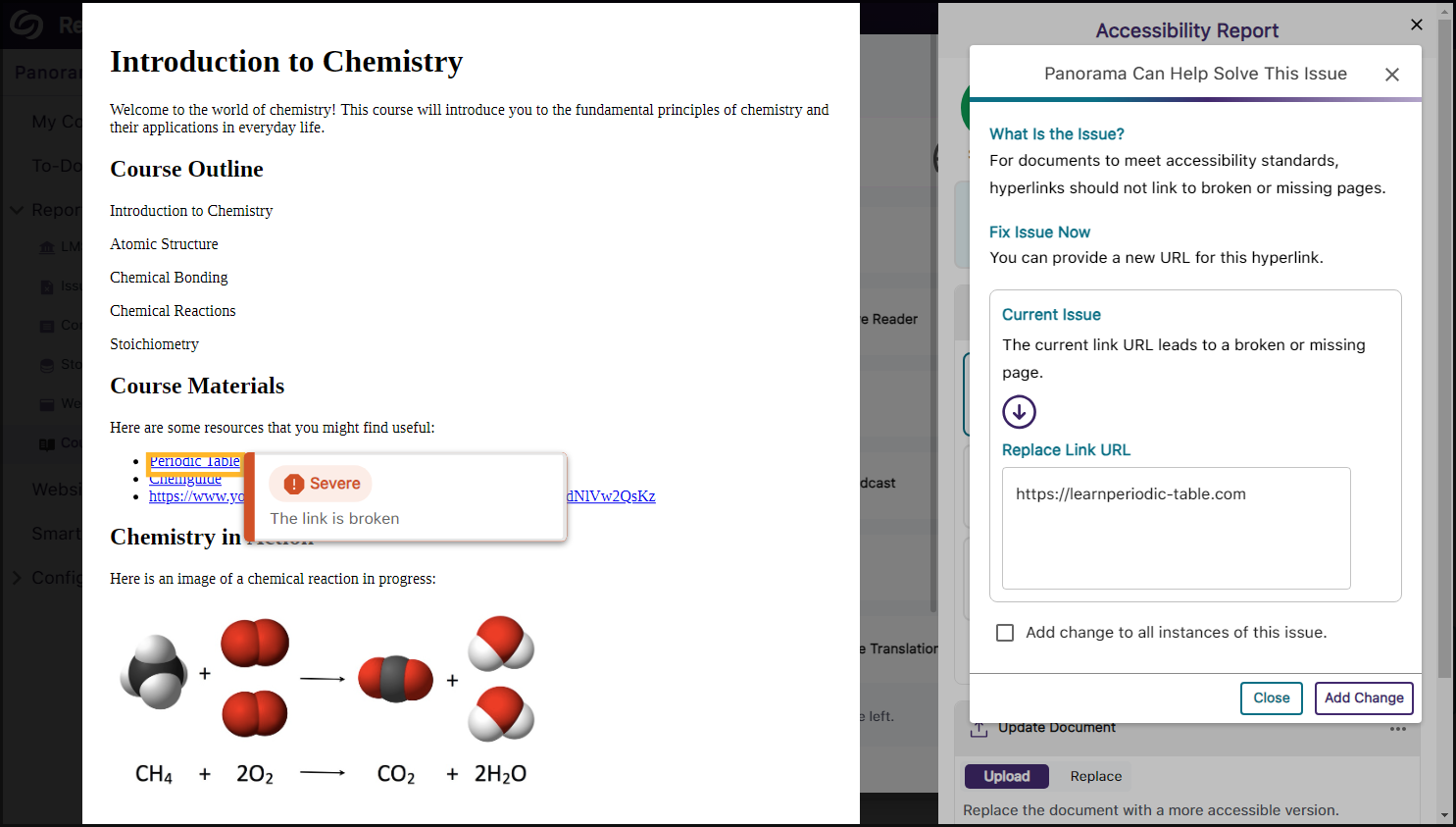
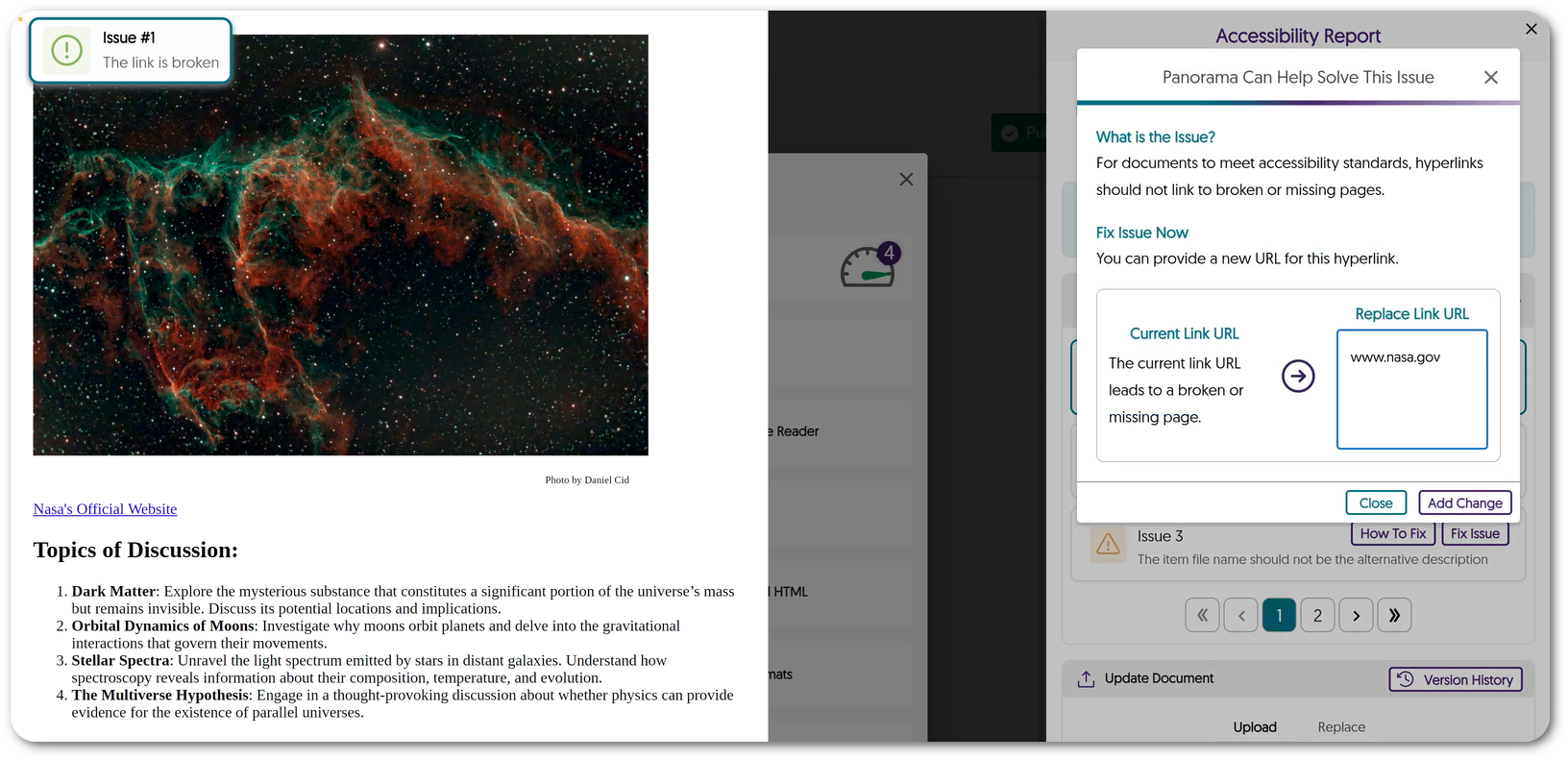
    3. New WCAG 2.1-Aligned Detection for HTML Issues: Broken Links We’ve added a new accessibility check to allow Panorama to identify broken links within HTML content. An issue for a broken link is shown being resolved in the Accessibility Report.
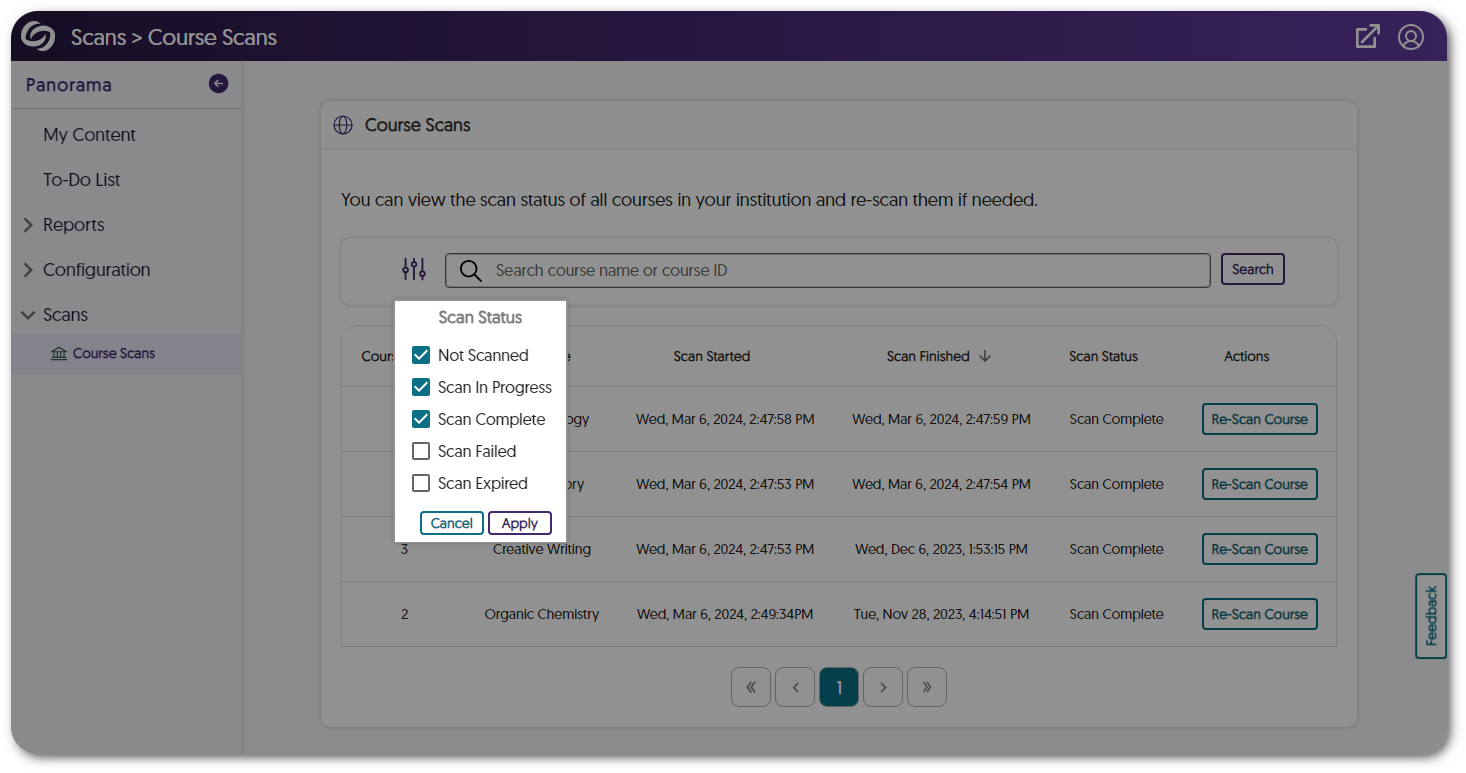
    4. Apply Filters to Course Scans Administrators can effectively track the progress of course scans by applying filters based on their current status, such as scans that have not yet started, are in progress, have completed, failed, or expired. Filters for the Course Scans page are shown.
    5. Enhanced Institution Scans for Large Institutions Using D2L Brightspace To efficiently scan institutions with a large number of courses in a shorter amount of time, D2L Brightspace administrators can input multiple access keys for their Panorama integration.
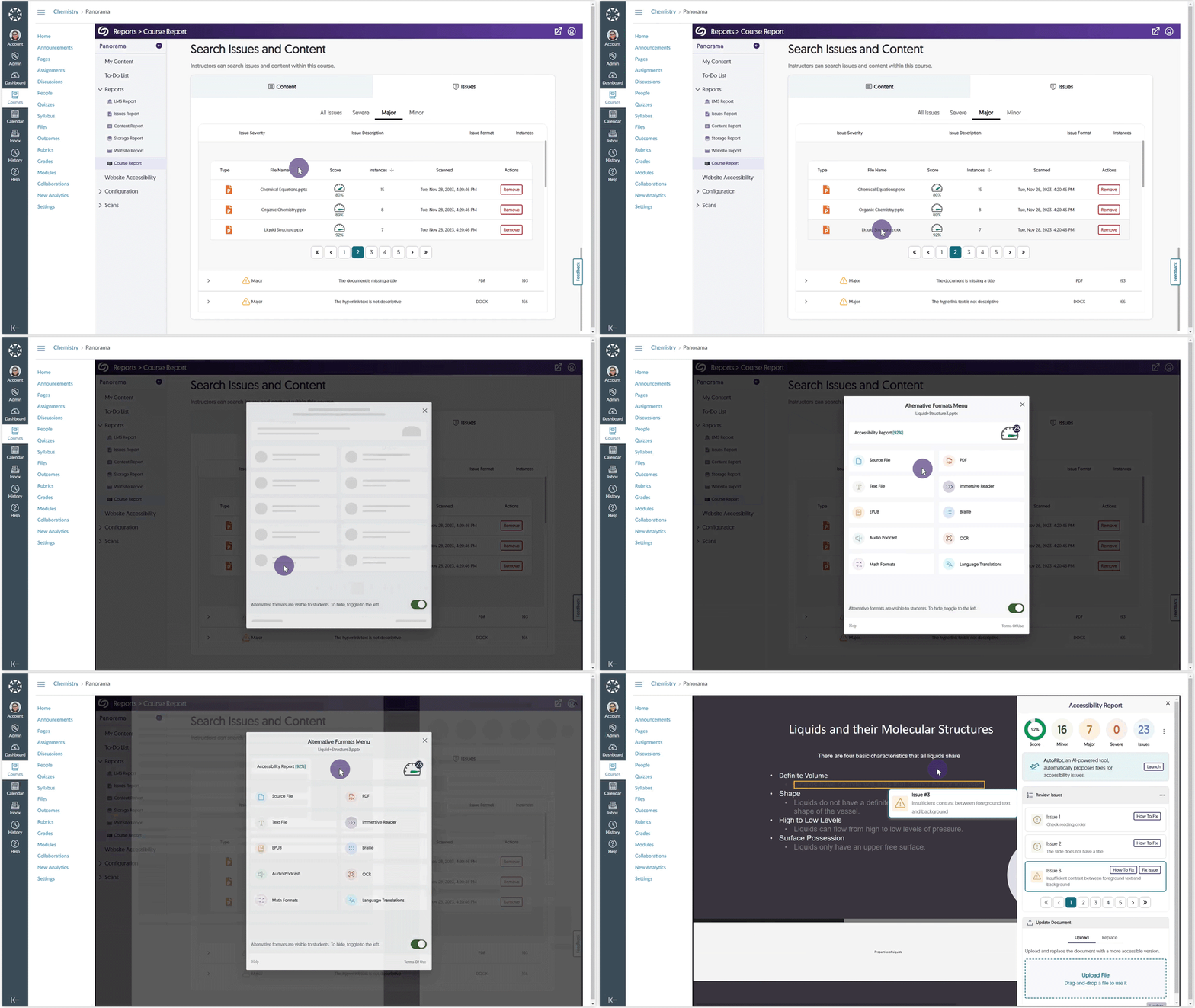
    6. The Review Issue List in the Accessibility Report Will Open to a Selected Issue from the Course Report When selecting a specific issue within a document from the Course Report, the Accessibility Report will automatically show it in the Review Issues list. Previously, the issue was highlighted only on the document. From the Course Report, an issue is selected and then viewed directly in the Accessibility Report.
    7. Streamlined Integration Process With Panorama We’ve enhanced Panorama’s integration page with improved on-screen text and relevant guides to help administrators self-manage LTI, API, and SSO integrations.
  • March 8, 2024

    YuJa Panorama Digital Accessibility Platform – “Naltar Peak” Version Released to US, CAN, AU, and EU Zones

    We have successfully pushed an update to all YuJa Panorama Digital Accessibility Platform instances residing in the United States, Canada, European Union, and Australia. This release provides our users with the option to view the previous version history of documents, more HTML accessibility issues detected, a new To-Do List, a new math alternative format, the option to customize the threshold of Accessibility Scores, more custom branding options, and PDF structural remediation.
     
      1. New Version History: View and Restore Documents to Previous Versions When documents are updated using the Remediation Engine or through manual uploads, Panorama will automatically preserve the previous version of the document. Content Creators can then access a comprehensive history of all prior versions and choose to restore them if needed. The accessibility report shows a list of previous version history for a document.
      2. Additional WCAG 2.1-Aligned Detection for HTML Accessibility Issues To help Content Creators produce accessible HTML pages, we have added new accessibility checks to help identify issues such as:
        • The table header cell does not contain a scope attribute.
        • The target size for buttons and links is too small.
        • The header is greater than 120 characters.
        • Adjacent links contain the same URL.
    An html issue for missing heading scope is shown with instructions on how to fix the issue.
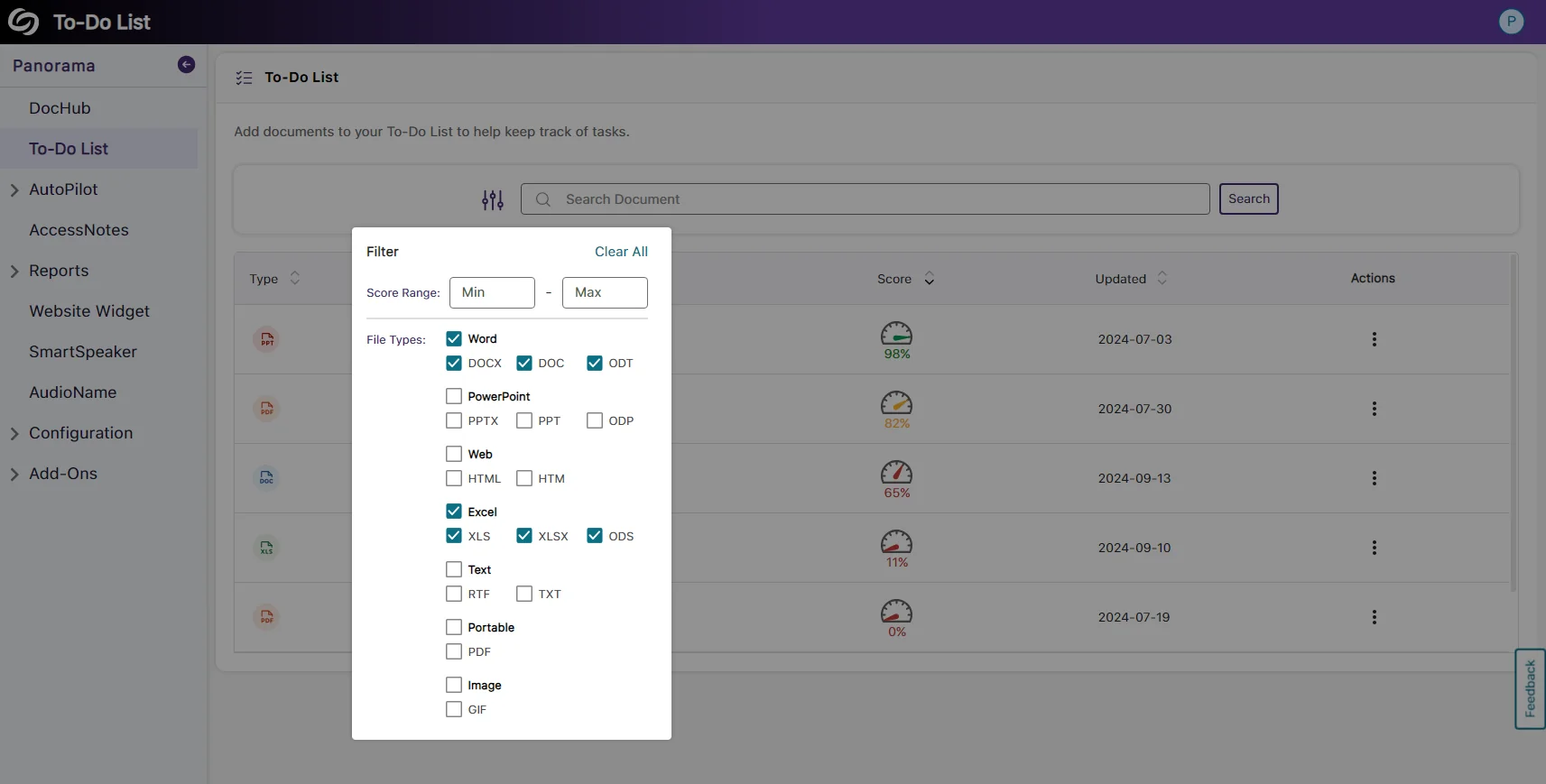
    • New To-Do List: Create a List of Documents to Review Content Creators can efficiently manage documents they want to enhance the accessibility of by adding them to their To-Do List. The documents can then be updated within the To-Do List, or if the original documents are updated, the list automatically reflects those changes, allowing Creators to stay informed. Panorama's To-Do List shows a list of documents.
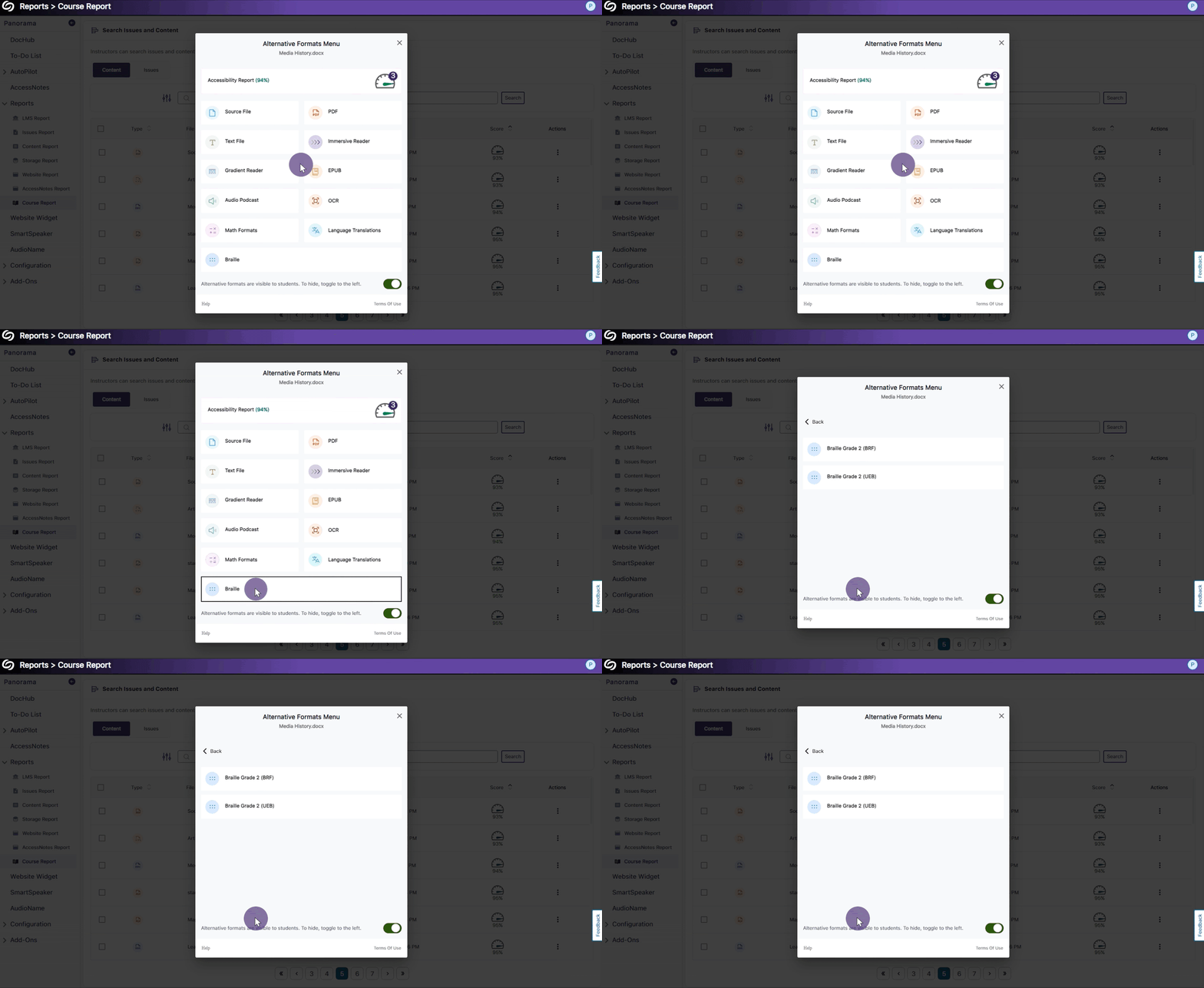
    • New Alternative Math Format: Convert Documents with Math Equations into MathML Our new MathML format enables users to extract mathematical equations from documents and convert them into HTML files, providing an accessible solution for embedding math equations directly into HTML pages. Alternative Formats menu for MathML.
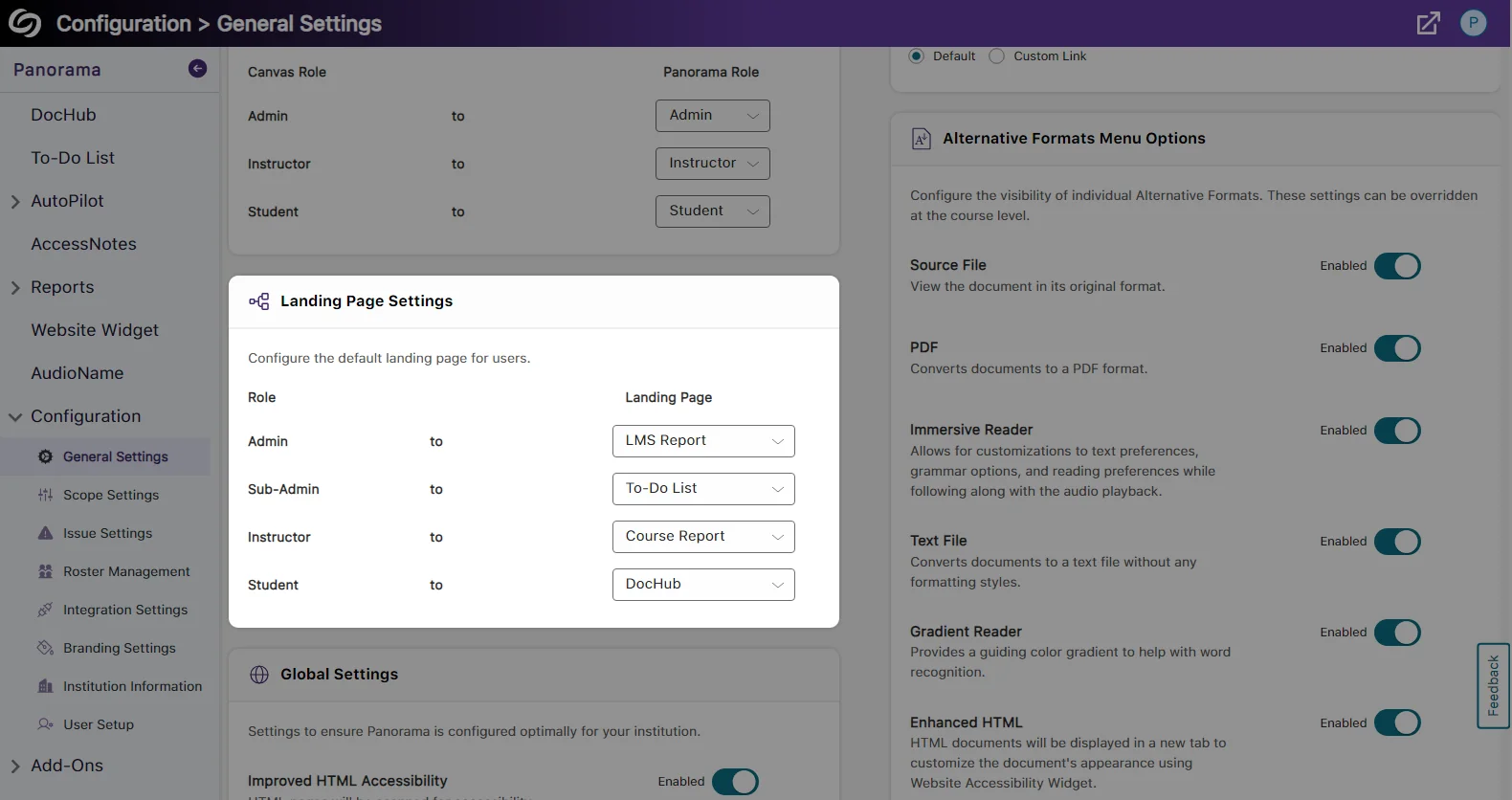
    • Ability to Customize the Threshold of Accessibility Scores Institutions that would like to have rigorous accessibility standards for their content can now establish customized thresholds within Panorama. These thresholds determine how Panorama categorizes accessibility scores—whether they meet high, medium, or low accessibility standards. For instance, while Panorama’s default score designates 70 as highly accessible, organizations can adjust the threshold and mandate that highly accessible content must achieve a score of 85. global settings show the threshold numbers for high, medium and low accessibility.
    • Customize the Branding of Panorama Icons To offer institutions a more personalized experience, they can now customize Panorama icons by selecting from a curated collection of pre-designed options. If you have a suggestion for a specific iconography, we encourage you to contact your Customer Success Manager. The branding tab for panorama shows various icons for accessibility scores.
    • Customize the Panorama Portal Login Page Institutions can now customize the branding of their Panorama Portal login page by adjusting the colors of buttons and adding imagery. The customize login branding page shows the option to insert an image.
    • The Accessibility Report Will Open to a Selected Issue from the Course Report When selecting a specific issue within a document from the Course Report, the Accessibility Report will open directly to the issue, allowing Content Creators to quickly view and address it. An issue is selected in the course report and immediately shown in the accessibility report.

Join the 1,000+ Organizations Deploying High-Impact Solutions

A collection of logos representing various organizations and institutions that use YuJa’s platform.