Product Updates

Get the latest platform updates, features, and announcements—all in one place.

  • May 10, 2024

    YuJa Panorama Digital Accessibility Platform Update – May 2024

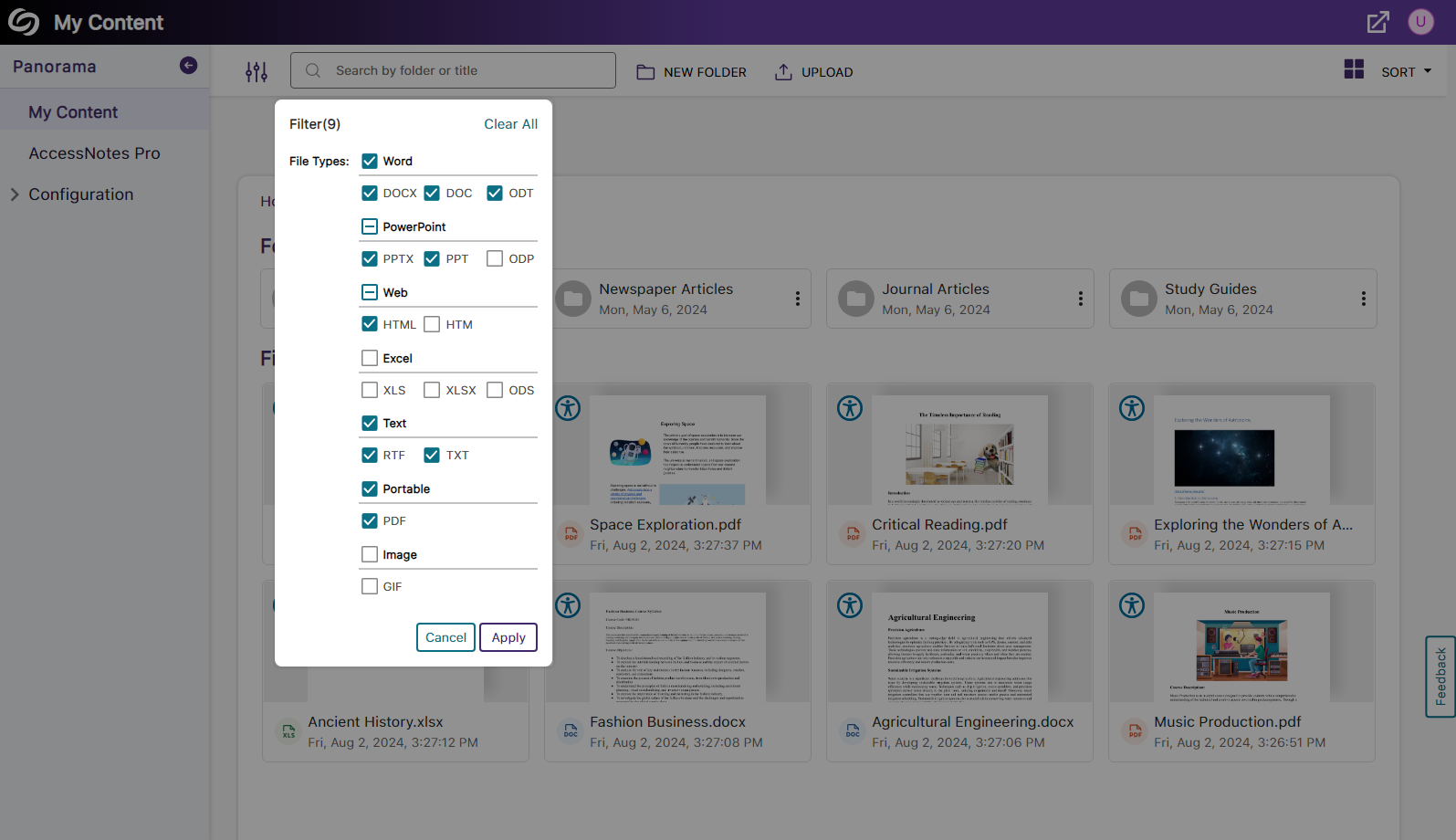
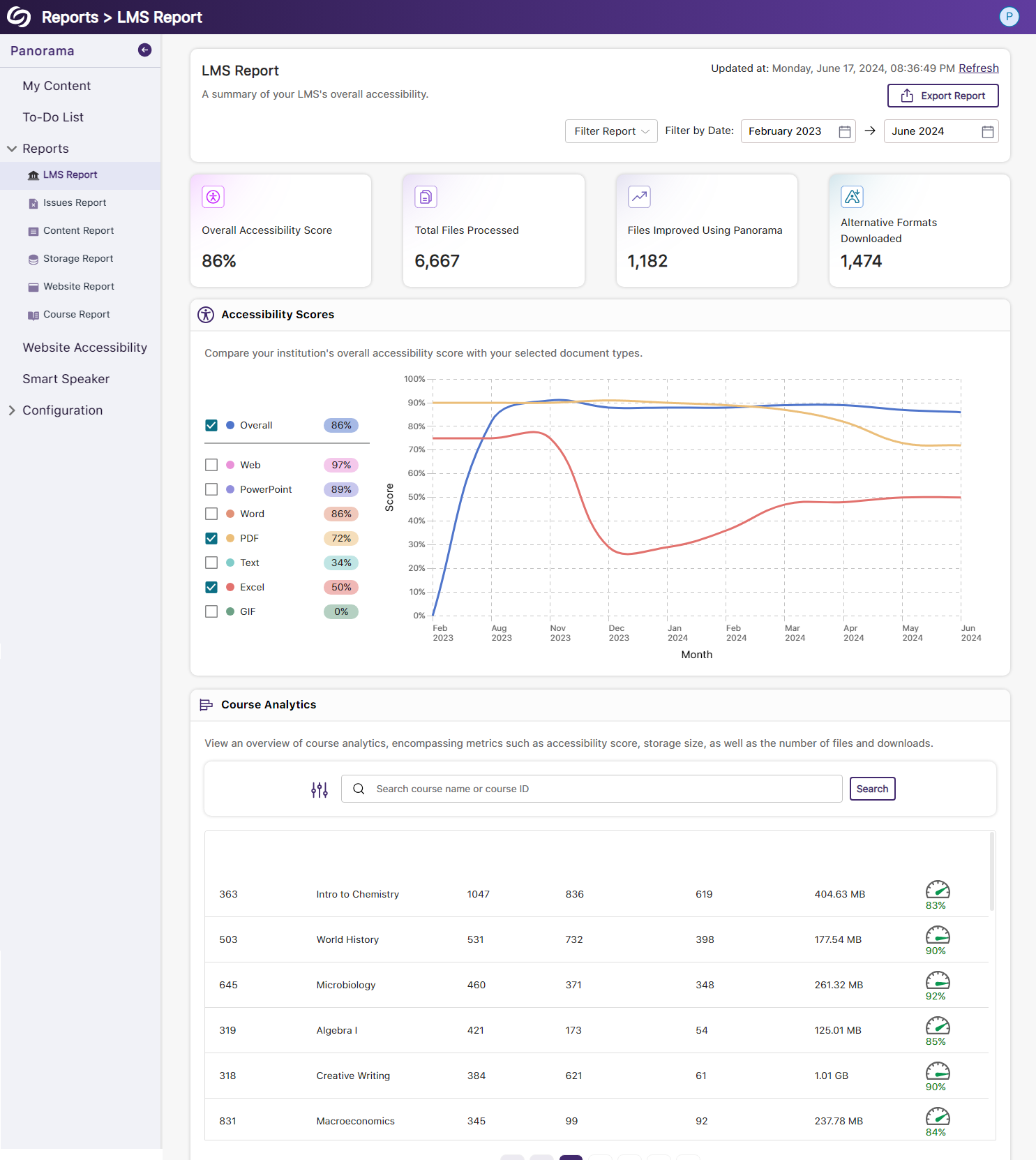
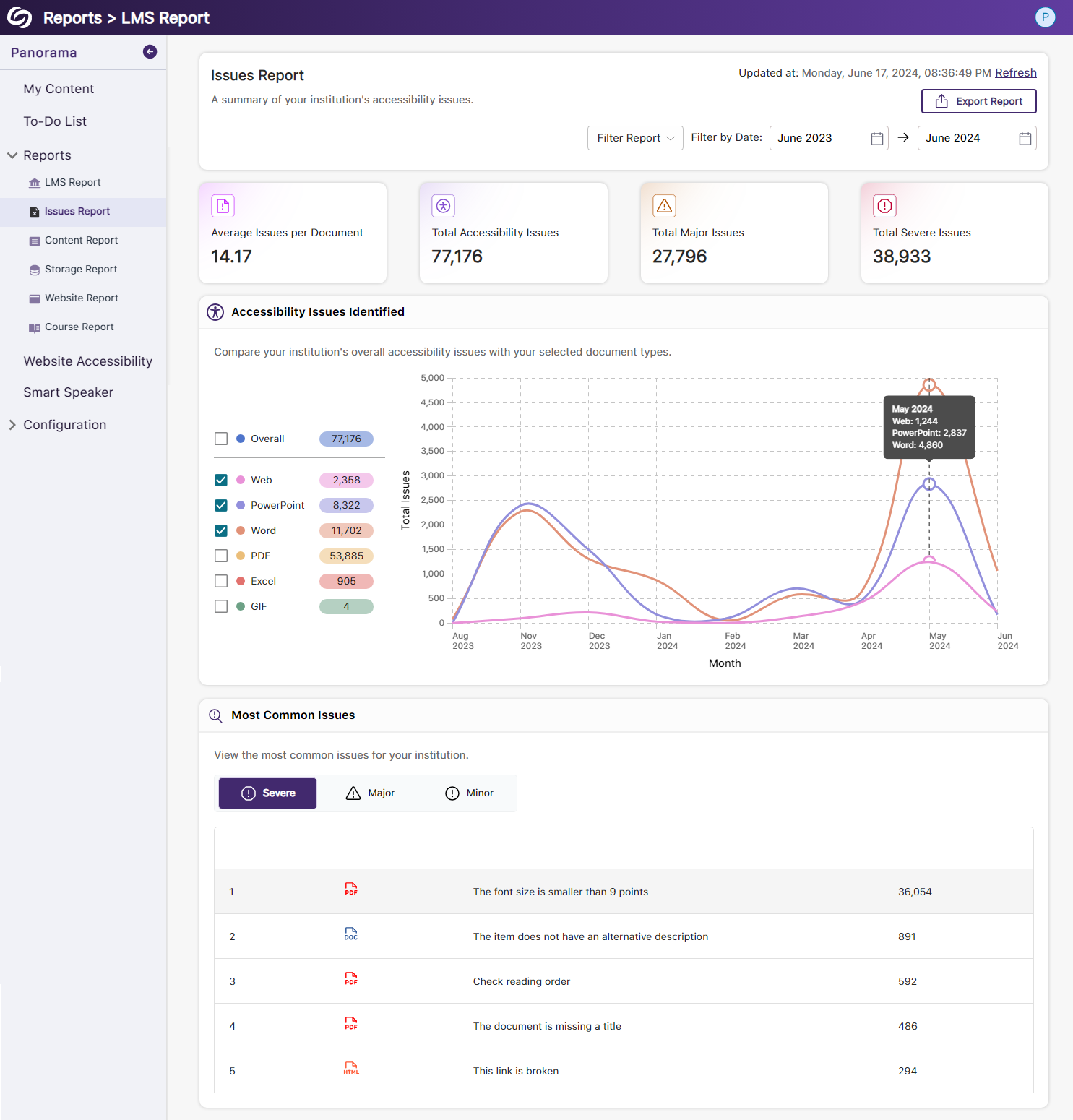
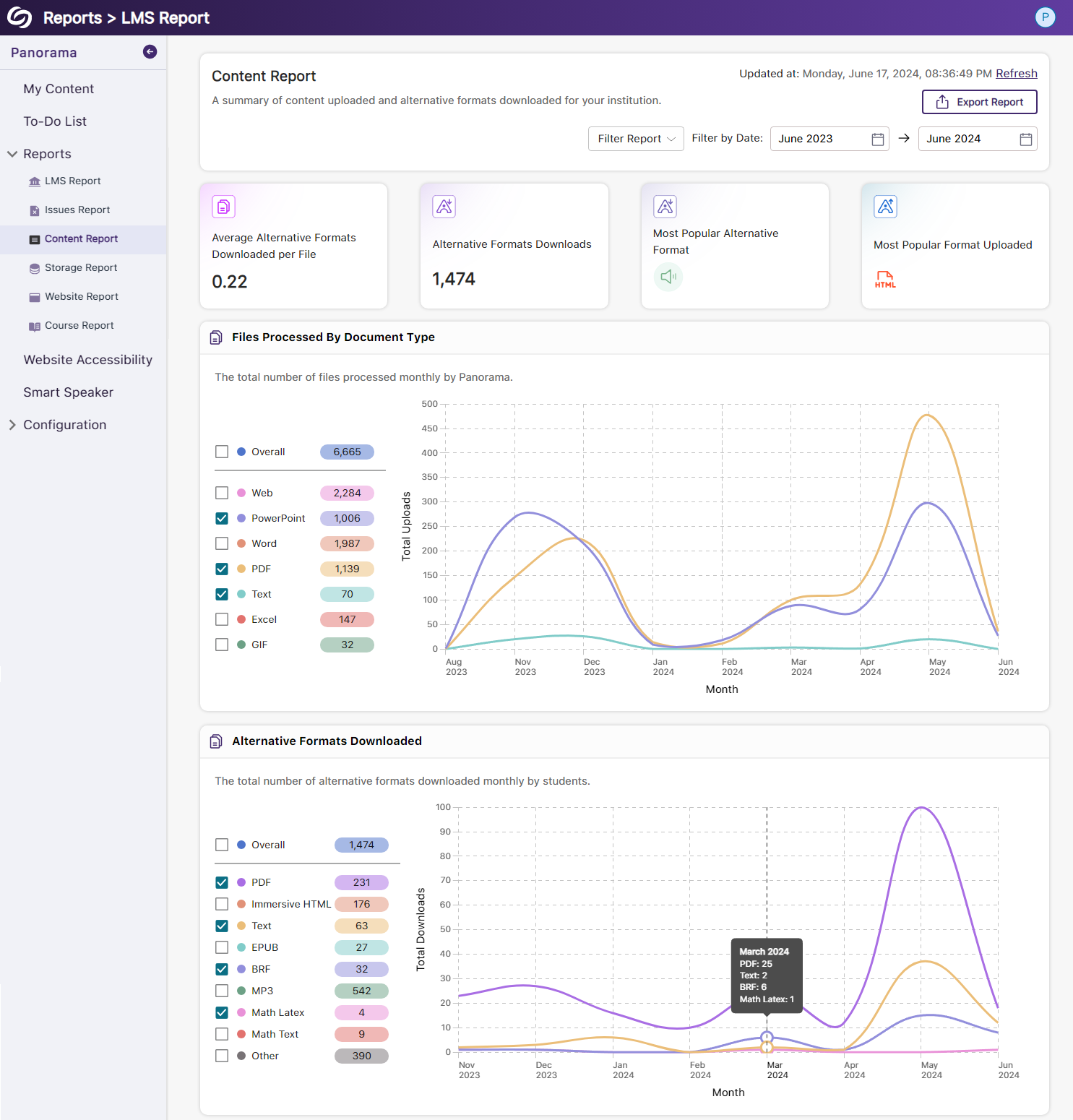
    We have successfully pushed an update to all YuJa Panorama Digital Accessibility Platform instances residing in the US, Canada, Australia, Singapore, the Middle East, and the European Union. This update includes new remediation capabilities for 12+ issues, including remediating Excel issues, the option to set a minimum font size threshold, view a summary of accessibility issues, view a breakdown of how accessibility scores are calculated, copy course settings, custom role mapping for Blackboard and Moodle, export reports for offline viewing, and dozens of UI improvements across the platform, and more.
     
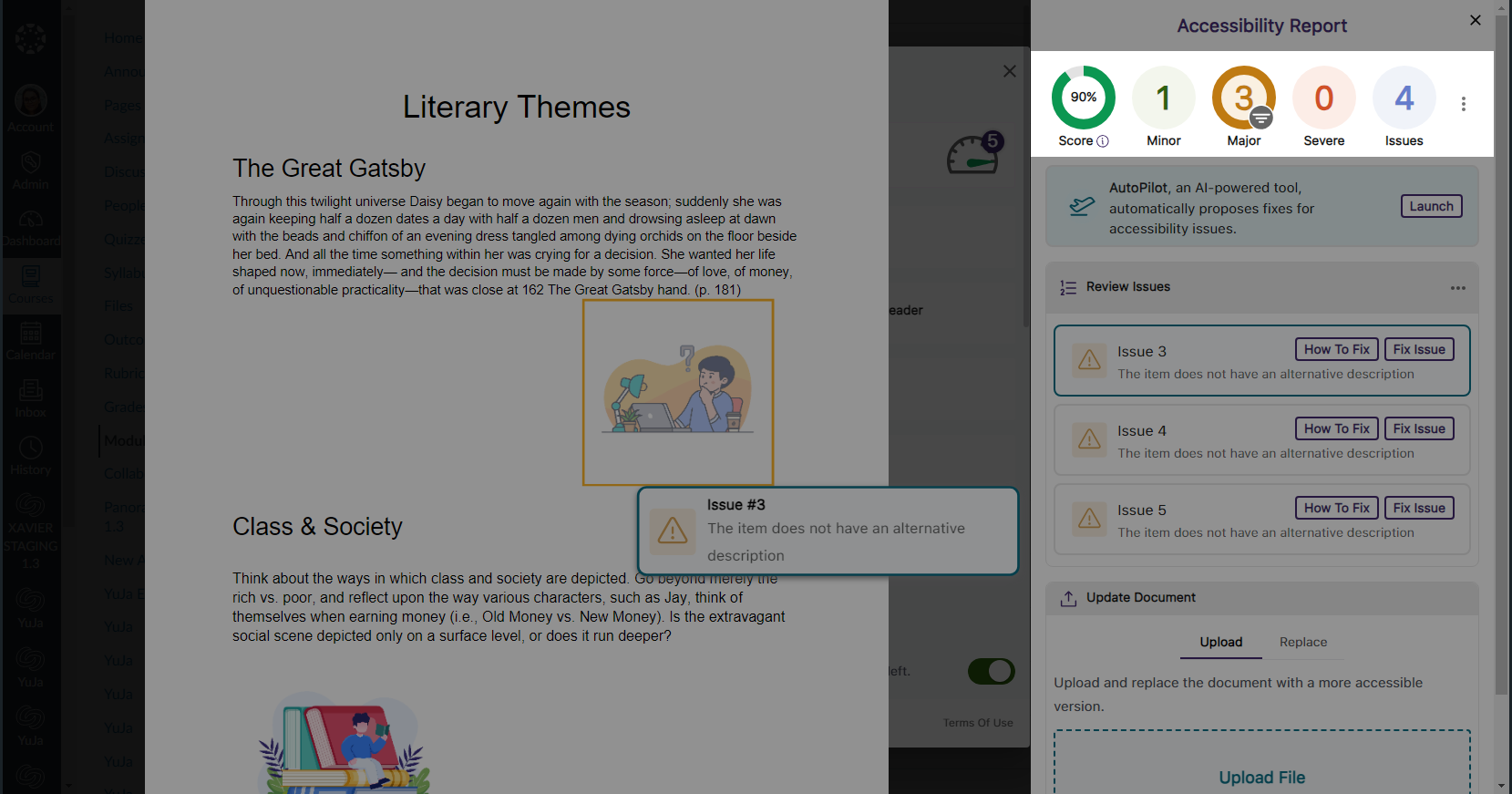
    1. New Inline WCAG 2.2-Aligned Remediation Engine for Excel Issues Complementing our Remediation Engine for inline accessibility issue resolution of Microsoft Word documents, PowerPoints, HTML, and PDFs, we’ve now extended these capabilities to Excel documents inside Accessibility Reports to resolve issues such as:
      • Missing alt text
      • Font color issues
      • Non-descriptive hyperlink text
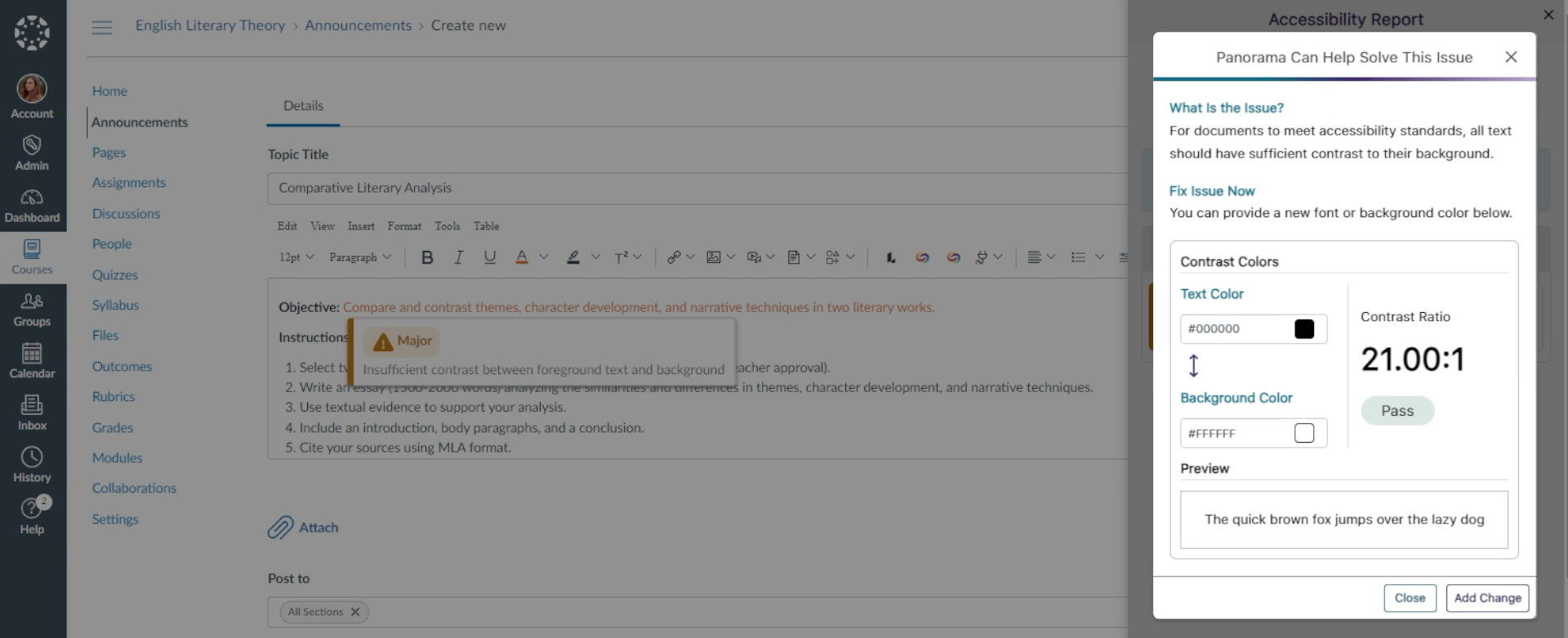
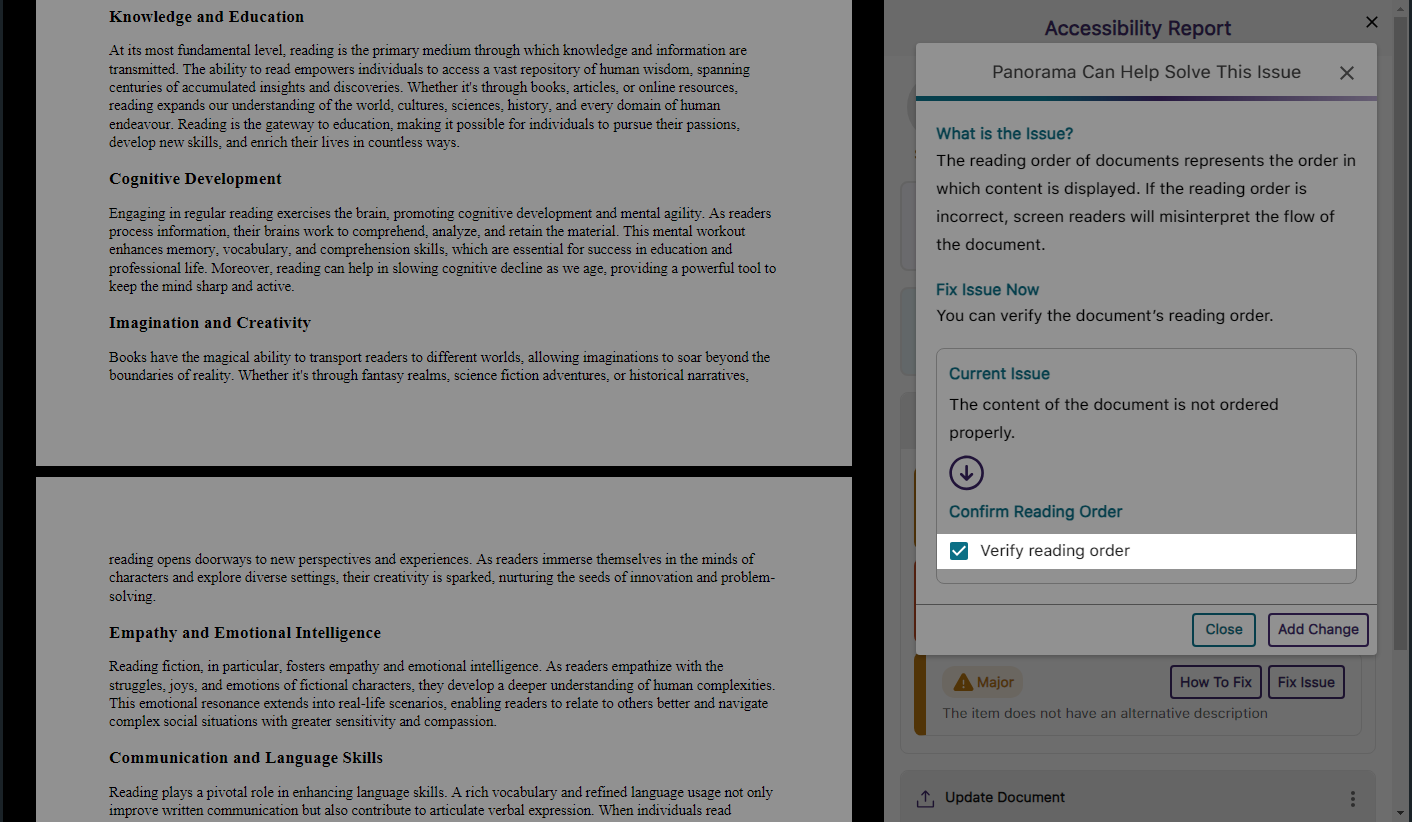
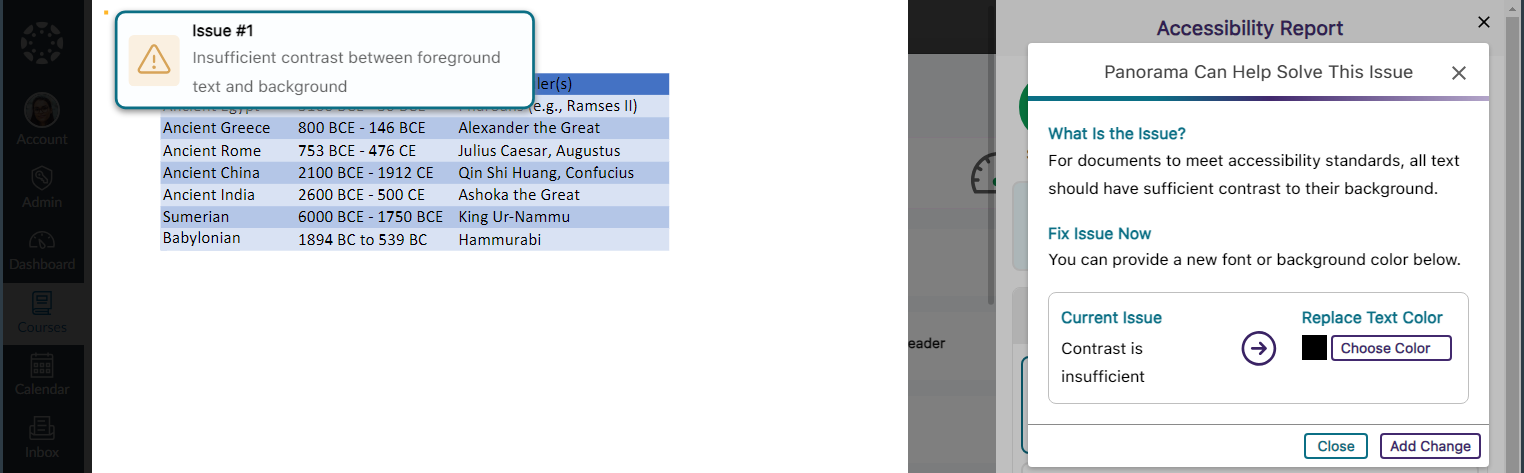
      Font color issue being remediated in the Accessibility Report.
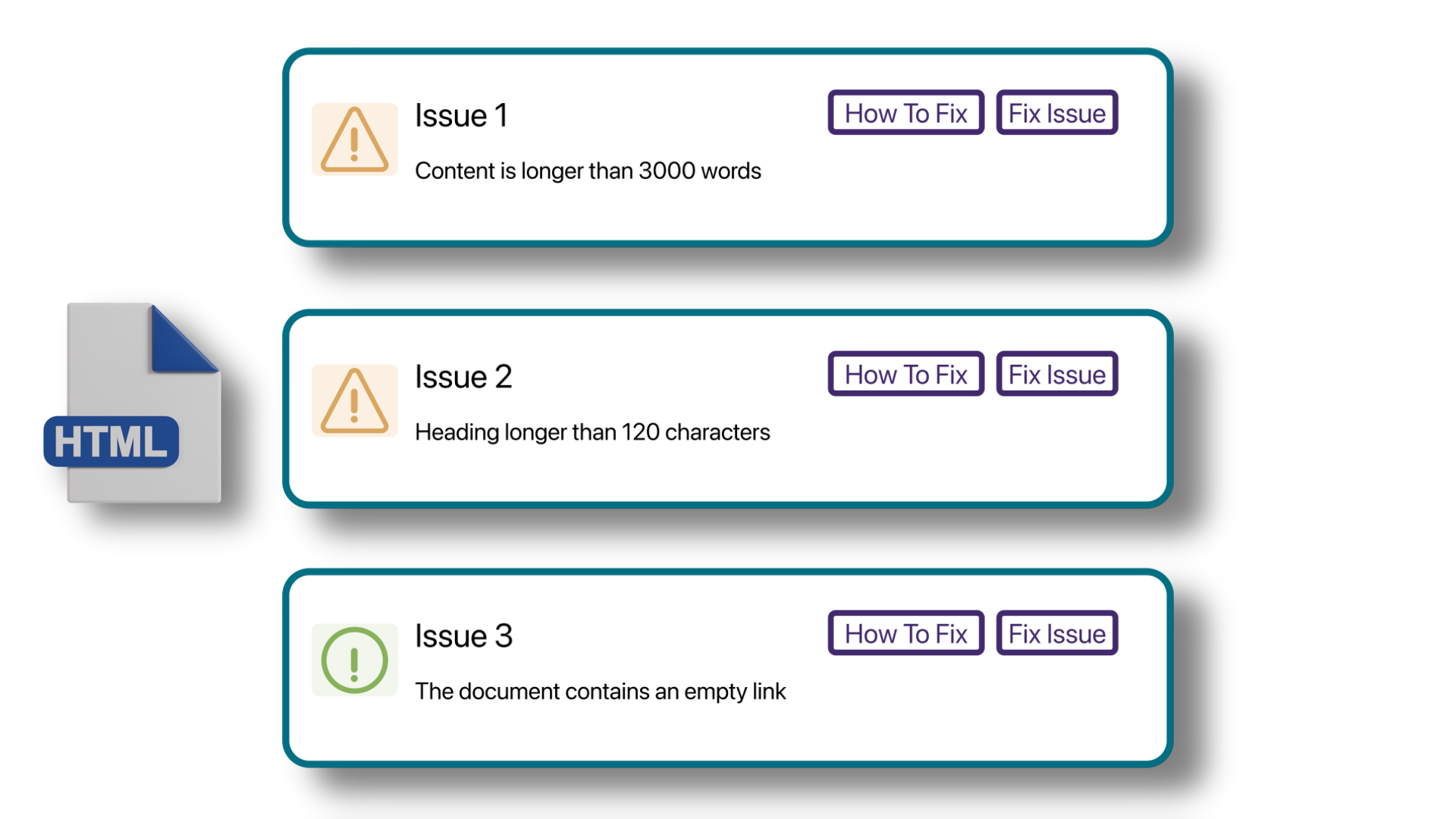
    2. Accessibility Report Can Identify More WCAG 2.2-Aligned Accessibility Issues for HTML Content We have updated Panorama’s Accessibility Report to detect even more accessibility issues for HTML content:
      • Headings containing more than 120 character
      • Content is longer than 3000 words
      • Links are empty HTML issues are shwon.
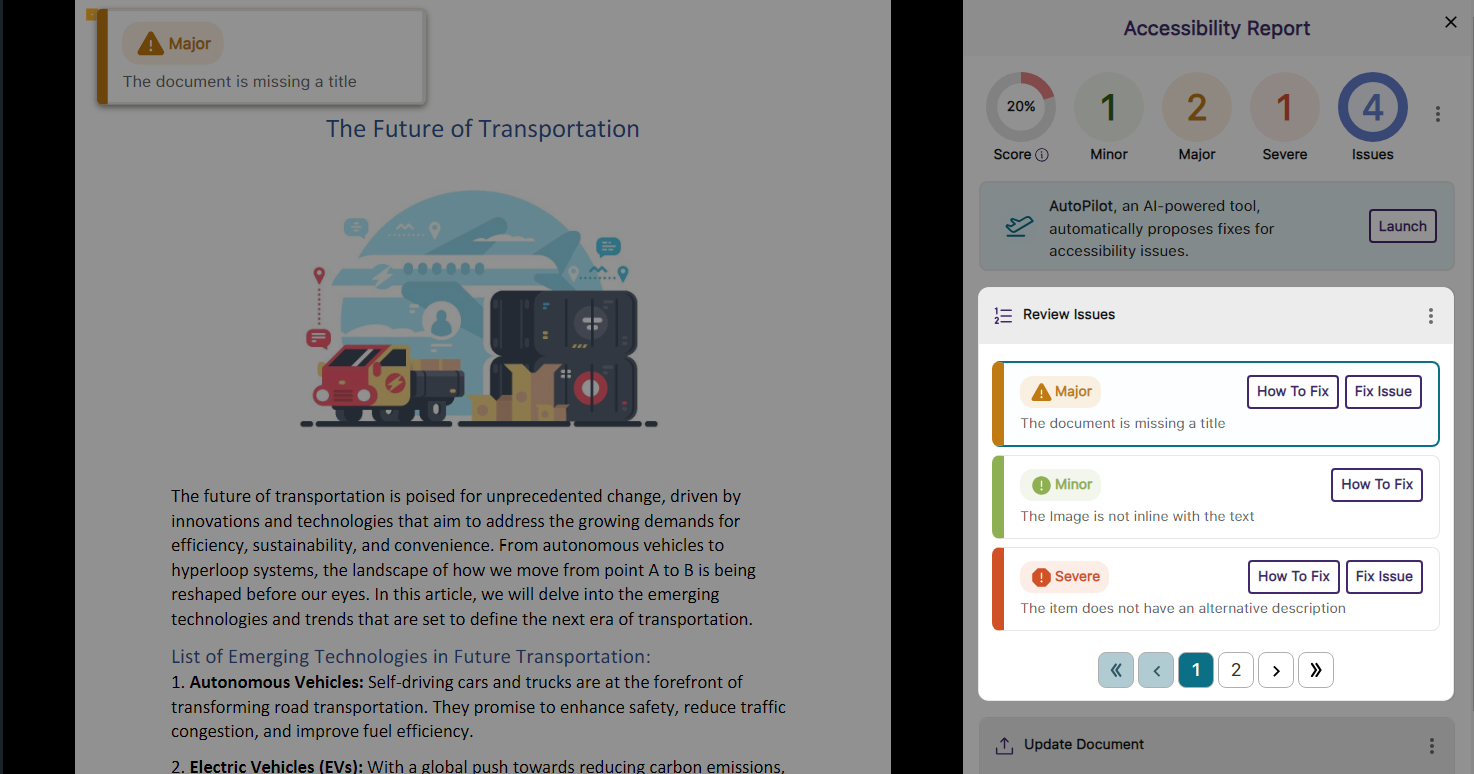
    3. New Accessibility Checks for Panorama’s Remediation Engine We’ve enhanced the Remediation Engine’s capabilities to resolve accessibility issues in real-time by identifying more accessibility issues across various formats.
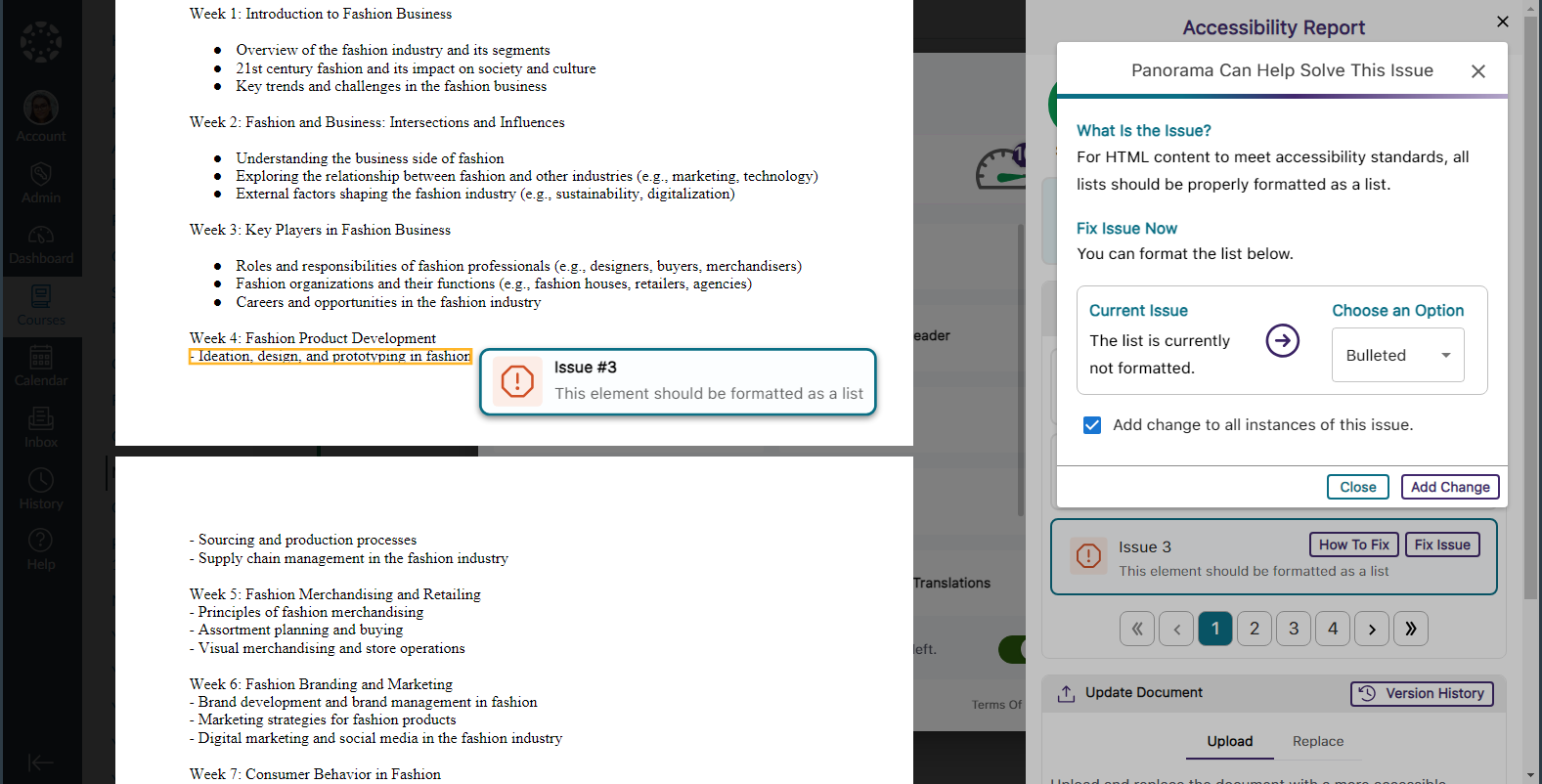
      • Unformatted Lists: DOCX and HTML
      • Text should not be justified: DOCX
      • Invalid language: DOCX and PPTX
      • Missing language: DOCX
      • Missing table header: DOCX and HTML
      • Heading structure does not start at 1: DOCX
      • Table header is longer than 120 characters: HTML
      • Missing table scope: HTML
      • Target size is too small: HTML
      • Adjacent hyperlinks: HTML
      • Missing title: PPTX and XLSX
      • Low contrast: XLSX
      • Font size is too small: XLSX
      • Missing alt text: XLSX
      • Missing text in cell A: XLSX
      • Non-descriptive hyperlink text: XLSX
      Resolving an issue for unformatted list within the Accessibility Report.
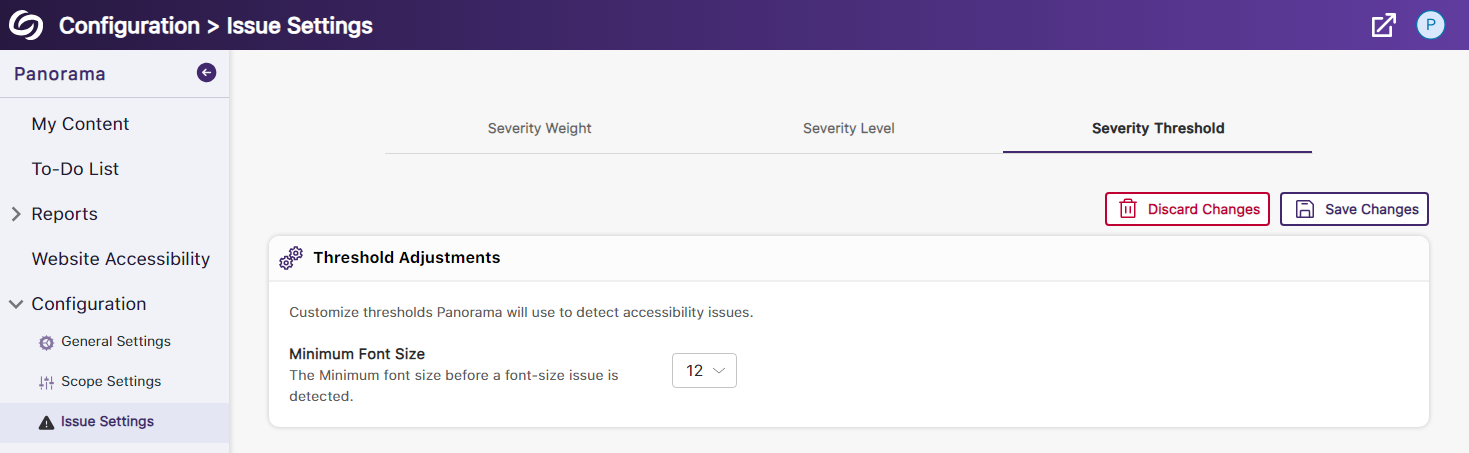
    4. Set a Minimum Threshold for Font Size Issues Panorama administrators can adjust the minimum threshold required for Panorama to detect font size issues, allowing them to set accessibility standards that align with their institution. Setting to adjust font size threshold.
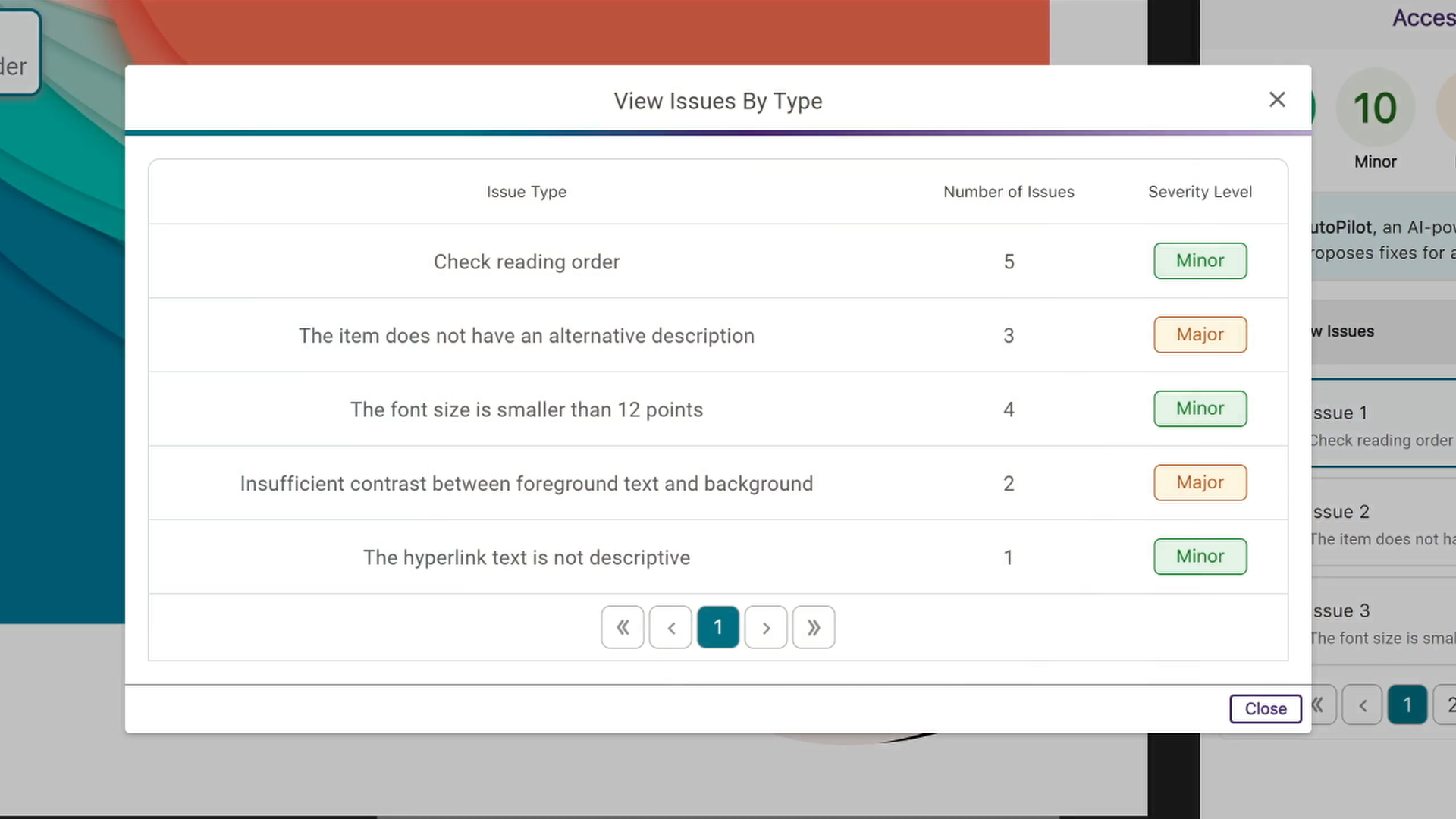
    5. View a Summary of Issues Within a Document Administrators and instructors now have the option to conveniently access a single modal, where they can view all issues organized by the number of times they occur. A modal showing issues by type,
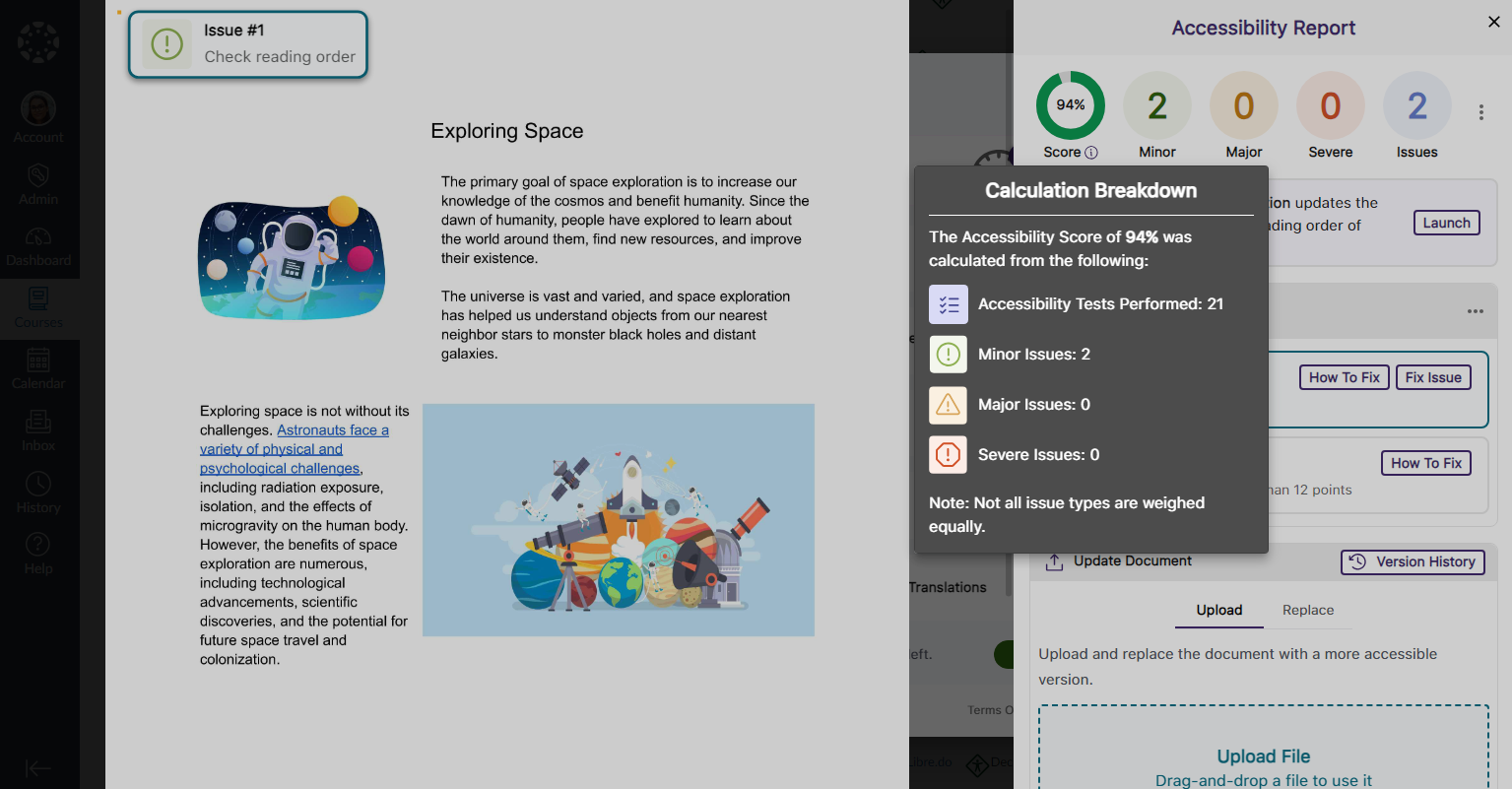
    6. View How Accessibility Scores Are Calculated Administrators and instructors can access a breakdown of their accessibility scores by hovering over the info icon. This breakdown includes details on how the score was calculated based on the number of tests performed and the issues identified at each level. A breakdown of the accessibility score is shown in the Accessibility Report.
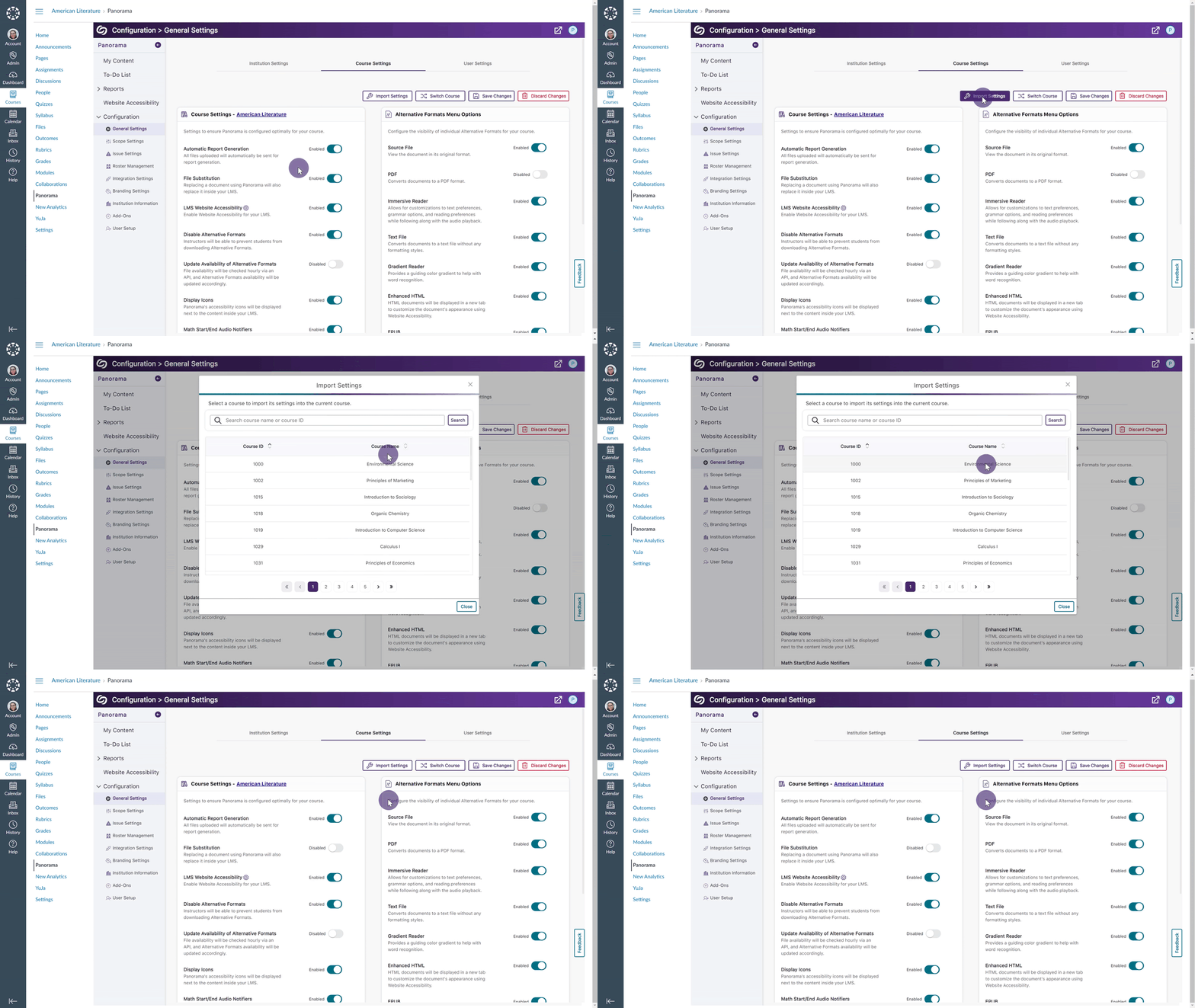
    7. Copy Course Settings from One Course to Another Instead of changing course settings individually, instructors and administrators can easily copy settings from a single course and apply them to any available course. Settings from one course are copied to another.
    8. Map Custom Blackboard and Moodle Roles to Panorama Blackboard and Moodle administrators can map their custom LMS roles to existing roles on Panorama. Blackboard and Moodle logos.
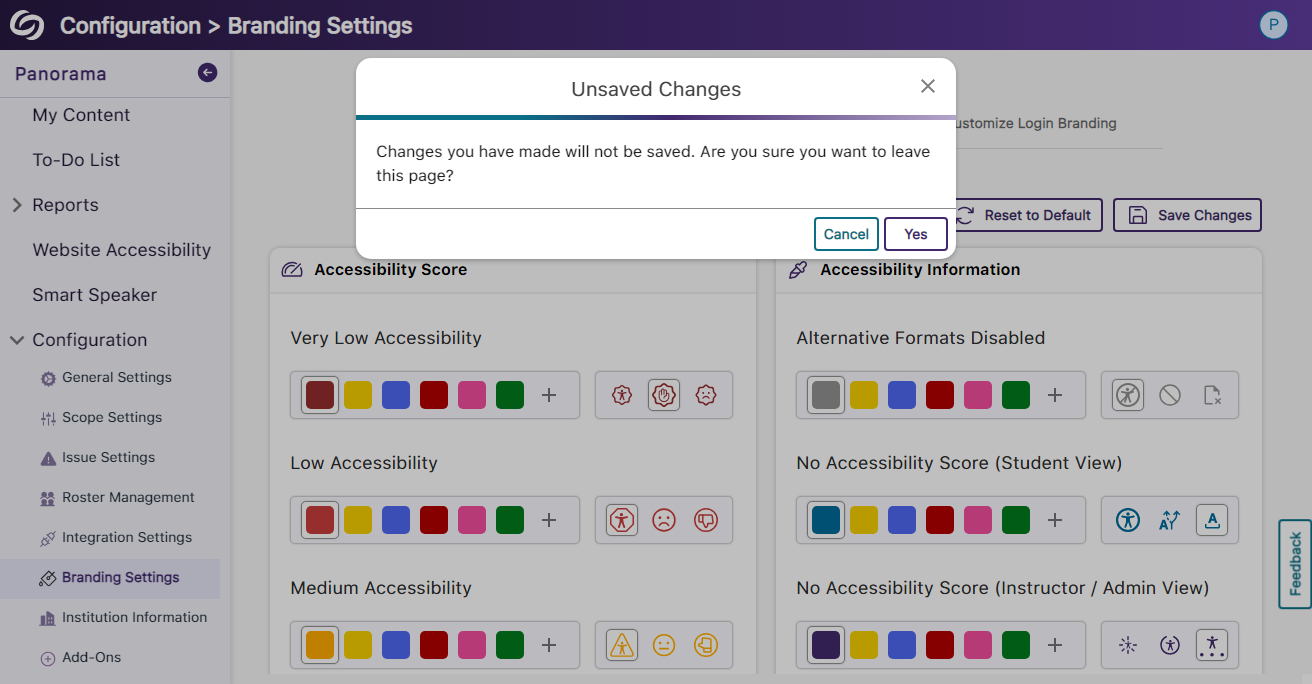
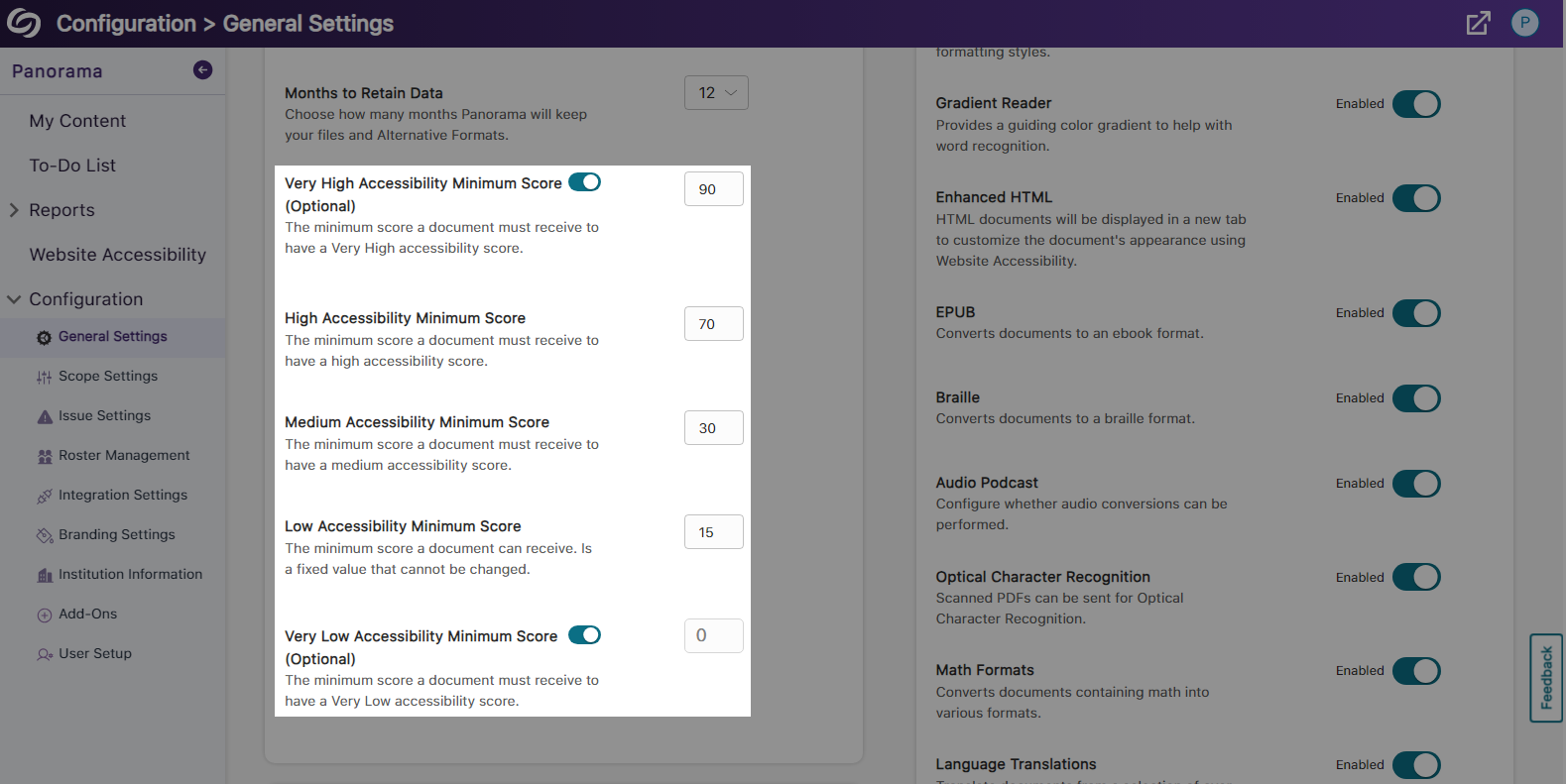
    9. Greater Customization for the Threshold of Accessibility Scores Previously, we introduced options to customize how Panorama defines High, Medium, and Low Accessibility Scores. In this release, we’re adding additional options to define Very High Accessibility Scores and Very Low Accessibility Scores for documents and HTML content. Very high and very low accessibility thresholds are shown.
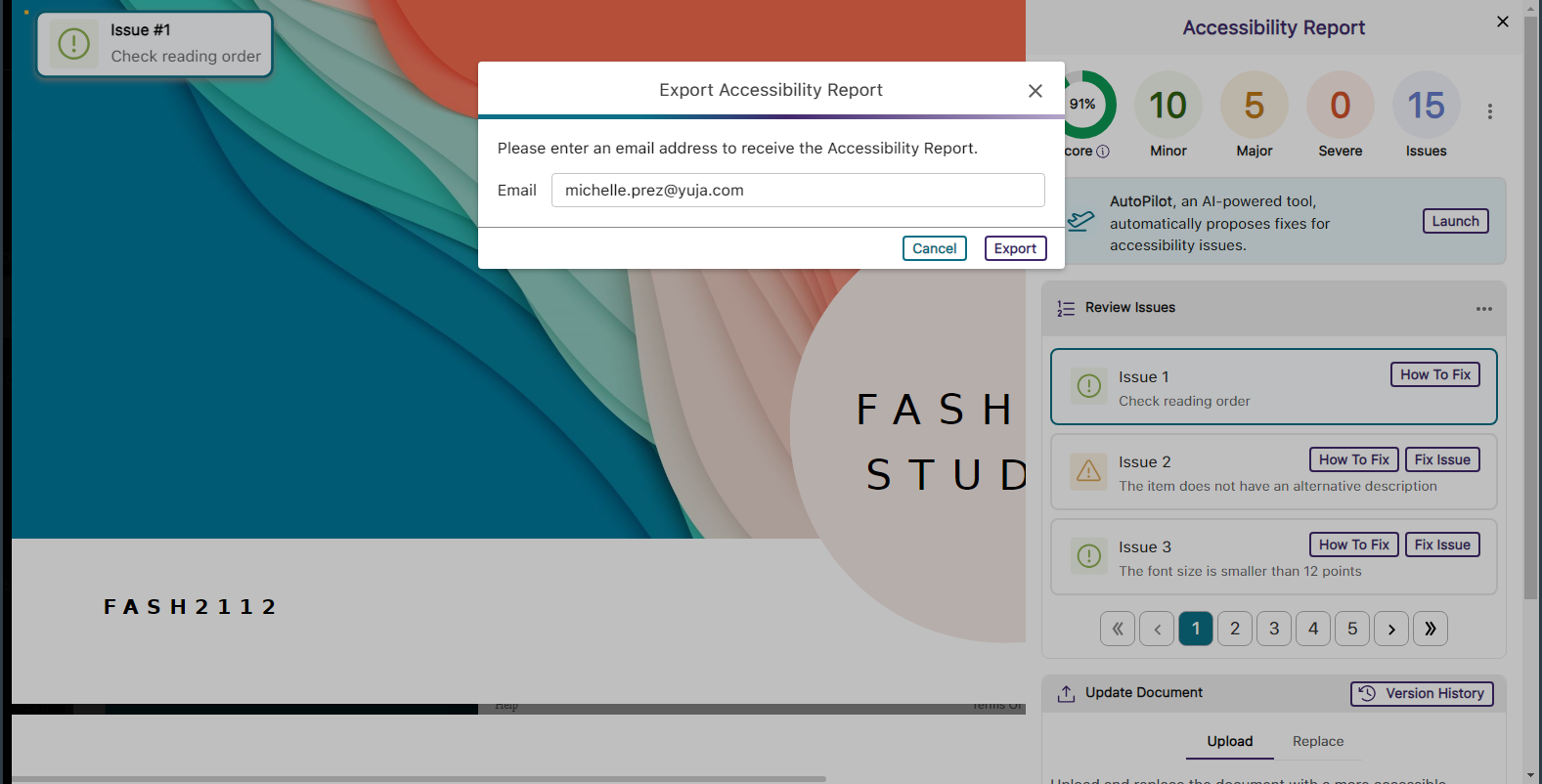
    10. Export the Accessibility Report for Offline Viewing Accessibility reports can be exported, allowing administrators and instructors to address issues offline within their original documents. A modal showing the option to send the report to an email.
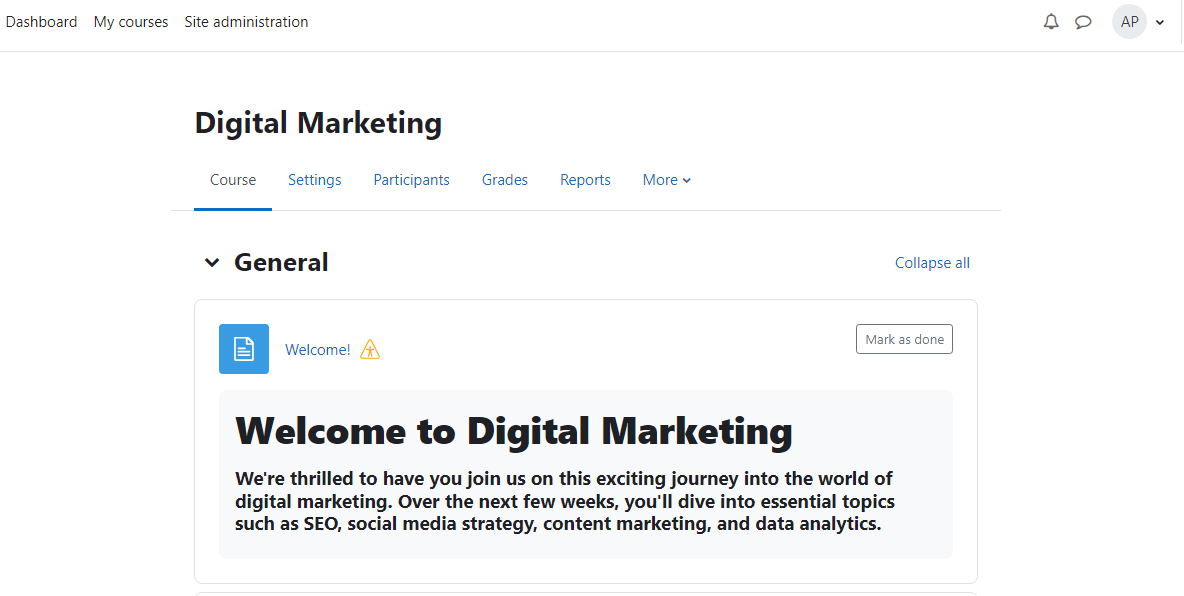
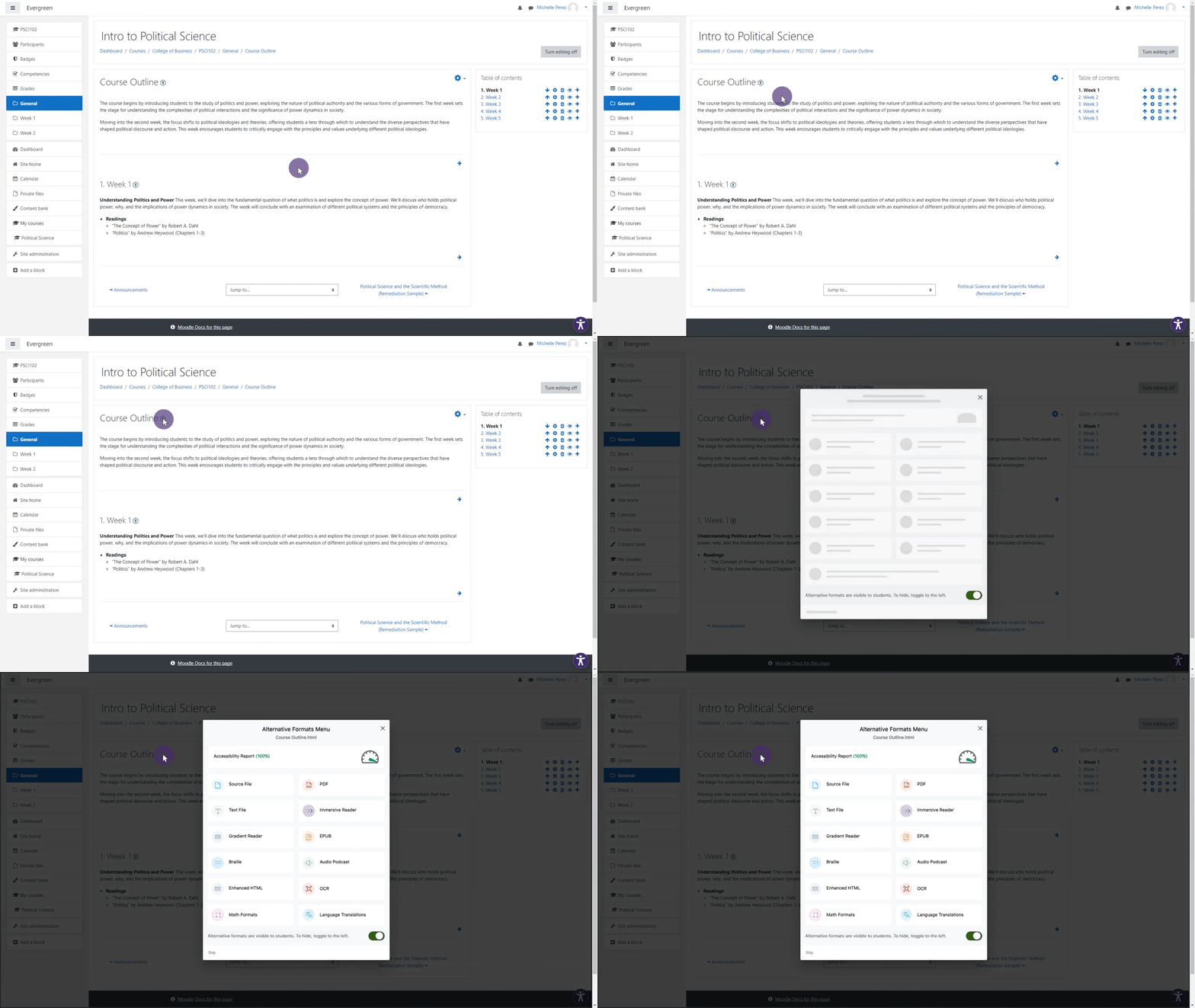
    11. Support for Moodle Books In continuing to integrate Panorama into new areas of Moodle, we now generate Alternative Formats for Moodle Books. Alternative formats for Moodle books.
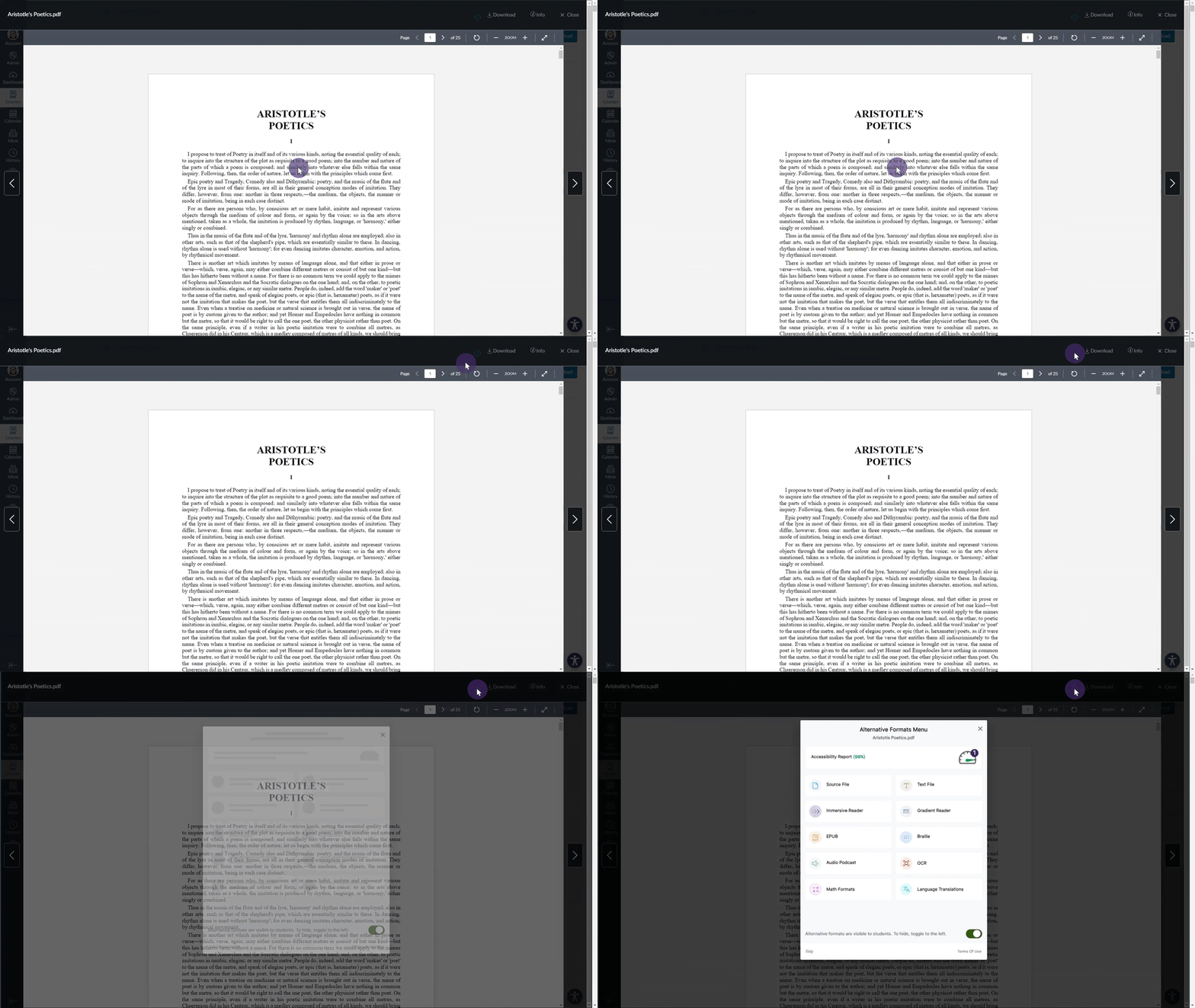
    12. Panorama Supports Previewing Documents in Canvas We’ve expanded support in new areas of Canvas by providing access to Alternative Formats and viewing the Accessibility Report when previewing documents. Alternative formats are shown when previewing a document in Canvas.
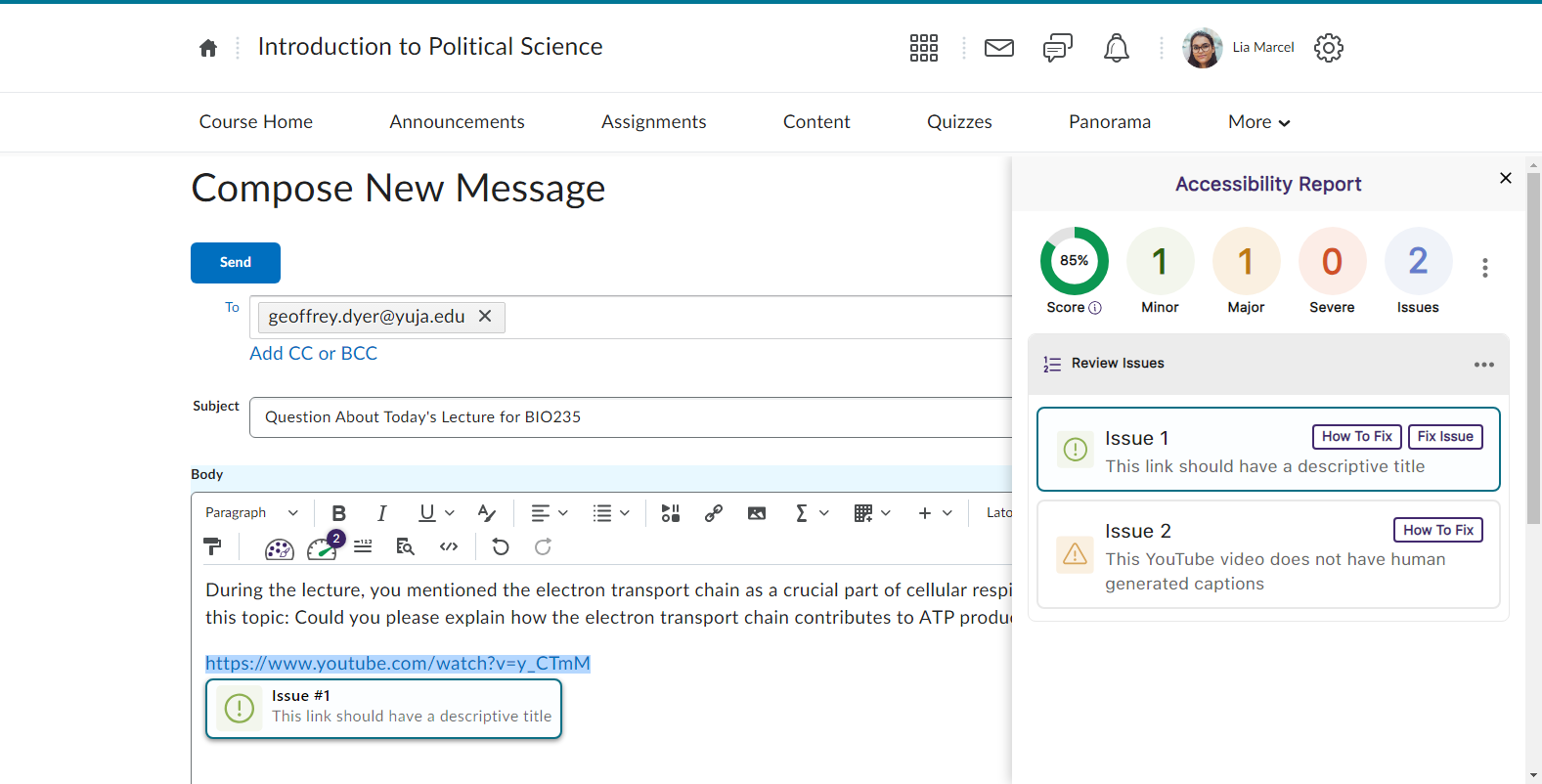
    13. Accessibility Report for D2L Brightspace Messages We’ve added the Panorama Accessibility Report to D2L Brightspace messages to ensure all outgoing content is accessible. The Accessibility Report is shown for D2L Messages.
    14. Filter Accessibility Report Results Using the Issue Icons In addition to our existing feature for filtering issues, administrators and instructors can now filter issues by simply clicking on the issue icons. Panorama's Issue icons inside the Accessibility Report are shown.
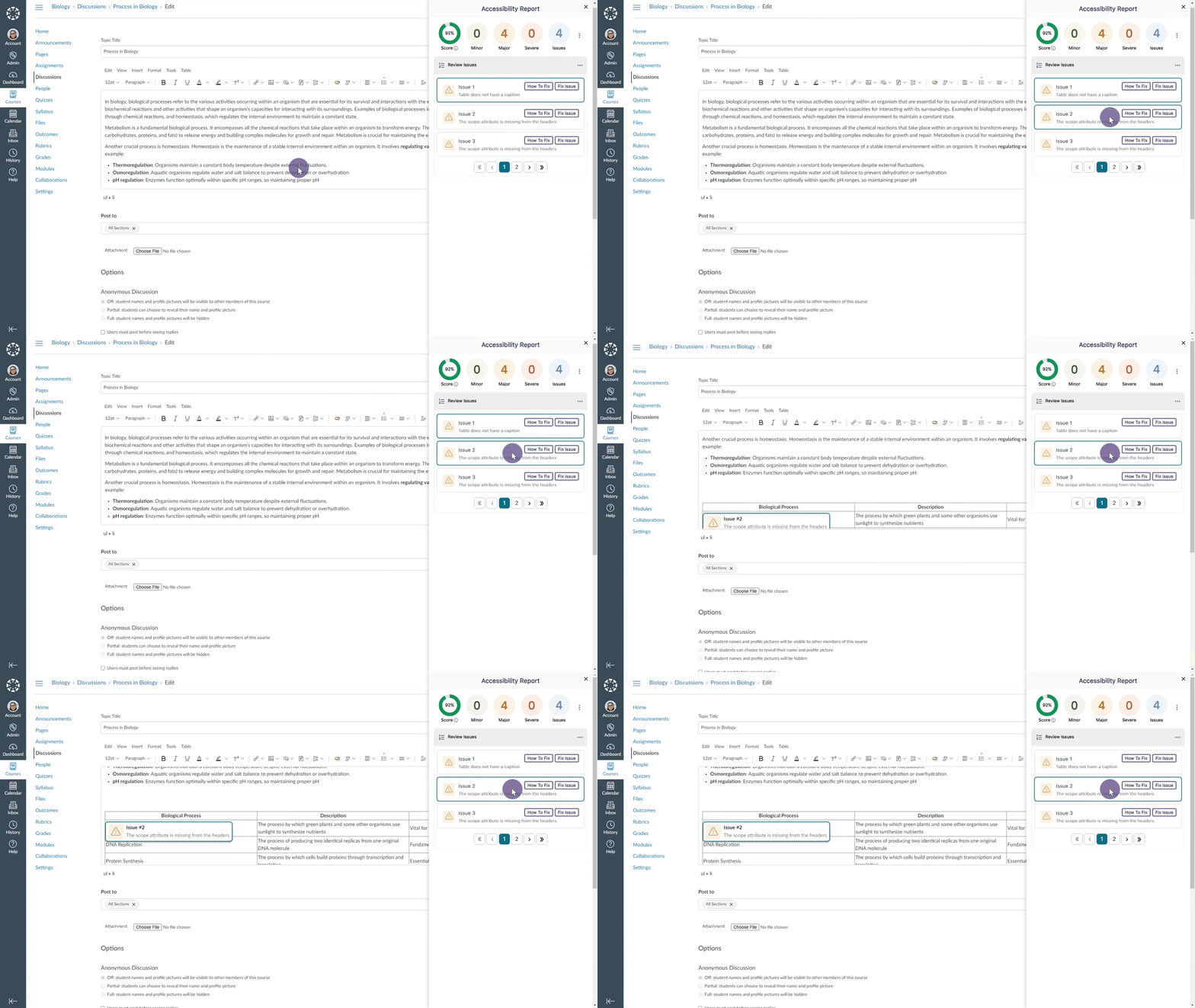
    15. The Accessibility Report Will Navigate to a Selected Issue in the WYSIWYG Editor Selecting a specific issue within the Accessibility Report will automatically navigate to the issue inside the WYSIWYG editor. The accessibility report scrolls through issues for content in a WYSIWYG editor.
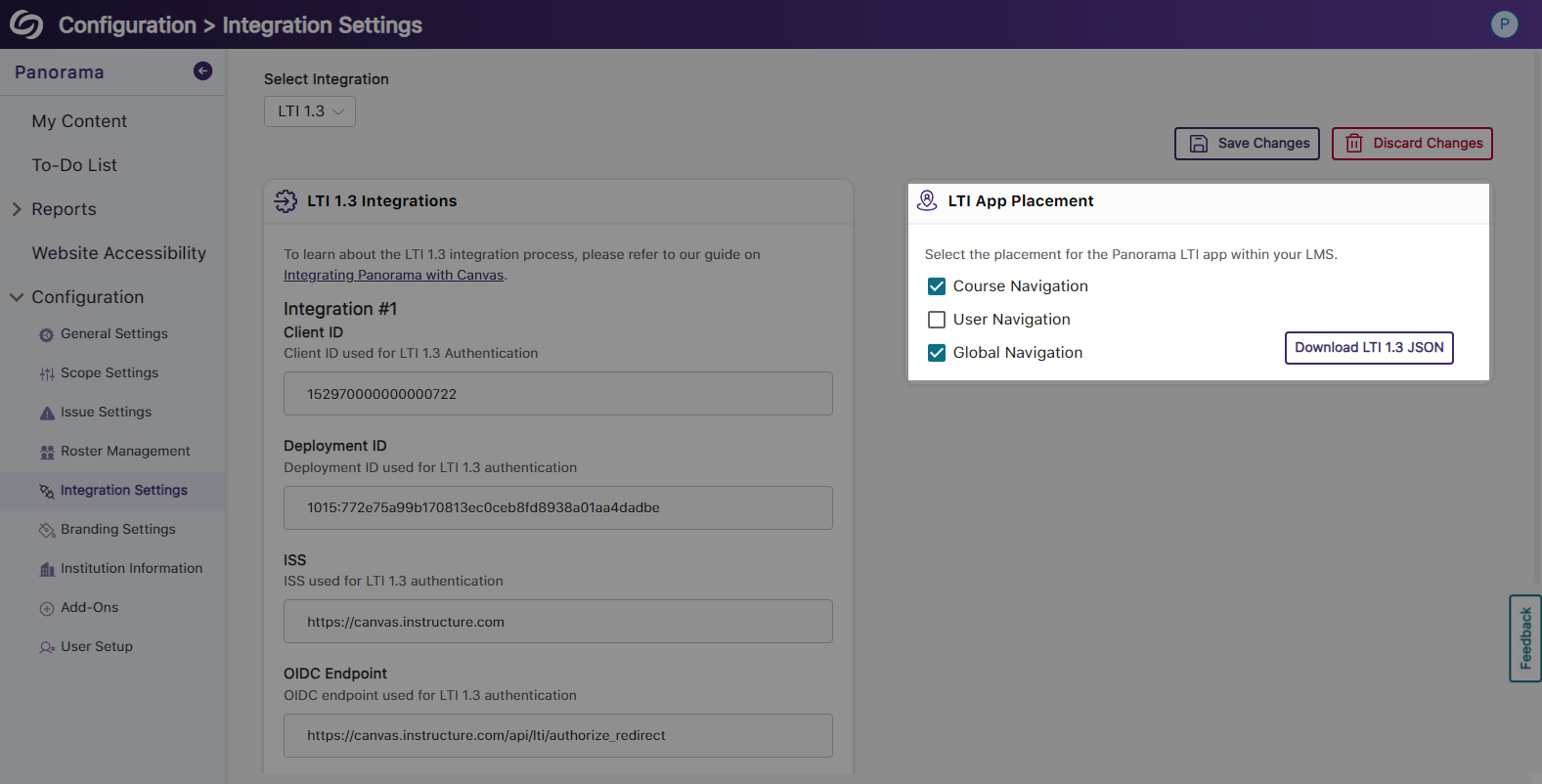
    16. Select the LMS Placement for the Panorama LTI 1.3 LInk Administrators integrating Panorama into their Learning Management System through LTI 1.3 can choose where the Panorama LTI link appears: at the course level, for individual users, or at the global level. LTI placement settings in Panorama's integration page.
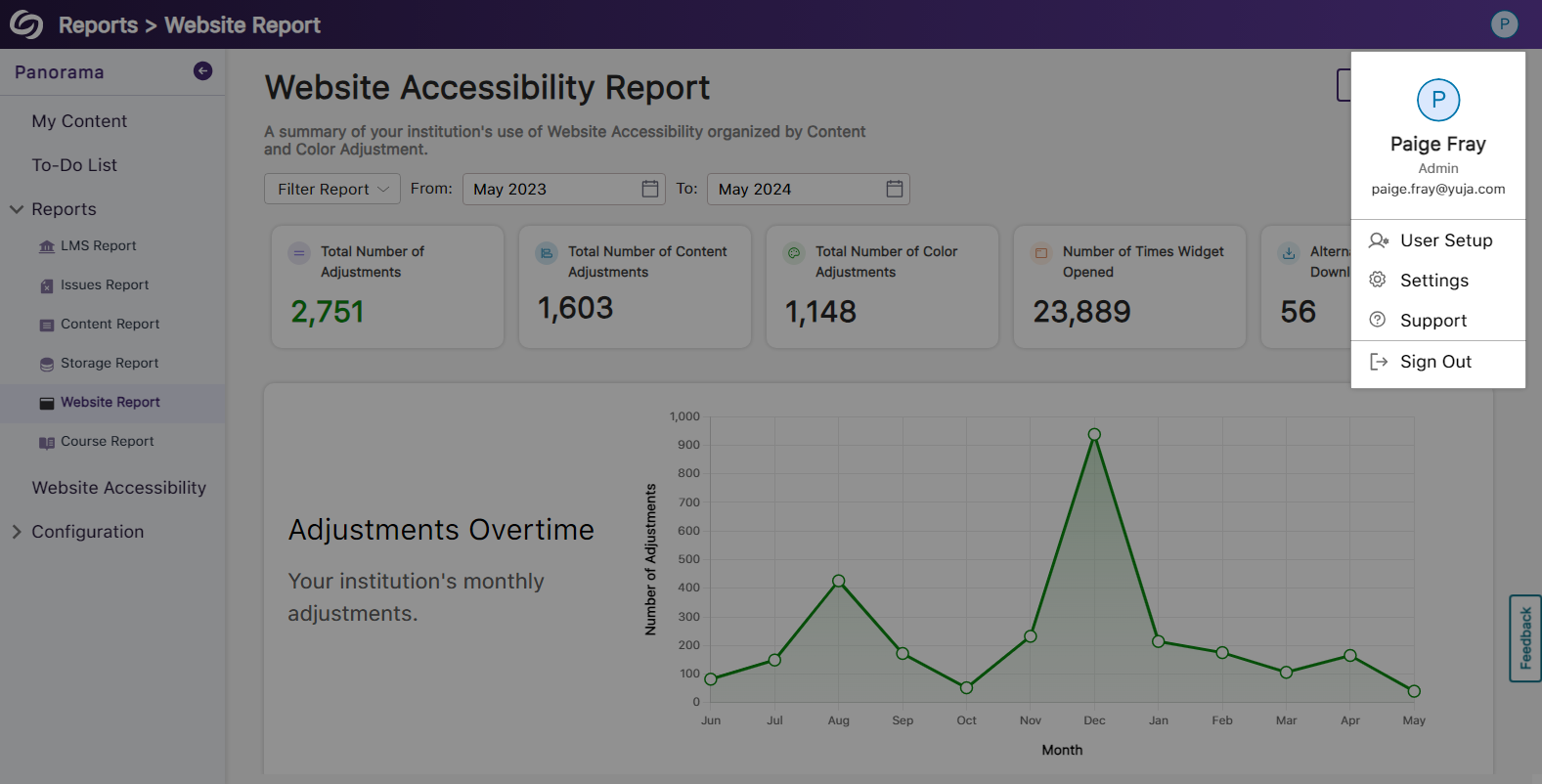
    17. View Your Account Information on the Panorama Platform Panorama now offers the option to view your account information from within the platform and options to quickly access settings. Account information is shown when the profile icon is selected.

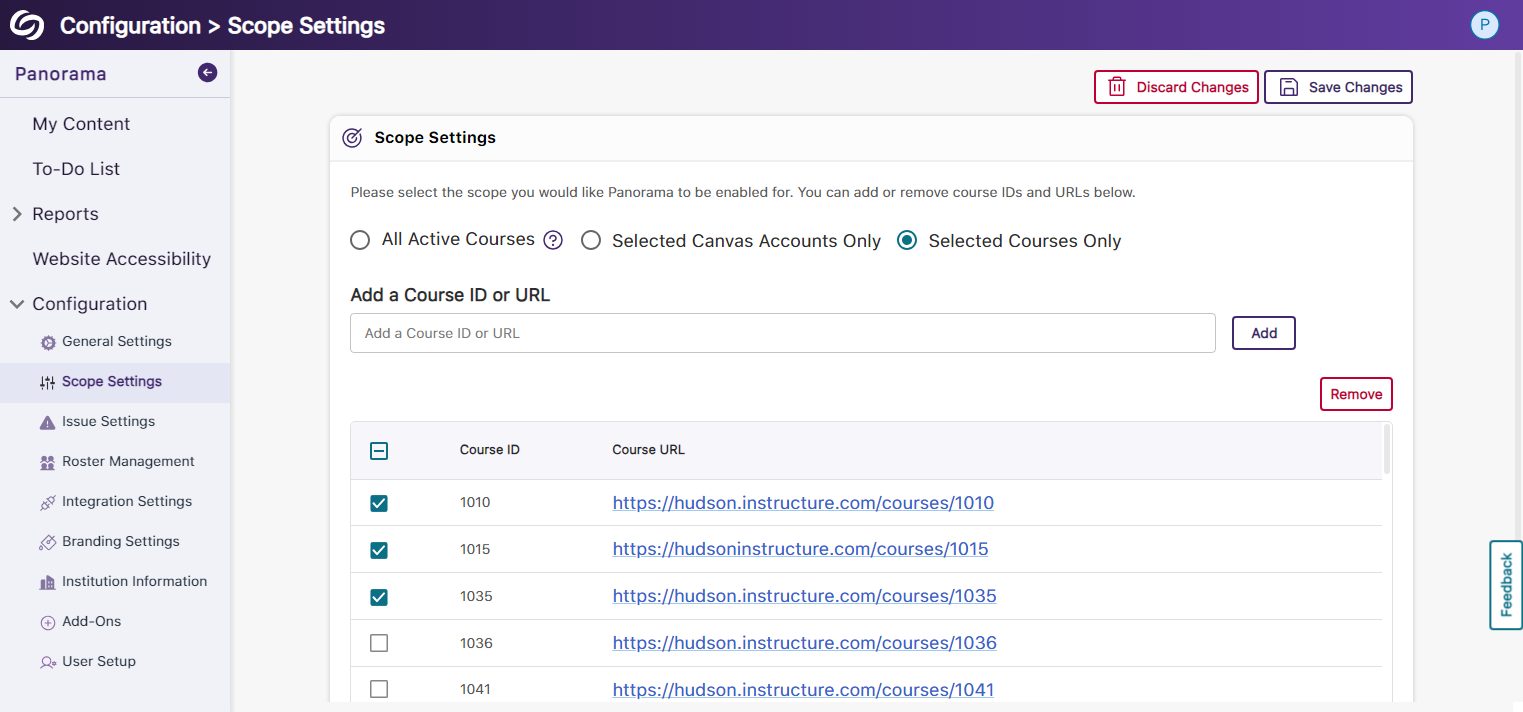
    18. Enhanced Table View of Available Courses in Scope Settings The Scope Settings UI table has been updated to allow administrators to easily select which courses Panorama should be enabled in. Panorama's scope settings
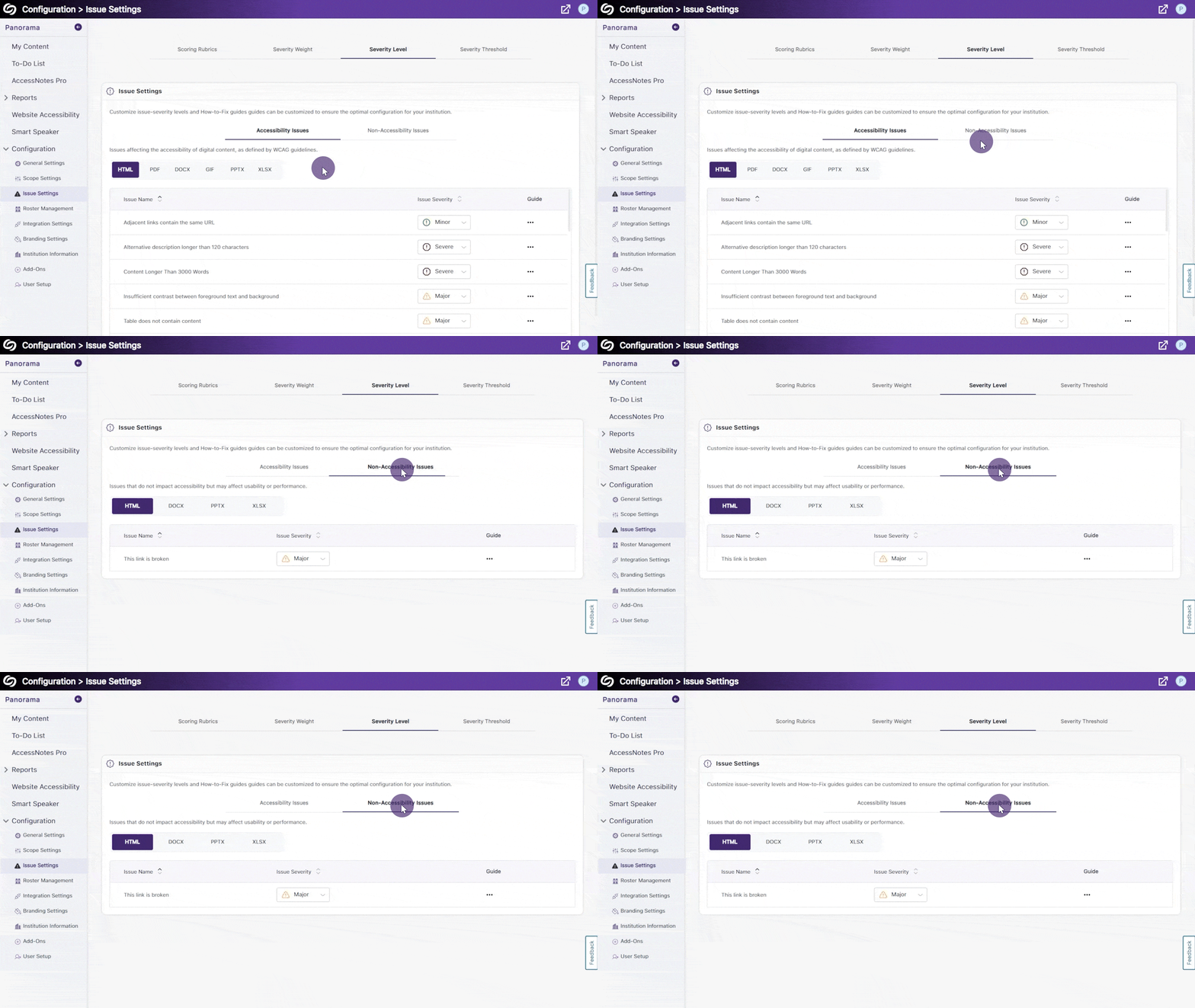
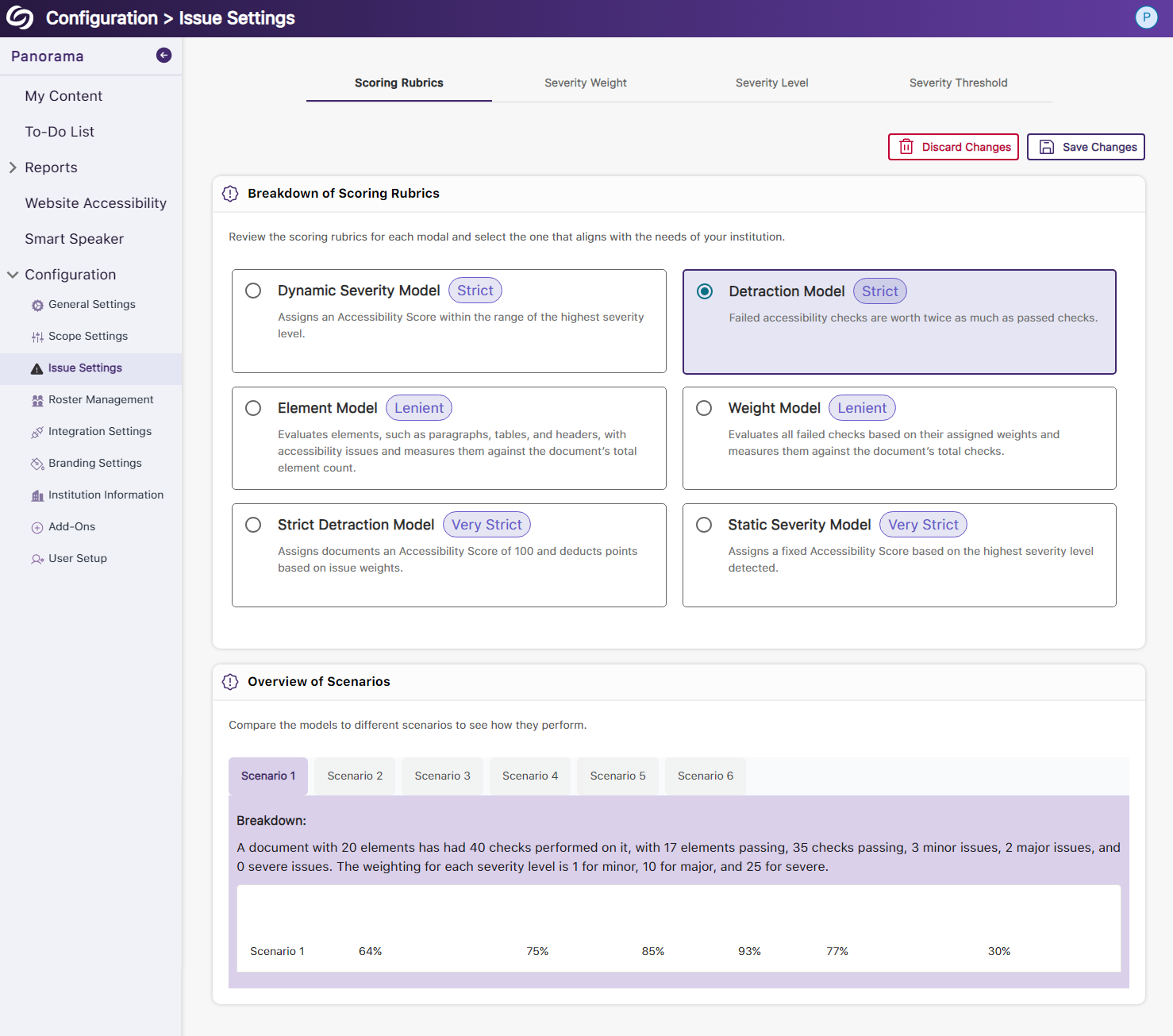
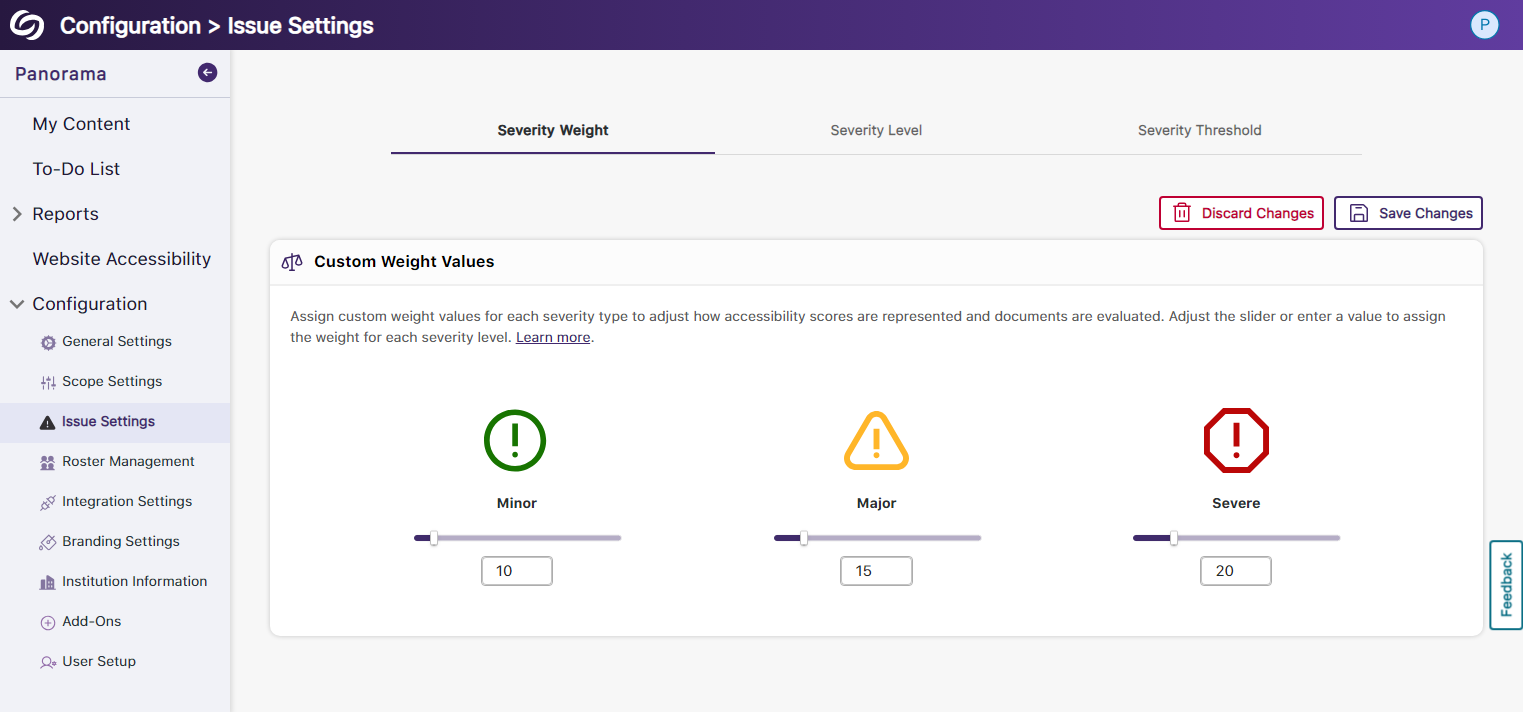
    19. New Tabular View for Issue Settings Issue settings have been organized into a tabular structure, allowing administrators to access their desired settings quickly. Panorama's issue settings.
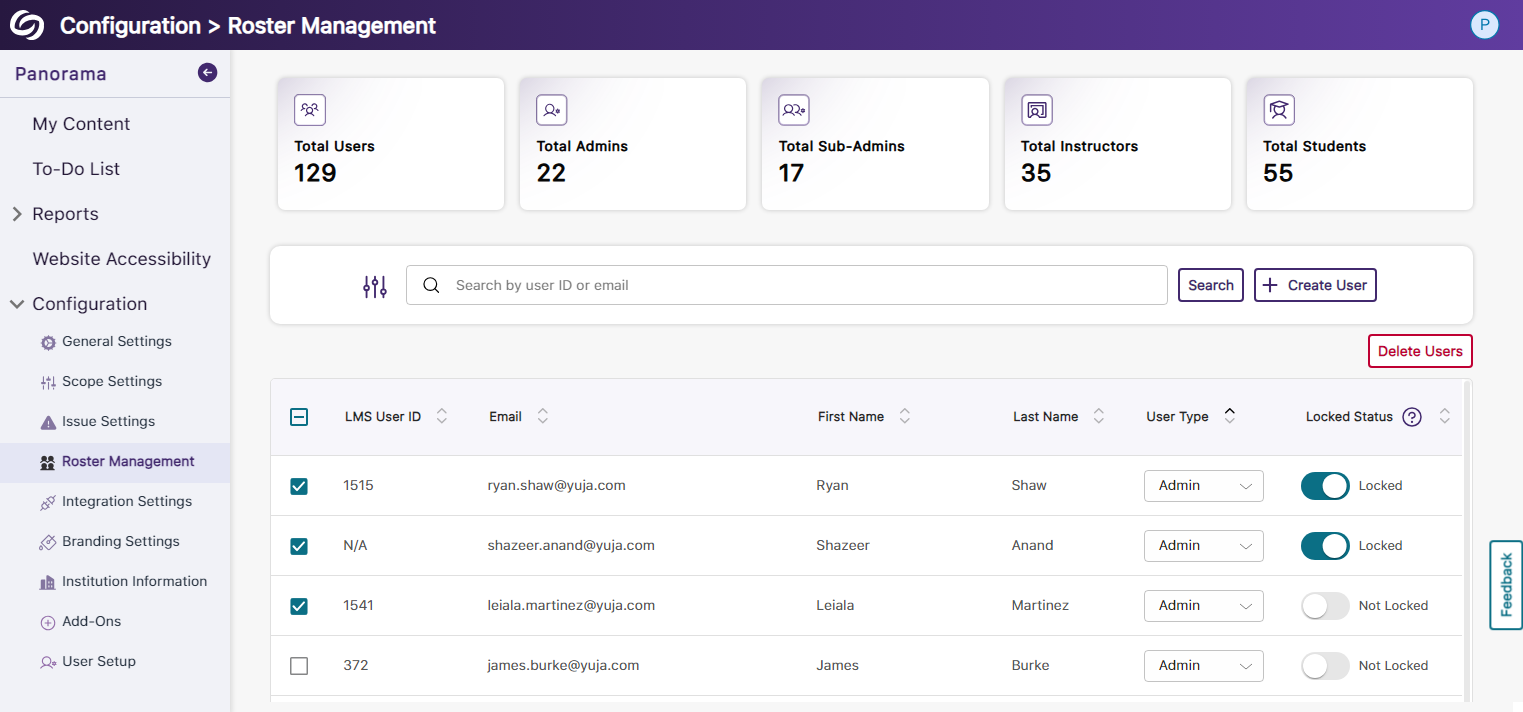
    20. Enhanced UI and User Selection for Roster Management We’ve updated the UI for Roster Management and provided the option to select multiple users for deletion instead of removing them one at a time. Panorama Roster Management page.
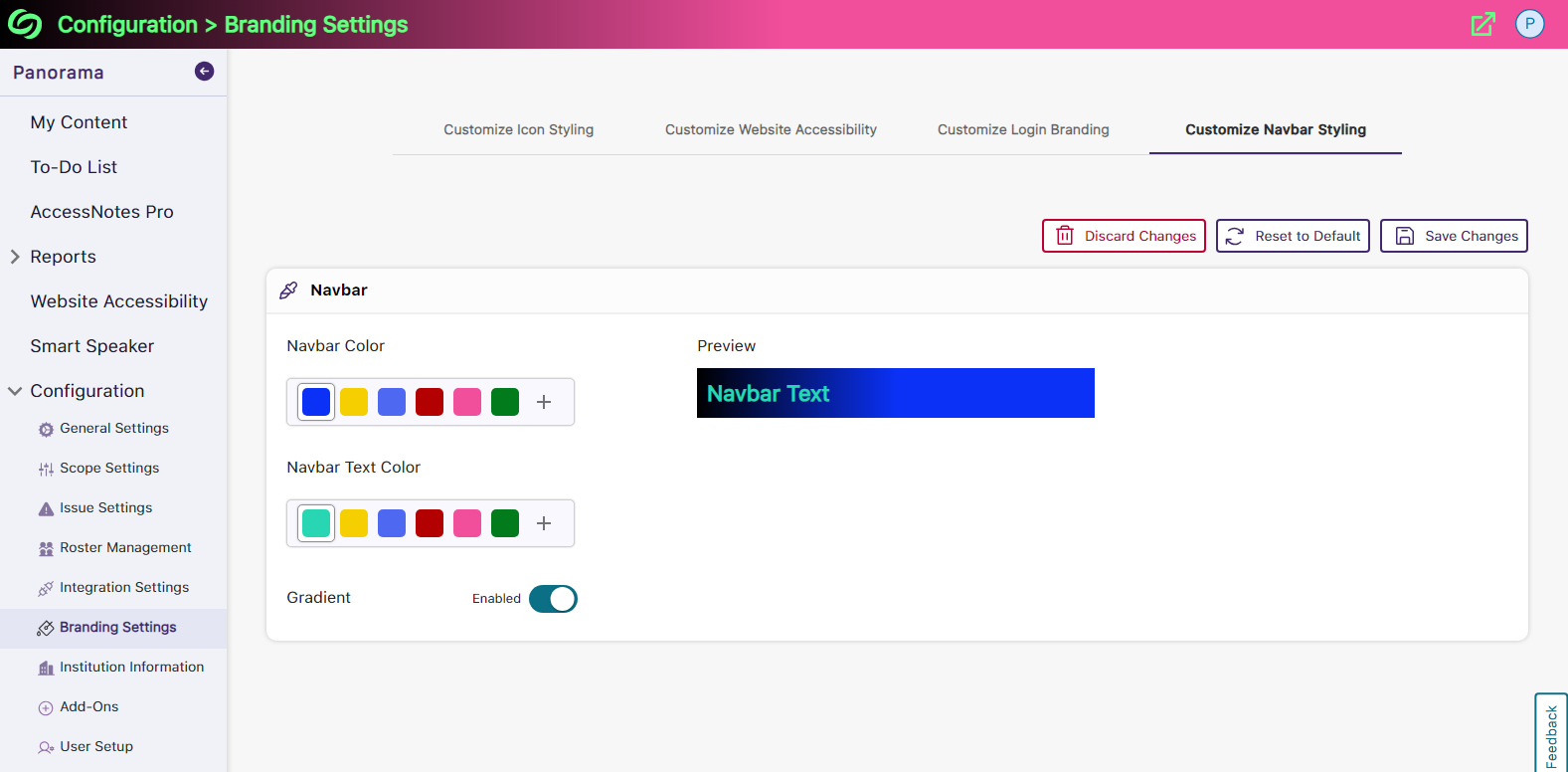
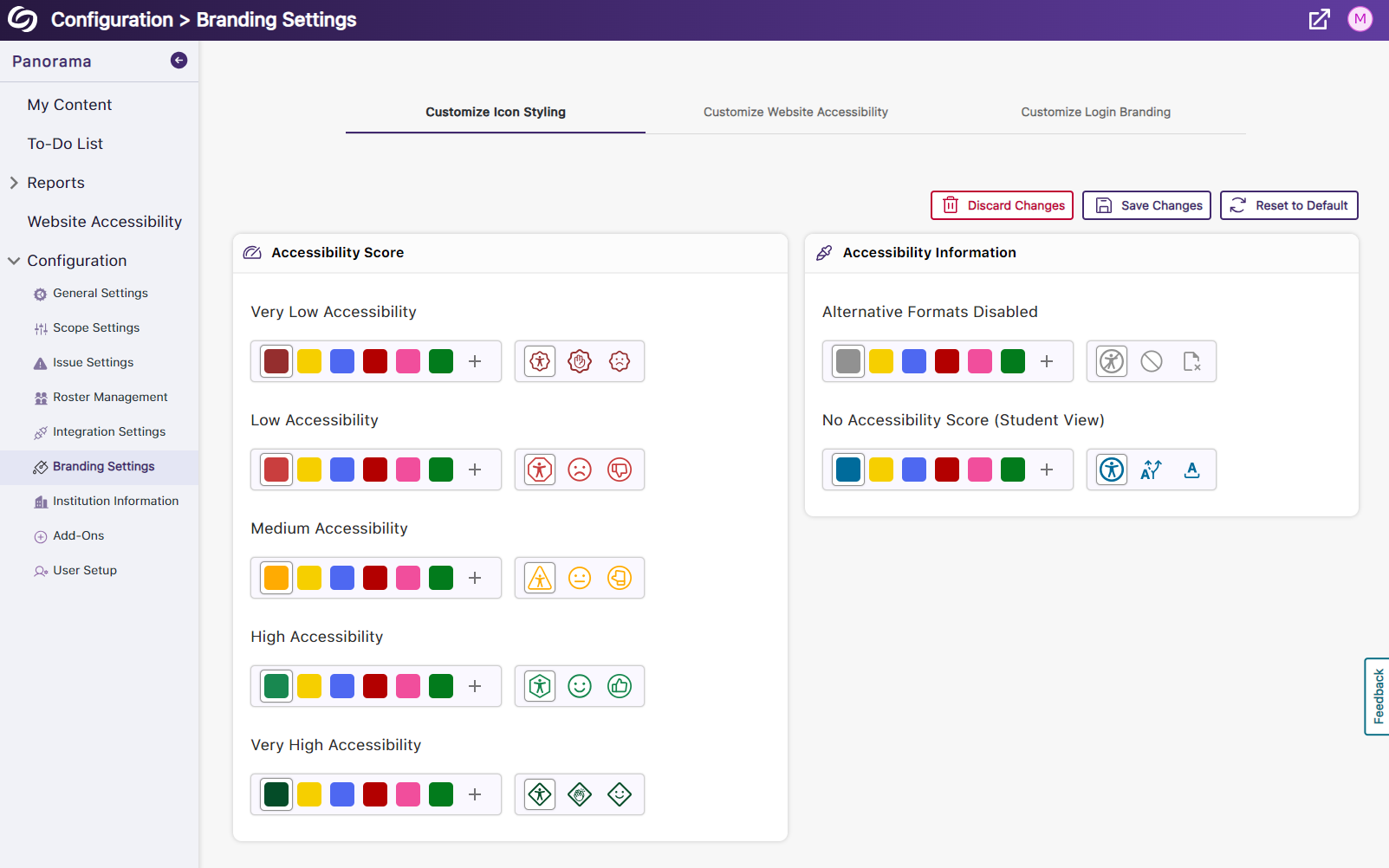
    21. Reorganized Branding Settings and Enhanced Iconography We’ve reorganized the Branding Settings in Panorama, introducing dedicated tabs for styling features. Additionally, we’ve given the iconography a modern look to enhance the experience when choosing your preferred styling. Panorama's branding settings page.
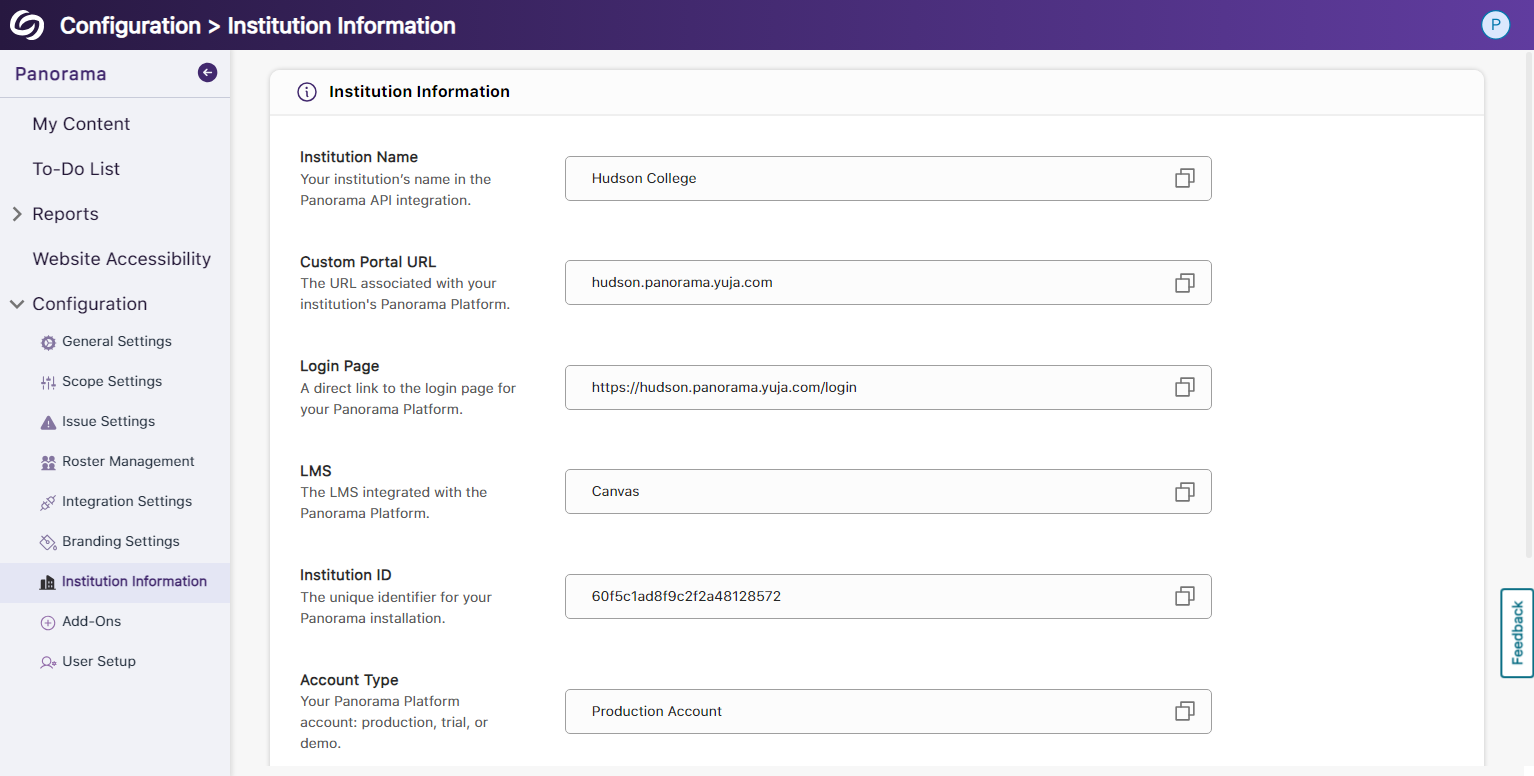
    22. More Descriptive Text for Institution Information We have updated the Institution Information text to allow administrators to easily understand the details related to their institution and how Panorama uses the information. Panorama's Institution information page.
    23. New Organized UI to Manage Panorama Add-Ons All Panorama add-ons have been organized into tabs to access settings specific to each add-on. Additionally, we’ve created informative videos explaining the features of select add-ons. Panorama Add-ons page.
    24. New Font Styling Across Panorama We have updated the font family Panorama utilizes to San Francisco Pro.
  • March 27, 2024

    YuJa Panorama Digital Accessibility Platform Update – “Omu Peak”

    We have successfully pushed an update to all YuJa Panorama Digital Accessibility Platform instances residing in the United States, Canada, European Union, and Australia. This release provides our users with updates to the gradient reader, detection for broken links in HTML content, the option to apply filters in Course Scans, enhanced institution scans for D2L Brightspace, view issues opened in the Course Report, a more streamlined integration process, and new voice settings and real-time text highlights for our Smart Speaker add-on.
     
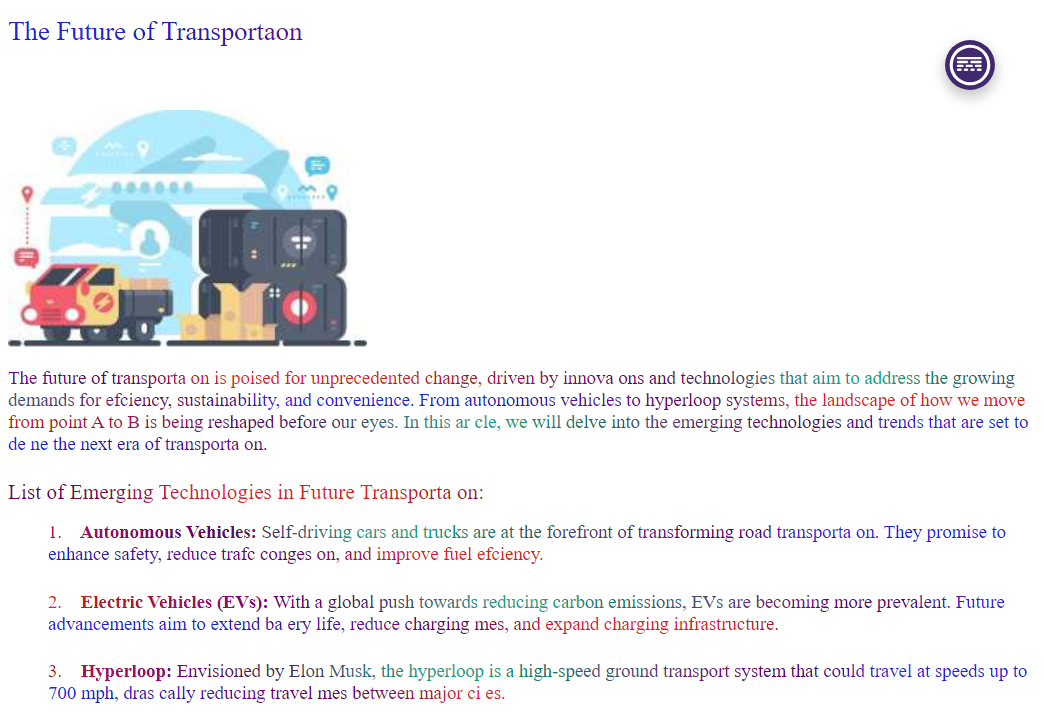
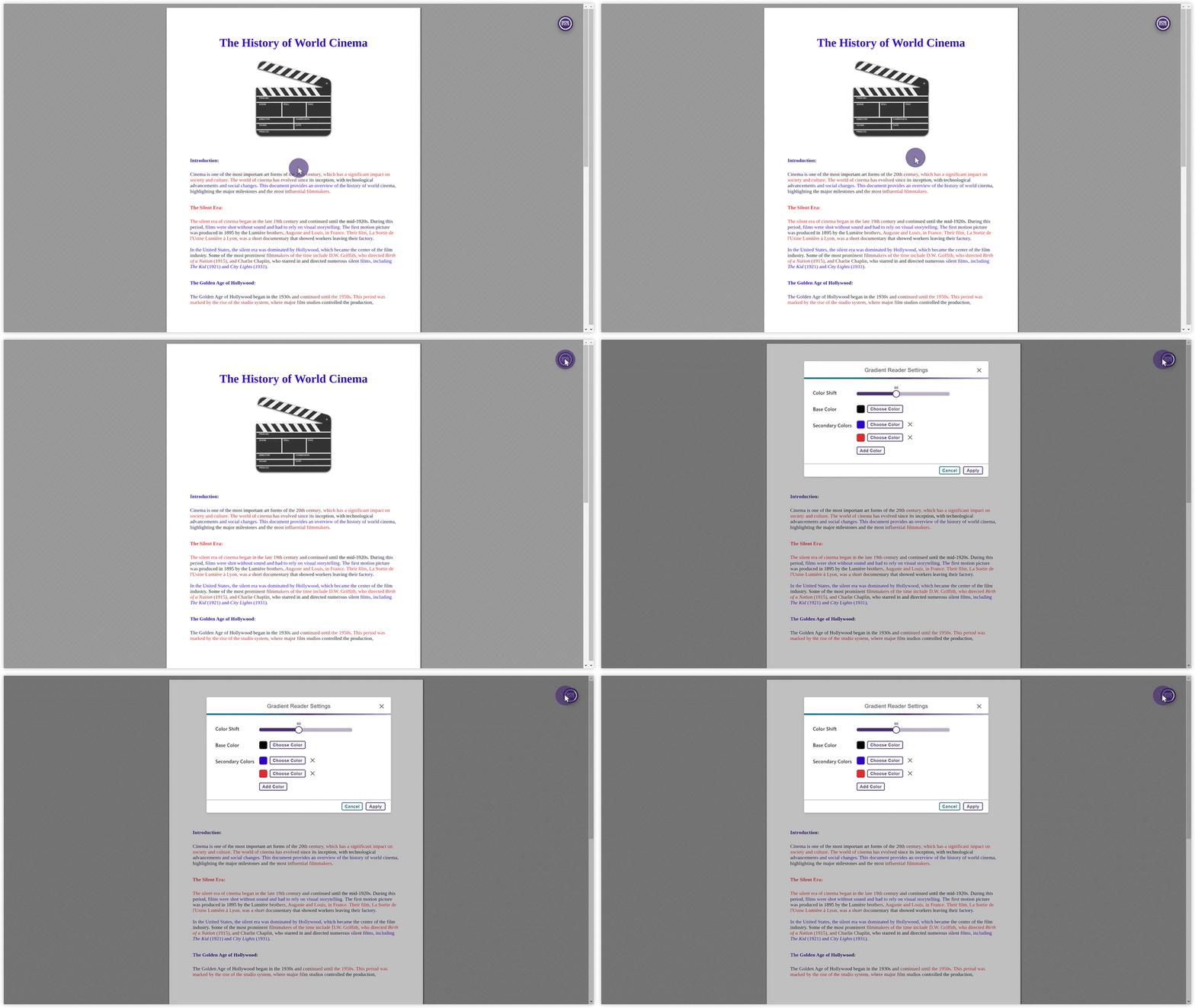
    1. New Gradient Reader Settings for Color Adjustments and Transitions The Gradient Reader now offers custom color options for applying gradients to documents, which allows users to specify the frequency of color transitions for a personalized guided reading experience. New gradient reader settings are shown.
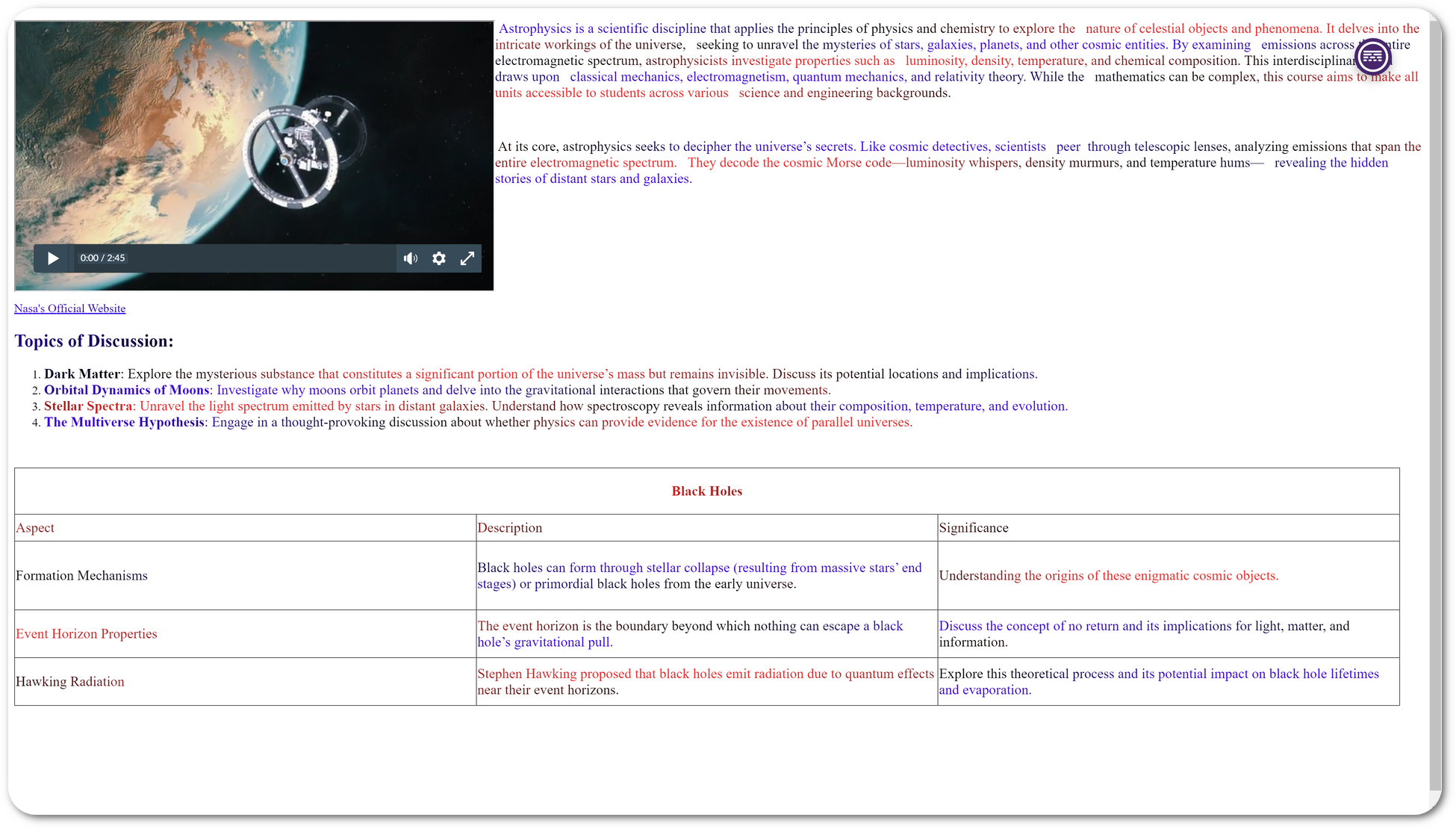
    2. The Gradient Reader Preserves Structural Formatting of Documents To enhance visual recognition of content, the Gradient Reader will maintain the original document’s structure, ensuring that inline videos, lists, tables, and spacing remain consistent. A video, list, and a table is shown in the gradient reader.
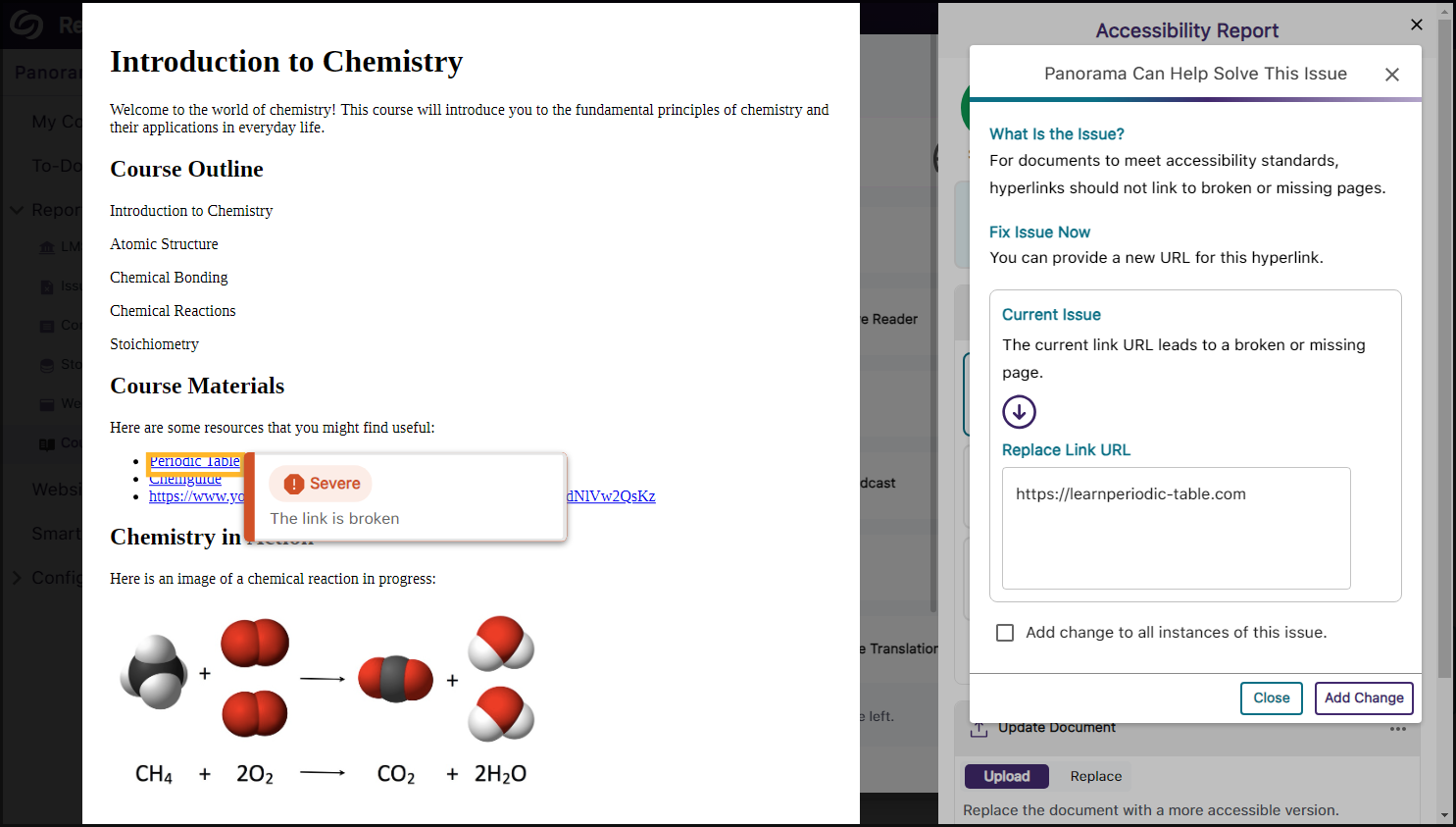
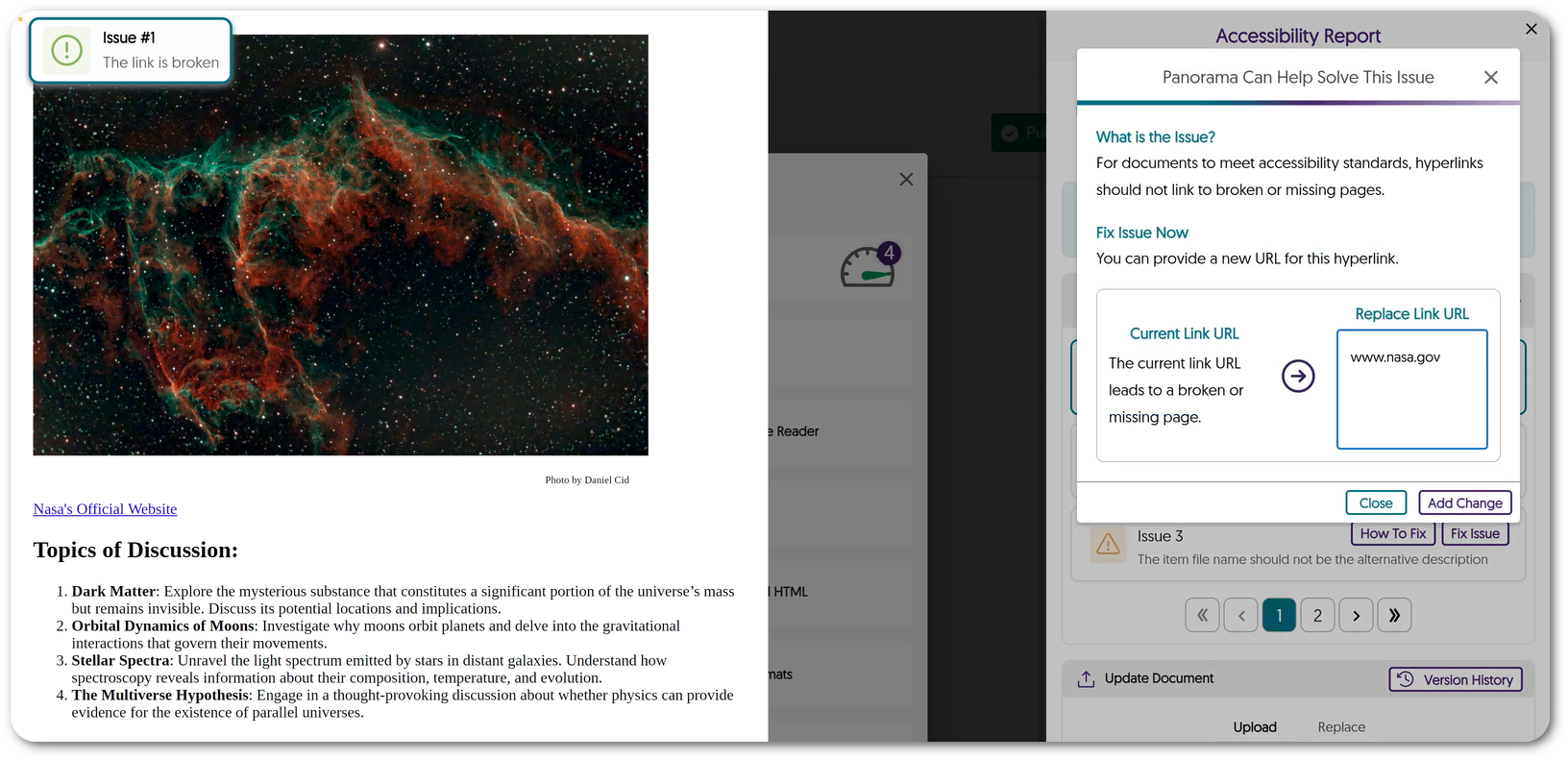
    3. New WCAG 2.1-Aligned Detection for HTML Issues: Broken Links We’ve added a new accessibility check to allow Panorama to identify broken links within HTML content. An issue for a broken link is shown being resolved in the Accessibility Report.
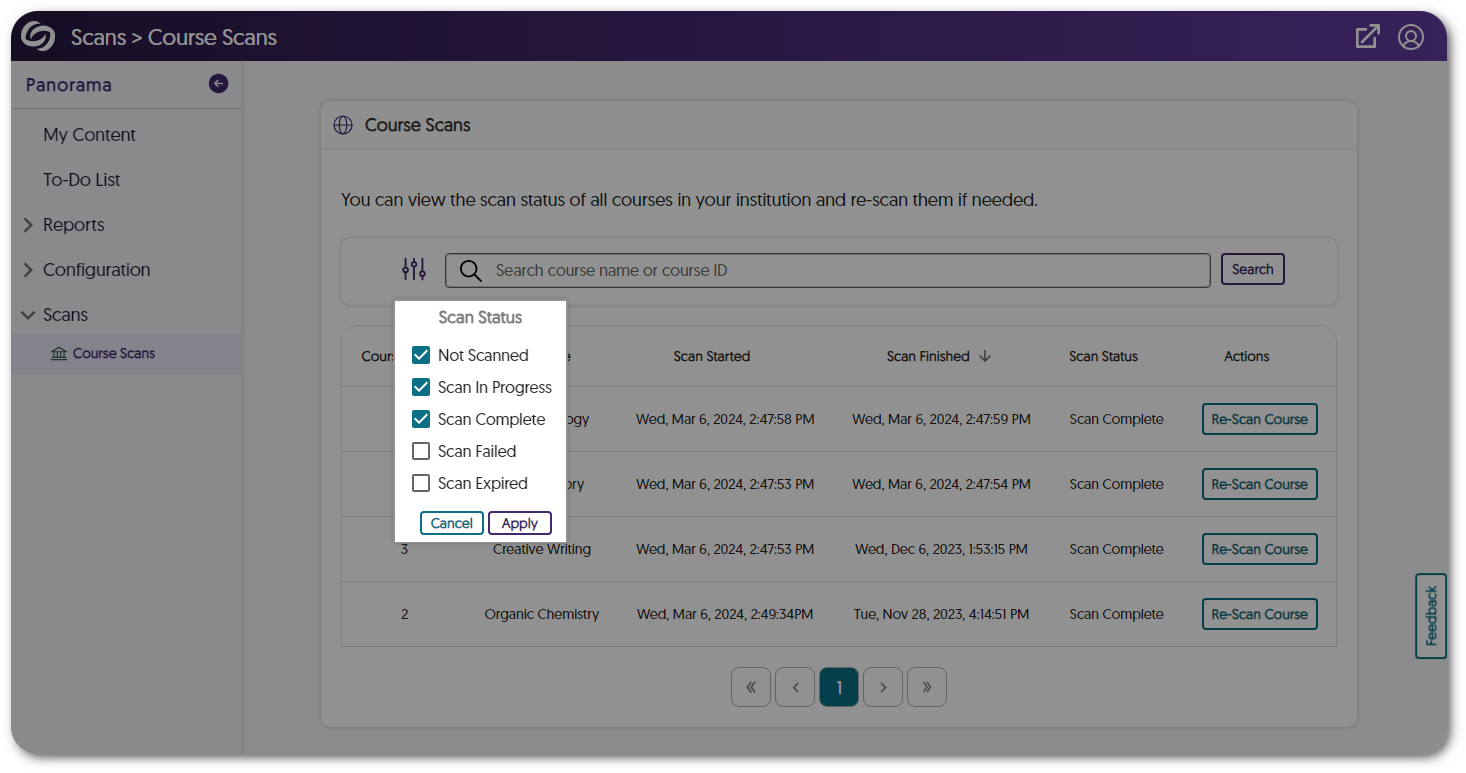
    4. Apply Filters to Course Scans Administrators can effectively track the progress of course scans by applying filters based on their current status, such as scans that have not yet started, are in progress, have completed, failed, or expired. Filters for the Course Scans page are shown.
    5. Enhanced Institution Scans for Large Institutions Using D2L Brightspace To efficiently scan institutions with a large number of courses in a shorter amount of time, D2L Brightspace administrators can input multiple access keys for their Panorama integration.
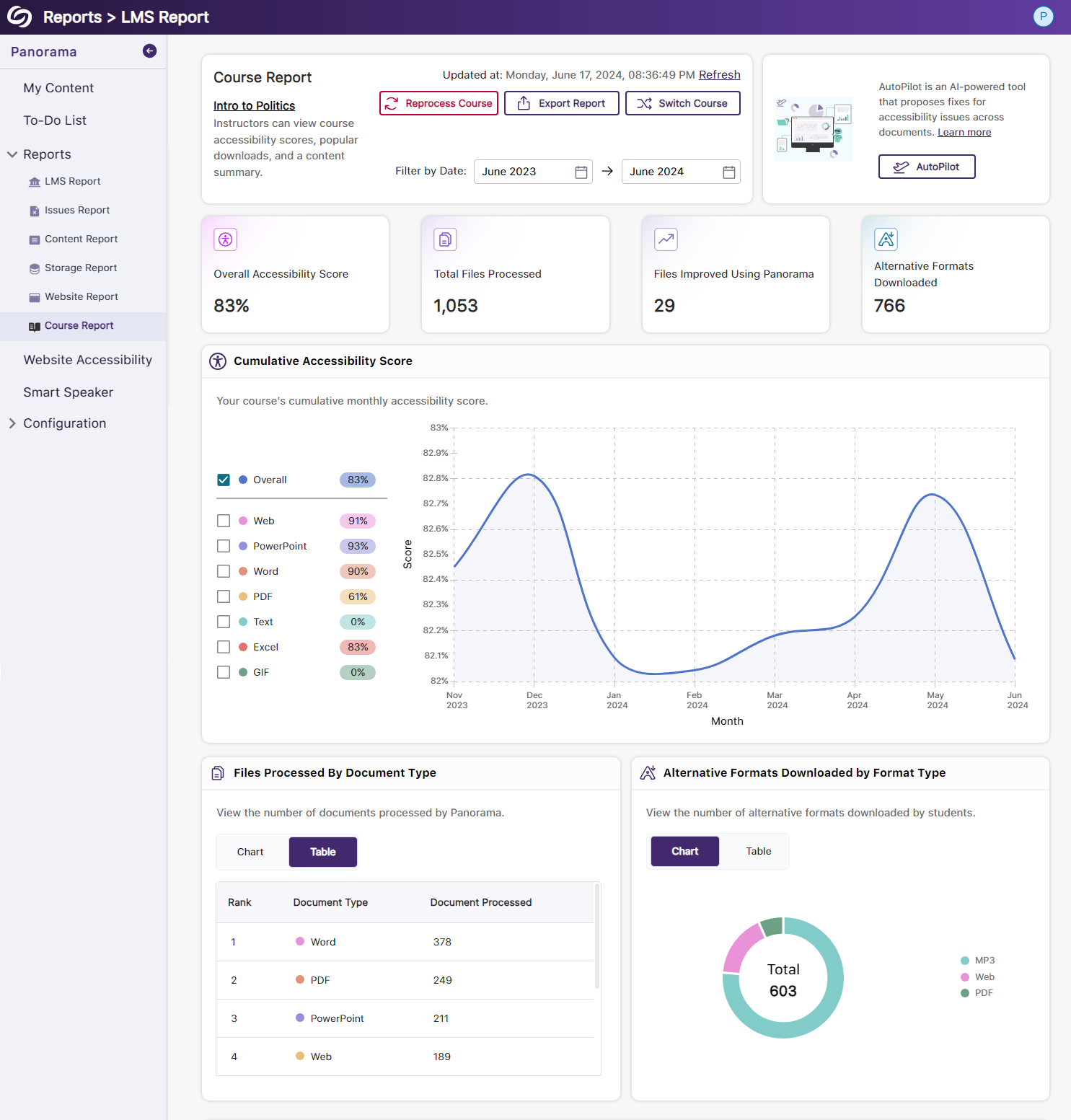
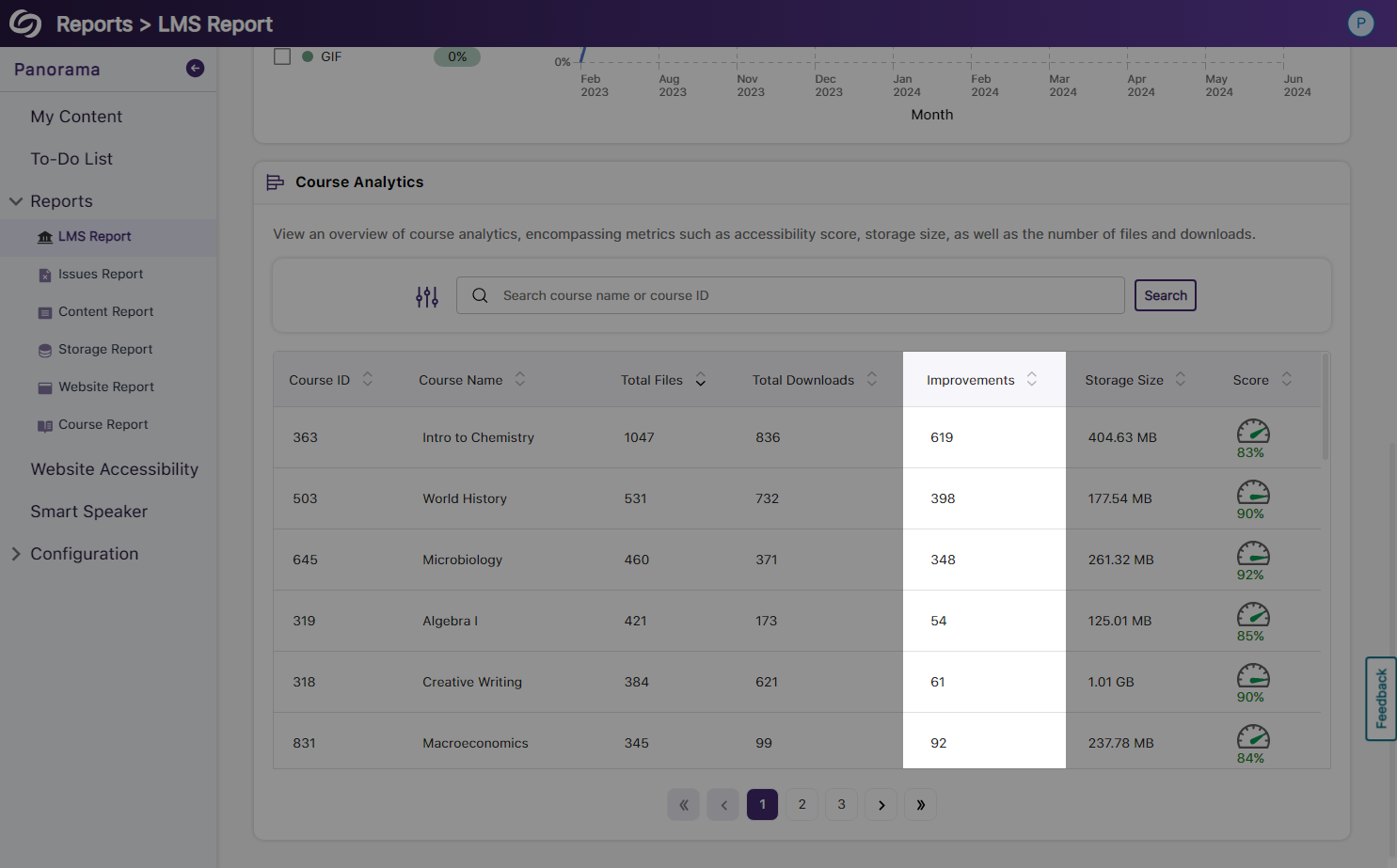
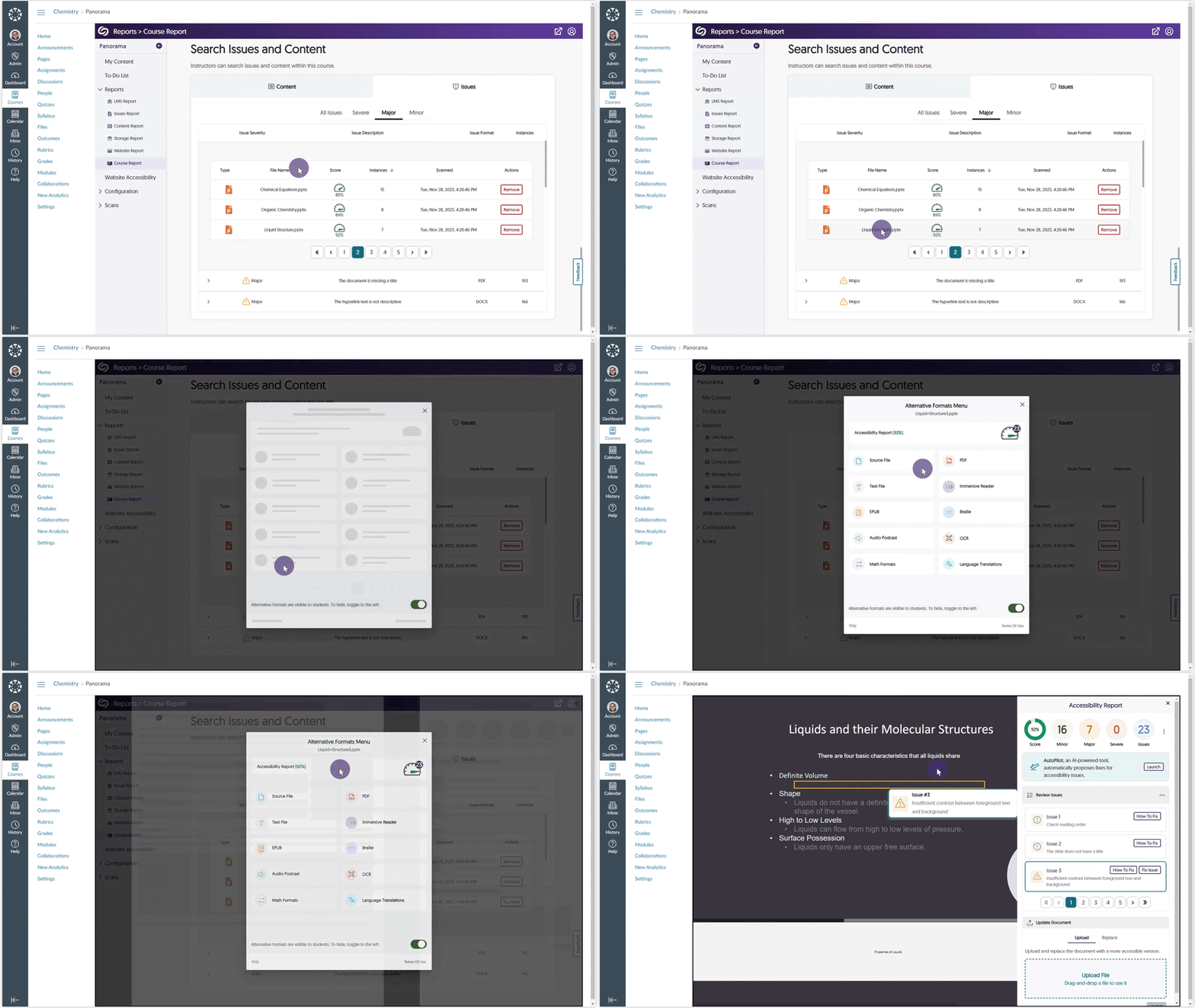
    6. The Review Issue List in the Accessibility Report Will Open to a Selected Issue from the Course Report When selecting a specific issue within a document from the Course Report, the Accessibility Report will automatically show it in the Review Issues list. Previously, the issue was highlighted only on the document. From the Course Report, an issue is selected and then viewed directly in the Accessibility Report.
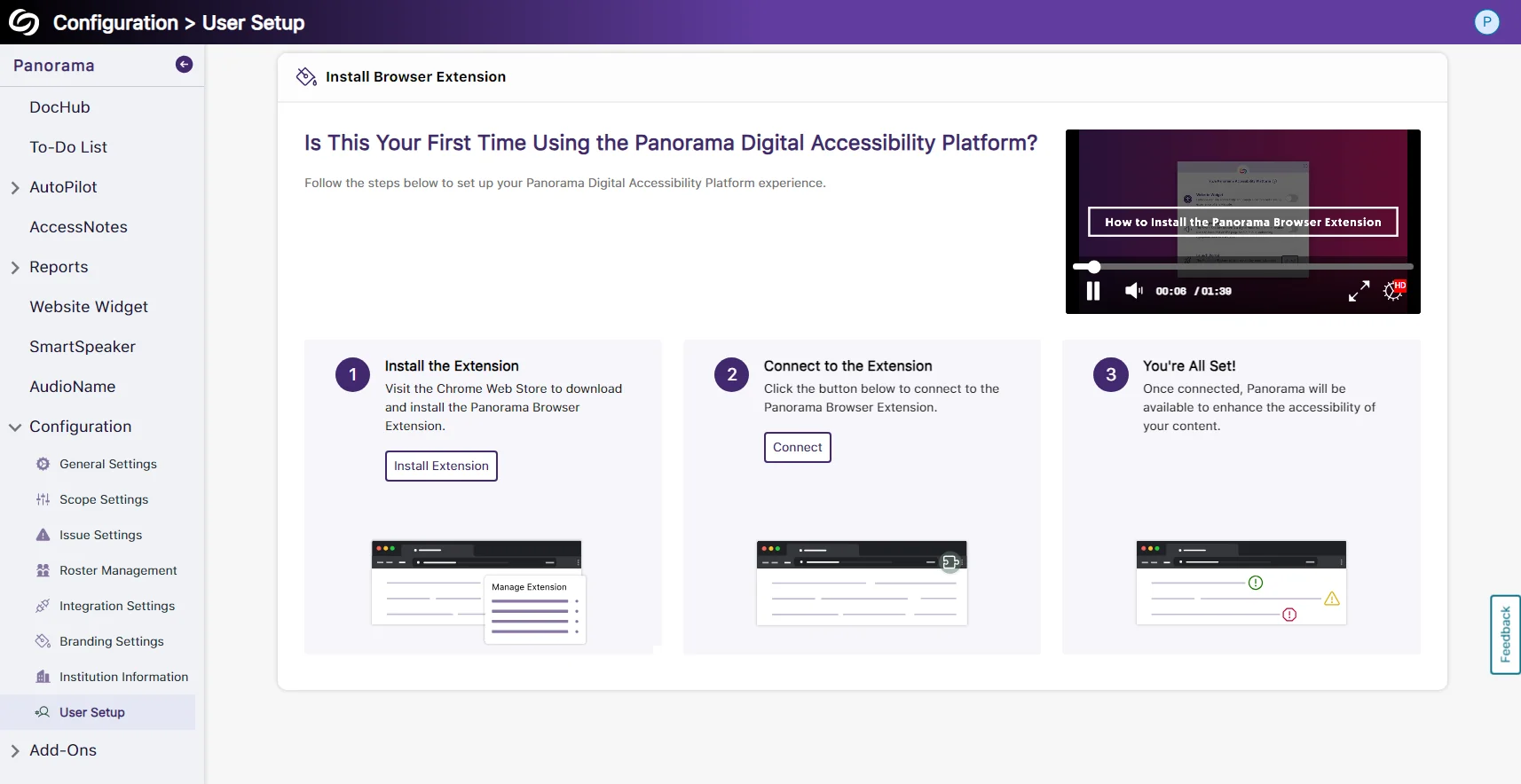
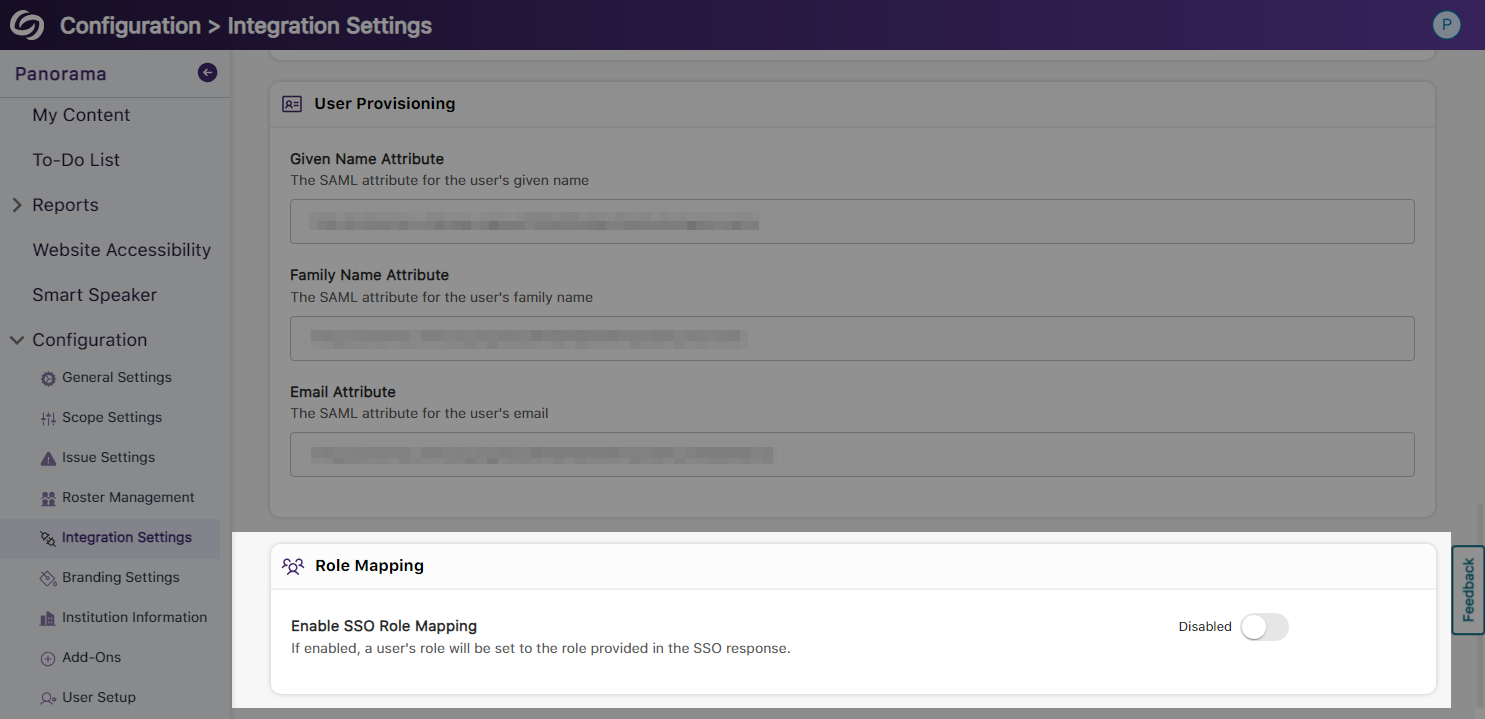
    7. Streamlined Integration Process With Panorama We’ve enhanced Panorama’s integration page with improved on-screen text and relevant guides to help administrators self-manage LTI, API, and SSO integrations.
  • March 8, 2024

    YuJa Panorama Digital Accessibility Platform – “Naltar Peak” Version Released to US, CAN, AU, and EU Zones

    We have successfully pushed an update to all YuJa Panorama Digital Accessibility Platform instances residing in the United States, Canada, European Union, and Australia. This release provides our users with the option to view the previous version history of documents, more HTML accessibility issues detected, a new To-Do List, a new math alternative format, the option to customize the threshold of Accessibility Scores, more custom branding options, and PDF structural remediation.
     
      1. New Version History: View and Restore Documents to Previous Versions When documents are updated using the Remediation Engine or through manual uploads, Panorama will automatically preserve the previous version of the document. Content Creators can then access a comprehensive history of all prior versions and choose to restore them if needed. The accessibility report shows a list of previous version history for a document.
      2. Additional WCAG 2.1-Aligned Detection for HTML Accessibility Issues To help Content Creators produce accessible HTML pages, we have added new accessibility checks to help identify issues such as:
        • The table header cell does not contain a scope attribute.
        • The target size for buttons and links is too small.
        • The header is greater than 120 characters.
        • Adjacent links contain the same URL.
    An html issue for missing heading scope is shown with instructions on how to fix the issue.
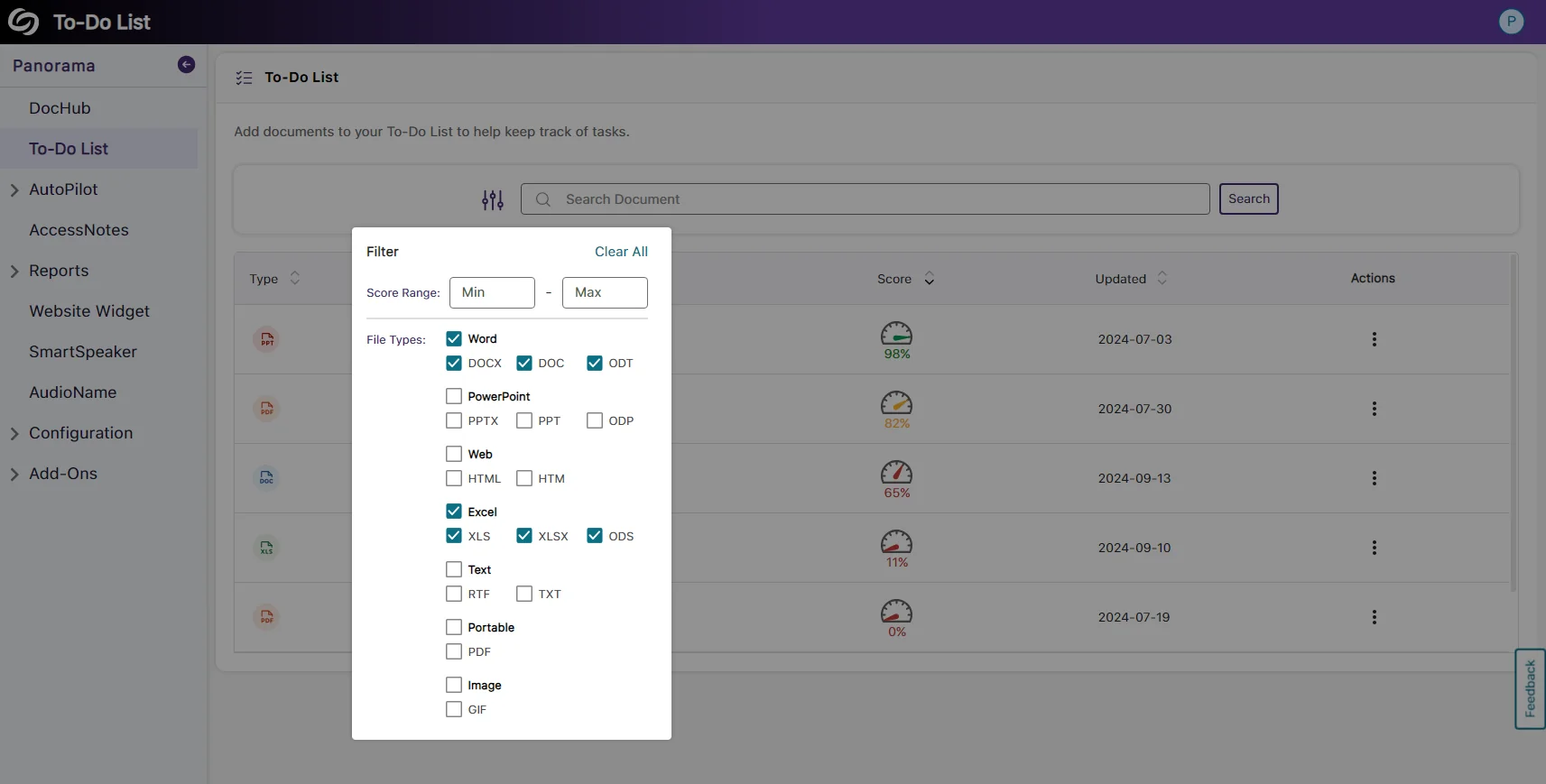
    • New To-Do List: Create a List of Documents to Review Content Creators can efficiently manage documents they want to enhance the accessibility of by adding them to their To-Do List. The documents can then be updated within the To-Do List, or if the original documents are updated, the list automatically reflects those changes, allowing Creators to stay informed. Panorama's To-Do List shows a list of documents.
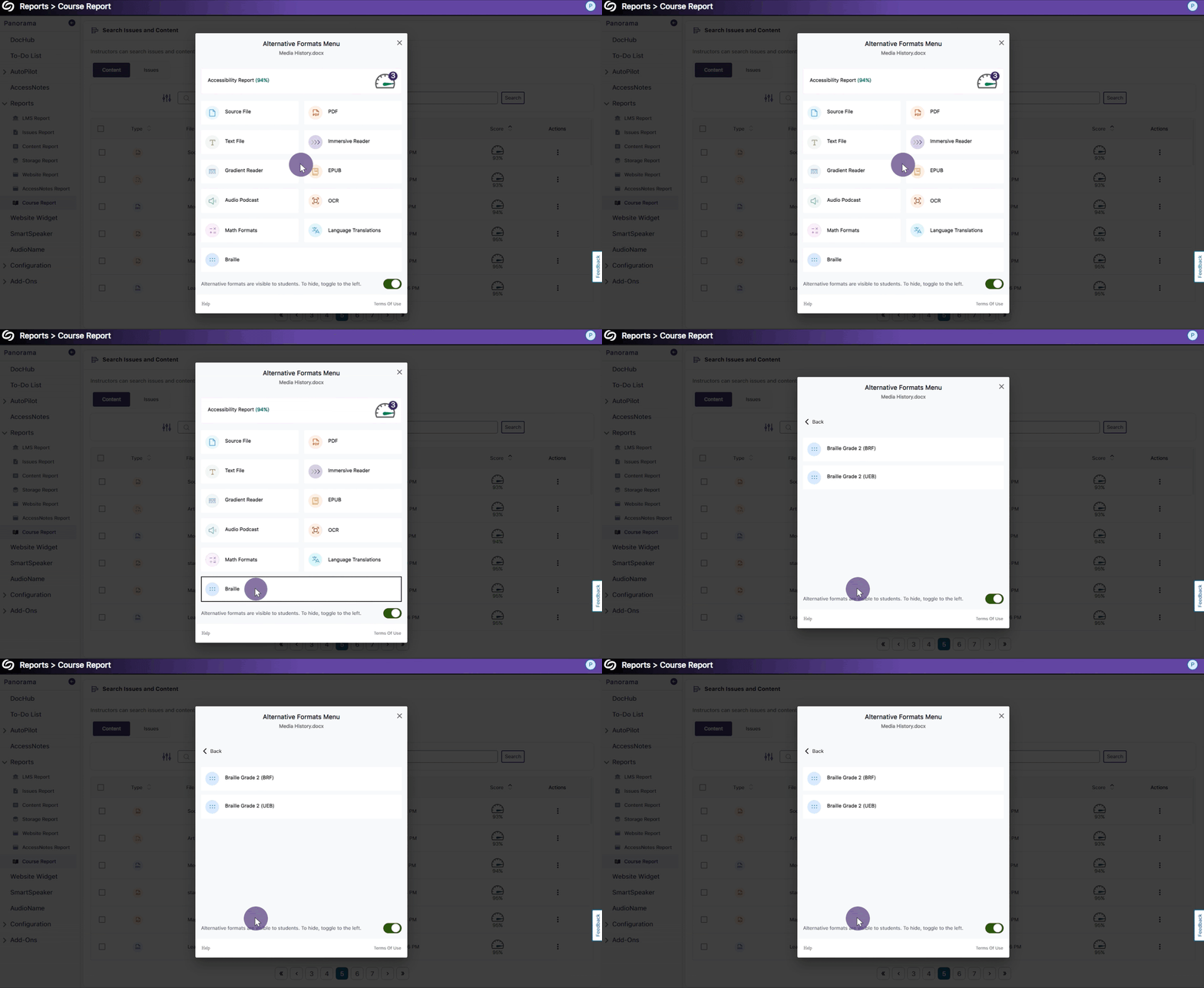
    • New Alternative Math Format: Convert Documents with Math Equations into MathML Our new MathML format enables users to extract mathematical equations from documents and convert them into HTML files, providing an accessible solution for embedding math equations directly into HTML pages. Alternative Formats menu for MathML.
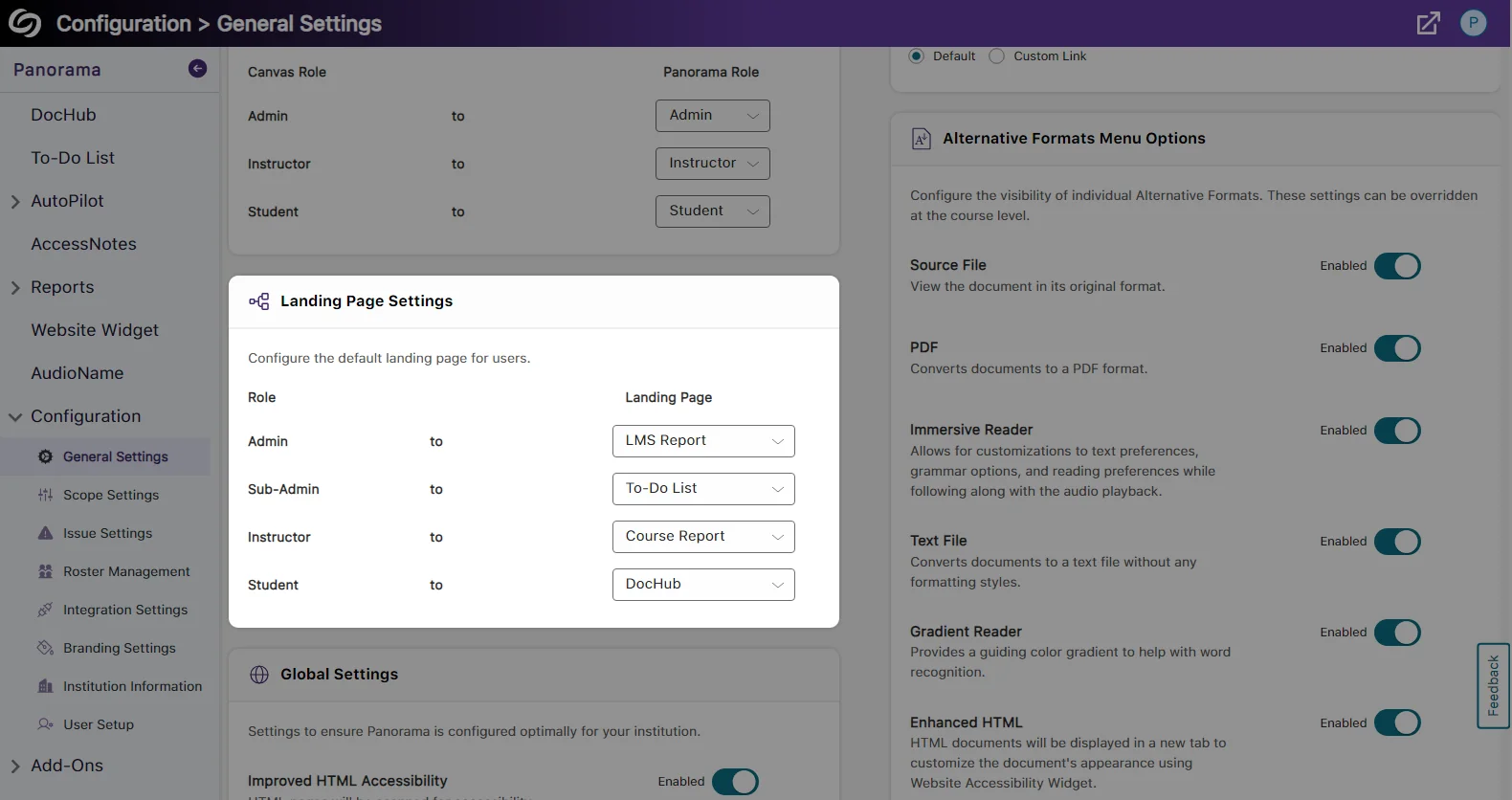
    • Ability to Customize the Threshold of Accessibility Scores Institutions that would like to have rigorous accessibility standards for their content can now establish customized thresholds within Panorama. These thresholds determine how Panorama categorizes accessibility scores—whether they meet high, medium, or low accessibility standards. For instance, while Panorama’s default score designates 70 as highly accessible, organizations can adjust the threshold and mandate that highly accessible content must achieve a score of 85. global settings show the threshold numbers for high, medium and low accessibility.
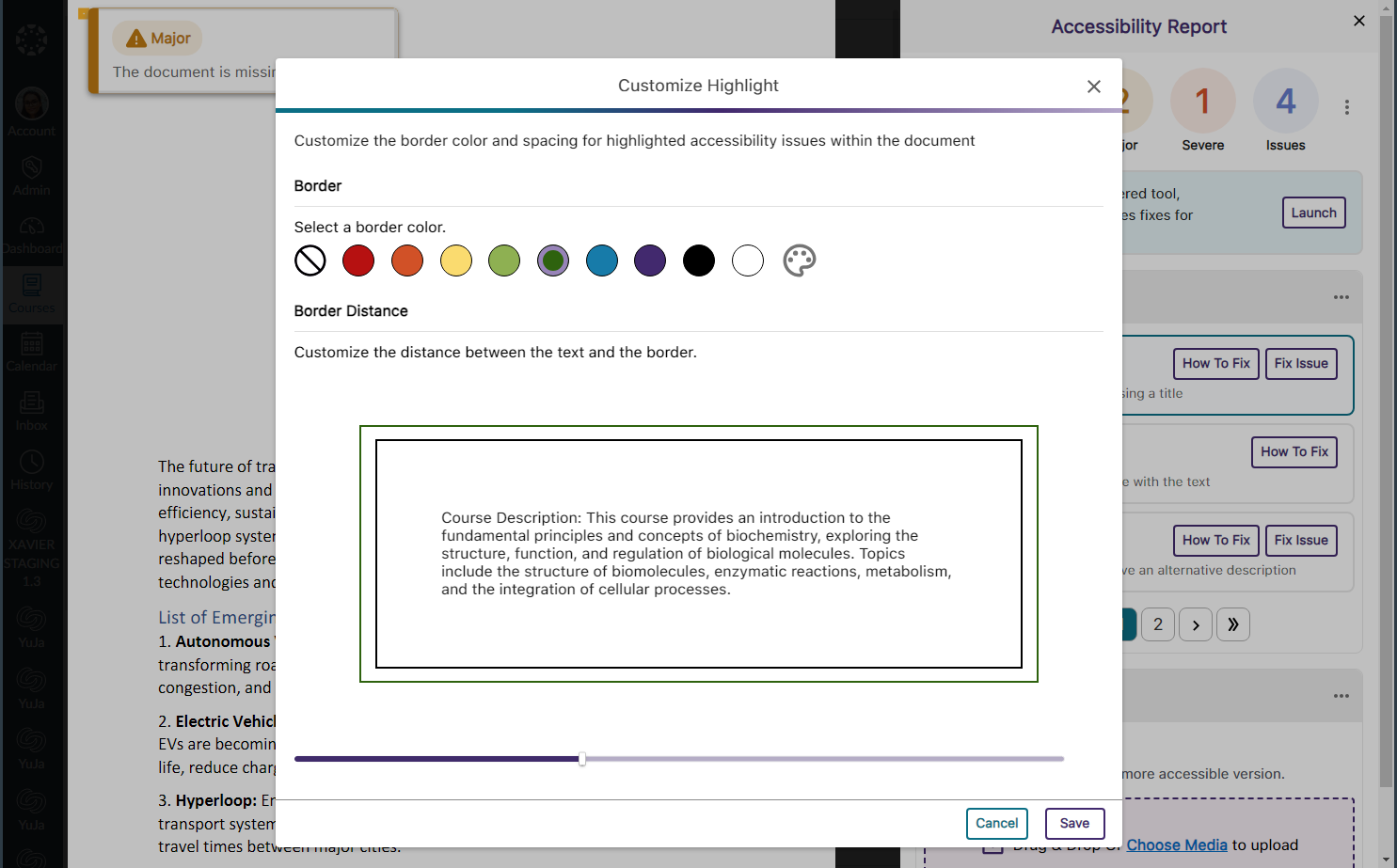
    • Customize the Branding of Panorama Icons To offer institutions a more personalized experience, they can now customize Panorama icons by selecting from a curated collection of pre-designed options. If you have a suggestion for a specific iconography, we encourage you to contact your Customer Success Manager. The branding tab for panorama shows various icons for accessibility scores.
    • Customize the Panorama Portal Login Page Institutions can now customize the branding of their Panorama Portal login page by adjusting the colors of buttons and adding imagery. The customize login branding page shows the option to insert an image.
    • The Accessibility Report Will Open to a Selected Issue from the Course Report When selecting a specific issue within a document from the Course Report, the Accessibility Report will open directly to the issue, allowing Content Creators to quickly view and address it. An issue is selected in the course report and immediately shown in the accessibility report.
  • January 26, 2024

    YuJa Panorama Digital Accessibility Platform – “Mana Peak” Version Released to US, CAN, AU, and EU Zones

    We have successfully pushed an update to all YuJa Panorama Digital Accessibility Platform instances residing in the United States, Canada, European Union, and Australia. This release provides our users with updates to our Remediation Engine to support PDF documents, a new AI-powered tool to propose accessibility fixes, enhanced support for OCR conversions, SAML-SSO integration for the Panorama Platform, the option to add users outside of the LMS, new accessibility design tools, Panorama support for files up to 50 MB, the option to bulk changes fixes, and more.
    1. New Tool! AutoPilot: AI-Powered Tool to Propose Accessibility Fixes We’re introducing an industry-first feature by launching AutoPilot, an AI-powered tool that automatically proposes document accessibility fixes for PDF, DOCX, PPTX, and HTML files. With just one click, AutoPilot users can send proposed fixes to the Remediation Engine, which will automatically remediate the document. In the future, AutoPilot will propose fixes for other issue types, as well as broaden the scope to Course and the full LMS. AutoPilot will currently propose fixes for the following issue types:
      • Font size
      • Color contrast
      • Missing alt-text
      The AutoPilot button is selected and proposed fixes are automatically applied.
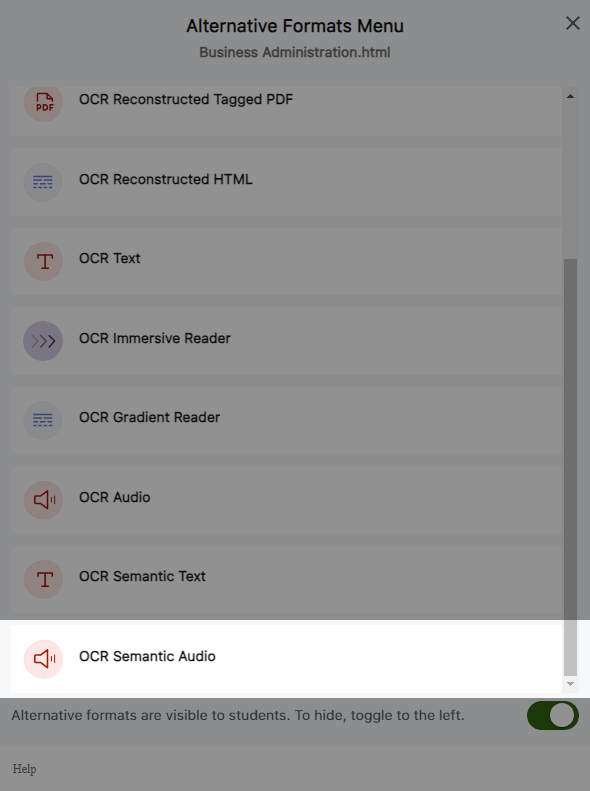
    2. Enhanced Support for OCR Conversions: OCR Text and OCR Immersive Reader We are expanding our OCR conversion engine to provide two new capabilities for generating distinct documents based on the OCR’d content.
      • OCR Text: Generate a brand new text file.
      • OCR Immersive Reader: Use the immersive reader for OCR’d content.
      The Panorama Alternative formats menu for OCR.
    3. No LMS Required! SAML-SSO Authentication Support for the Panorama Platform Administrators, instructors, and students can access their respective reports and accessibility settings by signing in to the Panorama Platform directly with their SAML-SSO integration. Panorama SSO SAML sign-on page.
    4. Add Users Outside of the LMS to the Panorama Platform Administrators can add users not registered for their LMS into the Panorama Platform to manage Panorama reports and settings based on their assigned roles. The Create user modal inside Roster Management.
    5. Custom Panorama Portal URL Prefix Institutions can create their own custom Panorama Platform URL prefix. Simply contact your dedicated Customer Success Manager to get started.
    6. New Accessibility Design Tool Elements We have expanded our Accessibility Design Tool to incorporate two new elements when creating HTML content.
      • Progress Bar: Content Creators can place progress bars for long-form content to help their viewers keep track of their progress.
      • Expander: Content Creators can place discrete expandable cards to show viewers additional content.
      The expander and progress bar tools are added within an HTML editable area in Canvas.
    7. Generate Panorama Reports for Files up to 50MB Panorama will now support generating Accessibility Reports and Alternative Formats for files up to 50 MB in size.
    8. New Course Scans Page to View the Status of Courses Administrators can track the progress of Panorama’s course scans and view a list of all courses within their institution. If desired, they can also scan or re-scan courses to locate new documents or pages within the course. Panorama's course scan page shows a table of scanned courses.
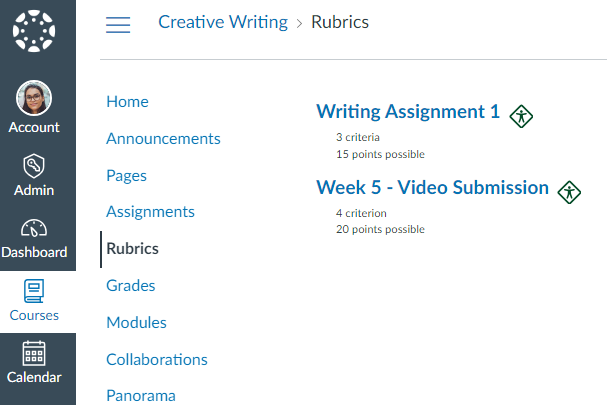
    9. Panorama for Canvas: Website Accessibility Enabled Canvas-Wide The Website Accessibility icon is no longer restricted within a course. Instructors and students can access the Website Accessibility icon from anywhere within Canvas.
    10. New Branding Settings to Customize Website Accessibility Colors We have added a new Branding Settings tab that allows administrators to customize the colors of the Accessibility Icons and the Website Accessibility menu. Options to customize icon colors and the website accessibility menu colors.
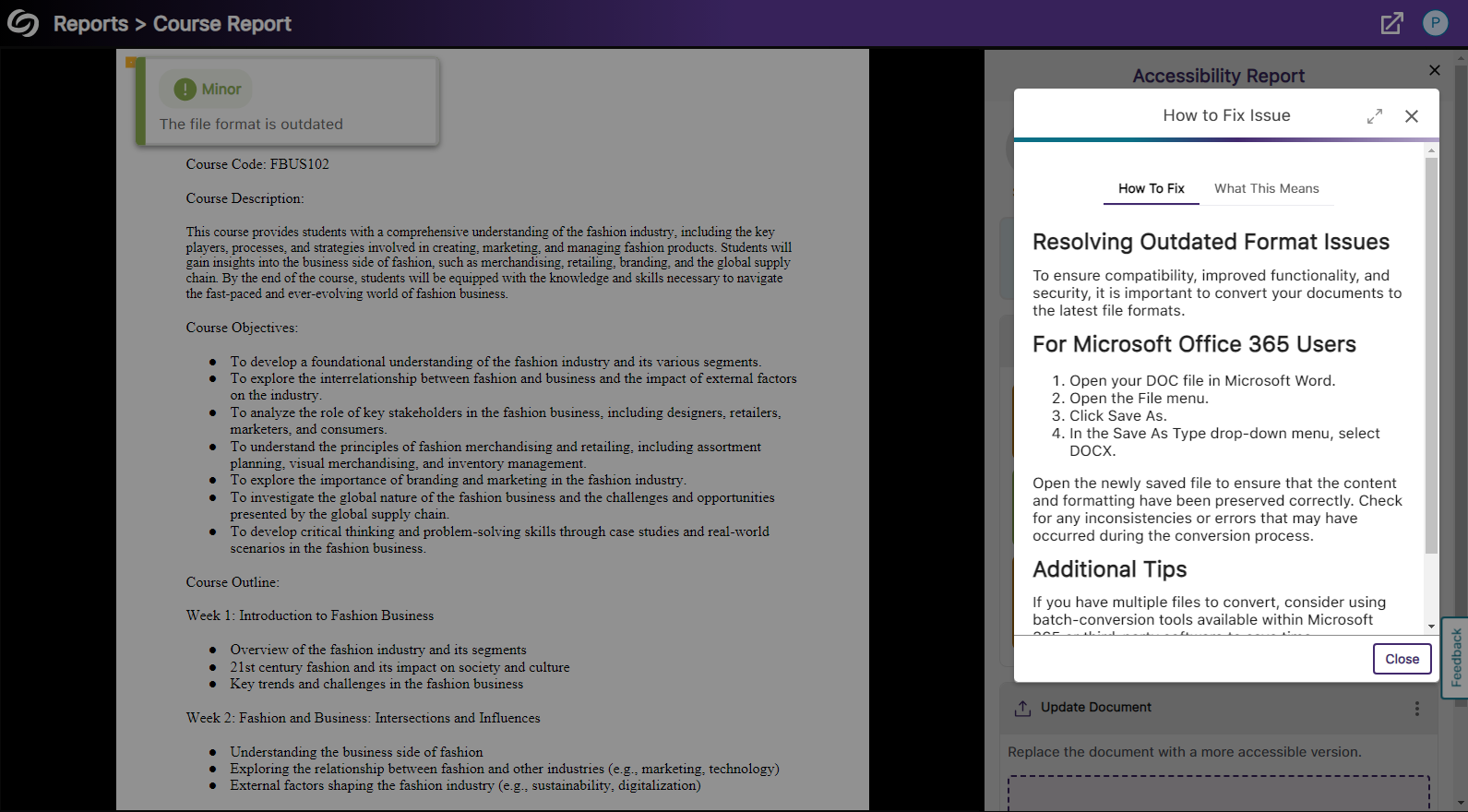
    11. Pop-Out the How-to-Fix Window for a Wider View We have introduced a new pop-out feature in the How-to-Fix panel that displays the steps to resolve an issue in a larger window, making it easier to view. A pop-out view of the how to fix issues modal.
    12. Bulk Change All Instances of the Same Accessibility Issue Users can now choose to apply their accessibility changes to all instances of the issue when remediating a document.
    13. Panorama for D2L: Accessibility Reports for Documents within the Manage Files Page Panorama now supports generating Accessibility Reports and Alternative Formats for documents found within the Manage Files page in D2L Brightspace.
    14. Students Can Disable Panorama Accessibility Icons Panorama Accessibility icons can now be disabled by individual students.
  • December 8, 2023

    YuJa Panorama Digital Accessibility Platform – “Lincoln Peak” Version Released to US, CAN, AU, and EU Zones

    We have successfully pushed an update to all YuJa Panorama Digital Accessibility Platform instances residing in the United States, Canada, European Union, and Australia. This release provides our users with updates to our Remediation Engine to support HTML documents, the option to add alt-text to all occurrences of an image in Canvas, a new OCR conversion engine, enable Panorama in specific LMS sub-accounts, new design tool elements, Themes and Templates for the Accessible Design Tool, increased accessibility checks for images, HTML and DOCX files, and so much more!
     
    1. New Inline WCAG 2.1-Aligned Remediation Engine for HTML Issues Directly within Accessibility Reports Complementing our Remediation Engine for inline accessibility issue resolution of Microsoft Word documents and PowerPoints, we’ve now extended these capabilities to HTML documents inside Accessibility Reports to resolve issues such as:
      • Alternative text for images.
      • Non-descriptive hyperlink text.
      • Unformatted lists.
      HTML document issues are resolved in the Accessibility Report.
    2. Find-and-Tag to Add Alt-Text to all Occurrences of an Image Within Canvas Tired of alt-tagging the same image in multiple courses? Now Content Creators can instantly create and apply alt-text to all instances of the same image in multiple HTML areas of their LMS or only to instances without a description. Option to add alt-text to be applied either to all instances of the image or to instances that do not have an alt-text.
    3. Enhanced Support for OCR, PDF Tagging, DOCX, and HTML Conversions We’re introducing an OCR conversion engine to provide greater capabilities in generating distinct documents based on the OCR-ed content.
      • OCR Overlaid Tagged PDF: Generate a tagged PDF that allows for selectable text overlaid on the original document.
      • OCR Reconstructed Tagged PDF: Generate a brand new tagged PDF.
      • OCR Reconstructed DOCX Document: Generate a brand new DOCX file.
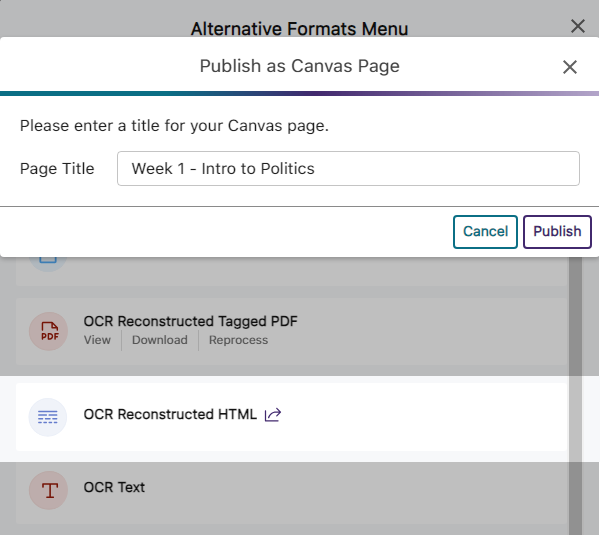
      • OCR Reconstructed HTML Document: Generate a brand new HTML file.
      The Alternative Formats menu showing a list of OCR formats.
    4. Enable Panorama in Specific Sub-Accounts / Sub-Orgs / Nodes Admins can now view a hierarchical list of institution sub-accounts / sub-orgs / nodes and choose which accounts to enable Panorama in to allow course-scanning for Accessibility Reports, Alternative Formats, and more. A modal shows a list of sub-accounts on the left side with sub-accounts that are active with Panorama on the right.
    5. Accessibility Report: Docx Lists Will Be Checked for Proper Formatting The Accessibility Report for DOCX files will check if ordered and unordered lists within the document are formatted correctly. Accessibility Report shows an issue for an unformatted list in a DOCX file.
    6. Broader Set of Accessibility Checks for Images We’ve added additional accessibility checks to ensure images are accessible to all viewers.
      • Flag alternative text longer than 120 characters.
      • Flag images that have the file name as the alternative text.
      • Flag images that have placeholder text as the alternative text (e.g. “Photo” or “Image”).
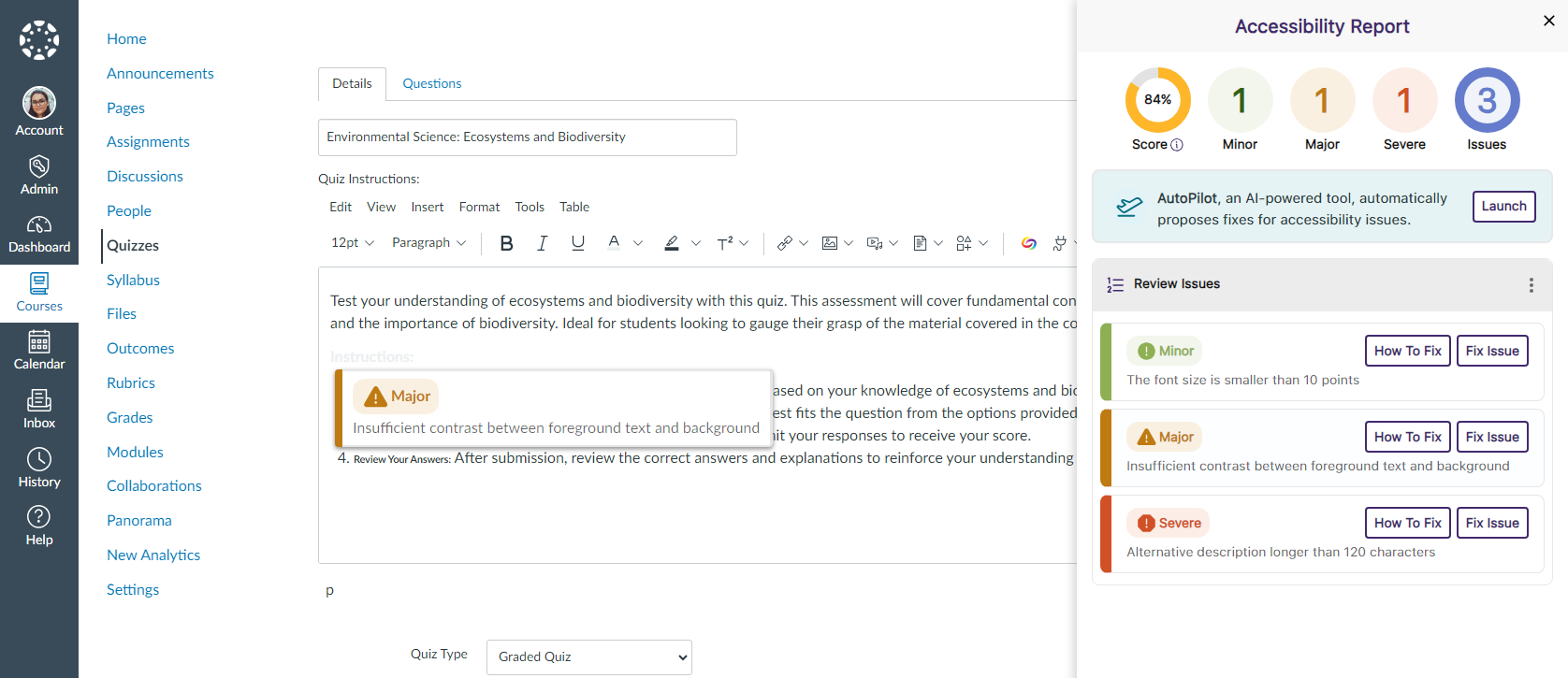
      WYSIWYG editor with Panorama’s Accessibility Report detecting issues for images.
    7. Increased the Number of Accessibility Checks for HTML Content We’ve also added additional accessibility checks to ensure that HTML content is accessible with two additional checks:
      • Flag adjacent links with the same URL.
      • Flag tables with no content.
      WYSIWYG editor with Panorama’s Accessibility Report detecting issues for HTML Content.
    8. Accessibility Check to Ensure Vimeo Videos Contain Captions Linked Vimeo videos in HTML documents will be scanned to ensure the video contains captions. Panorama's Accessibility Report has detected a linked Vimeo video without captions.
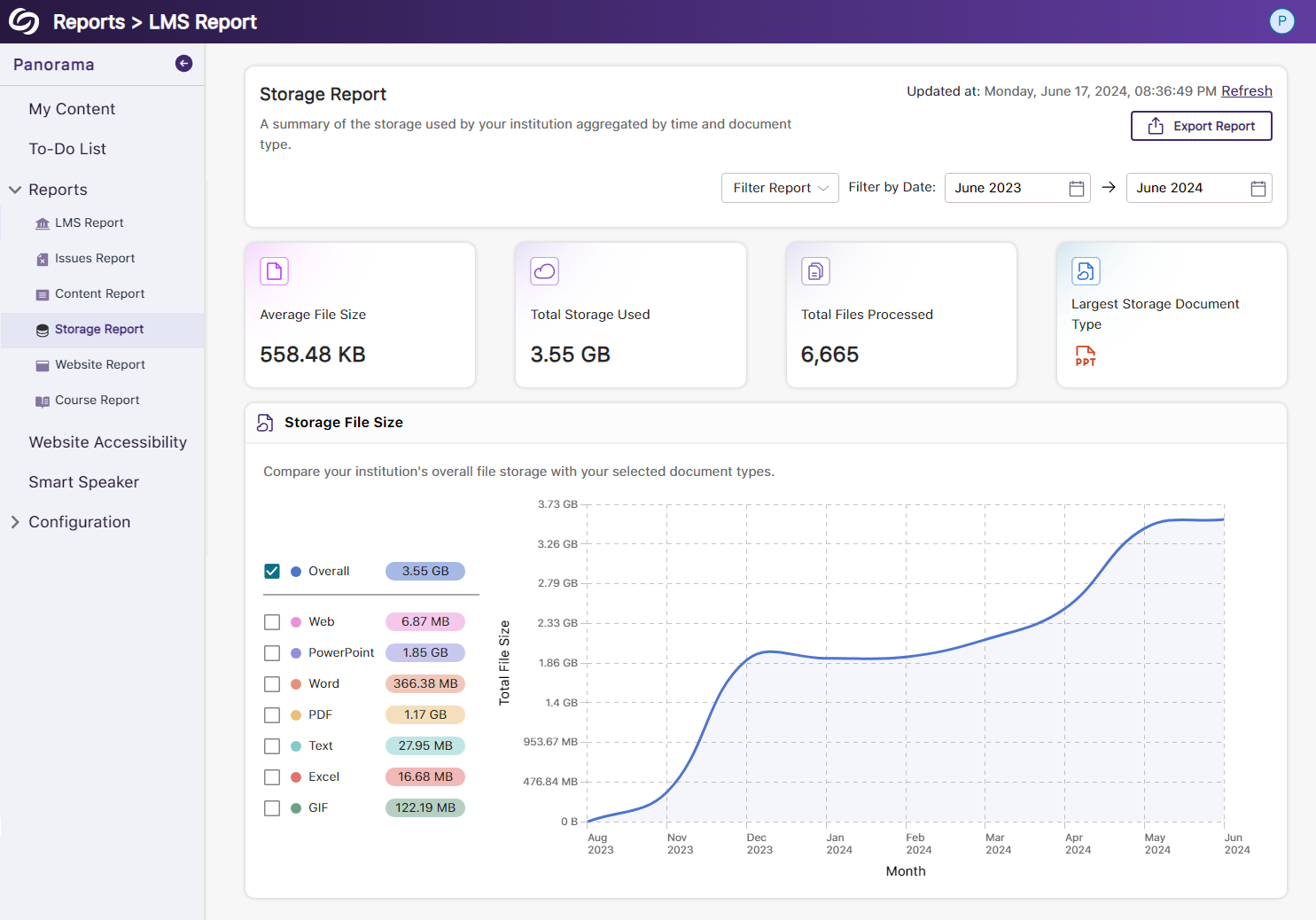
    9. Export Reports With a Date Range and the Preferred File Format Admins and Instructors can now select the date range of data to include in their reports and receive them as a JSON or Excel file via email. dates are selected for a storage report before requesting a download link to be sent by email.
    10. Downloaded Course Reports Will Include All Issues When downloading a Course Report, it will now contain all issues detected within the course. This will allow admins and instructors to receive all the information of the report as seen within the Panorama LTI app.
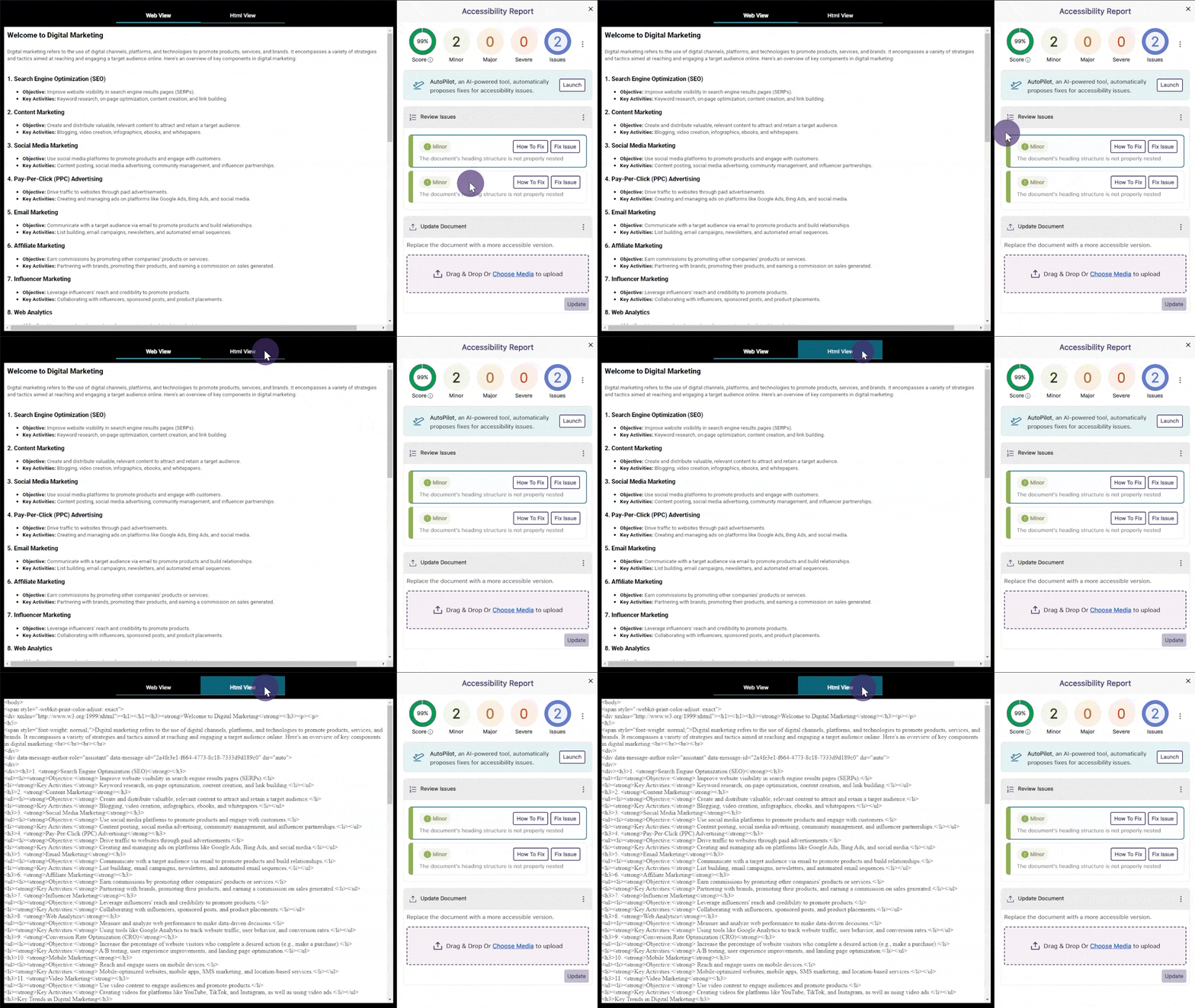
    11. New Alternative Format: Enhanced HTML View With Enhanced HTML view, HTML documents can be displayed in a dedicated tab to customize the appearance of the document using the Website Accessibility tool for a more personalized viewing experience. Alternative Formats menu showing the Enhanced HTML option.
    12. Keyboard Accessibility Support for the Design Tool Creators can access and navigate through the Design Tool through the use of their keyboard.
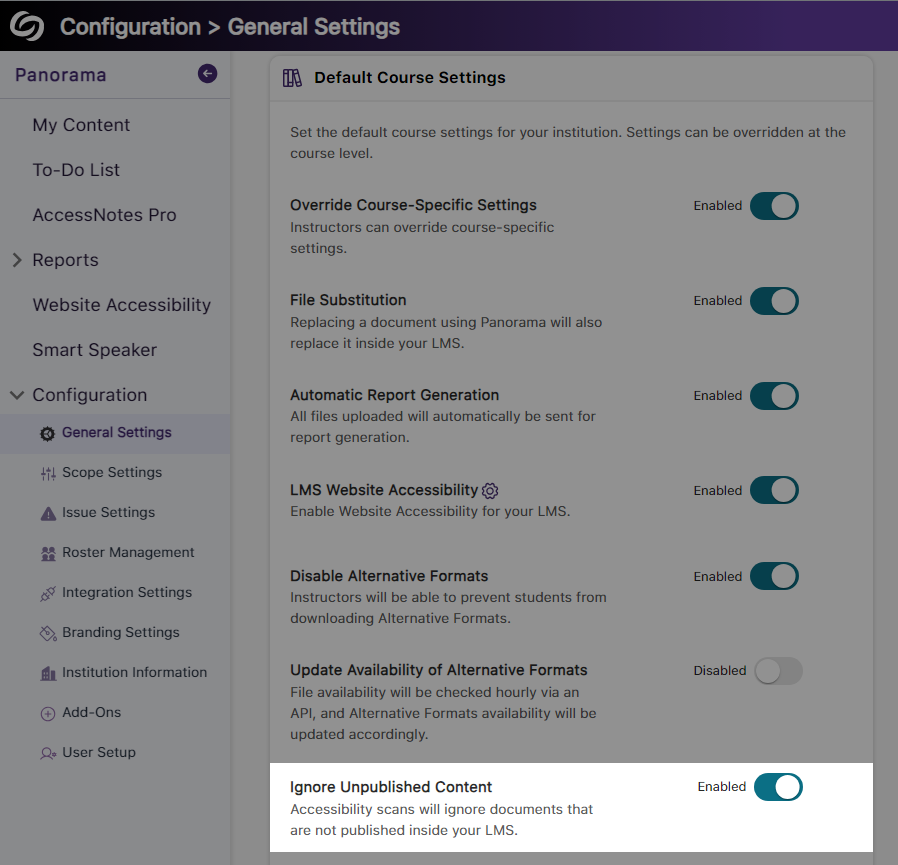
    13. Disable the Check for Specific Accessibility Issues We now allow administrators to turn off their preferred checks for accessibility issues. While we recognize the significance of not disabling issues that Panorama can detect, we understand the importance of providing institution administrators with the flexibility to meet their institution’s accessibility needs. Panorama Issue Settings to disable specific accessibility checks.
    14. Panorama REST API to Generate Alternative Formats Reports We have added additional support for third-party API integrations to allow individuals to access information regarding their documents and options to generate Alternative Formats and Accessibility reports. To learn how to use our APIs, please visit our Panorama API guide.
    15. Option to Disable the Panorama Design Tool We have provided a course-level setting instructors can use to disable the Panorama Design Tool. The option to disable the Design Tool.
     

Join the 1,000+ Organizations Deploying High-Impact Solutions

A collection of logos representing various organizations and institutions that use YuJa’s platform.