








How to Create a User-Friendly Online Test Proctoring Experience
Read the article >
Boost Video Accessibility with the GenAI Video PowerPack!
Try Now
Supercharge Your Compliance Efforts with AutoPilot Remediation Max!
Try Now
Strengthen Your PDF Accessibility Efforts with Structural Remediation Max!
Try Now
Don't Miss Any of Our Upcoming Webinars—Save Your Spot!
Register
The YuJa Community is here! Connect, get updates, and access exclusive content.
Join Now

The YuJa Verity Test Proctoring Platform provides secure live and automated proctoring for institutions of all sizes.
Scrolling logos of YuJa’s clients such as SUNY Corning, University of Cambridge and University of Calgary, etc.
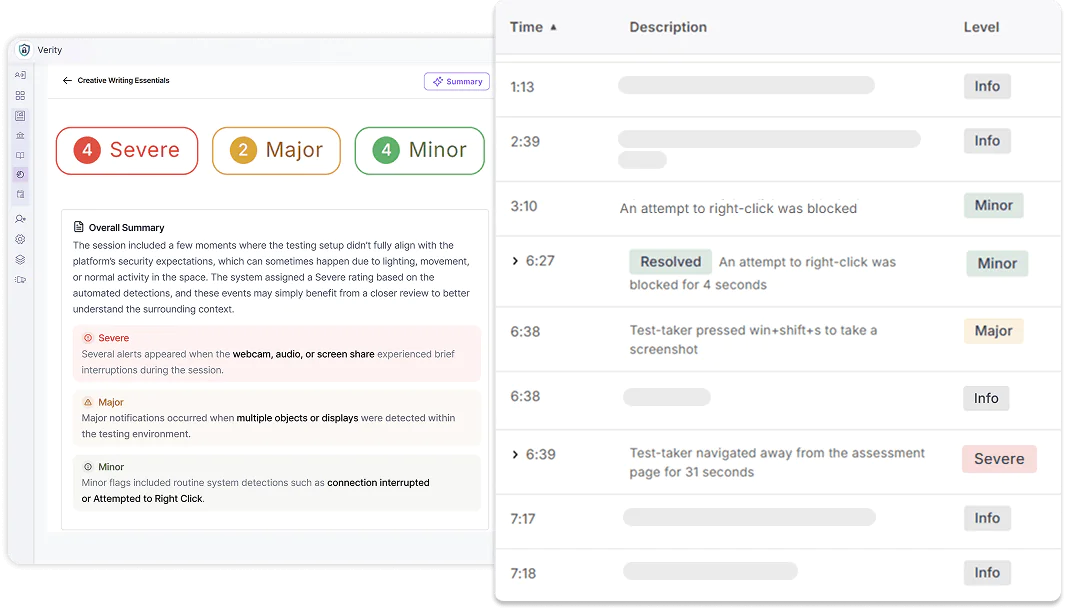
With over 30 types of monitored events that can be captured during an online assessment, including movement, sound, navigation, and connectivity, YuJa Verity tracks each instance that a flagged activity occurs and provides instructors with a timestamped report after the assessment to review a test-taker’s performance.
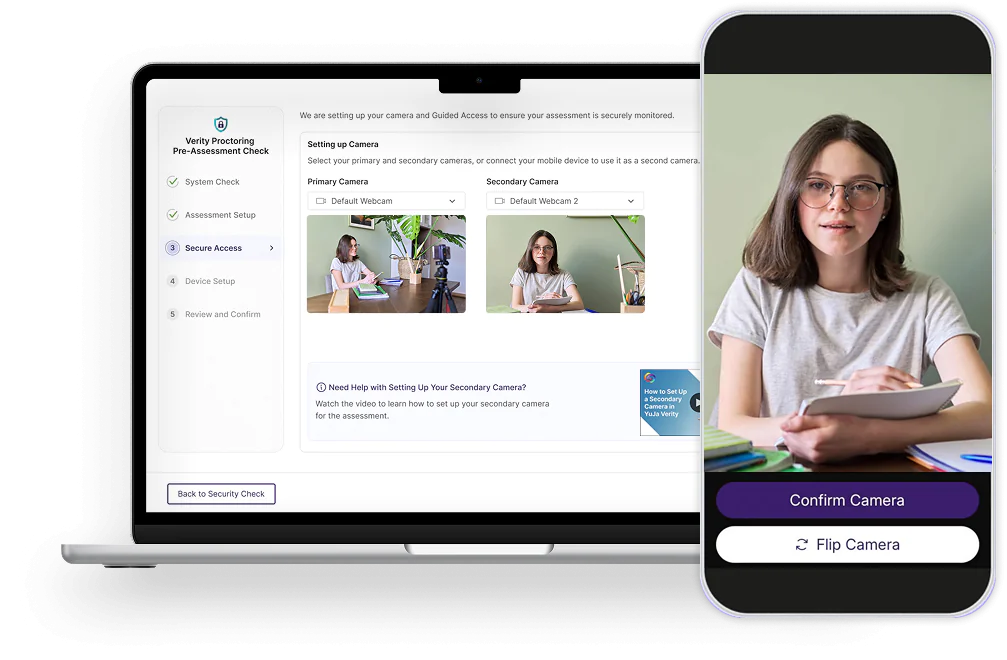
Instructors can request test-takers to capture their environment using two camera sources to help ensure that all movements and objects are properly documented. Test-takers with the YuJa Verity Mobile Lockdown App can also use their phone as a secondary camera.
Instructors can manually set each flag severity as Minor, Major, or Severe to properly reflect institutional policies, and specific course requirements.
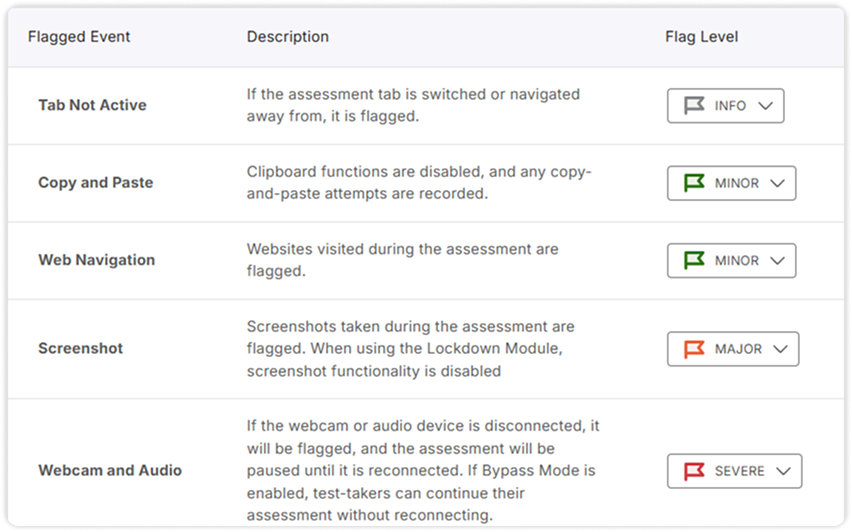
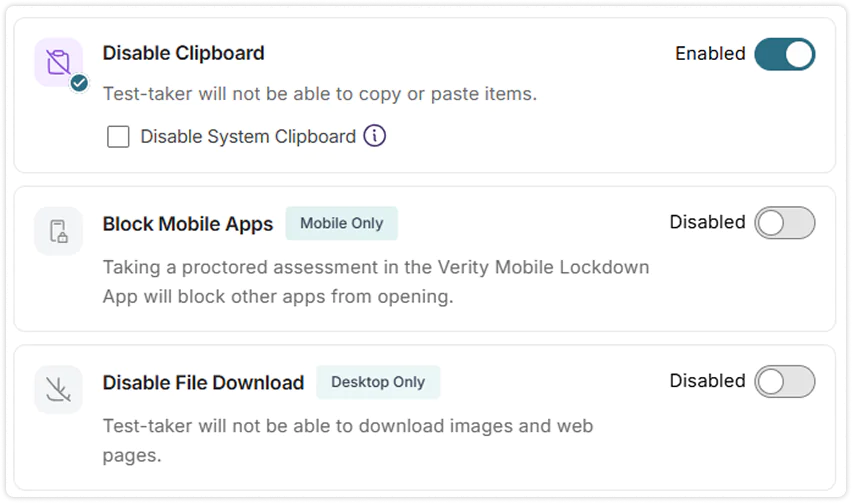
Depending on the type of assessment, instructors can tailor the proctoring experience by disabling some actions and external tools while permitting others.
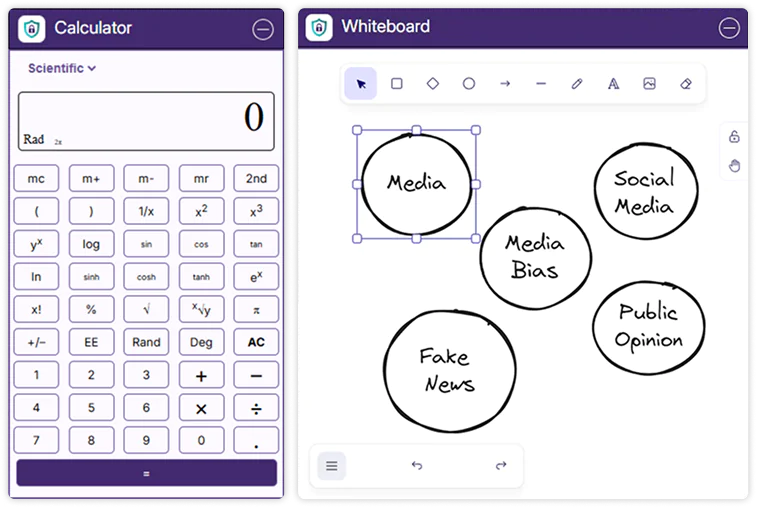
Instructors have the option to allow test-takers to use a built-in scientific calculator or whiteboard during an assessment, helping ensure test-takers do not use unauthorized devices or applications.
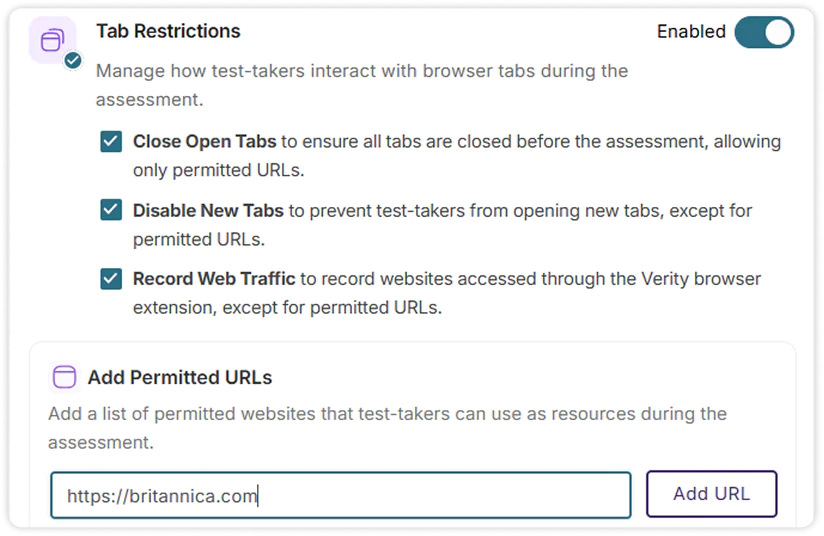
Specific websites and applications can be whitelisted during proctoring setup, allowing test-takers to access permitted aids during an assessment. Applications and websites used are tracked and documented for post-assessment review.

Screenshots taken during the assessment are flagged.

Loud audio disturbances will be flagged.

A flag is raised if faces are undetectable, or if more than one face is detected.
Test-takers outside of the geofence location will be flagged.

Attempts to access multiple displays, virtual machines, side panels, blocked applications, and decoy websites will be flagged individually.

An assessment will be paused and a flag will be noted if screen share is terminated by the test-taker.

Any internet connection issues and disconnections with the YuJa Verity server will be flagged.

Flags will raised for additional objects, such as computers, phones, tablets, and books in a test-taker’s environment.
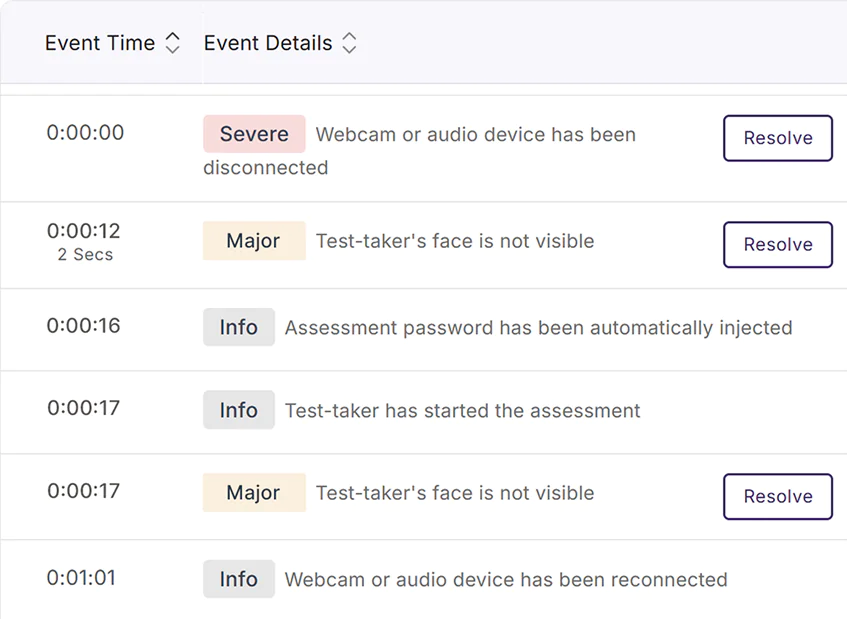
A detailed, timestamped report with all detected flags will be provided for each test-taker after each proctored session. Instructors can manually add new flagged incidents and resolve events after their review.
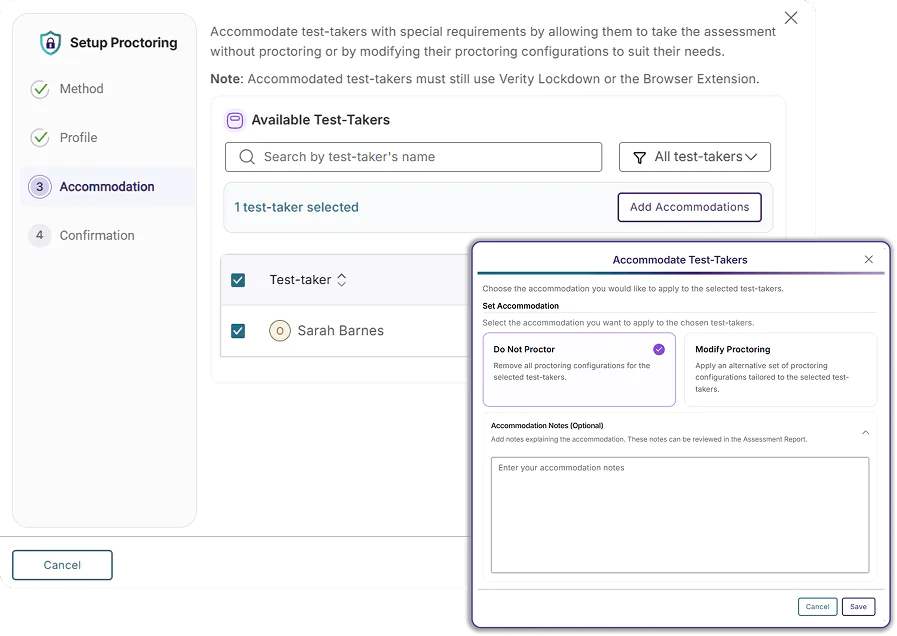
Instructors can create unique proctoring profiles for individual students based on their accommodation needs. These profiles are retained across multiple assessments, and can be applied to multiple test-takers at once.
YuJa Verity integrates with a wide selection of third-party assessment platforms such as Pearson, McGraw Hill, ALEKS, and others, enabling instructors to embed and proctor these assessments directly in their LMS.










Using YuJa Verity’s comprehensive automated and live proctoring solutions, California’s Columbia College is empowered to schedule, deliver, and monitor assessments in a unified interface that prevents cheating and deters academic dishonesty.
Learn More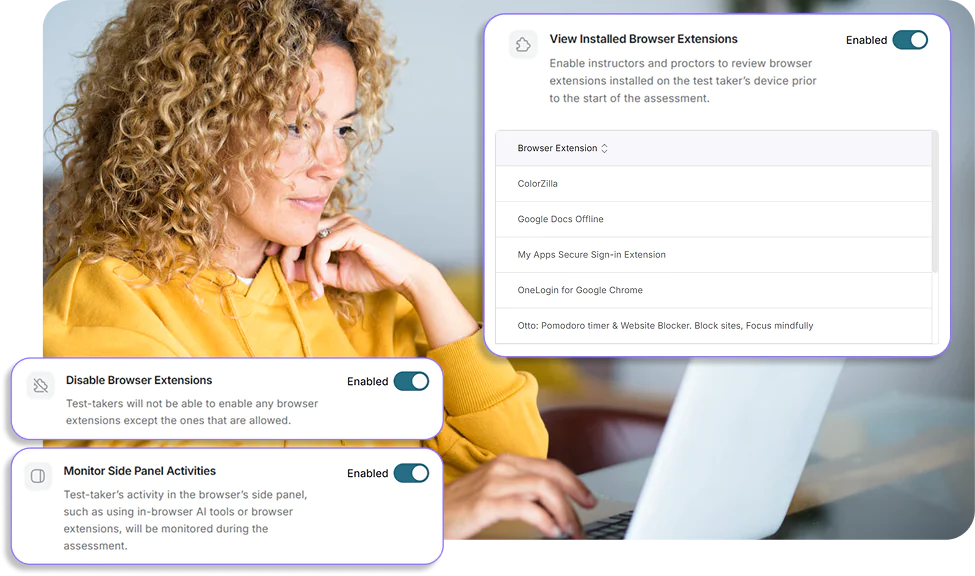
Configure your proctoring settings to prevent test-takers from using AI chat bots, browser extensions, and virtual assistants during an assessment. You can also review all browser extensions installed on a test-taker’s device and monitor their side panel activity for additional transparency and security.
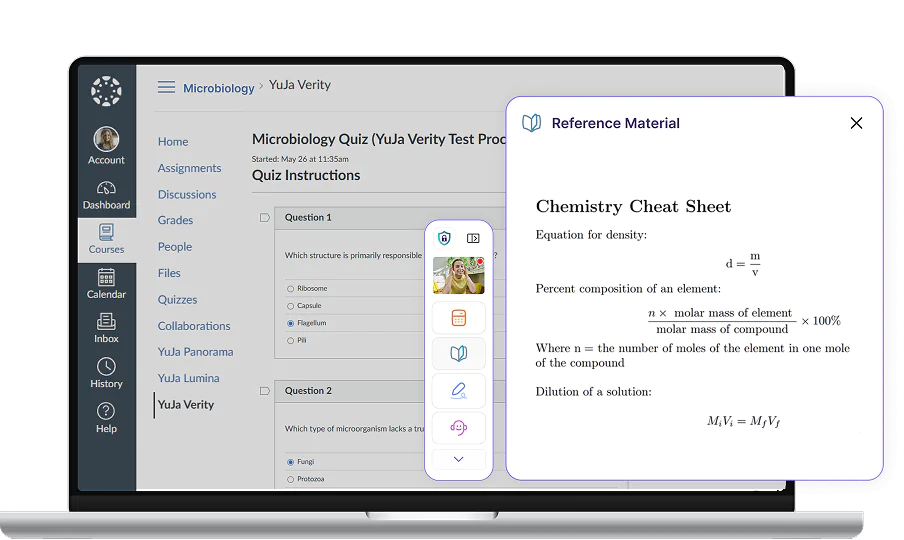
Provide materials such as course texts, formula sheets, vocabulary definitions, and more for students to use while maintaining the security of virtual assessments. Help ensure your students have access to standardized reference sheets, or enable students to engage in deeper learning by creating their own.
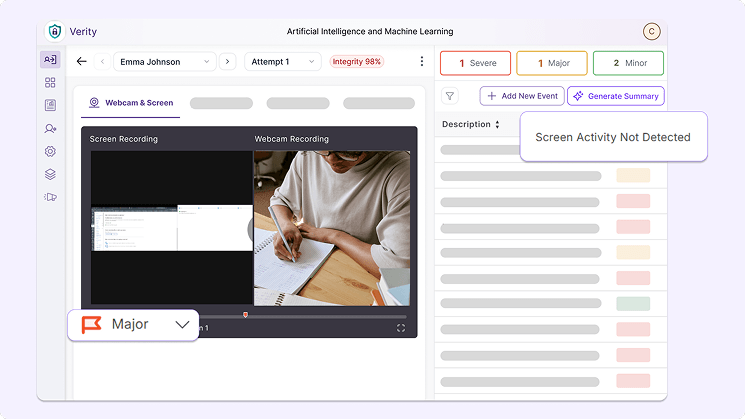
YuJa Verity automatically flags inactive recordings or motionless cursors so instructors can quickly pinpoint potential cheating for review. It also highlights screen-sharing errors and frozen cameras, delivering key insights into assessment incidents.
Join the 1,000+ Organizations Deploying High-Impact Solutions