Product Updates

Get the latest platform updates, features, and announcements—all in one place.

  • August 2, 2024

    YuJa AudioName Platform – August 2024

    We have successfully launched a new add-on to all YuJa Panorama Digital Accessibility Platform instances residing in the US, Canada, Australia, Singapore, the Middle East, and the European Union.


    AudioName PRO allows you to record the pronunciation of your name and select your preferred pronouns so that others can address you correctly.

    1. Use AudioName to Create an Inclusive Learning Environment With Name Coaching

      AudioName allows you to introduce yourself exactly how you want, promoting an inclusive learning environment that enables others to read, pronounce, and hear your preferred name.
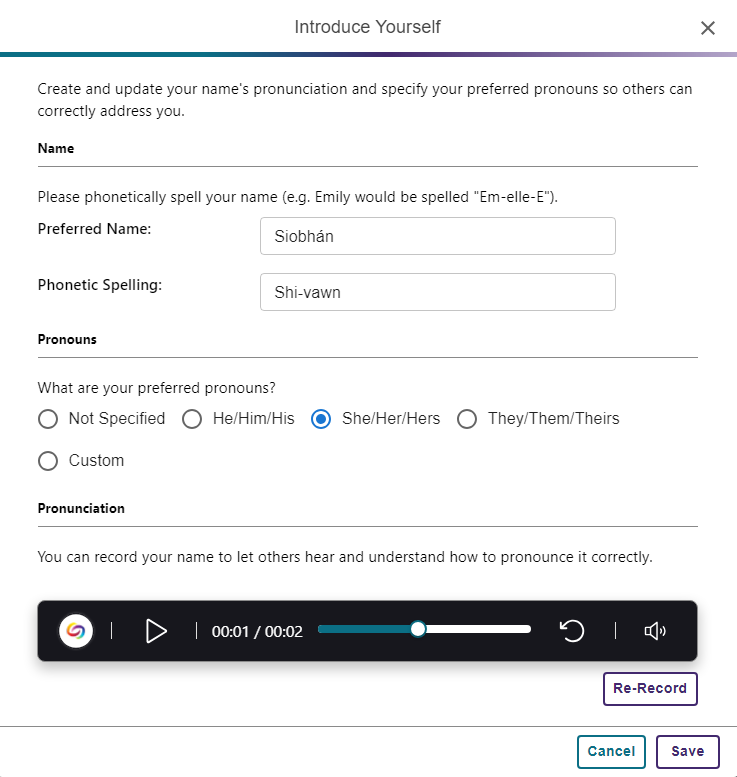
      AudioName's settings to enter your name and record it's pronunciation.
    2. Listen to Names to Hear their Correct Pronunciation

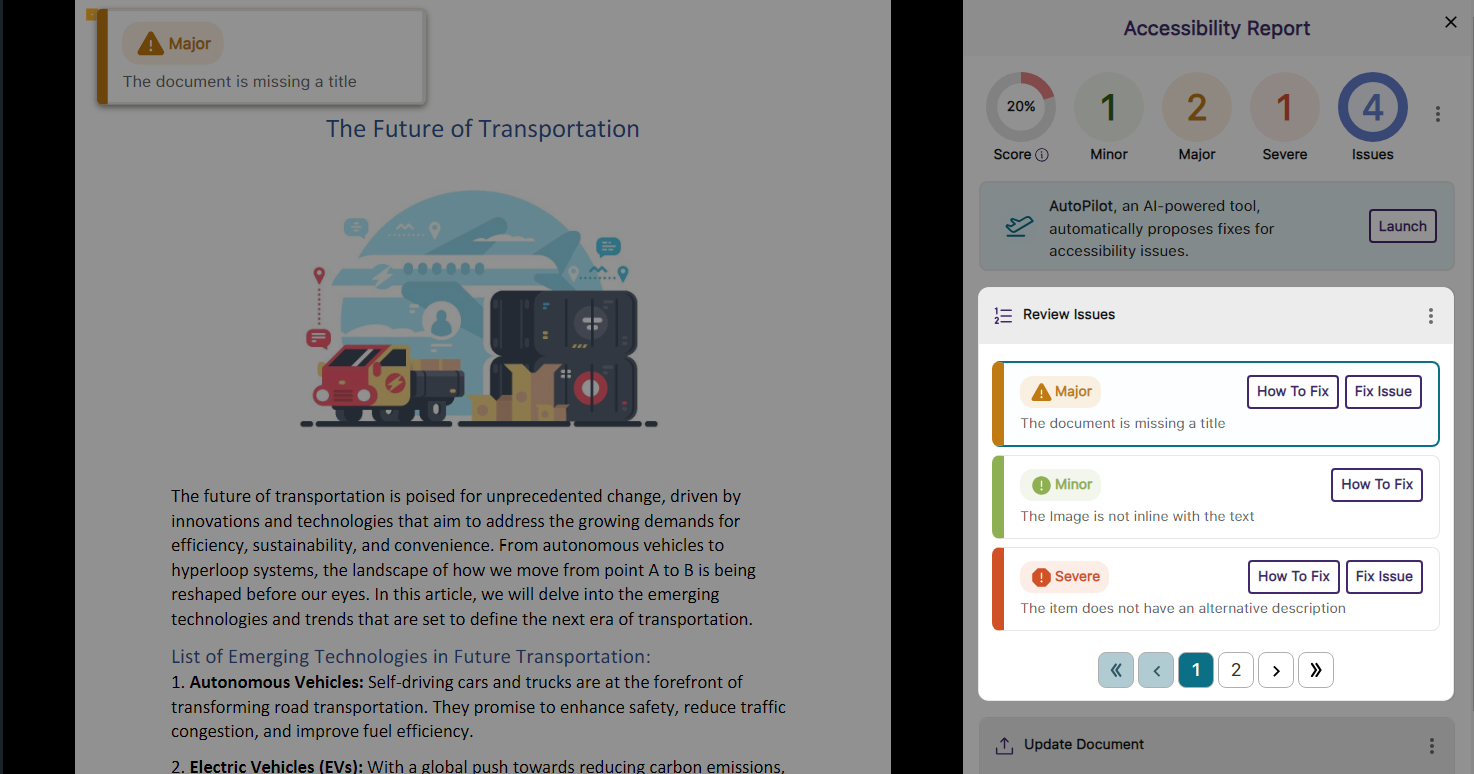
      Not sure how to pronounce someone’s name? We’ve all been there. With AudioName, you can listen to an audio recording of the person pronouncing their name.
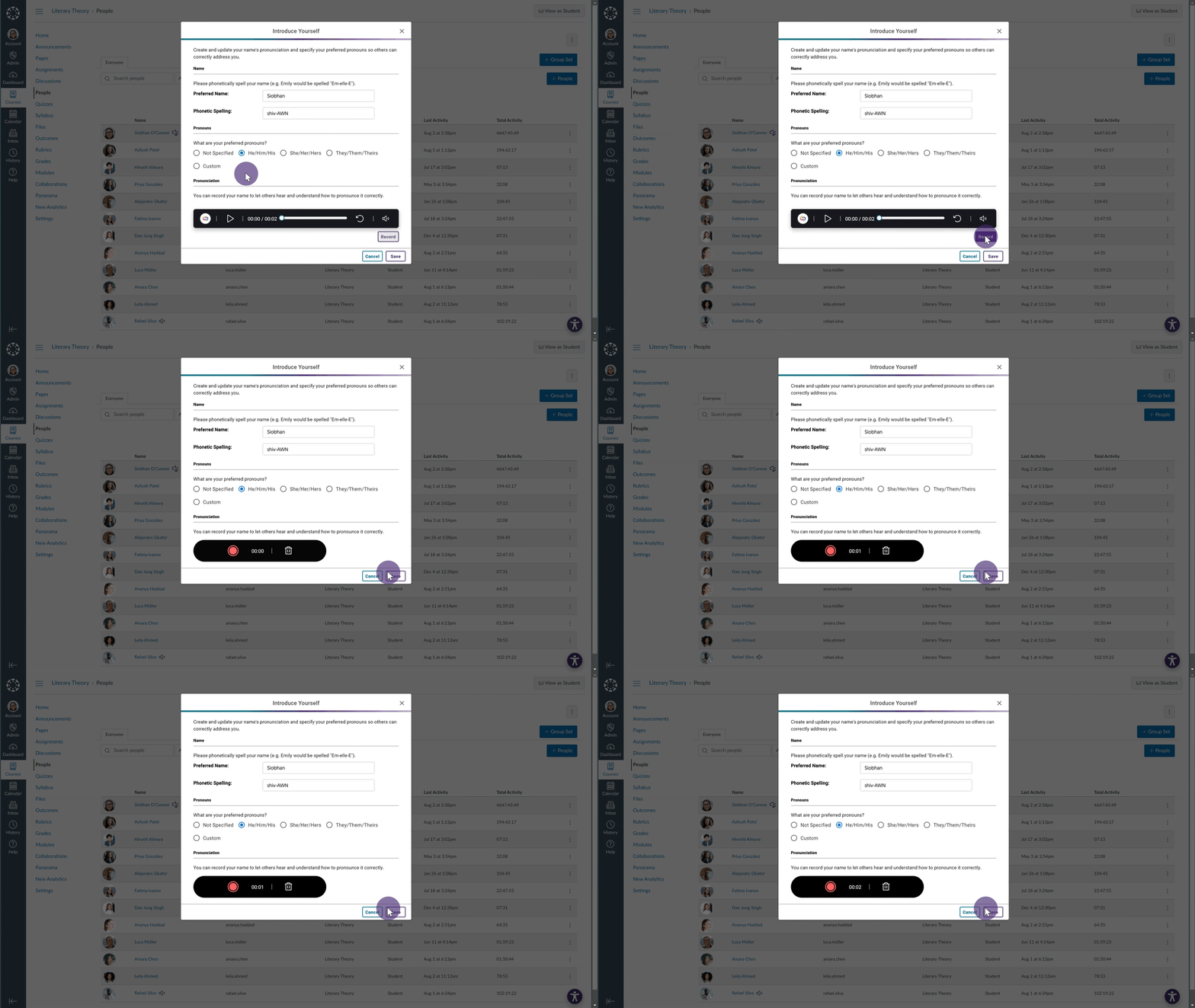
      The pronunciation of a name is recorded.
    3. Create a Sense of Belonging by Selecting Your Preferred Pronouns

      With AudioName, you can choose your preferred pronouns, ensuring that others can address you correctly and respectfully.
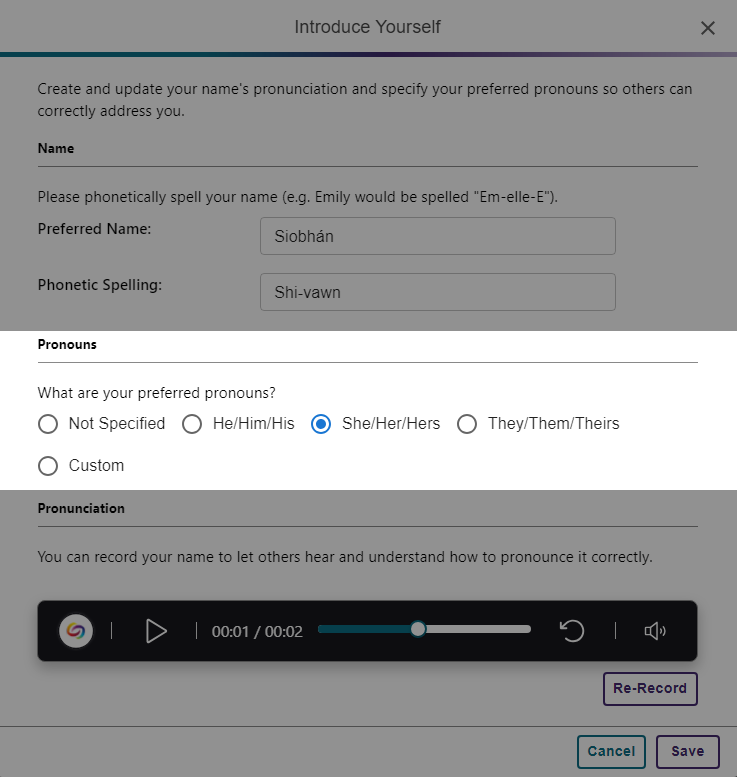
      The option to select pronouns in AudioName Pro is shown.
  • August 2, 2024

    YuJa Panorama Digital Accessibility Platform Update – August 2024

    We have successfully pushed an update to all YuJa Panorama Digital Accessibility Platform instances residing in the US, Canada, Australia, Singapore, the Middle East, and the European Union.
      This update includes web and HTML view for WYSIWYG content, preview adjustments for color contrast issues, disable scans for unpublished content in Canvas,  a new accessibility check for outdated file formats, customized branding for the Panorama LTI navbar, support for detecting accessibility issues in the WYSIWYG editor for Canvas Quizzes,  support for Moodle page descriptions, a manual override for the reading order check, improved processing speeds when generating reports, and more.
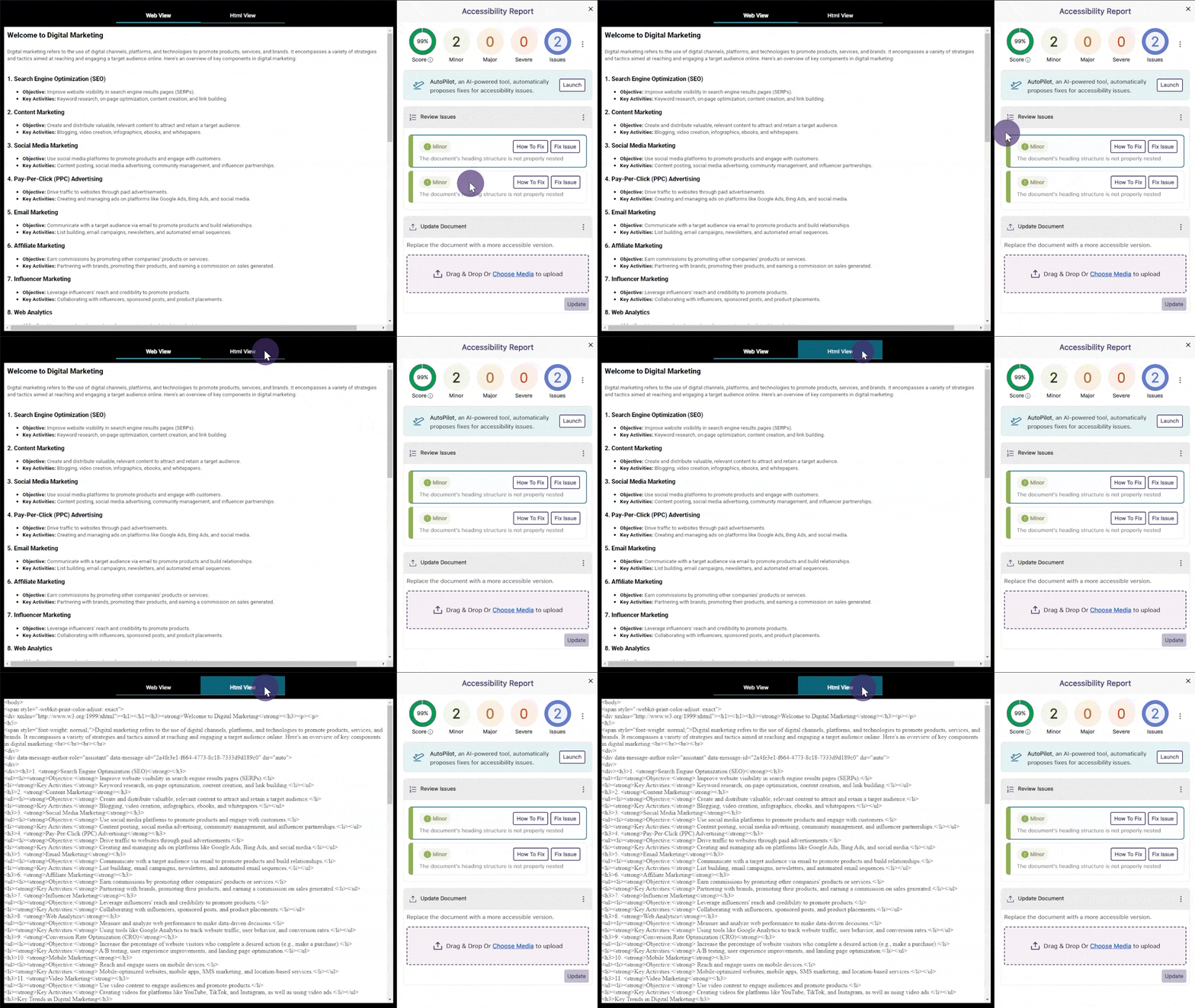
    1. Accessibility Reports Offer Web and HTML View for WYSIWYG Content Content creators can review their WYSIWYG Accessibility Reports in a visual web format or HTML text. The web format lets creators see their content exactly as it appears to others, while the HTML view provides insight into the page’s structure to review issues. The Accessibility Report shows the HTML and Web view for a page.
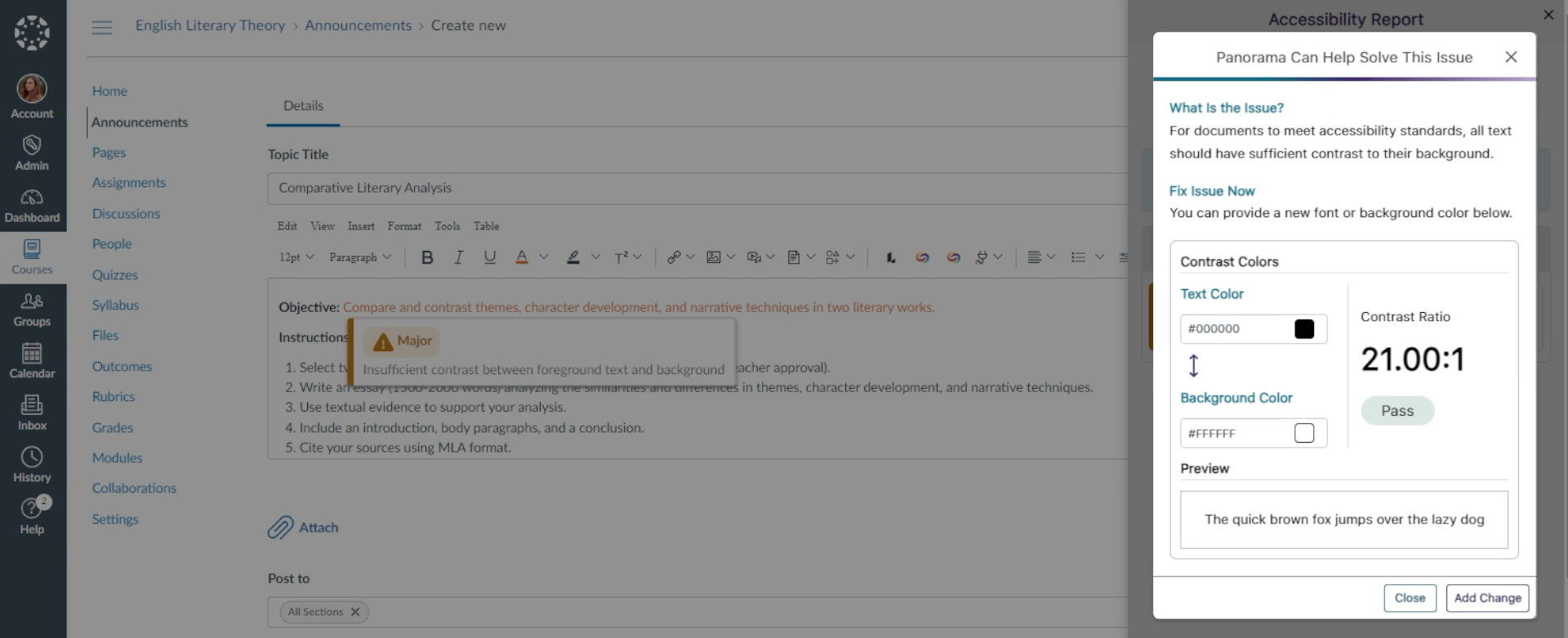
    2. Preview Adjustments When Resolving Color Contrast Issues When addressing insufficient contrast between text and background colors, Panorama provides a preview and calculates the contrast ratio to ensure your newly selected colors meet accessibility standards. A color contrast issues is shown with a preview of the new changes that will be applied.
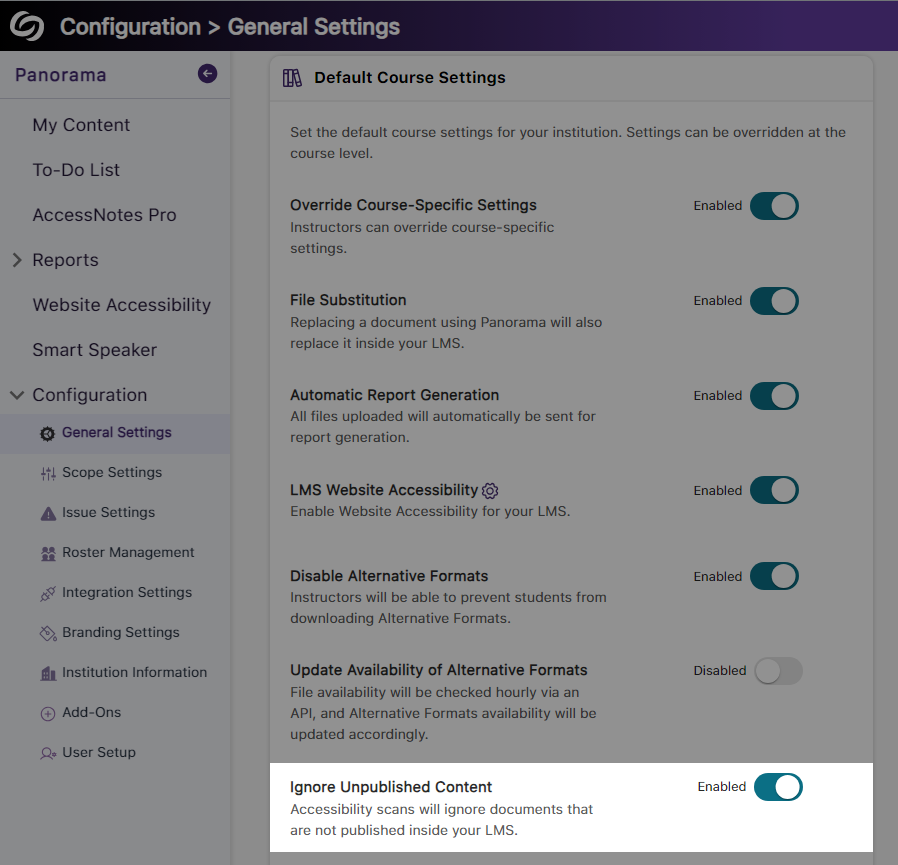
    3. Disable Accessibility Scans for Unpublished Content in Canvas Canvas admins and instructors can disable accessibility scans for unpublished documents and pages, ensuring that course and institution accessibility scores reflect only what is available to view. The setting to ignore unpublished content.
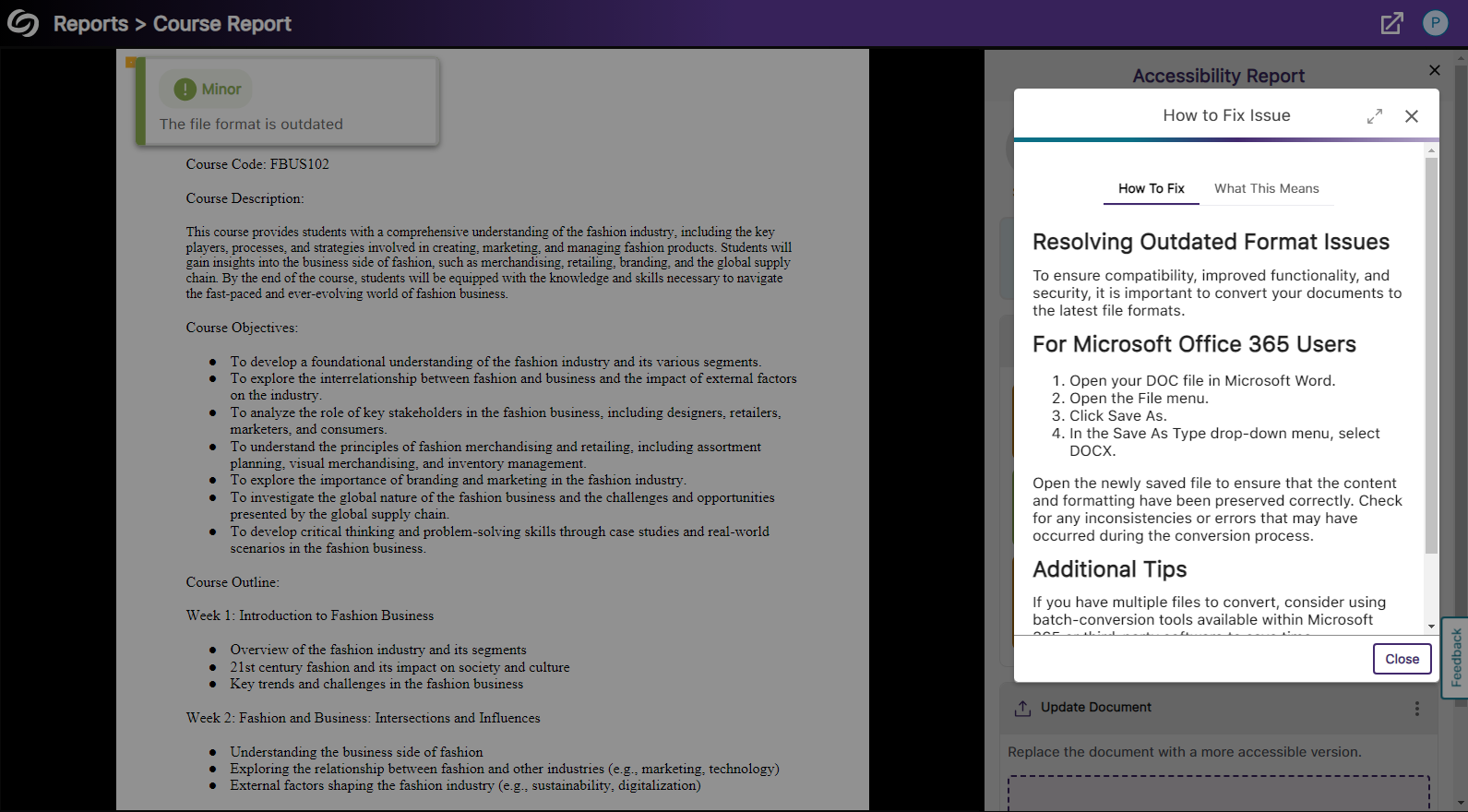
    4. New Accessibility Check for Outdated File Formats The Accessibility Report will verify that DOCX, PPTX, and XLSX documents are updated to the latest file versions and provide steps for updating them if needed. The outdated file format issue is shown with steps on how to resolve it.
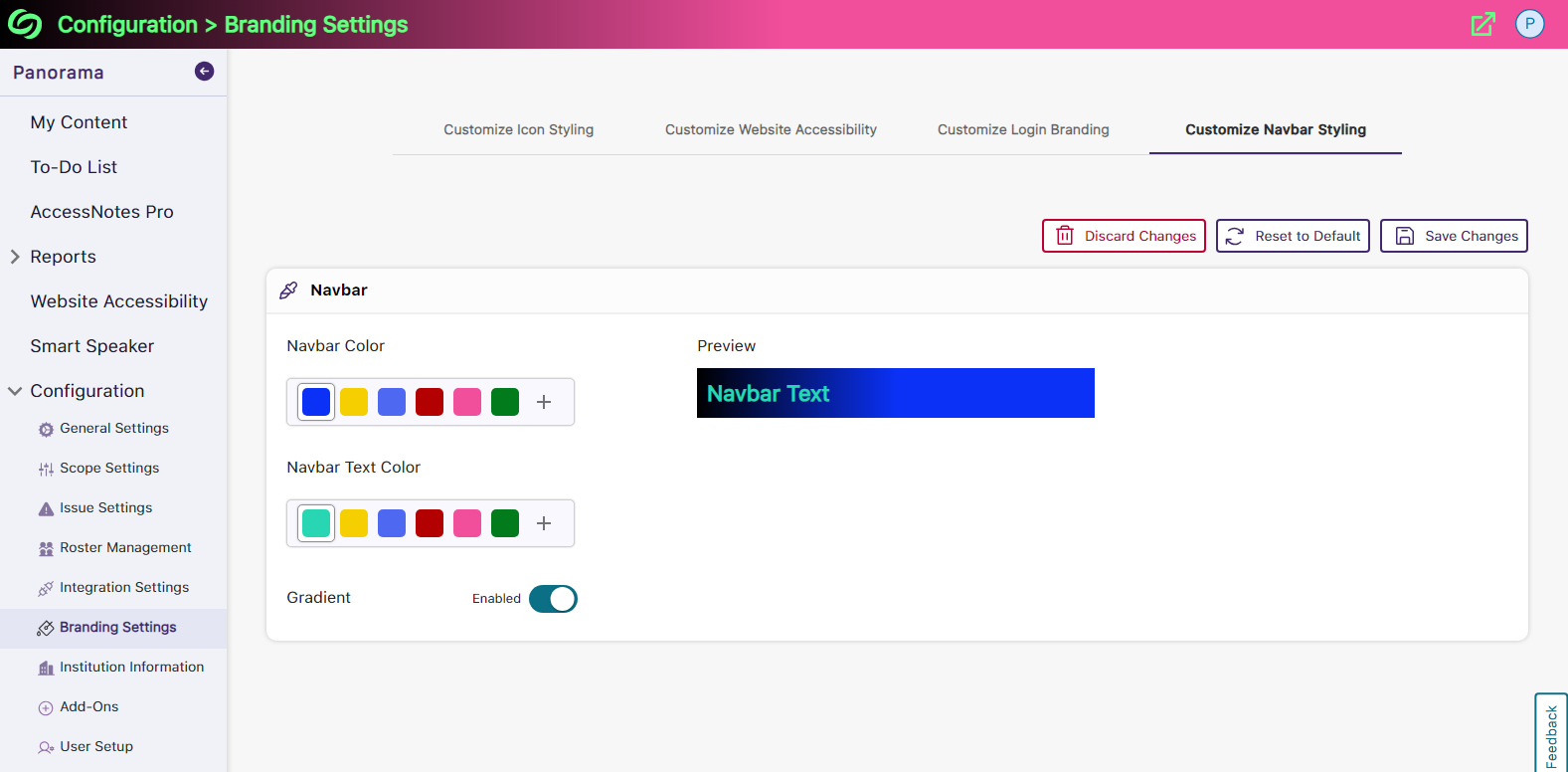
    5. Customize the Branding of the Panorama LTI Navbar The background and text color of the Panorama LTI navbar can be customized to match your institution’s branding. Navbar branding settings showing option to adjust background and text colors.
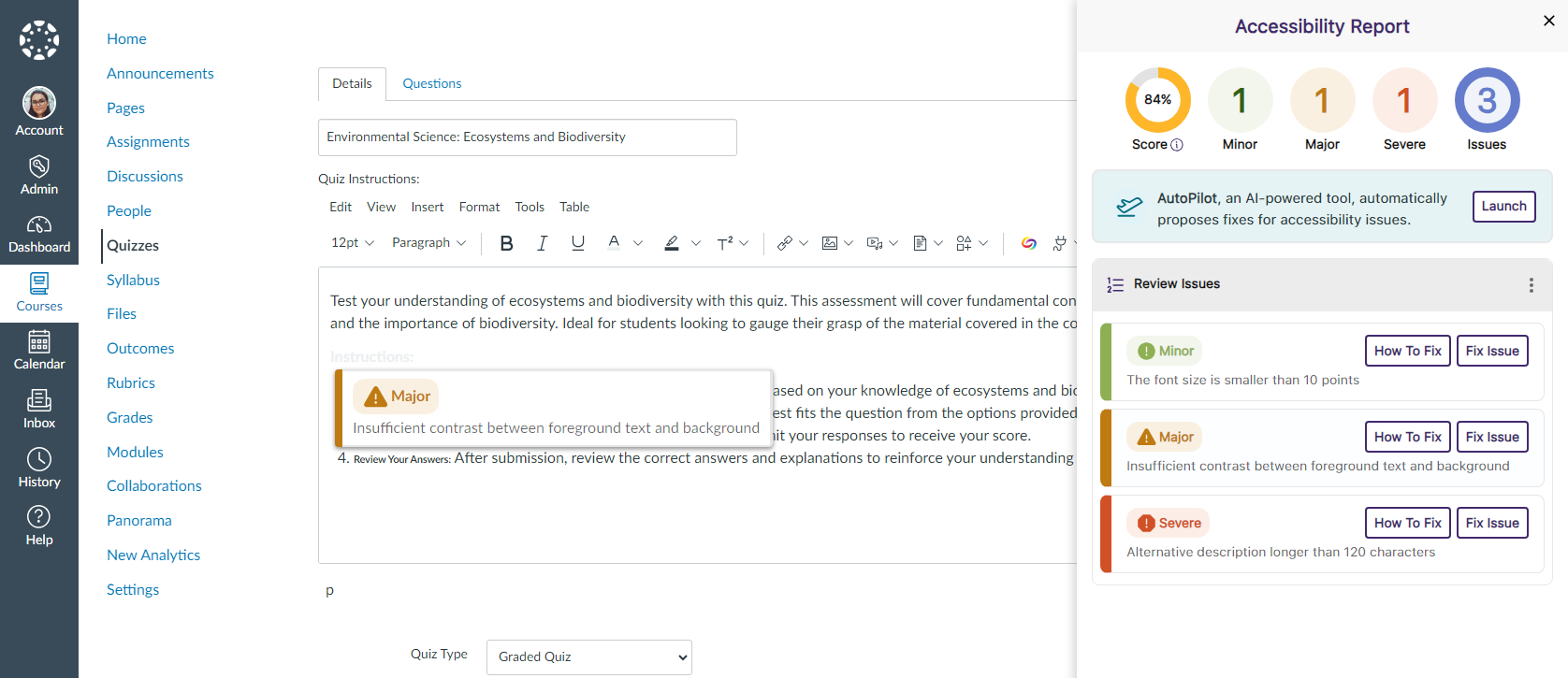
    6. Expanded Support for the WYSIWYG Editor Inside Canvas Quizzes As part of our ongoing efforts to increase accessibility in all areas of Canvas, we now support real-time accessibility checks within the WYSIWYG editor for Quizzes. The Accessibility Report is shown in Canvas Quizzes.
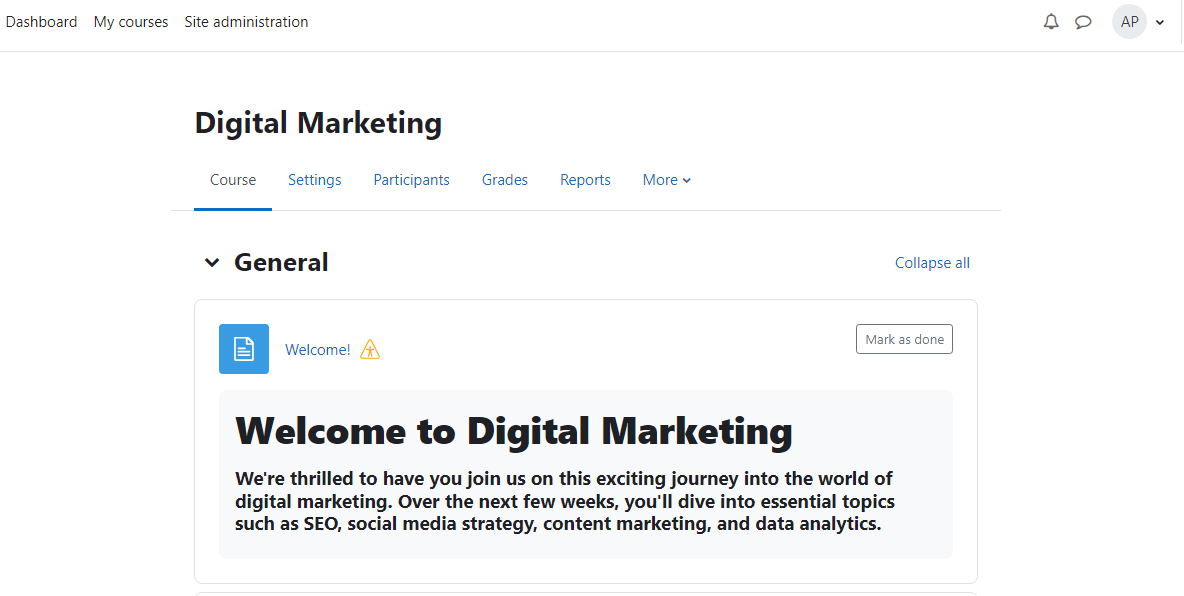
    7. Moodle Page Descriptions Will Be Scanned to Detect Accessibility Issues We have expanded Panorama’s capabilities to include an Accessibility Report for descriptions created on Moodle Pages. The Panorama Accessibility icon is shown for Moodle.
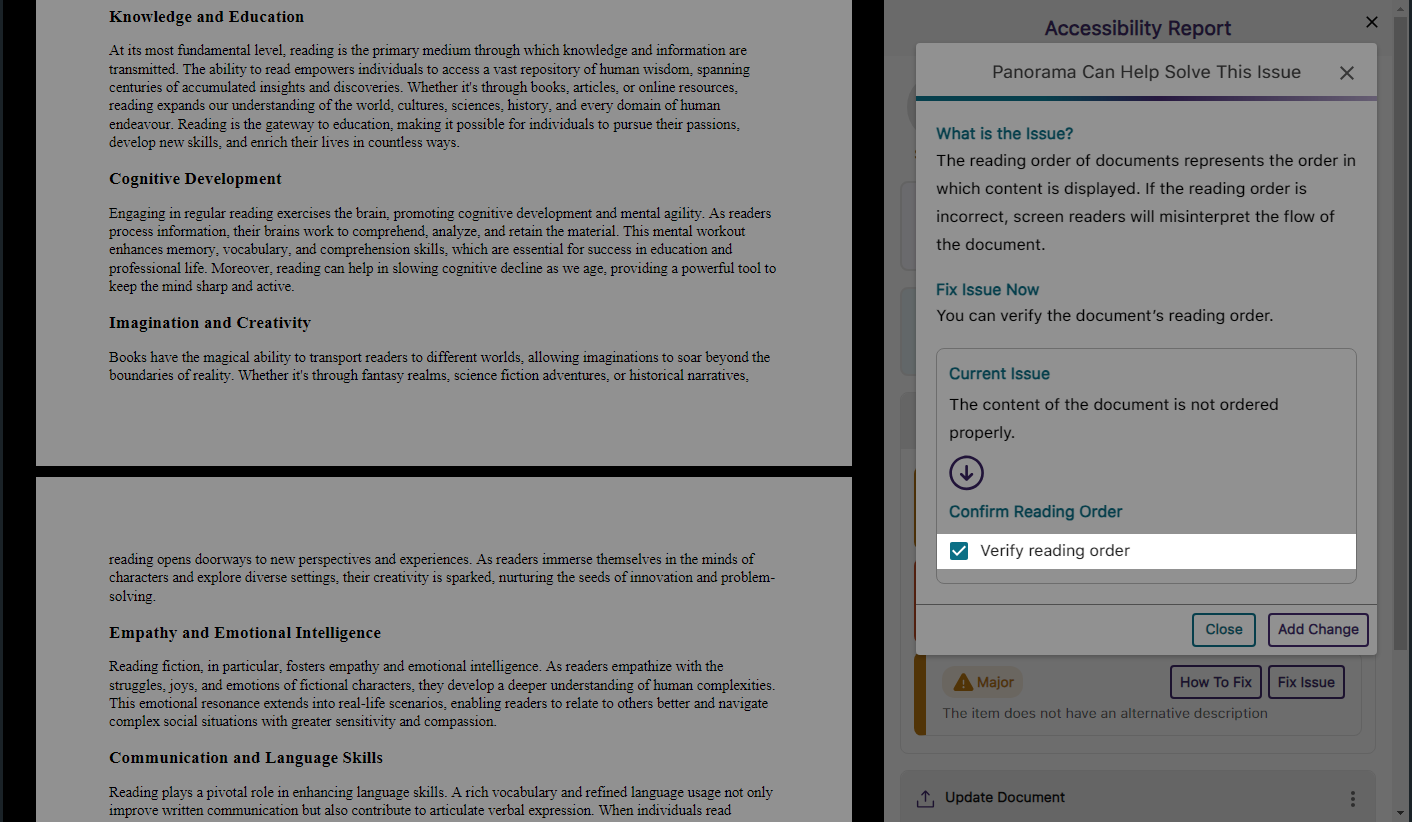
    8. Manually Verify the Reading Order of Documents In cases where Panorama identifies the reading order as an issue, content creators may prefer to retain their original order. To accommodate this, we’ve introduced a “Verify reading order” checkbox, which will prevent Panorama from flagging the reading order issue upon rescanning the document. The reading order checkbox is shown in the Accessibility Report.
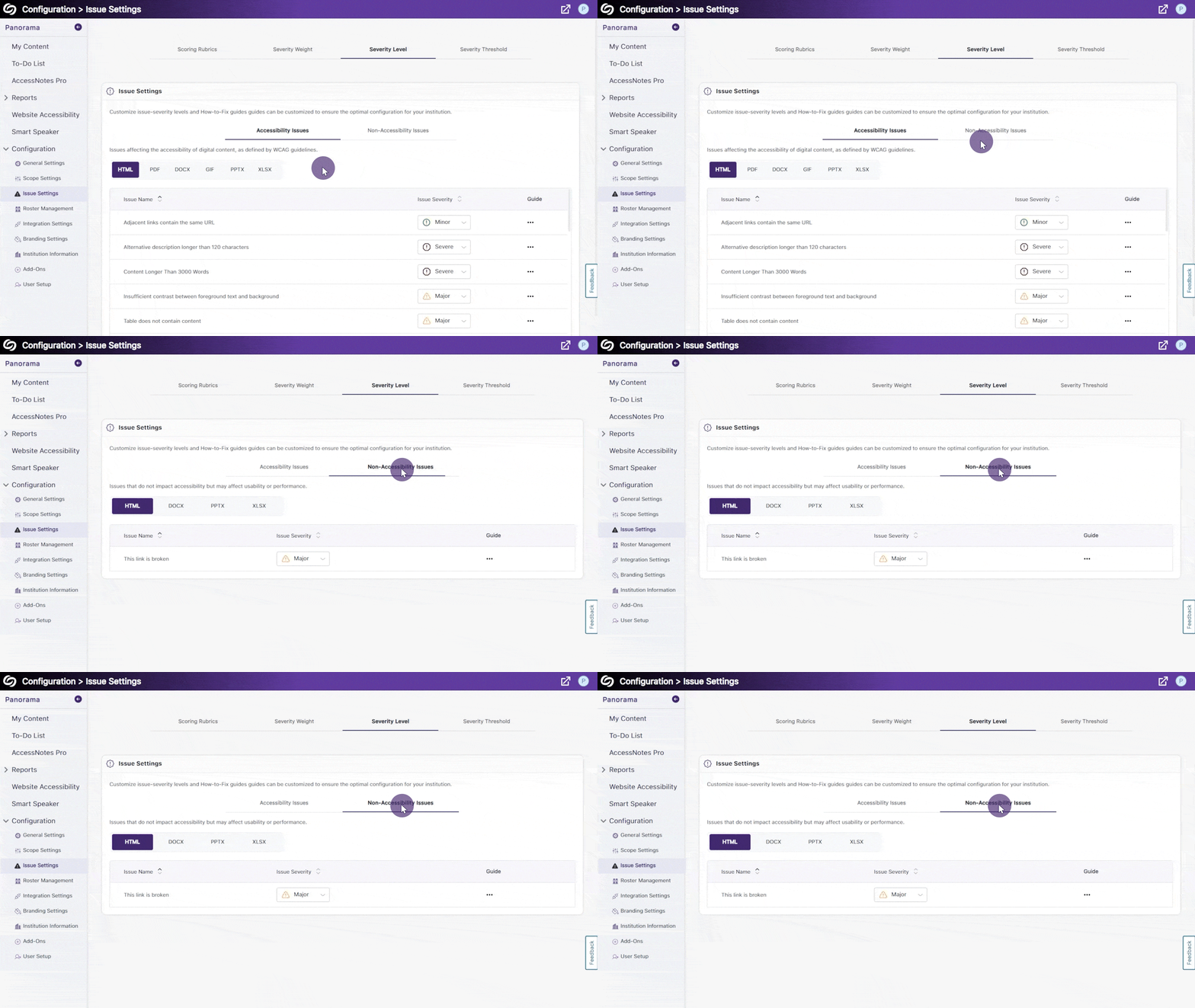
    9. View an Organized List of Accessibility Issues and Non-Accessibility Issues With Panorama’s vast range of checks, it’s important for content creators to recognize that some issues detected by Panorama may not directly impact a document’s accessibility but could affect its usability, such as a document containing broken links. To help distinguish between these issues, the Issue settings now include two separate tabs: Accessibility Issues and Non-Accessibility Issues. Accessibility issues and non-accessibility issues are shown.
    10. Improved Iconography and UI When Reviewing Issues in the Accessibility Report We’ve enhanced the iconography and user interface of the Review Issues panel in the Accessibility Report to more clearly indicate the severity levels of the issues being reviewed. New Issue iconography shown in the Accessibility Report.
    11. Improved Processing Speeds for Requested Reports We’ve optimized our processing times to ensure downloadable reports are received more quickly.
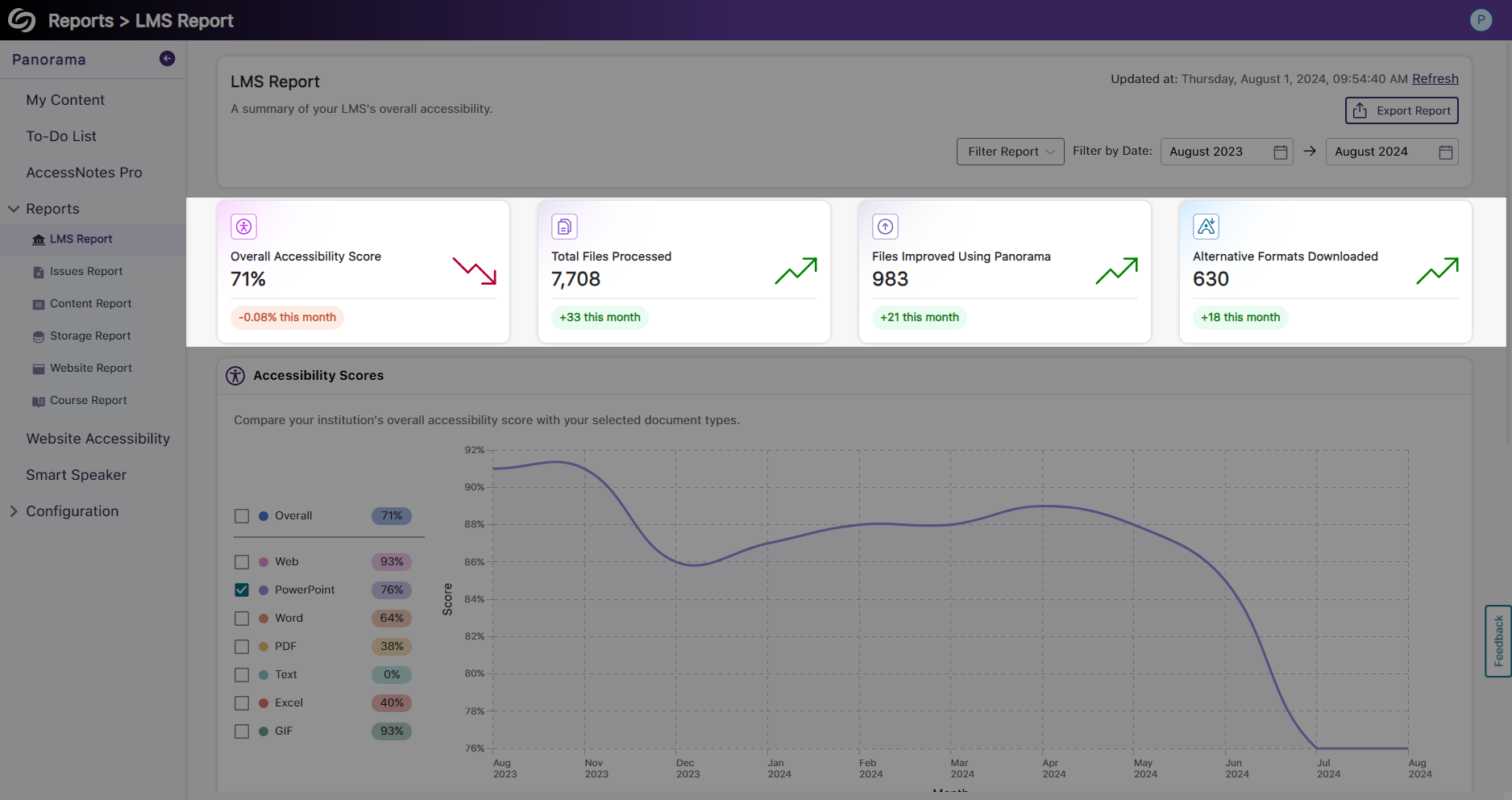
    12. View Live Data on the Current Month’s Accessibility Trends The highlight cards in each Panorama report provide a quick snapshot of the current month’s trends, allowing you to easily compare the accessibility performance of various areas. Highlight cards in the LMS report showing the current month's trends.
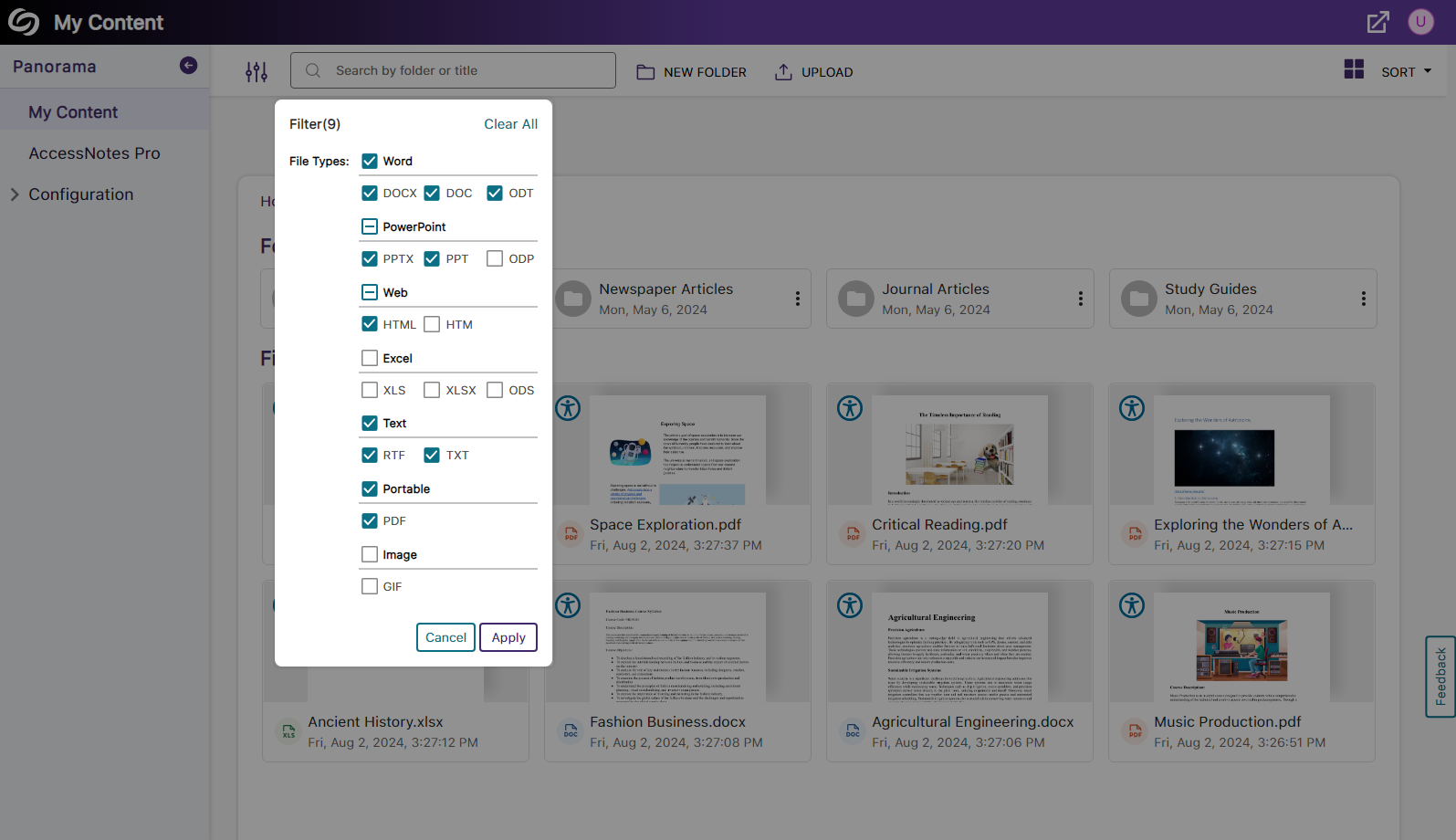
    13. In-Depth Filtering for Search Results in My Content The My Content section in Panorama now features in-depth filtering options to search results based on specified files. The My Content page shows a list of filters by file type.
    14. RESTful APIs Can Filter Accessibility Scores When using Panorama’s APIs to retrieve data, users can now retrieve accessibility scores based on sub-accounts, courses, and terms.
  • July 30, 2024

    Software Capture for PC and Apple Update – July 2024

    We have successfully pushed an update for Software Capture for PC and Mac to all instances residing in the US, Canada, Australia, Singapore, the Middle East, and the European Union.

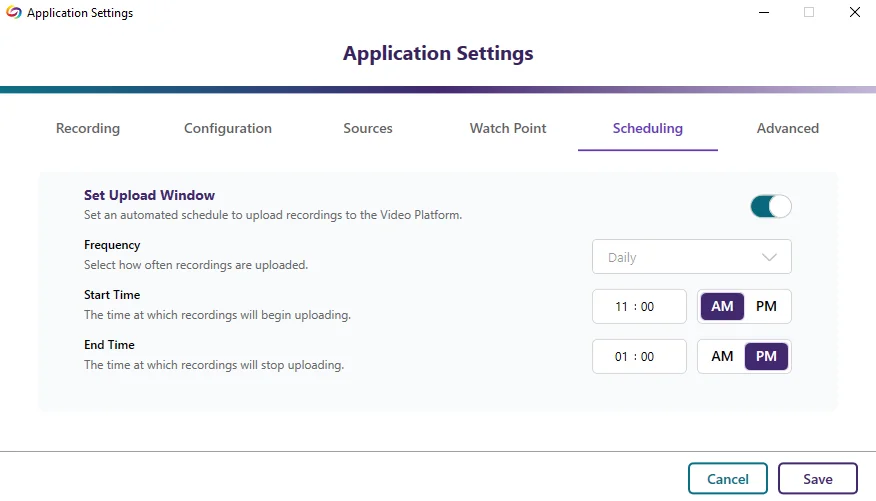
    For the YuJa Software Capture for PC, this update includes the option to create a scheduled window for uploading recordings, on-screen highlights to show the recordings state, the option for Software Capture to automatically open after finishing a recording, and optimized live stream screen recordings to use less CPU resources.
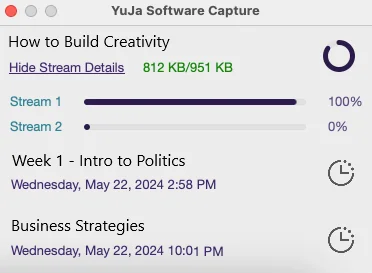
    1. Ability to Create a Scheduled Window for Uploading to the Video Platform During Off-Peak Hours Institutions that would like their recordings uploaded to the Video Platform only during specific time frames can now create permitted upload windows. For institutions with network-constrained infrastructure, this enables uploads to happen during off-peak hours. The application settings scheduling option.
    2. On-Screen Highlight to Show the Recording State To give on-screen indications of the recording status of Software Capture, content creators can enable an option to view a highlighted border around their screen capture source (which is not visible in the resultant recording). The highlighted border will indicate whether their recording has yet to start, is in progress, or is paused. The border color for a screen source is shown changing.
    3. Software Capture Will Automatically Reopen After Recordings are Uploaded or Discarded Content creators who want to make multiple recordings consecutively or discard and restart their current recording will no longer need to manually relaunch and log in to the Software Capture application. We have added a new feature that, when enabled, will automatically reopen the application. The reopen software capture setting in recording options.
    4. Optimized Live Stream Screen Recordings to Utilize Less CPU Resources By optimizing our live stream encoding, content creators will experience up to 30% reduced CPU usage when capturing their screen sources.
    For the YuJa Software Capture for Apple, this update includes options for adjustable file size of recordings, customizing the frame rate of video sources, adjusting the orientation of the video feed, and new hotkeys to dynamically control sources.
    1. Adjust the File Size of the Final Recording by Selecting Your Preferred Video Quality Content creators can enhance their recordings by selecting from six video-quality presets, each offering different levels of compression. The highest quality preset ensures no compression, preserving the video in its original detail but resulting in a larger file size. The lowest-quality preset applies the most compression, making files smaller and easier to transfer. The advanced options for selecting a video quality.
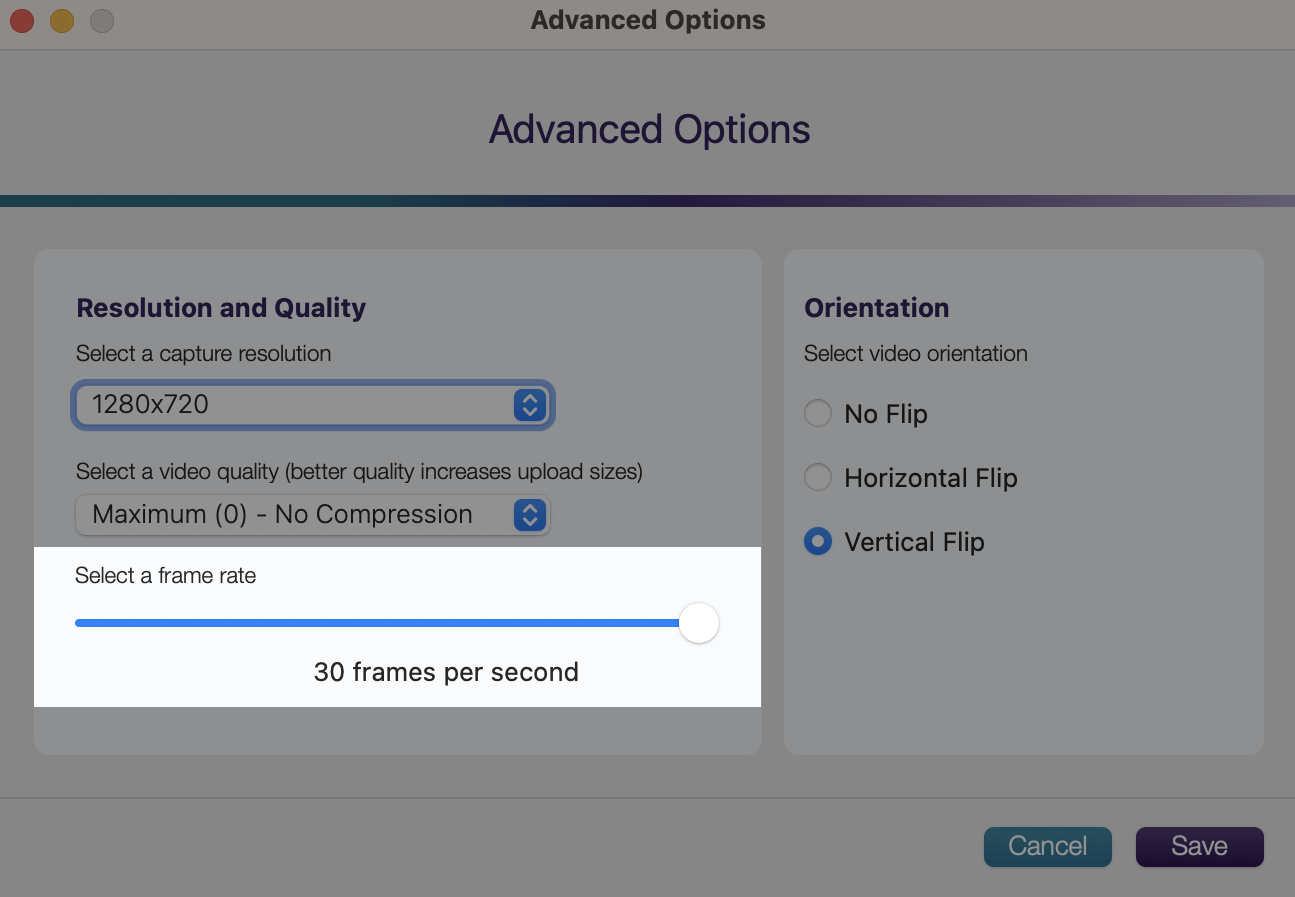
    2. Customize the Frame Rate of Video Sources Content Creators can adjust the frame rate of their video source based on what their video camera supports. The frame rate for the video feed is set to 30 fps.
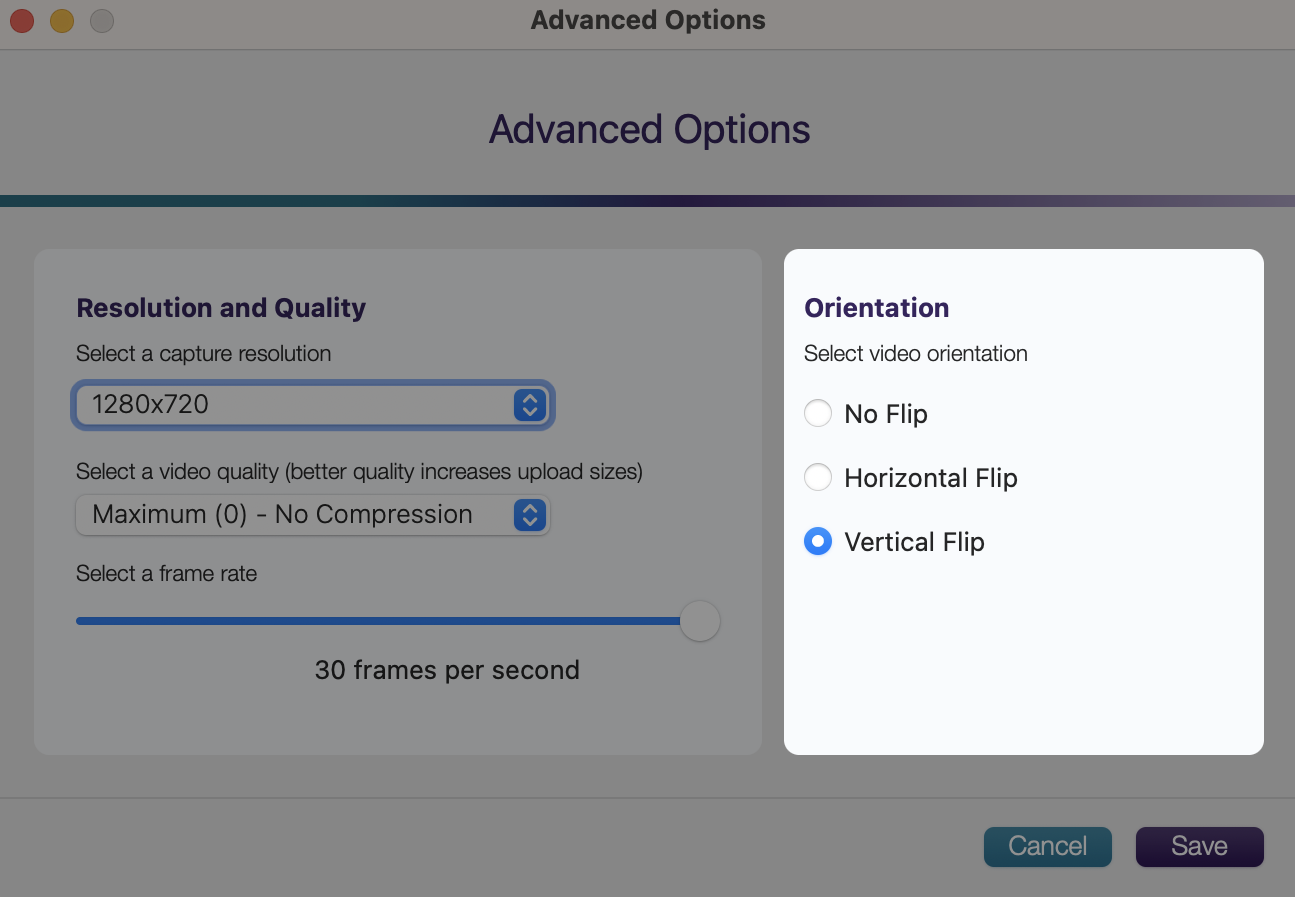
    3. Adjust the Vertical or Horizontal Orientation of the Video Feed Content creators have the option to flip their video recordings either horizontally or vertically. The option to change the orientation of the video feed.
    4. New Hotkeys to Dynamically Control Sources We’ve added new hotkeys for camera, audio, and screen sources to automatically enable or disable them before starting your recording or during the recording. The hotkeys are shown in the application settings.
  • June 21, 2024

    YuJa Panorama Digital Accessibility Platform Update – June 2024

    We have successfully pushed an update to all YuJa Panorama Digital Accessibility Platform instances residing in the US, Canada, Australia, Singapore, the Middle East, and the European Union. This update includes scoring rubrics to define how accessibility scores are calculated, a new audio player for Alternative Formats, use Panorama with Power BI, redesigned reports across the platform, semantically structured audio formats and Gradient Reader, publish OCR Reconstructed HTML content into Canvas as a page, customize the highlight color of issues, elements within documents will be highlighted when using PDF Remediation Engine Max, and more.
     
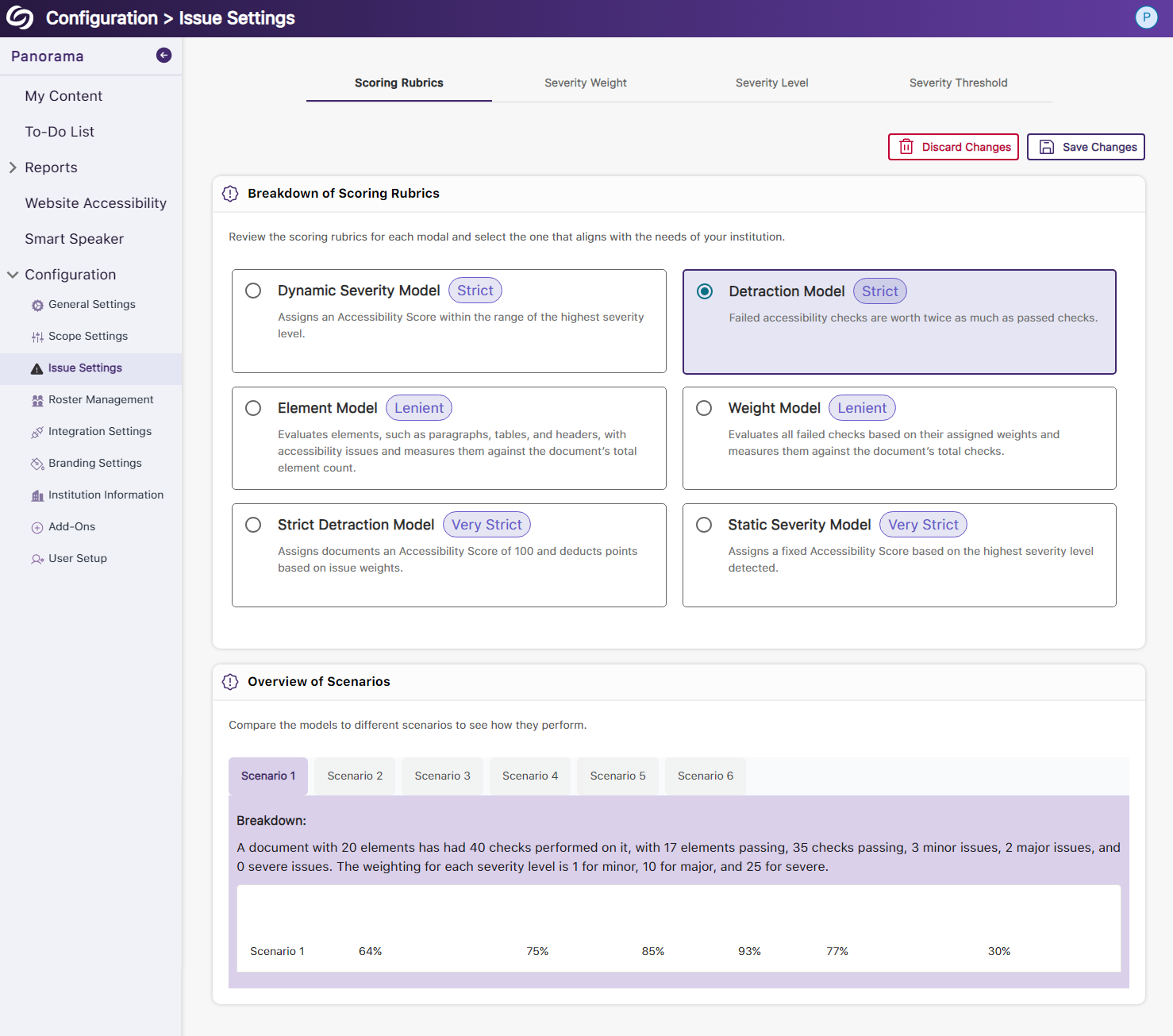
    1. New Scoring Rubric to Define How an Institution’s Accessibility Scores Are Calculated Considering an institution’s unique accessibility requirements, they now have the option to choose from various scoring rubrics that will be applied across their Panorama instance. These scoring rubrics will determine the accessibility scores of documents based on a strict set of criteria. To know how each rubric aligns with the types of documents an institution might have, administrators can review different scenarios to determine which rubric best suits them. Panorama's Scoring Rubric page showing various rubric modals and detailed scenarios.
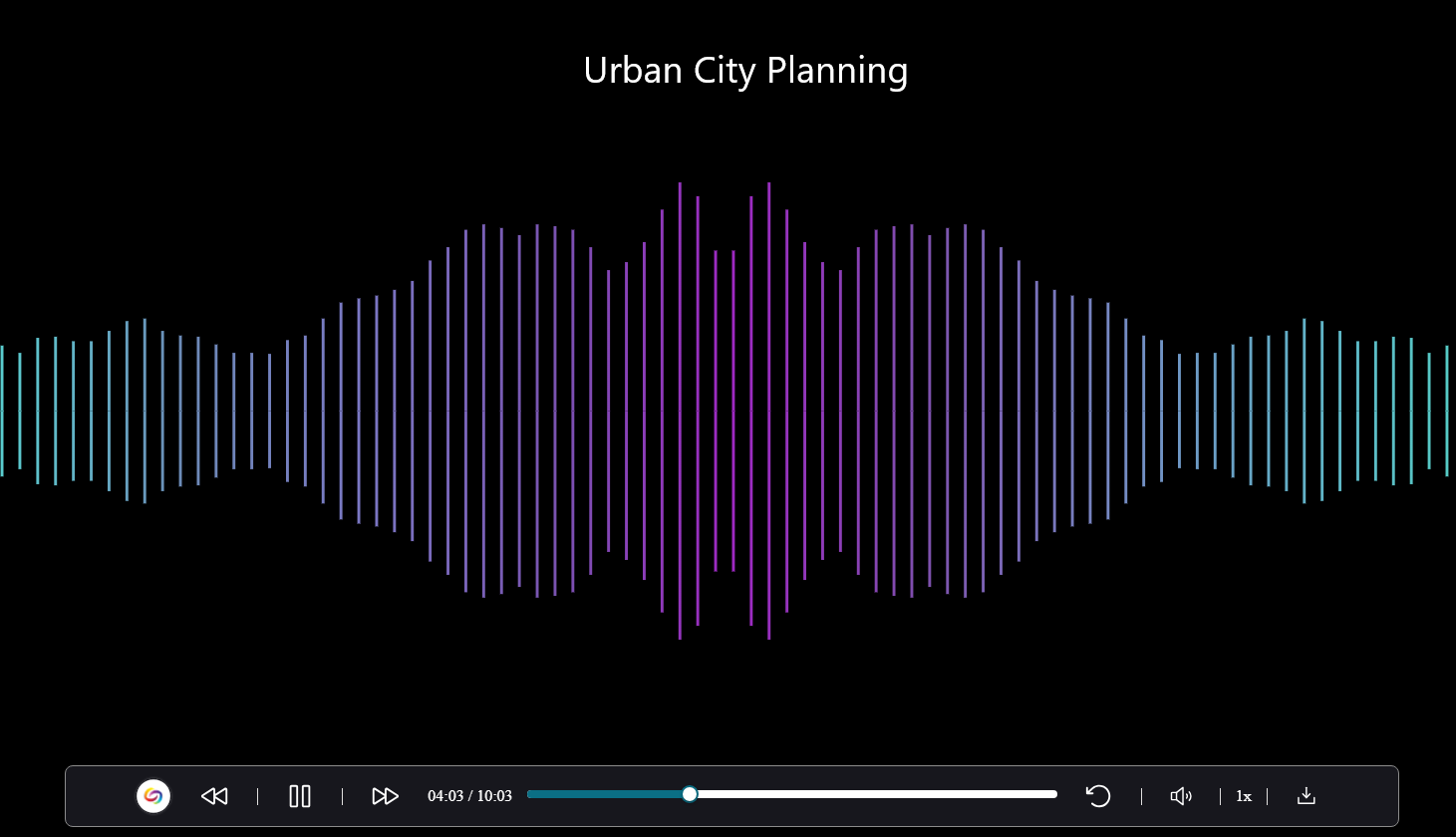
    2. New Audio-Player for Audio Podcasts and OCR Audio with Visual Waveform and Playback Speed Controls Our recent UI update incorporates a waveform to help visualize playback for audio-based Alternative Formats, including Audio Podcast and OCR Audio. Additionally, we provided speed controls, allowing listeners to customize the audio playback speed according to their preferences. A waveform is shown as a visual representation of the audio.
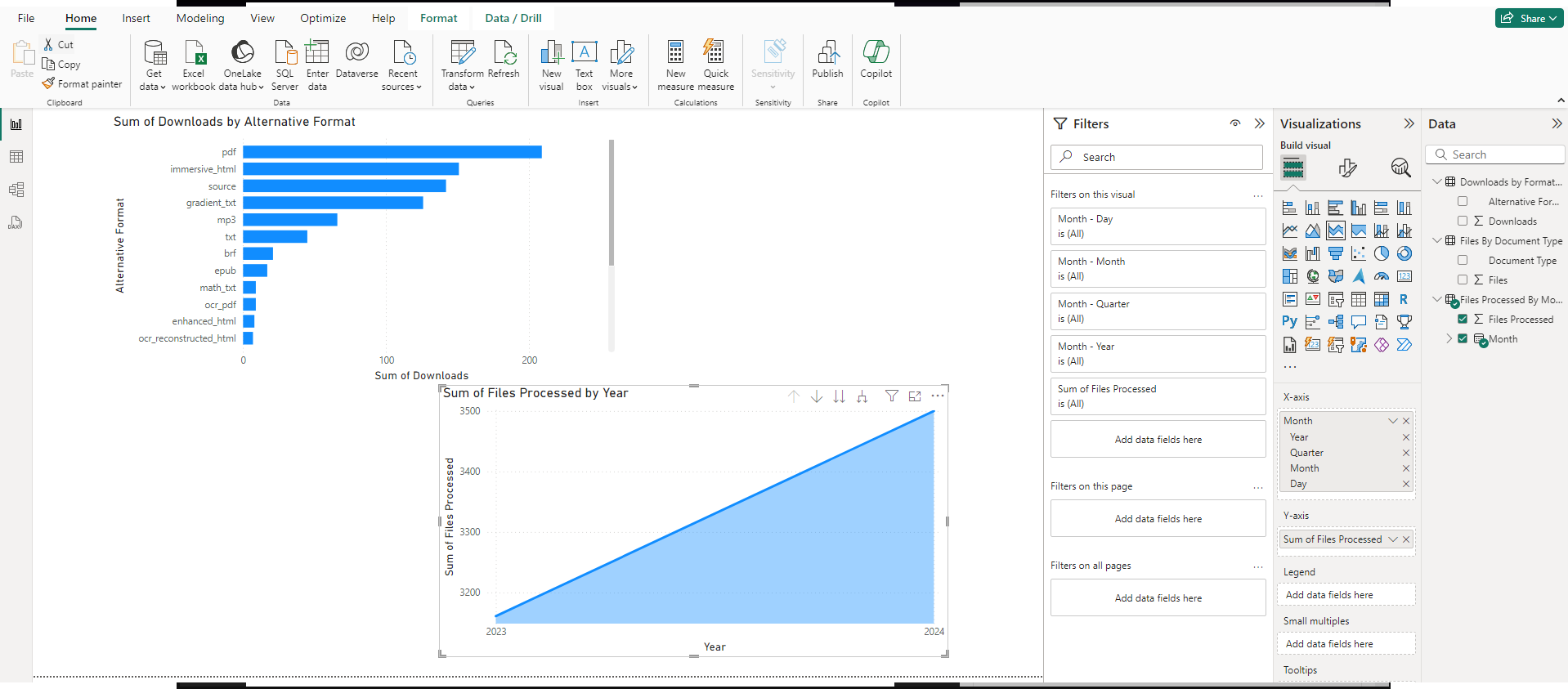
    3. Use Panorama With Power BI to Create Visual Analytics Users can download Panorama reports and upload them into Power BI to create visual analytics with their data. Learn more. A bar and a line graph are shown representing Panorama's data in Power BI.
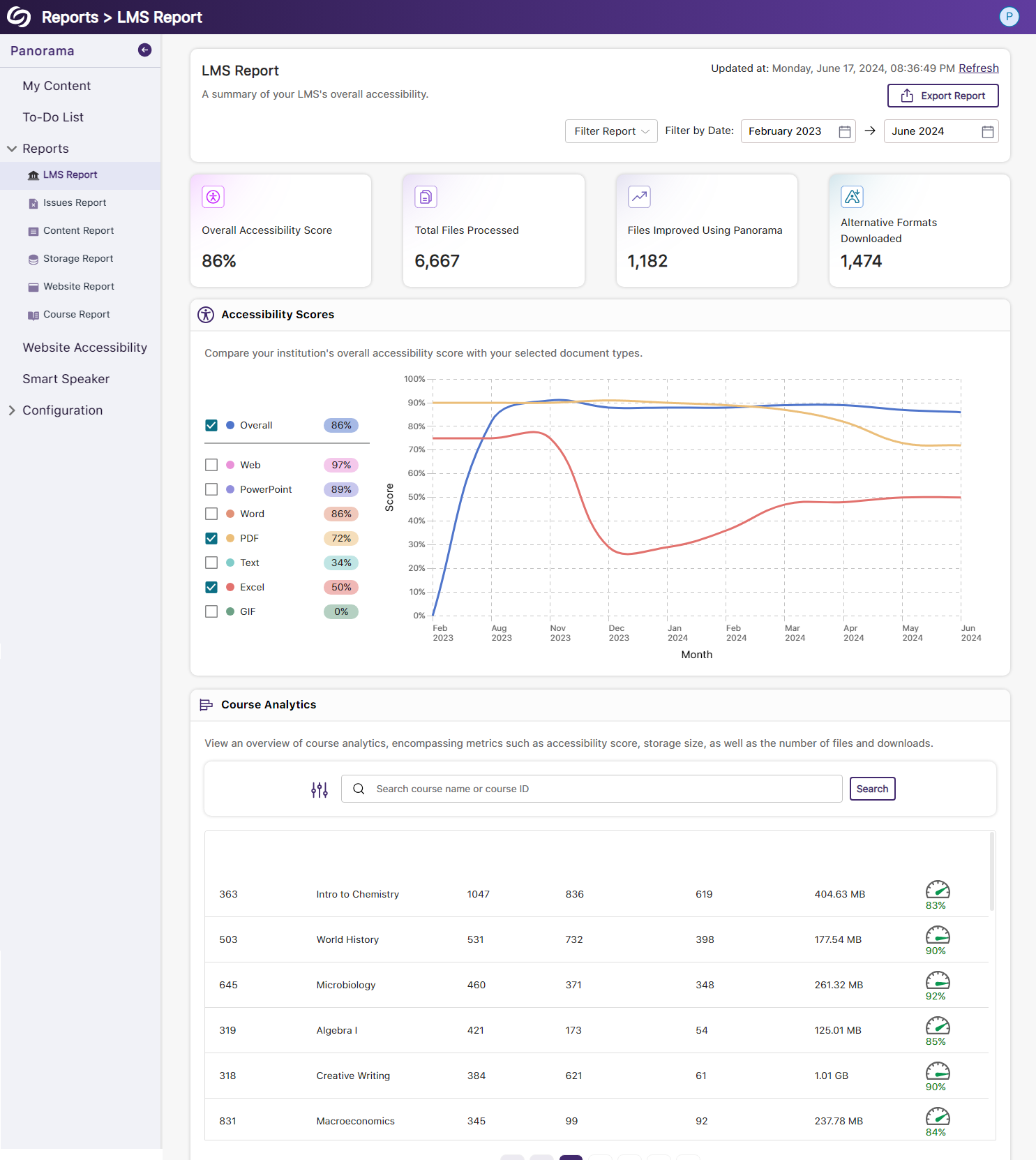
    4. New Redesign of the LMS Report – Compare the Accessibility Scores of Each Document Type We’ve redesigned the LMS Report and provided a new graph consolidating the previous Cumulative Accessibility Score and Score by Document Type charts. The new graph offers a comparative analysis of the institution’s overall accessibility with various document types, such as HTML content, PDFs, and DOCX files. The LMS report showing it's new graph.
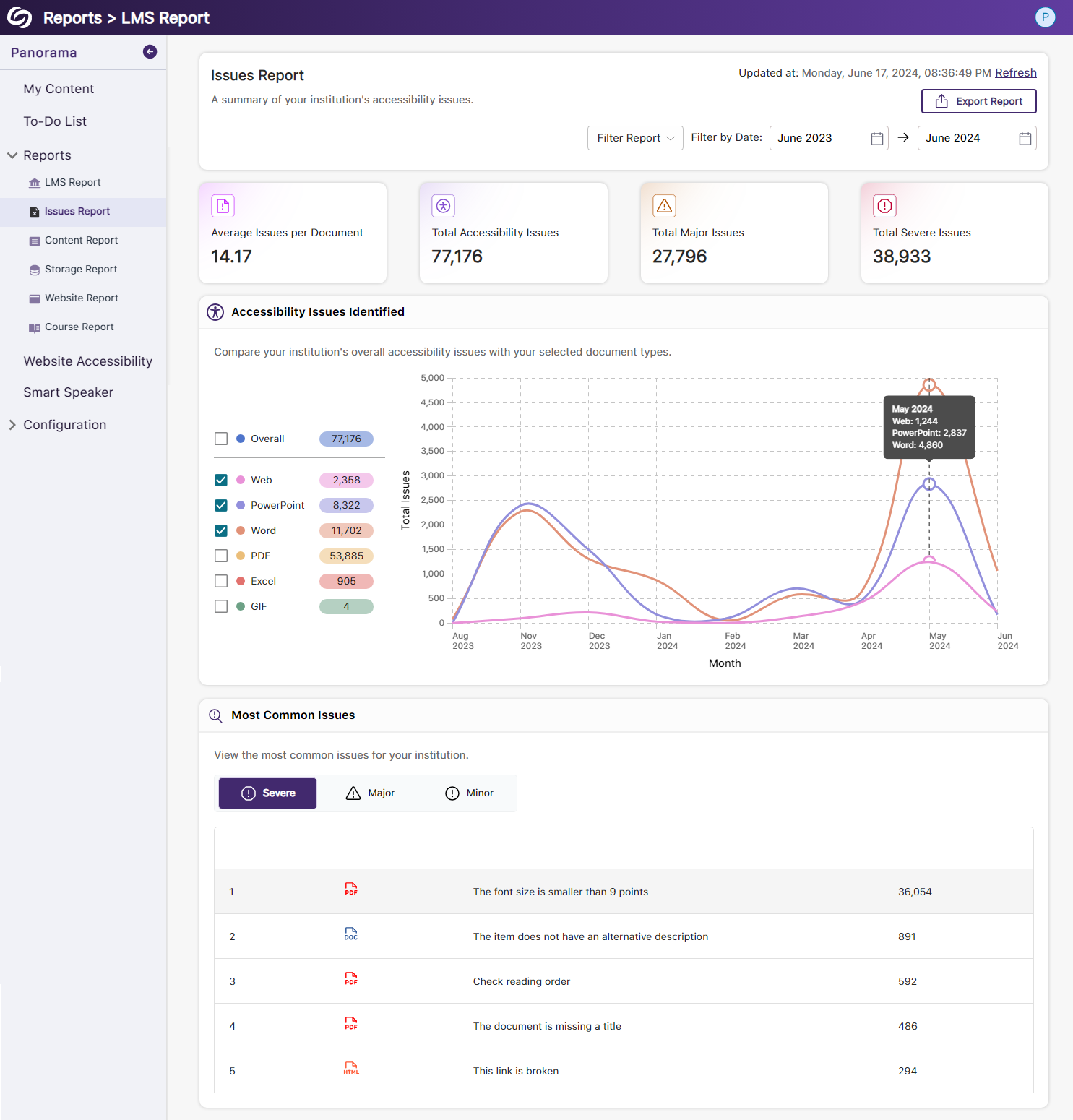
    5. New Redesign of the Issues Report – Compare the Number of Issues for Each Document Type We’ve redesigned the Issues Report and provided a new graph that allows administrators to compare their institution’s overall accessibility issues with selected document types to view which files contain the most issues. We’ve also updated the view for the Most Common Issues into a tabular structure for improved responsiveness with various screen sizes. The new redesign of the Issues Report.
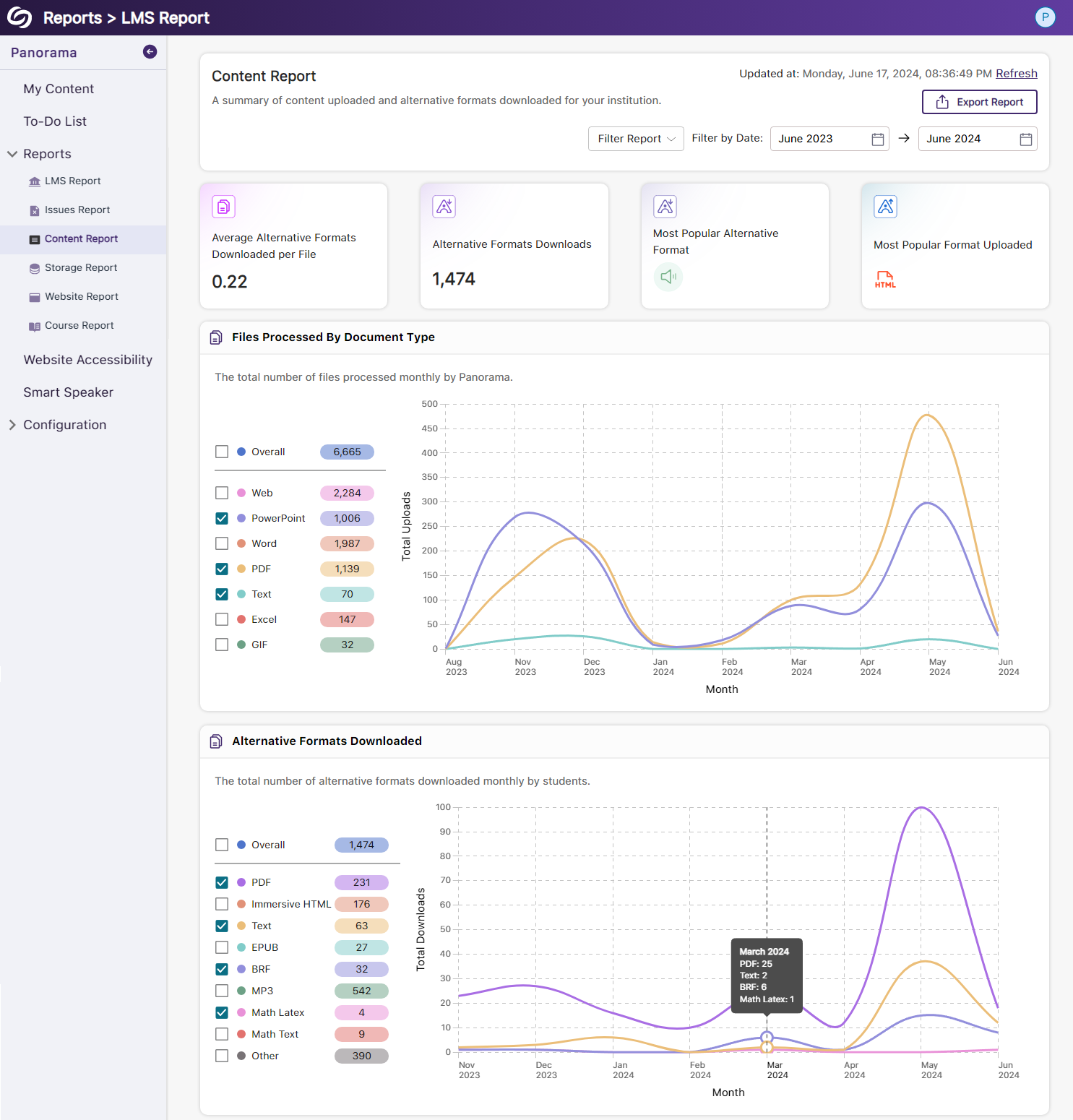
    6. New Redesign of the Content Report – Simplified Viewing of Data for Documents Processed and Alternative Formats Downloaded Previously, administrators would have to look at two charts to compare and analyze the files processed by Panorama and those processed by document type. We’ve consolidated both charts into a simple-to-view line graph showing the total files processed and files processed by each document type. Similarly, this feature extends to the Alternative Formats’ charts within the Content Report, showing the total number of Alternative Formats downloaded and a breakdown of each format downloaded. The content report shows two new UIs for its graphs.
    7. New Semantic Structure to Preserve the HTML Elements in the Gradient Reader Users viewing content within the Gradient Reader can choose to generate a Semantically Structured Gradient Reader, which will analyze the HTML content within the document to produce an accurate representation of the file. The OCR Gradient Reader is shown.
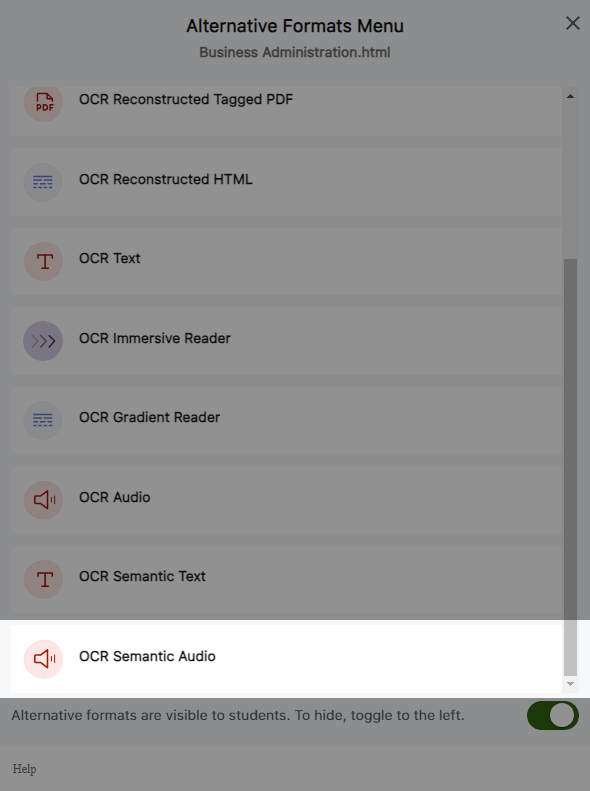
    8. New Semantic Structure to Preserve the HTML Elements in an Audio Format Users will be able to perceive the semantic structure of audio content, allowing them to hear details like rows, columns, and bullet points, providing an auditory representation of the visual format. OCR Semantic Audio format.
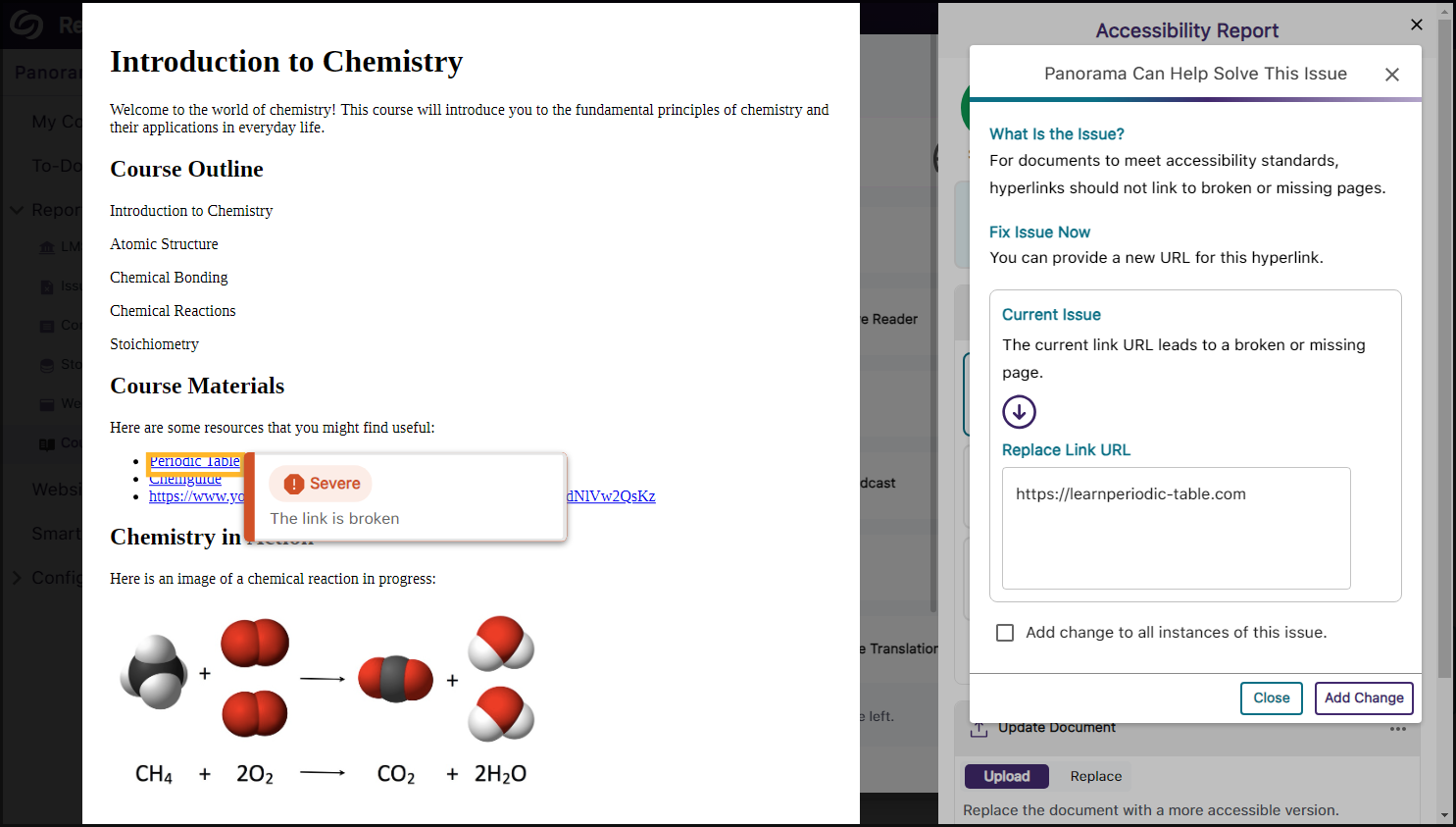
    9. Ability to Fix HTML Accessibility Issues Within the Issues and Content Table The Issues and Content table in the Course Report will allow users to fix accessibility concerns for content created with WYSIWYG editors in their LMS. Fix issue option shown for an HTML document.
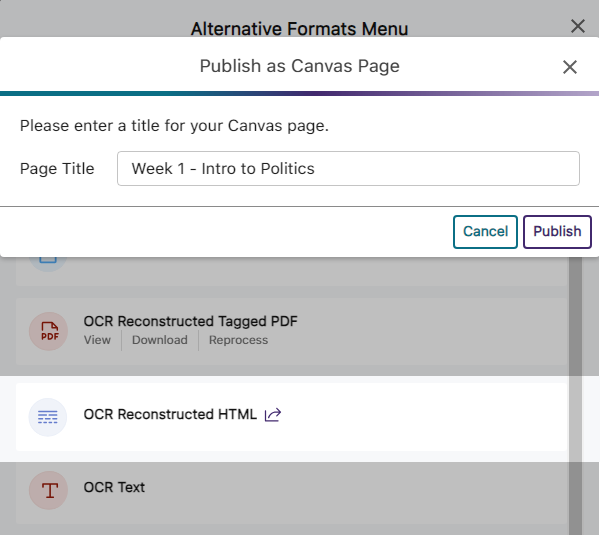
    10. Publish OCR Reconstructed HTML Content as Canvas Pages The OCR Reconstructed HTML format can be generated for content and uploaded to Canvas as a page. The option to publish a content into a Canvas page.
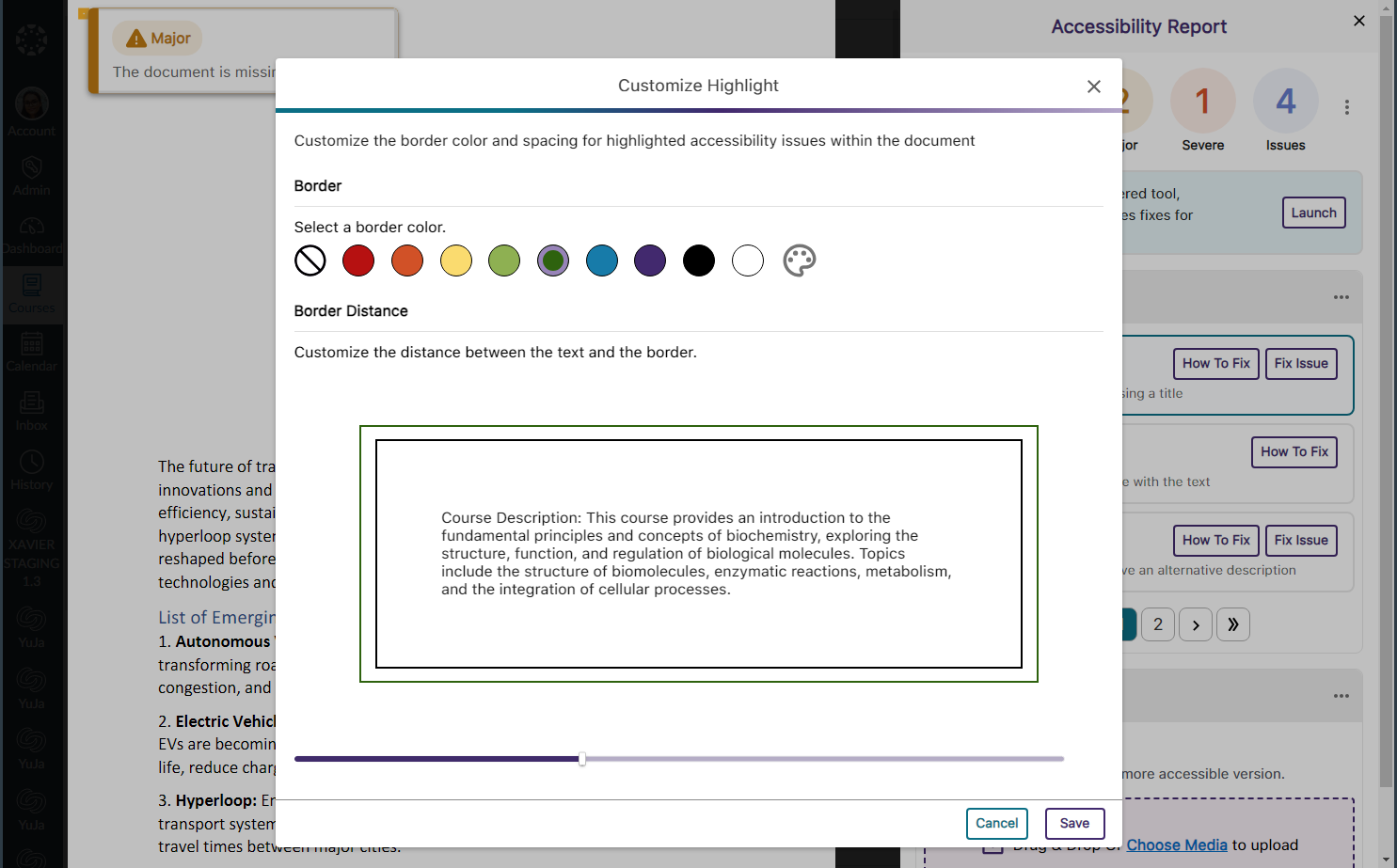
    11. Customize the Highlight Color of Issues Within Documents To ensure that highlighted issues remain visible on various background colors, users can customize the highlight color and adjust the spacing between the highlighted border and the text. The option to customize the highlight color of issues.
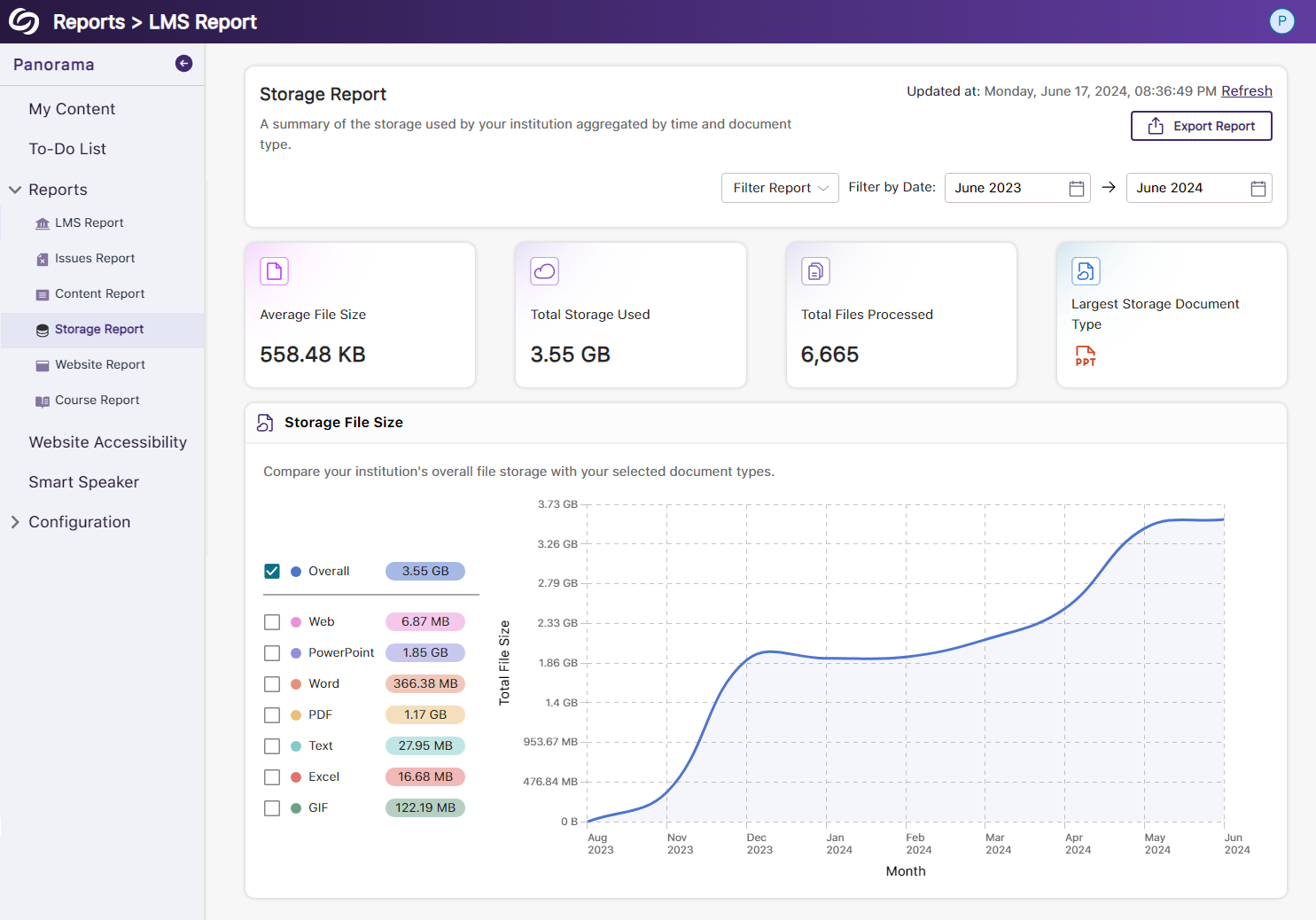
    12. New Redesign of the Storage Report – Compare the Total Storage Accumulated for Each Document Type We’ve redesigned the Storage Report to allow administrators to compare their institution’s overall file storage with different document types within a single graph. The storage report showing the new graph.
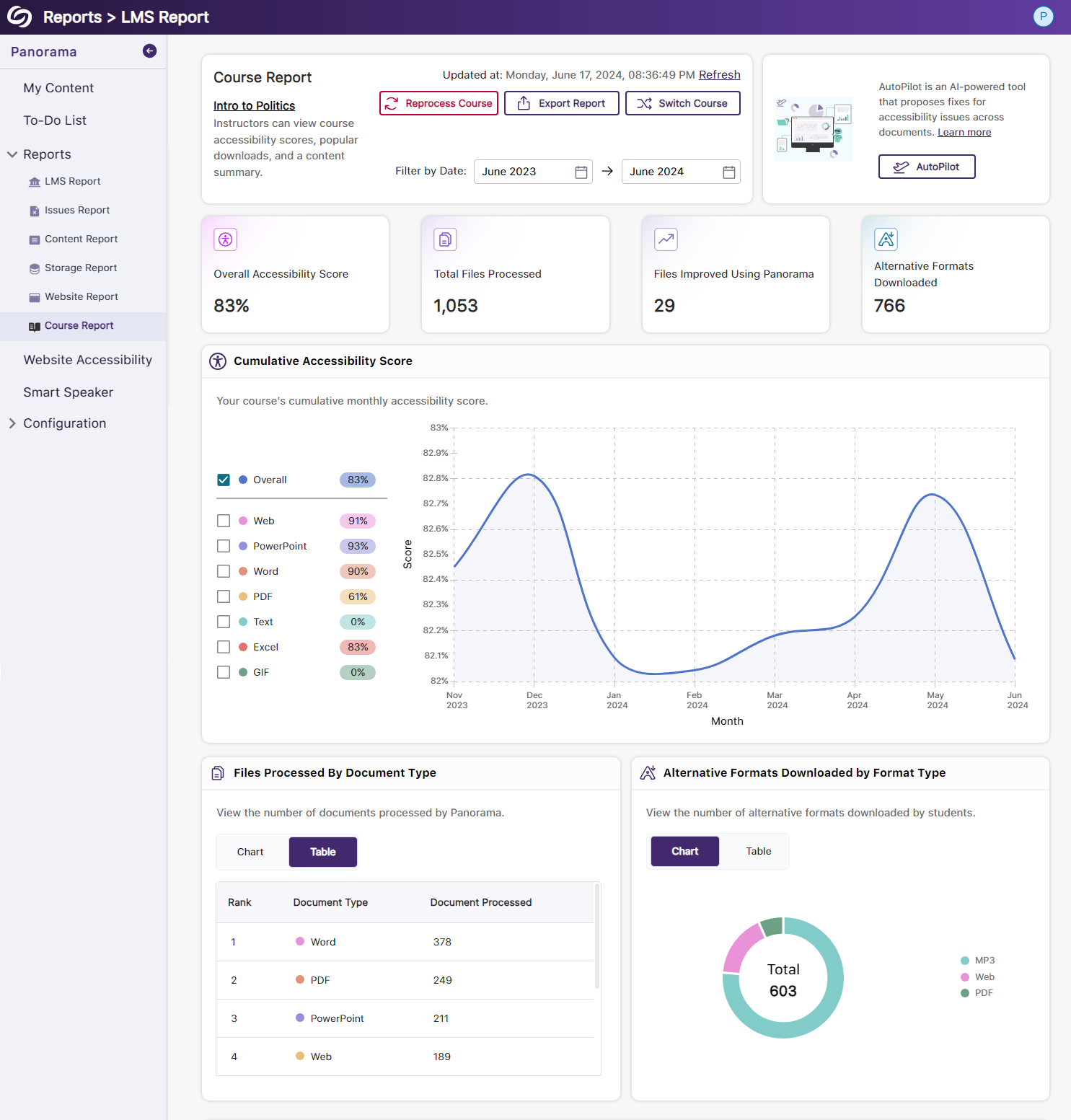
    13. New Redesign of the Course Report – Compare the Overall Accessibility Score with Each Document Type We’ve enhanced the Course Report graph, enabling users to assess a course’s overall accessibility score and compare it with the accessibility scores of individual document types within the course. Users can also, based on preference, choose between a chart or table view for the files processed and Alternative Formats downloaded within the course. The course report showing the new UI graph.
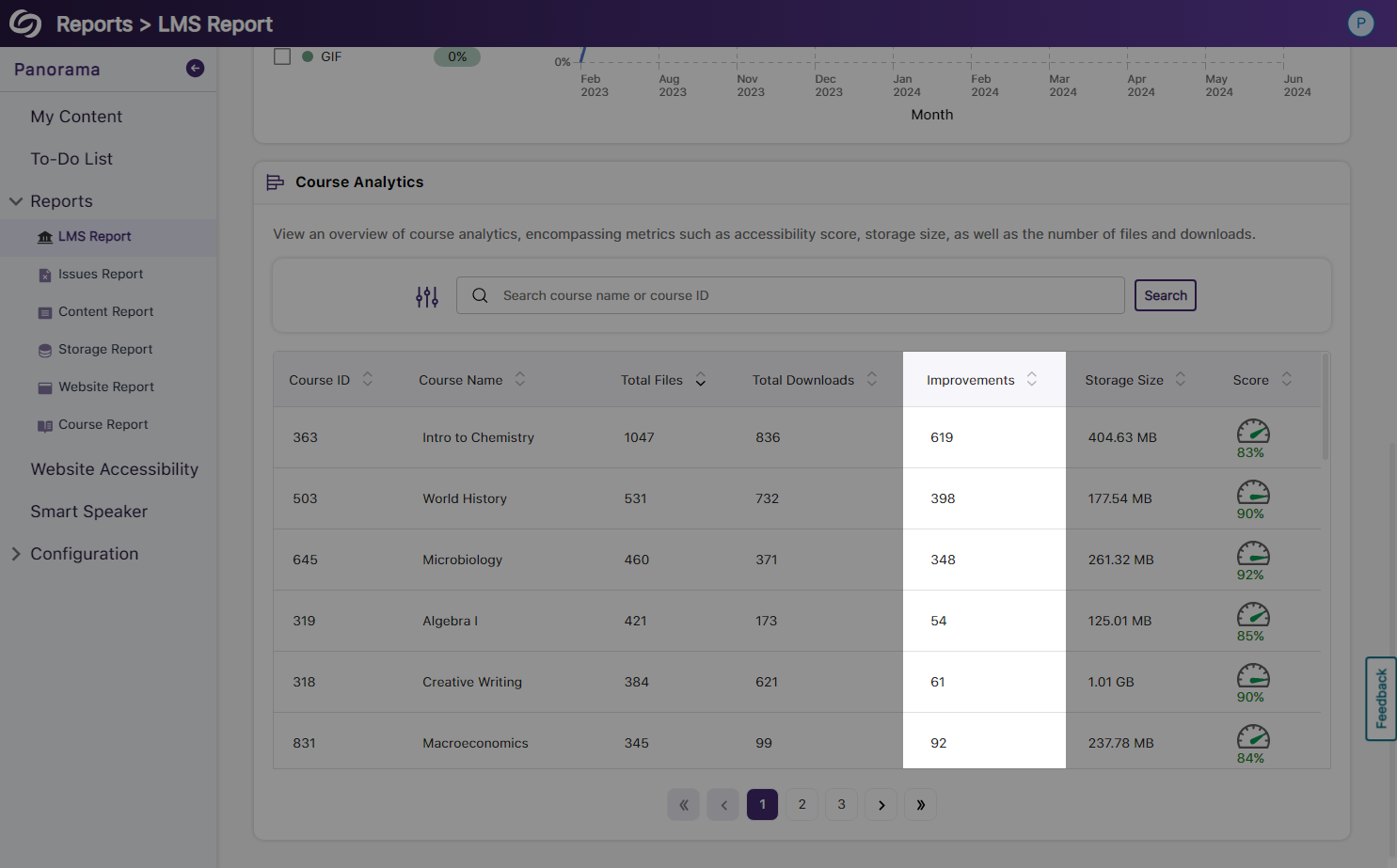
    14. View the Total Number of Improved Documents Within Each Course Administrators can access the Course Analytics in their LMS Report to view the total number of documents improved in each course. The course Analytics table shows improvements made in each course.
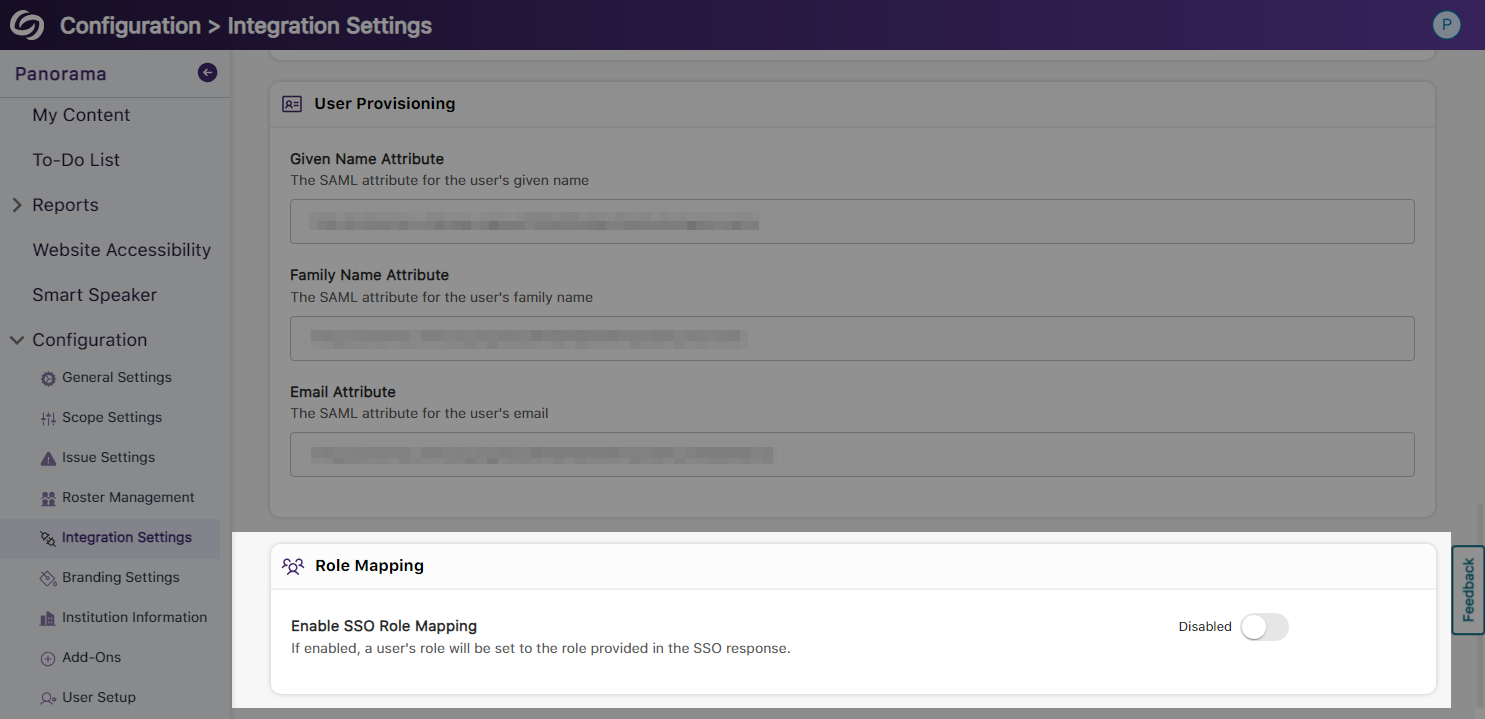
    15. Option to Ignore SSO Role Mapping in Favor of LMS Mapping Recognizing that most institutions favor mapping roles based on their LMS, administrators can choose to disable SSO role mapping. This ensures that user mappings are only determined by their LMS roles. The option to disable SSO role mapping.
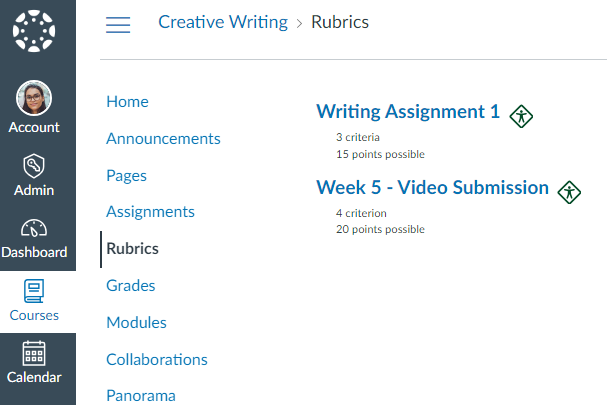
    16. Panorama Support for Canvas Rubrics We’ve expanded Panorama’s support within Canvas to provide Accessibility Reports for rubrics. The canvas rubric's page shows the panorama accessibility icons.
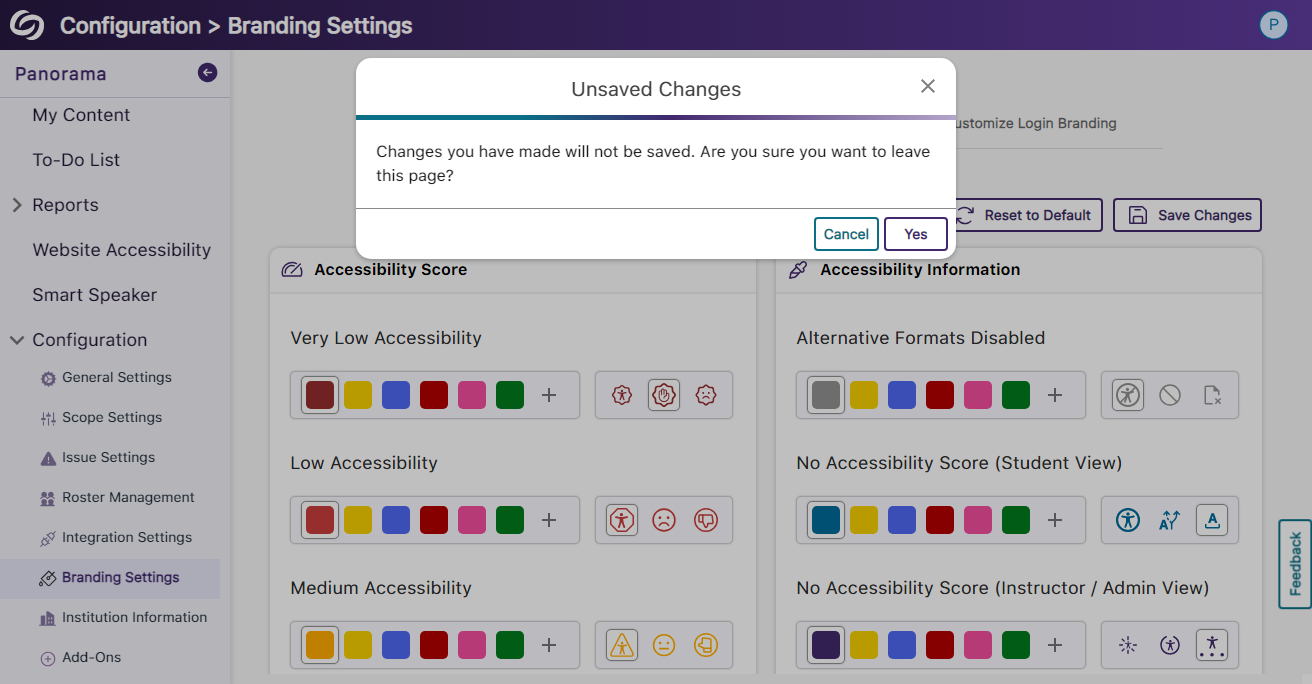
    17. Users Will Be Notified of Unsaved Panorama Settings When users navigate away from unsaved changes within the Panorama LTI app, they will receive a notification informing them that their changes have not been saved. A pop-up modal warning users of unsaved changes.
  • June 18, 2024

    Pro Capture Tools Update – PC Capture, Apple Capture, and Hardware Hub Updates – June 2024

    We have successfully pushed an update for Software Capture for PC and Mac to all instances residing in the US, Canada, Australia, Singapore, the Middle East, and the European Union. For the YuJa Software Capture for PC, this update includes optimizations to CPU usage during live streams.
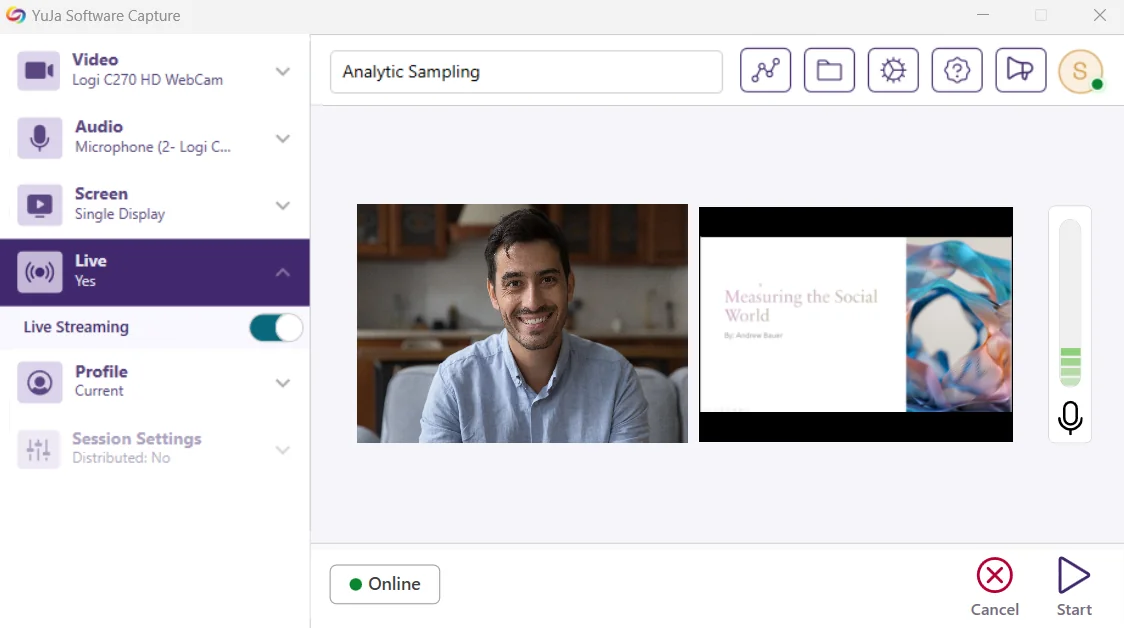
    1. Optimized CPU Usage for Live Streaming We’ve improved the performance of Software Capture’s live-streaming capabilities, resulting in optimized CPU resource utilization. With our enhancements, Content Creators will experience up to 25% less CPU load. Software Capture with live streaming enabled.
    For the YuJa Software Capture for Apple, this update includes a new upload status window, access to the Annotation Toolbar from the Confidence Monitor, the option to save passwords, and real-time status updates.
    1. Upload Status Window to Show Upcoming Sessions for Auto-Scheduled Events Content Creators can access the Software Capture Status modal at any time to review upcoming scheduled and previously uploaded recordings to the Video Platform. Status window showing the upload of a recording and future recording sessions.
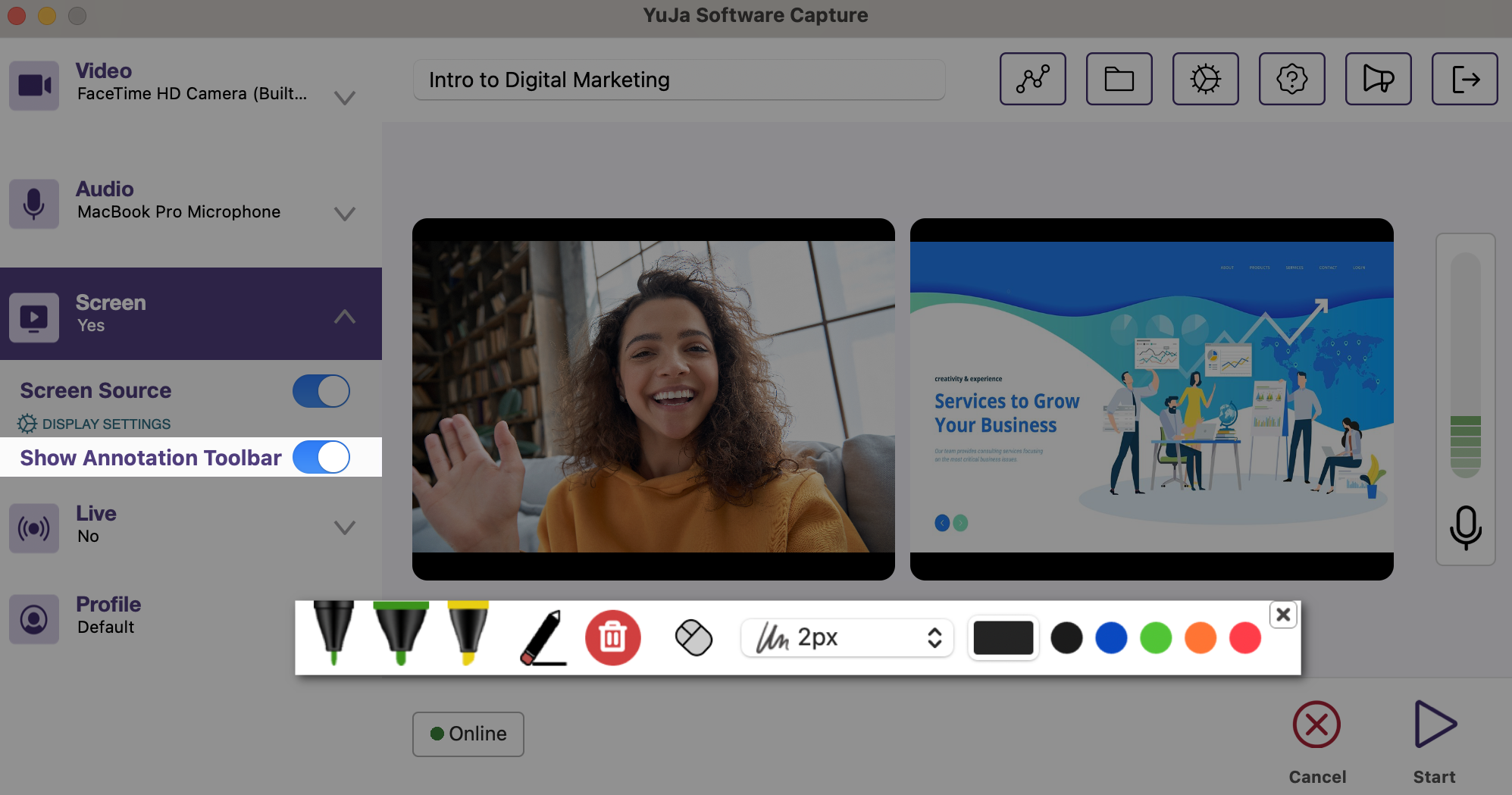
    2. Access the Annotation Toolbar from the Confidence Monitor We have made it easier for Content Creators to enable the Annotation Toolbar by integrating it into the left-side panel of the Confidence Monitor. The annotation toolbar is toggled on from the Confidence Monitor.
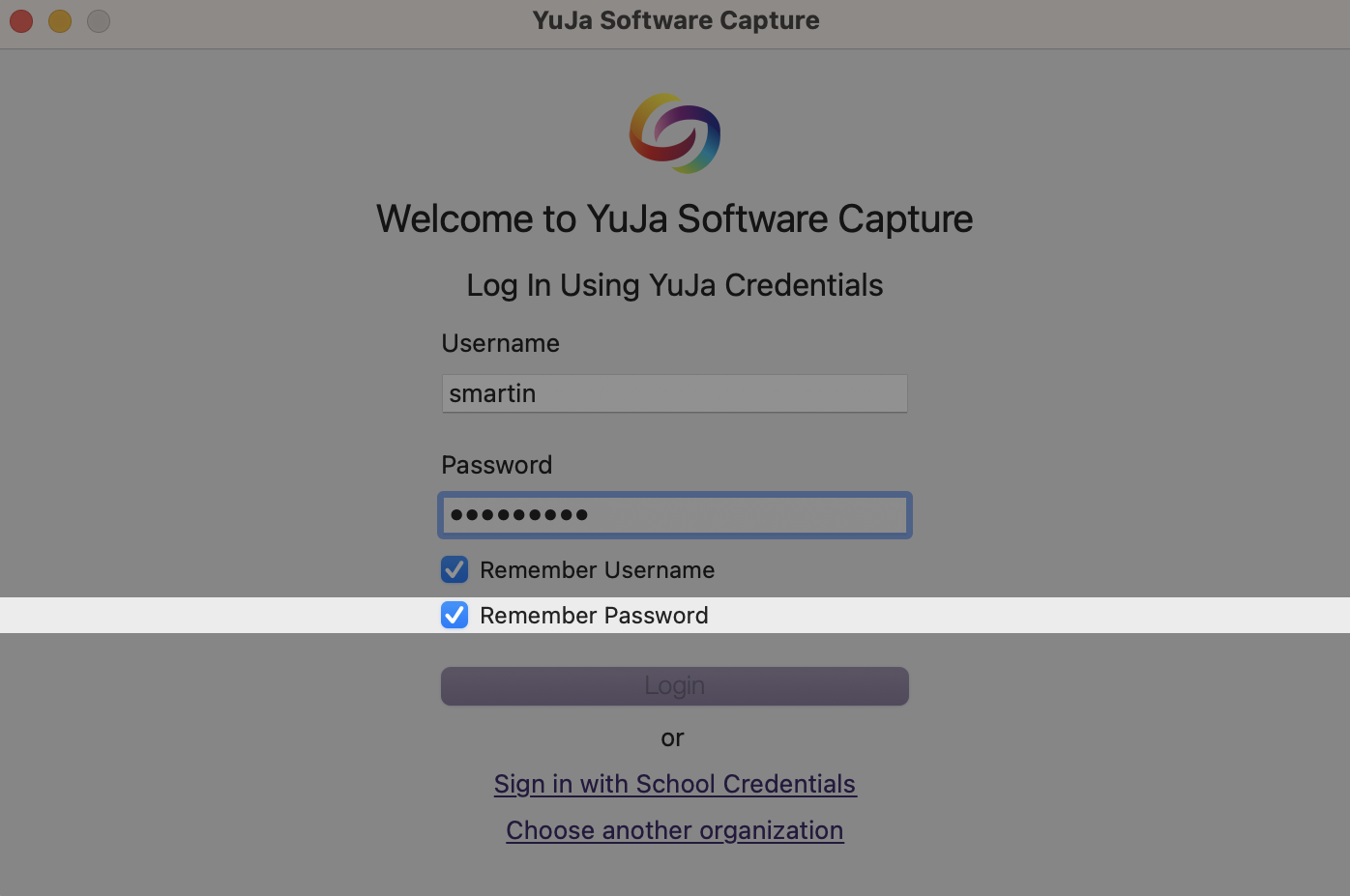
    3. Save Passwords for Automatic Sign-in Content creators can save their passwords when signing in to Software Capture to automatically sign in for future sessions. The remember password option is shown on the login page.
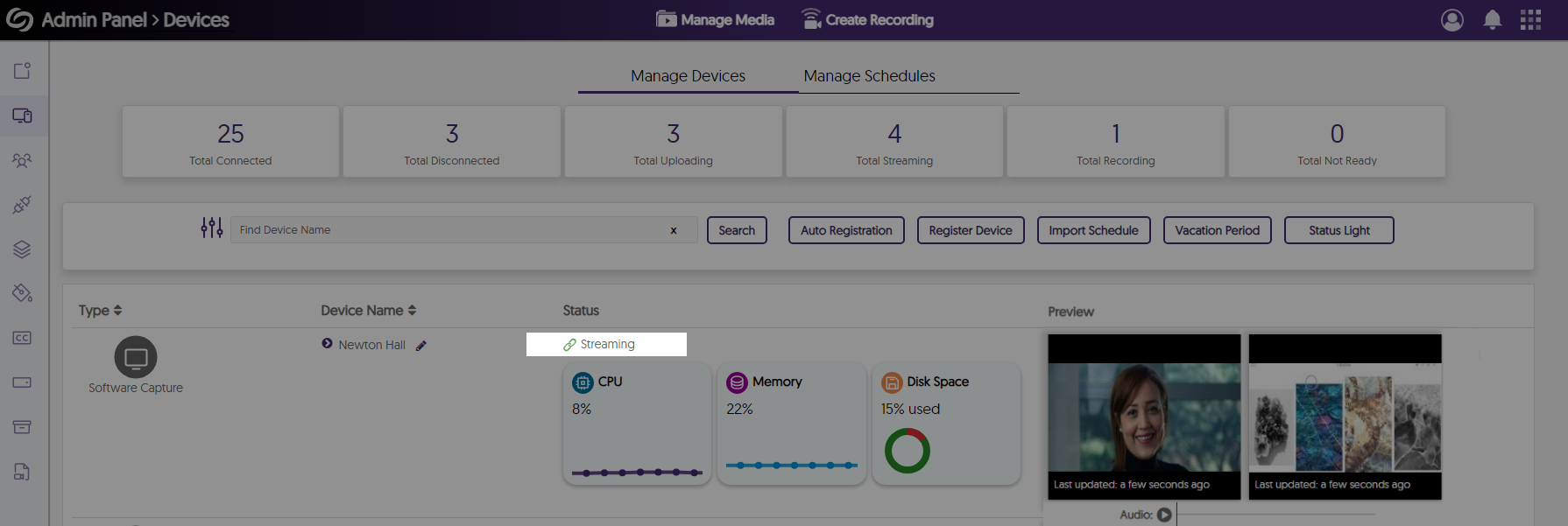
    4. Real-Time Recording Status Updates for Active Software Capture Administrators can view live updates on the Devices page for streaming and uploading statuses of the Software Capture application. The Devices page showing a software capture device streaming.
      For the YuJa Hardware Hub, this update includes reduced recording processing times and improved live stream recovery when switching sources.
    1. Significantly Reduced the Processing Times of Recordings by Approximately 75% We’ve significantly reduced the processing time for long Hardware Hub recordings to allow video playback within minutes instead of hours. A video is processed on the Video Platform.
    2. Improved Live Stream Recovery When Switching Sources When switching sources during live streams, sessions will no longer be interrupted for up to a minute.

Join the 1,000+ Organizations Deploying High-Impact Solutions

A collection of logos representing various organizations and institutions that use YuJa’s platform.