Product Updates

Get the latest platform updates, features, and announcements—all in one place.

  • December 20, 2023

    YuJa Engage Student Response System Update – “Rome” Released to US, CAN, AUS, and EU Zones

    We have successfully pushed an update to all YuJa Engage Student Response System instances residing in the United States, Canada, Australia, and the European Union. This release provides our users with the option to add video content to questions, grade short answer questions with search and filter options, real-time participant results for Polls and Surveys, auto-roster sync for Canvas and D2L Brightpsace, the option to duplicate Polls and Surveys, improved screen reader capabilities and tab navigation, and a refined user experience with new interactive elements.

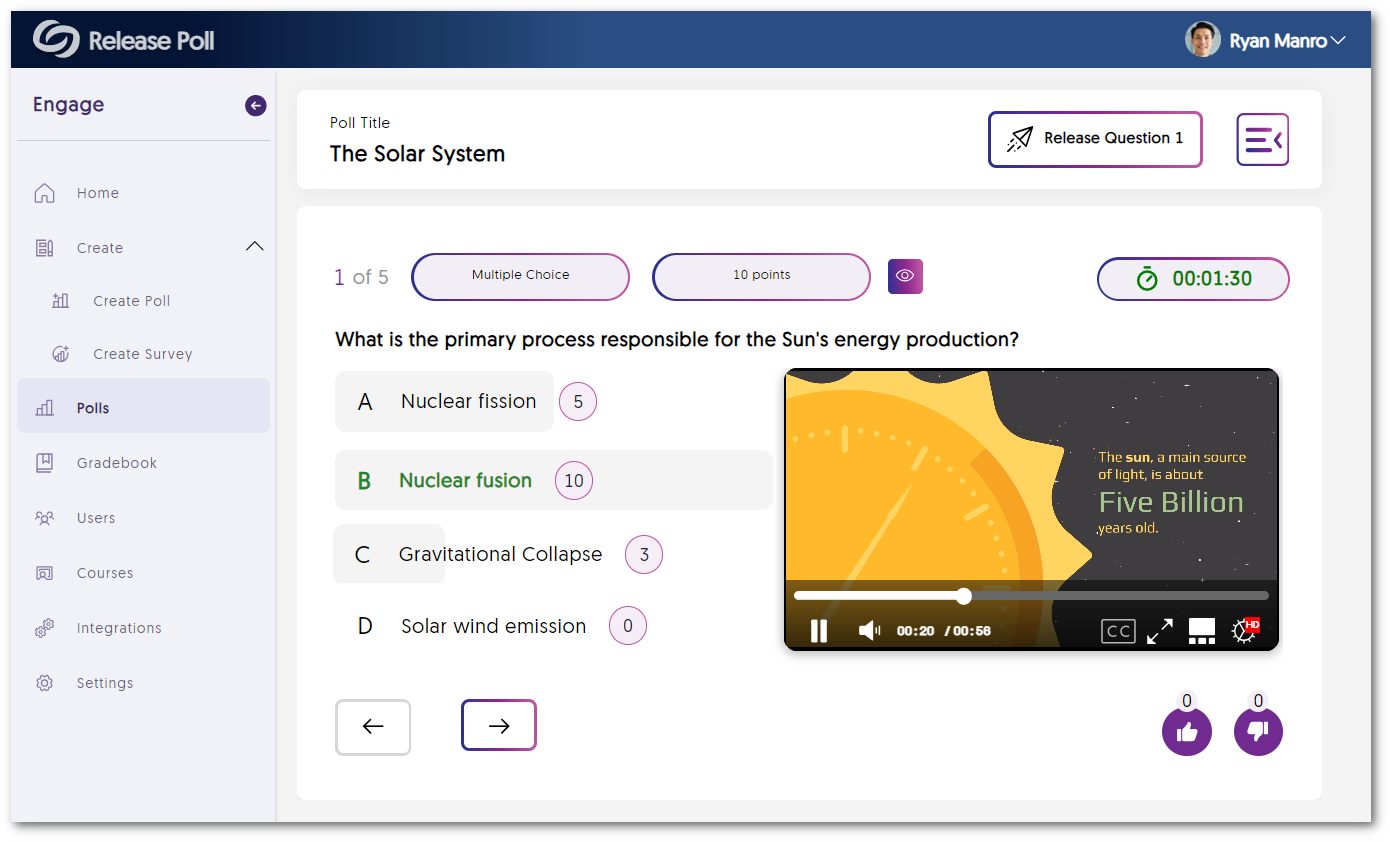
    1. Engagement Questions Can Include Video Content Creators can now add video content to their Poll and Survey questions, allowing participants to view videos before selecting an answer. A video is shown embedded in a question.
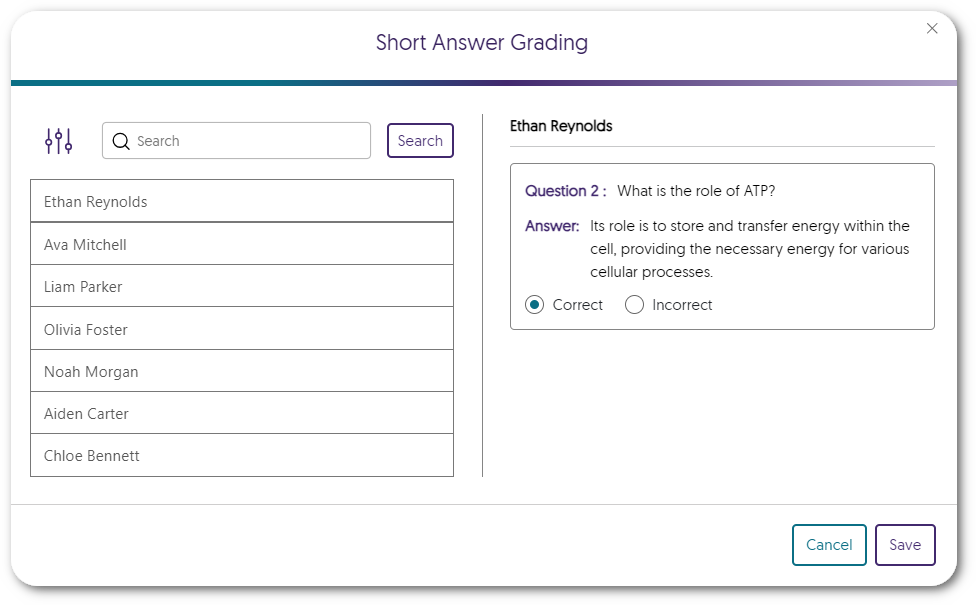
    2. Grade Short Answer Questions with Search and Filter Options Creators who wish to review and manually grade Short Answer questions will now be presented with a list of participants with options to filter based on correct or incorrect answers. Results for short answers show a list of students and the response for a selected student to the right side.
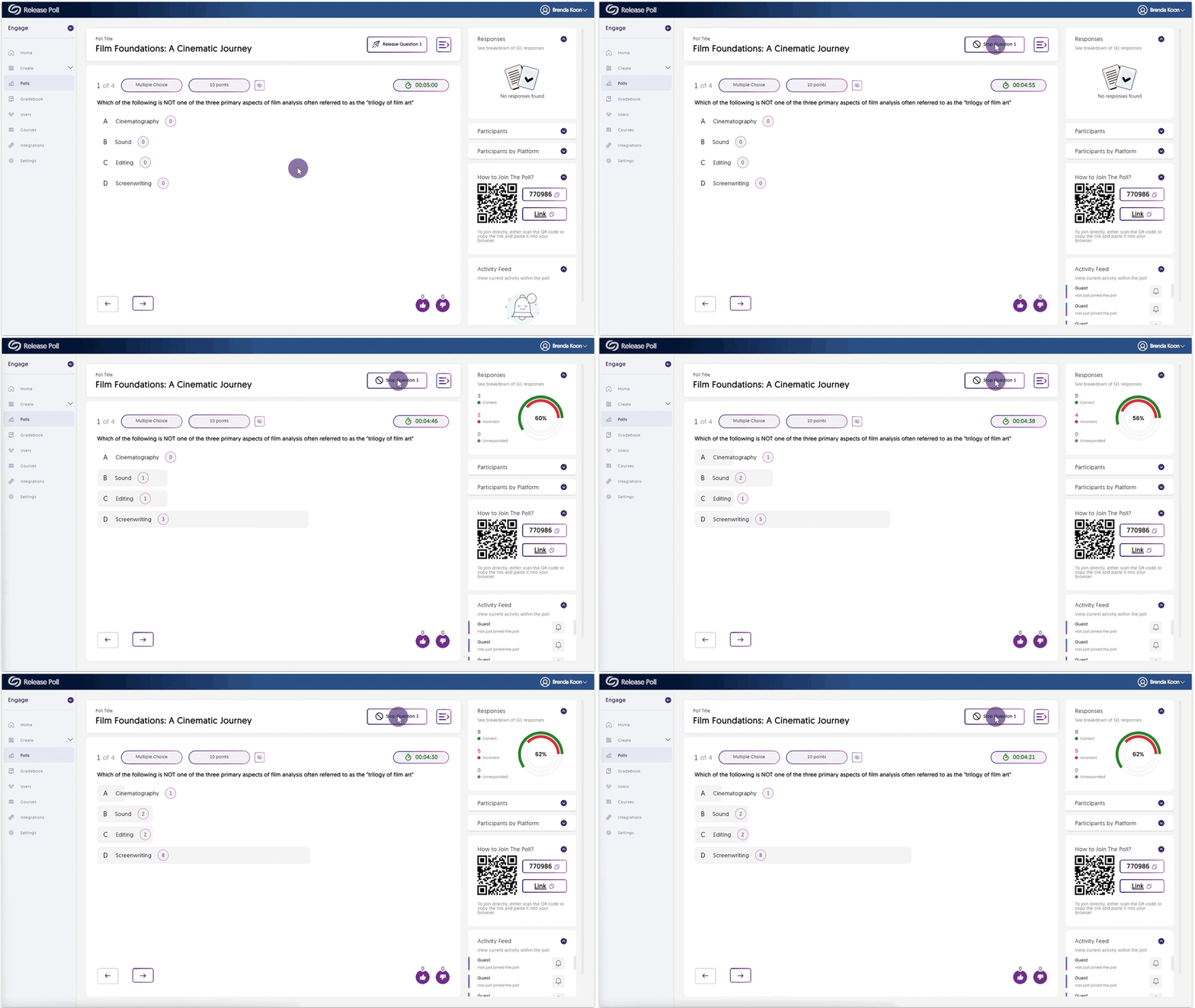
    3. Real-Time Participant Results for Polls and Surveys For live Polls and Surveys, participant results are now updated in real-time immediately after submission. A question is activated and responses are shown occurring in real time.
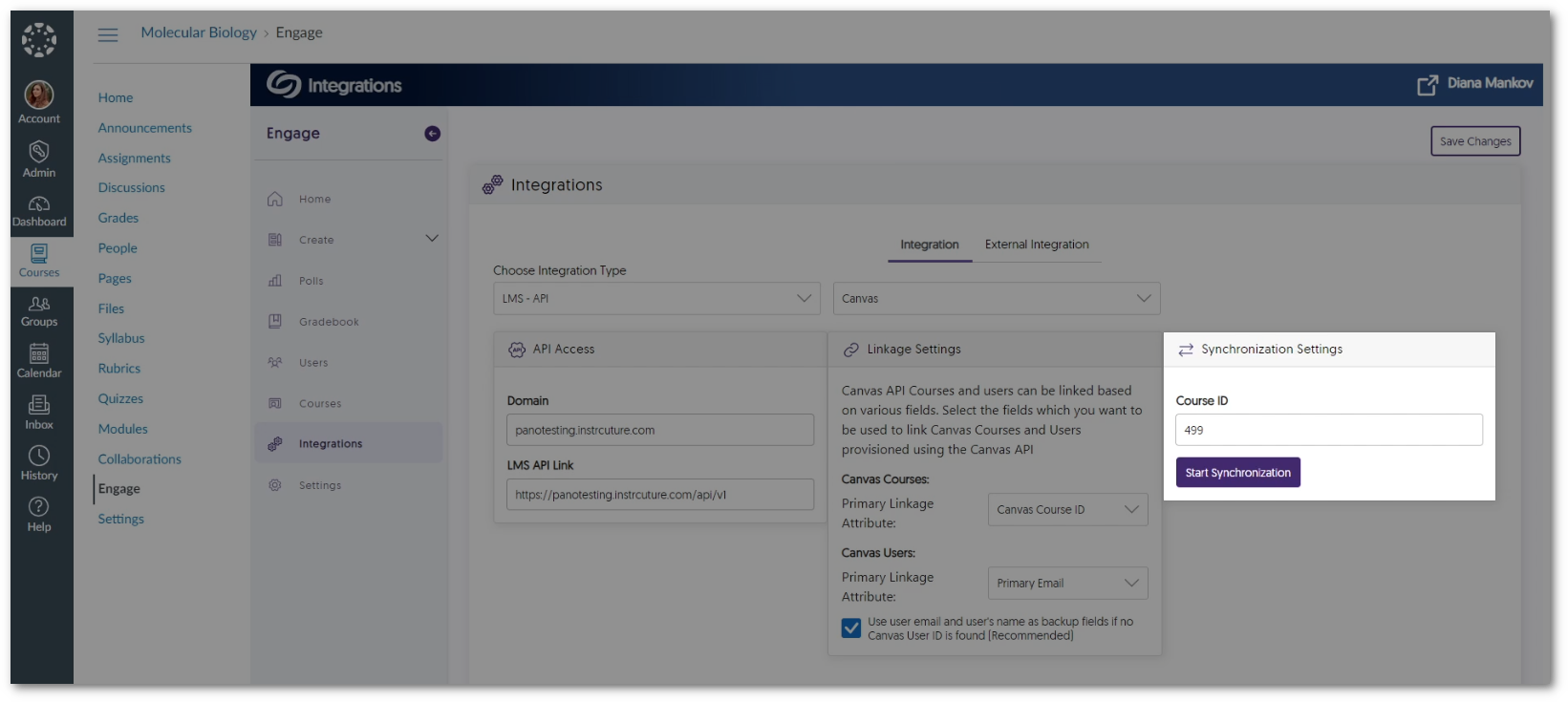
    4. Auto-Roster Sync for Canvas and D2L Brightspace Our Canvas and D2L Brightspace integrations now offer course roster sync to automatically retrieve a list of users for the selected course. The Engage integrations page showing Canvas API mapping.
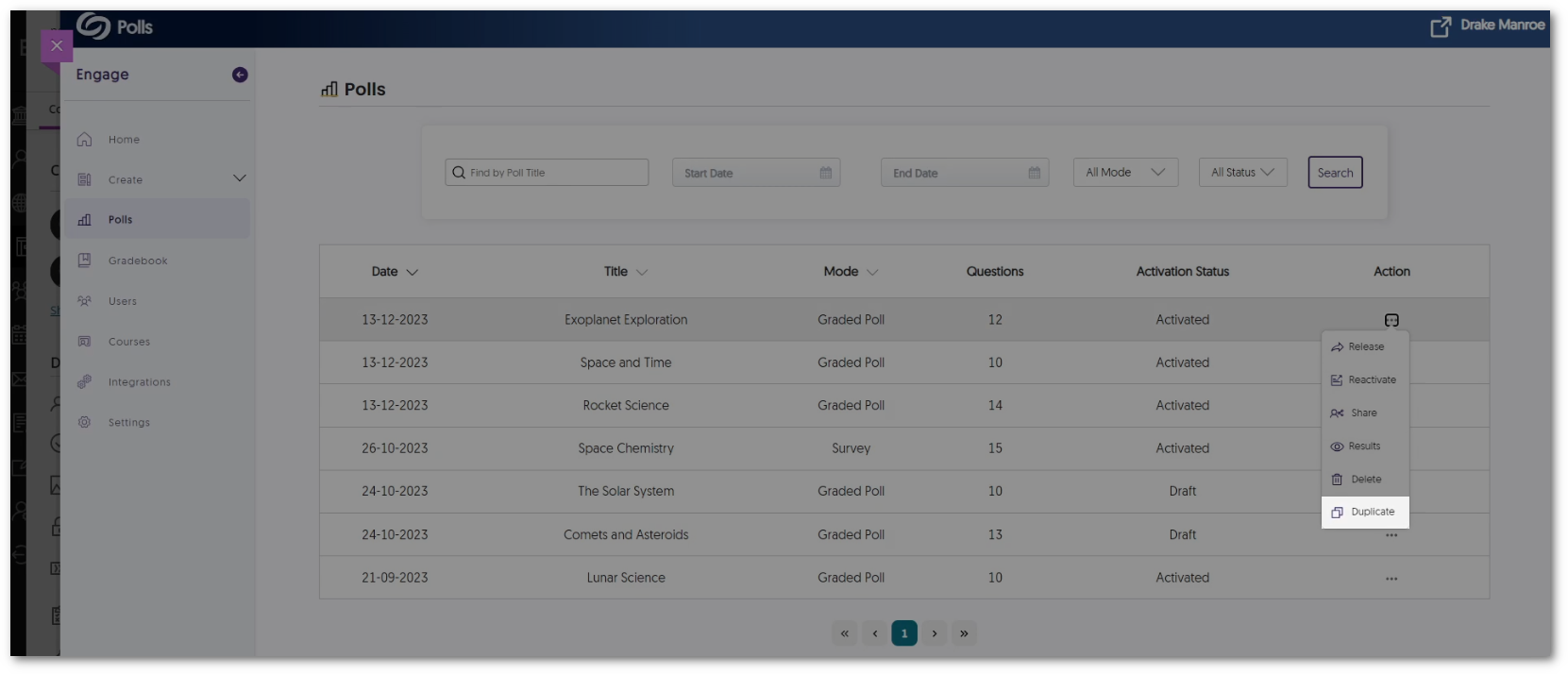
    5. Create Duplicate Polls and Surveys for Editing IT Managers and Creators can duplicate their Polls and Surveys to instantly create an additional copy to edit. The Duplicate option is shown for a Poll in the Engage Polls tab.
    6. Improved Compatibility with Screen-Reader Narrations The Engage platform now offers fully narrated text for screen readers to read aloud.
    7. Enhanced Keyboard Accessibility Shortcuts We have enhanced keyboard navigation, enabling IT Managers, Creators, and Participants to easily tab through the Engage platform.
    8. Refined User Experience within Specific Interactive Elements We have made several improvements to enhance the usability of Engage across the web and mobile app, such as:
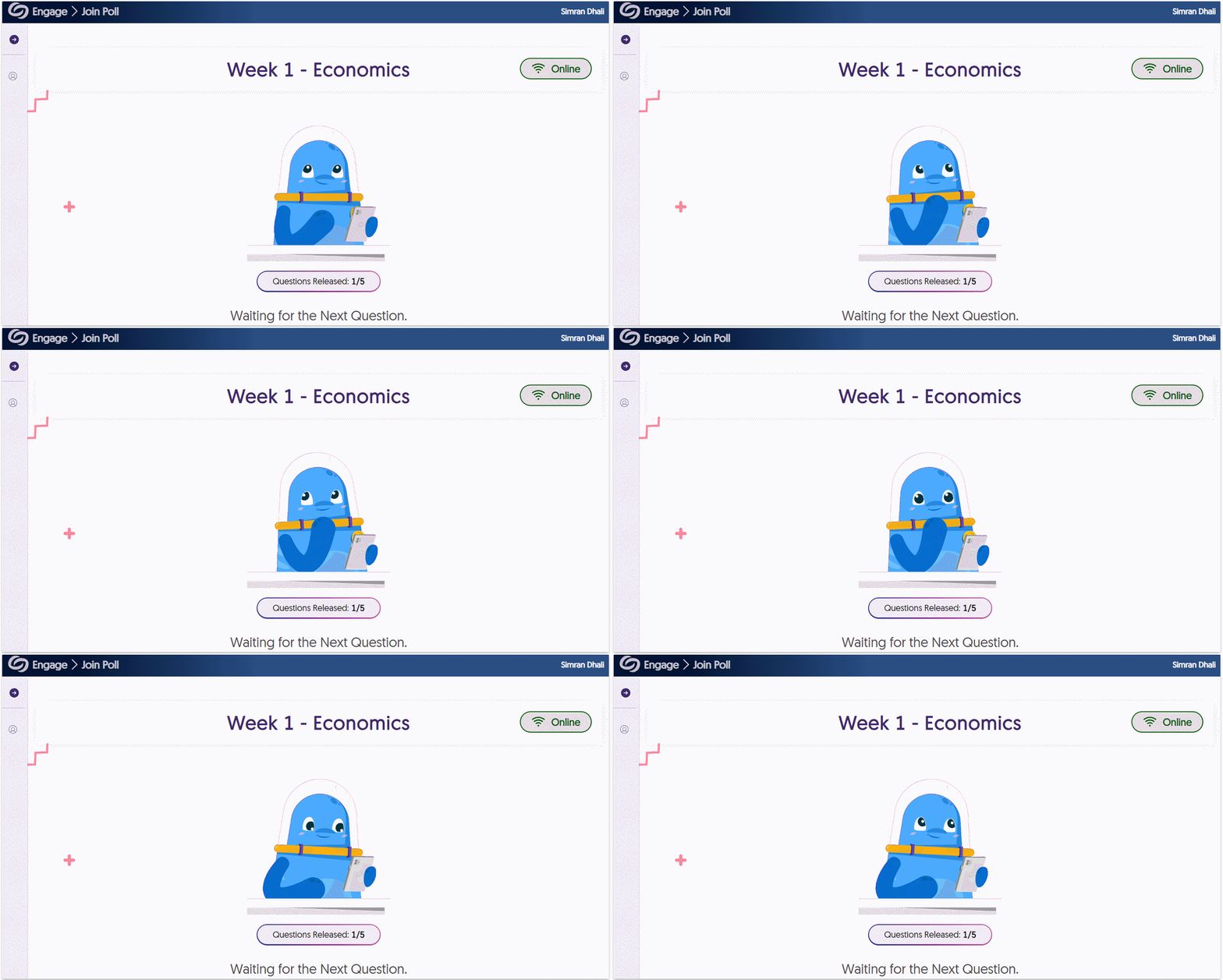
      • New pages to clearly indicate when a Poll has closed or is waiting to be released.
      • Individuals will automatically log in to their respective roles.
      • Updated UI for QR code scanning.
      An animated blue space alien is reading questions on their phone.
  • December 8, 2023

    YuJa Panorama Digital Accessibility Platform – “Lincoln Peak” Version Released to US, CAN, AU, and EU Zones

    We have successfully pushed an update to all YuJa Panorama Digital Accessibility Platform instances residing in the United States, Canada, European Union, and Australia. This release provides our users with updates to our Remediation Engine to support HTML documents, the option to add alt-text to all occurrences of an image in Canvas, a new OCR conversion engine, enable Panorama in specific LMS sub-accounts, new design tool elements, Themes and Templates for the Accessible Design Tool, increased accessibility checks for images, HTML and DOCX files, and so much more!
     
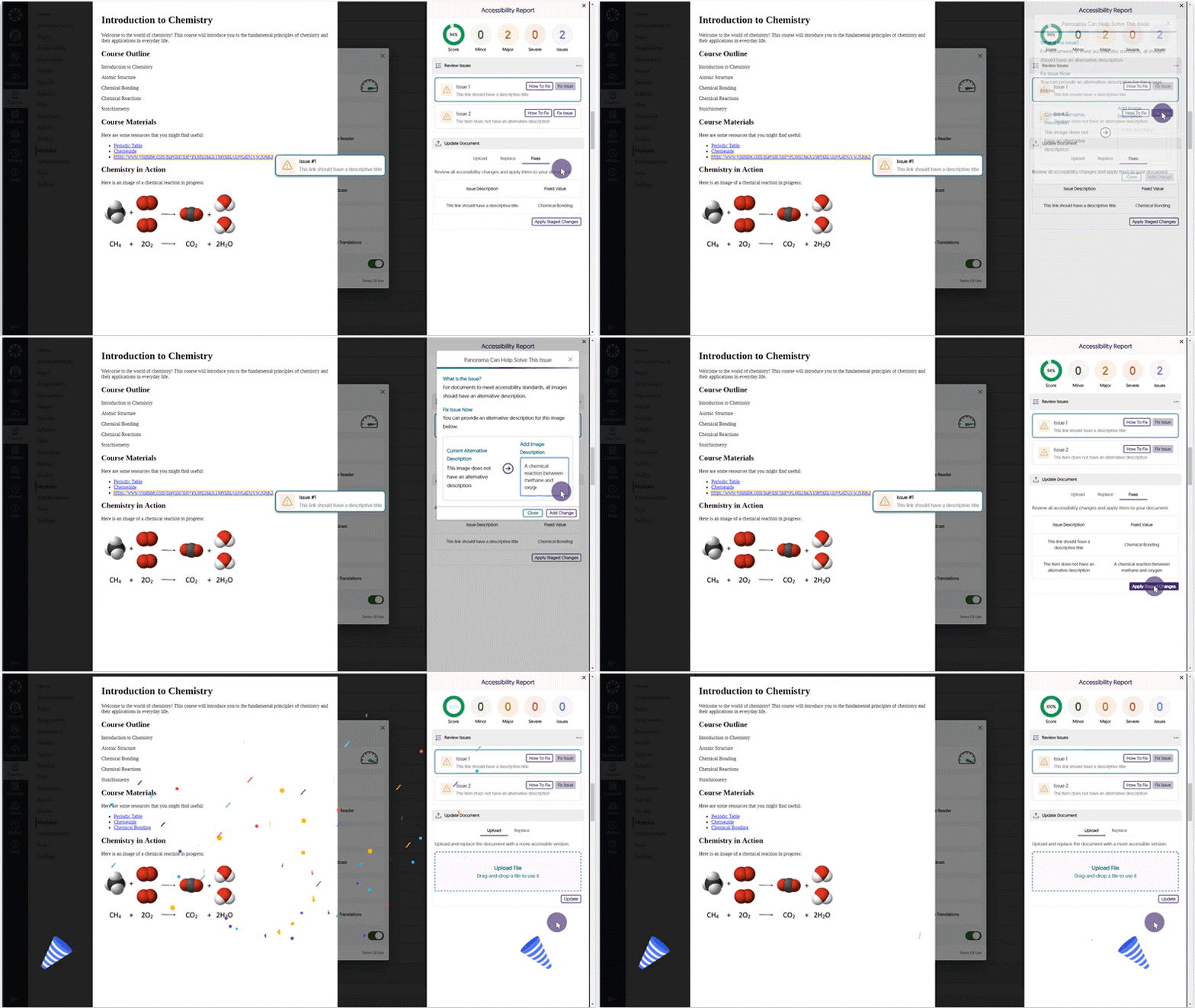
    1. New Inline WCAG 2.1-Aligned Remediation Engine for HTML Issues Directly within Accessibility Reports Complementing our Remediation Engine for inline accessibility issue resolution of Microsoft Word documents and PowerPoints, we’ve now extended these capabilities to HTML documents inside Accessibility Reports to resolve issues such as:
      • Alternative text for images.
      • Non-descriptive hyperlink text.
      • Unformatted lists.
      HTML document issues are resolved in the Accessibility Report.
    2. Find-and-Tag to Add Alt-Text to all Occurrences of an Image Within Canvas Tired of alt-tagging the same image in multiple courses? Now Content Creators can instantly create and apply alt-text to all instances of the same image in multiple HTML areas of their LMS or only to instances without a description. Option to add alt-text to be applied either to all instances of the image or to instances that do not have an alt-text.
    3. Enhanced Support for OCR, PDF Tagging, DOCX, and HTML Conversions We’re introducing an OCR conversion engine to provide greater capabilities in generating distinct documents based on the OCR-ed content.
      • OCR Overlaid Tagged PDF: Generate a tagged PDF that allows for selectable text overlaid on the original document.
      • OCR Reconstructed Tagged PDF: Generate a brand new tagged PDF.
      • OCR Reconstructed DOCX Document: Generate a brand new DOCX file.
      • OCR Reconstructed HTML Document: Generate a brand new HTML file.
      The Alternative Formats menu showing a list of OCR formats.
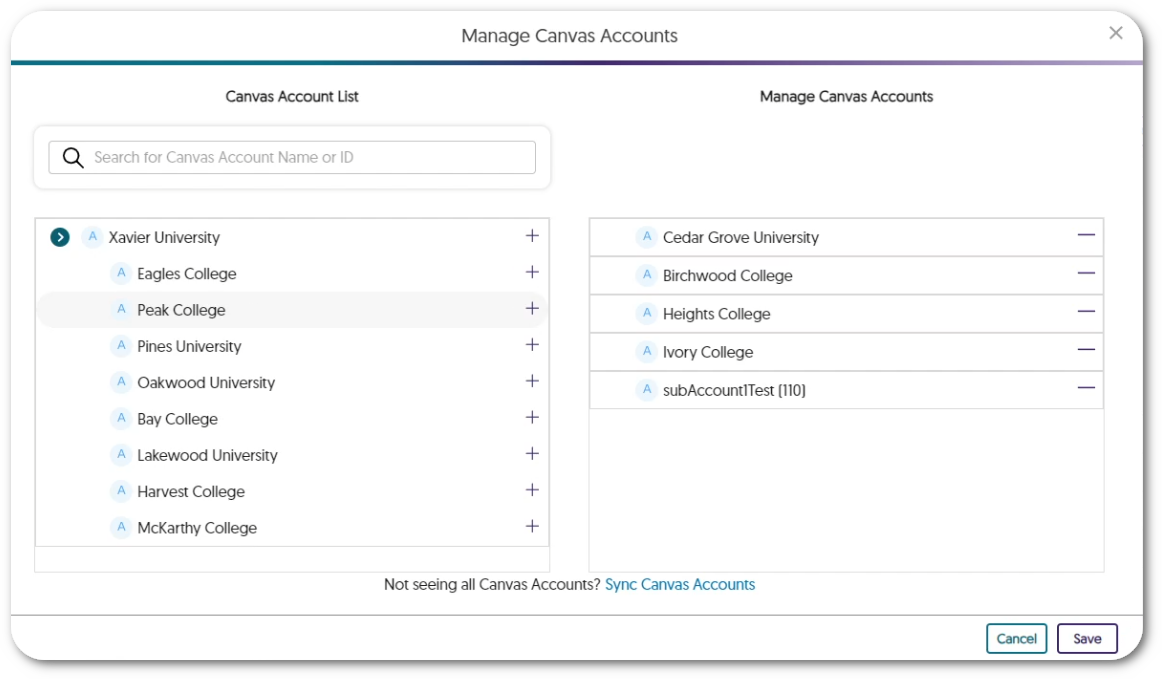
    4. Enable Panorama in Specific Sub-Accounts / Sub-Orgs / Nodes Admins can now view a hierarchical list of institution sub-accounts / sub-orgs / nodes and choose which accounts to enable Panorama in to allow course-scanning for Accessibility Reports, Alternative Formats, and more. A modal shows a list of sub-accounts on the left side with sub-accounts that are active with Panorama on the right.
    5. Accessibility Report: Docx Lists Will Be Checked for Proper Formatting The Accessibility Report for DOCX files will check if ordered and unordered lists within the document are formatted correctly. Accessibility Report shows an issue for an unformatted list in a DOCX file.
    6. Broader Set of Accessibility Checks for Images We’ve added additional accessibility checks to ensure images are accessible to all viewers.
      • Flag alternative text longer than 120 characters.
      • Flag images that have the file name as the alternative text.
      • Flag images that have placeholder text as the alternative text (e.g. “Photo” or “Image”).
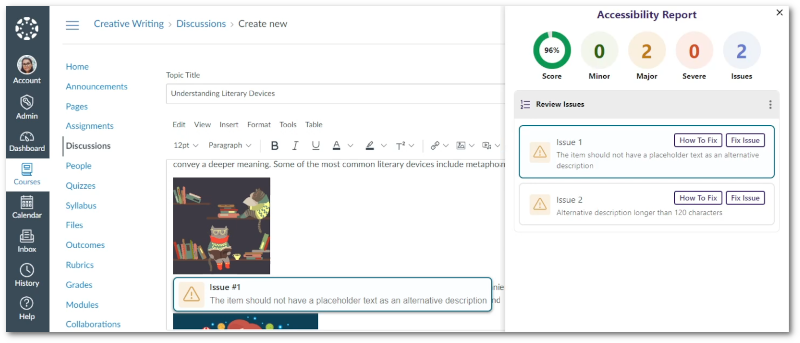
      WYSIWYG editor with Panorama’s Accessibility Report detecting issues for images.
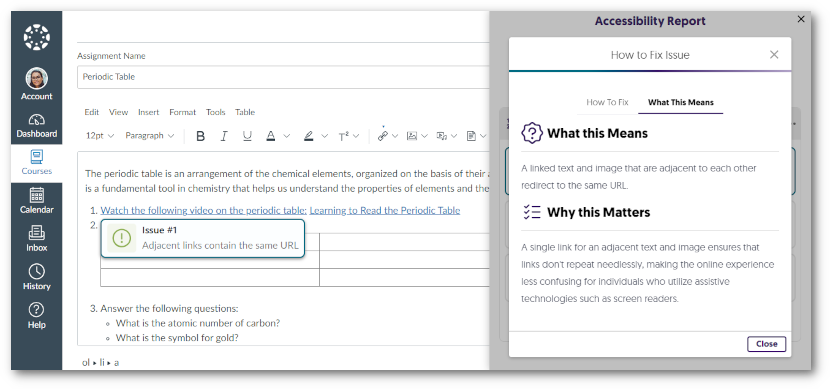
    7. Increased the Number of Accessibility Checks for HTML Content We’ve also added additional accessibility checks to ensure that HTML content is accessible with two additional checks:
      • Flag adjacent links with the same URL.
      • Flag tables with no content.
      WYSIWYG editor with Panorama’s Accessibility Report detecting issues for HTML Content.
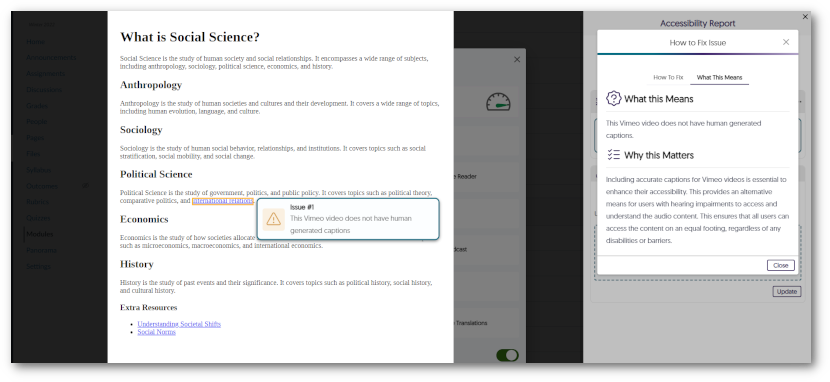
    8. Accessibility Check to Ensure Vimeo Videos Contain Captions Linked Vimeo videos in HTML documents will be scanned to ensure the video contains captions. Panorama's Accessibility Report has detected a linked Vimeo video without captions.
    9. Export Reports With a Date Range and the Preferred File Format Admins and Instructors can now select the date range of data to include in their reports and receive them as a JSON or Excel file via email. dates are selected for a storage report before requesting a download link to be sent by email.
    10. Downloaded Course Reports Will Include All Issues When downloading a Course Report, it will now contain all issues detected within the course. This will allow admins and instructors to receive all the information of the report as seen within the Panorama LTI app.
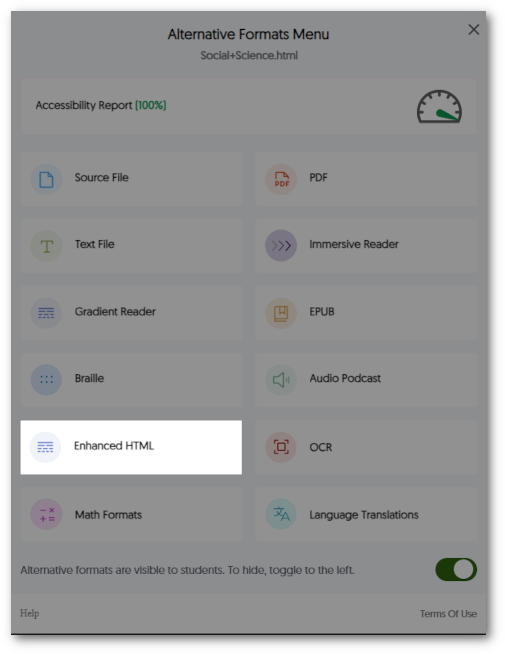
    11. New Alternative Format: Enhanced HTML View With Enhanced HTML view, HTML documents can be displayed in a dedicated tab to customize the appearance of the document using the Website Accessibility tool for a more personalized viewing experience. Alternative Formats menu showing the Enhanced HTML option.
    12. Keyboard Accessibility Support for the Design Tool Creators can access and navigate through the Design Tool through the use of their keyboard.
    13. Disable the Check for Specific Accessibility Issues We now allow administrators to turn off their preferred checks for accessibility issues. While we recognize the significance of not disabling issues that Panorama can detect, we understand the importance of providing institution administrators with the flexibility to meet their institution’s accessibility needs. Panorama Issue Settings to disable specific accessibility checks.
    14. Panorama REST API to Generate Alternative Formats Reports We have added additional support for third-party API integrations to allow individuals to access information regarding their documents and options to generate Alternative Formats and Accessibility reports. To learn how to use our APIs, please visit our Panorama API guide.
    15. Option to Disable the Panorama Design Tool We have provided a course-level setting instructors can use to disable the Panorama Design Tool. The option to disable the Design Tool.
     
  • November 24, 2023

    YuJa Enterprise Video Platform Update – “Alpine” Released to CAN, AU and EU Zones

    We have successfully pushed an update to all Enterprise Video Platform instances residing in Canada, Australia, and the European Union.
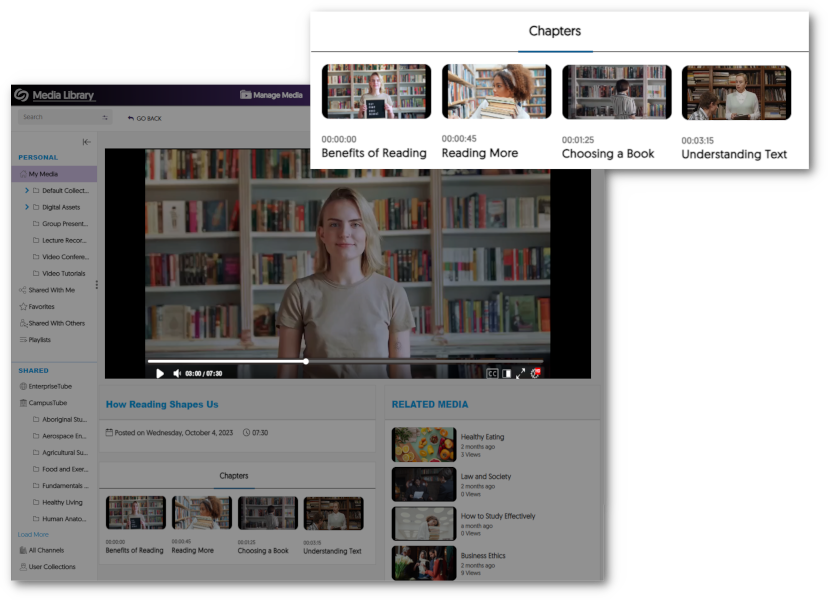
    1. New Generative AI to Detect Video Chapters (Moments of Impact) With the use of new Generative AI capabilities, Video Chapters allow viewers to automatically select key moments of impact within a video or audio recording. A Chapters tab is shown under the Video Player with thumbnails for each chapter within the video.
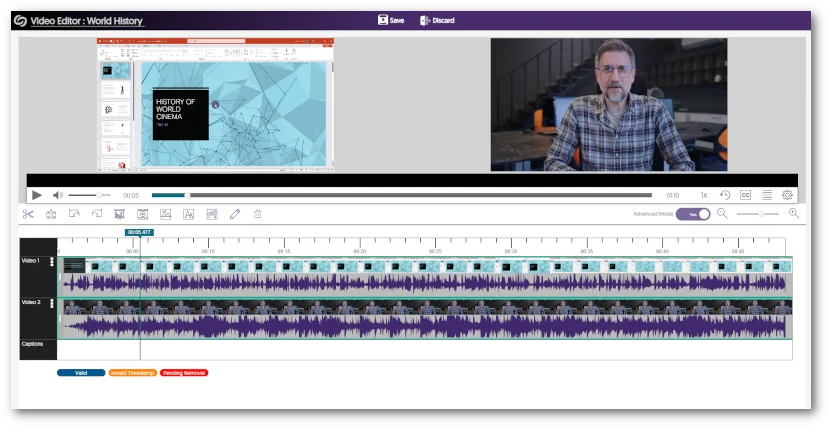
    2. Video Editor Introduces New Audio Waveform Engine to View Multi-Track Audio The Video Editor features an updated audio waveform processing engine that allows you to view independent audio streams on separate tracks instead of the previous single track that displayed all audio waveforms. Two audio waveforms are shown within the Video Editor on separate tracks.
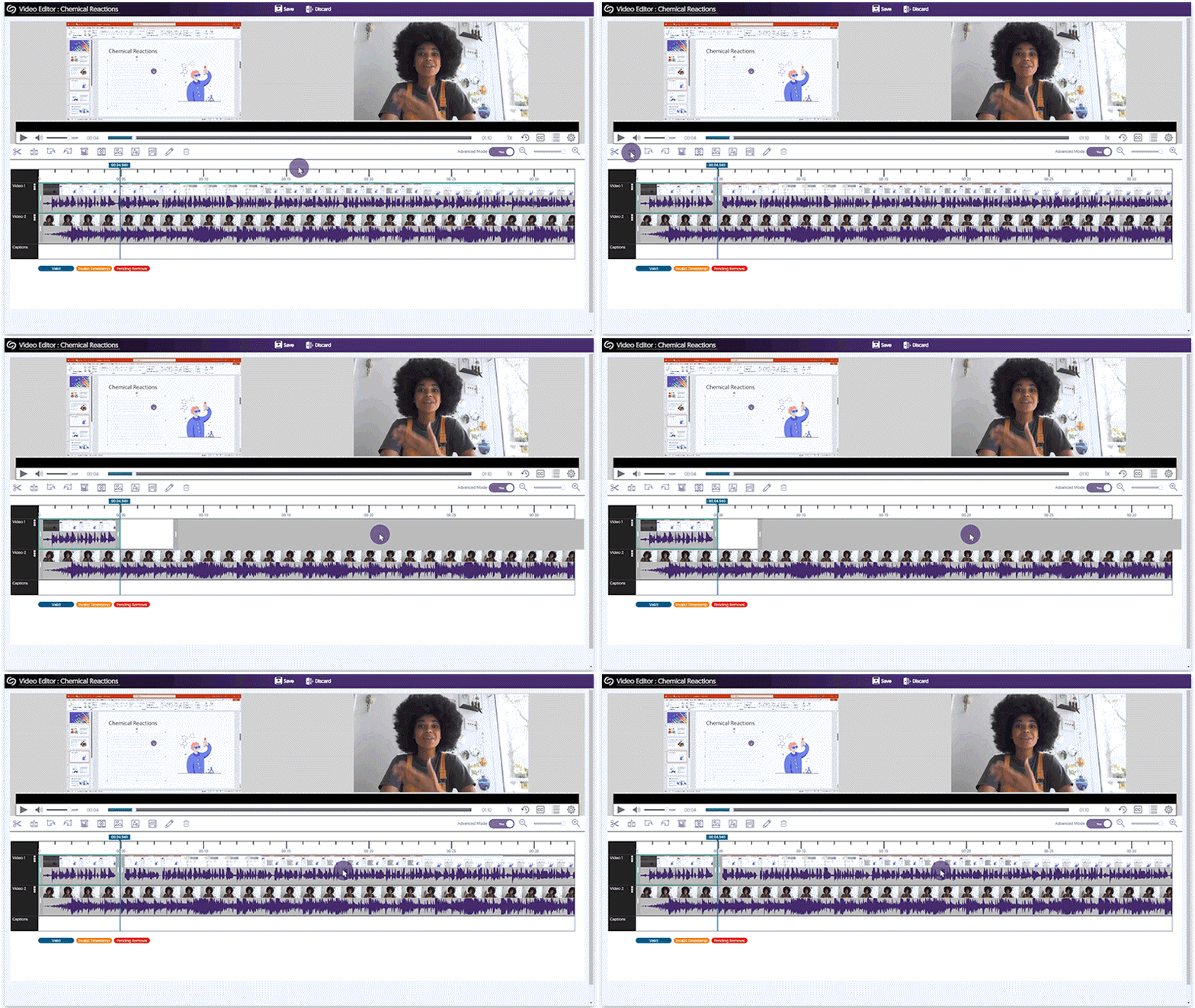
    3. Video Editor Adds Synchronized Splits for Video and Audio Streams Our updated Audio Waveform engine allows Content Creators to split a video and its associated audio track simultaneously, enabling synchronized splitting and movement of tracks. A video track with its audio is split and both move in synch with each other when dragged.
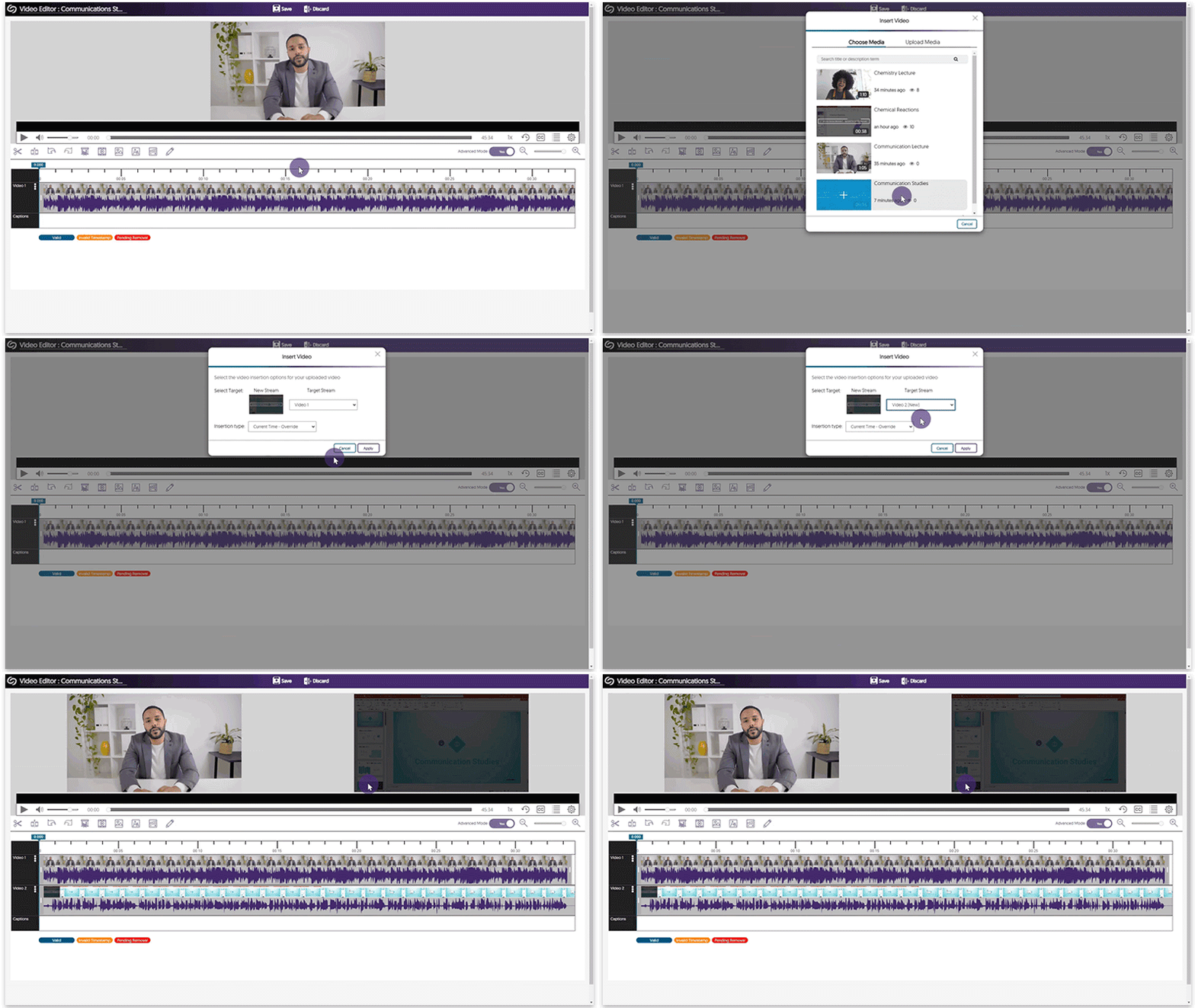
    4. Video Editor Can “Build a Multi-Stream Video” By Adding Full-Length, Independent Streams Content Creators can import video clips as new, independent streams, allowing them to create multi-stream videos with up to four streams within a single video. A video is added as a separate stream in the Video Editor.
    5. Umbrella System Now Supports the Canvas LMS Quick recap, the Umbrella System enables better support of multi-campus systems with both central administration alongside distributed sub-administration of individual campus nodes. Umbrella System now supports the Canvas LMS complementing our existing support of Blackboard and D2L Brightspace. A view of the organization tab with a list of organizations and enrolled users.
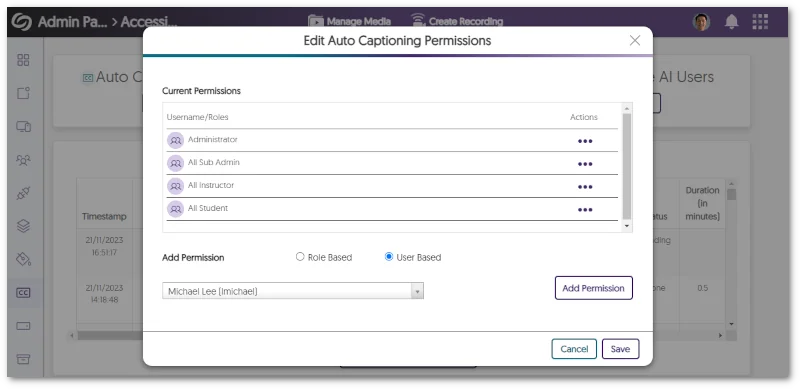
    6. More Granular Live Captioning Permission Management Administrators can set specific permissions on a per-user or role basis to administer the use of live captions for Software Capture, Hardware Hub, and RTMP live streams. Radial options for editing auto captioning permissions for specific users or roles.
    7. Updated Sidebar Iconography with Subtle Animation Element The Video Platform’s Sidebar within the Admin Panel, My Account, and Himalayas has been enhanced with a new color palette and the introduction of new icons featuring animated elements. a view of the Admin Panel navigation menu with its new icons and animations.
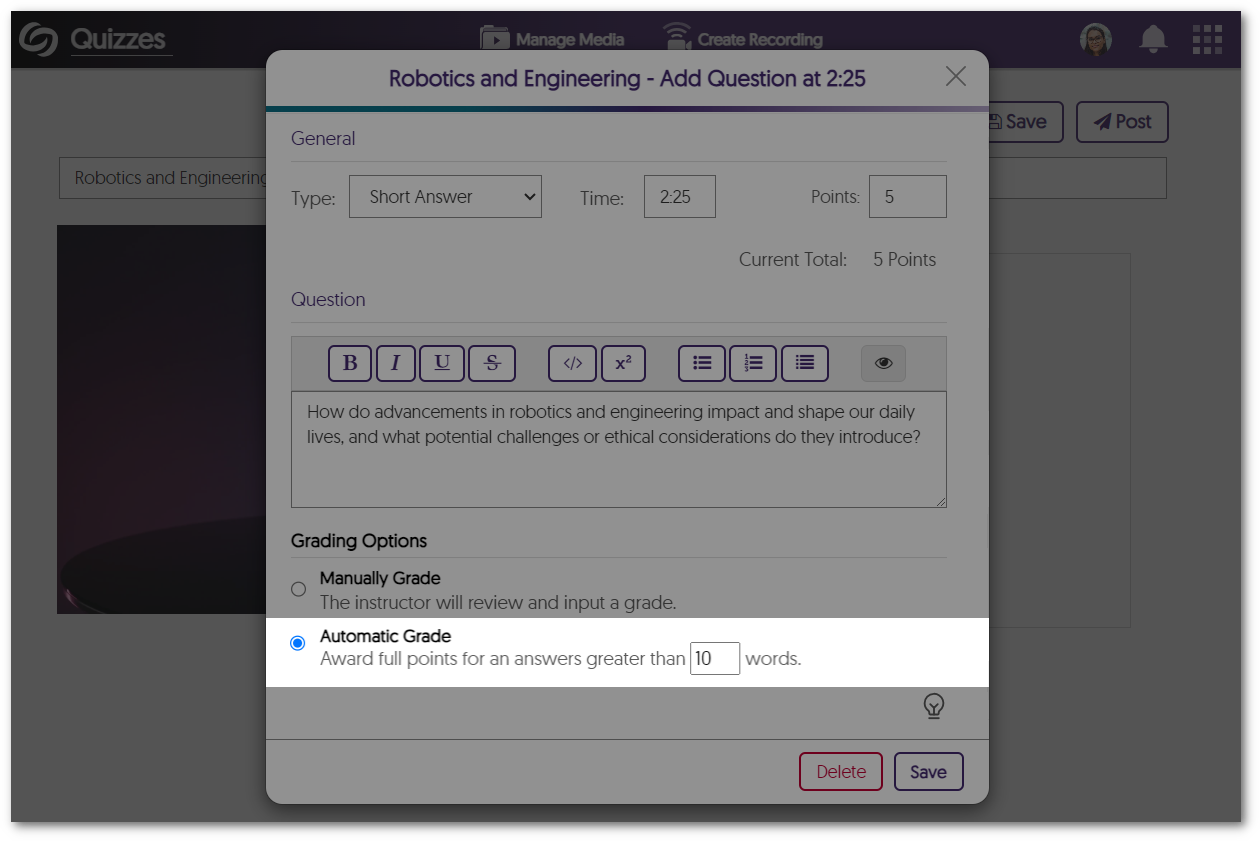
    8. Video Quizzes Support Automatic Grading for Short Answer Video Quizzes will allow instructors to set grading options for Short Answer question types. Instructors can manually review the answer and enter a grade or automatically assign full points for answers greater than a specified word count. Automatic Grade option within the Short Answer question type.
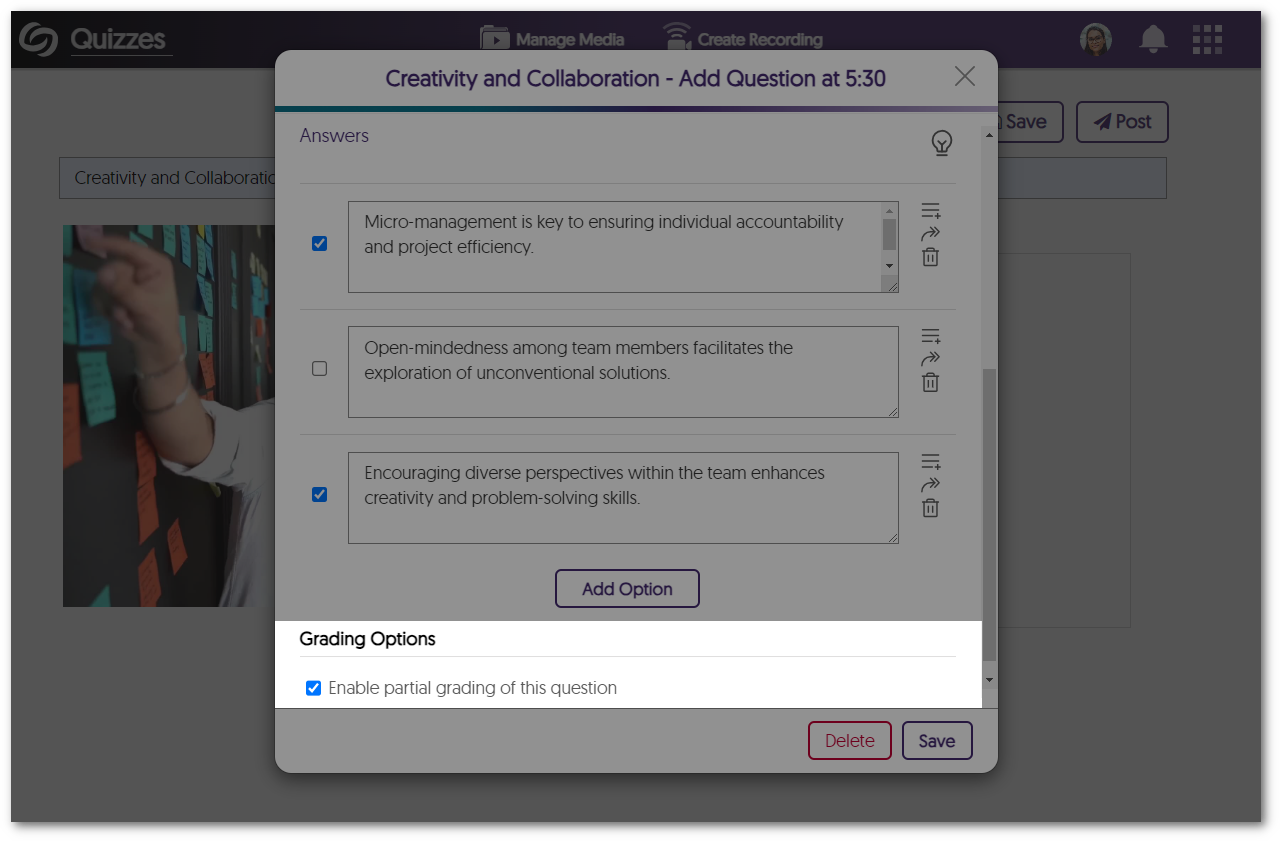
    9. Video Quizzes Support Partial Points for Select Multiple  Content Creators can now award partial points for the Select Multiple question type when students select some of the correct options instead of requiring them to select all the right answers. Grading option to enable partial grading in the Select Multiple question type.
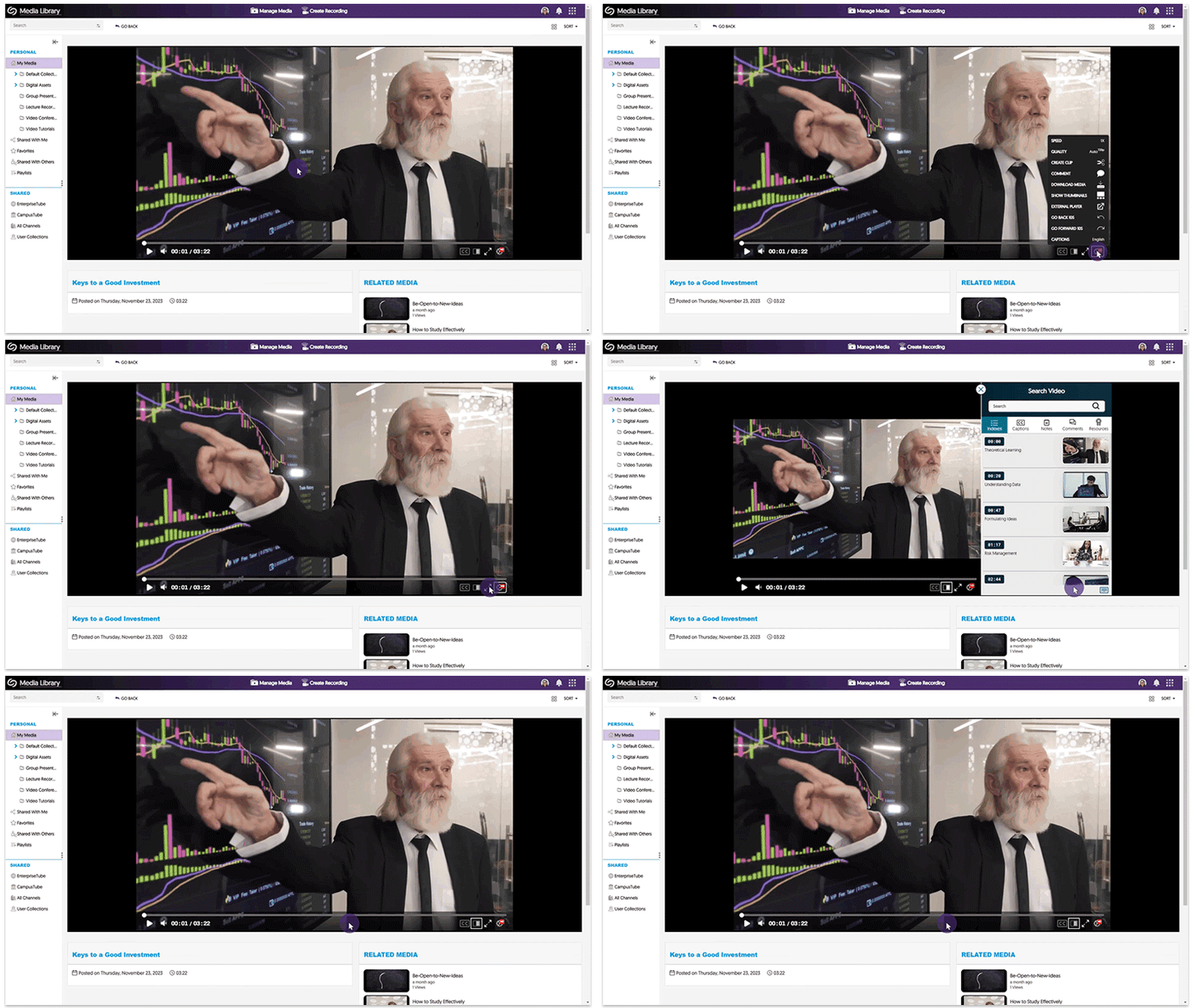
    10. New Micro-Interactive Elements Within the Video Player To enhance the viewing experience when utilizing the Video Player, we have added subtle fade and slide transitions when navigating through various features. The sidebar in the video player slides out and the settings menu fades in.
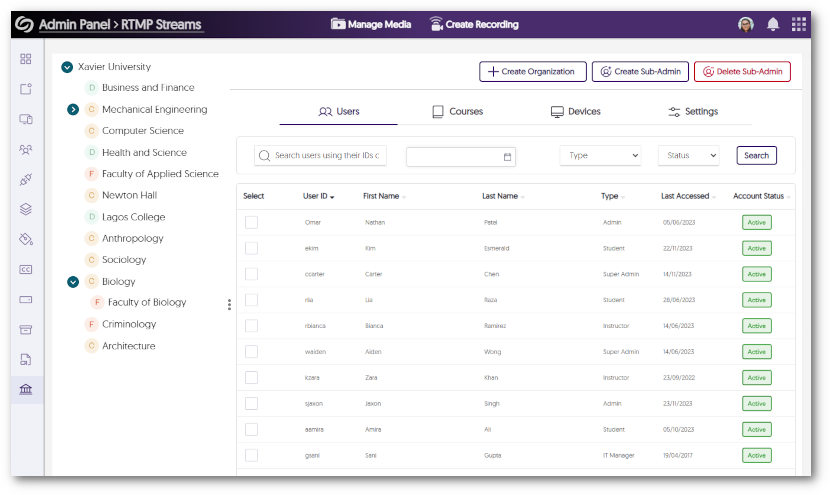
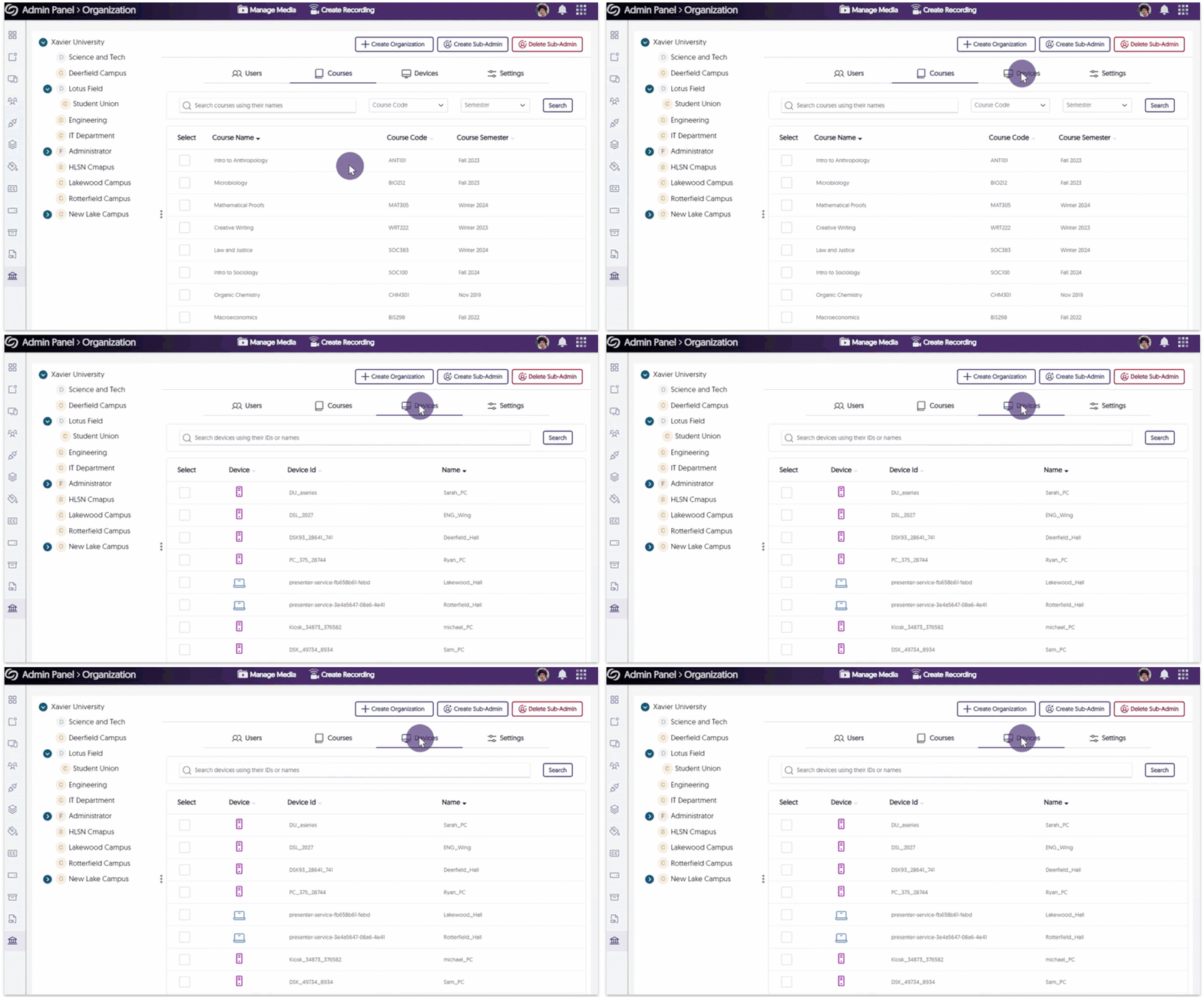
    11. Visual Refresh for the Organization Tab Within the Admin Panel Building on our recent enhancements to the Organization tab’s UI elements, we’ve extended our improvements to other key sections, including the Courses and Devices pages, to provide new icons and a refined color palette. The organization tab shows the devices tab and the course tab.
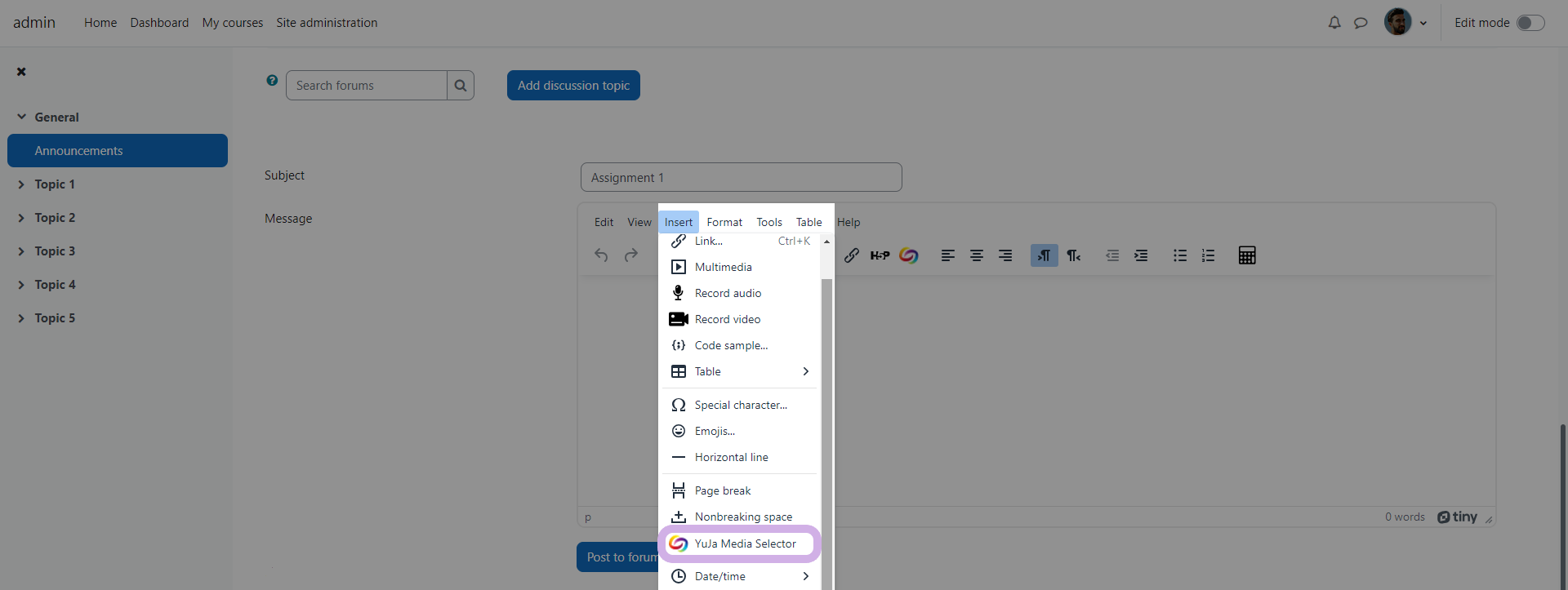
    12. Moodle 4.1: TinyMCE Support for the Media Chooser Directly Within Insert Menu Content Creators using the newest TinyMCE plugin for their Moodle 4.1 instance will now be able to access the Media Chooser directly from the Insert menu. The option within Moodle's text editor to insert the Media Chooser through the insert menu.
    13. Prioritized Human-Captioning Over Auto-Captions Video content will now prioritize human-generated captions, automatically replacing any auto-generated captions. These human-generated captions will then be utilized for transcript generation, ensuring content is accurately transcribed.
    14. Visual Refresh of Toast Messages We have improved our toast messages by adding new animations, colors, and icons. animation of the new toast message appearing.
  • November 24, 2023

    YuJa Himalayas Data Archiving Platform Update – “Alpine” Released to CAN, AU and EU Zones

    We have successfully pushed an update to all YuJa Himalayas Data Archiving Platform instances residing in Canada, Australia, and the European Union. This update provides automatic regeneration of video transcodes, a Data Management Policy to specify folder tags, and the option to archive content within its original location.
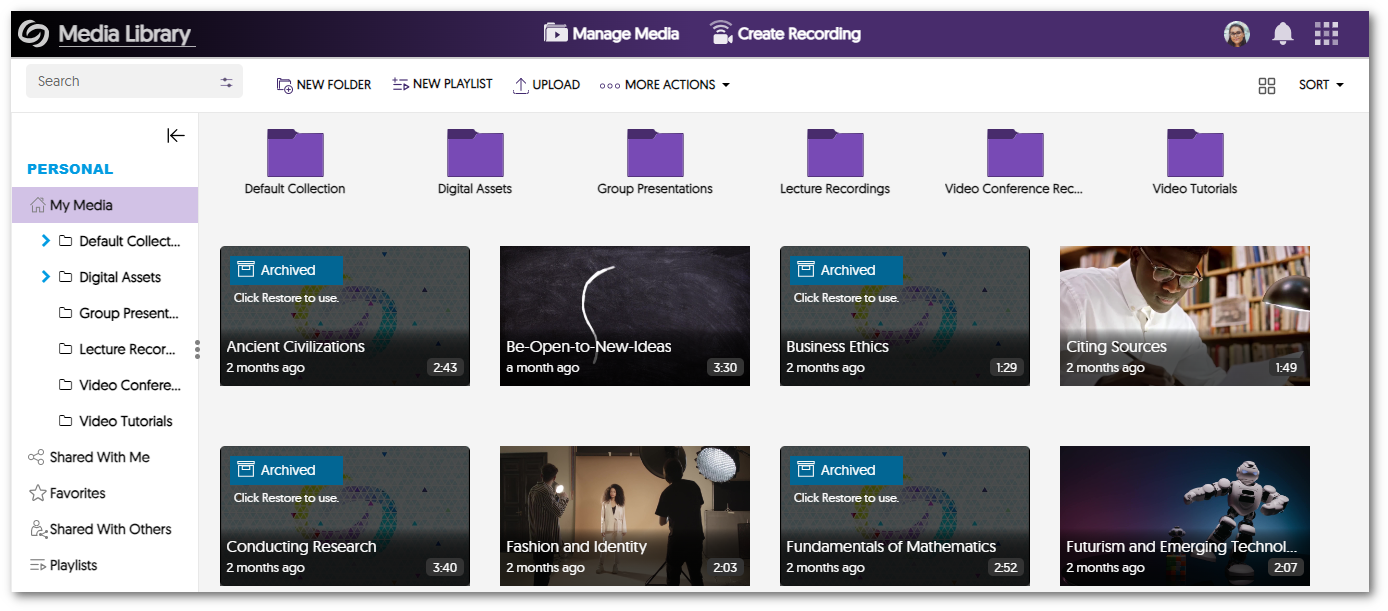
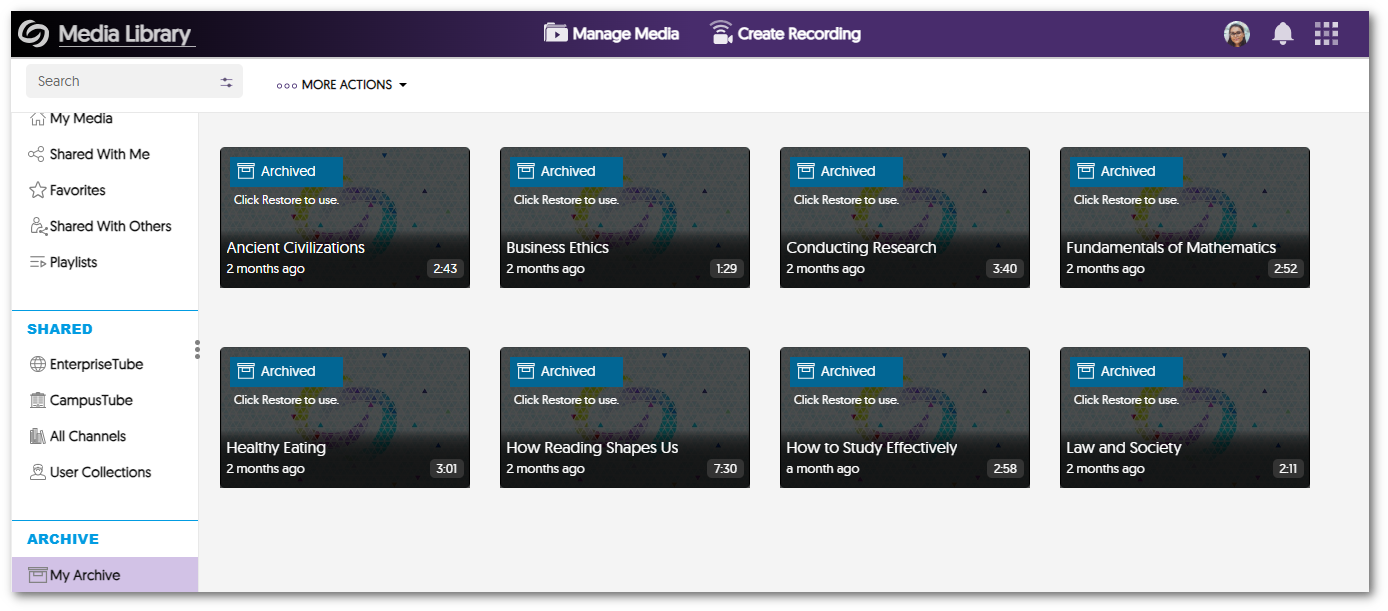
    1. Show Archived Content Within My Media or My Archive Administrators can archive content to its original published location or archive to My Archive, consolidating all archived media in a single location. If administrators prefer, both options can be enabled, providing the flexibility of having both choices simultaneously.
      • My Media Video archived within My Media showcasing active alongside the archived videos.
      • My Archive Archived videos within My Archive.
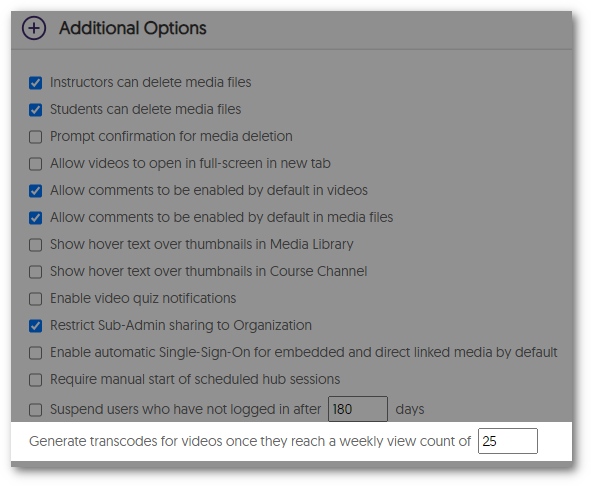
    2. Automatic Regeneration of Video Transcodes Based on View Behavior Administrators can set the minimum weekly view count for videos to automatically generate their transcodes, regardless of whether they were never uploaded or deleted through a Recurring Policy Action—Delete Transcodes or Archive to EVP. Additional Options to generate transcodes for videos after a specified weekly view count.
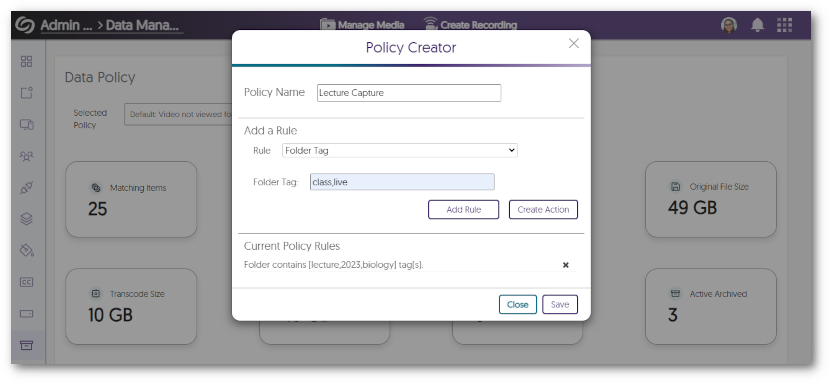
    3. New Data Management Policy to Specify Folder Tags Administrators can now scan for content within specified tagged folders using the new Data Management Policy. This policy allows access to content within these folders and any sub-folders contained within them. The Policy Creator showcasing the Folder Tag policy.
  • November 21, 2023

    YuJa Verity Test Proctoring Platform – “Pearl” Released to US, CAN, AUS, and EU Zones

    We have successfully pushed an update to all instances residing in the United States, Canada, Australia, and the European Union. This update includes a new redesign for the Live Proctoring Dashboard, the option to assign custom flag levels for events, ability to take private proctoring notes within the Proctoring Video Player when reviewing results, new proctor settings – such as Audio Detection, Block Virtual Machines, and Block Applications – ability to create institution-wide Proctoring Global Profiles, a pre-assessment compatibility check, and a new UI redesign for blocking embedded content.
     
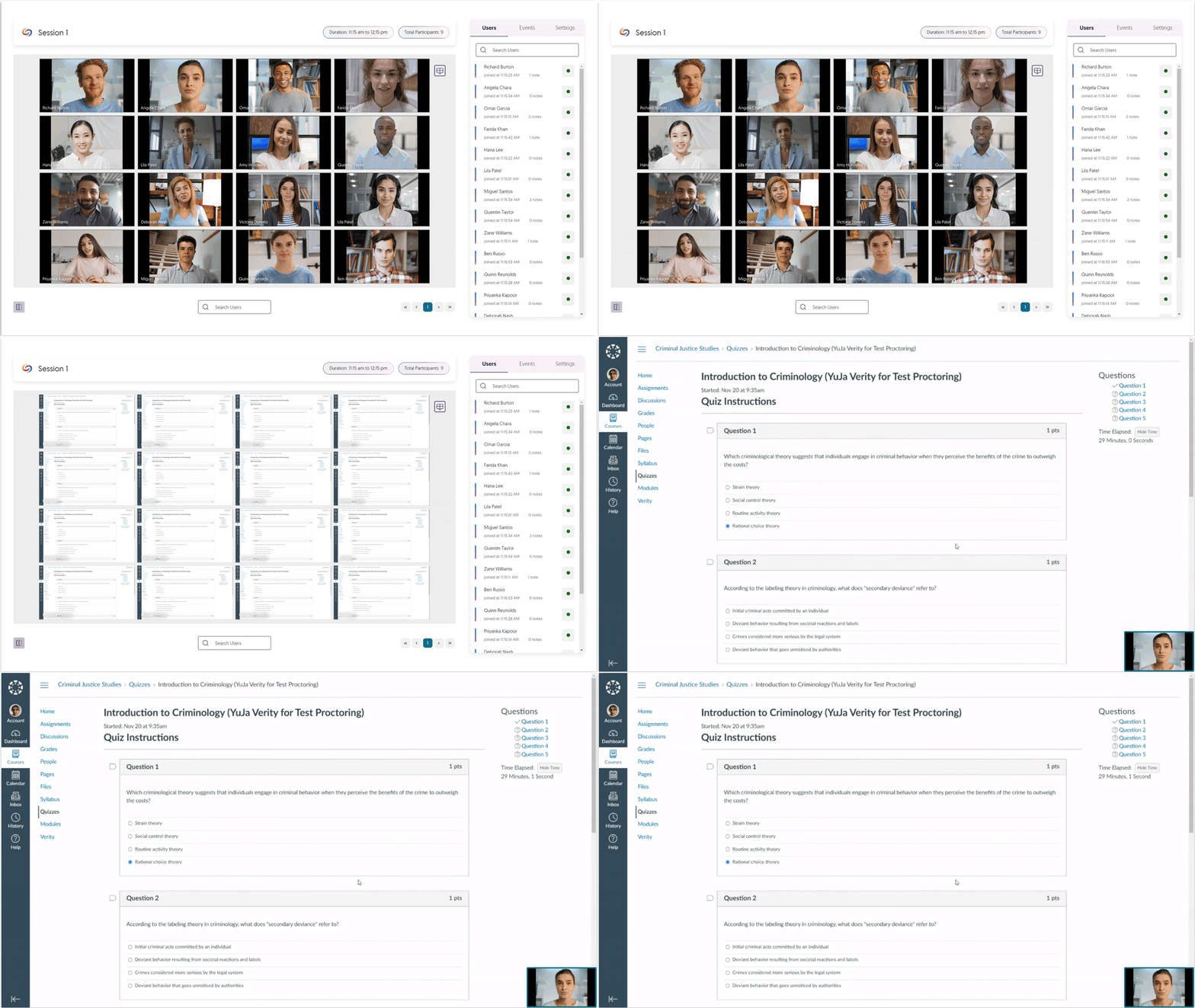
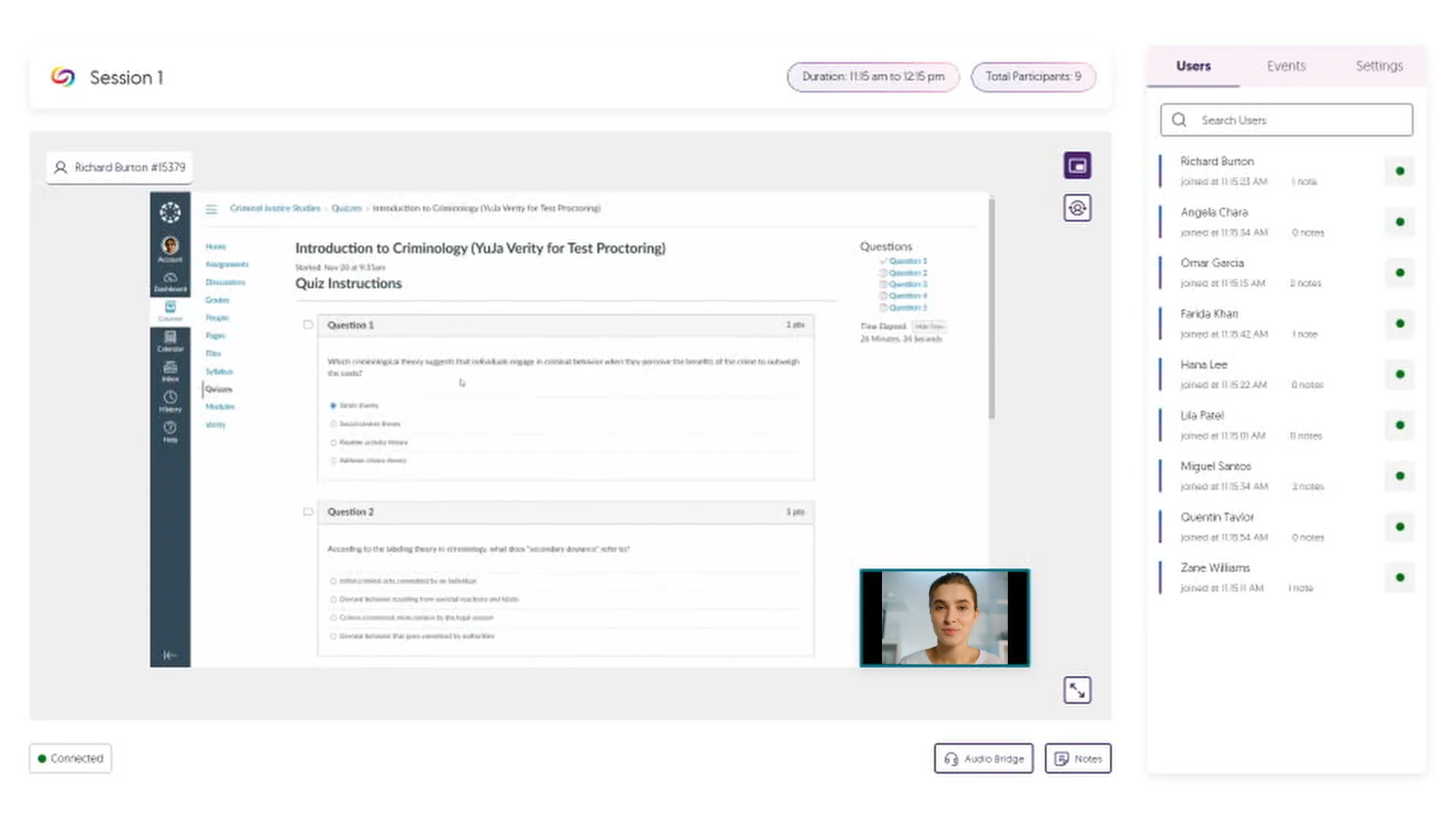
    1. Verity Live: New Dashboard for Live Proctoring Verity Live, a module within the YuJa Verity Test Proctoring Platform, has undergone a significant update to its dashboard, with an emphasis on adding new capabilities and user experience improvements. These changes provide a more intuitive and seamless navigation experience for proctors. Now, proctors can effortlessly explore various views, including:
      • Gallery: Conveniently view multiple live cameras within an improved dashboard panel
      • Screen View: Single-click to flip to view all proctored student’s screens
      • Student-Specific View: Select and focus on a single student’s view with a specialized full-screen view.

      A live proctoring view of Gallery, Scree, and Student view.
    2. Verity Live: Student-Specific View Expanding upon our Student-Specific View, this feature will allow proctors to direct their attention to a specific student during an assessment by simply selecting a student and accessing a full-screen view of the live recording to oversee a detailed perspective of the student’s testing environment. The proctor is viewing the environment of a students screen and webcam recording.
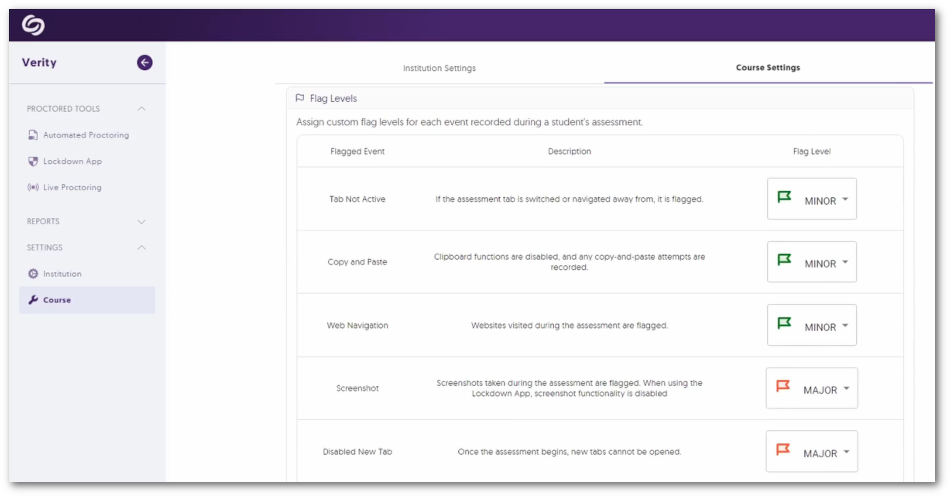
    3. Assign Custom Flag Levels for Events Instructors have the flexibility to tailor event flagging to meet their standards by assigning custom flag levels—Minor, Major, or Severe—for events recorded during proctored sessions. Additionally, instructors can choose to have certain events ignored by Verity by simply choosing not to flag an event.
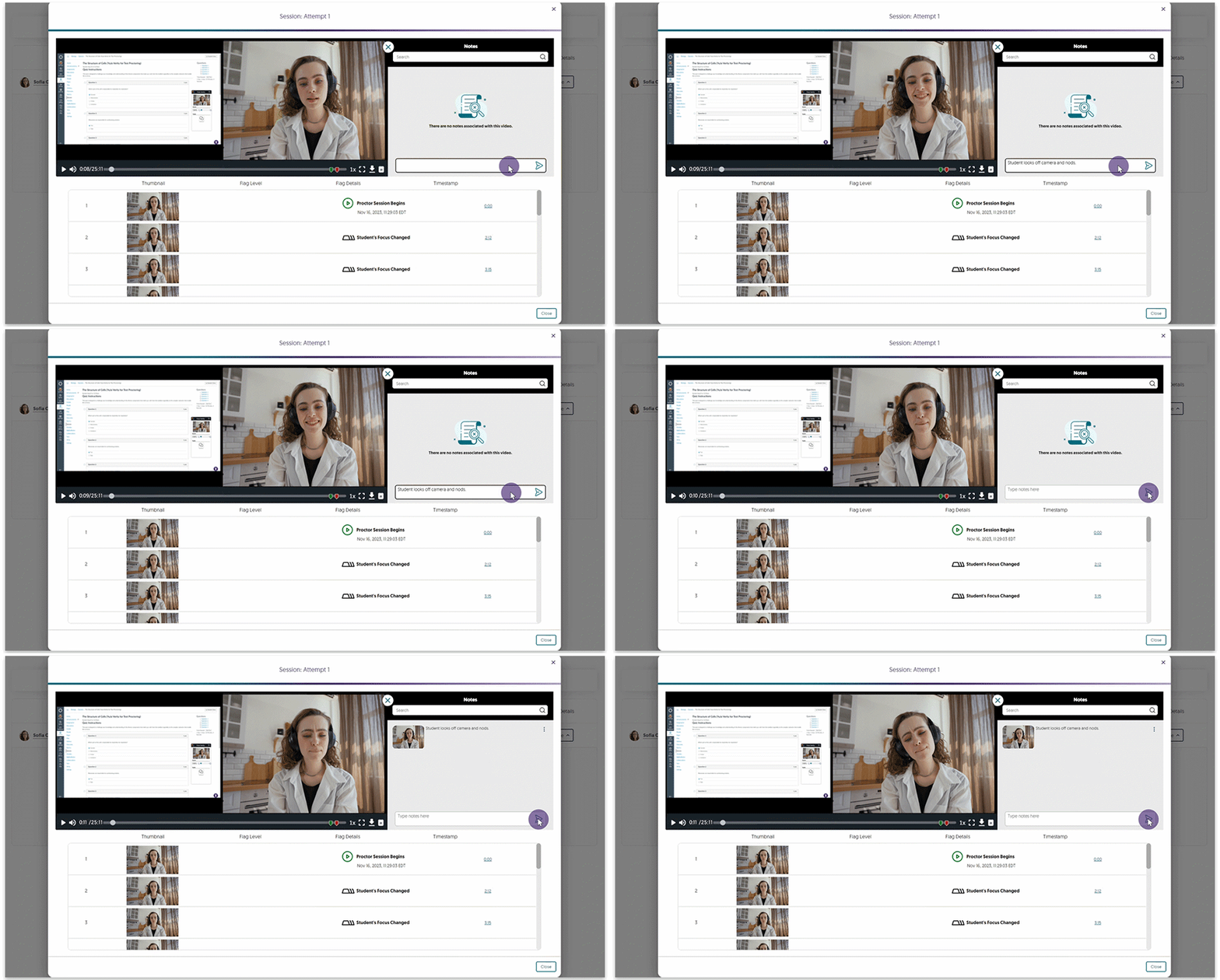
    4. Proctoring Video Player Notetaking When Reviewing Sessions Complementing Verity’s automated event tracking and logging, when reviewing proctored assessments, instructors can now take notes directly within the Proctoring Video Player to manually keep track of important details in recorded sessions. An instructor writing a note for an assessment recording they are reviewing.
    5. New Event to Flag Audio Detection To ensure the integrity of a student’s testing environment, any loud audio occurrences during the assessment are automatically flagged if the Record Audio setting is enabled. This will allow assessment reviewers to focus on areas of concern, aiding in the detection of potential unauthorized assistance. A dog barking triggers an audio warning letting the student know they need to be in a quiet environment.
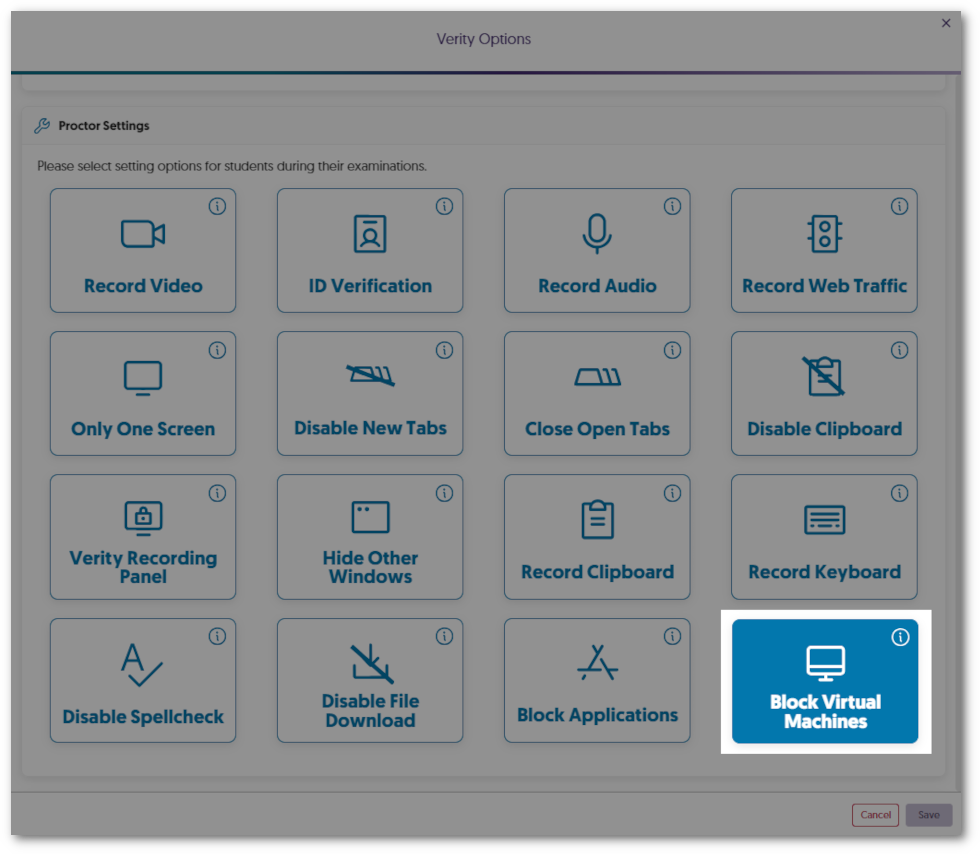
    6. New Lockdown App Setting: Block Virtual Machines Virtual machines provide students access to multiple operating systems on a single device, which can be used to bypass proctor settings. The Lockdown App will allow instructors to enable virtual machine detection to provide online integrity during proctored assessments. If a virtual machine is detected, this will prevent students from starting or continuing their assessment. Verity Proctor Settings showing the option to enable Block Virtual Machines.
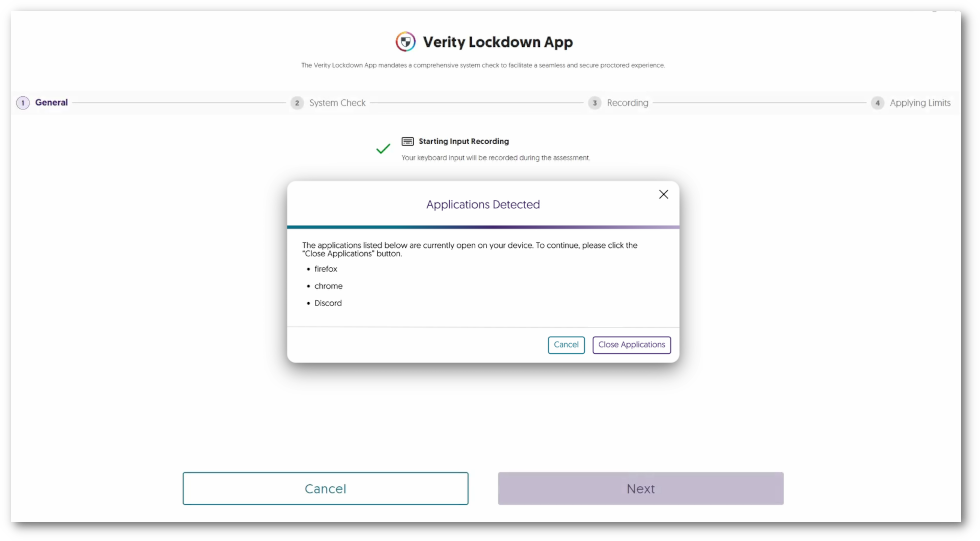
    7. New Lockdown App Setting: Block Applications from Running Instructors now have more control during online proctored assessments with the new Block Application feature for the Lockdown App. By listing as many applications as desired, instructors can prevent students from using tools, such as social media and Microsoft apps, to provide distraction-free assessment. Restricted applications are shown that the Block Applications feature has detected.
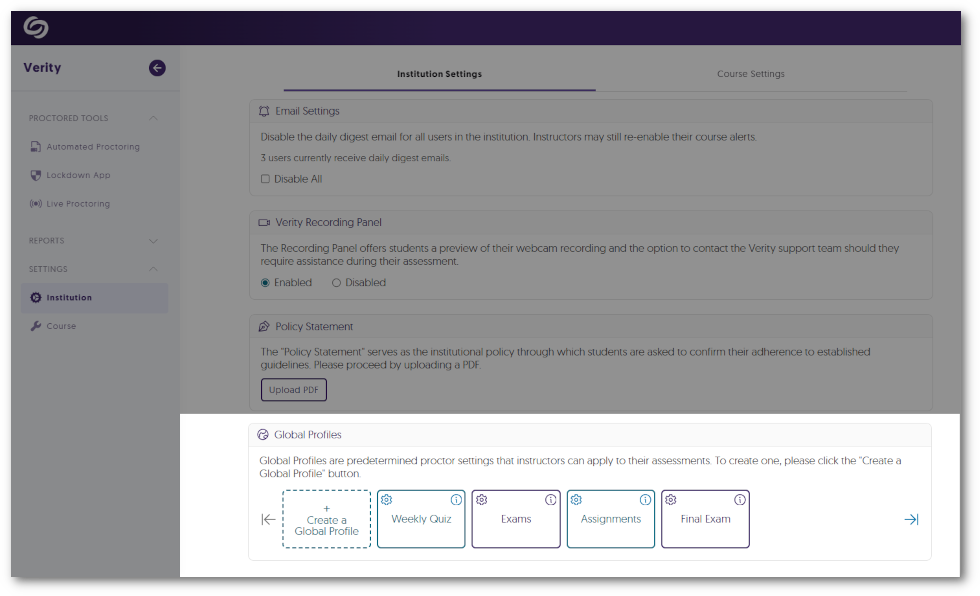
    8. Create Global Profiles for Institution-Wide Proctor Settings To streamline access to proctor settings on a per-assessment basis that consistently meets requirements for a standardized online environment, administrators can now establish Global Profiles for their institution. Instructors will then have access to select these profiles to apply the required proctor settings to their assessments. The Global profiles feature within the Institution Settings in the Verity LTI app shows custom created profiles.
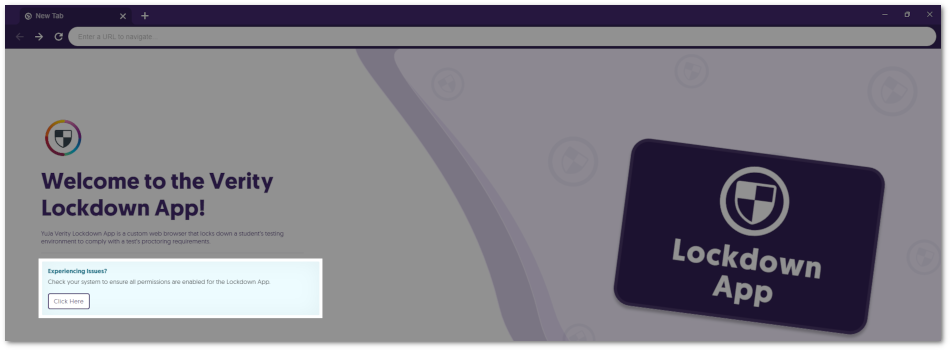
    9. Lockdown App: Pre-Assessment Compatibility Check Students requiring the use of the Lockdown App for their assessments will now have the opportunity to conduct a comprehensive pre-assessment compatibility check. This will provide students with information regarding the upcoming proctored assessment, including details on monitored actions, assessment restrictions, and verification of external devices, such as audio and video. This proactive step ensures students are well-prepared and their devices meet all necessary requirements before starting the assessment. The compatibility check is featured as a button on the main page of the Lockdown App when opened.
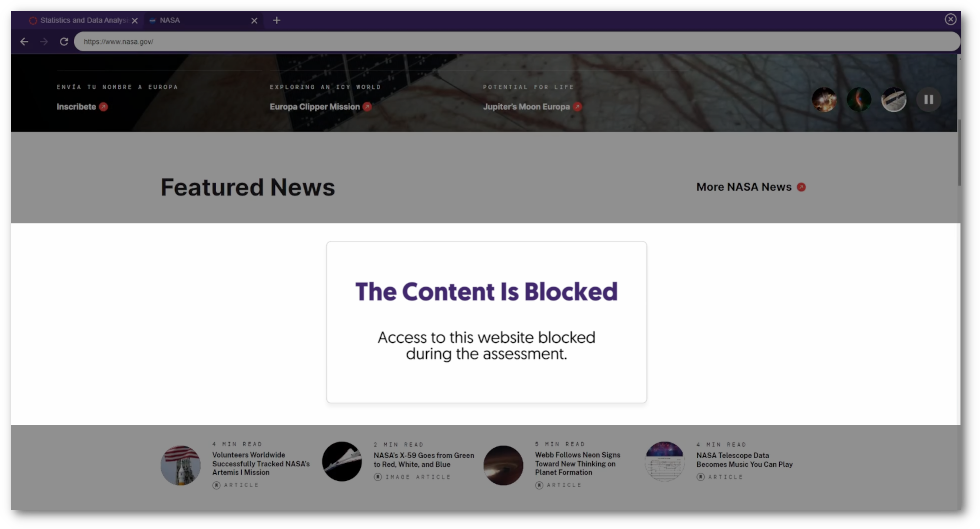
    10. Refreshed UI to Block Embedded Content Assessment administrators can allow students to access specific web pages during their assessment; however, some pages may incorporate embedded content from external sources. To provide students with a clear indication that they do not have access to this content, we’ve provided a refreshed UI that will only block the embedded areas, ensuring the rest of the web page is visible. Embedded content within a website is blocked letting the user know they don't have access to the content.

Join the 1,000+ Organizations Deploying High-Impact Solutions

A collection of logos representing various organizations and institutions that use YuJa’s platform.