Product Updates

Get the latest platform updates, features, and announcements—all in one place.
  • August 20, 2023

    YuJa Website Accessibility Widget Update – August 2023

    We have successfully pushed an update to the YuJa Website Accessibility Widget for those residing in the United States, Canada, European Union, and Australia.
    1. Refreshed Website Accessibility Interface The Website Accessibility Widget, designed to improve the usability and accessibility of any website, now offers an improved user interface with a tabular view organizing Color Adjustments, Content Adjustment, and Accessibility Profiles. Select any adjustment or Profile to quickly apply an accessible preset or apply custom granular adjustments for accessibility issues such as text color, background color, font sizing, letter spacing, and so much more. Website Accessibility features shown in Canvas.
  • August 18, 2023

    YuJa Panorama Digital Accessibility Platform – “Mount Jasper” Version Released to US, CAN, and EU Zones

    We have successfully pushed an update to all YuJa Panorama Digital Accessibility Platform instances residing in the United States, Canada, and the European Union. This release provides our users with reports for webpage accessibility scanning, a new interface for Website Accessibility, the option to adjust Accessibility Icon colors, unified HTML reporting, map Canvas custom roles to Panorama, the option to scan newly added courses, and more.

    1. New WCAG 2.1-Aligned Webpage Scanning and Reporting To expand on Panorama’s Website Accessibility Widget, the Platform can now perform WCAG 2.1-aligned accessibility analysis on webpages and its linked content.

      Website Administrators can easily view low-scoring webpages within a dedicated table to identify web pages that may hinder students’ learning or compromise an institution’s commitment to website accessibility. In an upcoming release, we will be adding optional, automated domain-level website traversal to provide fully automated scanning of websites which can replace legacy website accessibility scanning tools.Websites shown in the Panorama Webpage Accessibility table.
    2. Refreshed Website Accessibility Interface The Website Accessibility Widget, designed to improve the usability and accessibility of any website, now offers an improved user interface with a tabular view organizing Color Adjustments, Content Adjustment, and Accessibility Profiles. Select any adjustment or Profile to quickly apply an accessible preset or apply custom granular adjustments for accessibility issues such as text color, background color, font sizing, letter spacing, and so much more. Website Accessibility features shown in Canvas.
    3. Adjust Branding Colors for Accessibility Icons  Recognizing the diverse branding and accessibility requirements of different institutions, Panorama now offers administrators the flexibility to adjust color preferences for icons. Simply navigate to your institution settings and add any color to the accessibility icons. Accessibility Icon colors are being adjusted.
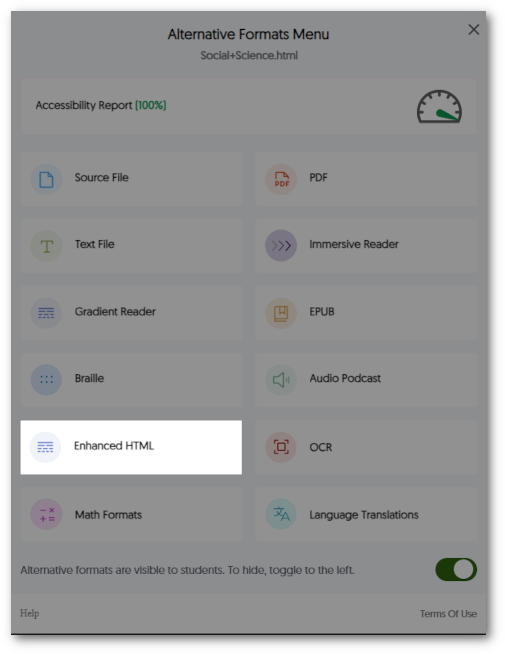
    4. Unified Accessibility Reporting for HTML Regions and Documents In an effort to unify how we present Accessibility Reports across Learning Management Systems, HTML pages will feature only the Accessibility Icon to access Alternative Formats and Accessibility Reports when additional HTML gauges are disabled. Option to disable additional HTML pages.
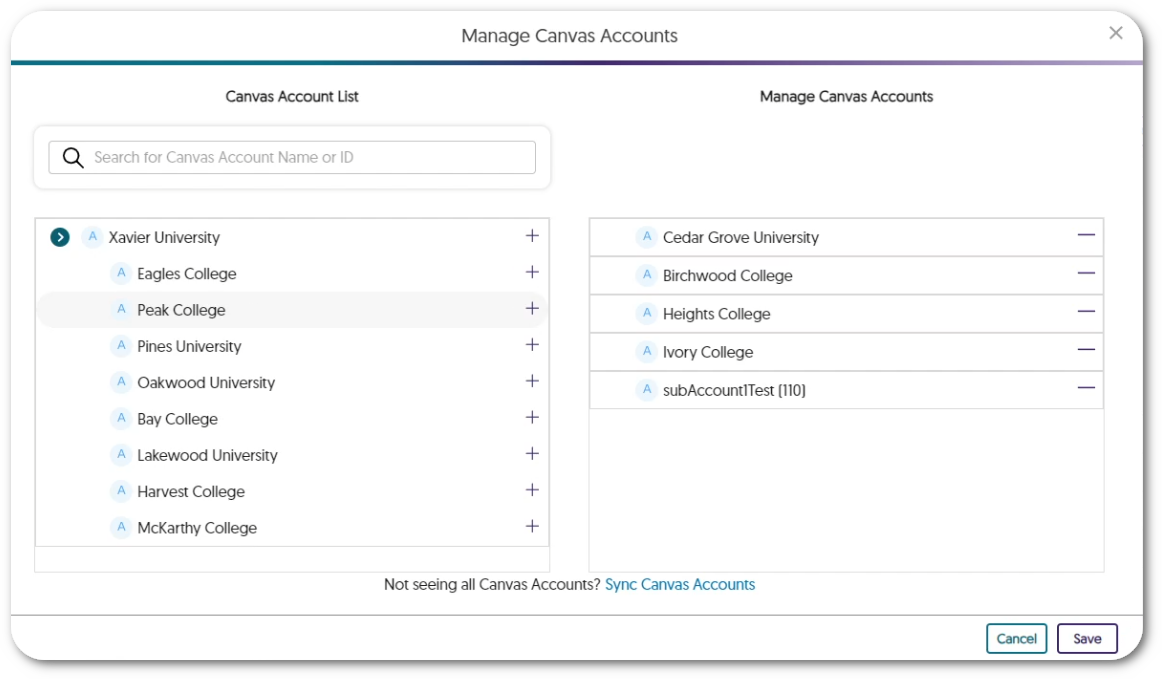
    5. Map Any Custom Canvas Role to a Panorama Role Administrators have the option to align their custom Canvas roles with Panorama’s Administrator, Instructor, or Student roles. This integration will allow unique institution roles to be recognized by Panorama, ensuring controlled access to accessibility features. To learn how to align custom Canvas roles with Panorama, please visit our support guide on How to Add Custom Canvas Roles to Panorama. Adding a custom admin role in Panorama.
    6. Enhanced Scan Management Tools to Scan New Courses or Re-Scan All Courses To enhance administrators’ control over scanning and processing courses, the Scheduled Scans panel offers new tools to scan newly added courses and rescan all existing courses. This will allow administrators to exclusively scan and process newly added courses or re-scan all existing courses according to their needs.Dialogue message when scanning a new course.
    7. Self-Service Tools to Test the Correct API Access on the Institution and Course Level Administrators will be able to test Panorama’s LMS API access to ensure APIs can retrieve relevant information about the institution or course, such as a list of roles, the names of courses, files added to a course, HTML pages created, etc. Test results for course API access.
    8. The Course Report Content Search Can Filter by Dates To allow admins and instructors to locate documents efficiently within a course, we have introduced a filtering option for the Content table that organizes search results by recently added.Content table organized by upload date of files.
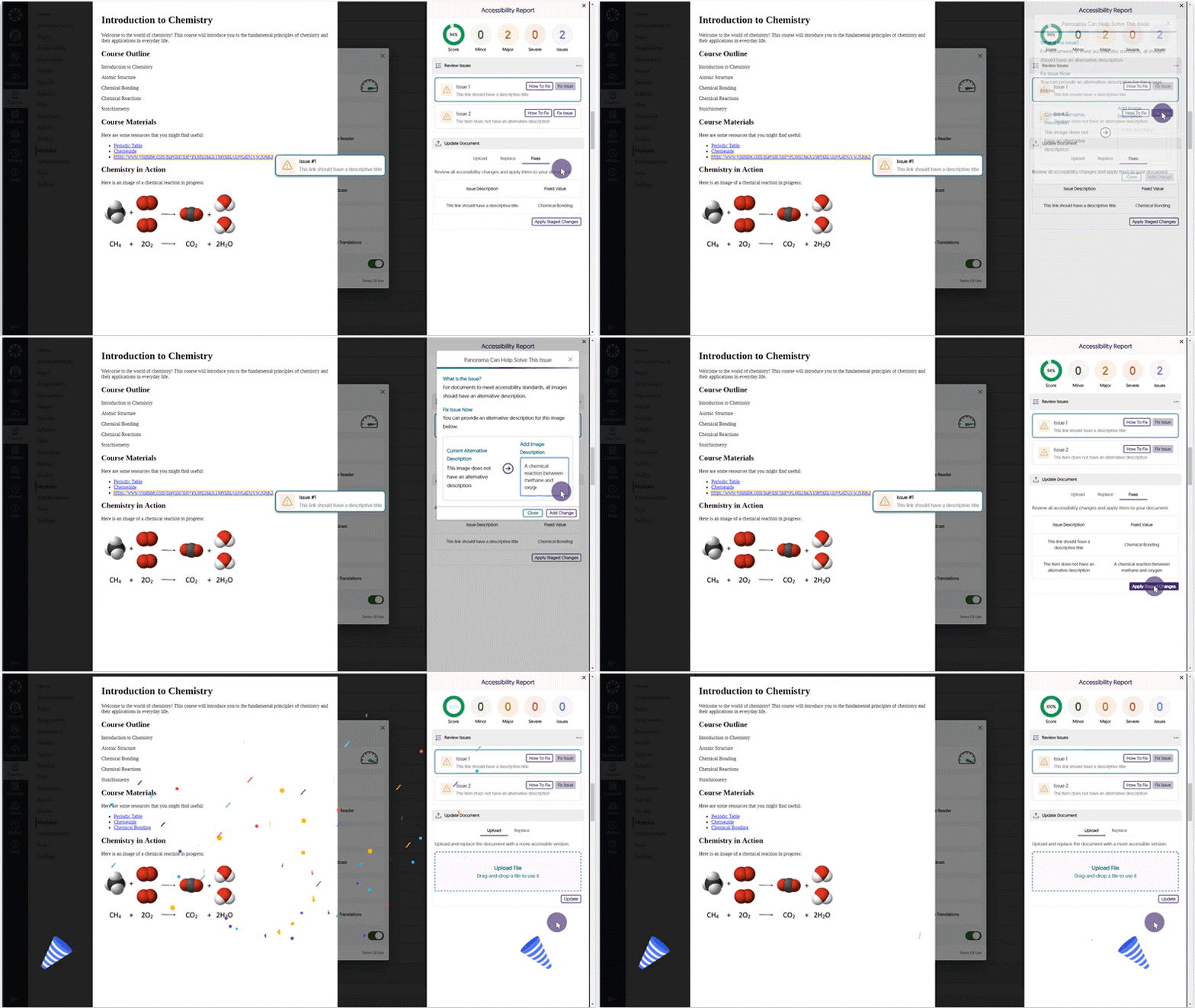
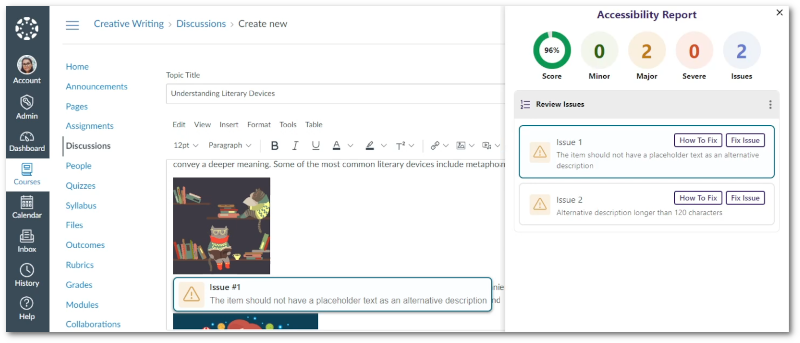
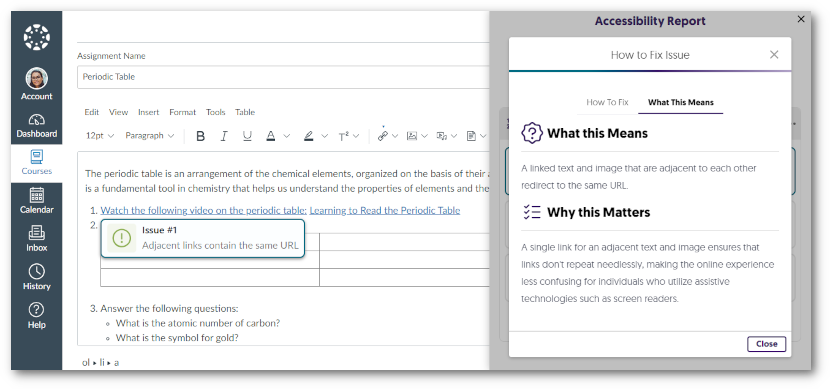
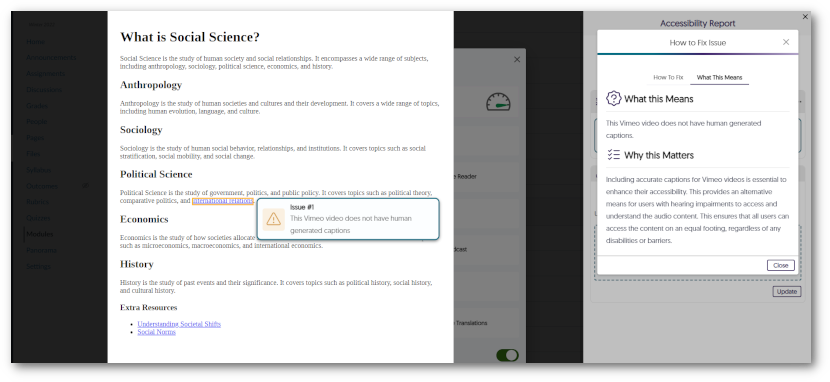
    9. The Accessibility Report Will Prioritize Showing Document-Wide Issues We’ve enhanced our Accessibility Report layout to prioritize listing document-wide issues at the top of the issues list, organized by severity. For instance, concerns such as malformed or untagged documents now appear before issues such as alt text or hyperlinks. This can be used to focus on and resolve critical accessibility issues that have affected the entire document. Accessibility Report showcasing document-wide issues.
  • August 5, 2023

    YuJa Hardware Hub – “Aspen” Firmware Update Now Available

    We have released a new Hardware Hub RCS 550 firmware that is available for update. This update provides our users with the option to self-manage firmware updates for the Hardware Hub, the option to remotely reboot the Hardware Hub, improved resolution and frame rates for USB cameras, deeper audit tracking for Hardware Hub events, offline support for pre-scheduled recordings, support for additional cameras and input devices, and support for embedding DVI-D audio.
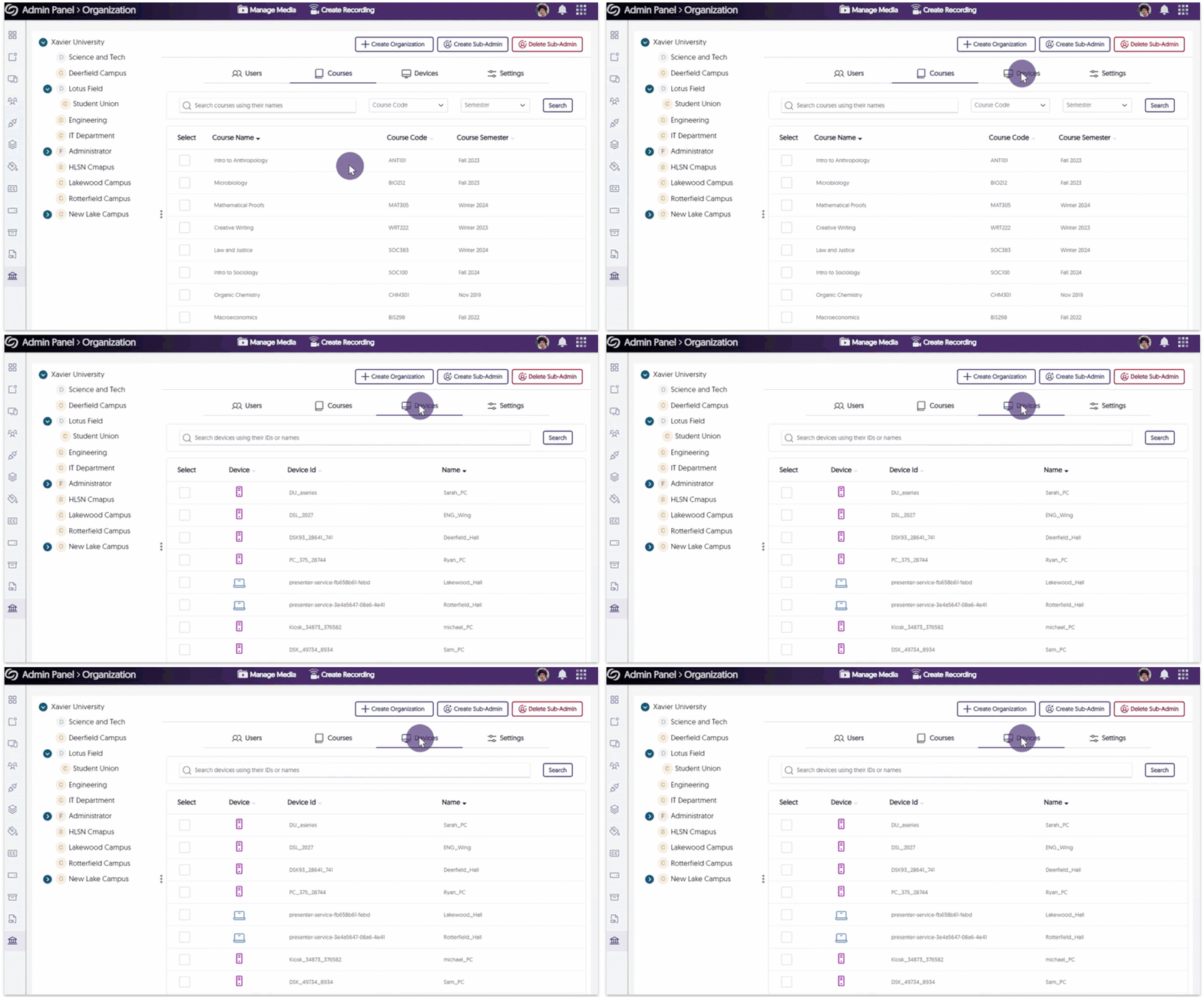
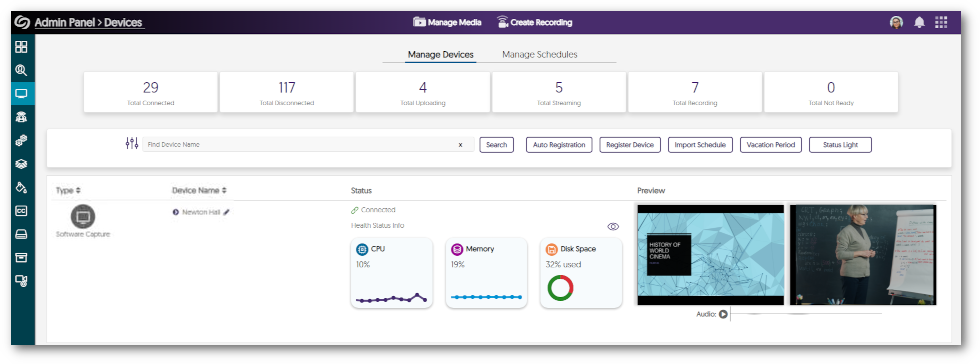
    1. Self-Manage Firmware Updates for the Hardware Hub Directly through the Video Platform’s Admin Panel Administrators will no longer be required to contact YuJa for firmware updates to their Hardware Hub. With our user-friendly approach, simply navigate to the Devices tab on the Video Platform and effortlessly update the Hub firmware with just a click of a button. To learn how to update to the Aspen RC3 release, please visit our guide on How to Update the Hardware Hub Firmware. Update Firmware modal
    2. Remote Reboot Capability for the Hardware Hub As part of our ongoing commitment to increase remote management capabilities, administrators now have the option to conveniently restart the Hardware Hub device directly from the Video Platform. Restart Modal
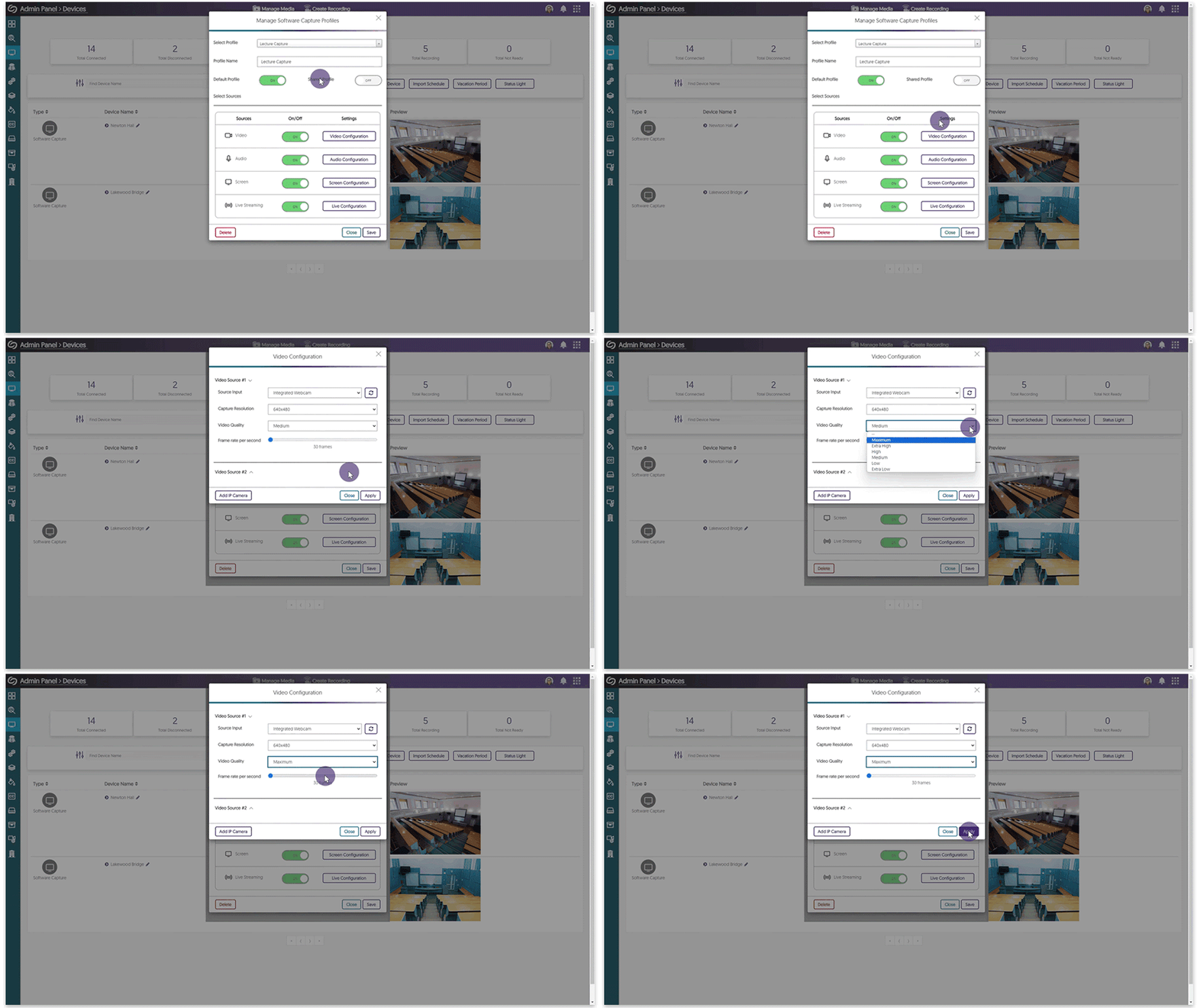
    3. Improved Resolution and Frame Rate for USB Cameras Our latest update introduces enhanced camera capabilities through the Hardware Hub, offering support for maximum resolutions of up to 2K at 30FPS or 1080p at 60FPS when utilizing USB cameras. If multiple cameras are selected, each can be configured to custom resolutions and frame rates, ensuring optimal flexibility and high-quality recordings.
    4. Audit Tracking for Tracing Individual Events The new version of the Hardware Hub now provides audit logging of actions. This will make it possible to review and trace individual recording events and actions, such as:
      • Connected and disconnected devices.
      • The status of webcams and uploads to the Video platform.
      • Requests made to the Hub. (e.g. record, pause, resume, etc.)
    5. Event Details log
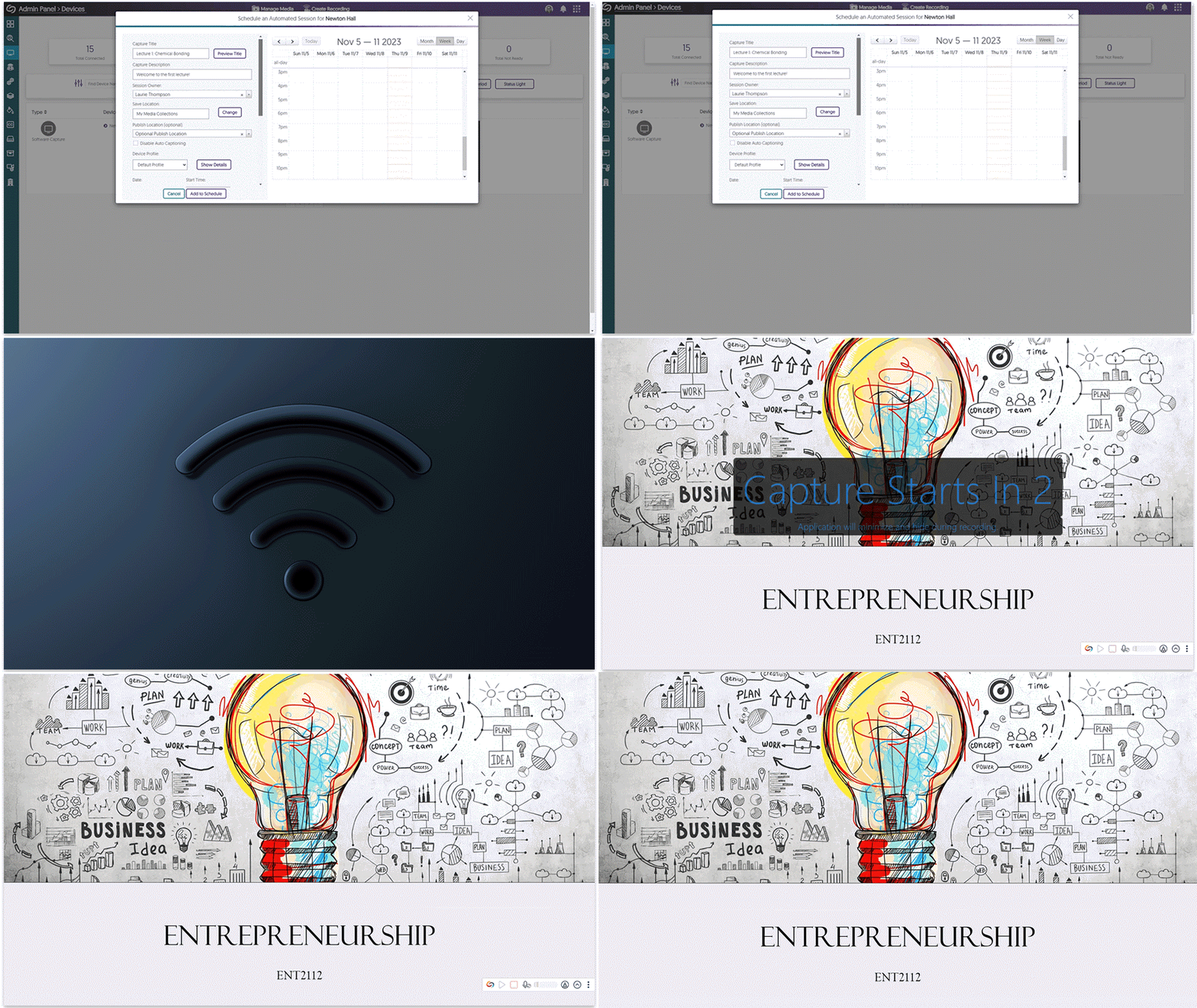
    6. Offline Support for Pre-Scheduled Recordings If the Hardware Hub is offline, pre-scheduled recordings will proceed as planned, ensuring timely and consistent capture. Once the Hub reconnects to the network, recordings are automatically uploaded to the Video Platform. Hardware Hub device featuring and arrow pointing towards the Video Platform.
    7. Expanded Support for Multi-Source Setup Previously limited to two USB or NDI cameras, we are pleased to announce the Hardware Hub now supports 4-5 USB or NDI cameras simultaneously. This expansion extends further by providing up to three media device inputs to our newest Hardware Hub devices, granting the flexibility to create engaging content with a wider range of sources.
    8. Support for Embedding DVI-D Audio Imports While the Hardware Hub has always supported video recordings through DVI-D connectors, we now offer seamless audio embedding for devices that support audio transport using HDMI over DVI-D. This enhancement ensures a comprehensive recording experience, allowing captures for both high-quality visuals and synchronized audio. Embed Audioshadow
  • August 3, 2023

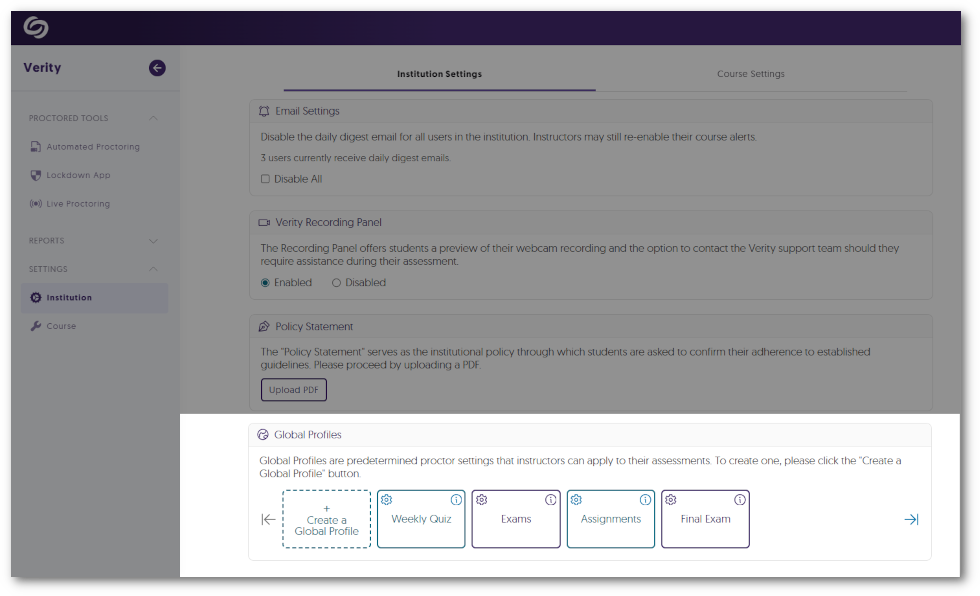
    YuJa Verity Test Proctoring Platform – Minor Update Released to US, CAN, AUS, and EU Zones

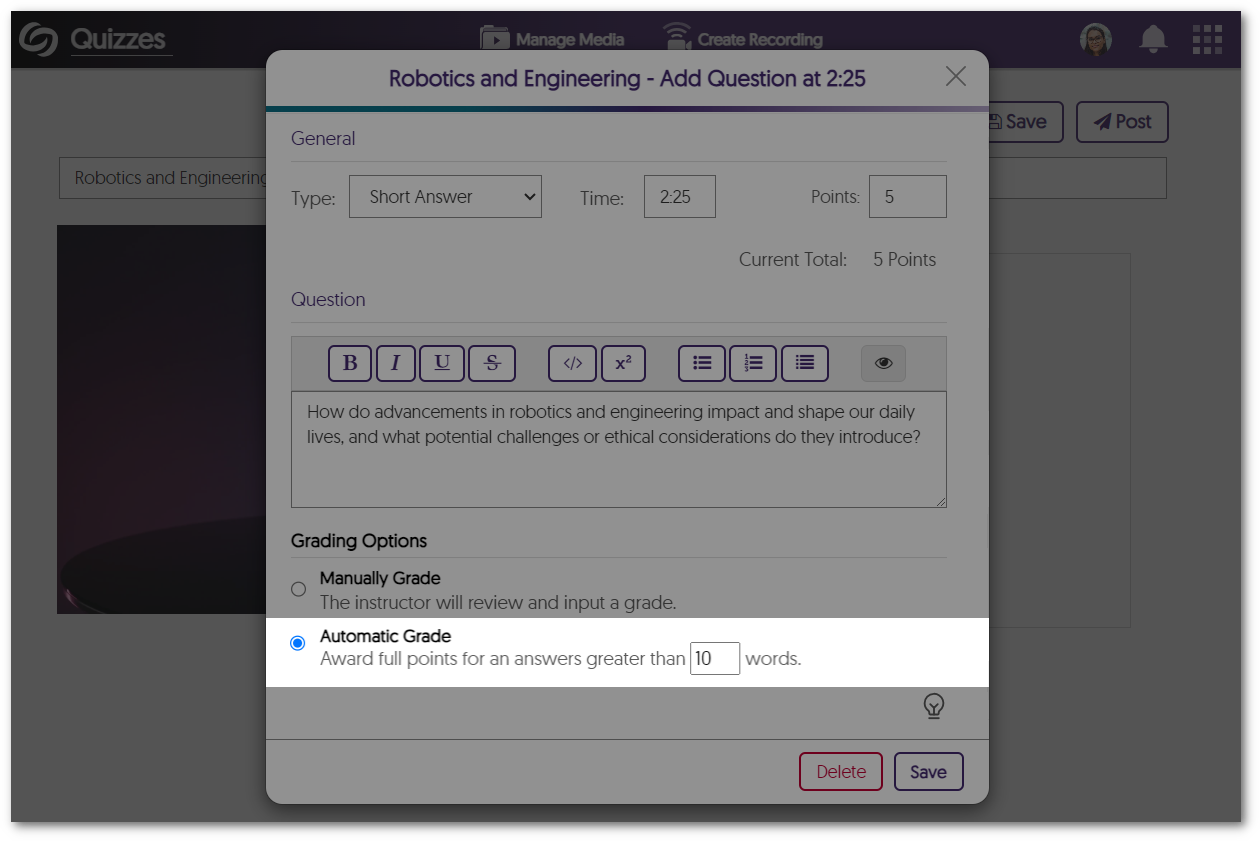
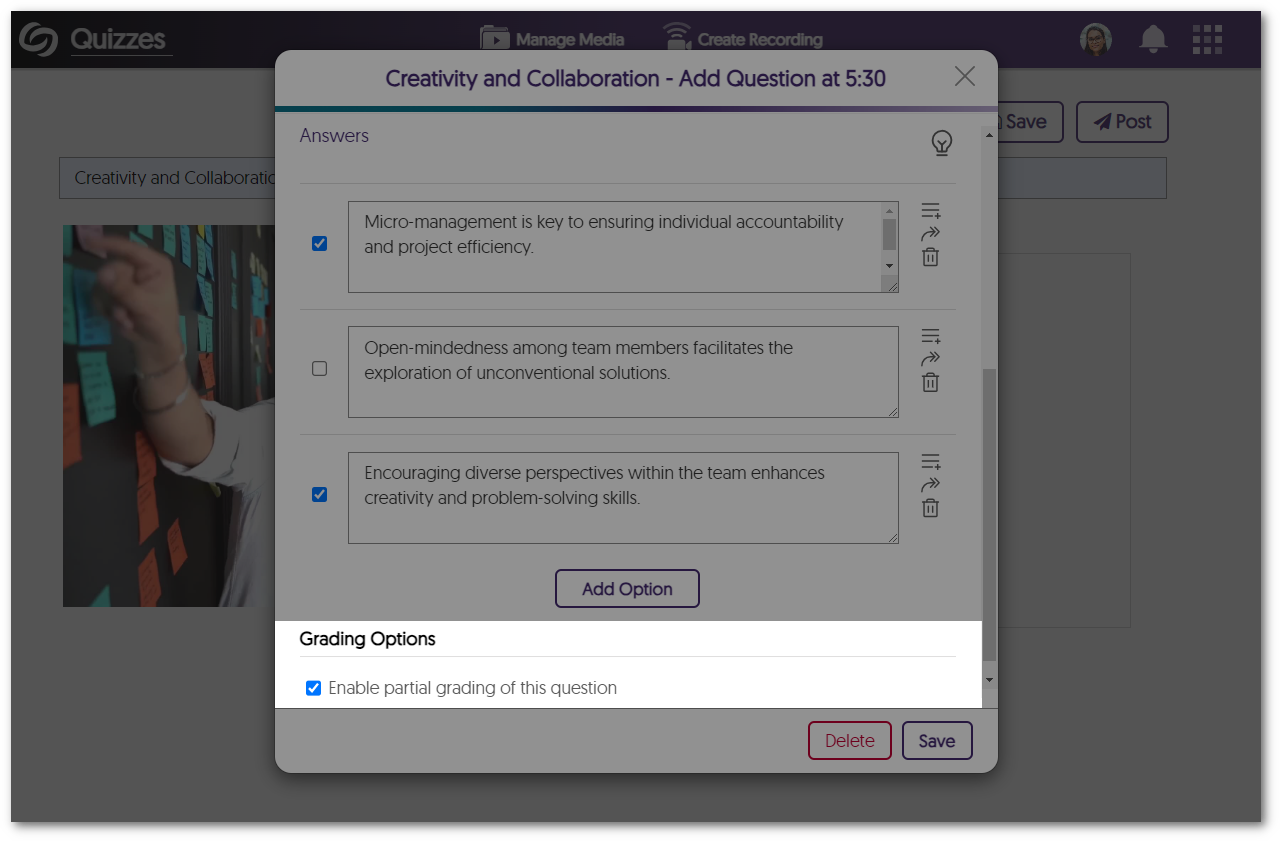
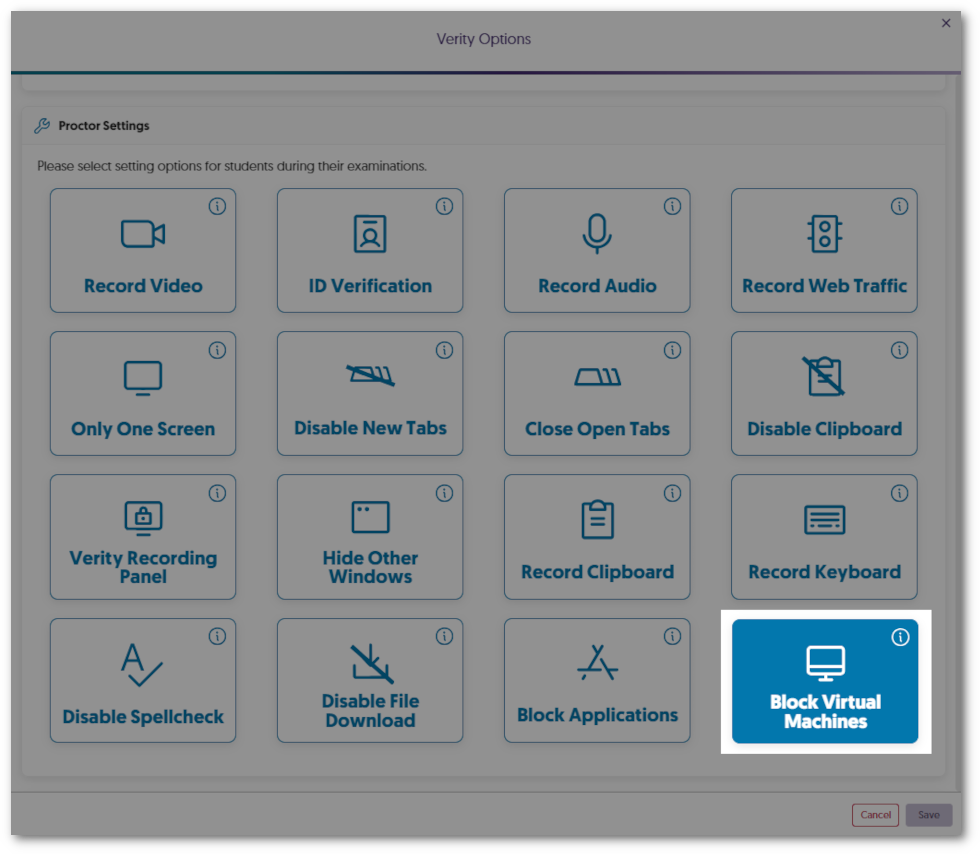
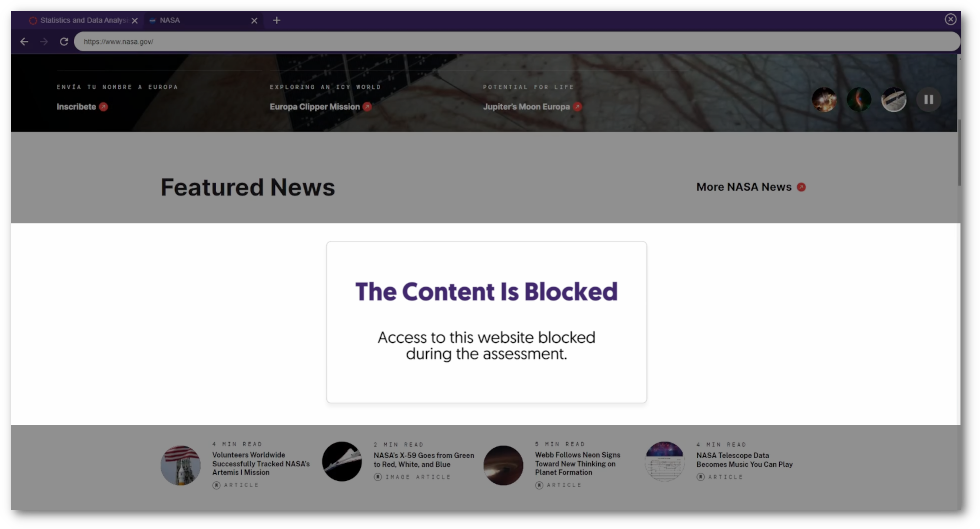
    We have successfully pushed a minor update to all instances residing in the United States, Canada, Australia, and the European Union. This update focuses on enhancing the user experience for the Verity Lockdown App and includes a modal to launch the app from any LMS, a new welcome page, and a comprehensive system check to ensure all requirements are met.
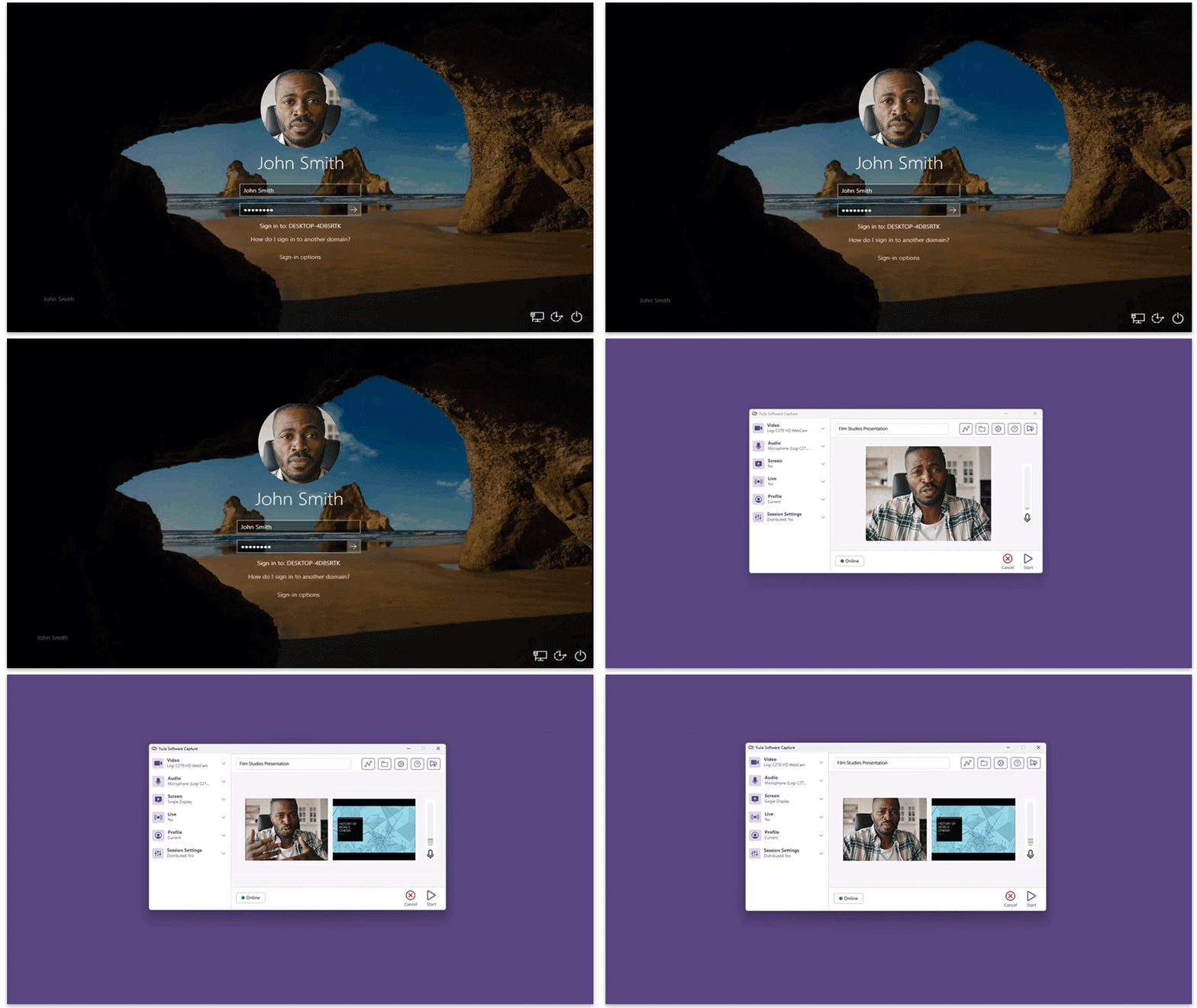
    1. Launch Lockdown App Assessments Directly from the LMS In response to providing students with seamless access to the Lockdown App, we have implemented an automatic launch feature. Now, when students click to begin their assessments within their Learning Management System, the Lockdown App will launch, if installed, granting them access to their assessments.
    2. First-Time Steps to Access Lockdown App Assessments For students attempting to access a Lockdown assessment for the first time, we have introduced a new, user-friendly two-step process. This process ensures quick access to the app by guiding them through a seamless download and launch experience that will give them direct access to their assessment.
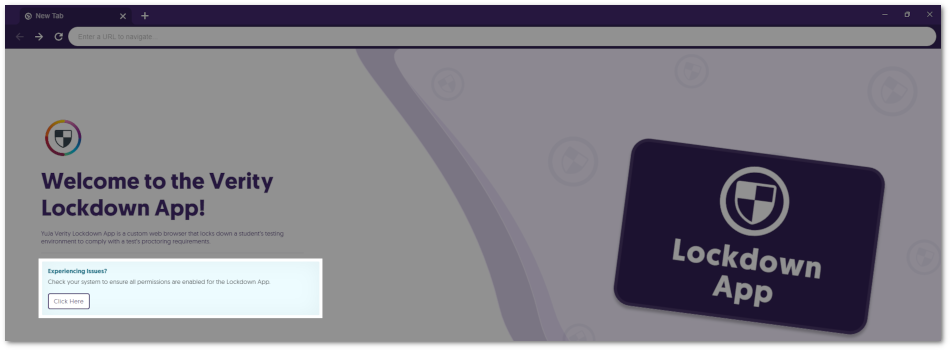
    3. New Welcome Page for the Lockdown App In the event that the Lockdown App is unable to launch an active assessment, we have implemented helpful instructions in our new welcome page directing students to navigate to their Learning Management System and launch the assessment. The home page for the Verity Lockdown App.
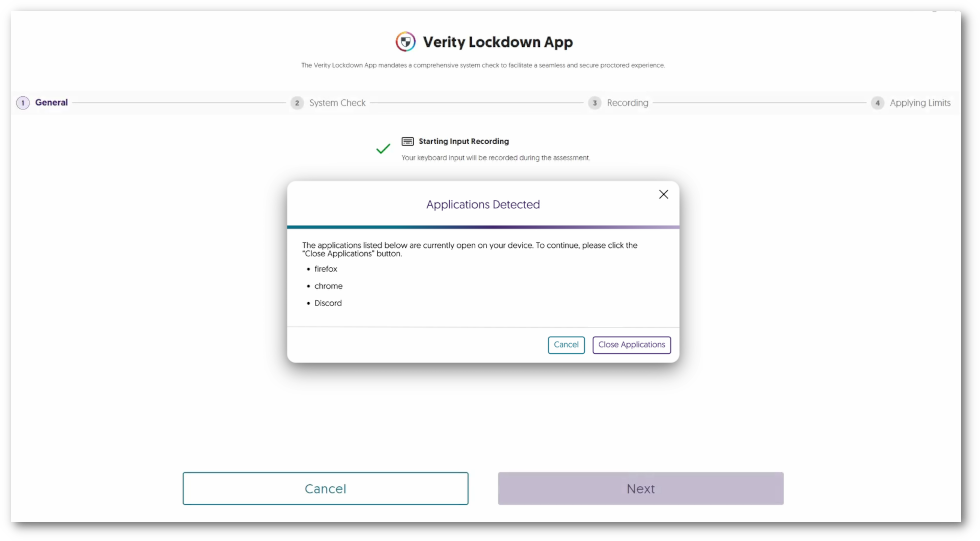
    4. Detect System Requirements for the Lockdown App In certain situations, the Lockdown App might encounter permissions that need attention before launching an assessment. To address this, we have introduced a comprehensive system check that can be accessed when the Lockdown app is launched. This check will inform students of any unresolved issues that need to be addressed, ensuring that all necessary permissions are met before the assessment can begin. Experiencing issues text with a button to Click Here to check system compatibility.
  • July 31, 2023

    Software Capture for PC – Update v12.2.0.0 – Eclair Released to CAN, AU, and EU Zones

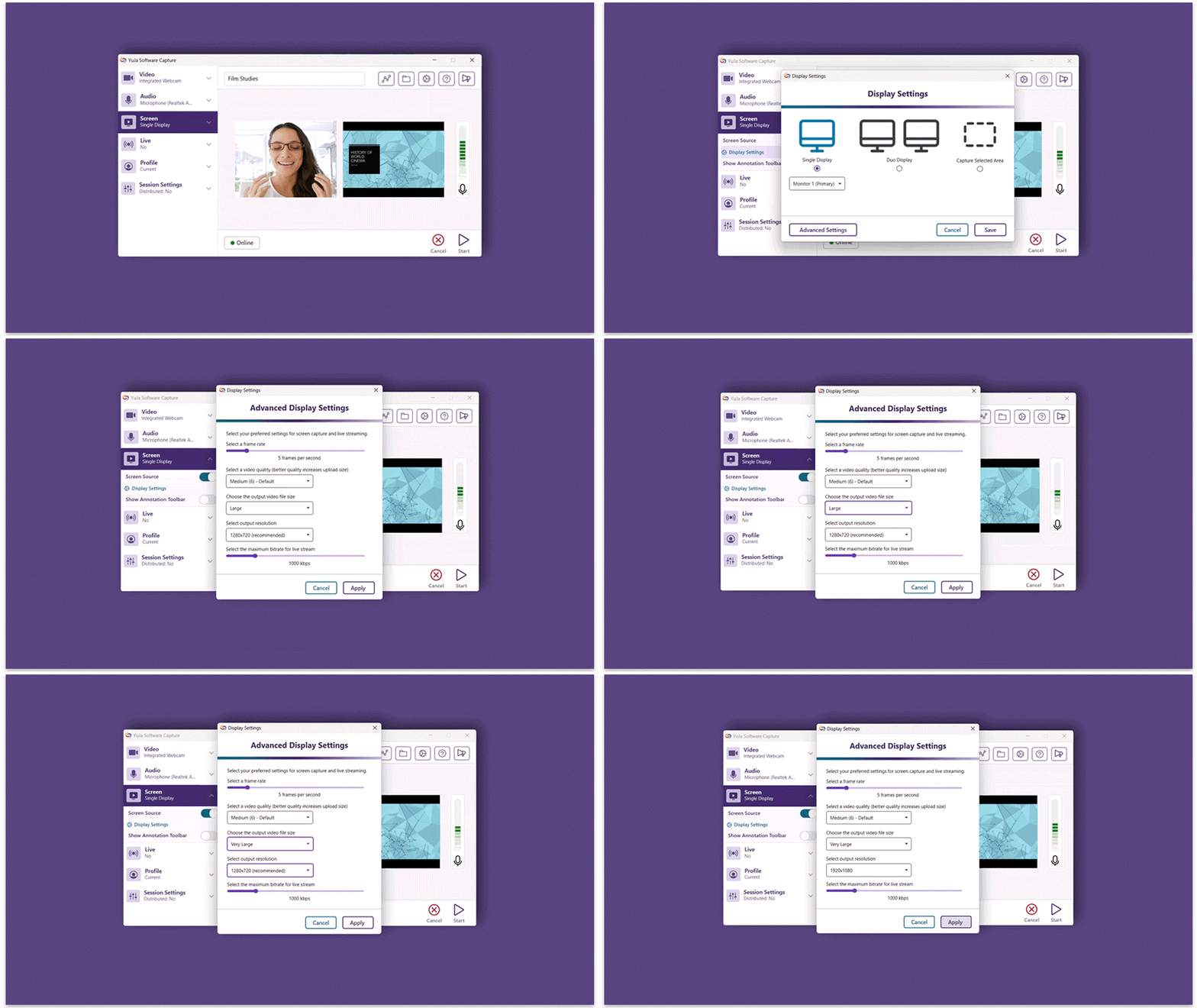
    We have successfully pushed an update to all Software Capture for PC instances residing in the Canada, Australia, and the European Union. This update includes our new feature to distribute recordings with multi-application hosting/join capabilities, auto-detection of repeatedly disconnected devices, a new screen capture engine for dual-display adapters, automatic notifications to switch to software encoding, improved detection of Windows display adjustments during recordings, and improved labeling for Shared Profiles in the Confidence Monitor. This update will be released to US zones next Monday.
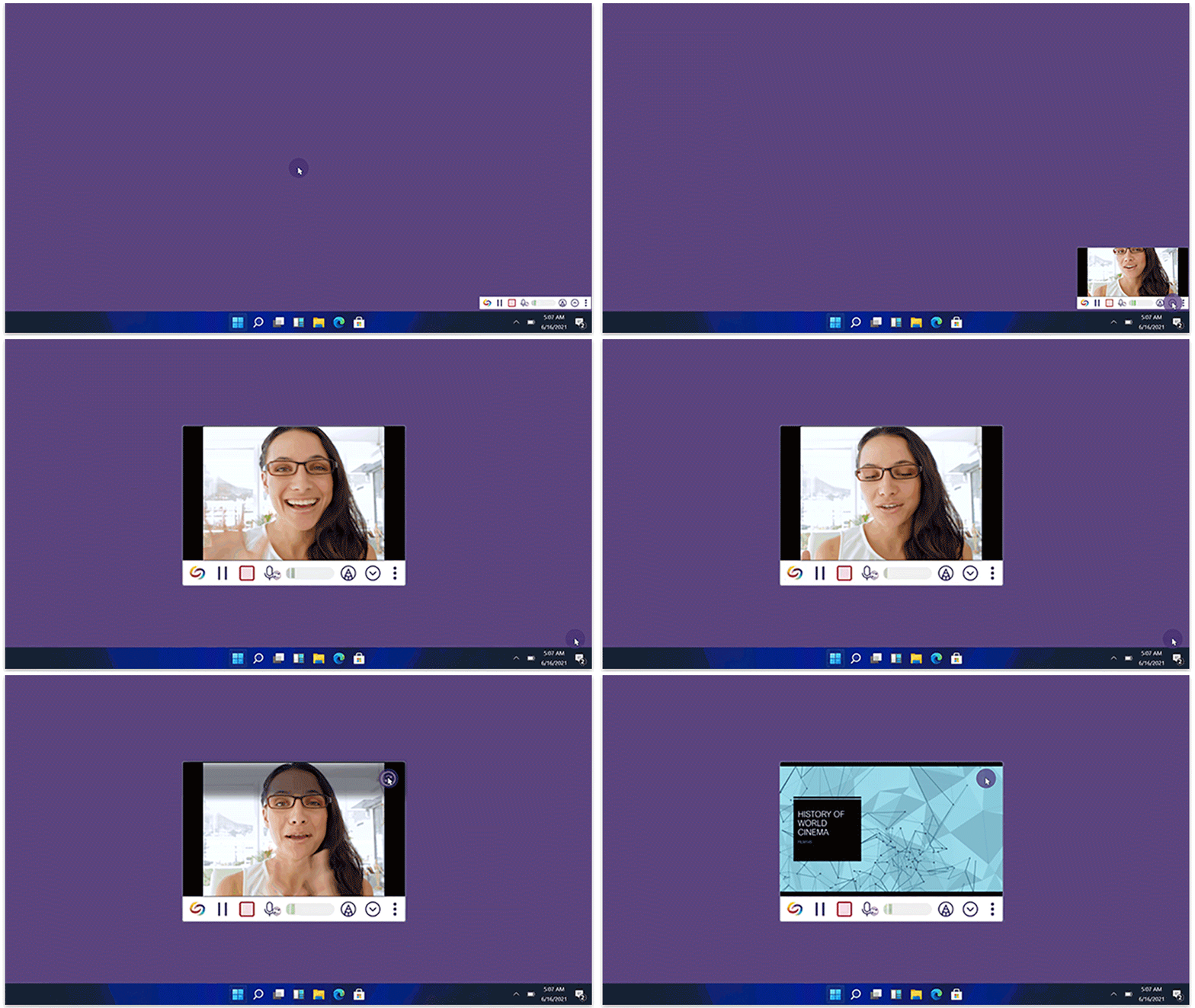
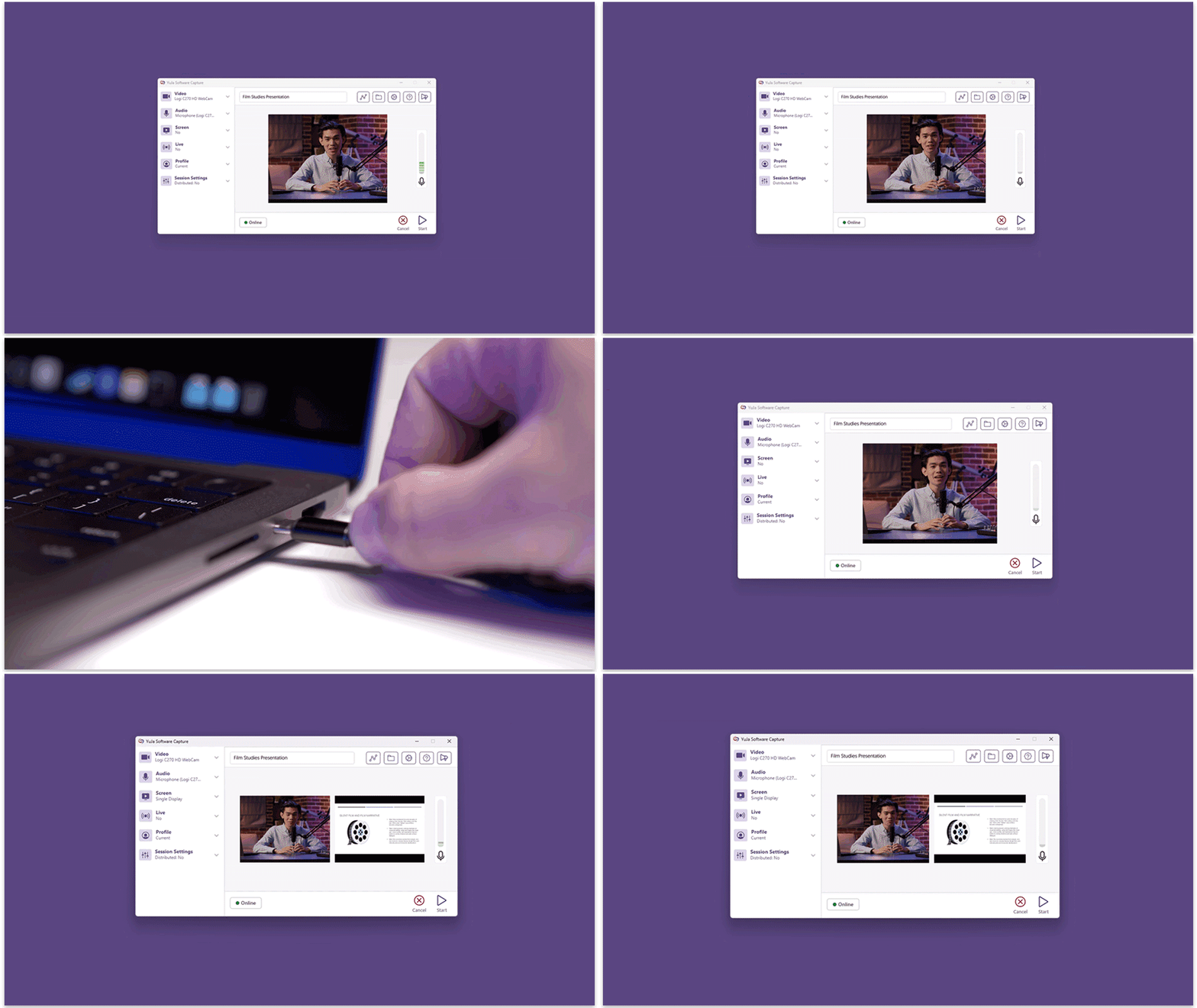
    1. Distributed Recordings with Multi-Application Hosting / Join Capabilities The Software Capture application introduces a new feature called Distributed Recording to capture recordings across two independently operating Software Capture applications. Use cases for this include one Software Capture application capturing the podium computer in the front of the classroom while another application captures the A/V feeds in the rear of the classroom. With distributed recordings, users can effortlessly host or join sessions to create dynamic streams using two independently running Software Capture applications. Whether it’s multiple screen capture sources, video feeds, or audio inputs, recordings are seamlessly joined in the cloud for a rich, multi-stream experience. To learn how to use this feature, please visit our guide on How to Use Distributed Recordings for the Software Capture Application for PC. Distribute Session Options to join or host session.
    2. “Fuzzy Profiles”: Detection of Repeatedly Disconnected Devices Across Underlying System Device ID Reassignment When devices linked to Profiles are disconnected or updated repeatedly, the Software Capture application could encounter retrieval issues leading to a profile invalidation error. While technically accurate, it would be ideal if the profile could self-heal and use the re-connected devices for recording, even if the underlying system Device ID has changed. To improve this, we have implemented an update to enhance profile validity by implementing additional device ID identification methods. These methods ensure seamless device retrieval by updating their unique IDs to the Software Capture application and ensuring the integrity of the Profiles.
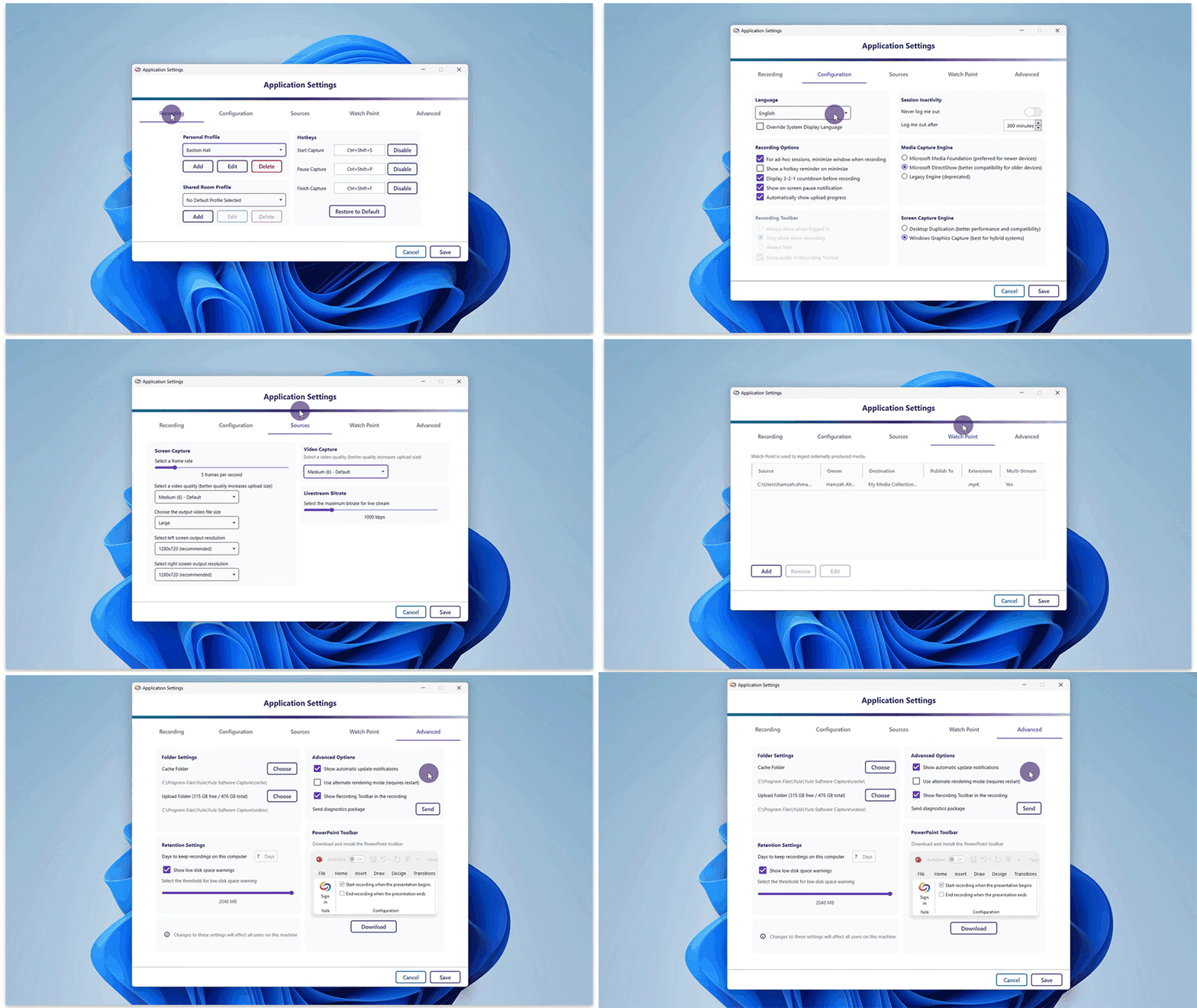
    3. New Screen Capture Engine for Dual-Display Adapters Some devices contain dual graphic adapters to increase their performance under heavy use. To ensure the Software Capture application maintains accurate screen recordings, we’re introducing our new Windows Graphic Capture engine to ensure the correct adapter is always used. Screen Capture Engine options in Configuration settings.
    4. Automatic Notification to Switch to Software Encoding for Computers Maintaining High-End Framerates By default, the Software Capture application utilizes hardware encoding for both screen and video captures. However, for devices that might face difficulties in maintaining high-end framerates and video quality, the application automatically detects this issue and will recommend switching to Software Encoding.
    5. Improved Labeling for Shared Profiles in the Confidence Monitor In identifying the need for users to distinguish between identically named regular and shared profiles in the Confidence Monitor, we’ve implemented a minor update to recognize shared profiles. Simply look for the label “(shared)” next to all shared profiles to ensure the correct selection is made. Profile options in the Confidence Monitor showcasing identical profile names.
    6. Improved Detection of Windows Display Adjustments During Recordings The Software Capture application now detects adjustments to Windows Display settings. When settings such as resolution or extending the display are modified, the Software Capture application will automatically recognize these adjustments and restart the screen recording process to reflect the new settings.

Join the 1,000+ Organizations Deploying High-Impact Solutions

A collection of logos representing various organizations and institutions that use YuJa’s platform.